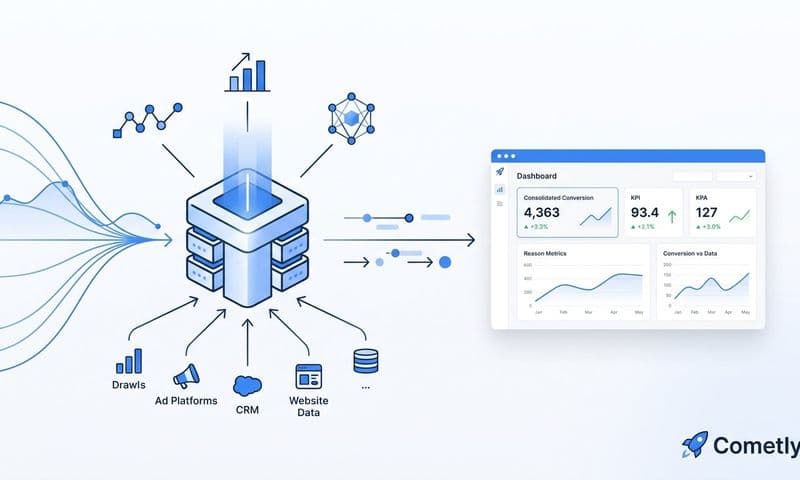
This complete Google Tag Manager tutorial is your roadmap from initial setup to advanced tracking. We're going to turn that scattered mess of data into clear, actionable insights that actually grow your business.
Think of GTM as the central nervous system for all your marketing and analytics scripts. It gives you full control, without having to ping a developer for every little change.
Why GTM Is Your Marketing Superpower
 A Practical Google Tag Manager Tutorial for Marketers
Before we get into the nuts and bolts, let’s talk about why Google Tag Manager is such a game-changer for modern marketing. At its heart, GTM is a tag management system that acts as a middleman between your website and third-party tools like Google Analytics, Meta, or Cometly.
Instead of hard-coding dozens of different code snippets directly into your site, you just install a single GTM snippet. That's it.
From that point on, you manage all your other scripts—which we call "tags"—from inside the GTM interface. This is a fundamental shift. It means marketers can deploy new tracking pixels, update analytics events, and launch campaigns faster than ever, often without writing a single line of code.
The Power of Centralized Control
Imagine the old way: hunting through theme files and page templates just to find and update a single tracking script. It’s a messy, time-consuming process that’s prone to breaking things.
GTM solves this by creating one organized hub for all your tags. This centralized approach comes with some huge advantages:
- Agility and Speed: Need to add a new ad pixel? It can take minutes, not days waiting on a developer.
- Fewer Errors: Managing tags in one place drastically reduces the risk of human error, like accidentally deleting a critical script from your site’s header.
- Better Site Performance: GTM loads tags asynchronously. In plain English, that means your tracking scripts won't slow down the important stuff—your actual page content—from loading for visitors.
GTM isn't just another tool; it's an operational shift. It empowers marketing teams to own their data implementation, creating a culture of rapid testing and data-driven decisions.
The adoption numbers really speak for themselves. GTM powers 48.1% of all websites globally as of early 2025, with over 39 million live sites using it to manage their tags. That kind of market dominance, highlighted in Embryo's research, makes GTM a non-negotiable skill for any serious marketer.
By mastering GTM, you're not just learning a platform—you're building the foundation to transform raw numbers into actionable data for a more accurate, efficient, and powerful marketing operation.
Setting Up Your GTM Account and Container
Alright, let's get our hands dirty. Your entire tag management setup starts with a Google Tag Manager account and your first container. Think of the account as your company's main folder, and the container as the digital toolbox inside it where you'll keep all your tracking scripts organized and ready to go.
Getting this part done is pretty straightforward. You'll just head over to the official GTM site and sign up with your Google account. The whole structure is built on a simple hierarchy: Account > Container.
An Account almost always represents your entire company or a specific client. Under that account, you'll create one or more Containers, with each one holding the tags, triggers, and variables for a single website, mobile app, or server.
Creating Your First Container
During the setup process, GTM will walk you through creating your first container. You’ll give it a clear, descriptive name (your website's domain is a good choice) and then pick the platform it's for.
You’ll see a few options:
- Web: This is the one you’ll use for tracking on standard websites.
- iOS/Android: For tracking inside mobile apps.
- Server: This is for a more advanced setup called server-side tagging.
For this guide, we're sticking with the Web container. It’s the most common starting point for virtually everyone.
After logging in, this is the main dashboard you'll land on, ready for you to create your account and container.
This clean slate is where you'll start building a powerful, organized tracking system from the ground up.
Installing the GTM Snippets on Your Website
Once your container is created, GTM will immediately give you two crucial code snippets. These little pieces of code are the bridge connecting your website to your GTM workspace, and putting them in the right place is non-negotiable for anything else to work.
This is often the one and only time you might need to loop in a developer. You’ll need to get these two snippets placed directly into your website’s HTML.
- The
<head>Snippet: This block of JavaScript needs to be placed as high up in the<head>section of your website's code as possible. Getting it high up in the code ensures GTM loads fast, so your tags can fire right away and capture data without missing a beat. - The
<body>Snippet: Thisnoscriptcode is your fallback plan. It needs to go right after the opening<body>tag on every page. It’s there to provide some basic tracking for the tiny fraction of users who have JavaScript turned off in their browsers.
Pro Tip: While you can definitely add these snippets to your site’s code manually, most modern website platforms have plugins or integrations that make it way easier. For example, WordPress users swear by the "GTM4WP" plugin, which not only handles the installation but can also push extra e-commerce and user data into GTM for you.
If you're running an e-commerce store on a platform like Shopify or WooCommerce, things can get a little more specific. To make sure you're capturing all the critical product and transaction data correctly on WooCommerce, you'll want to follow a more tailored approach. We've got you covered with our complete guide to setting up Google Tag Manager for WooCommerce.
After the snippets are on your site, the next step is the most important one: verification. Never just assume the code is working. Use GTM’s built-in Preview mode to confirm that your container is loading properly on your site. This simple check will save you countless headaches down the road and give you the confidence to start building out your tags.
Alright, let's get into the engine room of Google Tag Manager. If you really want to get good at GTM, you need to master three core concepts that work together to make everything happen: Tags, Triggers, and Variables.
Think of it like giving a simple command.
A Tag is the what. It’s the snippet of code you want to fire. This could be a Google Analytics 4 event, a Meta Pixel conversion, or even a script from a heatmap tool like Hotjar.
A Trigger is the when. It’s the specific condition that tells your tag to execute. This could be when someone lands on your pricing page, clicks a "Sign Up" button, submits a form, or even just scrolls 75% of the way down a blog post.
And a Variable is the details. It’s a placeholder for a specific piece of information—often dynamic—that your tags or triggers need to function. This could be the price of a product, the URL of a specific page, or the text on the button a user just clicked.
How GTM's Core Components Work Together
These three pieces are always connected. A tag is useless without a trigger telling it when to fire. Triggers, in turn, often rely on variables to know if their conditions are actually met.
Let’s say you have a GA4 Event Tag (the what) that you want to fire only when someone clicks your "Request a Demo" button (the when). To make that happen, you'd likely use a built-in variable like "Click Text" to specify that the trigger should only activate if the clicked text is exactly "Request a Demo" (the details).
This visual breaks down the initial setup, from creating your account all the way to getting the code on your site.
 A Practical Google Tag Manager Tutorial for Marketers
This foundational process is what allows you to build out your system of tags, triggers, and variables to start tracking what users are actually doing.
To make this crystal clear, here’s a quick-reference table breaking down how each component works with a real-world example.
GTM Components Explained With Examples
Component | What It Does | Practical Example |
|---|---|---|
Tag | The piece of code that executes a specific action, such as sending data to an analytics or advertising platform. | A Meta Pixel Tag that sends a “Lead” event to Facebook Ads when a user submits a contact form. |
Trigger | The rule that determines when a Tag should fire based on a user action or a specific condition being met. | A Page View Trigger that fires only on the |
Variable | A placeholder that stores information, either static or dynamic, that can be used by Tags and Triggers. | A Data Layer Variable named |
This table shows just how interconnected these pieces are. You use variables to refine your triggers, and triggers to control your tags.
By separating the what from the when, GTM gives you incredible control. You can easily adjust a trigger to fire a tag on only a subset of pages without ever touching the tag itself.
Let's Build Your First Tag: A Practical Walkthrough
Theory is great, but let's build something. We’ll start with the most basic tracking task: firing a Google Analytics 4 tag on every single page of a website.
Here’s how the components come together:
- The Tag (The 'What'): We need a tag that sends page view data to GA4. In GTM, this is the "Google Tag". You'll create a new tag, choose "Google Tag" as the type, and drop your GA4 Measurement ID into the "Tag ID" field. This tells GTM exactly where to send the data.
- The Trigger (The 'When'): We want this tag to fire on every page. Fortunately, GTM has a built-in trigger perfect for this called "Initialization - All Pages". You'll select this trigger and link it to your Google Tag. Now, GTM knows to fire the tag as soon as a page begins to load.
- The Variable (The 'Details'): For this simple setup, you don't even need to configure a custom variable. The Google Tag automatically pulls in built-in variables like "Page URL" and "Page Path" to send the correct page info over to GA4.
With just those three pieces, you’ve essentially rebuilt the standard GA4 tracking snippet, but now it’s inside GTM, ready for you to add more sophisticated tracking on top of it.
What Is The Data Layer? Meet The Messenger
So, how does GTM grab dynamic information from your website, like a product name, a user ID, or an order total? This is where the dataLayer comes in.
The dataLayer is just a JavaScript object that acts as a message bus between your website and Google Tag Manager. Your developer can "push" important information into the dataLayer whenever something happens on the site. GTM is always listening, ready to grab that data, populate variables, and fire off triggers.
For example, when a customer adds an item to their cart on an e-commerce site, your developer might add code that pushes data like this:
window.dataLayer = window.dataLayer || [];
window.dataLayer.push({
'event': 'add_to_cart',
'ecommerce': {
'currency': 'USD',
'value': 24.99,
'items': [{
'item_id': 'SKU12345',
'item_name': 'Classic White T-Shirt',
'price': 24.99,
'quantity': 1
}]
}
});
When this code runs, GTM sees the "add_to_cart" event. From there, you can create a "Custom Event" trigger that listens specifically for add_to_cart.
Even better, you can create "Data Layer Variables" in GTM to capture the item_name and price. This lets you send rich, meaningful data along with your analytics tags. This is how you move beyond tracking simple page views to measuring actions that actually drive your business forward.
Implementing GA4 and Crucial Conversion Tracking
Alright, with your container installed and a solid handle on tags, triggers, and variables, it’s time for the fun part: tracking results. This is where the theory behind GTM turns into real, tangible value for your business. We’re going to focus on getting Google Analytics 4 up and running, and then we'll dive into tracking the conversions that actually drive growth.
Your first, non-negotiable step is to get your website talking to your GA4 property through GTM. Thankfully, there’s a special tag built just for this.
Setting Up the GA4 Configuration Tag
Think of the Google Tag (what used to be called the GA4 Configuration Tag) as the foundation for all your Google Analytics tracking. This one tag does a few critical jobs: it sends the initial page view data, sets the necessary cookies, and, most importantly, opens up the data stream. This tells all your future GA4 Event Tags exactly where to send their information.
Setting it up is simple, but it has to be done right. You'll create a new "Google Tag" inside GTM and drop your GA4 Measurement ID into the "Tag ID" field. This ID looks like G-XXXXXXXXXX and acts as the unique address for your GA4 property.
Once the tag has your Measurement ID, you need to tell it when to fire. Since you want it on every single page of your site, you’ll attach the built-in “Initialization - All Pages” trigger. This ensures your base GA4 tracking is active the second a visitor lands on your site.
A clean GTM container is a happy GTM container. I can't stress this enough: adopt a clear naming convention from day one. I like to use something like GA4 - Google Tag - Page View so I can instantly see the platform, tag type, and purpose.
Once this tag is live, you're officially collecting page view data in GA4. Now we can get into tracking the high-value actions that matter most.
Tracking a SaaS Lead Form Submission
For any SaaS business, a lead form submission is a make-or-break conversion. Let's walk through how to track a "Request a Demo" form submission as a generate_lead event in GA4.
First, you need a trigger that fires only when that specific form is submitted. GTM's built-in "Form Submission" trigger is your best friend here. After you enable the built-in "Form ID" variable, you can set this trigger to fire only when the ID of the submitted form matches your demo request form. No more tracking every single form on your site by accident.
With the trigger ready, you'll create a new GA4 Event Tag.
- Tag Type: Select "GA4 Event".
- Configuration Tag: Choose the main "Google Tag" you just created. This is what links the event to your GA4 property.
- Event Name: Use
generate_lead. Sticking to Google's recommended event names is a good practice that can unlock extra reporting features down the line. - Triggering: Attach the specific "Form Submission" trigger you just built for the demo form.
And that’s it. Now, whenever a user submits that demo form, GTM fires the tag, sending a generate_lead event straight to GA4. You’ve just tracked a crucial conversion without bugging a developer to touch the website's code.
Tracking an E-commerce Purchase
For e-commerce stores, the purchase event is the holy grail. This setup is a bit more advanced because you need to capture dynamic data—think transaction ID, revenue, items purchased, and currency. This is where the dataLayer becomes absolutely essential.
Your e-commerce platform, whether it’s Shopify or WooCommerce, needs to be set up to push all the purchase details into the dataLayer on the order confirmation or "thank you" page. Once that data is available, you can build the pieces in GTM to grab it.
- Trigger: You’ll need a "Custom Event" trigger that listens for the specific event name your platform pushes. Most of the time, this is simply
purchase. - Variables: For every piece of dynamic data you want to capture (like
transaction_id,value,currency), you need to create a "Data Layer Variable" in GTM. You'll configure each one to pull the right value from the dataLayer structure. - Tag: Finally, create a new GA4 Event Tag. Set the Event Name to
purchase. In the "Event Parameters" section, you’ll map the standard GA4 parameter names to the Data Layer Variables you created. For example, thetransaction_idparameter will pull its value from yourdlv - transaction_idvariable.
This ensures that every time a purchase happens, a rich event packed with all that critical transaction data flows directly into your GA4 reports. If you're on Shopify, getting the dataLayer configured correctly is the most important part; our detailed guide on how to setup GA4 for Shopify gives you a full, step-by-step walkthrough.
Getting GA4 and conversion tracking dialed in with GTM is fundamental. It's the only way to gather the clean data you need to understand user behavior and apply proven strategies to improve website conversion rate. When you can accurately measure what’s working, you can make informed decisions that actually boost your bottom line.
Using Preview Mode to Debug Your Setup
 A Practical Google Tag Manager Tutorial for Marketers
Never, ever publish your changes blindly. If there's one tool that separates GTM amateurs from the pros, it’s Preview Mode. Think of it as your interactive sandbox—a safe space where you can see exactly how your tags, triggers, and variables behave in a live browser session before any of your users do.
Getting started is simple. Just hit the "Preview" button in the top right of your GTM workspace. A new tab will pop up asking for your website's URL. Once you connect, your site will load in a new window with the Tag Assistant debug panel docked at the bottom or open in a separate tab. This is your command center.
This interface gives you a direct, real-time window into your container's operations, showing you every event as it happens on the page.
Interpreting the Debug Panel
This is where the magic happens. On the left, you'll see a running timeline of every event that occurs—from "Container Loaded" to clicks and form submissions. When you click on any event in this timeline, the main panel shows you precisely which tags fired and, just as importantly, which ones didn't.
- Tags Fired: This is a list of every tag that was successfully triggered by the selected event. Success!
- Tags Not Fired: This is your troubleshooting goldmine. It shows you which tags were evaluated but failed to meet their trigger conditions. Clicking on a tag here reveals exactly which condition failed, taking all the guesswork out of the equation.
This granular view is your first line of defense against tracking errors. For a deeper dive into quality assurance, understanding broader principles like software test automation can provide valuable context for building reliable systems.
Pro Tip: Make the "Variables" and "Data Layer" tabs your best friends. Use them to inspect the exact values being passed at each event. If a variable shows up as 'undefined,' this is where you'll catch it and figure out why.
Common Problems Preview Mode Uncovers
Once you get the hang of Preview Mode, you'll be able to spot and fix the most common GTM issues before they ever mess with your data. It’s the key to maintaining data integrity.
A classic issue is a trigger that refuses to fire. By checking the "Tags Not Fired" list, you might find a simple mismatch—like your trigger condition looking for the text "Submit" when the button actually says "Submit Now." Easy fix.
Another common headache is a tag firing twice. Preview Mode will show this clearly, often revealing that the tag is attached to two different triggers that are both being met by the same user action.
For more complex problems, like figuring out why certain user actions aren't being captured correctly, you might need to dig a bit deeper. Our guide on how to troubleshoot failed user registrations in Google Analytics offers advanced techniques that build on the insights you gain from Preview Mode.
An Introduction to Server-Side Tagging
If you're in marketing or analytics, you know the ground is shifting under our feet. With user privacy becoming a massive priority, the old way of tracking—relying only on client-side scripts—is quickly losing its punch. This is where server-side tagging with Google Tag Manager comes into play, not as a total replacement, but as a critical evolution for your entire data strategy.
Think of it as a fundamental change in how your tracking data gets from Point A to Point B.
Instead of your visitor's browser firing off data directly to a dozen different platforms like Google Analytics, Meta, and others, it sends just one, clean data stream to your own server-side GTM container. You control this container. From there, it's your server that forwards that first-party data to all the tools you've set up.
The Shift from Client to Server
The traditional client-side setup is like having every vendor's truck show up at your house one by one. It's chaotic, creates a ton of traffic (slowing down your site), and gives every single vendor a direct look at everything you're doing.
Server-side tagging is totally different. It’s like having all your packages delivered to a central mailroom first. You get one organized delivery, and then your team sorts everything and sends the right items to the right departments. Your server-side container is that mailroom—creating a more efficient, secure, and controlled environment. This is becoming absolutely essential as browsers like Safari and Firefox clamp down hard on third-party cookies and scripts.
Key Benefits of Server-Side Tagging
Moving to a server-side approach isn't just a technical upgrade; it delivers real advantages that directly boost your data accuracy and website performance. These aren't just "nice-to-haves"—they are necessary for future-proofing your entire marketing analytics stack.
- Improved Site Performance: When you cut down the number of heavy JavaScript files loading in the user's browser, your pages load faster. It's that simple. This creates a better user experience and can give your SEO rankings a nice little bump.
- Enhanced Data Security: You get complete control over what data you share with third-party vendors. You can scrub, validate, or even remove sensitive personally identifiable information (PII) before it ever leaves your own server environment.
- Greater Data Reliability: This is the big one. Server-side tagging helps you get around the worst impacts of ad blockers and browser tracking preventions (like ITP). Because the data is sent from your server, it's treated as first-party, leading to much longer cookie lifetimes and more accurate attribution.
By creating a first-party data context, server-side GTM extends the lifespan of cookies, often from just 24 hours to several months. This is a game-changer for accurately tracking longer customer journeys and attributing conversions that happen days or weeks after the initial click.
GTM's complete dominance makes this a skill you can't afford to ignore. Its market share is sitting at an untouchable 95% in tag management, with nearly 48.5 million live sites using it to navigate new privacy rules. To get a sense of where this is all heading, you can check out these insights on the future of tag management.
While setting up a server-side container does take more upfront work, the long-term payoff in data accuracy is huge. For any marketer who cares about precise attribution, digging into tools with powerful server-side tracking features is the next logical step toward building a truly resilient analytics framework.
Common Google Tag Manager Questions
As you get deeper into Google Tag Manager, you’re bound to hit a few roadblocks. It's a seriously powerful tool, but it has a lot of moving parts. Let’s tackle some of the most common questions marketers and analysts run into when they're getting their hands dirty.
Do I Need to Be a Developer to Use GTM?
Not at all, but knowing a few basics definitely helps. You can get a shocking amount of tracking done—from simple page views to tricky form submissions—just by using GTM’s built-in templates and user-friendly interface. The auto-event tracking features for clicks and forms alone give you incredible power without writing a single line of code.
That said, a little understanding of HTML, CSS, and especially JavaScript will open up a whole new world. It’s what lets you handle more advanced setups, like manipulating the dataLayer or writing custom scripts for very specific tracking scenarios.
Can GTM Slow Down My Website?
This is a huge concern for a lot of people, but GTM is actually designed to improve your site speed. It loads tags asynchronously, which is a fancy way of saying it stops tracking scripts from holding up your main page content while it loads. Instead of having ten different scripts loading one after another and creating a bottleneck, GTM manages them all in a much more efficient way.
Of course, a container stuffed with dozens of heavy, poorly-configured tags can still drag down performance. The secret is smart management. Only use the tags you absolutely need, and make a habit of auditing your container every so often to clean out anything you're no longer using.
Think of GTM like an organized shipping dock. A well-run dock gets trucks in and out fast. A chaotic one creates a massive traffic jam. The tool itself is efficient; any slowdown is usually caused by how you load it up.
What Is the Difference Between GTM and GA4?
This is probably the biggest point of confusion for anyone new to the game. They’re two completely separate tools that are designed to work together perfectly.
- Google Analytics 4 (GA4) is the destination. It’s the platform that collects, stores, and analyzes all your user data, then shows it to you in reports.
- Google Tag Manager (GTM) is the vehicle. It’s the tool you use to actually send data over to GA4 (and other platforms like Meta or TikTok).
You use GTM to deploy and manage your GA4 tracking on your website. GTM gives you fine-grained control over what data gets collected and when it gets sent, while GA4 is where you go to actually see and make sense of it all.
Ready to move beyond just collecting data and start using it to drive real revenue? Cometly is the marketing attribution platform that unifies every touchpoint, giving you a clear, accurate view of what’s actually working. With powerful server-side tracking and AI-driven insights, you can optimize ad spend and scale with confidence. See how Cometly can transform your marketing attribution.