
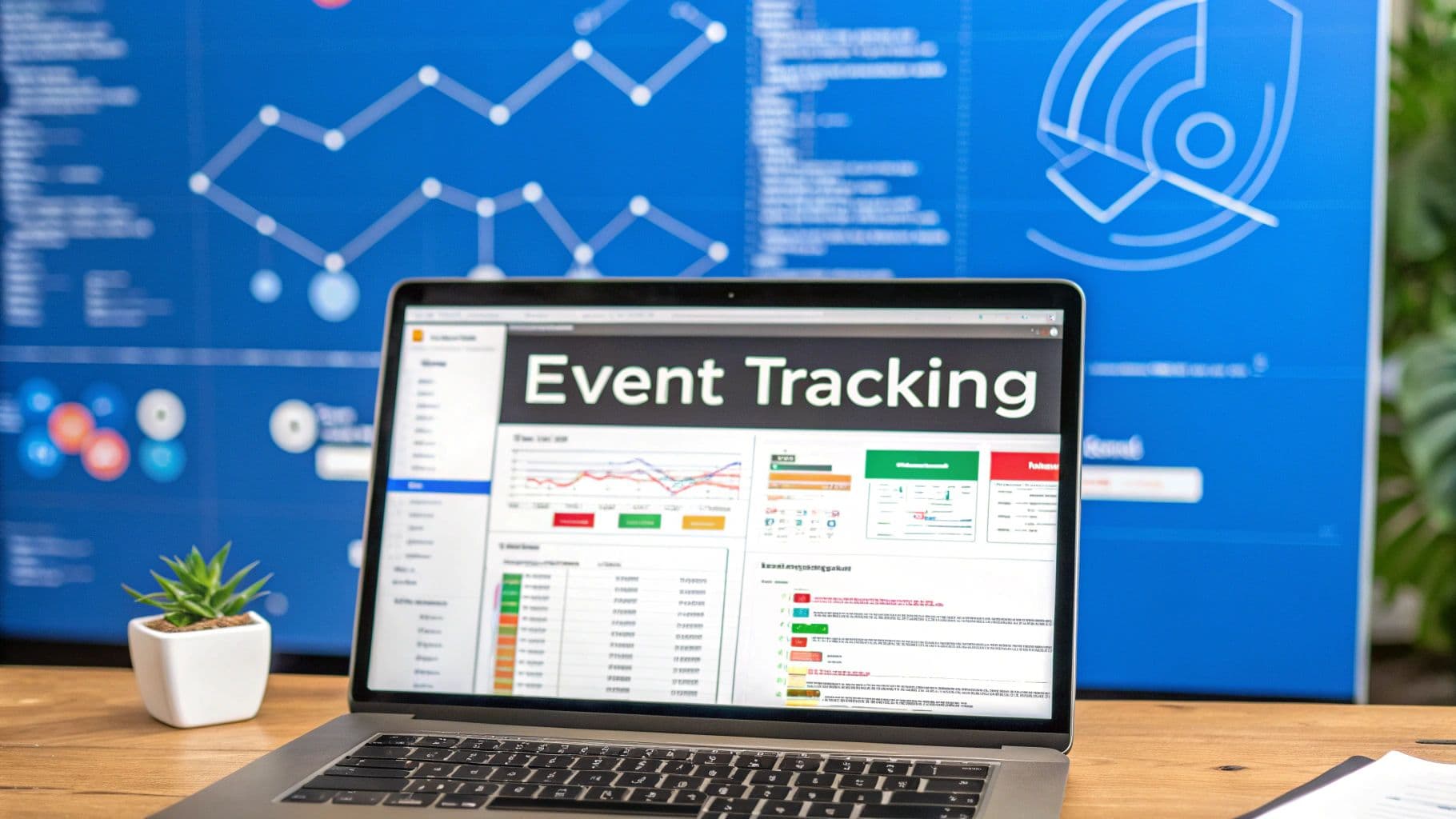
Event tracking in Google Analytics is all about recording the specific things users do on your site—actions that GA doesn't catch out of the box. Think button clicks, video plays, or form submissions. With GA4's shift to an event-based model, you get a much more granular, almost story-like view of the customer journey, which is exactly what you need to turn raw data into smart marketing decisions.
Why Event Tracking in Google Analytics Is a Game-Changer
 Mastering event tracking in google analytics: A practical guide
Let's be real: event tracking isn't just some technical busywork. It's the core of modern marketing intelligence. It’s the difference between knowing people visited your site and knowing exactly what they did when they got there.
Did they watch your demo video? Did they download that case study you spent weeks on? Which CTA did they click right before bouncing?
Pageviews alone just don't cut it anymore. They’re like knowing a customer walked into your store but having no idea which aisles they browsed or what items they picked up. Event tracking fills in those massive gaps, giving you a detailed narrative that should inform every single budget and strategy decision you make.
The Mandatory Shift to an Event-Based Model
When Google pulled the plug on Universal Analytics (UA) back in July 2023, it was a huge moment. It forced millions of websites to finally migrate to GA4’s event-based model. And the numbers show it. In the year after the UA sunset, GA4 event collections shot up by around 150%.
A big driver was GA4's ability to automatically capture key interactions like session_start and user_engagement right out of the box, no setup required.
This change officially made event tracking the new standard. The entire measurement framework now revolves around specific user actions, not just sessions and pageviews. It’s a far more flexible and user-centric way to look at engagement.
By tracking what users click, watch, and download, you build a story that goes beyond simple traffic metrics. This story is the foundation for genuine ROI, turning raw data into actual profit.
From Raw Data to Real Attribution
The precision you get from event tracking is what fuels advanced attribution platforms like Cometly. If your event data is messy or inaccurate, it's basically impossible to know which of your marketing channels are actually driving conversions.
Here’s why getting this right is so critical:
- Informed Budget Allocation: When you know that users who watch your product video are 50% more likely to convert, you can confidently pour more money into video marketing.
- Improved User Experience: Seeing where users drop off in a multi-step form lets you pinpoint the exact friction points and fix the UX to boost completion rates.
- Accurate Attribution: Platforms like Cometly depend on this clean event data to connect the dots between your ad spend and revenue, delivering attribution you can actually trust.
Ultimately, mastering event tracking is the first step toward turning your analytics from a passive reporting tool into an active driver of growth. Before we get into the "how," nailing down this "why" is crucial for unlocking the real power of your data. For more on this, check out our guide on turning data into actionable insights.
Designing an Event Taxonomy That Actually Works
Jumping straight into Google Tag Manager without a plan is a recipe for messy, unusable data. Before you touch a single tag or write a line of code, the most critical step is to design a thoughtful event taxonomy. Think of it as your blueprint for measurement—it ensures every piece of data you collect is clean, meaningful, and tied directly to your business goals.
A well-designed taxonomy turns a chaotic data puddle into a clean, insightful data lake. It creates a common language for your entire team and makes your analytics reports intuitive instead of confusing. Without it, you'll end up with redundant events, inconsistent naming, and a system that’s impossible to maintain.
Start with Your Business Objectives
Don't start by asking, "What can we track?" Instead, ask, "What actions on our website indicate a user is moving closer to becoming a customer?" The answer to this question forms the foundation of your entire event tracking plan.
For a SaaS company, key actions might include:
- Starting a trial: A user signs up for a free trial of your product.
- Requesting a demo: A potential lead fills out a form to see your software in action.
- Upgrading a plan: An existing customer moves to a higher-priced tier.
For an e-commerce brand, the focus would be different:
- Adding an item to the cart: A clear signal of purchase intent.
- Initiating checkout: The user has moved from browsing to buying.
- Applying a discount code: An interaction that affects average order value.
By mapping user actions back to business goals, you guarantee you're tracking what truly matters, not just creating noise.
Establishing Durable Naming Conventions
Consistency is everything. A chaotic naming system makes analysis a nightmare. Imagine seeing lead_submission, Lead Gen, and form_submit_lead all referring to the same action—it's impossible to aggregate that data reliably.
This is where establishing clear, simple rules becomes essential.
A great event name is an instant summary of the user's action. It should be intuitive enough that a new team member can understand it without needing a cheat sheet.
Here are some battle-tested naming conventions we live by:
- Use
snake_case: This format (e.g.,add_to_cart) is the standard recommended by Google and is way easier to read. - Be Action-Oriented: Start with a verb that describes the action, followed by the noun. For example,
generate_leadis much clearer thanlead_form. - Avoid Redundancy: Don't include terms like "click" or "button" in the event name. The action is the click. Instead of
cta_button_click, just userequest_demo.
Adopting these conventions from the start will save you countless hours of data cleanup down the road. For a deeper dive, our guide on using naming conventions for ad creative insights shares principles that apply here too.
Structuring Your Event Parameters
Event parameters add rich, contextual detail to your events. The event name tells you what happened; the parameters tell you the specifics. A file_download event is good, but knowing the file_name and file_type is what gives you actionable insight.
Think about the questions you'll want to answer later. If you're tracking a generate_lead event from a multi-step demo request form, you might want to include parameters like:
form_id: Identifies which form was submitted (e.g., 'demo_request_form_v2').form_step: Captures which step of the form the user completed (e.g., 'step_3_confirmation').lead_source: Tracks where the lead came from (e.g., 'organic_search' or 'paid_social').
Google Analytics 4 (GA4) blew the doors open on this. It categorized interactions into automatically collected, enhanced measurement, recommended, and custom events, allowing marketers to monitor up to 25 parameters per event.
By 2024, enhanced measurement events like scroll depth and outbound clicks were enabled on 85% of GA4 properties, driving a 62% increase in tracked user interactions per session compared to old Universal Analytics metrics. This granularity is what allows you to build a complete picture of user behavior.
Planning your taxonomy upfront isn't just a best practice; it's a strategic investment. It ensures every piece of data you collect serves a purpose, making your reports cleaner, your insights sharper, and your marketing decisions smarter.
Setting Up Events With Google Tag Manager
Once you've mapped out your event taxonomy, it's time to bring it to life. For that, we turn to Google Tag Manager (GTM), the industry-standard tool for deploying tracking scripts without having to touch your website's source code.
Think of GTM as the bridge between your website and Google Analytics. It’s a massive advantage because you no longer need to wait on developers for every little tracking update. Instead, you can create, test, and publish tracking tags right from the GTM interface. This puts you in the driver's seat, making your data collection efforts far more agile.
This workflow really drives home the point that successful event tracking starts long before you ever log into GTM.
 Mastering event tracking in google analytics: A practical guide
A solid plan is everything. Proper event tracking in google analytics is built on a foundation of good planning, not just quick implementation.
The Core of GTM: Tags and Triggers
At its heart, GTM works on a simple but powerful principle built on two components working in tandem.
- Tags: These are the bits of code that fire and send data somewhere else, like Google Analytics. For what we're doing, the main tag you'll be using is the "Google Analytics: GA4 Event" tag.
- Triggers: These are the rules that tell your tags when to fire. A trigger listens for a specific user interaction—like a button click, page view, or form submission—and then activates its assigned tag.
It’s like a light switch. The trigger is flipping the switch (the user's action), and the tag is the light turning on (the event data being sent to GA4). It's an elegant system that forms the foundation for all event tracking in GTM. For a deeper dive, check out our Google Tag Manager tutorial.
The real magic of GTM is how it translates raw user behavior into structured, meaningful data. A simple click becomes a
generate_leadevent, complete with parameters that add rich context about what’s actually happening on your site.
A Practical Example: Tracking PDF Downloads
Let's walk through a classic, real-world scenario: tracking when a user downloads a PDF, like a case study or a product one-sheeter. We'll set up a file_download event that also captures the name and type of the file.
First things first, we need a trigger that listens for clicks on links that point to a PDF. Thankfully, GTM has a built-in trigger type that makes this a breeze.
Building the Trigger
- In GTM, head to Triggers > New and select the Just Links trigger type.
- Configure it to fire on Some Link Clicks.
- Set the condition to Click URL ends with .pdf.
That's it. This simple rule tells GTM to pay attention to any click on a link where the URL ends in .pdf. You could easily expand this to include other file types like .docx or .zip by changing the match type to a regular expression.
Now that the trigger is ready, we can build the GA4 tag that will send the data.
Mastering event tracking in google analytics: A practical guide
The GTM interface gives you all the tools you need to create the tags, triggers, and variables that power your tracking setup.
Configuring the GA4 Event Tag
The next step is to create the GA4 event tag that our new trigger will activate.
- Go to Tags > New and choose the Google Analytics: GA4 Event tag type.
- Select your main GA4 Configuration Tag to ensure the event is sent to the right GA4 property.
- For the Event Name, we'll use
file_download, which lines up perfectly with Google's recommended event names.
Now for the best part—adding parameters to give our event some context. Under Event Parameters, add these rows:
Parameter Name | Value |
|---|---|
|
|
|
|
|
|
We're using built-in GTM variables like {{Click Text}} and {{Click URL}} to dynamically pull in the text and URL of the link that was clicked. Finally, attach the "PDF Link Click" trigger you just made to this tag, and hit save.
Now, anytime someone clicks a PDF link, GTM will fire this tag, sending a file_download event to GA4 complete with the file’s name and URL. This process is repeatable for just about any user interaction you can think of. If you want to streamline this kind of work across multiple event types, it's worth checking out a comprehensive custom event tracking setup guide.
Why Server-Side Tracking Is Your Competitive Edge
While client-side event tracking is standard practice, let's be honest—it's operating on borrowed time. Between ad blockers, browser privacy restrictions like Intelligent Tracking Prevention (ITP), and users just being more aware, a huge chunk of your data never even makes it to Google Analytics.
Server-side tracking isn't just a technical upgrade; it's a fundamental shift that gives you a massive competitive edge by making your data more accurate and reliable.
Instead of sending data directly from the user's browser to a dozen different platforms, server-side tracking introduces a middleman: your own server-side Google Tag Manager container. The browser sends a single, lightweight data stream to your server. From there, your server securely distributes that data to Google Analytics, ad platforms, and other marketing tools.
This small change has massive implications for data quality.
Overcoming Data Loss and Inaccuracy
The biggest win with a server-side setup is a dramatic improvement in data accuracy. When tracking happens in the browser, it's vulnerable. Ad blockers and privacy features can easily intercept and kill these tracking requests before they ever leave the user's device.
By moving the logic to your own server, you create a much more resilient and trustworthy data pipeline.
Here’s how it directly impacts your bottom line:
- Bypassing Ad Blockers: Since your server is the one sending the data to GA4, ad blockers—which operate in the user's browser—can't touch it.
- Mitigating ITP: Apple's ITP limits the lifespan of client-side cookies, wrecking user identification and attribution. Server-side tracking gives you more control, allowing you to set first-party cookies from your server, which extends their life and dramatically improves your user journey analysis.
- Centralized Control: You get to decide exactly what data gets sent where. This prevents random, unauthorized scripts from collecting user info and gives you a single point of control over your data governance.
The core benefit is simple: the data that informs your high-stakes budget and strategy decisions becomes significantly more complete and trustworthy. You're no longer operating with a partial picture of reality.
The Performance and Security Advantage
Beyond just accuracy, server-side tracking offers tangible benefits for your website's performance and overall security.
Sending tons of tracking scripts from the browser slows your site down. Each script adds weight, increasing page load times and creating a clunky user experience. With a server-side setup, the browser only needs to load one lightweight GTM script. This offloads the heavy lifting from the user's device to your server, resulting in a noticeably faster website.
Faster sites mean better SEO rankings and higher conversion rates. It’s a clear win-win.
This approach also beefs up your security. You reduce the attack surface by limiting the number of third-party scripts running on your site. Better yet, you can sanitize data on your server before forwarding it, ensuring no sensitive personally identifiable information (PII) is accidentally sent to analytics or ad platforms.
Making Server-Side Tracking Actionable
Server-side event tracking in GA4 became a must-have tool following increased privacy regulations. It effectively bypasses ad blockers, which impacted an estimated 42% of client-side events in 2024, and offers a more reliable, cookie-less data flow. This server-based method boosts data accuracy significantly; some brands have seen improvements as high as 55%, especially where ITP previously caused data loss for 30-40% of iOS users. You can explore more on this GA4 evolution over at Stape.io.
Platforms like Cometly are built to capitalize on this superior data quality. By using a server-side approach, Cometly ensures that the attribution data you rely on is as complete as possible, creating a clear and accurate link between your ad spend and actual revenue. You can learn more about how Cometly’s server-side tracking features provide a competitive advantage. Adopting this method is a strategic move to future-proof your analytics and build a more resilient foundation for growth.
How to Debug Events and Guarantee Data Integrity
 Mastering event tracking in google analytics: A practical guide
Getting your events implemented is only half the job. Honestly, it’s the easy part. The real work is making sure they’re firing correctly, because making business decisions on faulty data is a recipe for disaster. This is where debugging and QA become your most important skills, guaranteeing your event tracking in google analytics is rock-solid.
The entire process boils down to a simple loop: trigger an action on your site, then verify the right data shows up in your tools in real-time. This isn’t a one-and-done check. It’s a mandatory step every single time you create or tweak an event.
Your Essential Debugging Toolkit
Your go-to tools for this are Google Tag Manager's Preview mode and GA4's DebugView. They work in tandem to give you a live, granular look at what's happening under the hood.
- GTM Preview Mode: This is always your first stop. When you launch Preview mode, it connects your browser directly to your GTM container. As you click around your site, you’ll see a real-time log of which tags fired, which ones didn't, and exactly what data was passed along. It's your mission control.
- GA4 DebugView: Tucked away under
Admin > DebugViewin GA4, this tool shows you event data the moment it hits Google's servers. GTM's Preview mode automatically activates it, so you can watch your events stream in live.
The workflow is straightforward. Open your site in GTM Preview mode, perform the action you want to track (like clicking a download link), and watch for the corresponding GA4 event tag to fire in the Preview console. Then, flip over to DebugView to see the file_download event appear. Click into it to inspect all its parameters.
Solving Common Event Tracking Problems
When an event doesn't fire as expected, don't panic. It's almost always one of a handful of common issues. Just work through the possibilities methodically, starting with the GTM Preview console—it will usually tell you exactly why a tag didn't fire.
Trusting your data starts with verifying it. If you can’t see an event fire correctly in DebugView, you can't trust it in your reports. This validation step is non-negotiable for data integrity.
Here's a quick troubleshooting checklist to run through when things go sideways:
- Is Your GTM Container Published? We've all done it. You make changes in GTM, test them perfectly in Preview, and then forget to hit the big blue "Publish" button. Your live site won't have the updated tracking until you do.
- Are Your Trigger Conditions Too Specific? A minor change to a button's CSS class can completely break a trigger. Check your trigger conditions—is the
Click IDorClick Classan exact match for the element on the page? Sometimes a "contains" condition is a lot more durable than "equals." - Is the Measurement ID Correct? A single typo in your GA4 Measurement ID is a guaranteed way to send your data into the void. Double-check that the ID in your GTM tags matches the one in your GA4 property. Simple, but critical.
- Are You Seeing Duplicate Events? This is a classic. It often happens when you have both Enhanced Measurement and a manual GTM tag tracking the same action (like file downloads). If you build a custom event in GTM for a specific interaction, make sure you disable the corresponding automatic tracking in GA4's Enhanced Measurement settings to avoid double-counting.
Mastering this debugging process empowers you to trust your data completely. This confidence is absolutely essential before you start analyzing performance or syncing events with powerful attribution platforms like Cometly, where data accuracy is everything.
From GA4 Events to True Attribution With Cometly
So, you've done the hard work. Your GA4 event data is clean, validated, and actually trustworthy. Now it’s time to put it to work and translate all that behavioral data into real, actionable attribution.
This final step is what separates teams that track user behavior from teams that understand how ad spend drives that behavior.
This is also where the nightmare of data silos usually begins. You have this incredibly rich behavioral data sitting in GA4, but it’s completely disconnected from your ad spend data in Facebook, Google, and TikTok. That gap makes it nearly impossible to figure out your true ROI.
Connecting GA4 Conversions to Cometly
Cometly was built to solve this exact problem. Think of it as the central hub that unifies your on-site event data with your ad platform data, giving you a single, cohesive view of the entire customer journey.
The process starts by mapping your most important GA4 conversion events inside the Cometly platform. You get to tell Cometly which of your verified GA4 events represent a true conversion for your business.
Common examples we see are:
generate_leadadd_to_cartpurchase
By doing this, you're not just logging actions anymore. You're connecting them directly back to the marketing efforts that made them happen.
The goal is to move beyond tracking isolated events and start building a complete attribution narrative. Cometly turns your precise GA4 event data into a clear, unified story of what's driving growth.
Syncing Conversion Data to Ad Platforms
Once your conversion events are mapped in Cometly, the real magic happens. You can sync this verified, server-side data back to platforms like Facebook Ads and Google Ads.
This creates a powerful feedback loop that supercharges the ad platform algorithms. Instead of relying on their own, often-inaccurate pixel data, the ad platforms receive a clean, reliable stream of conversion data straight from Cometly.
The result? Smarter bidding, better audience targeting, and a much more efficient use of your ad spend. The algorithms learn from real, verified outcomes—not just modeled or partial data. To really get the most out of this, it's helpful to understand the broader concept of leveraging data pipelines for business intelligence, which is all about turning raw event data into strategic insights.
With this integration, you can finally see which campaigns, ad sets, and individual ads are truly driving revenue. You can confidently optimize your spend, scaling what works and cutting what doesn’t, all based on a unified and accurate source of truth. You can learn more about how Cometly provides a single source of truth with our powerful attribution features.
Common Questions About Event Tracking
Even with a perfect plan on paper, things can get a little fuzzy during the actual implementation. It happens to everyone. Let's walk through a few of the most common questions that pop up when setting up event tracking in Google Analytics.
What's the Real Difference Between an Event and a Conversion?
This one trips people up all the time, but it's actually pretty simple. In GA4, just about any interaction is an event—from a standard page_view to an add_to_cart.
A conversion, on the other hand, is just an event you've decided is important to your business.
You can literally flip a switch in the GA4 admin panel to mark any event as a conversion. For example, a scroll event is useful for understanding user behavior, but you wouldn't call it a conversion. An event like generate_lead, however? That’s something you'd definitely flag as a conversion because it directly impacts your bottom line.
How Many Custom Events Can I Actually Create in GA4?
Google gives you some guardrails here. GA4 lets you register up to 500 unique event names for each property. While you can send an unlimited volume of events, that 500-name limit is the main thing you need to watch.
You can also send up to 25 unique parameters with every single event. This is exactly why a clean, well-planned event taxonomy is so crucial from the start. It stops you from burning through your 500 event slots with redundant names like form_submit_contact and form_submit_demo when one generate_lead event with a form_name parameter would do the job better.
A smart plan helps you capture incredibly rich data without hitting that ceiling.
Why Aren't My Events Showing Up in GA4 Reports Right Away?
This is where a little patience goes a long way. Google Analytics has a built-in processing delay. You'll see your events fire in the Realtime report and, more importantly, in DebugView within seconds. But it can take 24-48 hours for that data to be fully processed and show up in your standard reports.
If you've already confirmed your events are firing correctly in DebugView, you can be confident the data is being collected. Your best bet is to give it a day or two before you start looking for that aggregated data in your main reports.
Unlock the full potential of your event data with Cometly. Bridge the gap between user behavior and ad spend to get a crystal-clear view of your attribution and make decisions that drive real growth. Learn more about Cometly's powerful attribution features.