You're investing $8,000 monthly in Facebook ads. Your pixel shows 52 conversions this month, but your CRM records 71 actual sales. That's 19 customers Meta's algorithm never learned about—19 data points it needed to find more people like your best buyers.
Here's what's actually happening: Meta's AI isn't just missing conversions in your reports. It's training on incomplete signals, learning the wrong patterns, and optimizing toward audiences that don't convert as well as they should. Every missing conversion teaches the algorithm to find the wrong people.
The cost compounds daily. Meta's machine learning needs accurate conversion data to identify which user characteristics predict purchases. When your pixel captures only 73% of actual conversions, the algorithm builds a model based on that incomplete 73%. It progressively shifts budget toward audiences that match the partial data set, steadily increasing your cost per acquisition while your actual best customers remain invisible to the optimization engine.
This isn't just an attribution problem you solve with better reporting. It's an optimization problem that directly impacts campaign performance. Poor pixel data quality degrades Meta's AI effectiveness, causing it to miss high-intent audiences, bid inefficiently, and waste budget on users who'll never convert.
Most marketers install their Facebook pixel once and never validate it's working correctly. They assume the green checkmark from Pixel Helper means everything's fine. Meanwhile, iOS privacy restrictions block 20-40% of browser-based tracking, ad blockers prevent pixel fires, and misconfigured events send incomplete data that confuses Meta's algorithm rather than training it.
The opportunity here is significant: Accurate pixel tracking doesn't just improve your attribution reports—it gives Meta's AI the quality signals it needs to find better customers, optimize bids more effectively, and reduce your acquisition costs. Companies that implement comprehensive tracking strategies often see 15-30% improvements in campaign efficiency, not from changing their ads, but from feeding the algorithm better data.
This guide walks you through Facebook pixel tracking that actually works—from strategic event planning before installation through advanced parameter enrichment and troubleshooting techniques that capture conversions other marketers miss. You'll learn how to set up tracking that feeds Meta's AI accurate signals, enabling it to optimize campaigns toward your real business outcomes rather than incomplete data fragments.
By the end, you'll have pixel tracking infrastructure that captures accurate conversion data across devices and browsers, enriches events with parameters that enable sophisticated optimization, and provides the data quality Meta's algorithm needs to consistently find your best customers at the lowest possible cost.
Let's walk through how to set up Facebook pixel tracking that transforms your campaign performance by giving Meta's AI the signals it's been missing.
Step 1: Create Your Pixel and Add It to Your Website
The base pixel code is your tracking foundation. Without it firing correctly on every page, none of your conversion events will work—no matter how perfectly you configure them later. This step establishes the connection between your website and Meta's servers, enabling all future tracking capabilities.
Most tracking failures trace back to rushed installation. Marketers paste code in the wrong location, create duplicate pixels, or skip verification entirely. Then they spend weeks troubleshooting event problems that stem from faulty base code. Invest 30 minutes here to avoid hours of frustration later.
Creating Your Pixel in Events Manager
Navigate to Facebook Business Manager, then Events Manager. Click "Connect Data Sources" in the top left, select "Web," then "Facebook Pixel." This launches the pixel creation wizard.
Name your pixel strategically. If you manage multiple properties, use descriptive names like "ShopName.com - Main Pixel" instead of generic labels like "Website Pixel" or "Pixel 1." Six months from now, when you're troubleshooting across 15 client accounts, clear naming conventions save significant time and prevent costly mistakes.
Click "Continue" to generate your pixel. Meta assigns a unique Pixel ID—a 15-digit number that identifies your tracking. Save this ID somewhere accessible. You'll need it for Google Tag Manager configuration, Conversion API setup, and troubleshooting sessions.
Critical rule: One pixel per domain. Creating multiple pixels for the same website fragments your data and creates duplicate event tracking that confuses Meta's algorithm. If you need to separate data by campaign or product line, use custom parameters within a single pixel instead.
Choosing Your Installation Method
You have three installation options. Choose based on your technical comfort level and future tracking needs.
Direct Code Installation: Copy the pixel base code from Events Manager and paste it between the <head> and </head> tags in your website header. This works for simple setups but requires code access and makes future updates difficult. Every tracking change means editing website code again.
Google Tag Manager (Recommended): Add Facebook Pixel as a tag in GTM using the built-in template. Configure it with your Pixel ID, set it to fire on all pages, then publish your container. This approach requires 30 minutes of initial setup but eliminates all future code changes. When you add TikTok, Google Ads, or Pinterest tracking later, you'll manage everything through GTM's interface without touching website code.
Platform-Specific Integrations:Shopify offers the Facebook channel app. WordPress has the official Meta plugin and PixelYourSite. Wix and Squarespace include built-in Facebook Pixel integration. These provide user-friendly interfaces but offer less control over advanced features and sometimes conflict with other plugins.
For businesses planning to scale tracking across multiple platforms, Google Tag Manager is the clear winner. You'll update all marketing tags without developer involvement, test changes before publishing to production, and troubleshoot issues using GTM's built-in debugging tools.
Verifying Your Installation Works
Install the Chrome extension "Facebook Pixel Helper" to verify your base code fires correctly. Navigate to your website with the extension active. The icon should turn blue with a number indicating how many pixels fired on that page.
Click the extension icon to see detailed information. You should see your pixel ID, a green checkmark, and "PageView" listed as the event. If you see error messages, yellow warnings, or no pixel detected, your installation has problems that need immediate attention.
Common installation issues include: pixel code placed in the wrong location (outside the head tags), multiple pixels firing simultaneously (creating duplicate data), or tag management conflicts where multiple systems try to control the same pixel. Modern ad tracking tools can help identify these conflicts before they corrupt your campaign data.
Step 2: Set Up Standard Events That Meta's AI Understands
Your base pixel is firing correctly. Now comes the part that actually drives campaign performance: configuring the standard events that tell Meta's algorithm which user actions matter for your business.
Here's what most marketers miss: Meta's AI doesn't just count conversions. It analyzes the characteristics of users who trigger specific events, then finds more people who match those patterns. Standard events give the algorithm pre-trained understanding because Meta has learned from billions of similar events across millions of advertisers. A "Purchase" event carries weight that a custom conversion named "bought_something" simply doesn't.
This isn't about tracking for reports—it's about feeding Meta's optimization engine the signals it needs to find your best customers.
The Standard Events That Drive Optimization
Meta offers 17 standard events, but nine handle the majority of campaign optimization for most businesses. Focus on these first.
Purchase: The ultimate conversion event. Fires when someone completes a transaction. Meta's algorithm prioritizes this above all others because it directly indicates revenue. E-commerce stores, SaaS companies with paid plans, and service businesses all use this for completed sales.
Lead: Form submissions, contact requests, quote requests, or any action where someone provides contact information. For businesses where the sale happens offline or through sales calls, this becomes your primary optimization event.
CompleteRegistration: Account creation, email signups, or trial starts. Particularly valuable for SaaS companies and platforms where registration precedes purchase. Meta can optimize toward users likely to complete this step, even if purchase comes later.
InitiateCheckout: User began the checkout process. This intent signal helps Meta identify high-consideration users even if they don't complete purchase immediately. Strong predictor of future conversion.
AddToCart: Product added to shopping cart. Another intent signal that helps Meta understand which users show genuine purchase interest versus casual browsers.
ViewContent: User viewed a product page, service description, or key content. While lower in the funnel than purchase events, this helps Meta understand which content attracts your target audience.
For most businesses, Purchase and Lead are your primary optimization events. The others provide supporting signals that help Meta's AI understand the full customer journey.
Adding Event Code to Your Website
Each standard event requires specific code placed on the page where that action occurs. The structure looks like this:
For Purchase events: Add the event code to your order confirmation page—the page customers see immediately after completing payment. The code fires once when the page loads, recording the conversion.
For Lead events: Add the code to your form thank-you page or trigger it when the form submits successfully. Never place it on the form page itself—that tracks form views, not submissions.
For InitiateCheckout: Place on the first page of your checkout flow, typically where users enter shipping or billing information.
If you're using Google Tag Manager, create a new tag for each event, set the trigger to fire on the appropriate page or action, and configure it with your pixel ID. For direct code installation, paste the event code immediately after your base pixel code on the relevant pages.
The key difference between basic tracking and effective conversion tracking is parameter enrichment. While the event itself tells Meta "a purchase happened," parameters tell it how much revenue that purchase generated, which products were bought, and other signals that enable sophisticated optimization strategies.
Testing Your Event Configuration
Use Facebook's Test Events tool in Events Manager to verify events fire correctly. Navigate to your pixel in Events Manager, click "Test Events" in the left sidebar, then enter your website URL.
Browse your site and complete the actions you've configured events for. The Test Events panel shows each event as it fires, including all parameters and their values. This real-time feedback catches configuration errors before they corrupt your campaign data.
Common event configuration mistakes include: events firing on wrong pages (Lead event on form page instead of thank-you page), missing parameters that prevent value optimization, and duplicate events from multiple tracking systems. Comprehensive sales tracking software validates these configurations automatically, catching errors that manual testing often misses.
Step 3: Enrich Events with Parameters That Enable Advanced Optimization
Standard events tell Meta what happened. Parameters tell it why that matters for your business. This distinction transforms basic tracking into the optimization engine that actually improves campaign performance.
Most marketers stop at event implementation. They track purchases without revenue data, leads without lead quality indicators, and page views without content categories. Meta's algorithm sees these events as binary signals—happened or didn't happen—missing the nuanced data that enables sophisticated optimization.
Parameters unlock Meta's advanced optimization capabilities: value-based bidding, dynamic product ads, and audience segmentation based on customer behavior patterns. The difference in campaign efficiency between basic events and parameter-enriched events often exceeds 20-30%.
Essential Parameters for Purchase Events
Purchase events require three critical parameters that enable value-based optimization:
value: The monetary value of the purchase. Meta uses this to optimize toward high-value customers rather than just conversion volume. A campaign optimized for Purchase with value data will progressively shift budget toward audiences that generate higher average order values.
currency: Three-letter currency code (USD, EUR, GBP). Required for accurate value reporting across international campaigns. Without this, Meta can't properly calculate return on ad spend.
content_ids: Array of product IDs purchased. Enables dynamic product ads and helps Meta understand which products drive conversions. Format as ["product123", "product456"] for multiple items.
Additional valuable parameters include contenttype (product or productgroup), contentname (product name), and numitems (quantity purchased). These enrich Meta's understanding of purchase patterns and enable more sophisticated retargeting strategies.
Critical Parameters for Lead Events
Lead quality varies dramatically. A lead from someone who downloaded a free checklist differs fundamentally from someone who requested a $50,000 enterprise demo. Parameters help Meta distinguish between these scenarios.
value: Estimated lead value based on your historical conversion rates. If 10% of leads close at $5,000 average deal size, assign $500 value to each lead. This enables Meta to optimize toward lead quality, not just volume.
content_name: Lead magnet or form type ("Enterprise Demo Request" vs "Newsletter Signup"). Helps Meta understand which lead types convert best and optimize accordingly.
predicted_ltv: Predicted lifetime value for leads where you have sufficient historical data. Advanced parameter that enables Meta's highest-level optimization strategies.
For businesses implementing sophisticated setting up conversion tracking across multiple platforms, consistent parameter naming conventions become critical. When Facebook, Google Ads, and your CRM all use different parameter names for the same data, attribution analysis becomes nearly impossible.
Our roundup of the best tracking software for Facebook ads can help you shortlist.
Implementing Parameter Enrichment
Parameters get added to your event code as additional fields. The syntax varies slightly between direct code implementation and Google Tag Manager, but the concept remains consistent.
For e-commerce platforms like Shopify or WooCommerce, most parameters can be dynamically populated from order data. Your confirmation page template has access to order total, product IDs, and other transaction details—pass these directly into your pixel parameters.
For lead generation, you'll often need to calculate value based on business logic. If enterprise demo requests are worth 10x more than ebook downloads, assign values accordingly in your event configuration. This teaches Meta's algorithm to prioritize the leads that actually drive revenue.
The technical implementation matters less than the strategic thinking behind parameter selection. Ask yourself: What data would help Meta's algorithm find more of my best customers? That's what belongs in your parameters.
Step 4: Implement Server-Side Tracking to Capture Conversions Browser Tracking Misses
Your browser-based pixel is working perfectly. You've configured events with rich parameters. But you're still missing 20-40% of conversions because iOS privacy restrictions, ad blockers, and browser limitations prevent client-side tracking from capturing the complete picture.
This isn't a minor attribution gap—it's a fundamental optimization problem. When Meta's algorithm trains on incomplete data, it learns to find the wrong audiences. The customers you're missing aren't random; they're disproportionately iOS users, privacy-conscious buyers, and often your highest-value segments.
Server-side tracking solves this by sending conversion data directly from your server to Meta's servers, bypassing browser restrictions entirely. It's not optional anymore—it's the difference between accurate optimization and guessing.
Understanding the Conversion API
Meta's Conversion API (CAPI) is the server-side complement to your browser pixel. While the pixel fires in users' browsers and can be blocked, CAPI sends data directly from your server where no browser restrictions apply.
The key advantage: CAPI captures conversions that browser tracking misses. When someone with iOS 14.5+ makes a purchase, your browser pixel might be blocked, but your server knows the transaction happened. CAPI sends that conversion data to Meta, ensuring the algorithm learns from every customer, not just the ones whose browsers allow tracking.
Modern server side tracking implementations combine browser and server data, using both signals to create the most complete picture possible. This redundancy improves data quality even when browser tracking works, because server data provides verification and fills gaps from network issues or page abandonment before pixel fires complete.
Setting Up Conversion API
CAPI implementation requires server access and basic technical knowledge, but Meta provides tools that simplify the process significantly.
For Shopify: Install the official Facebook & Instagram app, which includes built-in CAPI support. Configure it with your pixel ID, and it automatically sends server-side events for purchases, add to cart, and other standard events.
For WordPress/WooCommerce: Use plugins like PixelYourSite Pro or the official Meta plugin, which include CAPI functionality. Configure your access token and pixel ID, and the plugin handles server-side event transmission.
For custom implementations: Use Meta's Conversion API SDK for your programming language (PHP, Python, Node.js, etc.). The SDK handles authentication, event formatting, and transmission. You'll need to generate an access token in Events Manager and configure your server to send events when conversions occur.
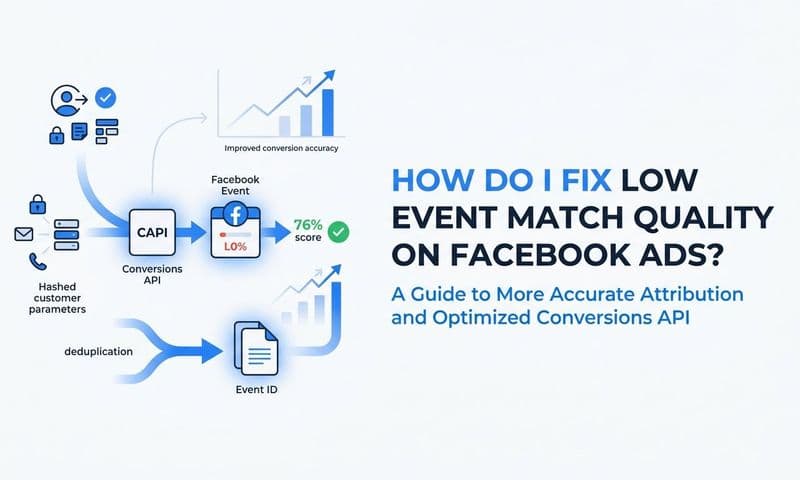
The critical requirement: event matching. CAPI needs to match server-side events with browser-side events from the same user. This requires sending matching parameters (email, phone, external_id, or fbp/fbc cookies) with both browser and server events.
Event Matching and Deduplication
When you implement both browser pixel and CAPI, you'll send duplicate events for users whose browsers allow tracking. Meta needs to deduplicate these to avoid counting the same conversion twice.
The solution: eventid parameter. Generate a unique ID for each conversion (order ID works well for purchases), and send the same eventid with both browser and server events. Meta's systems recognize matching event_ids and count them as a single conversion.
Without proper deduplication, your conversion counts inflate, your attribution reports become meaningless, and Meta's algorithm trains on duplicate signals that distort optimization. This is where many implementations fail—they add CAPI but forget event_id matching, creating worse data quality than browser tracking alone.
Event matching quality appears in Events Manager under your Conversion API events. Meta shows a match quality score indicating how well it can connect server events to specific users. Scores above 6.0 are acceptable; above 8.0 is excellent. Low scores mean Meta can't effectively use your server data for optimization.
Step 5: Monitor and Troubleshoot Your Tracking Implementation
Your tracking is live. Events are firing. Parameters are enriched. But tracking isn't a set-it-and-forget-it system—it degrades over time as websites change, platforms update, and new issues emerge.
The marketers who maintain tracking accuracy don't have better initial implementations. They have better monitoring systems that catch problems before they corrupt weeks of campaign data. A single misconfigured event can waste thousands in ad spend while Meta's algorithm optimizes toward incomplete signals.
Daily Monitoring Checklist
Events Manager is your primary monitoring tool. Check it daily for the first two weeks after implementation, then weekly once you've verified stability.
Event volume consistency: Compare today's event counts to yesterday's and last week's. Sudden drops indicate tracking failures. Sudden spikes suggest duplicate events or bot traffic.
Parameter completeness: Click into individual events and verify parameters are populating correctly. Missing value parameters mean Meta can't optimize for revenue. Missing content_ids prevent dynamic product ads from working.
Event match quality: For CAPI implementations, monitor match quality scores. Declining scores indicate problems with event matching parameters or cookie passing.
Error messages: Events Manager shows errors and warnings for problematic events. Address these immediately—they indicate data quality issues that degrade optimization.
Advanced tracking implementations often use fingerprint tracking as an additional verification layer, comparing pixel data against server logs to identify discrepancies that indicate tracking failures.
Common Tracking Issues and Solutions
Events firing on wrong pages: Lead event fires on form page instead of thank-you page, inflating lead counts. Solution: Move event trigger to confirmation page or use form submission trigger instead of page load.
Missing parameters: Purchase events fire without value data. Solution: Verify your e-commerce platform passes order data to pixel code, or implement server-side parameter enrichment.
Duplicate events: Same conversion tracked multiple times. Solution: Implement event_id deduplication, remove redundant tracking code, or consolidate multiple tracking systems.
Low event match quality: CAPI events can't be matched to users. Solution: Pass additional matching parameters (email, phone, external_id), verify cookie passing, or implement hashed parameter transmission.
iOS conversion gaps: Significantly fewer conversions from iOS users than traffic suggests. Solution: Implement or improve CAPI to capture conversions browser tracking misses.
Testing After Website Changes
Every website update risks breaking tracking. New checkout flows, redesigned forms, or updated page templates can prevent events from firing correctly.
Implement a testing protocol: After any website change affecting pages with pixel events, manually test each event using Facebook's Test Events tool. Complete the full user journey—add to cart, initiate checkout, complete purchase—and verify every event fires with correct parameters.
This 10-minute testing routine prevents weeks of corrupted campaign data from undetected tracking failures. The cost of broken tracking far exceeds the time investment in verification.
Putting It All Together
You've built the foundation for Facebook pixel tracking that actually works—from strategic event planning through parameter enrichment and troubleshooting techniques that capture conversions other marketers miss. Your pixel now feeds Meta's AI the quality signals it needs to find better customers and optimize campaigns effectively.
Here's your implementation checklist: Verify base code fires on every page with Pixel Helper showing green. Confirm all standard events trigger correctly with accurate parameters. Test Conversion API sends server-side data that matches browser events. Monitor Events Manager daily for the first week to catch issues early.
The difference between basic pixel installation and what you've just configured is significant. Most advertisers stop at the green checkmark. You've built tracking infrastructure that captures conversions across devices, enriches events with business-critical parameters, and provides the data quality that separates efficient campaigns from budget-draining guesswork.
But here's what many marketers discover after implementing comprehensive pixel tracking: Facebook is just one platform. Your customers interact with Google Ads, TikTok, email campaigns, and organic channels before converting. Understanding which touchpoints actually drive revenue requires attribution that connects every marketing interaction to business outcomes.
That's where Cometly transforms your tracking investment into strategic advantage. While your Facebook pixel captures on-platform behavior, Cometly connects that data with every other marketing touchpoint—showing you the complete customer journey from first click to final purchase across all channels. You'll see which campaigns work together to drive conversions, which audiences deliver highest lifetime value, and exactly where to allocate budget for maximum ROI.
Get your free demo and see how Cometly's AI-powered attribution platform turns your pixel data into the complete revenue picture Facebook's native tracking can't provide alone.