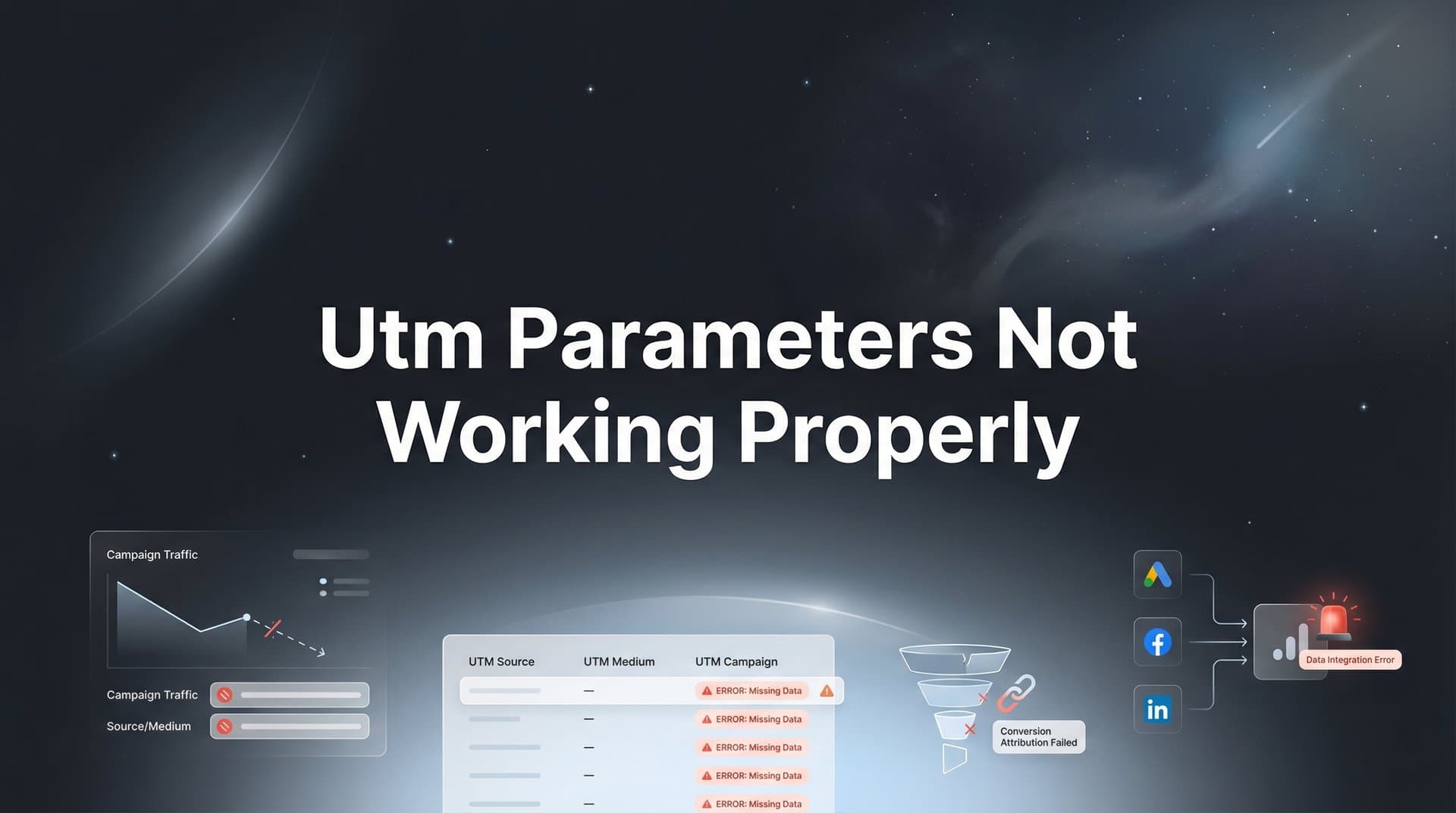
You've carefully crafted your UTM parameters, launched your campaigns, and eagerly opened your analytics—only to find garbled data, missing parameters, or traffic showing up as 'direct.' Sound familiar?
UTM tracking issues are frustratingly common, and they can completely undermine your ability to measure marketing performance accurately. When your UTM parameters break, you lose visibility into which campaigns drive results, making it nearly impossible to optimize your ad spend or prove ROI.
The problem is that UTM parameters can fail at multiple points in the tracking chain. Maybe your URL syntax has a subtle error. Perhaps a redirect is stripping your query parameters. Or your analytics configuration might be filtering out campaign data without you realizing it.
This guide walks you through a systematic troubleshooting process to identify and fix the most common UTM problems. By the end, you'll have a clear checklist for diagnosing issues and the knowledge to prevent them from happening again.
Whether you're dealing with URL encoding errors, redirect stripping, or platform-specific quirks, these steps will help you restore accurate attribution data. Let's start with the most fundamental issue: making sure your UTM syntax is actually correct.
Step 1: Verify Your UTM Syntax and Formatting
Before diving into complex technical issues, start with the basics. The majority of UTM problems stem from simple syntax errors that are easy to overlook when you're building dozens of campaign URLs.
Check that your URL structure follows the correct format: your base URL, followed by a question mark, then your first UTM parameter. Additional parameters should be separated by ampersands, not additional question marks. A correct URL looks like this: yoursite.com?utm_source=facebook&utm_medium=cpc&utm_campaign=spring_sale
The most common syntax mistake? Using hyphens instead of underscores. The correct parameter names are utm_source, utm_medium, utm_campaign, utm_term, and utm_content—all with underscores. Writing "utm-source" or "utmsource" will cause your analytics platform to ignore the parameter entirely. Understanding what a UTM code is and how it functions helps prevent these fundamental errors.
Another frequent error is adding spaces within parameter values. If your campaign name is "Spring Sale 2026," those spaces will break the URL structure unless they're properly encoded. We'll cover encoding in the next step, but for now, just identify where spaces appear in your URLs.
Validate Your Parameters: Use a URL builder tool like Google's Campaign URL Builder to regenerate your links from scratch. Copy your intended values into the builder, then compare the output against your current URLs. Any differences indicate where your syntax went wrong.
Once you've confirmed correct syntax, test the URL immediately. Click your campaign link in an incognito browser window, then check your analytics real-time view within 30 seconds. You should see your visit appear with the correct source, medium, and campaign values. If the data doesn't show up or appears incorrectly, you've confirmed a problem that needs deeper investigation.
Success Indicator: When you click your test URL, your analytics real-time report should show your visit with all UTM parameters intact and correctly categorized. If you see "direct" or missing campaign data, move to the next troubleshooting step.
Step 2: Check for URL Encoding Issues
Even with perfect syntax, your UTM parameters can fail if special characters aren't properly encoded. URLs have strict rules about which characters are allowed, and violating these rules causes browsers and analytics platforms to misinterpret your tracking data.
Special characters that require encoding include spaces, ampersands (&), question marks (?), equals signs (=), percentage signs (%), hash symbols (#), and plus signs (+). When these appear within your parameter values—not as URL structure elements—they must be converted to their encoded equivalents.
Spaces are the most common culprit. If your campaign name is "Q1 Promo," that space needs to become either %20 or a plus sign. The encoded version looks like this: utm_campaign=Q1%20Promo or utm_campaign=Q1+Promo. Both formats work, though %20 is more universally compatible.
Encoding Ampersands: This one trips up many marketers. If your campaign name includes an ampersand—like "Search & Social"—that ampersand must be encoded as %26. Otherwise, analytics platforms interpret it as the start of a new parameter, splitting your campaign name incorrectly.
Use an online URL encoding tool to automatically convert your parameter values. Copy your intended campaign name, paste it into an encoder, then copy the encoded result into your URL builder. This eliminates guesswork and ensures every special character is handled correctly.
Test your encoded URLs by pasting them directly into a browser's address bar. If the browser can navigate to your page without errors, and your analytics receives the data correctly, your encoding is working. If you see a 404 error or broken page, you've likely over-encoded or under-encoded certain characters.
Platform-Specific Encoding: Different ad platforms handle encoding differently. Meta Ads automatically encodes URLs you paste into their system, which means you should paste unencoded URLs there. Google Ads typically preserves your encoding, so you should paste pre-encoded URLs. Test both approaches with each platform to determine which works best.
We compare the leading options in our building ads roundup.
Success Indicator: Your campaign URLs should load normally in any browser, and your analytics should capture the full, readable campaign name exactly as you intended it—not truncated or split into multiple parameters.
Step 3: Investigate Redirect and Link Shortener Stripping
Your UTM parameters might be perfect when they leave your ad platform, but they can disappear during the journey to your website. Redirects are a common culprit, silently stripping query parameters as they pass traffic through multiple hops.
Start by mapping your complete URL chain. Use a redirect checker tool like Redirect Detective or WhereGoes.com to trace every step from your campaign URL to your final landing page. Paste in your full UTM-tagged URL and watch for any redirect that drops your query parameters.
The most problematic redirects are 301 and 302 redirects that don't preserve query strings. If your site redirects http to https, or www to non-www, check whether those redirects maintain everything after the question mark. Many server configurations strip query parameters by default unless explicitly configured to preserve them.
Meta Refresh Redirects: These HTML-based redirects are particularly problematic. If your landing page uses a meta refresh tag to redirect visitors, it often fails to carry UTM parameters to the destination page. Check your page source code for meta refresh tags and replace them with proper server-side redirects.
Link shorteners add another layer of complexity. Services like Bitly, TinyURL, and custom short domains can strip UTM parameters if not configured correctly. Most modern link shorteners have settings to preserve query parameters, but you need to enable this option explicitly.
Test Your Shortener: Create a test short link with full UTM parameters, click it in an incognito window, and check whether your analytics receives the campaign data. If parameters disappear, log into your link shortener's settings and enable query string preservation.
If you identify redirects that strip parameters, work with your development team to fix the configuration. For Apache servers, this typically involves modifying .htaccess rules to include the QSA (Query String Append) flag. For Nginx, the configuration needs to explicitly pass $args or $query_string.
Tracking Platform Redirects: Some attribution platforms and click trackers insert their own redirects into your URL chain. Verify that these intermediary redirects preserve your UTM parameters. If they don't, you may need to switch to a different tracking solution or adjust your implementation. Exploring dedicated UTM tracking tools can help you find solutions that maintain parameter integrity.
Success Indicator: When you trace your complete redirect chain, every hop should show your UTM parameters intact. The final destination URL should contain all original parameters, and your analytics should attribute the visit correctly.
Step 4: Audit Platform-Specific UTM Handling
Each advertising platform has its own quirks when it comes to UTM parameters. What works perfectly on Facebook might fail on Google Ads, and LinkedIn has its own set of limitations that can break your tracking.
If you're evaluating vendors, our advertising manager breakdown can help.
Google Ads presents a unique challenge with its auto-tagging feature. When auto-tagging is enabled, Google appends a gclid parameter to your URLs, which can conflict with manual UTM parameters. The conflict doesn't always break tracking, but it can cause attribution inconsistencies where some visits show up with UTM data and others show up with Google's automatic channel grouping.
Resolving Google Conflicts: The best approach is to enable auto-tagging and allow manual UTM parameters to coexist. In Google Analytics, go to your property settings and enable "Allow manual tagging to override auto-tagging." This tells Analytics to prioritize your UTM parameters when both are present, giving you consistent campaign data.
Meta Ads (Facebook and Instagram) sometimes truncates long URLs, especially when you include multiple UTM parameters with lengthy values. Meta has a URL character limit that varies by placement, and exceeding it causes the platform to cut off your parameters mid-string. When your paid ad tracking isn't working, URL truncation is often the hidden cause.
Shorten Your Parameters: Keep your UTM values concise. Instead of utm_campaign=spring_sale_2026_retargeting_campaign_phase_2, use utm_campaign=spring_retarget_p2. The shorter version contains the essential information while staying well under character limits.
LinkedIn has specific restrictions on special characters in URLs. Even properly encoded characters sometimes cause issues in LinkedIn's ad system. Test your URLs directly in LinkedIn's ad preview feature before launching campaigns, and simplify parameter values if you encounter errors.
Dynamic Parameter Insertion: Many platforms offer dynamic parameters like {campaign_name} or {ad_id} that automatically populate with campaign data. These are powerful, but they can fail if your campaign names contain special characters or exceed length limits. Always test dynamic insertion by clicking your ad preview and verifying what actually appears in the URL.
TikTok Ads and Pinterest Ads have their own tracking parameters (ttclid and epik respectively) that work similarly to Google's gclid. Understand how these platform parameters interact with your manual UTM tags to avoid attribution conflicts.
Success Indicator: Click the ad preview link from each platform you're using. The URL that loads in your browser should contain all intended UTM parameters, correctly formatted and complete. Your analytics should attribute the test visit to the correct campaign source.
Step 5: Examine Your Website's Technical Setup
Sometimes the problem isn't with your URLs at all—it's with how your website handles them. JavaScript, page redirects, and server configurations can all interfere with UTM parameter tracking, even when everything else is configured correctly.
Check if JavaScript on your site modifies URLs on page load. Some websites use JavaScript to clean up URLs for aesthetic reasons, removing query parameters to create cleaner-looking addresses. Open your browser's developer console, load a page with UTM parameters, and watch whether the URL changes after the page finishes loading.
If your URL changes from yoursite.com?utm_source=facebook to just yoursite.com, your site is stripping parameters client-side. This happens before your analytics code can read them, causing all your campaign traffic to appear as direct visits.
Timing Is Everything: Your analytics tracking code must fire before any JavaScript that modifies the URL. Check your tag manager configuration or page code to ensure analytics tags have the highest priority and fire on page load, not after other scripts run.
Single-page applications (SPAs) built with React, Vue, or Angular present special challenges. These frameworks often use client-side routing that doesn't preserve query parameters when users navigate between pages. You may need to implement custom code to capture UTM parameters on initial page load and store them for the entire session.
Test across different browsers and devices. Sometimes UTM tracking works perfectly in Chrome on desktop but fails in Safari on mobile due to different JavaScript handling or privacy features. Use real device testing or browser testing tools to identify platform-specific issues.
Server-Side Interference: Some server configurations normalize URLs by removing query parameters or applying URL rewrites that strip them. Check your server logs to see whether incoming requests include UTM parameters. If they're missing from server logs but present in the original URL, your server configuration is the culprit.
Content management systems like WordPress sometimes have plugins that modify URLs for SEO or caching purposes. Temporarily disable plugins one by one to identify if any are interfering with parameter tracking. If you're running a Shopify store, our guide on setting up GA4 for Shopify covers platform-specific tracking configurations.
Success Indicator: When you load a page with UTM parameters and check the URL in your browser's address bar 5 seconds later, all parameters should still be present. Your browser console should show no JavaScript errors related to URL handling.
Step 6: Validate Analytics Configuration and Filters
Your UTM parameters might be working perfectly, but your analytics configuration could be filtering them out or modifying them before you ever see the data. This is one of the most overlooked causes of "missing" campaign data.
Check your Google Analytics filters first. Navigate to Admin → View Settings → Filters and review every filter applied to your view. Look specifically for filters that exclude campaign data, modify source/medium values, or transform URL parameters. A filter designed to clean up internal traffic might be inadvertently excluding your campaigns.
Campaign timeout settings determine how long Google Analytics attributes conversions to a campaign. The default is six months, but if someone changed this to 30 days, any conversion happening after that window won't be attributed to your campaign. Review your property settings to confirm the timeout aligns with your typical customer journey length.
Channel Grouping Rules: Google Analytics uses channel grouping rules to categorize traffic into channels like Organic Search, Paid Search, and Social. Custom channel groupings can override your UTM parameters, making paid traffic appear as organic or direct. Review your channel grouping configuration to ensure it's not conflicting with your intended campaign attribution.
Check for data sampling issues in your reports. If you're analyzing large date ranges or complex segments, Google Analytics might be sampling your data, which can make campaign data appear inconsistent or incomplete. Look for the sampling indicator at the top of your reports and adjust your date range if necessary.
Cross-Domain Tracking: If your campaigns send traffic through multiple domains before conversion, improper cross-domain tracking will break attribution. Verify that your analytics tracking code is configured to preserve campaign data across all domains in your conversion path.
View-level settings can also affect what data you see. If you're looking at a filtered view that excludes certain traffic sources, you won't see those campaigns even if they're being tracked correctly. Always check the "All Website Data" unfiltered view to confirm whether data is being collected at all. Understanding these nuances is part of mastering what UTM tracking is and how it integrates with your analytics platform.
Real-Time Debugging: Use Google Analytics Real-Time reports to debug immediately. Send test traffic with UTM parameters, then check Real-Time → Traffic Sources → Campaigns within seconds. If data appears in Real-Time but not in standard reports, your issue is with view configuration, not data collection.
Success Indicator: Test traffic with UTM parameters should appear in your Real-Time reports within 30 seconds, and should show up in standard reports within 24 hours with all campaign dimensions intact and correctly attributed.
Step 7: Implement a Prevention System for Future Campaigns
Fixing current UTM problems is important, but preventing future issues is even more valuable. Build a system that catches errors before campaigns launch, saving you from scrambling to troubleshoot live traffic.
Create a standardized UTM naming convention document that everyone on your team follows. Define exactly how to structure campaign names, what values are acceptable for source and medium, and how to handle special cases. Consistency eliminates most syntax errors and makes campaign analysis far easier. Following UTM parameter best practices from the start prevents most tracking failures.
Your naming convention should cover common scenarios: How do you tag email campaigns? What source name do you use for Instagram versus Facebook? How do you differentiate between organic social posts and paid social ads? Document these decisions and share them with every team member who creates campaign URLs.
Pre-Launch Checklist: Build a validation checklist that every campaign must pass before going live. The checklist should include: syntax verified with a URL builder, special characters properly encoded, redirect chain tested, platform preview clicked, analytics real-time verification completed, and URL documented in your campaign tracking spreadsheet.
We compare the leading options in our launch ads roundup.
Consider implementing a centralized URL building tool that enforces your naming conventions automatically. Tools like Terminus or even a custom Google Sheet with data validation can prevent team members from creating non-compliant URLs in the first place.
Schedule regular audits of your campaign tracking accuracy. Once per quarter, review a sample of recent campaigns and verify that their analytics data matches expected traffic patterns. Look for campaigns with suspiciously high direct traffic, which often indicates UTM parameter failures. When your ad campaigns aren't optimizing properly, broken tracking is frequently the root cause.
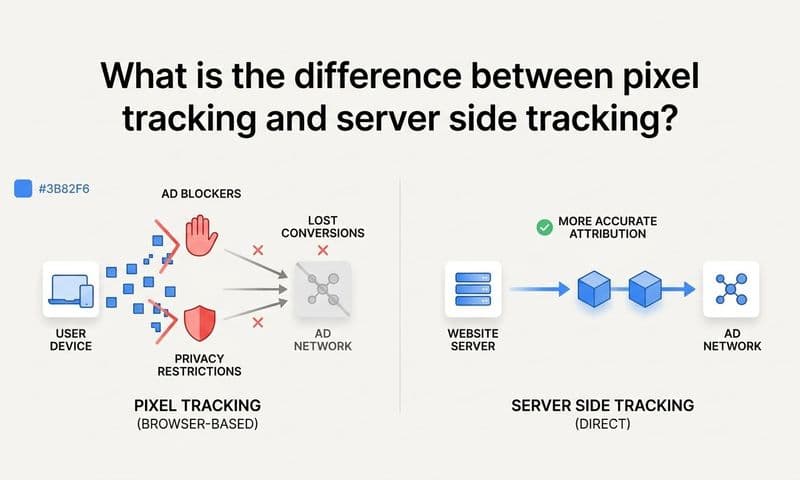
Move Beyond UTM Dependence: UTM parameters are valuable, but relying solely on them creates fragility. Browser privacy features, ad blockers, and client-side tracking limitations increasingly interfere with URL-based attribution. Consider whether your attribution strategy needs to evolve.
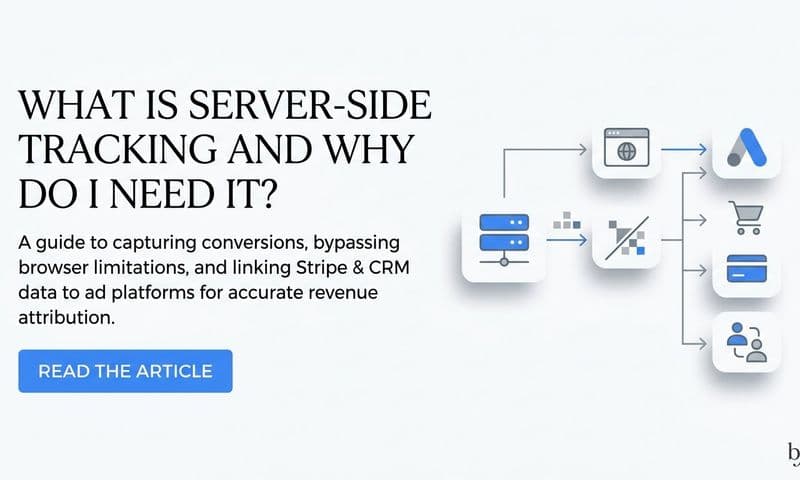
Server-side tracking solutions capture attribution data more reliably because they don't depend on browser-based parameters that can be stripped or blocked. Platforms like Cometly use server-side tracking to capture every touchpoint in the customer journey, even when UTM parameters fail or are blocked by privacy tools.
This approach provides a more complete view of your marketing performance. When UTM parameters work, they complement your server-side data. When they fail, you still have accurate attribution to make optimization decisions. The goal is building a tracking system that gives you confidence in your data regardless of browser behavior or technical issues. Reviewing the top ad attribution tools can help you identify solutions that go beyond UTM-only tracking.
Success Indicator: Your team can launch campaigns confidently knowing that tracking will work correctly. When you review campaign performance, the data matches your expectations, and you can trust it to guide optimization decisions.
Building a Reliable Attribution Foundation
UTM troubleshooting follows a logical path: start with the basics like syntax and encoding, then work outward to redirects, platform configurations, your website's technical setup, and finally your analytics settings. Most issues stem from one of these six areas.
Here's your quick checklist before launching any campaign: Syntax validated with proper underscores and ampersands. Special characters encoded correctly. Redirect chain tested end-to-end. Platform-specific settings confirmed. Website behavior verified across browsers. Analytics filters and configuration reviewed.
For marketers running campaigns across multiple platforms, consider whether relying solely on UTM parameters is the right approach. Browser privacy changes, ad blockers, and client-side tracking limitations continue to erode the reliability of URL-based attribution.
Server-side tracking solutions can capture attribution data more reliably, especially as browser privacy features become more aggressive. Cometly's approach captures every touchpoint from ad clicks to CRM events, providing your AI with a complete, enriched view of every customer journey. This means you know what's really driving revenue, even when UTM parameters fail or get stripped.
The platform uses AI to identify high-performing ads and campaigns across every ad channel, then provides recommendations so you can scale with confidence. Plus, Cometly feeds enriched, conversion-ready events back to Meta, Google, and other platforms, improving their targeting algorithms and your overall ad ROI.
The goal isn't just fixing today's UTM problem. It's building a tracking system that gives you confidence in your data every time you check your reports. When you combine proper UTM hygiene with robust server-side tracking, you create a foundation for accurate attribution that works regardless of technical challenges.
Ready to elevate your marketing game with precision and confidence? Discover how Cometly's AI-driven recommendations can transform your ad strategy—Get your free demo today and start capturing every touchpoint to maximize your conversions.