You're checking your ad platform and the numbers don't add up. Your Google Ads dashboard shows 50 conversions, your CRM logged 120 leads, and your analytics tool reports something entirely different. Sound familiar?
When paid ad tracking stops working correctly, you're essentially flying blind with your marketing budget. Every dollar you spend becomes a guess rather than a strategic investment.
The good news: most tracking issues stem from a handful of common problems, and they're fixable. This guide walks you through a systematic troubleshooting process to identify exactly what's breaking your tracking and how to restore accurate data.
By the end, you'll have a clear diagnostic framework you can use whenever tracking discrepancies appear. Let's diagnose what's happening with your data and get you back to making confident marketing decisions.
Step 1: Audit Your Pixel and Tag Implementation
Before diving into complex troubleshooting, start with the foundation: are your tracking pixels actually firing when they should?
Open your browser's developer tools (right-click anywhere on your page and select "Inspect," then navigate to the "Network" tab). Load the page where conversions should fire and filter by the tracking platform you're using. You should see network requests to Facebook, Google, or whichever platform you're tracking with.
Here's what to look for: your base pixel should fire on every page load, while conversion events should only trigger on specific actions like purchases or form submissions. If you see your purchase event firing on your homepage, that's a problem. If you don't see any pixel activity at all, your implementation is broken. Understanding what a tracking pixel is and how it works can help you diagnose these issues more effectively.
Duplicate pixels are surprisingly common and devastatingly problematic. They happen when someone installs tracking code through Google Tag Manager, then also hardcodes it directly into the website, or when multiple team members add the same pixel without coordination. Check your page source and your tag management system—you should see each pixel installed exactly once.
Event parameters matter just as much as the pixel itself. When your purchase event fires, is it passing the correct transaction value? The right currency code? Product IDs that match your catalog? Use your browser's network inspector to examine the actual data being sent. Click on the network request and review the payload—this shows you exactly what information your pixel is transmitting.
Don't assume tracking works consistently across all browsers and devices. Test your conversion path in Chrome, Safari, and Firefox. Load your site on mobile devices. Safari's Intelligent Tracking Prevention and Firefox's Enhanced Tracking Protection handle pixels differently than Chrome, and you might discover that conversions track perfectly on desktop Chrome but fail completely on mobile Safari.
Common red flags that indicate implementation problems: pixels firing on incorrect pages (like thank-you page pixels loading on product pages), missing base tracking code that prevents any events from registering, event names that don't match your platform's expected format (Facebook expects "Purchase" not "purchase" or "buy"), and parameters formatted incorrectly or missing entirely.
If you find issues here, fix them before moving to the next step. A broken pixel can't be salvaged by better attribution settings or fancier analytics. Get the foundation right first.
Step 2: Diagnose Browser and Privacy-Related Blocking
Even perfectly implemented tracking can fail when browsers and operating systems actively block it. This isn't a hypothetical problem—it's the new reality of digital advertising.
Apple's iOS 14.5 update fundamentally changed how ad tracking works on iPhones and iPads. When users update their iOS, they see a prompt asking if they want to allow apps to track their activity. Many users decline, which means your Facebook pixel and other tracking tools lose visibility into conversions from those users. If your audience skews toward iPhone users, this alone could explain significant tracking gaps.
Ad blockers present another layer of interference. These browser extensions don't just block display ads—they also prevent tracking pixels from loading entirely. A user could click your ad, complete a purchase, and your tracking would register nothing because their ad blocker intercepted the pixel before it could fire. The prevalence varies by audience, but technical and privacy-conscious demographics often have higher ad blocker adoption rates.
Third-party cookies are the backbone of traditional ad tracking, and they're disappearing. Safari and Firefox already block them by default. Chrome has announced plans to phase them out, though the timeline keeps shifting as Google balances privacy concerns with the advertising ecosystem that funds much of the web. When third-party cookies are blocked, cross-site tracking breaks down, making it harder to attribute conversions back to specific ad clicks. This is why cookieless attribution tracking has become essential for modern marketers.
Cookie consent banners add another complication. If your site shows a cookie consent popup and users decline or ignore it, your tracking pixels may not load at all, depending on how your consent management is configured. In regions with strict privacy laws like GDPR in Europe or CCPA in California, this is non-negotiable—but it means some portion of your traffic will never be tracked.
Test this yourself: install a popular ad blocker extension, then try to complete a conversion on your site while monitoring your browser's developer tools. You'll likely see tracking requests blocked entirely. Now try the same test in Safari with default privacy settings. The behavior differs significantly from Chrome with no extensions installed.
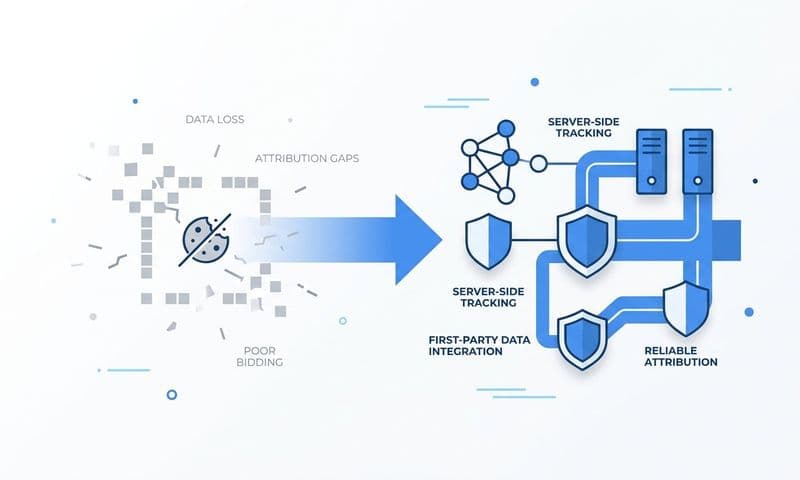
Here's the reality: client-side tracking alone—pixels that run in the user's browser—now captures only a fraction of actual conversions. Different browsers, privacy settings, ad blockers, and user preferences create a patchwork of tracking visibility. You might be getting complete data from some users and zero data from others, with no way to distinguish between the two in your reports.
This is why server-side tracking has become essential rather than optional. But before we get there, let's verify your URL and parameter configuration isn't compounding the problem.
Step 3: Verify UTM Parameters and URL Configurations
Your tracking pixels might work perfectly, but if your URLs aren't passing the right information, you'll still lose attribution data.
Start by auditing your UTM parameter structure across all campaigns. Open a spreadsheet and document the UTM parameters you're using: utm_source, utm_medium, utm_campaign, utm_term, and utm_content. Check for consistency—if some campaigns use "utm_source=facebook" while others use "utm_source=fb" or "utm_source=Facebook" (note the capital F), your analytics platform will treat these as separate sources, fragmenting your data. For a deeper dive into this topic, read our guide on what UTM tracking is and how it can help your marketing.
URL redirects are silent tracking killers. When a user clicks your ad, they might pass through multiple redirects before reaching your landing page—perhaps through a link shortener, a redirect from your domain to a subdomain, or a redirect that adds "www" to the URL. Each redirect is an opportunity for UTM parameters to get stripped away. Test your full click path: click an ad, watch where it takes you, and verify the UTM parameters survive the journey to your final landing page.
Landing page configurations can overwrite or lose UTM data in subtle ways. If your landing page redirects users based on certain conditions (like geolocation or device type), check whether those redirects preserve query parameters. If your site uses JavaScript to manipulate URLs or push new states to the browser history, verify that UTM parameters aren't being removed in the process.
Your analytics platform must correctly parse incoming parameters. Log into your analytics tool and check a recent session that should have UTM data. Do the source, medium, and campaign fields populate correctly? If they're showing as "direct" or "(not set)" despite UTM parameters being present in the URL, your analytics configuration needs adjustment.
Quick troubleshooting checklist for URL issues: Check if special characters in UTM parameters are properly encoded (spaces should be %20, ampersands should be %26). Verify parameter order doesn't matter to your tracking—while the standard order is source, medium, campaign, term, content, your system should recognize them regardless of sequence. Confirm case sensitivity isn't causing problems—decide whether you'll use lowercase for everything and stick to it. Test that parameters separated by ampersands (&) are being recognized, and that the question mark (?) correctly separates your base URL from the parameters.
A simple test: create a tracking URL with UTM parameters, click it yourself, and verify every system in your stack—your analytics platform, your CRM, your ad platform reporting—correctly attributes that session. If any system in the chain fails to recognize the source, you've found a break in your tracking.
Step 4: Test Conversion Event and Goal Configuration
You might be tracking the wrong things entirely. This sounds obvious, but misconfigured conversion events are remarkably common and surprisingly easy to overlook.
Verify your conversion events match actual valuable customer actions. If your goal is to track purchases, but your conversion event fires on the product page instead of the thank-you page, you're counting product views as sales. Open your conversion event configuration in your ad platform or analytics tool and confirm the trigger conditions. A purchase conversion should fire only after payment is processed and confirmed, not when someone adds an item to their cart or views the checkout page.
Attribution windows determine how long after an ad interaction you'll credit that ad with a conversion. Meta defaults to a 7-day click and 1-day view attribution window, meaning conversions happening within 7 days of clicking an ad (or 1 day of viewing it) get attributed to that ad. Google Ads uses a 30-day click window by default. If your sales cycle is longer than these windows, you'll systematically undercount conversions. If you're comparing platforms with different attribution windows, the numbers will never match.
Test the complete conversion path manually. Start from a fresh browser session (or incognito mode), click one of your ads, proceed through your entire funnel, and complete a conversion. Then check every platform: Did your ad platform register it? Did your analytics tool capture it? Did it show up in your CRM? This end-to-end test reveals where the tracking chain breaks.
Conversion values should match across platforms, but often don't. If you're tracking e-commerce purchases, verify that the revenue amount sent to your ad platform matches the actual transaction total. Check whether your conversion value includes tax and shipping or excludes them, and ensure consistency across all platforms. If Google Ads shows $5,000 in conversion value while your CRM shows $8,000 in revenue from Google Ads traffic, either your tracking is passing incorrect values or conversions aren't being captured at all. Following best practices for tracking conversions accurately can help prevent these discrepancies.
Common configuration mistakes that break tracking: Setting up page view events as conversions (every visitor becomes a "conversion"), selecting the wrong conversion type in your ad platform (lead form submission vs. website conversion), using conversion goals that fire multiple times per session when they should only fire once, and forgetting to mark test conversions so they don't pollute your live data.
Review your conversion event history. Most platforms let you see recent conversions with timestamps and details. Click through a few and verify they represent real customer actions. If you see conversions firing at 3 AM when your business is closed, or hundreds of conversions from a single IP address, something is misconfigured or you're dealing with bot traffic.
Step 5: Implement Server-Side Tracking for Reliable Data
Client-side tracking—pixels running in users' browsers—was the standard for years. It's no longer sufficient. Server-side tracking is now essential for accurate conversion data.
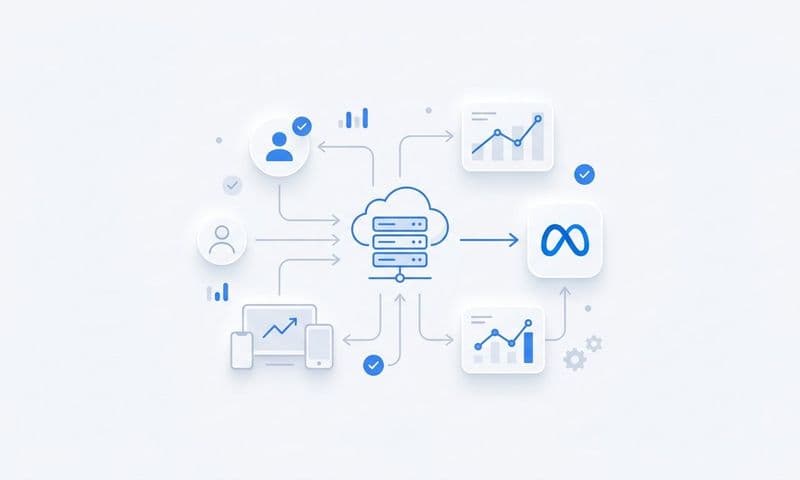
Here's why server-side tracking solves the problems we've discussed: it bypasses browser restrictions entirely. Instead of relying on a pixel in the user's browser (which ad blockers can block, privacy settings can restrict, and cookie policies can prevent), server-side tracking sends conversion data directly from your server to ad platforms via their APIs. The user's browser never enters the equation. Learn more about why server-side tracking is more accurate than traditional methods.
When a conversion happens on your site, your server captures that event—the purchase, the form submission, the signup—and sends the data directly to Meta's Conversions API, Google's Enhanced Conversions, or other platform APIs. No browser-based pixel required. This means ad blockers can't interfere, iOS privacy settings don't matter, and cookie restrictions become irrelevant.
Setting up server-side tracking requires more technical work than dropping a pixel on your site, but it's not as complex as it sounds. For Meta, you'll use the Conversions API to send events from your server. For Google, Enhanced Conversions allows you to pass hashed customer data (email, phone number, address) along with conversion events to improve matching. Most major ad platforms now offer similar server-side solutions. Our server-side tracking implementation guide walks you through the process step by step.
The implementation process typically involves: generating API access tokens from your ad platform, configuring your server or tag management system to send events to the platform's API endpoint, passing key identifiers like click IDs (fbclid for Facebook, gclid for Google) that connect the conversion back to the original ad click, and hashing personally identifiable information before sending it to comply with privacy regulations.
Verify data is flowing correctly by checking your ad platform's events manager or conversion tracking dashboard. You should see server events appearing alongside browser events (if you're running both in parallel during setup). Compare the volume: if server-side tracking is capturing significantly more conversions than client-side pixels, you now have proof of how much data you were missing.
Connecting your CRM events directly to ad platforms takes server-side tracking even further. When a lead converts in your CRM—they become a qualified lead, schedule a demo, close as a customer—that event can flow back to your ad platforms. This creates a complete picture of the customer journey, attributing revenue to the ads that started the relationship, even if the final conversion happened days or weeks later through sales calls and email nurturing.
This is where Cometly's server-side tracking becomes particularly valuable. Rather than manually configuring API connections to each ad platform, Cometly captures every touchpoint—ad clicks, CRM events, website interactions—and sends enriched conversion data back to Meta, Google, and other platforms automatically. You get complete journey tracking without the technical complexity of building and maintaining multiple API integrations.
Cometly's approach solves the fundamental problem: client-side tracking misses conversions, but server-side tracking captures them all. When you feed ad platforms complete, accurate conversion data, their algorithms optimize better, your targeting improves, and your ROI increases. You're no longer making decisions based on partial data.
Step 6: Cross-Reference Data Across All Platforms
Even with perfect tracking implementation, different platforms will report different numbers. Understanding why—and knowing which discrepancies matter—is crucial.
Create a reconciliation spreadsheet comparing the same time period across your ad platform, analytics tool, and CRM. Use columns for each data source and rows for key metrics: clicks, sessions, conversions, revenue. Export data from each platform using identical date ranges and timezone settings. Now you can see the discrepancies clearly.
Some variance is acceptable and expected. Ad platforms and analytics tools use different attribution models by default. Your ad platform might use last-click attribution, crediting the final ad someone clicked before converting. Your analytics tool might use first-click attribution, crediting the first source that brought the visitor to your site. The same conversion gets attributed to different sources depending on which model you use—both are "correct" within their framework. Our attribution marketing tracking complete guide explains these differences in detail.
Timezone differences cause apparent mismatches that aren't real tracking problems. If your ad platform reports in Pacific Time but your analytics tool uses Eastern Time, a conversion that happened at 11 PM PT shows up on different dates in each system. Verify all platforms use the same timezone before assuming you have a tracking problem.
Attribution window differences also create legitimate variance. If Meta's 7-day attribution window expires before a customer converts, Meta won't count that conversion, but your analytics tool with a 30-day window will still attribute it to the original Meta ad click. Neither is wrong—they're measuring different things.
Red-flag discrepancies that indicate real problems: One platform showing 50 conversions while another shows 500 (an order of magnitude difference suggests broken tracking, not attribution differences). Revenue totals that don't match between your ad platform and your actual sales records (this indicates conversion value isn't being passed correctly). Conversion counts in your ad platform exceeding total conversions in your analytics tool (suggests duplicate pixel firing or bot traffic).
Set up ongoing monitoring to catch tracking breaks before they compound. Create a weekly report that compares key metrics across platforms. If you normally see a 10-15% variance between systems and suddenly it jumps to 40%, investigate immediately. The longer bad data feeds your ad algorithms, the worse your targeting becomes and the more budget you waste.
Multi-touch attribution provides the complete picture that single-touch models miss. Instead of crediting one touchpoint with the entire conversion, multi-touch attribution recognizes that customers interact with multiple ads and channels before converting. Someone might see a Facebook ad, click a Google search ad days later, return through email, and finally convert through a retargeting ad. Which ad "gets credit" depends on your attribution model, but the reality is all of them contributed. Implementing cross-channel tracking helps you understand these complex customer journeys.
Cometly's multi-touch attribution connects every touchpoint across your entire marketing stack. You can see the full customer journey—from first ad impression through CRM events to final revenue—and understand how different channels work together. This eliminates the platform-specific attribution bias where Facebook claims credit for one set of conversions, Google claims credit for another set, and you can't reconcile the overlap.
When you cross-reference data with complete journey visibility, discrepancies become insights rather than mysteries. You understand why platforms report different numbers, which metrics to trust for which decisions, and how to optimize based on the complete picture rather than fragmented platform-specific data.
Putting It All Together: Your Tracking Troubleshooting Checklist
Let's consolidate everything into a scannable diagnostic process you can use whenever tracking discrepancies appear.
Immediate Checks: Verify pixels are firing on correct pages using browser developer tools. Test the full conversion path from ad click to thank-you page. Check for duplicate pixel installations. Confirm UTM parameters survive the journey to your landing page.
Configuration Audit: Review conversion event triggers to ensure they match actual valuable actions. Verify attribution windows align with your sales cycle. Check timezone settings across all platforms. Confirm conversion values are being passed correctly.
Privacy and Browser Testing: Test tracking behavior in Safari, Firefox, and Chrome. Check conversion tracking with ad blockers enabled. Verify cookie consent settings aren't preventing pixels from loading. Assess the impact of iOS privacy settings on your tracking.
Data Reconciliation: Create a comparison spreadsheet across ad platforms, analytics, and CRM. Identify acceptable variance versus red-flag discrepancies. Document attribution model differences between platforms. Set up ongoing monitoring to catch future breaks early.
Server-Side Implementation: Implement server-side tracking to bypass browser restrictions. Connect CRM events to ad platforms for complete journey visibility. Verify server events are flowing correctly to all platforms. Compare server-side conversion volume to client-side to quantify data recovery.
Here's the critical insight: tracking issues compound over time. Every day you operate with broken or incomplete tracking, your ad algorithms receive bad data. They optimize toward the wrong signals, your targeting drifts away from your best customers, and your cost per acquisition creeps upward. What starts as a minor discrepancy becomes a major budget drain. Investing in the right ad tracking software can prevent these costly problems.
The shift from client-side to server-side tracking isn't optional anymore—it's the only way to maintain accurate conversion data in the current privacy landscape. Browser restrictions will continue tightening, not loosening. Ad blockers will become more prevalent, not less. The tracking methods that worked two years ago are increasingly unreliable.
If you've worked through this guide and resolved specific issues, excellent. But if you're tired of repeatedly troubleshooting tracking problems and want a permanent solution, it's time to consider a platform built for the current reality.
Cometly captures every touchpoint—from ad clicks to CRM events—providing complete journey visibility that client-side tracking can't match. Our AI analyzes this enriched data to identify high-performing ads and campaigns across every channel, giving you actionable recommendations for scaling with confidence. And our server-side tracking feeds better conversion data back to Meta, Google, and other platforms, improving their targeting algorithms and your ROI.
Ready to elevate your marketing game with precision and confidence? Discover how Cometly's AI-driven recommendations can transform your ad strategy—Get your free demo today and start capturing every touchpoint to maximize your conversions.
Stop troubleshooting tracking problems and start making decisions based on complete, accurate data. Your marketing budget deserves better than guesswork.