Facebook advertising can drive significant revenue, but without proper attribution, you're essentially flying blind. You might be pouring budget into campaigns that look successful on the surface while the ads actually driving conversions go unnoticed.
The problem isn't just about tracking clicks anymore. With iOS privacy changes, browser restrictions, and multi-device customer journeys, traditional pixel-based tracking misses a substantial portion of your actual conversions. You're making budget decisions based on incomplete data.
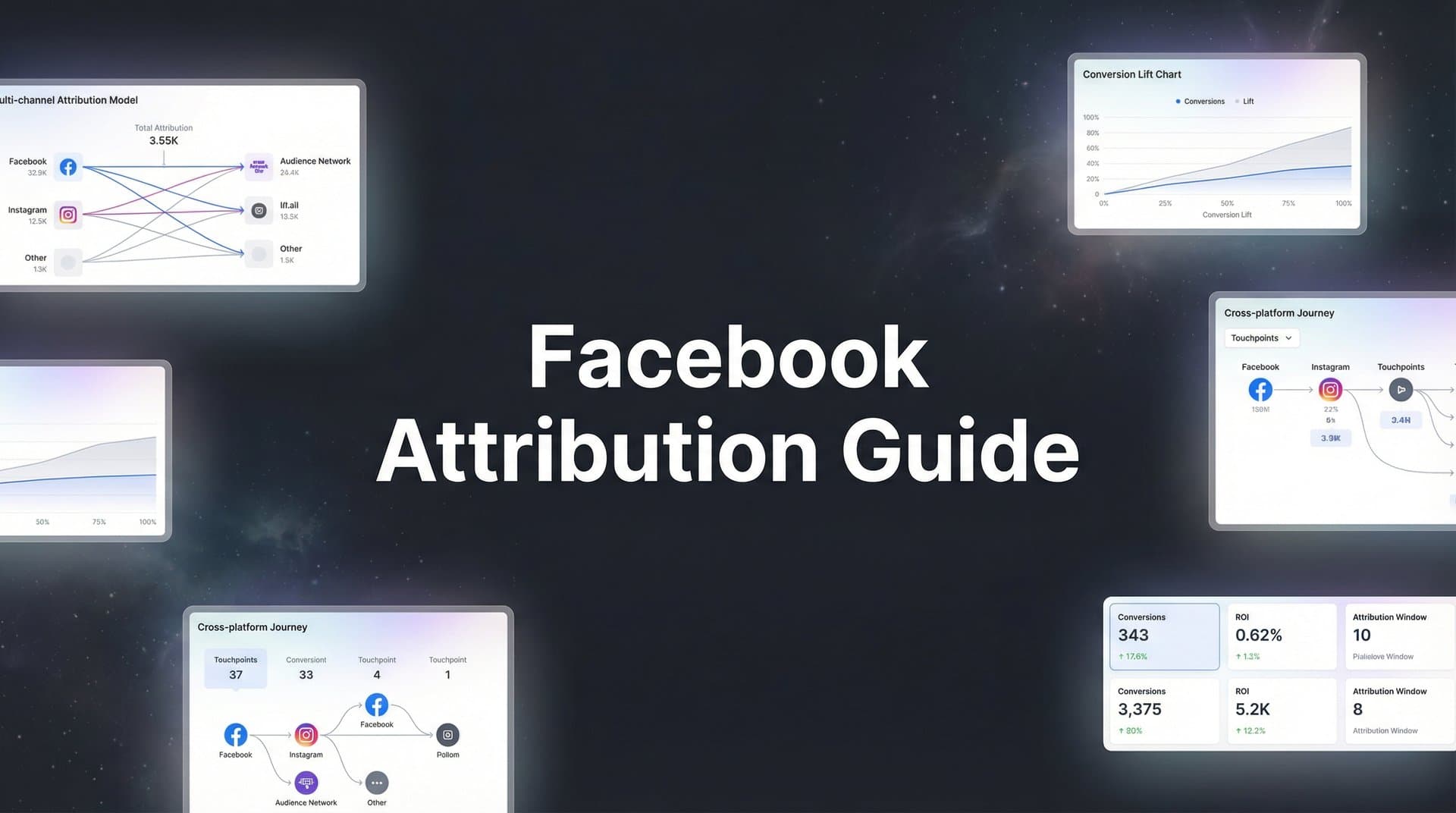
This guide walks you through setting up Facebook attribution from scratch—covering everything from configuring your Meta Pixel to choosing the right attribution model and connecting your data for accurate cross-channel insights. By the end, you'll have a working attribution system that shows you exactly which Facebook ads generate real business results, not just clicks and impressions.
Whether you're troubleshooting existing tracking issues or building your attribution framework for the first time, these steps will help you make confident, data-backed decisions about your Facebook ad spend. Let's get started.
Step 1: Configure Your Meta Pixel and Events Manager Foundation
Your Meta Pixel is the foundation of Facebook attribution. Without it properly installed and configured, nothing else in this guide matters. Think of it as the sensor network that captures every meaningful interaction visitors have with your website after clicking your ads.
Start by accessing your Events Manager through your Meta Business Suite. Navigate to the Data Sources section and select your Pixel. If you haven't created one yet, you'll need to generate a new Pixel ID and install the base code on every page of your website.
The base Pixel code goes in the header section of your site, ideally through a tag manager like Google Tag Manager for easier management. Once installed, verify it's firing on all pages by visiting your site and checking the green checkmark in Events Manager that confirms active Pixel detection.
Now comes the critical part: setting up standard events. These are specific actions that Facebook recognizes and optimizes toward. The most important ones for most businesses are Purchase, Lead, AddToCart, InitiateCheckout, and ViewContent. Each event should fire when the corresponding action happens on your site.
For example, your Purchase event should trigger on your order confirmation page and include parameters like value and currency. Your Lead event fires when someone submits a contact form. AddToCart triggers when products are added to the shopping cart.
Configure these events to match your actual conversion goals. If you're running lead generation campaigns, the Lead event is essential. For e-commerce, Purchase is your primary conversion event. Don't just set up events because they exist—focus on the actions that matter to your business.
Test everything using Meta's Pixel Helper browser extension. Install it, then navigate through your site completing the actions you've set up events for. The extension shows you in real-time which events are firing, what parameters they're sending, and whether any errors exist.
Common issues to watch for: duplicate pixels firing from multiple installations, events triggering on the wrong pages, missing value parameters on conversion events, and events firing multiple times for a single action. Each of these problems corrupts your attribution data and leads to poor optimization decisions. Understanding inaccurate Facebook Pixel tracking causes helps you diagnose these issues faster.
Fix duplicate pixels immediately by removing old installations. Ensure events fire only once per action by checking your implementation logic. Verify that value parameters accurately reflect the transaction amount for purchases or the estimated value for leads.
Your Pixel setup is complete when you can see events flowing into Events Manager in real-time, the Pixel Helper confirms clean event firing, and test conversions appear in your dashboard within minutes. This foundation supports everything else you'll build.
Step 2: Implement Conversions API for Server-Side Tracking
Browser-based tracking alone misses a significant portion of your actual conversions. Ad blockers strip out tracking pixels. iOS privacy features limit data collection. Users switch devices mid-journey. Your Pixel captures what it can see, but server-side tracking fills the gaps.
The Conversions API (CAPI) sends conversion data directly from your server to Facebook, bypassing browser limitations entirely. When someone completes a purchase, your server tells Facebook about it directly—no pixel required, no browser restrictions to worry about. This is the foundation of accurate Facebook conversion tracking in today's privacy-first environment.
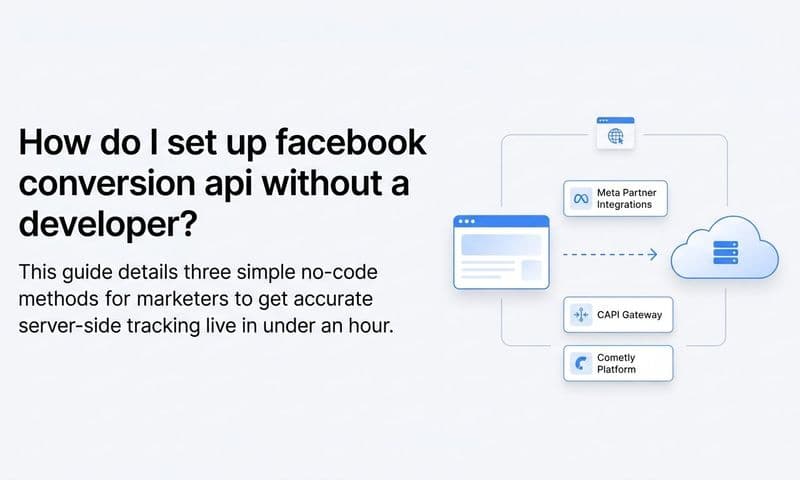
Most modern e-commerce platforms and marketing tools offer built-in CAPI integrations. Shopify, WooCommerce, and major CRM platforms have native connections that handle the technical implementation for you. Check your platform's app marketplace or integrations directory first before attempting manual setup.
For manual implementation, you'll need developer resources. The process involves setting up an endpoint on your server that sends conversion events to Facebook's API whenever specific actions occur. Meta provides detailed documentation and SDKs for various programming languages to simplify this process.
The critical challenge with running both Pixel and CAPI is event deduplication. Without it, Facebook counts the same conversion twice—once from the browser pixel and once from your server—inflating your conversion numbers and corrupting your attribution data.
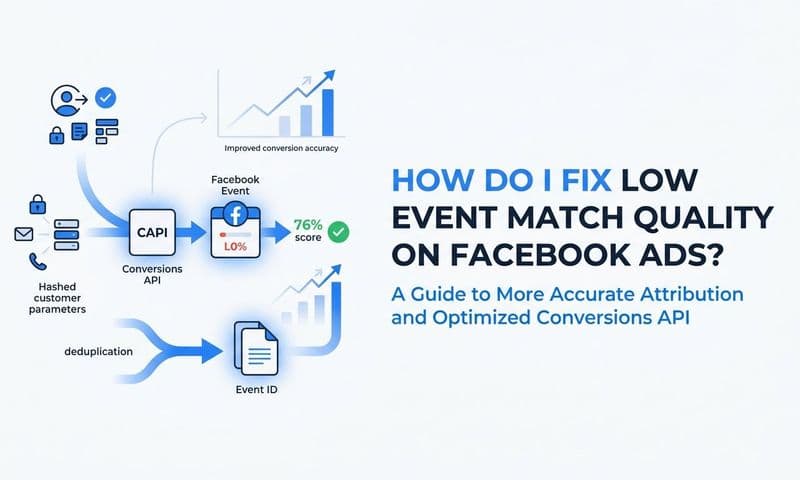
Configure deduplication by assigning each conversion event a unique event ID. When your Pixel fires a Purchase event, it includes an event ID. When your server sends the same Purchase event through CAPI, it uses the identical event ID. Facebook recognizes these as the same conversion and counts it only once.
The event ID should be generated on your server and passed to both the Pixel and CAPI. A common approach uses order IDs for purchases or form submission IDs for leads. The key is ensuring the same identifier reaches both tracking methods for every conversion.
Verify your CAPI setup in Events Manager by checking the event source. You should see events labeled as coming from both "Browser" and "Server." Click into individual events to confirm they're properly deduplicated—look for the "Deduplicated" label on events that arrived through multiple channels.
Monitor your Event Match Quality score in Events Manager. This metric measures how well your server events match user data that Facebook can recognize. Higher scores mean better attribution and optimization. Improve scores by sending more customer information parameters like email, phone, and address data with your server events.
The combination of Pixel and CAPI creates resilient tracking that captures conversions regardless of browser restrictions. You'll see your total conversion counts increase as CAPI recovers conversions the Pixel missed, giving you more complete attribution data and better campaign optimization.
Step 3: Set Up Your Attribution Settings in Meta Ads Manager
Attribution windows determine how long after someone clicks or views your ad that Facebook will credit that ad with a conversion. Choose the wrong windows, and you'll either over-credit or under-credit your campaigns, leading to misguided budget decisions.
Access your attribution settings by navigating to Ads Manager, clicking the menu icon, and selecting "Attribution Setting" under the Measure & Report section. You'll see options for click-through attribution windows and view-through attribution windows.
The default attribution window changed significantly after iOS privacy updates. Facebook now uses a 7-day click and 1-day view attribution window by default. This means conversions are attributed to ad clicks up to 7 days after the click, and to ad views up to 1 day after viewing.
Your choice should reflect your actual sales cycle length. If you sell impulse-purchase products where customers buy within hours of seeing an ad, a 1-day click window might be sufficient. If you're in B2B with week-long consideration periods, you need the full 7-day click window to capture conversions accurately. For a deeper dive into attribution models, understanding how different windows affect your data is essential.
Consider your customer journey complexity. Products requiring research, comparison shopping, or approval processes need longer attribution windows. Simple, low-consideration purchases work fine with shorter windows. Match the window to reality, not to what makes your numbers look better.
View-through attribution is controversial but valuable when used correctly. It credits ads that people saw but didn't click, then later converted through another path. The 1-day view window means if someone sees your ad today and converts tomorrow through organic search, the ad gets partial credit.
Use attribution comparison to understand how different models affect your reported performance. Facebook allows you to view the same campaign data through multiple attribution lenses simultaneously—comparing 1-day click vs. 7-day click vs. 1-day view performance side by side.
This comparison reveals which campaigns drive immediate conversions versus which ones plant seeds that convert later. You might discover that certain ad creative or audiences generate quick conversions while others require longer consideration periods.
Apply consistent attribution settings across all campaigns for accurate performance comparison. If Campaign A uses 7-day click attribution while Campaign B uses 1-day click, you can't fairly compare their conversion numbers. Standardize your settings to enable apples-to-apples analysis.
Review and adjust attribution windows quarterly as your business evolves. Seasonal changes, new product launches, or shifts in customer behavior might require different attribution approaches. What worked last quarter might not accurately represent this quarter's reality.
Step 4: Connect Your CRM and Revenue Data for Full-Funnel Attribution
Facebook's attribution stops at the conversion event you've defined—usually a form submission or purchase. But for many businesses, that's just the beginning. Leads qualify or disqualify. Purchases result in different lifetime values. Trial users convert to paid customers or churn.
Connecting your CRM data to Facebook attribution reveals which ads drive qualified opportunities and actual revenue, not just form fills and clicks. This connection transforms attribution from tracking activity to tracking business outcomes.
Start by mapping your customer journey stages to trackable events. In a B2B context, you might have: ad click → landing page visit → form submission → sales qualification → demo scheduled → opportunity created → deal closed. Facebook sees the first three by default. You need to connect the rest. This is where B2B marketing attribution becomes critical for understanding true campaign value.
Set up offline conversion tracking in Events Manager to capture events that happen outside your website. When a sales rep marks a lead as qualified in your CRM, that qualification can be sent back to Facebook as an offline conversion event, attributing it to the original ad that generated the lead.
The technical implementation requires either a direct API integration or a middleware tool that connects your CRM to Facebook. Salesforce, HubSpot, and other major CRMs offer native Facebook offline conversion integrations. Smaller or custom CRMs might need custom development or third-party integration platforms.
Create custom conversions that reflect your actual business outcomes. Instead of optimizing for "Lead" events, create a "Qualified Lead" custom conversion that only counts when your sales team marks leads as qualified. Instead of generic "Purchase" events, create "High-Value Purchase" conversions for orders above a certain threshold.
This approach shifts optimization from volume to quality. Facebook's algorithm learns which audiences and creative generate the outcomes you actually care about, not just the most form submissions. Your cost per lead might increase, but your cost per qualified lead or cost per customer decreases.
For businesses with sales cycles extending beyond Facebook's 7-day attribution window, offline conversion tracking becomes essential. A lead generated today might not close for 30, 60, or 90 days. Without offline conversion tracking, Facebook never learns which ads drove that closed deal, and you can't optimize toward revenue.
Tools like Cometly automate this connection by continuously syncing your CRM data back to Facebook. When a lead progresses through your sales funnel, Cometly sends those stage changes to Facebook as conversion events, automatically attributing them to the original ad source. Learn more about how to sync conversion data to Facebook Ads for seamless integration.
The result is full-funnel visibility. You can see which campaigns generate leads, which generate qualified leads, which generate opportunities, and which generate closed revenue. Budget decisions become straightforward when you know the actual revenue contribution of each campaign.
Step 5: Analyze Attribution Data and Optimize Your Campaigns
With tracking properly configured, your attribution data reveals the truth about campaign performance. But raw data isn't insight—you need to know what to look for and how to interpret what you find.
Start in Ads Manager's attribution reporting section. View your campaigns through different attribution windows to understand the full impact. A campaign might show 50 conversions with 1-day click attribution but 75 conversions with 7-day click attribution, revealing that it drives delayed conversions you'd otherwise miss.
Compare first-touch and last-touch attribution to understand the complete customer journey. First-touch shows which ads initially brought customers into your funnel. Last-touch shows which ads directly preceded conversions. The gap between them reveals the role of nurturing and remarketing. Understanding multi-touch attribution models helps you see the full picture beyond single-touch analysis.
Many marketers optimize exclusively for last-touch performance, starving top-of-funnel campaigns that introduce new customers to their brand. Those awareness campaigns might not get conversion credit, but without them, your remarketing campaigns have no one to remarket to.
Identify assist conversions—campaigns that contribute to conversions without getting last-click credit. Facebook's attribution reports show path data revealing which ads customers interacted with before converting. A prospecting campaign might assist dozens of conversions that your remarketing campaign gets credit for.
Use this insight to allocate budget more intelligently. If your prospecting campaigns assist 3 conversions for every 1 they directly convert, they're actually 4x more valuable than last-click attribution suggests. Cutting their budget would eventually starve your entire funnel.
Analyze performance by audience segment to find your most valuable customer sources. Break down attribution data by demographics, interests, and behaviors to identify which audience segments convert at the highest rates and generate the most revenue per customer.
Look beyond cost per conversion to revenue per ad dollar spent (ROAS) or return on ad spend. A campaign with a higher cost per conversion might generate significantly higher customer lifetime value, making it more profitable despite appearing more expensive on the surface. Mastering revenue attribution transforms how you evaluate campaign success.
Review attribution data weekly to catch trends early. Performance shifts happen gradually, then suddenly. Weekly reviews let you spot declining performance before it burns significant budget, and identify winning variations before your competitors copy them.
Make budget reallocation decisions based on true revenue contribution, not vanity metrics. Impressions, clicks, and even conversions matter less than the actual business value generated. Shift budget toward campaigns and ad sets that drive qualified customers and revenue, even if their cost per click is higher.
Step 6: Feed Better Data Back to Facebook's Algorithm
Facebook's advertising algorithm is only as good as the conversion data you provide. When you send accurate, detailed conversion events back to Facebook, the algorithm learns faster and targets more precisely. Poor data quality means poor optimization results.
Understand that Facebook's optimization system uses your conversion data to find similar users who are likely to convert. When you send a Purchase event, Facebook analyzes the characteristics of that buyer and finds more people who match that profile. Better data means better matching.
Send enriched conversion events with value data whenever possible. Don't just tell Facebook a purchase happened—tell it the purchase was worth $250. Don't just report a lead—report it as a qualified lead worth an estimated $500 in potential revenue. This value data helps Facebook optimize toward high-value conversions, not just conversion volume.
Include as many customer data parameters as possible with your conversion events. Email addresses, phone numbers, names, locations, and other identifiers help Facebook match conversions back to specific users, improving attribution accuracy and enabling better optimization.
This is where Conversions API shines. Server-side events can include customer data that browser-based pixels can't access due to privacy restrictions. Your server knows the customer's email address, order history, and account details—send all of it with your conversion events.
Use conversion sync to continuously feed updated conversion data back to Facebook. When a lead qualifies, when a trial converts to paid, when a customer makes a repeat purchase—each of these events teaches Facebook's algorithm more about what success looks like for your business.
Platforms like Cometly automate conversion sync by connecting your CRM and revenue data directly to Facebook. When customer value increases or lifecycle stage changes, those updates flow back to Facebook automatically, giving the algorithm real-time feedback on which ads drive the most valuable customers.
Monitor your Event Match Quality score in Events Manager. This metric measures how well your conversion events include customer information parameters that Facebook can match to user profiles. Scores above 6.0 are good, above 7.0 are excellent. Low scores indicate you're not sending enough customer data with your events.
Improve Event Match Quality by adding more customer information parameters to your Conversions API implementation. Hash email addresses and phone numbers using SHA-256 encryption before sending them. Include first name, last name, city, state, and zip code when available. More data points mean better matching and optimization.
The payoff is tangible: Facebook's algorithm finds better prospects, your cost per conversion decreases, and your conversion rates improve. You're not just tracking better—you're teaching Facebook's AI to target better, creating a virtuous cycle of improving performance.
Your Attribution System Is Now Complete
With these six steps complete, you now have a Facebook attribution system that tracks the full customer journey—from ad click to revenue. Your foundation is solid: Meta Pixel installed and tested, Conversions API configured with proper deduplication, attribution windows set to match your sales cycle, CRM data connected for full-funnel visibility, and conversion sync enabled to improve Facebook's optimization.
Your quick-reference checklist: verify Pixel events fire correctly across your site, confirm CAPI sends server events with high Event Match Quality scores, ensure attribution windows reflect your actual sales cycle, check that CRM conversions sync back to Facebook, and validate that value data accompanies all conversion events.
Review your attribution data weekly to catch trends early and reallocate budget toward what's actually driving results. Don't wait for monthly reviews—performance shifts happen fast in paid advertising. Weekly check-ins let you capitalize on winning campaigns and cut losing ones before they burn significant budget.
As tracking continues to evolve with privacy changes, maintaining server-side tracking and enriched conversion data will keep your attribution accurate and your campaigns performing. Browser-based tracking will only become more limited over time. Your investment in proper server-side infrastructure protects your attribution capabilities long-term.
The difference between good and great Facebook advertisers isn't creative or targeting—it's data infrastructure. You've now built that infrastructure. Use it to make confident, data-backed decisions about every dollar you spend on Facebook ads.
Ready to elevate your marketing game with precision and confidence? Discover how Cometly's AI-driven recommendations can transform your ad strategy—Get your free demo today and start capturing every touchpoint to maximize your conversions.