

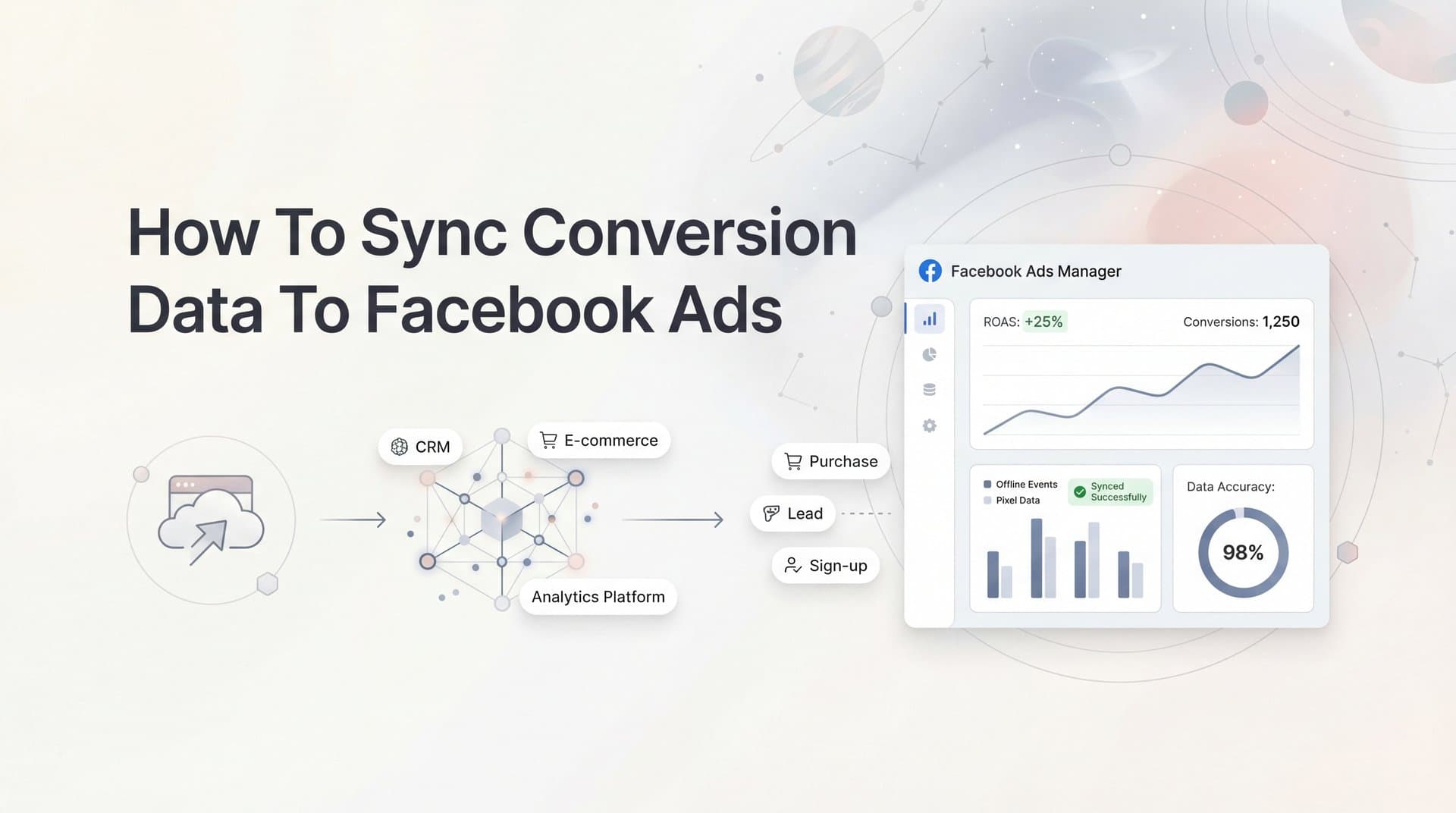
Your Facebook ads are only as smart as the data you feed them. When conversion data flows accurately back to Meta's algorithm, it learns which users are most likely to convert—and optimizes your campaigns accordingly. But here's the challenge: iOS privacy updates, browser restrictions, and fragmented tracking have made it harder than ever to get complete conversion data into Facebook Ads Manager.
The result? Incomplete reporting, poor optimization signals, and wasted ad spend on audiences that don't convert.
This guide walks you through exactly how to sync conversion data to Facebook Ads, from initial setup through verification. Whether you're using Meta's native tools, server-side tracking, or a dedicated attribution platform, you'll learn the specific steps to ensure your conversion events reach Facebook accurately and consistently.
By the end, you'll have a working conversion sync setup that helps Facebook's algorithm find more customers like your best converters.
Step 1: Audit Your Current Conversion Tracking Setup
Before you can improve your conversion sync, you need to understand what's currently working—and what isn't. Start by accessing Facebook Events Manager, which serves as your central dashboard for all conversion tracking activity.
Navigate to Events Manager from your Facebook Business Manager account. You'll see a list of all your data sources, including pixels, Conversions API setups, and offline event sets. Click into your primary pixel to review the events that are currently firing.
Look at the "Events" tab to see which standard events and custom conversions are being tracked. Pay attention to the volume of each event over the past 28 days. If you're seeing suspiciously low numbers compared to your actual conversions, you've identified your first gap.
Check for duplicate events—this happens when the same conversion fires multiple times from different sources without proper deduplication. You'll notice this if your Facebook-reported conversions significantly exceed your actual sales or leads.
Now examine your Event Match Quality scores. Facebook rates each event on a scale of 1 to 10 based on how well your customer data matches Facebook profiles. Scores below 6.0 indicate you're not sending enough customer information parameters, which limits Facebook's ability to optimize effectively.
Next, document your complete conversion funnel. List every meaningful action a customer takes: initial lead capture, account signup, trial start, purchase, and any post-purchase events. Then check whether each stage is being tracked in Events Manager. Missing funnel stages mean Facebook lacks the optimization signals it needs to guide users through your entire journey.
To verify your pixel is installed correctly, install the Meta Pixel Helper browser extension for Chrome. Visit your website and watch for the extension icon to light up, confirming the pixel fires on key pages. Click the icon to see which events trigger on each page and whether any errors appear.
Common issues the Pixel Helper reveals include: pixel not firing at all, wrong pixel ID installed, events firing on incorrect pages, or missing required parameters like value or currency for purchase events.
Document everything you find in this audit. Create a simple spreadsheet listing each conversion event, whether it's currently tracked, its Event Match Quality score, and any gaps or issues. This becomes your roadmap for the configuration steps ahead.
Step 2: Configure Your Facebook Pixel and Conversions API
With your audit complete, it's time to configure the tracking foundation that will power your conversion sync. This means properly setting up both your Facebook Pixel for browser-based tracking and the Conversions API for server-side tracking.
Start by deciding which events to track using Facebook's standard events versus custom conversions. Standard events like Purchase, Lead, CompleteRegistration, and AddToCart are preferable because Facebook's algorithm is pre-trained on them. The algorithm understands what these events mean and can optimize more effectively.
Use custom conversions only when your specific business action doesn't map to any standard event. For example, if you're tracking "Downloaded Whitepaper" or "Watched Demo Video," you might create custom conversions based on URL rules or pixel events.
To set up standard events, you'll need to add event code to your website. If you're using a platform like Shopify, WordPress, or Webflow, look for native Facebook Pixel integrations that handle this automatically. For custom implementations, you'll add JavaScript code snippets to the pages where conversions happen.
Here's where it gets critical: enable the Conversions API. This server-side tracking method sends conversion data directly from your server to Facebook, bypassing browser limitations like ad blockers, cookie restrictions, and iOS privacy settings that block traditional pixel tracking.
Access Conversions API setup through Events Manager. Click on your pixel, then navigate to "Settings" and find the Conversions API section. You'll need to generate an access token that authorizes your server to send data to Facebook.
The technical implementation depends on your setup. If you're using a platform with built-in Conversions API support, follow their integration guide. For custom implementations, you'll send HTTP POST requests to Facebook's Graph API endpoint with your conversion event data.
Now comes the crucial step: configure event deduplication. When you're using both pixel and Conversions API, the same conversion can be captured twice—once by the browser pixel and once by your server. This inflates your conversion counts and confuses optimization.
Prevent this by assigning a unique event_id parameter to each conversion. When the pixel fires, it should include this event_id. When your server sends the same conversion via Conversions API, it should include the identical event_id. Facebook recognizes the matching IDs and counts the conversion only once.
Map your backend events to Facebook's standard event taxonomy. If your CRM tracks "Opportunity Created," decide whether this maps to Lead, InitiateCheckout, or another standard event. Consistency matters—use the same event names across all your data sources.
For e-commerce businesses, ensure your Purchase events include the value parameter with the actual transaction amount and the currency parameter. This data feeds Facebook's value-based optimization and ROAS reporting.
Test your configuration before moving forward. Use Events Manager's "Test Events" tool to send sample conversions and verify they appear correctly with all required parameters.
Step 3: Connect Your Data Sources and CRM
Browser-based tracking captures online conversions, but many businesses close deals offline—through phone calls, in-person meetings, or CRM workflows. To give Facebook complete visibility into what drives revenue, you need to connect your CRM and other data sources.
Start by identifying which offline conversions matter for your business. If you're a B2B company, this might include qualified leads that sales accepts, opportunities that reach certain stages, or closed-won deals. For retail businesses, it could be in-store purchases or phone orders.
Facebook offers several methods to sync CRM data. The most common is Offline Conversions, which lets you upload conversion data via CSV file or API integration. Access this through Events Manager by creating an "Offline Event Set."
For ongoing automation, integrate your CRM directly with Facebook. Platforms like HubSpot, Salesforce, and Zoho offer native Facebook Conversions API integrations. Configure these to automatically send conversion events to Facebook when specific CRM actions occur.
The key to successful CRM integration is including customer information parameters that help Facebook match your conversions to specific users. When you send a conversion event, include hashed versions of email addresses, phone numbers, first names, last names, cities, states, zip codes, and countries.
Facebook uses these parameters to match your offline conversion back to the person who clicked your ad. The more parameters you include, the higher your Event Match Quality score and the better Facebook can optimize.
Make sure you're hashing personally identifiable information correctly. Facebook requires SHA-256 hashing for email addresses and phone numbers. Most CRM integrations handle this automatically, but if you're building custom integrations, verify your hashing implementation matches Facebook's requirements.
Configure conversion value tracking to send revenue data back to Facebook. When a purchase or deal closes in your CRM, the conversion event should include the actual dollar amount. This enables Facebook to optimize for high-value conversions rather than just conversion volume.
For subscription businesses, consider sending lifetime value data. If you know a customer's predicted LTV based on their plan or purchase history, include this in the conversion value. Facebook can then optimize to find more high-LTV customers.
Test your CRM integration thoroughly. Create a test lead or opportunity in your CRM and verify it appears in Events Manager within a reasonable timeframe. Check that all customer parameters are present and that the Event Match Quality score is acceptable.
Set up a regular cadence for uploading offline conversions if you're not using automated API integration. Weekly uploads are typically sufficient, but high-volume businesses may need daily uploads to keep optimization signals fresh.
Step 4: Implement Server-Side Tracking for Complete Data Capture
Even with pixel and CRM integrations in place, you're likely still missing conversions. Browser-based pixels fail when users have ad blockers enabled, strict privacy settings, or use browsers that restrict third-party cookies. Server-side tracking solves this by capturing conversions that browser pixels miss entirely.
Think of it this way: browser-based tracking relies on JavaScript code executing in your visitor's browser. If anything blocks that JavaScript—ad blockers, privacy extensions, restrictive browser settings—the conversion never gets recorded. Server-side tracking happens on your server, completely independent of the user's browser environment.
The difference is substantial. Many businesses discover they're missing 20-30% of their actual conversions when relying solely on browser pixels. Those missing conversions mean Facebook's algorithm is optimizing with incomplete information, leading to suboptimal targeting and budget allocation.
To implement server-side tracking, you'll send conversion events directly from your server to Facebook's Conversions API. When a conversion happens—a purchase completes, a lead submits, a signup occurs—your backend code triggers an HTTP request to Facebook with the conversion details.
The challenge is enriching these server-side events with the data Facebook needs for accurate attribution and optimization. You need to capture the Facebook click ID (fbclid) when users arrive from Facebook ads and store it through their session. When they convert, you send this fbclid along with the conversion event so Facebook can attribute it correctly.
Include as many customer information parameters as possible in your server-side events. Since you're sending from your server, you have access to data that browser pixels can't reliably capture—like the user's email address from your database, their full name, and their complete address information.
This enriched data dramatically improves Event Match Quality scores. While browser pixels might achieve scores of 4-6, properly implemented server-side tracking with full customer parameters often reaches 8-10. Higher match quality means better optimization and more accurate attribution.
For businesses without dedicated development resources, platforms like Cometly automate server-side conversion sync. These ad tracking tools can help you scale ads by connecting to your website, CRM, and ad platforms to capture every conversion event and automatically send it to Facebook with enriched customer data parameters.
The automation handles technical complexities like maintaining Facebook click IDs, properly hashing customer information, implementing event deduplication, and ensuring data flows reliably even when your website experiences high traffic or technical issues.
When evaluating server-side tracking solutions, prioritize those that offer real-time data transmission. Delayed conversion data reduces Facebook's ability to optimize effectively, especially for campaigns with shorter attribution windows.
Monitor your server-side implementation carefully during the first few weeks. Compare the conversion volume in Events Manager before and after enabling server-side tracking. You should see an increase in total conversions as previously missed events now get captured.
Step 5: Verify Data Accuracy and Optimize Match Quality
With all your tracking components configured, verification ensures everything works correctly before you rely on this data for campaign optimization. Start with Facebook's Test Events tool, which shows real-time event data as it arrives at Facebook's servers.
Access Test Events through Events Manager by clicking on your pixel and selecting the "Test Events" tab. Keep this tab open while you trigger test conversions on your website or through your CRM. You should see events appear within seconds, confirming the data flow works.
Check that each test event includes all required parameters. For Purchase events, verify the value and currency appear correctly. For Lead events, confirm that customer information parameters like email and phone are present and properly hashed.
Now examine your Event Match Quality scores across all events. Click on any event in Events Manager to see its match quality rating. Scores below 6.0 indicate opportunities for improvement. The score breakdown shows which parameters are missing—typically email, phone, or geographic information.
To improve match quality, add the missing parameters to your tracking implementation. If you're not currently sending email addresses with your conversions, update your pixel code or Conversions API integration to include them. Even adding one or two additional parameters can boost your score significantly.
Remember that customer information must be hashed using SHA-256 before sending to Facebook. Test your hashing implementation to ensure it matches Facebook's requirements—incorrect hashing results in failed matching and lower scores.
Compare Facebook-reported conversions against your actual sales data. Export conversion data from Events Manager for a specific date range, then compare it to your actual orders, leads, or signups from your database for the same period.
Some discrepancy is normal due to attribution windows and methodology differences. Facebook defaults to a 7-day click and 1-day view attribution window, meaning it counts conversions that happen within 7 days of clicking an ad or 1 day of viewing one. Your database simply records when conversions happened, regardless of ad interaction.
However, if Facebook shows significantly fewer conversions than your actual data, you're still missing tracking coverage. Review your implementation for pages or conversion paths where tracking might not fire. If Facebook shows more conversions than your actual data, check for duplicate events that aren't being deduplicated properly. Understanding Facebook ads reporting discrepancies helps you identify the root causes of these data gaps.
Set up ongoing monitoring to catch tracking issues before they impact campaign performance. Create a weekly check-in process where you review Events Manager for anomalies—sudden drops in event volume, declining match quality scores, or new error messages.
Use Facebook's Diagnostics tool to identify specific issues. This tool flags problems like events with missing parameters, deduplication failures, or server errors preventing data transmission. Address flagged issues promptly to maintain data accuracy.
Document your expected conversion volume for each event type based on historical data. When Events Manager shows numbers that deviate significantly from these baselines, investigate immediately rather than waiting for campaign performance to suffer.
Step 6: Optimize Your Campaigns Using Synced Conversion Data
With accurate conversion data flowing to Facebook, you can now leverage it to improve campaign performance. The first step is selecting the right conversion event for campaign optimization based on where users are in your funnel.
For top-of-funnel awareness campaigns, optimize for events like Lead or CompleteRegistration that happen earlier in the customer journey. For bottom-of-funnel campaigns targeting users closer to purchase, optimize for Purchase or other revenue events.
The key is giving Facebook enough conversion volume to learn from. If you're only generating 5-10 purchases per week, Facebook's algorithm doesn't have enough data to optimize effectively. In these cases, optimize for a higher-volume event like InitiateCheckout or AddToCart, then use your synced conversion data to analyze which campaigns drive actual purchases.
Build high-value lookalike audiences using your synced conversion data. Create a custom audience of your purchasers from the past 180 days, then generate lookalike audiences from this source. Because your conversion sync now includes all conversions—not just those browser pixels captured—your lookalike audiences are based on more complete data about your actual customers.
For value-based optimization, create lookalike audiences based on customer lifetime value. If you're syncing purchase value data to Facebook, you can build audiences that resemble your highest-spending customers rather than just any customer.
Leverage accurate ROAS data to make informed budget allocation decisions. With complete Facebook conversion tracking and revenue data syncing to Facebook, your reported ROAS reflects actual business performance rather than partial data skewed by tracking gaps.
Review ROAS at the campaign, ad set, and ad level to identify top performers. Shift budget toward campaigns with strong ROAS and away from those that aren't delivering profitable returns. Your synced conversion data makes this analysis reliable rather than guesswork.
Set up automated rules based on true conversion performance. Create rules that increase budgets for ad sets exceeding your target ROAS or pause ad sets that fall below acceptable thresholds. Because your conversion data is now accurate, these automated rules won't make decisions based on incomplete information.
Use Facebook's attribution reporting to understand how different touchpoints contribute to conversions. With complete data syncing, you can see whether your awareness campaigns assist conversions that retargeting campaigns close, helping you allocate budget across the full funnel rather than only crediting last-click interactions. Mastering Facebook ads attribution is essential for understanding the true impact of each campaign.
Regularly review your Events Manager data alongside campaign performance. When you see campaigns with strong click-through rates but weak conversion rates, investigate whether those campaigns are attracting the wrong audience or whether there's a disconnect in your landing page experience.
Putting It All Together
With your conversion data now syncing accurately to Facebook Ads, you've given Meta's algorithm the information it needs to find more of your ideal customers. This isn't just a technical achievement—it's a competitive advantage that translates directly into lower acquisition costs and more profitable campaigns.
Quick checklist to confirm your setup is complete: pixel installed and firing correctly on all key pages, Conversions API enabled with proper deduplication to prevent double-counting, CRM or backend events connected to capture offline conversions, Event Match Quality scores above 6.0 across your primary events, and test events verified in Events Manager showing real-time data flow.
Remember that conversion sync isn't a set-it-and-forget-it task. Regularly audit your Events Manager to ensure data continues flowing accurately, especially after website changes, CRM updates, or platform migrations. Set a monthly reminder to review your Event Match Quality scores and conversion volume to catch issues before they impact campaign performance.
The payoff is significant: better optimization signals mean lower cost per acquisition as Facebook's algorithm learns to target users most likely to convert. More accurate reporting means you can trust your data when making budget decisions. And campaigns that scale profitably because you're optimizing based on complete information rather than partial tracking. Once your data foundation is solid, you can focus on learning how to scale Facebook ads effectively.
As you move forward, continue refining your conversion tracking. Add new events as your funnel evolves, improve match quality by including additional customer parameters, and leverage your synced data to build increasingly sophisticated audience targeting strategies.
Ready to simplify your conversion tracking? Cometly's Conversion Sync feature automates the process of sending enriched conversion data back to Facebook and other ad platforms, helping you maintain accurate attribution without the technical complexity. From ad clicks to CRM events, Cometly tracks it all—providing complete visibility into every customer journey and feeding better data to ad platform algorithms for improved targeting and optimization.
Ready to elevate your marketing game with precision and confidence? Discover how Cometly's AI-driven recommendations can transform your ad strategy—Get your free demo today and start capturing every touchpoint to maximize your conversions.



