You're spending $10,000 a month on Facebook ads. Your dashboard shows 50 conversions. Your CRM shows 87. Which number is real?
More importantly—which number is Facebook's algorithm optimizing toward?
This isn't a hypothetical scenario. It's the daily reality for thousands of advertisers in 2025, and it's costing them real money. When your conversion tracking doesn't capture the complete picture, you're not just looking at inaccurate reports. You're making budget decisions based on incomplete data, and Facebook's machine learning is optimizing toward phantom conversions that may or may not represent actual business outcomes.
The turning point was iOS 14.5. When Apple introduced App Tracking Transparency in 2021, it fundamentally changed how digital advertising works. The majority of iOS users now opt out of cross-app tracking, which means browser-based tracking methods—like the Facebook pixel alone—miss significant portions of your conversion data. What used to be a minor attribution discrepancy became a systemic crisis affecting every advertiser on the platform.
Here's what makes this particularly frustrating: this isn't a competency issue. You didn't set something up wrong. The platform itself has fundamental limitations that require a different approach to tracking. Browser-based tracking alone now captures somewhere between 60-70% of actual conversions, depending on your audience's device preferences and privacy settings.
The solution isn't just installing the pixel more carefully. It's understanding that modern Facebook conversion tracking requires a dual-tracking architecture: browser-based pixel tracking combined with server-side tracking through Facebook's Conversions API. Think of it like having both a front-door camera and a security system—you need both for complete coverage.
This guide walks you through the complete setup: pixel installation, event configuration, Conversions API implementation, and validation. By the end, you'll have bulletproof tracking that captures conversions even when browsers block traditional methods. You'll understand not just how to set things up, but why each piece matters and how to verify everything works correctly.
We'll also address the elephant in the room: even with perfect Facebook tracking, there are attribution gaps the platform simply can't close. You'll learn what those limitations are and how to work around them.
Let's start with what you need before you begin the technical implementation.
Step 1: Installing The Facebook Pixel Correctly
The Facebook pixel is your tracking foundation. Everything else—event configuration, Conversions API, optimization—builds on top of this base code. Get this wrong, and you're troubleshooting phantom problems for weeks. Get it right, and the rest of the setup flows smoothly.
Here's what makes pixel installation tricky: it's technically simple but operationally fragile. The code itself is straightforward. The challenge is placing it correctly across different website platforms, avoiding duplicate installations, and verifying it works before moving forward.
Creating Your Pixel In Events Manager
Start in Facebook Business Manager and navigate to Events Manager. You'll find this in the main menu under "Measure & Report." Click "Data Sources" in the left sidebar, then the green "Add" button, and select "Web" as your data source type.
Facebook will prompt you to name your pixel. This matters more than you'd think. If you manage multiple clients or websites, use a naming convention that includes the domain: "ClientName-Domain-Pixel" rather than generic names like "Website Pixel" or "Conversion Tracking." When you're managing ten accounts at 2 AM trying to fix a tracking issue, clear naming prevents costly mistakes.
You get one pixel per website. Multiple pixels don't improve tracking—they fragment your data and confuse Facebook's algorithm. If you've inherited an account with multiple pixels, consolidate to one before proceeding. You can't merge pixel data later, so start clean.
Once created, Facebook assigns your pixel a unique ID (a string of numbers). You'll need this ID for various integrations, so note it somewhere accessible. The pixel ID appears at the top of your pixel's dashboard in Events Manager.
Installing The Base Code
Facebook offers three installation methods: manual code installation, partner integrations, and email instructions to your developer. Manual installation gives you the most control and helps you understand what's actually happening, so that's what we'll cover here.
Click "Set Up Pixel" and select "Install Code Manually." Facebook generates your unique pixel code—a JavaScript snippet that looks like a block of text starting with "<script>" and ending with "</script>."
This code must go in your website's header section, specifically between the opening <head> and closing </head> tags. This placement ensures the pixel loads on every page before any other content renders. Footer or body placement causes incomplete tracking because the pixel might not fire if someone leaves the page quickly.
The access point varies by platform. For WordPress, navigate to Appearance → Theme Editor → header.php (though many modern themes recommend using a plugin instead). For Shopify, go to Online Store → Themes → Actions → Edit Code → theme.liquid. For custom websites, you'll need direct access to your template files or use a tag management system.
Paste the pixel code immediately after the opening <head> tag. Don't modify the code—Facebook generates it specifically for your pixel ID, and changes break functionality. If you're using Google Tag Manager, you can install the pixel through a custom HTML tag instead, which makes future management easier.
Save your changes and clear your website cache if you're using a caching plugin. This is where conversion tracking begins—with proper pixel installation that fires consistently across all pages.
Step 2: Configuring Standard Event Tracking
Your pixel is installed and firing. That's good—but right now, it's only tracking PageViews. That's like having a security camera that only records when someone walks through the door, not what they actually do inside.
This is where conversion tracking becomes valuable. Events tell Facebook which actions matter to your business: purchases, form submissions, add-to-carts, registrations. Without events configured, Facebook's algorithm has no idea what success looks like, which means it can't optimize your campaigns toward meaningful outcomes.
Here's the strategic piece most advertisers miss: you don't need to track everything. Facebook offers 17 standard events, but most businesses only need 3-5 priority events. More isn't better—focused tracking on revenue-driving actions gives Facebook's algorithm clearer signals to optimize toward.
Implementing Your Priority Events
Start with your highest-value conversion event. For e-commerce, that's Purchase. For lead generation, it's Lead. For SaaS, it might be Complete Registration or Start Trial. Implement one event, verify it works, then add the next one. Sequential implementation prevents troubleshooting nightmares where you can't tell which event is causing problems.
You have two implementation paths: the Event Setup Tool or manual code installation. The Event Setup Tool is Facebook's point-and-click interface—you tell it which button or page represents a conversion, and it creates the tracking automatically. It's fast and requires zero coding knowledge. Manual code gives you more control over exactly when events fire and what parameters they include.
For a Purchase event, the tracking code goes on your order confirmation page—the page customers see after completing checkout. For a Lead event, it fires when someone submits your contact form. The Event Setup Tool can detect these pages automatically by analyzing your site's structure, but manual implementation lets you add custom triggers based on specific user actions.
Event Setup Tool Path: Navigate to Events Manager, select your pixel, click "Add Events," choose "From the Pixel," then "Add Events Using the Event Setup Tool." Enter your website URL and Facebook will load your site in a preview mode where you can click elements to assign events.
Manual Code Path: Copy the event code snippet from Events Manager (it looks like fbq('track', 'Purchase');), then paste it on the specific page where the conversion happens, right after your base pixel code. Each event type has its own code snippet with specific parameters.
Adding Parameters That Drive Optimization
Events without parameters are like telling Facebook "someone bought something" without specifying what or for how much. Parameters transform generic events into optimization fuel. The Purchase event needs value and currency parameters so Facebook knows which conversions are worth more. The Lead event needs predicted lifetime value if you're optimizing for lead quality, not just lead volume.
Here's what proper parameter implementation looks like for a Purchase event: fbq('track', 'Purchase', {value: 127.50, currency: 'USD'}); That tells Facebook this specific conversion was worth $127.50, which means its algorithm can optimize toward higher-value purchases, not just more purchases.
For Lead events, add content_name to specify lead type: fbq('track', 'Lead', {contentname: 'consultationrequest'}); This level of detail helps when you're running campaigns for different lead magnets or service offerings. Effective setting up conversion tracking requires these parameter details to maximize campaign performance and give Facebook's algorithm the data it needs for optimization.
Step 3: Implementing Server-Side Tracking With Conversions API
Your pixel and events are configured. You're tracking conversions. But you're still missing 30-40% of them because of browser limitations, ad blockers, and iOS privacy settings. This is where server-side tracking becomes non-negotiable.
The Conversions API (CAPI) sends conversion data directly from your server to Facebook, bypassing browsers entirely. When someone completes a purchase, your server tells Facebook about it—no pixel required, no browser restrictions, no data loss from privacy settings.
Think of it this way: the pixel is your front-door camera (visible, easy to disable). CAPI is your security system (invisible, always working). Together, they create redundant tracking that captures conversions even when one method fails.
Understanding The Technical Requirements
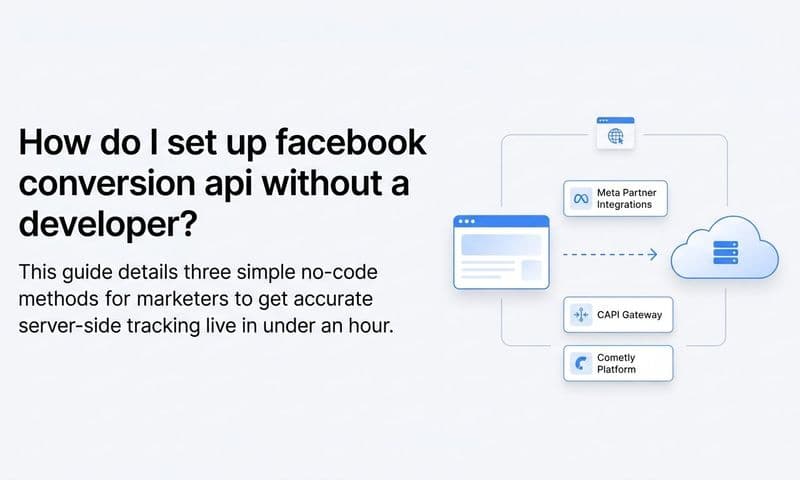
CAPI requires server-side access to your website or a platform integration that handles the server communication for you. If you're on Shopify, WooCommerce, or another major e-commerce platform, you can use Facebook's partner integrations. For custom websites, you'll need developer access to implement the API calls.
The core concept: when a conversion happens on your site, your server sends an HTTP POST request to Facebook's API endpoint with the conversion details. Facebook receives this data, matches it to the user (using email, phone, or other identifiers), and attributes the conversion to the correct ad.
You'll need three things: your Facebook Pixel ID, an Access Token (generated in Events Manager), and the ability to send server-side API requests. The Access Token authenticates your server's communication with Facebook—think of it as a password that proves your server is authorized to send conversion data.
Setting Up The Conversions API Connection
Navigate to Events Manager, select your pixel, and click "Settings." Scroll to the "Conversions API" section and click "Set Up." Facebook offers multiple setup paths depending on your platform.
For platform integrations (Shopify, WooCommerce, etc.), select your platform and follow the connection wizard. These integrations handle the technical implementation automatically—you authorize the connection, map your events, and the platform sends conversion data to Facebook on your behalf.
For custom implementations, you'll work with your developer to integrate Facebook's API. The documentation provides code examples in multiple languages (PHP, Python, Node.js). Your developer will implement API calls that fire when conversions occur, sending data like event name, timestamp, user information, and conversion value.
The critical piece: event deduplication. When both your pixel and CAPI send the same conversion, Facebook needs to know they're duplicates, not two separate conversions. You prevent double-counting by including an event_id parameter in both the pixel event and the API call. When Facebook sees matching event IDs, it counts the conversion once.
Many businesses use ad tracking tools to manage this complexity and ensure accurate data flows between their website and advertising platforms without manual technical implementation.
Step 4: Validating Your Tracking Setup
Your tracking is configured. Now comes the moment of truth: does it actually work? This step separates advertisers who think they have tracking from those who know they do.
Validation isn't optional. It's the difference between making decisions based on accurate data versus phantom numbers. You need to verify that events fire correctly, data reaches Facebook, and conversions appear in your ad reports.
Using Facebook's Testing Tools
Facebook provides three validation tools: Pixel Helper (browser extension), Test Events (in Events Manager), and the Events Manager activity log. Use all three—they catch different types of issues.
Install the Facebook Pixel Helper Chrome extension first. Navigate to your website and click the extension icon. It shows which pixels are firing, which events are triggering, and any errors in the implementation. A green checkmark means your pixel is working. Yellow or red indicators mean something's wrong.
Common Pixel Helper errors: "No Pixel Found" (pixel isn't installed or isn't loading), "Duplicate Pixel" (pixel code appears multiple times), "Invalid Event Parameter" (you're sending data in the wrong format). Fix these before proceeding.
Next, use Test Events in Events Manager. Navigate to your pixel settings and click "Test Events." Facebook generates a test code you can enter in the Pixel Helper extension. This connects your browsing session to Facebook's testing interface, so you can see events in real-time as you trigger them.
Go through your conversion flow: add a product to cart, proceed to checkout, complete a purchase. Watch Test Events to confirm each event fires with correct parameters. If events don't appear, check your event code placement and parameter formatting.
Verifying Conversions API Data Quality
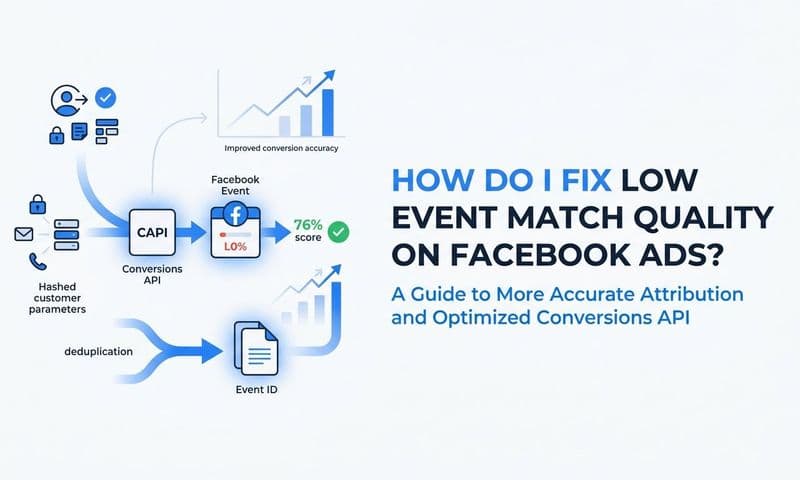
CAPI has its own validation requirements. In Events Manager, check your Event Match Quality score—this measures how well Facebook can match your server-side data to user accounts. A score of 6.0 or higher is good. Below 5.0 means you're losing attribution accuracy.
Event Match Quality depends on the customer information parameters you send: email, phone, first name, last name, city, state, zip code. More parameters = better matching. Hash these parameters using SHA-256 before sending them to protect customer privacy.
Send a test conversion through your CAPI implementation and verify it appears in the Test Events tool. If it doesn't show up, check your Access Token, verify your server can reach Facebook's API endpoint, and confirm you're sending required parameters (event name, event time, user data).
The Events Manager activity log shows all events received in the last 24 hours. Compare this to your actual conversion count from your CRM or analytics platform. They won't match exactly (attribution windows differ), but they should be in the same ballpark. If Facebook shows 10 conversions and your CRM shows 100, something's broken.
For comprehensive tracking that goes beyond Facebook's native tools, sales tracking software provides cross-platform visibility and helps identify discrepancies between what Facebook reports and what actually converts in your business.
Step 5: Troubleshooting Common Tracking Issues
Even with perfect setup, tracking breaks. Websites update, platforms change, integrations fail. This section covers the issues you'll actually encounter and how to fix them fast.
Pixel Fires But Events Don't Trigger
Your Pixel Helper shows the base pixel loading, but conversion events aren't firing. This usually means event code isn't placed correctly or isn't executing when conversions happen.
Check event code placement first. For manual implementations, verify the event code is on the correct page (confirmation page for purchases, thank-you page for leads). For Event Setup Tool implementations, re-run the tool to confirm it's detecting the right elements.
If events fire inconsistently, you might have a timing issue. The event code is trying to fire before the pixel loads. Add a small delay or use Facebook's event queue feature: fbq('track', 'Purchase', {}, {eventID: '12345'});
Conversions Show In Events Manager But Not In Ads Manager
This is attribution window confusion. Events Manager shows all conversions. Ads Manager only shows conversions attributed to your ads within your selected attribution window (typically 7-day click, 1-day view).
If someone clicks your ad, browses your site, leaves, then returns three days later via Google search and converts, Events Manager counts it. Ads Manager doesn't (unless you're using a longer attribution window).
This isn't a tracking error—it's how Facebook's attribution works. To see all conversions regardless of attribution, check the "All Conversions" column in Ads Manager rather than the standard conversion column.
If you're still comparing platforms, our best tracking software for Facebook ads guide ranks the leaders.
Event Match Quality Score Is Low
Low Event Match Quality (below 5.0) means Facebook can't reliably match your CAPI data to user accounts. This happens when you're not sending enough customer information parameters.
The fix: send more parameters. At minimum, include email and phone (hashed). Adding first name, last name, city, state, and zip code improves matching significantly. External_id (your customer ID) helps too.
Make sure you're hashing parameters correctly using SHA-256. Facebook provides hashing examples in their documentation. Incorrect hashing looks like you're sending data, but Facebook can't use it.
Duplicate Conversions Appearing
If you see double conversions (one from pixel, one from CAPI), event deduplication isn't configured. Both tracking methods are sending the same conversion without matching event IDs.
Add event_id parameters to both your pixel events and CAPI calls with identical values for the same conversion. Facebook uses this to recognize duplicates and count them once. The event ID should be unique per conversion but identical across tracking methods for that conversion.
Understanding how different ad tracking software companies handle deduplication can help you choose the right tools and avoid these common pitfalls in your tracking infrastructure.
Step 6: Optimizing For iOS 14.5+ Privacy Changes
iOS 14.5 changed everything. When users opt out of tracking (which most do), traditional pixel-based tracking loses visibility. You can't fix this completely, but you can minimize the damage.
Understanding Aggregated Event Measurement
Facebook's response to iOS privacy changes is Aggregated Event Measurement (AEM). Instead of tracking individual user actions, Facebook aggregates conversion data and reports it with a delay. You get less granular data, but you still get data.
AEM requires you to prioritize your conversion events. You can only optimize toward eight events per domain, ranked by importance. Facebook uses this ranking to determine which events to report when data is limited.
Navigate to Events Manager, select your pixel, click "Aggregated Event Measurement," and rank your events. Put your highest-value conversion (usually Purchase or Lead) at the top. Facebook prioritizes reporting for top-ranked events when users opt out of tracking.
Implementing Domain Verification
Domain verification proves you own your website, which is required for AEM to work properly. Without it, Facebook can't reliably attribute conversions from iOS users to your domain.
In Business Manager, go to "Brand Safety" → "Domains" → "Add" and enter your domain. Facebook provides a verification method: either add a DNS TXT record or upload an HTML file to your website root. Choose whichever method you have access to.
DNS verification is more reliable (it doesn't break if your website updates), but requires access to your domain registrar. HTML file verification is faster but can break if your site structure changes.
Once verified, your domain appears in the Domains section with a green checkmark. This enables AEM and ensures iOS conversions are attributed correctly within the platform's limitations.
Maximizing First-Party Data Collection
The more first-party data you collect (email, phone, customer ID), the better Facebook can match conversions to users even when browser tracking fails. This is where CAPI becomes critical—it sends this data directly to Facebook.
Implement email capture early in your funnel. Even if someone doesn't convert immediately, having their email lets Facebook match future conversions when they return. Add email fields to your cart page, not just checkout.
For lead generation, capture phone numbers in addition to email. Phone numbers have higher match rates because they're more unique identifiers. Hash all personal data before sending it to Facebook.
Advanced tracking solutions like fingerprint tracking can help maintain user identity across sessions without relying solely on cookies, providing more consistent attribution in privacy-restricted environments.
Step 7: Setting Up Advanced Tracking Features
Basic tracking is working. Now you can implement advanced features that give you competitive advantages: custom conversions, value optimization, and offline conversion tracking.
Creating Custom Conversions For Specific Goals
Standard events cover common actions (Purchase, Lead, Add to Cart), but your business might have unique conversion points that matter. Custom conversions let you track these without modifying your pixel code.
Examples: "High-Value Lead" (form submissions from specific pages), "Repeat Purchase" (purchases from returning customers), "Premium Product Purchase" (purchases above a certain value threshold).
Navigate to Events Manager → Custom Conversions → Create Custom Conversion. Define your conversion using URL rules or event parameters. For a high-value lead, you might create a rule: "Lead event where value is greater than 500."
Custom conversions appear as optimization options in Ads Manager. You can create campaigns that optimize specifically toward these custom goals rather than generic standard events.
Implementing Value-Based Optimization
Standard conversion optimization tells Facebook to get you more conversions. Value optimization tells Facebook to get you higher-value conversions. This is the difference between optimizing for quantity versus quality.
This requires sending accurate value parameters with your conversion events. For e-commerce, that's the purchase amount. For leads, that's predicted customer lifetime value or average deal size.
In your campaign setup, choose "Conversion Value" as your optimization goal instead of "Conversions." Facebook's algorithm will prioritize showing ads to users likely to generate higher-value conversions, not just more conversions.
This works best when you have conversion volume (at least 50 conversions per week). With lower volume, stick with standard conversion optimization until you have enough data for Facebook to identify high-value user patterns.
Connecting Offline Conversions
If your business has offline conversion points (phone sales, in-store purchases, signed contracts), you can connect these to your Facebook ads using Offline Conversions.
The process: capture customer information (email, phone) when someone interacts with your ad, then upload conversion data when they convert offline. Facebook matches the offline conversion to the original ad interaction.
Set up Offline Conversions in Events Manager → Data Sources → Offline. Create an offline event set, then upload conversion data via CSV file or API integration. Include matching parameters (email, phone, transaction ID) so Facebook can attribute conversions correctly.
This closes the loop on attribution for businesses where the conversion happens away from the website. Without it, Facebook has no visibility into offline results and can't optimize toward them.
Many businesses find that comprehensive server side tracking provides the infrastructure needed to connect online ad interactions with offline conversion events seamlessly across their entire customer journey.
Putting It All Together
You've just built a conversion tracking system that captures what most advertisers miss. Your Facebook pixel is firing correctly, your priority events are configured with proper parameters, and your Conversions API is sending server-side data that bypasses browser limitations. That's not basic setup—that's bulletproof tracking architecture.
Here's your implementation checklist to confirm everything's working:
Foundation Layer: Pixel shows "Active" status in Events Manager, PageView events fire on all pages, Pixel Helper shows green checkmark with no errors.
Event Layer: Priority conversion events (Purchase/Lead) fire on correct pages, event parameters include value and currency, Event Match Quality score is 6.0 or higher.
Server-Side Layer: Conversions API connection shows "Active" status, test events appear in Events Manager, event deduplication is configured with event_id parameters.
Validation Layer: Test conversions complete successfully, real conversions appear in Ads Manager within 20 minutes, conversion counts align with your CRM or analytics platform within expected variance.
The tracking you've implemented solves Facebook's visibility problem, but remember—Facebook's attribution model still only shows you the last touchpoint before conversion. To understand the complete customer journey across all your marketing channels, you need a platform that connects every touchpoint from first click to final purchase.
That's exactly what Cometly does. We capture every ad interaction, website visit, and conversion event across all your marketing channels, then show you which campaigns actually drive revenue—not just which ones get credit under last-click attribution. Get your free demo and see how complete attribution changes the way you optimize campaigns.