

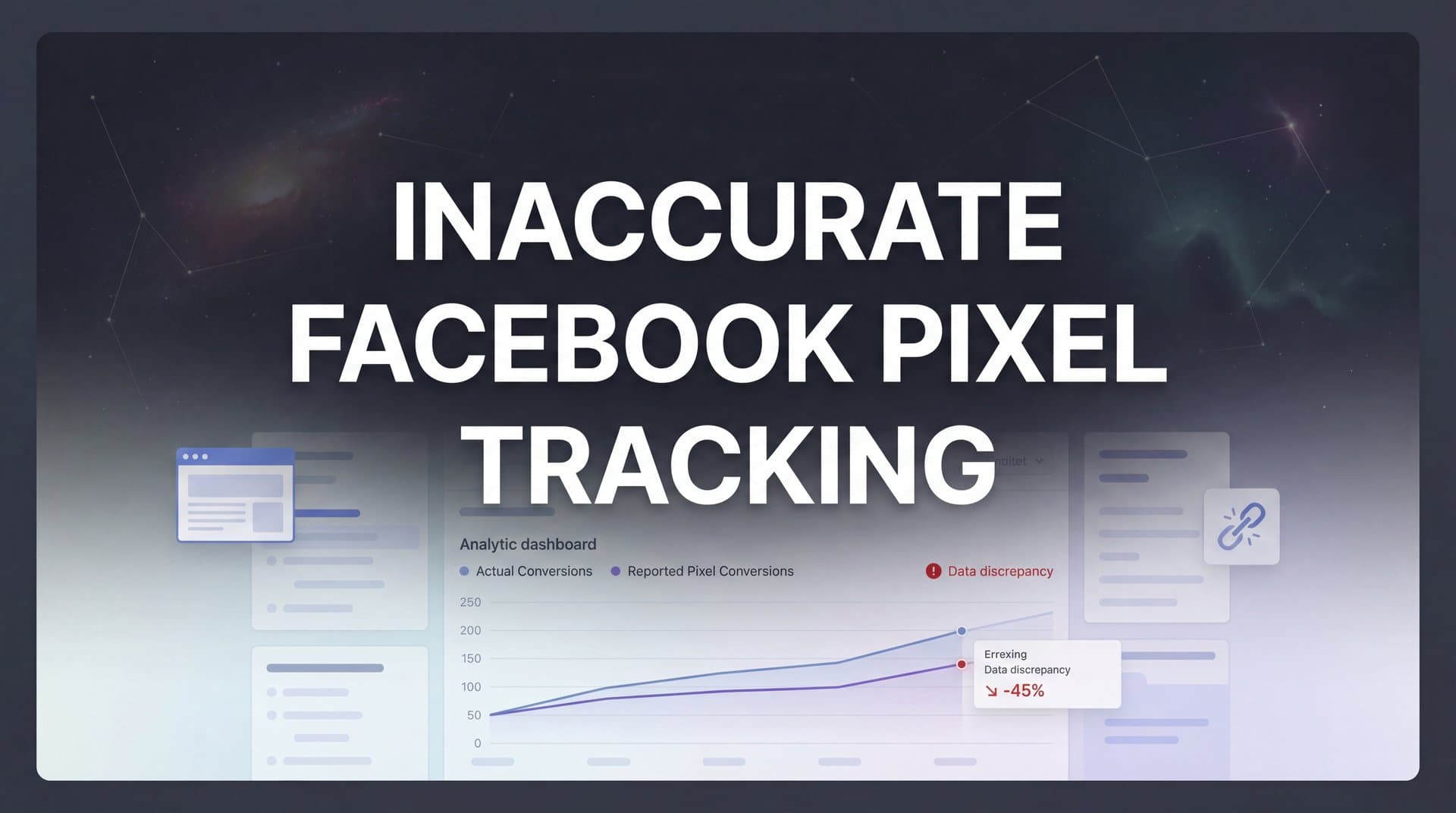
If your Facebook Ads Manager shows 50 conversions but your CRM only has 30 actual sales, you're dealing with inaccurate Facebook Pixel tracking—and you're not alone. Since iOS 14.5 introduced App Tracking Transparency, many marketers have seen their conversion data become unreliable, making it nearly impossible to know which ads actually drive revenue.
This disconnect doesn't just frustrate you; it actively hurts your campaigns. When Facebook's algorithm receives incomplete or incorrect data, it can't optimize properly, leading to wasted ad spend and missed opportunities. Facebook's AI needs accurate conversion signals to find more customers like the ones who actually buy from you. Feed it bad data, and it will optimize toward the wrong audience.
The good news? You can fix this. This guide walks you through a systematic approach to diagnosing and resolving Facebook Pixel tracking issues. You'll learn how to identify exactly where your tracking breaks down, implement server-side solutions that bypass browser limitations, and verify that your data matches reality.
By the end, you'll have accurate attribution data that lets you scale winning campaigns with confidence. No more guessing which ads work. No more budget wasted on phantom conversions. Just clean, reliable data that drives real business results.
Step 1: Audit Your Current Pixel Setup for Tracking Gaps
Before you can fix tracking issues, you need to understand exactly where the problems exist. Think of this like a health checkup for your pixel—you're diagnosing the symptoms before prescribing treatment.
Start by opening Facebook Events Manager and navigating to your pixel. Look for the health status indicator at the top of the page. A green checkmark means events are firing, but that doesn't necessarily mean they're accurate. Check the "Recent Activity" section to see which events have fired in the last 20 minutes. If you're running active campaigns but see no recent activity, that's your first red flag.
Next, install the Facebook Pixel Helper browser extension for Chrome. This free tool shows you exactly which Facebook events fire on each page of your website. Navigate through your customer journey—homepage, product pages, cart, checkout, thank you page. The Pixel Helper icon will light up and show you which events triggered on each page.
Pay special attention to your critical conversion pages. Does the Purchase event fire on your thank you page? Does AddToCart fire when someone adds a product? If events aren't firing where they should, you've found a tracking gap. Document every missing event—you'll need this information for the fixes ahead. Understanding what pixel tracking is and how it functions will help you identify these gaps more effectively.
Now comes the crucial part: comparing Facebook's reported conversions against your actual sales records. Pull your conversion data from Events Manager for the past 30 days. Then pull your actual sales from your e-commerce platform, CRM, or payment processor for the same period.
Calculate the discrepancy. If Facebook reports 100 purchases but you only had 70 actual sales, you're dealing with over-reporting (possibly from test events or duplicate tracking). If Facebook shows 50 purchases but you had 80 sales, you're under-reporting—the more common and more damaging scenario.
Document which specific events show the biggest gaps. Purchase events matter most since they represent actual revenue, but don't ignore upper-funnel events like ViewContent or AddToCart. If those are inaccurate, Facebook's algorithm is optimizing based on flawed signals from the very beginning of the customer journey. This is a common symptom of inaccurate conversion tracking that plagues many advertisers.
Create a simple spreadsheet tracking: event name, expected count, Facebook-reported count, and percentage discrepancy. This baseline measurement will help you quantify improvements as you implement fixes.
Step 2: Verify Domain Configuration and Event Prioritization
Domain verification is the foundation of accurate Facebook tracking, yet many advertisers skip this critical step. Without proper verification, Facebook can't reliably attribute conversions to your domain, especially in the iOS 14.5+ privacy environment.
Head to Facebook Business Settings and select "Brand Safety" then "Domains." Verify that your primary domain appears in the list with a green verified checkmark. If it doesn't, click "Add" and follow the verification process. You'll need to add a DNS TXT record or upload an HTML file to your website root—both methods take just a few minutes.
Don't stop at your main domain. If you use subdomains for checkout (like checkout.yourstore.com) or separate tracking domains, verify those too. Each unverified domain creates another potential tracking gap.
Once your domains are verified, navigate to Aggregated Event Measurement in Events Manager. This is where Facebook's iOS 14.5 limitations become tangible—you can only configure eight conversion events per domain, and they must be prioritized in order of importance.
Here's where strategy matters. Your highest-priority event should almost always be Purchase, since that represents actual revenue. But the seven remaining slots require thought. A typical e-commerce priority list might look like: Purchase, AddPaymentInfo, InitiateCheckout, AddToCart, ViewContent, Lead, CompleteRegistration, Search. Proper Facebook conversion tracking depends heavily on getting this configuration right.
Why does this order matter? When Facebook can only attribute one event due to iOS privacy restrictions, it will attribute the highest-priority event that occurred. If you have Purchase ranked third and ViewContent ranked first, Facebook might attribute a view instead of the actual purchase—completely skewing your data.
Review your current event priority configuration. Are your most valuable conversion events ranked highest? If not, reorder them immediately. Click "Manage Events" and drag events into the correct priority order.
One critical detail: changes to event configuration can take up to 72 hours to fully propagate. Don't panic if you don't see immediate improvements. Facebook needs time to recalibrate its attribution model based on your new settings.
Step 3: Implement Server-Side Tracking with Conversions API
Browser-based pixel tracking alone is no longer sufficient. Ad blockers, privacy-focused browsers, and iOS restrictions mean a significant portion of your conversions never reach Facebook through the pixel. This is where Conversions API changes everything.
Think of it this way: the Facebook Pixel is like sending a postcard that anyone can intercept or block along the way. Conversions API is like a direct phone call between your server and Facebook—no intermediaries, no browser limitations, no ad blockers in the way.
Conversions API (CAPI) sends event data directly from your server to Facebook's servers. When a customer completes a purchase, your server immediately notifies Facebook, regardless of whether the pixel fired in their browser. This server-to-server connection captures conversions that browser-based tracking misses entirely. Many marketers are now exploring Facebook Pixel alternatives that incorporate this server-side approach.
Setting up CAPI depends on your platform. For Shopify users, Facebook offers a native integration that handles most of the technical work. For WordPress with WooCommerce, plugins like PixelYourSite Pro can manage both pixel and CAPI implementation. For custom-built websites, you'll need to work with your development team to implement the API directly.
The basic setup process involves generating a Conversions API access token in Events Manager, then configuring your server to send event data to Facebook's API endpoint. Each event should include customer information parameters (email, phone, name) that help Facebook match the conversion to the right user, even when cookies aren't available.
Here's the critical part: event deduplication. When you run both pixel and CAPI, you risk counting the same conversion twice—once from the browser pixel and once from your server. This inflates your conversion numbers and wastes budget on what appears to be successful campaigns.
Prevent this by using the event_id parameter. Assign each conversion a unique identifier (like the order number) and include this same event_id in both your pixel event and your CAPI event. Facebook will recognize these as the same conversion and count it only once. Learning how to sync conversion data to Facebook Ads properly ensures this deduplication works correctly.
After implementation, use Facebook's Test Events tool to verify your server events are transmitting correctly. Navigate to Events Manager, select your pixel, and click "Test Events." Enter your server's IP address or test event code, then trigger a test conversion on your website. You should see the event appear in the Test Events panel within seconds, showing all the parameters you sent.
Check the Event Match Quality score in Events Manager. This score (ranging from 0 to 10) indicates how well Facebook can match your events to user profiles. Scores above 6.0 are considered good. If your score is lower, you're likely missing customer information parameters like email or phone number in your CAPI events.
Step 4: Connect Your CRM for Complete Customer Journey Data
Facebook's attribution window has narrowed significantly—the default is now 7-day click and 1-day view. This means if someone clicks your ad on Monday but doesn't purchase until the following Tuesday, Facebook won't attribute that conversion. For businesses with longer sales cycles, this creates massive blind spots in your attribution data.
Your CRM holds the truth about which leads actually convert into customers, often days or weeks after the initial ad click. Connecting your CRM to Facebook closes this attribution gap and gives Facebook's algorithm the complete picture it needs to optimize effectively.
Start by identifying which customer data points your CRM captures. At minimum, you need email addresses, but phone numbers, names, and purchase values make matching more accurate. The more parameters you can send, the better Facebook can connect CRM conversions back to the original ad interaction. This is essential for accurate customer attribution tracking.
Facebook's Offline Conversions feature allows you to upload conversion data from your CRM. Set up an offline event set in Events Manager, then configure your CRM to send conversion data to Facebook. This works for both one-time uploads and ongoing automated syncing.
Map your CRM fields to Facebook's expected parameters. Your "customer_email" field maps to Facebook's "em" parameter. Your "phone_number" field maps to "ph." Facebook will hash these values for privacy, then match them against user profiles to attribute conversions to the correct ad interactions.
For businesses with complex sales funnels, this connection becomes even more valuable. If your sales team closes deals weeks after the initial lead comes in, Facebook has no way to know that lead converted—unless you tell it. Upload these offline conversions, and Facebook learns which ads generate leads that actually close, not just leads that fill out forms. This is particularly important for lead generation attribution tracking.
This is where platforms like Cometly excel at automating the entire process. Rather than manually uploading CSV files or configuring complex API integrations, Cometly connects your CRM, payment processor, and ad platforms in one place. It automatically captures every touchpoint in the customer journey—from first ad click through final purchase—and sends enriched conversion data back to Facebook.
The result? Facebook's algorithm receives complete, accurate signals about which ads drive real revenue, even for conversions that happen outside the standard attribution window. This enriched data helps Facebook find more high-quality customers while reducing wasted spend on leads that never convert.
Set up automated conversion uploads rather than manual ones. Manual uploads create delays between when conversions happen and when Facebook learns about them. Automated syncing means Facebook receives conversion data within hours or even minutes, allowing faster optimization.
Step 5: Test and Validate Your Tracking Accuracy
Implementation without validation is just hope. You need to prove your tracking fixes actually work before you trust them with your ad budget. This step separates marketers who think they fixed tracking from those who know they did.
Run a controlled test purchase through your entire funnel. Use a real email address you control and complete an actual transaction. Don't use test mode—you want to trigger the exact same events a real customer would trigger. Watch Events Manager in real-time as you move through each step.
Open Facebook's Test Events tool before you start. Enter your IP address so Facebook can highlight your test events. As you navigate from homepage to product page to cart to checkout, you should see events appear in Test Events within seconds. ViewContent when you view a product. AddToCart when you add to cart. InitiateCheckout when you start checkout. Purchase when you complete the order.
Check that both pixel events and server events (CAPI) fire for your test purchase. You should see two events with the same event_id—one from the browser pixel (marked as "Browser") and one from your server (marked as "Server"). This confirms deduplication is working correctly. Following best practices for tracking conversions accurately will help you catch issues during this validation phase.
Examine the parameters included with each event. Does the Purchase event include the correct purchase value? Are customer information parameters (email, phone) being sent? Is the event_id unique and consistent between pixel and server events? Missing parameters reduce Event Match Quality and limit Facebook's ability to optimize.
Now cross-reference your test purchase against your CRM or e-commerce backend. Does the order appear with the correct details? Can you trace it back to the Facebook ad click? This end-to-end validation confirms that data flows correctly through your entire system, not just to Facebook.
Don't stop with one test. Run multiple test purchases over several days using different devices and browsers. Test on iOS devices with tracking disabled to simulate worst-case scenarios. If CAPI is working correctly, you should see server events fire even when browser-based pixel events are blocked.
For ongoing monitoring, set up a weekly comparison between Facebook-reported conversions and actual sales. Pull both datasets every Monday morning and calculate the discrepancy percentage. If your tracking is accurate, this number should stay consistently low (under 10% variance is typical due to attribution window differences). This addresses the common problem of Facebook Pixel missing conversions.
Create alerts for sudden tracking drops. If your daily conversion volume suddenly decreases by more than 30%, something broke. Maybe your pixel code was accidentally removed during a website update. Maybe your CAPI access token expired. Catching these issues within hours instead of weeks prevents wasted ad spend.
Step 6: Optimize Facebook's Algorithm with Better Data
Accurate tracking is just the foundation. Now you need to help Facebook's algorithm use that data effectively. Better data quality directly translates to better campaign performance—but only if you optimize for it.
Give Facebook time to recalibrate after implementing tracking fixes. The algorithm needs 48-72 hours to adjust its optimization model based on new, more accurate conversion signals. Don't make major campaign changes during this adjustment period. Let Facebook's AI relearn which audiences and placements actually drive conversions.
You might see temporary performance fluctuations during this recalibration. Cost per acquisition might spike briefly as Facebook tests different audience segments with your improved data. This is normal. The algorithm is essentially relearning what works, and that process requires experimentation.
Monitor your Event Match Quality score in Events Manager. This score indicates how well Facebook can match your conversion events to user profiles. Higher scores mean better attribution and more effective optimization. If your score is below 6.0, you're leaving performance on the table. Reviewing your Facebook marketing metrics regularly helps you spot these optimization opportunities.
Improve Event Match Quality by including more customer information parameters in your events. Enhanced matching parameters include email, phone number, first name, last name, city, state, zip code, and country. The more parameters you send, the more accurately Facebook can connect conversions to the right users—even when cookies are blocked or unavailable.
Hash these parameters before sending them to protect customer privacy. Facebook provides specific hashing requirements (lowercase, remove spaces, SHA-256 encryption). Most CAPI implementations handle this automatically, but verify your setup follows Facebook's guidelines.
Watch for improvements in campaign metrics as data quality increases. Better tracking typically leads to lower cost per acquisition and higher return on ad spend. Facebook can now optimize toward users who actually convert, not just users who appear to convert based on incomplete data. The algorithm finds better audiences, delivers more relevant ads, and allocates budget more efficiently.
Consider implementing multi-touch attribution to understand the full customer journey beyond Facebook's limited attribution window. Facebook uses last-click attribution by default, meaning it only credits the last ad someone clicked before converting. But customers often interact with multiple ads across multiple platforms before purchasing. Understanding Facebook attribution tracking helps you see beyond these limitations.
Multi-touch attribution tools track every touchpoint—Facebook ads, Google ads, email campaigns, organic search, direct visits—and show how they work together to drive conversions. This complete view helps you understand Facebook's true role in your marketing mix, not just what Facebook's own attribution model reports.
Platforms like Cometly specialize in this comprehensive attribution approach. By tracking the entire customer journey across all channels, Cometly shows which marketing touchpoints actually contribute to revenue. You might discover that Facebook ads are excellent at introducing new customers who later convert through Google search. Or that email campaigns close deals that Facebook ads initiated weeks earlier.
This insight changes how you allocate budget. Instead of judging each channel in isolation, you optimize based on how channels work together. Facebook might show a higher cost per acquisition in platform, but multi-touch attribution reveals it's driving first-touch awareness that other channels convert. That's valuable information you can't get from Facebook's reporting alone.
Putting It All Together
Fixing inaccurate Facebook Pixel tracking requires a systematic approach: audit your current setup, verify domain configuration, implement server-side tracking, connect your CRM, validate accuracy, and optimize for better algorithm performance. Each step builds on the previous one, creating a comprehensive tracking infrastructure that captures conversions Facebook's pixel alone would miss.
The effort pays off significantly. Accurate tracking means Facebook can find more of your ideal customers, reducing wasted spend and improving return on ad spend. When Facebook's algorithm receives complete, accurate conversion data, it optimizes toward real revenue—not phantom conversions that never actually happened.
Here's your quick implementation checklist to ensure nothing falls through the cracks:
✓ Pixel health verified in Events Manager with recent activity confirmed
✓ Domain verified in Business Settings with all subdomains included
✓ Aggregated Event Measurement configured with proper event prioritization
✓ Conversions API implemented with event deduplication using event_id parameters
✓ CRM connected for complete customer journey data and offline conversions
✓ Test events validated against actual conversions across multiple devices
✓ Event Match Quality score monitored and optimized above 6.0
✓ Ongoing monitoring established with weekly conversion reconciliation
Remember that tracking accuracy isn't a one-time fix. Websites change, platforms update, and new privacy restrictions emerge. Schedule quarterly audits to catch tracking issues before they impact campaign performance. Set up automated alerts for sudden conversion drops that might indicate broken tracking.
Ready to take your attribution accuracy further? Cometly's server-side tracking and multi-touch attribution can automate much of this process while giving you a complete view of which ads actually drive revenue. From capturing every touchpoint in the customer journey to feeding enriched conversion data back to Facebook's algorithm, Cometly handles the technical complexity so you can focus on scaling profitable campaigns.
Ready to elevate your marketing game with precision and confidence? Discover how Cometly's AI-driven recommendations can transform your ad strategy—Get your free demo today and start capturing every touchpoint to maximize your conversions.



