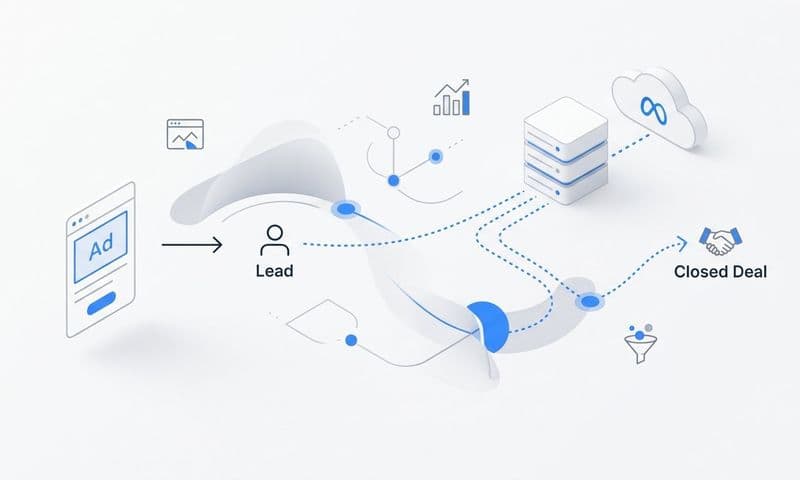
You're running campaigns across Google, Facebook, LinkedIn, and email. Traffic is flowing. Conversions are happening. But when your CEO asks which channels actually drive revenue, you're stuck piecing together spreadsheets and guessing at the customer journey. Sound familiar?
HubSpot attribution tracking solves this problem by connecting every marketing touchpoint to real revenue outcomes. It shows you which ads, emails, and content pieces influence deals—not just which ones get the last click before conversion.
But here's the thing: turning on attribution in HubSpot isn't as simple as flipping a switch. You need the right subscription tier, properly configured tracking, connected ad accounts, and a clear understanding of which attribution model answers your specific questions.
This guide walks you through the complete setup process, from verifying your prerequisites to building your first attribution report. By the end, you'll have a fully functional system that connects marketing activities to closed deals, giving you the confidence to make data-driven budget decisions instead of relying on gut feelings and vanity metrics.
Step 1: Verify Your HubSpot Subscription and Prerequisites
Before you dive into configuration, you need to confirm that your HubSpot account has the necessary features. Attribution reporting isn't available on all HubSpot tiers—it requires either Marketing Hub Professional or Marketing Hub Enterprise.
To check your subscription level, navigate to Settings (the gear icon in the top right), then click on Account & Billing in the left sidebar. Your current subscription tier will be displayed at the top. If you're on Starter or Free, you'll need to upgrade to access attribution reports.
Why this matters: Without the right tier, you simply won't see the Attribution option in your Reports menu. Many marketers waste time troubleshooting tracking issues only to discover they don't have access to the feature in the first place.
Next, verify that your HubSpot tracking code is installed on every page of your website. This JavaScript snippet is what captures visitor behavior, form submissions, and page views that feed into your attribution data. Understanding what a tracking pixel is and how it works can help you troubleshoot installation issues.
Go to Settings > Tracking & Analytics > Tracking Code. HubSpot will show you the installation status for your domain. If the status shows "Not Installed" or "Partially Installed," you'll need to add the tracking code to your website header before proceeding.
For WordPress sites, you can use the HubSpot WordPress plugin. For custom sites, you'll need to paste the tracking code into your site's header template before the closing head tag. If you're using Google Tag Manager, you can deploy the HubSpot tracking code as a custom HTML tag that fires on all pages.
Here's a critical piece many teams overlook: your CRM needs actual revenue data to attribute. Attribution tracking connects marketing touchpoints to conversions, but if your deals don't have amounts populated or your sales process isn't tracked in HubSpot, there's nothing to attribute.
Check that your deal pipeline includes revenue amounts. Navigate to Sales > Deals and spot-check a few recent closed-won deals. If the amount field is blank or always shows zero, you'll need to work with your sales team to ensure deal values are being entered consistently.
Finally, verify your user permissions. To create and view attribution reports, you need Marketing or Reporting access in HubSpot. If you're a user with limited permissions, you might not see the attribution reporting options even if your account has the right subscription tier.
Have your admin check your permissions under Settings > Users & Teams. Your account should have either Super Admin access or specific permissions for "View Reports" and "Create Reports" enabled.
Step 2: Configure Your Tracking Code and Data Collection
With your prerequisites confirmed, it's time to configure how HubSpot collects and processes your marketing data. This is where many attribution setups fail—incomplete tracking configuration means incomplete attribution data.
Start by navigating to Settings > Tracking & Analytics > Tracking Code. This is your command center for all data collection settings. The tracking code itself should already be installed from Step 1, but now you're going to configure how it behaves.
If your business uses multiple domains—for example, a main website at yourcompany.com and a separate checkout page at checkout.yourcompany.com—you need to enable cross-domain tracking. Without this, HubSpot treats visits to different domains as separate sessions, breaking the attribution chain.
In the Tracking Code settings, scroll down to "Track visitors across domains." Click "Add domain" and enter each domain where the HubSpot tracking code is installed. This tells HubSpot to maintain the same visitor identity as users move between your domains, preserving the complete customer journey.
Pro tip: Cross-domain tracking is especially critical for businesses with separate landing page builders (like Unbounce or Instapage) or third-party checkout systems. If the tracking breaks between your landing page and purchase confirmation, HubSpot won't attribute that conversion correctly.
Next, configure UTM parameter tracking. UTM parameters are the source/medium/campaign tags you add to your URLs in paid ads and email campaigns. HubSpot automatically captures these parameters, but you need to verify that tracking is working correctly.
Create a test URL with UTM parameters: yourwebsite.com/?utm_source=test&utm_medium=guide&utm_campaign=attribution_setup. Visit this URL in an incognito browser window, then check if HubSpot recorded the visit with the correct source data.
Go to Contacts > Contacts, find the contact record that was created from your test visit (it might be you if you filled out a form, or an anonymous contact if you just browsed). Click into the contact record and scroll to "Original Source." You should see your UTM parameters reflected there.
If the original source shows "Direct Traffic" or "Organic Search" instead of your UTM parameters, there's a tracking issue. Common causes include the tracking code loading too slowly, ad blockers interfering with data collection, or UTM parameters being stripped by redirects. Learning how to fix attribution discrepancies in data can help you resolve these problems quickly.
Now verify that form submissions are being captured properly. Form conversions are critical touchpoints in your attribution data—they represent the moment a visitor becomes a known contact.
Navigate to Marketing > Lead Capture > Forms and check that your key forms are connected to HubSpot. If you're using non-HubSpot forms (like a custom contact form built into your website), you'll need to set up the Forms API or use the collected forms feature to track submissions.
Test a form submission yourself. Fill out one of your forms with a test email address, submit it, then check that the submission appears in the contact timeline. Go to the contact record, click the Activity tab, and verify that the form submission event is logged with the correct form name and timestamp.
One often-missed configuration: cookie consent and tracking preferences. If your website uses a cookie consent banner, make sure that accepting cookies properly initializes the HubSpot tracking code. Test both scenarios—accepting and declining cookies—to understand how it affects your data collection.
For businesses operating in regions with strict privacy regulations, you may need to implement cookie consent tracking that only fires the HubSpot code after users accept. This is typically done through your cookie consent platform's integration settings.
Step 3: Connect Your Marketing Channels and Ad Accounts
Attribution only works when HubSpot can see your complete marketing picture. That means connecting every channel where you're running campaigns—paid ads, email, social media, and any other touchpoints that influence conversions.
Start with your paid advertising accounts. Navigate to Settings > Marketing > Ads and click "Connect account" for each ad platform you use. HubSpot offers native integrations with Google Ads, Facebook Ads, LinkedIn Ads, and several other platforms.
For Google Ads, you'll need admin access to the account you're connecting. Click "Connect account," sign in with your Google credentials, and select the Google Ads account you want to link. HubSpot will begin importing your campaign data, ad spend, and conversion events.
Critical step: After connecting Google Ads, verify that ad spend data is flowing correctly. Go to Reports > Attribution (we'll build the actual report in Step 5, but you can preview the data here). If your ad spend shows as zero or isn't updating, check that your Google Ads account has billing enabled and that campaigns are actively running.
Repeat this process for Facebook Ads and LinkedIn Ads. For Facebook, you'll connect your Facebook Business Manager account and select which ad accounts to sync. Proper Facebook attribution tracking is essential for understanding how your social ads contribute to conversions. For LinkedIn, you'll need to be an Account Manager or Campaign Manager in LinkedIn Campaign Manager.
One common issue: ad accounts showing as connected but not syncing data. This usually happens when permissions change in the ad platform after the initial connection. If you see connection errors, disconnect and reconnect the account with fresh authentication.
Next, configure email tracking for your HubSpot email campaigns. If you're using HubSpot's email tool, tracking is automatically enabled—opens, clicks, and conversions are captured without additional setup.
However, if you're using an external email platform like Mailchimp or Constant Contact, you'll need to ensure that email links include UTM parameters. Set up a UTM parameter template in your email platform that automatically tags all links with source=email and medium=email, plus the campaign name.
For marketing emails sent from HubSpot, verify that tracking is enabled by going to Marketing > Email. Create or edit an email, click Settings, and confirm that "Track email opens" and "Track clicks" are both toggled on. These tracking settings ensure that email interactions appear in contact timelines and feed into attribution reports.
Don't forget about social media touchpoints. While organic social traffic typically comes through with a referral source, you can get more granular data by connecting your social accounts to HubSpot.
Navigate to Marketing > Social and connect your Facebook, LinkedIn, Twitter, and Instagram accounts. This allows HubSpot to track social post performance and attribute conversions that originated from social media interactions.
For paid social campaigns, make sure you're using UTM parameters in your social posts and ads. Even though Facebook and LinkedIn are connected at the ad account level, UTM parameters provide additional context in your attribution reports.
Finally, verify that conversion data is syncing properly across all connected channels. Run a test by clicking on one of your own ads (use a test campaign with a small budget to avoid skewing performance data), visiting your website, and completing a form submission or demo request.
Then check the contact record in HubSpot. You should see the complete journey: the ad click, the website visit with the correct UTM source, and the conversion event. If any step is missing, there's a gap in your tracking that will create blind spots in your attribution data.
Step 4: Define Your Conversion Events and Revenue Tracking
Attribution is only as valuable as the conversions you're tracking. This step is about defining what "success" looks like in your business and ensuring HubSpot can measure it accurately.
Start by identifying which events represent meaningful conversions in your sales process. For most B2B companies, the key conversion is a closed-won deal. But depending on your sales cycle, you might also want to track earlier milestones like SQLs (sales-qualified leads), demo bookings, or trial signups.
Navigate to Settings > Properties and search for "Lifecycle Stage." This property tracks where contacts are in your funnel—subscriber, lead, marketing qualified lead, sales qualified lead, opportunity, customer, etc.
Review your lifecycle stages and confirm they accurately reflect your sales process. If your stages don't match how your team actually works, you'll need to customize them. Click "Edit choices" to add, remove, or rename stages so they align with your real conversion milestones.
Now here's the critical piece: deal revenue data. Attribution reports can show you which channels influence conversions, but to calculate ROI, HubSpot needs to know how much revenue each conversion generated. Platforms focused on marketing attribution and revenue tracking make this connection seamless.
Go to Sales > Deals and spot-check several recent closed-won deals. Click into a few deal records and verify that the "Amount" field is populated with the actual deal value. If this field is consistently blank or always shows zero, your attribution reports will show channel influence but can't calculate revenue impact.
Work with your sales team to establish a process for entering deal amounts. This might mean training reps to always fill in the amount field before moving a deal to closed-won, or setting up automation that requires an amount before a deal can progress to certain stages.
For businesses with recurring revenue, decide whether you'll track annual contract value (ACV), total contract value (TCV), or first-year revenue. This matters because it affects your ROI calculations—if you're comparing ad spend to ACV but your actual revenue is spread over three years, your ROI metrics will be inflated.
Next, consider micro-conversions—smaller conversion events that happen before someone becomes a customer. These might include content downloads, webinar registrations, or demo requests.
To track micro-conversions in attribution reports, you can use custom behavioral events or specific form submissions. Navigate to Reports > Attribution and note that you can filter by specific forms or content interactions when building reports.
If you want to track a specific action that doesn't have a dedicated form—like watching a product video or engaging with a pricing calculator—you'll need to set up event tracking using HubSpot's Events API or custom code that fires when users complete that action. This is similar to event tracking in Google Analytics but within HubSpot's ecosystem.
Now map your sales cycle timeline to set appropriate attribution windows. An attribution window determines how far back HubSpot looks when assigning credit to touchpoints. If your sales cycle is 90 days, you need an attribution window of at least 90 days to capture all the touchpoints that influenced a conversion.
To understand your sales cycle length, go to Reports > Analytics Tools > Reports and create a deal report. Add "Time to Close" as a metric and calculate the average across all closed-won deals. This gives you your typical sales cycle duration.
Use this number to inform your attribution window settings. Understanding attribution window performance helps you capture the full customer journey without including irrelevant touchpoints. You'll configure this when building attribution reports in the next step.
Finally, verify that contact-to-deal associations are working correctly. When a contact converts to a customer, HubSpot needs to associate that contact with the closed-won deal so it can trace back through the contact's marketing touchpoints.
Check a few recent customers by going to Contacts > Contacts, filtering for contacts with lifecycle stage "Customer," and clicking into their records. Scroll to the "Deals" section in the left sidebar. You should see the associated deal listed there. If customer contacts aren't associated with deals, your attribution data will be incomplete.
Step 5: Build Your First Attribution Report
With tracking configured and conversions defined, you're ready to build your first attribution report. This is where all your setup work pays off—you'll finally see which marketing efforts are actually driving revenue.
Navigate to Reports > Attribution. If you don't see the Attribution option in your Reports menu, double-check that you have Marketing Hub Professional or Enterprise and that your user permissions include reporting access.
Click "Create attribution report" to start building. HubSpot will present you with several configuration options that determine what data the report shows and how credit is assigned to different touchpoints.
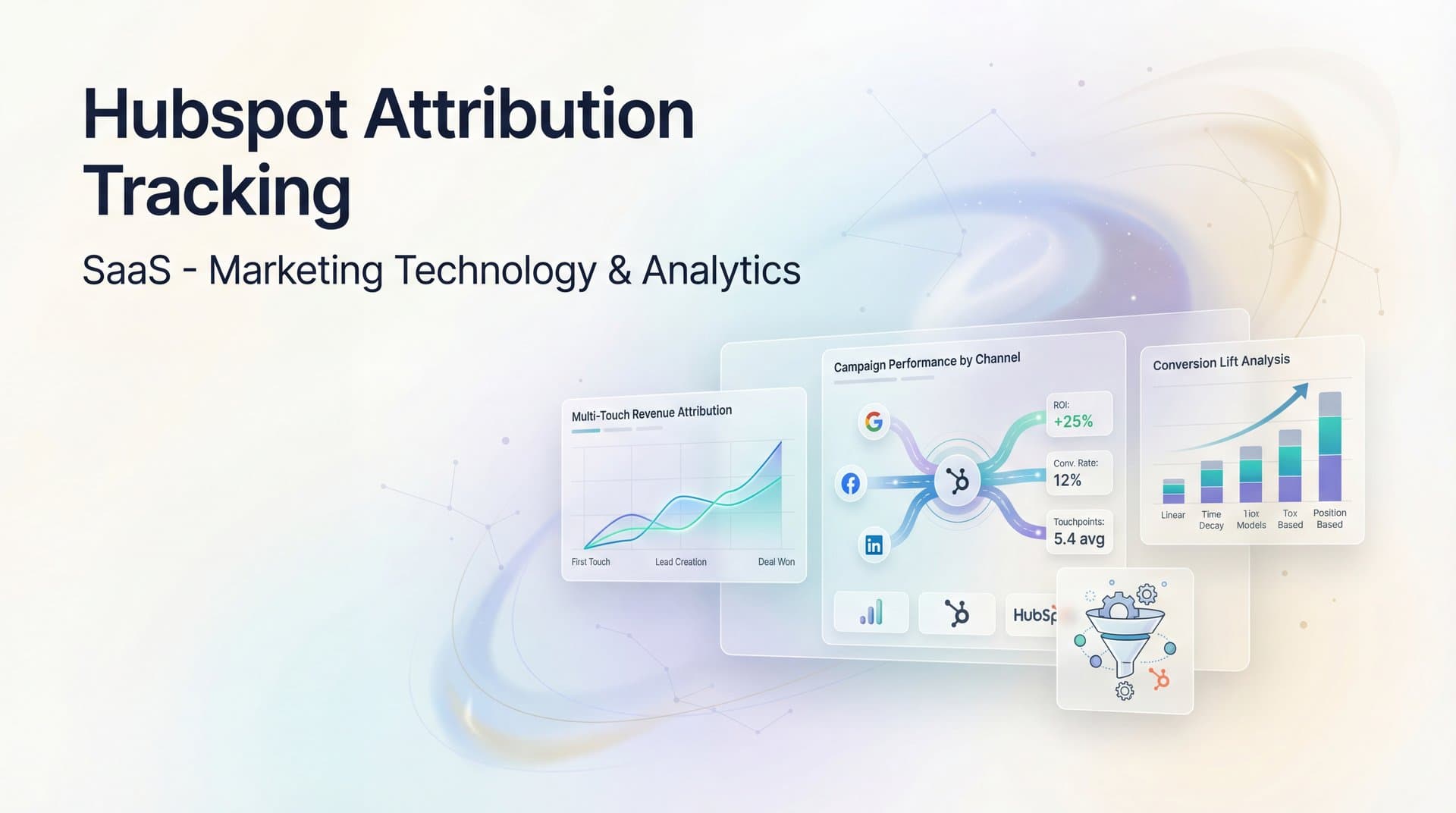
First, select your attribution model. This is one of the most important decisions because different models tell different stories about your marketing performance. HubSpot offers several options:
First-Touch Attribution: Gives 100% credit to the first touchpoint that brought someone into your system. Use this when you want to understand which channels are best at generating new awareness and bringing new people into your funnel.
Last-Touch Attribution: Gives 100% credit to the final touchpoint before conversion. This model highlights which channels are best at closing deals, but it ignores all the nurturing touchpoints that happened along the way.
Linear Attribution: Distributes credit evenly across all touchpoints in the customer journey. This model gives you a balanced view but can overweight minor interactions that didn't really influence the decision.
U-Shaped Attribution: Gives 40% credit to the first touch, 40% to the lead creation touch, and splits the remaining 20% among other interactions. This model emphasizes awareness and lead generation while acknowledging that other touchpoints matter.
W-Shaped Attribution: Distributes credit with emphasis on first touch, lead creation, and opportunity creation (typically 30% each), with the remaining 10% split among other interactions. Best for B2B companies with defined sales stages.
Time-Decay Attribution: Gives more credit to touchpoints that happened closer to the conversion. This model assumes that recent interactions have more influence than older ones.
For your first report, start with U-shaped or W-shaped attribution. Our multi-touch attribution models guide explains when each model works best for different business scenarios.
Next, choose your conversion type. HubSpot lets you attribute to three main conversion events: contacts created, deals created, or revenue. Select "Revenue" if your goal is to understand ROI and which channels drive actual dollars. Select "Deals created" if you want to see which channels influence opportunity creation regardless of deal size.
Set your date range based on your sales cycle length. If your average time to close is 60 days, set your date range to at least 90 days to capture complete customer journeys. You can always adjust this later, but starting with a longer window ensures you're not cutting off partial journeys.
Configure your attribution window—this is the lookback period that determines how far back HubSpot traces when assigning credit. If you set a 90-day attribution window, HubSpot will only credit touchpoints that occurred within 90 days before the conversion. Touchpoints older than 90 days are ignored.
Now add filters to focus your report on specific segments. You might filter by campaign type, content type, or specific channels. For example, you could create a report that only shows attribution for paid advertising channels by filtering for "Original Source" contains "paid."
Click "Run report" to generate your first attribution view. HubSpot will process your data and display a breakdown showing which channels, campaigns, and content pieces influenced conversions during your selected date range.
The report will show you metrics like contacts generated, deals influenced, revenue attributed, and ROI for each channel. You'll see a visualization of the customer journey, showing how many touchpoints typically occur before conversion and which channels appear most frequently in winning paths.
Save your report by clicking the "Save" button in the top right. Give it a descriptive name like "W-Shaped Revenue Attribution - Q1 2026" so you can find it later and compare results over time.
Step 6: Interpret Results and Optimize Your Marketing Mix
You've built your attribution report. Now comes the most important part: using that data to make better marketing decisions. Here's how to extract actionable insights from your attribution data.
Start by comparing multiple attribution models side by side. Don't rely on a single model to tell the whole story—each model emphasizes different parts of the customer journey. Understanding the difference between single source and multi-touch attribution models helps you interpret results more accurately.
Create three versions of your report using first-touch, last-touch, and W-shaped attribution. Compare how each channel performs across these models. If Google Ads shows strong in first-touch but weak in last-touch, it means Google is great at generating awareness but doesn't close deals directly. If LinkedIn shows weak in first-touch but strong in last-touch, it's better as a nurturing channel for people already in your funnel.
Look for channels that perform consistently well across all attribution models. These are your true revenue drivers—they generate awareness, nurture leads, and influence final conversions. Double down on these channels by increasing budget and expanding campaign coverage.
Identify underperformers by finding channels with high spend but low attributed revenue. Before cutting budget, dig deeper. Check if the attribution window is long enough to capture that channel's typical sales cycle. Some channels—like content marketing or organic social—influence conversions indirectly and might not show strong last-touch attribution even though they're valuable.
Analyze touchpoint patterns to understand the typical customer journey. In your attribution report, look at the "Interactions before conversion" metric. If most customers have 8-12 touchpoints before converting, that tells you something important: single-touch attribution models are missing most of the story.
Check which touchpoint combinations lead to faster conversions. If you notice that customers who engage with both webinars and case study content convert 30% faster than those who don't, that's a signal to create more integrated campaigns that combine these content types.
Look at channel assist rates—how often a channel appears in the conversion path even if it doesn't get last-touch credit. High-assist channels are valuable even if they don't show strong last-touch performance. They're doing the heavy lifting of nurturing and education that makes the final conversion possible.
Set up recurring reports to track attribution trends over time. Click "Schedule" in your saved attribution report and set it to email you weekly or monthly. This lets you spot trends early—like a channel that's declining in performance or a new campaign that's outperforming expectations.
Use attribution insights to inform budget allocation. Mastering cross-channel attribution for marketing ROI helps you make smarter investment decisions across your entire marketing mix.
Finally, remember that attribution data should inform decisions, not make them automatically. Context matters. A channel might show weak attribution because you just launched it last month and haven't given it time to mature. Or a channel might show strong attribution because you're running a limited-time promotion that won't sustain long-term.
Your Next Steps: From Attribution to Action
You've now configured HubSpot attribution tracking from start to finish. Your tracking code is installed and verified, your ad accounts are connected, your conversion events are defined, and you've built your first attribution reports. That's the foundation.
Here's your quick implementation checklist: tracking code installed on all pages, cross-domain tracking enabled if needed, UTM parameters configured and tested, ad accounts connected with spend data flowing, deal revenue amounts populated consistently, and attribution reports saved for recurring analysis.
Use this data to make confident budget decisions. When you know which channels drive revenue, you can shift spend away from vanity metrics and toward real business outcomes. Compare attribution models regularly to understand the complete customer journey, not just the first or last click.
But here's the reality: HubSpot attribution is powerful for understanding your marketing mix, but it has limitations. It relies on cookie-based tracking, which means iOS privacy changes and ad blockers create gaps in your data. It shows you what happened but doesn't automatically optimize your campaigns or feed better data back to your ad platforms. Many teams explore a HubSpot marketing attribution alternative to address these gaps.
For teams running multi-platform ad campaigns who need deeper attribution insights—including server-side tracking for better data accuracy and AI-powered optimization recommendations—consider how a dedicated attribution platform like Cometly can complement your HubSpot data. Cometly captures every touchpoint across your entire marketing stack, then feeds enriched conversion data back to Meta, Google, and other ad platforms, improving their targeting algorithms and your campaign performance.
Ready to elevate your marketing game with precision and confidence? Discover how Cometly's AI-driven recommendations can transform your ad strategy—Get your free demo today and start capturing every touchpoint to maximize your conversions.