

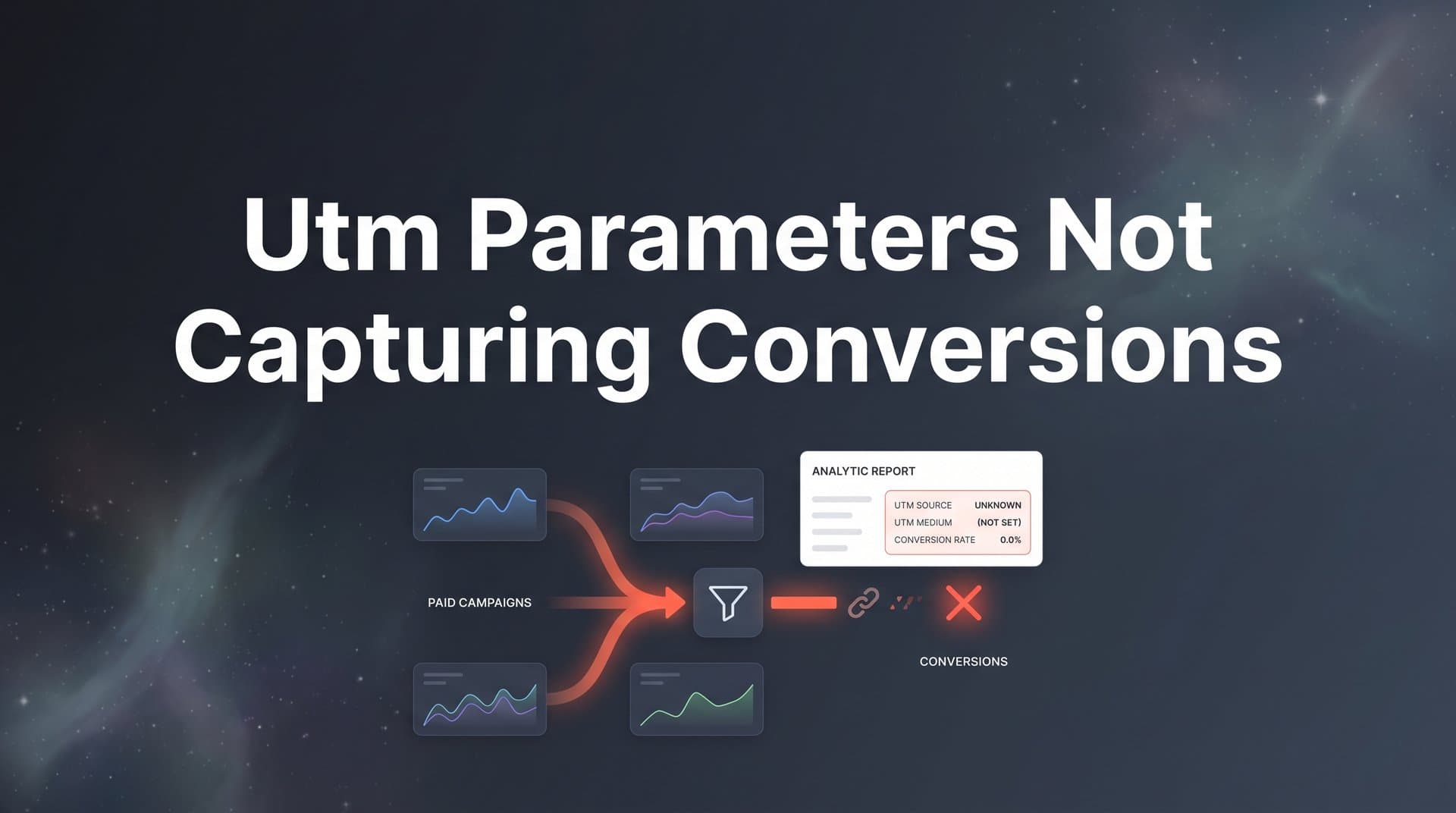
You have spent hours building campaigns, tagging every link with UTM parameters, and setting up your analytics dashboards. But when you pull the conversion reports, something is off. Conversions are showing up as direct traffic, UTM data is missing from your CRM, or your numbers simply do not match what the ad platforms are reporting.
If UTM parameters are not capturing conversions correctly, you are essentially flying blind with your marketing budget. You cannot optimize what you cannot measure, and broken UTM tracking means you are making decisions based on incomplete or inaccurate data.
The good news is that this is almost always a solvable problem. In most cases, the issue comes down to one of a handful of common root causes: malformed URLs, redirect chains stripping parameters, landing page issues, analytics misconfiguration, or the growing challenge of browser privacy restrictions and cookie limitations.
This guide walks you through a systematic, step-by-step process to diagnose exactly where your UTM tracking is breaking down and how to fix it. By the end, you will have a clear checklist for restoring accurate conversion attribution so you can confidently scale the campaigns that are actually driving revenue.
Step 1: Audit Your UTM Tagging Structure for Errors
Before diving into complex technical fixes, start with the most common culprit: human error in the UTM tags themselves. A single malformed parameter can cause an entire campaign's worth of conversion data to vanish or get misattributed.
The most frequent formatting mistakes include spaces in parameter values (which should be replaced with hyphens or underscores), special characters that break URL encoding, inconsistent capitalization across campaigns, and duplicate question marks in URLs. That last one happens when you append UTM parameters to a URL that already contains a query string, and you accidentally use a second ? instead of an & to separate parameters.
Check your five core parameters: Make sure you are using utm_source, utm_medium, utm_campaign, utm_term, and utm_content correctly and consistently. The source should identify where the traffic is coming from (like "google" or "facebook"), and the medium should describe the marketing channel (like "cpc" or "email"). A very common mistake is swapping these two values, which distorts your channel groupings in analytics. Using one of the best UTM tracking tools can help you avoid these errors from the start.
Watch out for auto-tagging conflicts: Google Ads uses a parameter called gclid for auto-tagging, and Meta uses fbclid. If you are running manual UTMs alongside these auto-generated parameters, you need to understand how your analytics platform handles both. In Google Analytics 4, gclid generally takes precedence for Google Ads attribution. Running both simultaneously without understanding this interaction can produce confusing or duplicated attribution data.
Standardize with a UTM builder: Use a UTM builder tool or a shared team spreadsheet to enforce consistent naming conventions. If one campaign uses "Facebook" and another uses "facebook" as the source value, analytics will treat them as separate sources. Lowercase, hyphenated values are the cleanest convention to adopt across your team.
Once you have audited and corrected your tags, test them. Open a tagged URL in an incognito window, click through, and look at the full URL in your browser's address bar. Every UTM parameter you tagged should appear exactly as written in the final loaded URL. If they are missing or altered, you have found your first problem and the next step will help you trace exactly where the data is getting lost.
Step 2: Trace the Click Path for Redirect and Landing Page Issues
Your UTM parameters might be perfectly formatted but still disappear before they ever reach your analytics platform. Redirect chains are one of the most overlooked causes of UTM data loss, and they are surprisingly common.
Use a redirect checker tool to trace the full redirect chain from your tagged URL to the final landing page. You are looking for any hop in that chain where query parameters get dropped. A 301 redirect that was configured without passing through query strings will silently strip every UTM parameter you carefully added.
Common redirect culprits to investigate:
HTTP-to-HTTPS redirects: If your tagged URL uses HTTP but your site forces HTTPS, the redirect configuration may not carry query parameters forward. This is especially common on older server setups or when using CDN configurations that were not built with tracking in mind.
Link shorteners: Many URL shorteners do not pass query strings through to the destination URL by default. If your team uses a link shortener for social posts or email campaigns, verify that it is configured to append or pass through query parameters.
CMS and platform redirects: Some content management systems perform their own URL cleanup or canonical redirects on load. Check your platform settings to confirm it preserves URL query parameters and does not silently rewrite the URL after the page loads. Proactive landing page monitoring can help you catch these issues before they silently erode your data.
Single-page applications (SPAs): If your site or app is built as a single-page application using frameworks like React, Vue, or Angular, client-side routing can cause UTM parameters to disappear when a user navigates between views. The parameters may be present on the initial load but get stripped when the router takes over. This requires specific implementation work to persist UTM values through the session, typically by storing them in sessionStorage or a cookie on first load.
The success indicator here is straightforward: after clicking your tagged URL and following every redirect, the final rendered page URL in your browser should still contain all UTM parameters exactly as you tagged them. If they are missing at this stage, the fix needs to happen in your redirect or landing page configuration, not in your analytics setup.
Step 3: Verify Your Analytics Platform Is Reading and Storing UTM Data
Assuming your tagged URLs survive the redirect chain intact, the next question is whether your analytics platform is actually reading and storing that data correctly. This step is about confirming the full chain from URL parameter to stored conversion record.
Start with a live test. Open your analytics platform's real-time report, then click a UTM-tagged link in a separate browser window. Within a few seconds, you should see the visit appear in the real-time view with the correct source, medium, and campaign values. If it shows up as direct or with incorrect attribution, your analytics tracking code may not be firing correctly on that page. This is one of the most common reasons behind Google Analytics missing conversions that teams overlook.
Check tracking code coverage across your funnel: One of the most common analytics misconfigurations is having the tracking code only on the landing page but not on every subsequent page in the conversion funnel. UTM session data needs to persist through the entire journey. If a user lands on your tagged page and the analytics tag fires, but then moves to a checkout page where the tag is missing, the session may break and the conversion can get misattributed or lost entirely.
Inspect your conversion event configuration: Open your tag manager or analytics event setup and verify that the trigger for your conversion event is actually firing when a user completes the desired action. Use your browser's developer tools or a tag debugging extension to confirm the event fires on form submission, purchase confirmation, or signup completion. Mastering conversion tracking setup is essential to ensuring no events slip through the cracks.
Look for tag manager conflicts: If you have multiple analytics tags or conversion pixels firing on the same page, they can create duplicate sessions or interfere with each other's attribution logic. Audit your tag manager container for redundant tags and ensure each analytics tool is only firing once per page load.
Cross-domain tracking is frequently overlooked: This is especially relevant for SaaS companies and e-commerce businesses that have a separate marketing site and an app or checkout domain. When a user moves from your marketing site to your app or a third-party checkout, their session resets by default. Without cross-domain tracking configured, the conversion will appear as direct traffic with no UTM attribution. Check your analytics documentation for how to enable cross-domain measurement between your domains, and test it thoroughly with a real click-through from a tagged URL.
Step 4: Address Cookie and Browser Privacy Limitations
Even when your UTM tags are correct, your redirects pass parameters through, and your analytics is properly configured, you can still lose conversion attribution. The reason is increasingly common: browser privacy restrictions are fundamentally limiting the reliability of cookie-based UTM tracking.
Here is what is happening in the browser landscape. Safari's Intelligent Tracking Prevention (ITP) limits first-party cookie lifespans, in some cases to as little as 24 hours for cookies set via JavaScript. Firefox's Enhanced Tracking Protection and browsers like Brave have similar restrictions. Ad blockers, which are used by a growing portion of internet users, can strip UTM parameters from URLs entirely before the page even loads. The result is that a meaningful and increasing share of your traffic arrives with no trackable attribution signal at all. Understanding how third-party data restrictions are evolving helps contextualize why these limitations keep getting stricter.
Check your sales cycle against cookie windows: If your average time from first click to conversion is longer than a few days, you are likely losing attribution on a portion of your conversions. A user who clicks your ad on Monday, considers their options, and converts the following week may have their UTM session data expire before they complete the purchase. The conversion shows up as direct, and your campaign looks less effective than it actually is.
Consider what UTM parameters can and cannot do: UTMs are query string parameters. They tell your analytics platform where a visit came from, but they rely on cookies to persist that attribution across sessions and pages. When cookies are restricted or blocked, that persistence breaks. This is not a configuration problem you can fix with a settings change. It is a structural limitation of client-side, cookie-dependent tracking.
Server-side tracking as a more resilient approach: Server-side tracking moves the conversion capture logic off the browser and onto your server, where it is not subject to browser restrictions or ad blockers. This is increasingly the standard approach for teams that need accurate attribution data. We will cover the implementation details in Step 6.
Recognizing this limitation is an important diagnostic step because it reframes the problem. If you have completed Steps 1 through 3 and your tracking still looks clean but conversions are still being missed, browser privacy restrictions are likely the cause. The fix is not more UTM parameters. It is a fundamentally different tracking architecture.
Step 5: Connect Your CRM and Verify End-to-End Data Flow
For many marketing teams, the goal is not just to see UTM data in an analytics dashboard. It is to connect ad clicks all the way through to closed deals in the CRM. This end-to-end data flow is where attribution gets most valuable, and also where it most commonly breaks.
The typical setup works like this: a user clicks a tagged ad, lands on your site, fills out a form, and becomes a lead in your CRM. For UTM data to appear on that CRM record, your form needs to capture the UTM parameters from the URL and pass them as hidden field values when the form is submitted. Implementing closed-loop attribution is the key to connecting these marketing touchpoints all the way to revenue.
Check your form builder configuration: Most modern form builders support hidden fields that can be auto-populated with URL parameter values. But this usually requires explicit configuration. Open your form builder settings and verify that hidden fields are set up for each UTM parameter you want to capture, and that they are mapped to pull their values from the corresponding URL query string.
Verify your CRM field mapping: Even if your form captures UTM values correctly, those values need to map to the right fields in your CRM. Check your form-to-CRM integration settings to confirm that each hidden UTM field in the form maps to the correct custom field on the CRM contact or lead record.
Run a full end-to-end test: This is the most reliable way to verify your data flow. Create a test URL with known, distinctive UTM values (something like utm_campaign=test-june-audit). Click the link, fill out your form as a test lead, then find that record in your CRM and check whether all five UTM field values appear correctly. If any are missing or blank, you have found exactly where the data flow breaks.
Watch for overwrite issues: Some CRM setups are configured to update UTM values on a contact every time they interact, overwriting the original source. Depending on your attribution model, you may want to preserve the first-touch UTM values and only update on subsequent touches with a different field. Check your CRM automation rules to understand how UTM fields are being written and whether any workflows are overwriting data you need.
The success indicator here is being able to trace a specific test lead from the ad platform click, through your analytics, through your form submission, and into the CRM record with all UTM values intact and accurate.
Step 6: Implement Server-Side Tracking for Reliable Conversion Capture
If the previous steps have revealed gaps that cannot be fixed through configuration alone, particularly around browser privacy restrictions and cookie limitations, server-side tracking is the modern solution. It addresses the root cause rather than patching around the symptoms.
Here is how it works. With traditional client-side tracking, your browser loads a page, fires JavaScript tags, and those tags send conversion data to analytics platforms and ad networks. Every step in that process is visible to and interruptible by the browser, ad blockers, and privacy protections. Server-side tracking removes the browser from the equation for conversion events. Instead, your server captures the conversion signal and sends it directly to analytics tools and ad platforms, bypassing browser restrictions entirely.
What this solves: Server-side events are not affected by Safari ITP, Firefox Enhanced Tracking Protection, or ad blockers. They are not subject to redirect chains stripping parameters. They do not depend on JavaScript executing correctly in the browser. The result is a more complete and reliable conversion data set, which directly improves your ability to attribute revenue to the right campaigns. Choosing the right ad tracking tools is critical to making this transition successfully.
The ad platform optimization benefit: There is a second major advantage beyond just fixing your analytics. When you send enriched, accurate conversion data back to ad platforms like Meta and Google, their machine learning algorithms get better training signals. This improves audience targeting, bid optimization, and campaign performance over time. Incomplete conversion data does not just hurt your reporting. It actively degrades the performance of your paid campaigns by starving the algorithms of the signals they need.
This is where a platform like Cometly becomes particularly valuable. Cometly's server-side tracking and Conversion Sync capabilities are built specifically to solve these problems. Rather than relying on UTM parameters and client-side cookies alone, Cometly captures every touchpoint from ad click to CRM event, connects the full customer journey, and feeds enriched conversion data back to Meta, Google, and other ad platforms. The result is attribution that holds up even as browser privacy restrictions continue to tighten.
Cometly also gives your team AI-powered insights on top of that complete data set. Instead of manually auditing UTM reports and trying to reconcile numbers across platforms, you get clear visibility into which ads and channels are actually driving revenue, along with recommendations for where to scale and where to cut spend. Teams that want to evaluate marketing channels accurately need this level of data integrity to make confident budget decisions.
Server-side tracking is not a replacement for good UTM hygiene. It is the layer that makes your attribution reliable in conditions where client-side tracking increasingly cannot be. Think of UTM parameters as the labeling system and server-side tracking as the infrastructure that ensures those labels actually make it to their destination.
Your UTM Troubleshooting Checklist and Next Steps
You now have a complete diagnostic framework for identifying and fixing UTM parameters not capturing conversions. Here is a scannable checklist to work through systematically whenever you encounter attribution gaps.
UTM formatting audit: Check for spaces, special characters, inconsistent capitalization, and duplicate question marks. Verify that utm_source and utm_medium values are not swapped. Confirm auto-tagging parameters like gclid and fbclid are not conflicting with manual UTMs.
Redirect and landing page check: Trace the full redirect chain with a redirect checker tool. Confirm HTTP-to-HTTPS redirects pass query parameters. Verify link shorteners forward query strings. Check SPA routing for parameter persistence.
Analytics configuration review: Test with real-time reports using a live tagged click. Confirm tracking code fires on every page in the conversion funnel. Verify conversion event triggers are actually firing. Check for tag manager conflicts and cross-domain tracking gaps.
Cookie and privacy assessment: Compare your average time-to-conversion against browser cookie windows. Identify what share of your audience uses browsers or tools that restrict tracking. Assess whether client-side UTM capture is sufficient for your sales cycle.
CRM data flow verification: Confirm hidden form fields are capturing UTM values. Check CRM field mapping for each UTM parameter. Run a full end-to-end test with known UTM values. Review CRM automation rules for unintended overwrites.
Server-side tracking evaluation: Determine whether browser privacy restrictions are causing measurable attribution gaps. Assess whether your current setup feeds accurate conversion data back to ad platforms.
For ongoing health, build periodic UTM audits into your campaign launch process, set up alerts for sudden drops in tracked conversions, and test the full click-to-conversion path whenever you launch a new campaign or make changes to your site.
If you are ready to move beyond patching UTM issues and build an attribution foundation that captures every touchpoint accurately, Get your free demo of Cometly today. See how AI-powered attribution and server-side tracking can give you the complete, reliable conversion data you need to scale the campaigns that are actually driving revenue.



