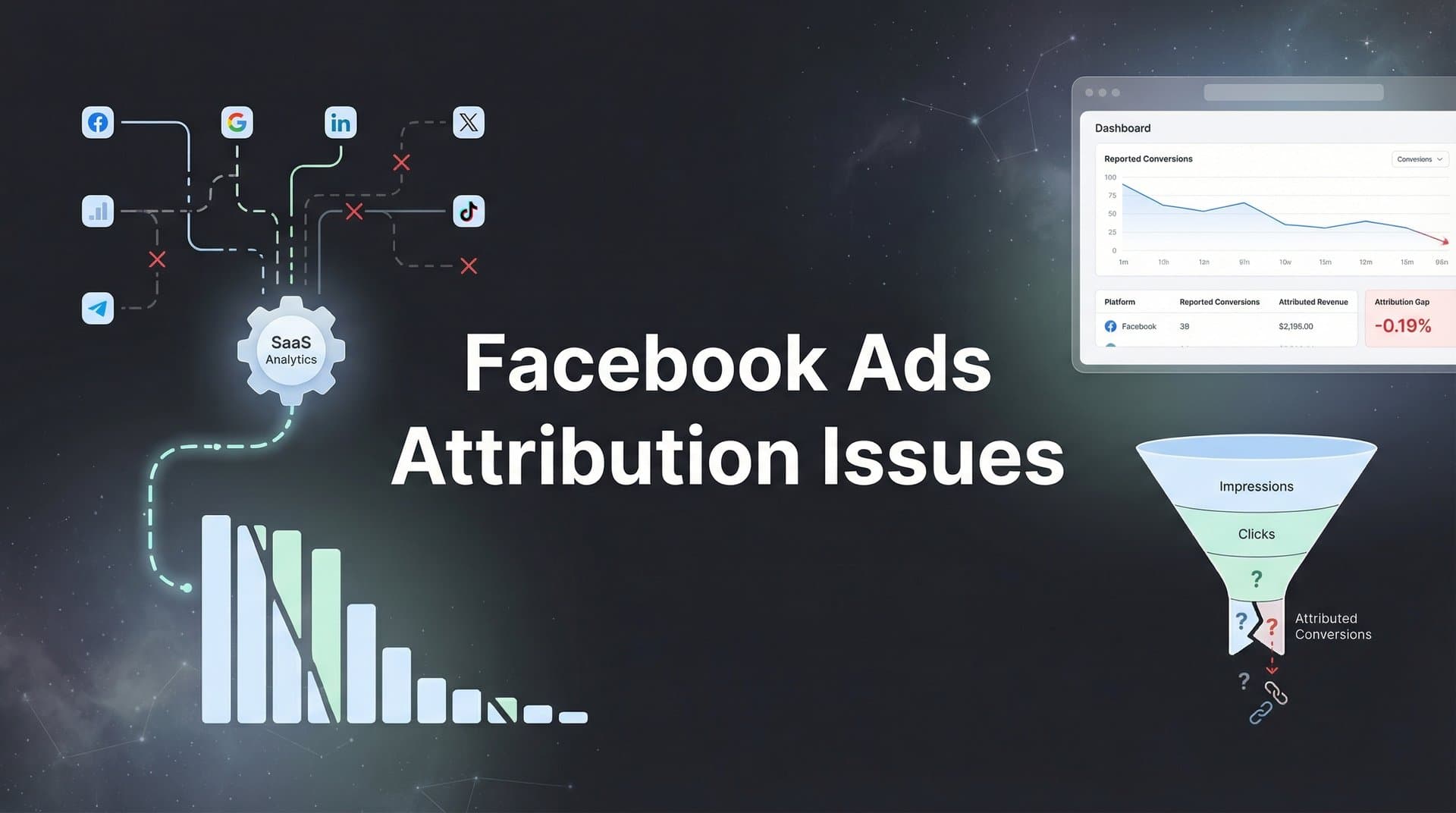
You're running Facebook ads, the platform says you got 50 conversions, but your CRM only shows 20 sales. Sound familiar? Facebook ads attribution issues have become one of the most frustrating challenges for digital marketers, especially since iOS 14.5 privacy changes disrupted traditional tracking methods. When your data doesn't match reality, you can't make confident decisions about scaling campaigns, adjusting budgets, or identifying your best-performing ads.
The disconnect between what Facebook reports and what actually happens in your business creates a crisis of confidence. You might be pausing winning campaigns because the data looks wrong, or worse, scaling losers because you can't see the full picture. Every misattributed conversion represents a gap in your understanding of what's actually working.
This guide walks you through a systematic approach to diagnosing and fixing the most common Facebook ads attribution problems. We'll start with the fundamentals—checking your pixel setup—and build up to advanced solutions like server-side tracking and full-funnel CRM integration. By the end, you'll have a clear action plan to restore accuracy to your reporting and finally trust your conversion data again.
Think of this as a diagnostic framework rather than a quick fix. Attribution issues rarely have a single cause, which means you'll need to work through each step methodically to identify where your tracking breaks down.
Step 1: Audit Your Current Pixel and Events Setup
Before you can fix attribution issues, you need to know exactly what's broken. Start by accessing your Events Manager in Facebook Business Manager. This is your tracking command center, where you'll see every pixel installed on your domain and every event those pixels are supposed to fire.
Navigate to Events Manager and select your pixel. Look at the overview dashboard first—is your pixel active? When was the last time it recorded an event? If you see a warning that says "No Recent Activity" or "Pixel Not Installed Correctly," you've found your first problem.
Now comes the critical part: checking for duplicate pixels. Click on "Settings" and then "Set Up Pixel." If multiple pixels are firing on the same pages, Facebook counts conversions multiple times. This is surprisingly common when you've worked with different agencies or developers over time. Each one might have installed their own pixel without removing the previous version.
Use the Test Events tool to verify each conversion event fires correctly. Open your website in a new browser tab, then return to Events Manager and click "Test Events." Enter your website URL and start clicking through your conversion funnel—add items to cart, proceed to checkout, complete a purchase. You should see each event appear in real-time in the Test Events panel.
Pay attention to the parameters being passed with each event. Are you capturing value for purchase events? Is the currency set correctly? Are custom parameters like product IDs or category names coming through? Missing parameters mean you're losing valuable optimization data that Facebook's algorithm needs to find better customers.
Document everything you find. Create a simple spreadsheet listing each event, whether it's firing correctly, any errors or warnings, and notes about missing parameters. This audit becomes your baseline—the starting point for measuring improvement as you work through the remaining steps.
Why does this matter so much? Many attribution issues that appear complex actually stem from basic Facebook attribution setup problems that have compounded over time. A pixel that fires twice inflates your conversion count by 100%. An event that doesn't capture value prevents Facebook from optimizing for your highest-value customers. Fix the foundation first, and you might solve half your attribution problems before moving to advanced solutions.
Step 2: Configure Conversions API for Server-Side Tracking
Browser-based tracking alone misses a significant portion of your conversions. Ad blockers strip tracking scripts before they load. iOS users who opted out of tracking never send pixel data back to Facebook. Cookie limitations prevent tracking users across multiple sessions. This is where Conversions API changes everything.
Conversions API sends conversion data directly from your server to Facebook, bypassing browser restrictions entirely. When someone completes a purchase on your website, your server tells Facebook about it—no pixel required. This creates redundancy in your tracking system. Even if the browser-based pixel fails, the server-side event still fires.
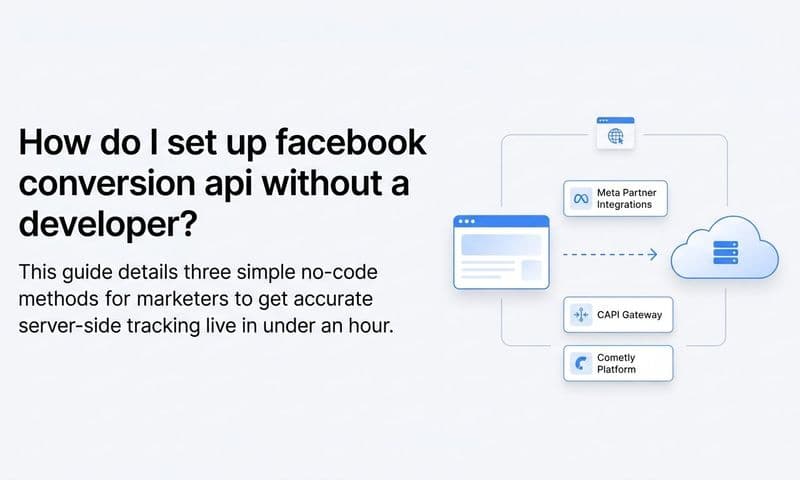
Setting up Conversions API depends on your platform. If you're on Shopify, WooCommerce, or another major e-commerce platform, you'll find official Facebook integrations that handle the technical setup. Install the integration, authenticate with your Facebook Business Manager, and select which events to send server-side. The integration handles the rest.
For custom implementations, you'll need to work with your development team to send events from your backend using Facebook's API. The basic flow works like this: when a conversion happens on your site, your server makes an HTTPS POST request to Facebook's Graph API with event data including event name, timestamp, user information, and custom parameters.
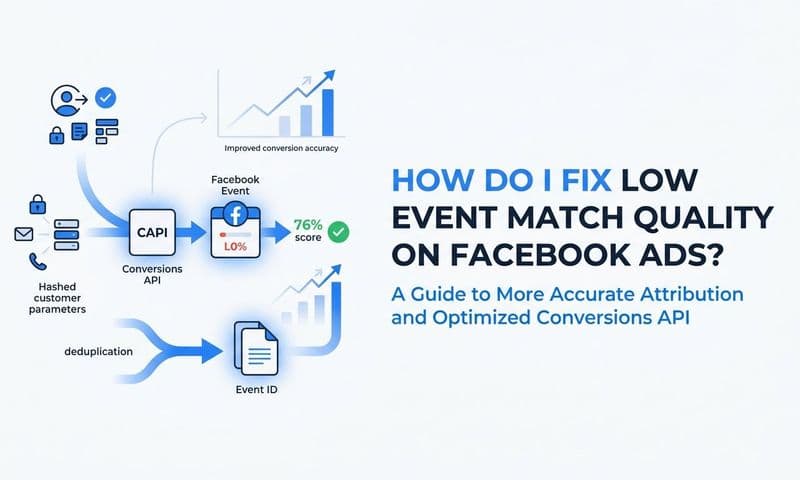
Event matching quality determines how effectively Facebook can attribute server-side events to the right users. The more user parameters you pass—email addresses, phone numbers, IP addresses, user agent strings—the better Facebook can match the conversion to the person who clicked your ad. Navigate to Events Manager, select your pixel, and click on "Conversions API" to see your event match quality score.
Aim for a match quality score of "Good" or "Great." If you're seeing "Poor" or "OK," you're not passing enough user parameters. The most impactful parameters are hashed email addresses and phone numbers. Hash these values using SHA-256 before sending them to Facebook to protect user privacy while maintaining matching accuracy.
Testing server-side events requires a different approach than pixel testing. Use the Test Events tool again, but this time you're looking for events with a green "S" badge indicating they came from your server. Complete a test conversion on your site and verify that you see both the browser event (blue "B" badge) and the server event (green "S" badge) for the same conversion.
Deduplication prevents double-counting when both pixel and Conversions API fire for the same conversion. Facebook handles this automatically if you pass an event_id parameter that's identical for both the browser and server versions of the same event. Generate a unique ID when the conversion happens, send it with both the pixel event and the server event, and Facebook will count it only once. For a deeper dive into this process, check out our guide on how to sync conversion data to Facebook Ads.
This step alone can close the attribution gap significantly. When you're capturing conversions that browser-based tracking misses, your Facebook reports start aligning more closely with what's actually happening in your business.
Step 3: Verify Domain and Aggregated Event Measurement Settings
Domain verification unlocks full tracking capabilities for iOS 14.5+ users. Without it, Facebook can't reliably track conversions from iOS devices, which often represent a substantial portion of your audience. Navigate to Business Settings, click "Brand Safety," then "Domains," and add your website domain.
Facebook will provide several verification methods: uploading an HTML file to your server, adding a meta tag to your homepage, or updating your DNS records. Choose the method that works best with your technical setup. DNS verification is often the cleanest option because it doesn't require ongoing maintenance or risk of accidentally deleting verification files.
Once your domain is verified, you'll need to configure Aggregated Event Measurement. This is Apple's framework for privacy-preserving attribution, and it fundamentally changes how Facebook tracks iOS users. You can only track 8 conversion events per domain for iOS users, and you must explicitly prioritize which 8 events matter most.
Access Events Manager, click on "Aggregated Event Measurement," and you'll see your prioritized events list. The order matters tremendously. Facebook will attribute iOS conversions to your ads based on this priority. If someone completes multiple events in your priority list, Facebook attributes the highest-priority event.
Think carefully about your business model when setting priorities. E-commerce businesses typically prioritize Purchase at the top, followed by Add to Cart, Initiate Checkout, and View Content. Lead generation businesses might prioritize Lead, Complete Registration, Schedule, and Contact. Your priority list should mirror your actual conversion funnel from most valuable to least valuable.
Value optimization requires additional configuration. If you're tracking purchase amounts or lead values, make sure your priority events are set to use "Value Optimization." This tells Facebook to optimize not just for conversion volume, but for the highest-value conversions. Access this setting by clicking the pencil icon next to each priority event.
Attribution windows are also constrained by Aggregated Event Measurement. iOS conversions can only be attributed within a 7-day click or 1-day view window maximum. You can choose shorter windows, but you can't extend beyond these limits. This means iOS conversions that happen 8 days after someone clicked your ad won't be attributed back to Facebook.
Check that your priority events align with your actual business goals. A common mistake is prioritizing events based on volume rather than value. If you prioritize Add to Cart higher than Purchase, Facebook will optimize for cart additions instead of actual sales. The algorithm does exactly what you tell it to do, so make sure your priorities reflect what you actually want to achieve.
Step 4: Align Attribution Windows Across Platforms
Facebook's default attribution settings use a 7-day click and 1-day view window. This means if someone clicks your ad and converts within 7 days, or sees your ad and converts within 1 day, Facebook counts that conversion. But does this match how your customers actually buy?
Consider your sales cycle carefully. If you're selling high-ticket consulting services, your prospects might research for weeks before booking a call. A 7-day window misses conversions that your ads genuinely influenced. Conversely, if you're selling impulse-purchase products, most conversions happen within hours. A 7-day window might over-attribute conversions to Facebook when other touchpoints deserve credit.
Adjust attribution windows in Ads Manager by navigating to your campaign reporting view and clicking the dropdown next to "Attribution Setting." You'll see options for 1-day click, 7-day click, and 1-day view. Choose the window that best matches your customer behavior. You can also compare multiple attribution windows side-by-side to understand how the choice affects your reported results.
Here's the reality: Facebook and your CRM will always show different numbers, and that's okay. Facebook attributes conversions to ads based on clicks and views. Your CRM records actual sales regardless of attribution. These are measuring different things. The goal isn't perfect matching—it's understanding the relationship between the two data sources. Understanding Facebook Ads reporting discrepancies helps you interpret these differences more effectively.
Create a comparison framework that pulls reports using the same date ranges and attribution logic. If you're analyzing last week's performance, make sure both your Facebook report and your CRM report cover the exact same date range. Use conversion date in Facebook, not the date the ad ran. Match your CRM's conversion timestamp to Facebook's attribution window settings.
Document your attribution model choices so your entire team reports consistently. Create a simple one-page document that explains which attribution window you use, why you chose it, and how to interpret discrepancies between Facebook and your CRM. When everyone on your team uses the same framework, you eliminate confusion and make better optimization decisions.
The natural question becomes: what's an acceptable variance? Many businesses find that Facebook over-reports conversions by 20-40% compared to their CRM, especially for longer sales cycles. This happens because Facebook counts assists (clicks that influenced but didn't directly cause conversions) while your CRM only counts final sales. As long as the ratio stays consistent, you can use Facebook's data directionally even if the absolute numbers differ.
Step 5: Implement UTM Parameters for Cross-Platform Validation
UTM parameters create a parallel tracking system that validates Facebook's attribution data. When you add UTM tags to your ad URLs, you can track clicks and conversions in Google Analytics or other analytics platforms independently of Facebook's pixel.
Set up consistent UTM naming conventions across all Facebook campaigns. Use utm_source=facebook, utm_medium=paid-social, and then customize utm_campaign, utm_content, and utm_term for your specific campaigns, ad sets, and ads. Consistency matters more than the exact format you choose. Pick a naming convention and stick with it religiously.
Dynamic UTM parameters automatically capture campaign, ad set, and ad IDs without manual tagging. Facebook supports dynamic parameters like {{campaign.name}}, {{adset.name}}, and {{ad.name}} that populate automatically when someone clicks your ad. This eliminates manual UTM building and prevents tagging errors.
Here's an example URL structure: https://yoursite.com/landing-page?utm_source=facebook&utm_medium=paid-social&utm_campaign={{campaign.name}}&utm_content={{adset.name}}&utm_term={{ad.name}}. When someone clicks this ad, Facebook automatically fills in the campaign, ad set, and ad names, giving you granular tracking data.
Configure your analytics platform to track these parameters through to conversion. In Google Analytics, navigate to Acquisition > Campaigns to see traffic and conversions broken down by your UTM parameters. You should see Facebook campaigns listed with conversion data that you can compare against Facebook's reported numbers.
Compare UTM-based attribution data against Facebook's reported conversions to identify discrepancies. Pull a conversion report from Facebook Ads Manager for a specific date range. Then pull a matching report from Google Analytics filtered to utm_source=facebook for the same dates. The numbers won't match perfectly, but you're looking for patterns.
Identify specific campaigns or ad sets where discrepancies are largest. If one campaign shows 100 conversions in Facebook but only 40 in Google Analytics, you've found a tracking issue specific to that campaign. Maybe the landing page for that campaign has a broken pixel. Maybe users from that campaign use ad blockers at higher rates. The discrepancy tells you where to investigate deeper.
UTM tracking also helps you understand cross-channel attribution. When someone clicks your Facebook ad but doesn't convert immediately, they might return later through organic search or direct traffic. Your analytics platform can show you these multi-touch journeys, revealing how Facebook ads assist conversions even when they don't get last-click credit. A marketing campaign tracking spreadsheet can help you organize and compare this data systematically.
Step 6: Connect Your CRM for Full-Funnel Attribution
Integrating your CRM or sales platform with your attribution system closes the loop between ad clicks and actual revenue. Facebook knows when someone clicked your ad and visited your site. Your CRM knows when that person became a qualified lead, closed as a customer, and how much they spent. Connecting these systems reveals which ads drive quality, not just quantity.
Most modern CRMs offer native integrations with Facebook through offline conversion uploads. HubSpot, Salesforce, and Pipedrive all support automated conversion syncing that sends closed deals back to Facebook. This tells Facebook's algorithm which leads converted to revenue, allowing it to optimize for better-quality prospects.
Map Facebook ad interactions to actual revenue and customer lifetime value. When you connect your CRM, you can see that Campaign A generated 50 leads but only 5 closed deals worth $10,000, while Campaign B generated 30 leads with 15 closed deals worth $45,000. Facebook's interface might show Campaign A as the winner based on lead volume, but your CRM data reveals Campaign B delivers better ROI. Understanding Facebook Ads ROI requires this level of revenue visibility.
Track leads through qualification stages to see which ads drive quality at each funnel stage. Not all leads are created equal. Some immediately book calls and close quickly. Others ghost after the first conversation. By tracking qualification status in your CRM and connecting it to ad data, you identify which campaigns attract your best-fit customers.
Set up offline conversion uploads if you have phone sales or in-person conversions. When someone calls your sales team after clicking a Facebook ad, that conversion happens offline. Facebook can't track it automatically. But you can upload these conversions manually or through API integration, matching them to ad clicks using phone numbers or email addresses. Our guide on marketing attribution for phone calls covers this process in detail.
This is where tools like Cometly transform your attribution capabilities. Cometly connects your ad platforms, CRM, and website data to track the complete customer journey from first click to final purchase. Instead of manually uploading offline conversions or trying to match data across platforms, Cometly automatically captures every touchpoint and maps it to revenue.
The platform's AI analyzes your full-funnel data to identify which ads and campaigns actually drive revenue, not just clicks or form fills. You can see multi-touch attribution showing how different ads worked together to generate a sale. And Cometly's Conversion Sync sends enriched conversion data back to Facebook, improving the platform's targeting and optimization algorithms.
When your CRM is connected to your attribution system, you stop optimizing for vanity metrics and start optimizing for revenue. You can confidently scale campaigns that drive real business results, even if Facebook's native reporting doesn't tell the full story.
Step 7: Establish Ongoing Monitoring and Optimization Routines
Attribution isn't a one-time fix. Platforms change their tracking methods, pixels break, and new privacy regulations emerge constantly. You need ongoing monitoring to catch issues before they compound into major data gaps.
Create a weekly data validation checklist comparing Facebook, analytics, and CRM numbers. Every Monday morning, pull conversion data from all three sources for the previous week. Look at the totals and the trends. Are the numbers moving in the same direction? If Facebook shows conversions increasing while your CRM shows them decreasing, something's broken.
Set acceptable variance thresholds based on your historical data. If Facebook typically reports 30% more conversions than your CRM, that's your baseline. But if that variance suddenly jumps to 60%, you've got a new tracking issue to investigate. Knowing what "normal" looks like helps you spot problems quickly.
Build a dashboard that shows attribution health metrics at a glance. Include metrics like event match quality score from Conversions API, pixel health status, conversion volume by source, and variance between Facebook and CRM numbers. A dedicated Facebook attribution dashboard can centralize all these metrics for easy monitoring.
Schedule monthly audits to catch pixel drift, new tracking issues, or platform changes. Use the Test Events tool to verify your pixel still fires correctly. Check for new browser warnings or errors. Review your Aggregated Event Measurement priorities to ensure they still align with your business goals. Platform updates can change settings without warning, so regular audits keep you ahead of problems.
Use AI-powered recommendations to identify which ads actually drive revenue beyond surface-level metrics. Cometly's AI analyzes patterns across your entire customer journey, identifying high-performing ads that might look mediocre in Facebook's native reporting. The AI spots trends that manual analysis misses, like ads that attract customers with higher lifetime value or campaigns that work best in combination with other touchpoints.
The marketers who thrive in this privacy-first era aren't the ones with perfect data. They're the ones who understand their data's limitations and build systems to work around them. They know Facebook over-reports, they account for it in their decision-making, and they use multiple data sources to triangulate the truth.
Taking Control of Your Attribution Data
Facebook ads attribution issues won't disappear overnight, but following this systematic approach puts you in control of your data quality. Start with the pixel audit to fix foundational problems. Layer in server-side tracking through Conversions API to capture conversions that browser-based tracking misses. Align your attribution windows with how your customers actually buy, and use UTM parameters to validate Facebook's data against independent tracking.
The real breakthrough comes when you connect your full customer journey from click to revenue. CRM integration reveals which ads drive quality leads, not just volume. Multi-touch attribution shows how different campaigns work together to generate sales. And AI-powered analysis identifies optimization opportunities that manual reporting misses. Explore the best marketing attribution tools to find solutions that fit your needs.
Start with Step 1 today and work through each step methodically over the next few weeks. You don't need to implement everything at once. Even fixing your pixel setup and adding server-side tracking will dramatically improve your attribution accuracy. Each step builds on the previous one, creating a more complete and reliable view of your ad performance.
The marketers who win aren't the ones waiting for perfect tracking to return. They're the ones who adapt to the new reality, build robust attribution systems, and make confident decisions based on multiple data sources working together. Your competitors are still complaining about iOS 14.5. You'll be scaling profitably while they're stuck in analysis paralysis.
Ready to elevate your marketing game with precision and confidence? Discover how Cometly's AI-driven recommendations can transform your ad strategy—Get your free demo today and start capturing every touchpoint to maximize your conversions.