Client-side tracking is losing ground. Browser privacy updates, ad blockers, and cookie restrictions have made it harder than ever for marketers to capture reliable conversion data. When your tracking pixels miss events, your ad platforms receive incomplete signals, and your budget optimization suffers as a result.
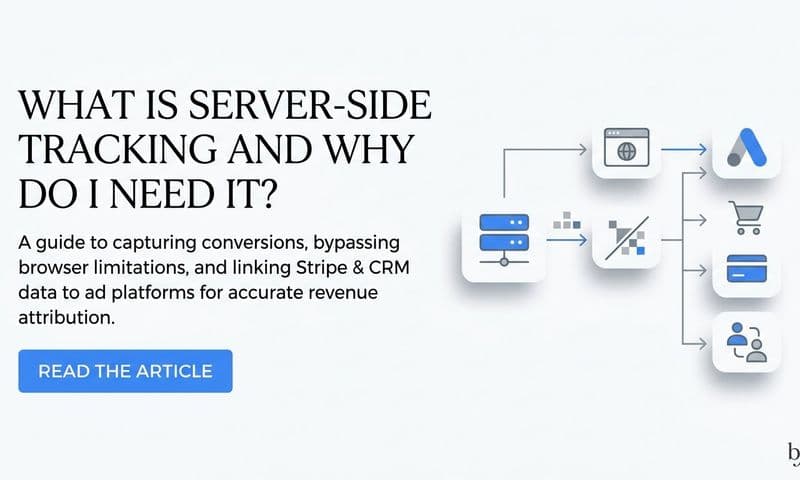
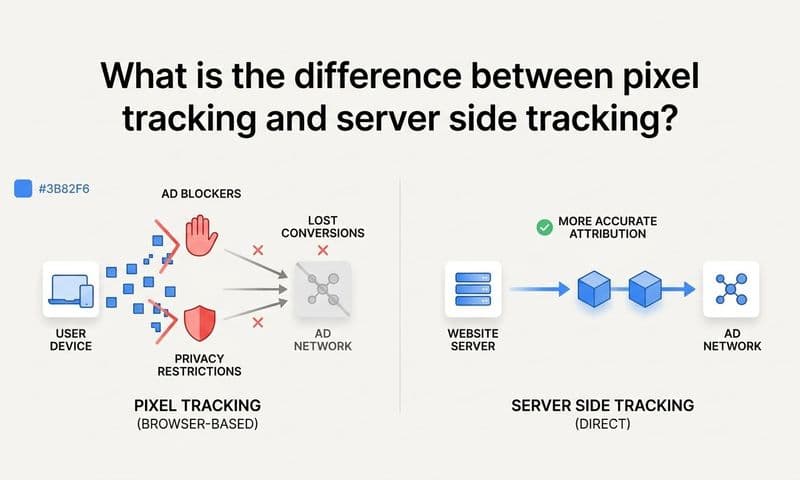
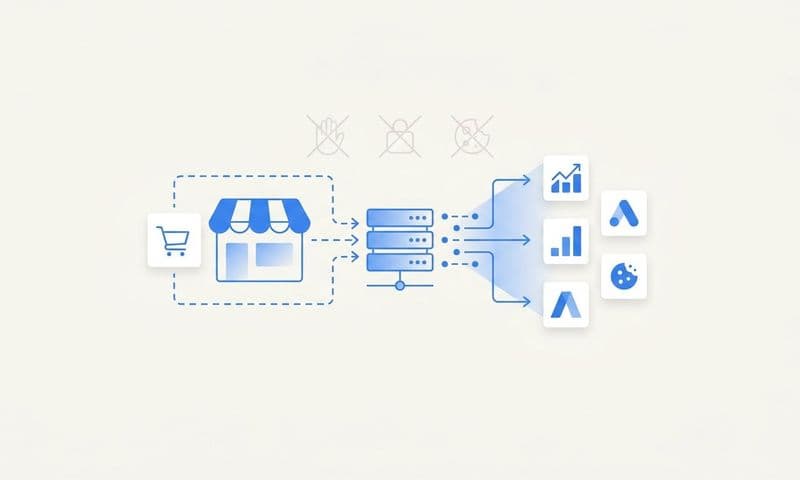
Server tracking, also called server-side tracking, solves this by moving data collection from the browser to a secure server environment. Instead of relying on cookies and JavaScript tags that browsers can block, server tracking sends conversion events directly from your server to ad platforms like Meta and Google. The result is more complete data, better attribution accuracy, and stronger signals feeding your ad platform algorithms.
Apple's App Tracking Transparency framework significantly reduced the ability of browser-based pixels to track conversions on Apple devices. Browsers like Firefox and Safari already block third-party cookies by default. These changes mean that client-side tracking alone often captures an incomplete picture of your actual conversion activity.
This guide walks you through how to implement server tracking from start to finish. Whether you are setting it up manually or using a platform like Cometly to streamline the process, you will have a clear roadmap by the end. We will cover what you need before you start, how to configure your server-side endpoints, how to connect your ad platforms, and how to validate that everything is working correctly.
Let's get into it.
Step 1: Audit Your Current Tracking Setup and Identify Gaps
Before you build anything new, you need to understand what you already have and where it is failing you. Jumping straight into server-side configuration without this audit is like patching a roof without knowing where it leaks.
Start by mapping every tracking pixel, tag, and script currently running on your site. Open Google Tag Manager and review each active tag. Look for your Meta Pixel, Google Ads conversion tags, TikTok Pixel, and any other platform-specific scripts. Document what each one tracks and which pages or events trigger it. If you need a refresher on how these work, our guide on what a tracking pixel is covers the fundamentals.
Next, compare your ad platform reported conversions against your CRM or backend data. Pull conversion numbers from Meta Ads Manager, Google Ads, and any other active platforms for the past 30 days. Then pull the same conversion events from your CRM or payment processor for the same period. The gap between these two numbers represents the data your current tracking is missing.
Pay attention to three common sources of tracking loss:
Ad blockers: A meaningful portion of web users run ad blockers that suppress browser-side pixel fires entirely. These conversions go unrecorded by your ad platforms even though they happened.
iOS and Safari privacy restrictions: Apple's Intelligent Tracking Prevention strips cookies aggressively, shortening their lifespan and breaking attribution for users on Apple devices. If a significant share of your audience uses iPhones or Safari, this is likely a major source of data loss.
Cross-domain tracking failures: If your funnel spans multiple domains or subdomains, cookies often fail to persist across the session, breaking the connection between an ad click and a downstream conversion.
Finally, document which conversion events matter most to your business. For most marketers, this means purchases, lead form submissions, demo bookings, and phone calls. These are the events you will prioritize when building your server-side setup. Not every micro-event needs server-side tracking on day one. Focus on the conversions that directly inform your ad platform bidding and optimization.
Success indicator: You have a clear list of priority conversion events and a documented gap between what your ad platforms report and what your CRM or backend actually shows. That gap is the problem you are solving.
Step 2: Choose Your Server Tracking Architecture
Once you know what you need to track, you need to decide how you will track it. There are two main paths, and the right one depends on your team's technical capacity and how many ad platforms you run.
The DIY path: You provision a cloud server (typically on Google Cloud or AWS), deploy a Google Tag Manager Server-Side container, configure a custom subdomain for first-party context, and maintain the infrastructure yourself. This approach gives you full control and can work well for teams with dedicated engineering resources. However, it requires ongoing maintenance. Server containers need updates, API credentials expire, and platform-specific changes require manual adjustments over time.
The platform path: Attribution platforms like Cometly provide built-in server-side tracking that connects to your site, CRM, and ad platforms without requiring you to manage cloud infrastructure. The server environment is handled for you. You focus on configuring events and connecting integrations rather than provisioning servers and managing deployments. For a deeper comparison, see our breakdown of server-side tracking vs client side approaches.
Here are the key factors to weigh when choosing:
Team technical capacity: If you have engineers who can own the infrastructure, the DIY path is viable. If your team is primarily marketers, a managed platform removes a significant operational burden.
Number of ad platforms: Each ad platform has its own Conversion API with unique authentication, event schemas, and deduplication requirements. If you run ads on Meta, Google, TikTok, and Pinterest, configuring server-side APIs individually for each platform is a substantial project. A unified platform approach handles all of these through a single integration point.
Time to value: The DIY path can take weeks to implement correctly. A managed platform can often get you live in days. Understanding the server-side tracking setup cost for each approach will help you make an informed decision.
Budget: Cloud infrastructure costs are relatively low, but engineering time is not. Factor in the ongoing maintenance cost, not just the initial setup.
If you run ads across multiple platforms and want accurate attribution without building a custom data pipeline, a platform like Cometly is worth serious consideration. It provides server-side tracking, CRM integration, and conversion syncing across all major ad platforms in one place, which is a meaningful advantage when you are trying to move fast and optimize campaigns rather than manage infrastructure.
Step 3: Configure Server-Side Data Collection on Your Website
This is where the technical implementation begins. The goal of this step is to capture user interactions on your website and route that data to your server rather than relying solely on browser-side pixels.
Start by installing the server-side tracking snippet or SDK on your website. This script captures events and sends them to your server endpoint. If you are using a GTM Server-Side container, you will deploy the GTM web container with a modified configuration that routes events to your server container URL. If you are using Cometly, this step involves adding the Cometly tracking script to your site, which handles the routing automatically.
Next, set up a first-party subdomain. Point a subdomain like track.yourdomain.com to your server container. This is important because data sent to a subdomain of your own domain is treated as first-party, which bypasses many ad blocker rules and avoids the restrictions that browsers apply to third-party requests. This single configuration step meaningfully improves data capture rates for users with ad blockers or restrictive browser settings. For a walkthrough of common obstacles during this process, review our article on server-side tracking setup challenges.
Then define your event schema. For each conversion event you identified in Step 1, map out the required parameters:
Event name: Use consistent naming that matches what your ad platforms expect. Meta uses standard event names like "Purchase" and "Lead." Google uses conversion action names you define in your account.
Event value and currency: Always include the monetary value and currency code for purchase events. This data is essential for value-based bidding optimization.
User identifiers: Include email address, phone number, or other identifiers that ad platforms use to match your server event to a known user. This improves event match quality scores significantly.
Here is a critical pitfall you must avoid: never send personally identifiable information in plain text to ad platforms. Always hash email addresses and phone numbers using SHA-256 before transmission. This is both a privacy best practice and a requirement from platforms like Meta. Most server-side tracking tools and platforms handle this automatically, but if you are building a custom implementation, make sure hashing is built into your event pipeline before you go live.
Success indicator: Events are firing to your server endpoint and you can see them in your server logs or platform dashboard with the correct parameters attached.
Step 4: Connect Your CRM and Backend Data Sources
Server tracking becomes genuinely powerful when it goes beyond front-end click data and connects to the revenue events happening in your backend systems. This is where attribution accuracy takes a significant step forward.
Think about the typical B2B or high-consideration purchase journey. A user clicks an ad, fills out a lead form, enters your CRM as a new contact, goes through a sales process, and eventually closes as a paying customer. Browser-side pixels can capture the form submission, but they cannot capture the closed deal. Server tracking connected to your CRM can capture both, giving your ad platforms a complete picture of which campaigns actually generate revenue.
To set this up, link your CRM (HubSpot, Salesforce, or whichever platform you use) to your server tracking setup. The most common approach is using webhooks. Configure your CRM to fire a webhook when a deal reaches a specific stage, such as "Closed Won." That webhook sends the event data to your server, which enriches it with the original ad click information and forwards it to your ad platforms as a conversion event.
If you process payments through Stripe or a similar processor, connect that as well. Payment confirmation events are among the highest-quality conversion signals you can send to ad platforms because they represent actual revenue, not just intent. Understanding the full scope of server-side conversion tracking benefits helps justify this additional integration effort.
Cometly integrates directly with CRMs, Stripe, and other tools to pull in revenue data automatically. When a lead converts to a paying customer, Cometly ties that event back to the originating ad click using the full customer journey it has tracked, then sends that enriched conversion signal to your ad platforms. This closes the loop between ad spend and actual revenue in a way that browser-side tracking simply cannot achieve.
Success indicator: When a lead converts to a paying customer in your CRM, that event is automatically captured, enriched with attribution data, and queued to be sent to your ad platforms with full journey context attached.
Step 5: Set Up Conversion APIs for Each Ad Platform
With your server collecting events and your CRM connected, the next step is configuring the outbound connections to your ad platforms. Each platform has its own Conversion API, and each one has specific requirements for authentication, event formatting, and deduplication.
Meta Conversions API (CAPI): Start in Meta Events Manager. Generate a system user access token with the appropriate permissions and note your Pixel ID. Configure your server to send events to the CAPI endpoint using these credentials. Each event must include an event_id parameter, which is used for deduplication. When both your browser pixel and your server send the same event (which is the recommended setup), Meta uses the event_id to count it only once. Meta recommends running both the pixel and CAPI in parallel for the best event match quality. For a deeper look at how these two methods compare, read our article on server-side tracking vs pixel tracking.
Google Ads Enhanced Conversions: Enhanced conversions allow you to supplement your standard conversion tags with first-party data sent server-side. In Google Ads, navigate to your conversion action settings and enable enhanced conversions. You will need to pass the Google Click ID (GCLID) that was captured when the user first clicked your ad. This GCLID is what Google uses to tie your server-side conversion back to the specific ad click that drove it. Store the GCLID in your first-party data layer or CRM at the time of the initial click so it is available when the conversion event fires later.
Other platforms: TikTok, Pinterest, LinkedIn, and other platforms each have their own server-side event APIs with similar patterns. Authentication tokens, event schemas, and deduplication keys vary by platform, so review each platform's developer documentation carefully before configuring.
A practical tip: start with your highest-spend platform first. Get Meta CAPI or Google Enhanced Conversions validated and working before rolling out to additional channels. This lets you confirm your server infrastructure is functioning correctly before multiplying the complexity.
If you are using Cometly, conversion sync handles this entire step automatically. Cometly sends enriched, deduplicated events back to Meta, Google, and other connected platforms without requiring you to manually configure each API. This is one of the most significant time savings a managed platform provides, especially when you are running campaigns across four or five channels simultaneously.
Success indicator: Test events appear in each ad platform's event manager within minutes of firing, and deduplication is working correctly so events are not being double-counted.
Step 6: Validate, Test, and Debug Your Server Tracking
Implementation is not complete until you have confirmed that everything is working end to end. Skipping validation is one of the most common mistakes marketers make, and it often means running on broken tracking for weeks before noticing something is wrong.
Use platform-specific testing tools to verify your setup:
Meta Test Events tool: In Events Manager, navigate to the Test Events tab and use the provided test code to fire test events from your server. You will see in real time whether events are arriving correctly and what parameters they contain.
Google Tag Assistant: For server-side GTM containers, Tag Assistant helps you debug whether events are being received and processed by your server container correctly.
Server logs: Review your server logs to confirm events are being received from your website, processed correctly, and forwarded to ad platform APIs without errors. Look for HTTP 200 responses from each platform's API endpoint, which indicate successful event receipt. Leveraging server-side tracking analytics can give you deeper visibility into event flow and data quality.
Run a full end-to-end test by completing a real conversion on your site. Submit a test lead form, make a test purchase, or trigger whichever conversion event you are tracking. Then verify the event appears in your server logs, your attribution platform dashboard, and each ad platform's event manager. This confirms the entire pipeline is functioning.
Watch for these common issues during testing:
Mismatched event names: If your browser pixel fires a "purchase" event (lowercase) and your server sends a "Purchase" event (capitalized), some platforms may count them as separate events rather than deduplicating them correctly.
Missing required parameters: Events missing value, currency, or event_id fields will either be rejected or receive lower match quality scores. Review each platform's required fields carefully.
Incorrect hashing: If email addresses are not being hashed correctly before transmission, your event match quality will be low and the events may not match to known users in the ad platform.
After your initial tests pass, run a 48 to 72 hour comparison between your server-tracked conversion counts and your CRM data. If the numbers align closely, your setup is working. If there are still significant gaps, investigate whether certain conversion paths or device types are not being captured. You may also want to explore server-side conversion tracking tools that offer built-in diagnostics to speed up troubleshooting.
Success indicator: Events appear in all connected ad platforms within minutes of a test conversion, event counts match between your server and ad platform dashboards, and no duplicate events are recorded.
Putting It All Together: Your Server Tracking Checklist
You now have a complete roadmap for implementing server-side tracking. Before you consider the project done, run through this checklist to confirm every piece is in place.
1. Audit complete: You have documented your current tracking gaps and identified which conversion events need server-side coverage.
2. Architecture chosen: You have decided between a DIY server container setup or a managed platform, based on your team's capacity and the number of ad platforms you run.
3. Data collection configured: Your server-side snippet is installed, your first-party subdomain is active, and your event schema is defined with proper hashing for user identifiers.
4. CRM and backend connected: Downstream revenue events from your CRM and payment processor are flowing into your server tracking pipeline.
5. Conversion APIs connected: Meta CAPI, Google Enhanced Conversions, and any other platform APIs are configured with proper authentication and deduplication.
6. Validation complete: End-to-end tests have passed, event counts align with your CRM data, and no duplicate events are being recorded.
For ongoing maintenance, monitor your event match quality scores in Meta Events Manager monthly. Review conversion accuracy whenever you make significant changes to your site or funnel. Update your event schemas when new conversion events are added to your business.
If managing all of this infrastructure feels like more than your team can sustain, Cometly simplifies the entire process. It provides server-side tracking, CRM integration, multi-touch attribution, and conversion sync across all major ad platforms in a single platform. Instead of maintaining separate API configurations for each channel, you get a unified view of every touchpoint in the customer journey and accurate conversion data flowing back to your ad platforms automatically.
Ready to elevate your marketing game with precision and confidence? Discover how Cometly's AI-driven recommendations can transform your ad strategy. Get your free demo today and start capturing every touchpoint to maximize your conversions.