You're running campaigns across Google, Meta, LinkedIn, and half a dozen other platforms. Leads are flowing into Salesforce. But when your CEO asks which channels actually drive revenue, you're stuck piecing together fragmented data from multiple dashboards that don't talk to each other.
This disconnect between ad performance and CRM revenue isn't just frustrating—it's expensive. Without clear attribution, you're making budget decisions based on incomplete data, potentially pouring money into channels that look good on paper but don't actually close deals.
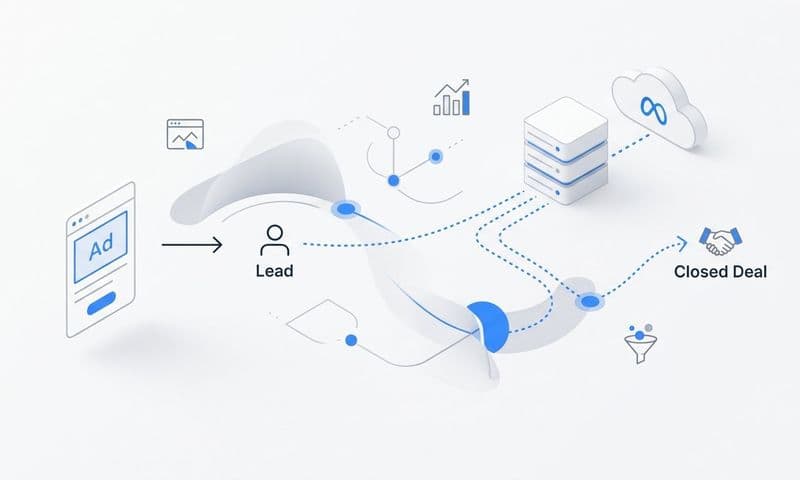
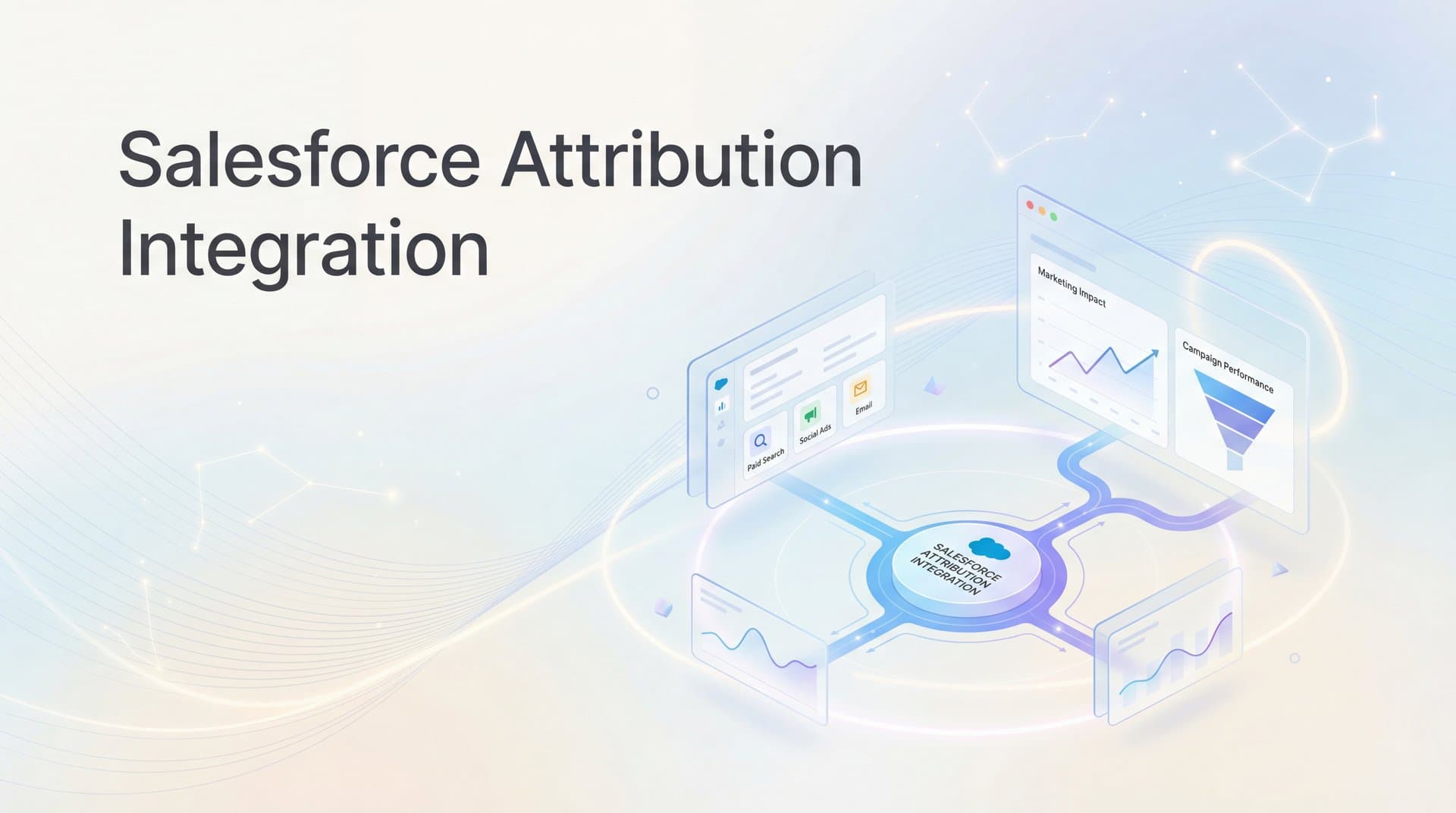
Salesforce attribution integration solves this problem by connecting every ad click, website visit, and email interaction directly to the opportunities and revenue in your CRM. Instead of guessing which touchpoints matter, you'll see the complete customer journey from first impression to closed-won deal.
This guide walks you through the entire setup process, covering both Salesforce's native Campaign Influence features and third-party attribution platform connections. By the end, you'll have a working system that tracks attribution across all your marketing channels and provides the visibility you need to optimize ad spend with confidence.
Whether you're using Salesforce's built-in attribution tools or connecting a dedicated attribution platform, the principles remain the same: capture every touchpoint, connect them to revenue outcomes, and build reports that drive better decisions.
Let's get started.
Step 1: Audit Your Current Salesforce Setup and Data Structure
Before connecting any attribution tools, you need to understand what you're working with. A proper audit reveals data gaps, configuration issues, and structural problems that could derail your attribution efforts later.
Start by reviewing your Campaign object configuration. Navigate to Setup > Object Manager > Campaign and examine your custom fields. Many organizations have fields like "Campaign Source," "Campaign Medium," or "Campaign Type" that were added over time without a clear strategy. Document what exists and whether these fields actually capture the data you need for attribution.
Next, examine your Lead and Contact objects. Look for fields that capture marketing source information—common examples include "Lead Source," "Lead Source Detail," "Original Source," and various UTM parameter fields. Check whether these fields populate consistently and whether they persist when leads convert to contacts. Data that disappears during conversion creates attribution blind spots.
Review your Campaign Member statuses carefully. Default Salesforce installations include basic statuses like "Sent" and "Responded," but effective attribution requires statuses that reflect meaningful engagement. If someone clicked an ad, visited your pricing page, and requested a demo, those should be distinct Campaign Member statuses that your attribution model can weight appropriately.
Map out your lead-to-opportunity conversion process. How do leads become opportunities in your organization? Do sales reps manually create opportunities, or does automation handle it? Understanding this workflow is critical because attribution breaks when the connection between marketing touchpoints and opportunities isn't clear. Proper lead generation attribution tracking depends on this foundation.
Document your typical sales cycle length. B2B companies with six-month sales cycles need different attribution configurations than e-commerce businesses with same-day conversions. This timeline determines your attribution lookback window and influences which touchpoints receive credit.
Finally, verify user permissions. Setting up attribution requires System Administrator access or specific permissions for Campaign Influence configuration, API access for third-party tool connections, and the ability to create custom fields and reports. Identify who on your team has these permissions before you start the technical implementation.
This audit might reveal uncomfortable truths about data quality, but addressing these issues now prevents attribution failures later. Clean, well-structured data is the foundation of accurate attribution.
Step 2: Define Your Attribution Model and Tracking Requirements
Attribution models aren't one-size-fits-all. The right model depends on your sales cycle, deal complexity, and how customers actually interact with your marketing before buying.
First-touch attribution gives all credit to the initial interaction—the first ad click, website visit, or content download. This model makes sense when you want to understand which channels generate awareness and start relationships. It's particularly useful for top-of-funnel budget allocation, but it ignores everything that happens after that first touchpoint.
Last-touch attribution does the opposite, crediting only the final interaction before conversion. This model highlights which channels close deals, but it overlooks the nurturing touchpoints that moved prospects through your funnel. Many companies use last-touch because it's simple, but it often undervalues mid-funnel activities.
Linear attribution distributes credit equally across all touchpoints. If a customer interacted with five campaigns before closing, each receives 20% of the credit. This model acknowledges that multiple touchpoints contribute to conversions, but it assumes all interactions are equally valuable—which rarely reflects reality.
Multi-touch attribution models assign different weights to different touchpoints based on their position in the customer journey. Common approaches include U-shaped (heavy weight on first and last touch), W-shaped (emphasis on first touch, lead creation, and opportunity creation), and time-decay (more recent touchpoints receive more credit). For a deeper dive into these approaches, explore our multi-touch attribution models guide.
Choose your model based on what you need to optimize. If you're focused on efficient customer acquisition, first-touch makes sense. If you want to understand the complete journey, multi-touch provides deeper insights. Many organizations start with one model and evolve as their attribution sophistication increases. Understanding the difference between single source attribution and multi-touch attribution models helps you make this decision.
Next, identify which touchpoints you need to capture. At minimum, track paid ad clicks from all platforms, organic search visits, email clicks, and direct website visits. For comprehensive attribution, include content downloads, webinar registrations, demo requests, sales calls, and even offline events. Every interaction that influences buying decisions should be tracked.
Determine your attribution lookback window. How far back should you look when crediting touchpoints? A 30-day window works for short sales cycles, but B2B companies often need 90-day, 180-day, or even 12-month windows. Your typical deal cycle length should guide this decision. Learn more about attribution window performance to optimize this setting.
Decide which revenue metrics to attribute. Will you attribute pipeline value (all opportunities created), closed-won revenue only, or both? Attributing pipeline value helps optimize for lead generation, while closed-won attribution focuses on actual revenue impact. Many teams track both to understand the complete picture.
Create a consistent tracking parameter strategy. UTM parameters (utm_source, utm_medium, utm_campaign) should follow a standardized naming convention across all channels. For platforms that support it, implement click ID tracking (gclid for Google, fbclid for Meta) to capture more granular data. These parameters flow into Salesforce and become the foundation of your attribution reporting.
Step 3: Configure Salesforce Campaign Influence Settings
Salesforce's native Campaign Influence feature provides built-in attribution capabilities without requiring third-party tools. Setting it up correctly unlocks multi-touch attribution reporting directly in your CRM.
Navigate to Setup and search for "Campaign Influence" in the Quick Find box. You'll see options for Campaign Influence 1.0 (the legacy version) and Customizable Campaign Influence (the modern, flexible version). Enable Customizable Campaign Influence—it provides far more control over attribution models and reporting.
Once enabled, go to Setup > Feature Settings > Marketing > Campaign Influence > Influence Models. Click "New" to create your first attribution model. Give it a descriptive name like "Multi-Touch Attribution - 90 Day Window" so users understand what it measures.
Configure the influence timeframe. This determines how long after a Campaign interaction a Contact remains "influenced" for attribution purposes. For B2B companies with longer sales cycles, set this to 90 or 180 days. For faster-moving businesses, 30 or 60 days might be appropriate. This setting should align with the typical timeline from first marketing touch to closed deal.
Set up auto-association rules to automatically connect Contacts to Campaigns based on their interactions. Navigate to Setup > Feature Settings > Marketing > Campaign Influence > Auto-Association Settings. Enable rules that create Campaign influence relationships when Contacts respond to Campaigns, when they're added as Campaign Members with specific statuses, or when they engage with your marketing automation platform.
These auto-association rules eliminate manual work and ensure attribution data stays current. Without them, you'll need to manually connect Contacts to Campaigns—a process that breaks down quickly at scale.
Create a Campaign hierarchy that organizes your marketing efforts logically. Parent Campaigns might represent channels (Paid Search, Paid Social, Content Marketing), with child Campaigns representing specific initiatives within each channel. This hierarchy enables roll-up reporting where you can see attribution by channel, program, or individual campaign.
Configure Campaign Member statuses to reflect meaningful engagement levels. Beyond the default "Sent" and "Responded" statuses, add statuses like "Clicked," "Downloaded," "Registered," "Attended," and "Requested Demo." Each status should have a clear definition and, ideally, a numerical value that reflects its importance in your attribution model.
Set up Contact Roles on Opportunities. Campaign Influence works by connecting Contacts to Opportunities through Contact Roles, then tracing those Contacts back to the Campaigns that influenced them. Without Contact Roles properly configured, attribution reports will be incomplete. Ensure your sales process includes adding relevant Contacts (not just the primary contact) to Opportunities with appropriate roles.
Test your configuration by creating a test Campaign, adding a test Contact as a Campaign Member, creating a test Opportunity with that Contact in a Contact Role, and then running a Campaign Influence report. You should see the Campaign credited with influence on the Opportunity. If it doesn't appear, troubleshoot your auto-association rules, influence timeframe, and Contact Role setup.
Step 4: Connect Your Attribution Platform to Salesforce
While Salesforce's native Campaign Influence provides basic attribution, dedicated attribution platforms offer advanced capabilities like cross-device tracking, server-side event capture, and AI-powered optimization insights. Connecting these tools to Salesforce creates a powerful attribution system.
Start by setting up OAuth authentication between your attribution platform and Salesforce. Most modern attribution tools use OAuth 2.0 for secure, token-based authentication. Navigate to your attribution platform's Salesforce integration settings and click "Connect to Salesforce." You'll be redirected to a Salesforce login page where you'll authorize the connection using an admin account.
OAuth authentication is more secure than older API key methods because tokens can be revoked without changing passwords, and they provide granular control over which data the attribution platform can access. Grant read/write access to Campaigns, Leads, Contacts, and Opportunities—the core objects needed for attribution.
After authentication, map attribution data fields to corresponding Salesforce fields. Your attribution platform captures data like traffic source, medium, campaign name, ad ID, keyword, and landing page. Each of these data points needs a destination field in Salesforce. Many attribution platforms provide default field mappings, but review them carefully to ensure they align with your Salesforce configuration.
Common field mappings include mapping the attribution platform's "source" field to Salesforce's "Lead Source," "campaign_name" to the Campaign object's Name field, and various UTM parameters to custom fields you've created on Lead and Contact objects. If default mappings don't match your setup, create custom mappings that preserve data accuracy. For a complete walkthrough, see our guide on marketing attribution CRM integration.
Configure bi-directional sync for real-time data flow. Attribution platforms need to read data from Salesforce (to know when leads convert to opportunities and deals close) and write data back to Salesforce (to populate attribution fields and update Campaign Member records). Set the sync direction appropriately for each field mapping.
Most attribution platforms offer sync frequency options ranging from real-time (immediate updates) to batch processing (hourly or daily updates). Real-time sync provides the most current data but uses more API calls. For most organizations, a 15-minute sync interval balances freshness with API efficiency. Monitor your Salesforce API usage to ensure you're not hitting limits.
Test the connection thoroughly before relying on it for reporting. Create a test lead with known attribution data, submit a form on your website, and verify that the correct source, medium, and campaign information appears in Salesforce. Then convert that lead to a contact and opportunity, and confirm that attribution data persists through the conversion process.
Check for common integration issues: fields not populating, data being overwritten during sync, duplicate Campaign records being created, or attribution data not flowing to converted Contacts. Addressing these issues during testing prevents data quality problems in your production environment.
Step 5: Implement Server-Side Tracking for Accurate Data Capture
Browser-based tracking faces increasing challenges from privacy features, ad blockers, and iOS restrictions. Server-side tracking solves these problems by capturing conversion events directly from your server, bypassing browser limitations entirely.
Start by installing tracking pixels on key conversion pages. Place pixels on form submission thank-you pages, checkout confirmation pages, demo booking confirmations, and any other page that indicates a meaningful conversion. These pixels fire when users complete actions, sending conversion data to your attribution platform.
Traditional client-side pixels run in the user's browser and can be blocked by privacy tools. Server-side tracking works differently: when a conversion happens, your server sends the event data directly to your attribution platform's API. This approach captures conversions even when browser tracking fails.
Configure conversion events to fire when Salesforce records are created or updated. Many attribution platforms offer Salesforce-native tracking where conversion events trigger automatically based on CRM activity. For example, when a Lead is created in Salesforce, a "Lead Created" event fires. When an Opportunity reaches "Closed-Won" stage, a "Purchase" event fires.
This Salesforce-based event tracking ensures you capture conversions that happen offline or outside your website. Phone calls that result in leads, in-person meetings that create opportunities, and manual data entry by sales reps all generate attribution events when connected to server-side tracking. Proper attribution tracking setup is essential for capturing these touchpoints.
Map offline conversions to digital touchpoints using persistent identifiers. When someone calls your sales team after clicking an ad, you need to connect that phone call back to the original ad click. Attribution platforms typically use cookies, email addresses, or phone numbers as identifiers. Configure your CRM to capture these identifiers so offline conversions can be matched to their digital origins.
For phone call tracking, integrate call tracking software that captures the caller's phone number and associates it with the marketing source that drove the call. When that phone number is entered into Salesforce as a Lead, your attribution platform matches it to the original touchpoint and credits the appropriate campaign.
Verify tracking fires correctly across all devices and browsers. Test conversion events on desktop and mobile, in different browsers (Chrome, Safari, Firefox), and with ad blockers enabled. Server-side tracking should capture conversions consistently regardless of the user's browser configuration.
Monitor your tracking implementation for data quality issues. Check for duplicate events (the same conversion firing multiple times), missing events (conversions that should fire but don't), and incorrect attribution (conversions credited to the wrong source). Most attribution platforms provide event logs where you can review all fired events and troubleshoot issues. If you encounter problems, learn how to fix attribution discrepancies in data.
Server-side tracking requires more technical setup than simple pixel installation, but it provides significantly more reliable data. In an era of increasing privacy restrictions, server-side tracking is becoming essential for accurate attribution.
Step 6: Build Attribution Reports and Dashboards in Salesforce
Attribution data is only valuable when it's accessible and actionable. Building clear reports and dashboards transforms raw data into insights that drive better marketing decisions.
Start by creating Campaign Influence reports that show revenue by marketing source. Navigate to Reports > New Report and select "Campaigns with Influenced Opportunities" as your report type. This report type connects Campaigns to the Opportunities they influenced, enabling revenue attribution.
Add columns for Campaign Name, Campaign Type, Number of Influenced Opportunities, Influenced Pipeline Amount, and Influenced Closed-Won Amount. Group results by Campaign Type to see attribution rolled up by channel. This view answers the critical question: which channels drive the most revenue?
Create filters to focus on relevant data. Filter by Opportunity Created Date to analyze attribution for a specific time period, or filter by Opportunity Stage to separate pipeline attribution from closed-won attribution. Save multiple versions of this report with different filters for different use cases.
Build pipeline attribution dashboards for real-time visibility. Dashboards in Salesforce combine multiple reports into a single view, providing at-a-glance performance insights. Create a dashboard with components showing: attributed revenue by channel, top-performing campaigns, attribution by sales stage, and month-over-month attribution trends. Strong marketing attribution analytics capabilities make this process much easier.
Use dashboard filters to enable dynamic analysis. Add filters for date range, opportunity stage, and campaign type so users can slice the data without creating new reports. This flexibility helps different stakeholders find the insights most relevant to their needs.
Set up scheduled reports for weekly marketing performance reviews. Navigate to your attribution report, click "Subscribe," and configure email delivery to your marketing team every Monday morning. Scheduled reports ensure attribution insights stay top-of-mind and inform ongoing optimization decisions.
Configure alerts for attribution anomalies or data gaps. Create a report that identifies Opportunities without any Campaign influence—these represent attribution blind spots where marketing touchpoints aren't being captured. Schedule this report to run weekly and alert you when the number of unattributed opportunities exceeds a threshold. Preventing losing attribution data should be a priority for your team.
Similarly, create alerts for sudden drops in attributed conversions, which might indicate tracking issues. If your weekly attributed revenue drops 50% compared to the previous week, you need to investigate whether tracking broke or performance actually declined.
Share dashboards with stakeholders using appropriate access levels. Marketing leaders need full visibility into all attribution data, while individual campaign managers might only need to see their specific campaigns. Use Salesforce's sharing settings to control who sees what data, ensuring everyone has the insights they need without overwhelming them with irrelevant information.
Maintaining Your Attribution System for Long-Term Success
Your attribution integration isn't a set-it-and-forget-it project. Ongoing maintenance ensures data quality remains high and your attribution model evolves with your business.
Here's your quick-reference checklist for maintaining attribution accuracy:
1. Audit data quality monthly by reviewing unattributed opportunities and checking for tracking gaps
2. Update attribution models as your sales cycle changes or new channels become important
3. Review Campaign Member statuses quarterly to ensure they still reflect meaningful engagement
4. Monitor API usage to prevent integration disruptions from hitting Salesforce limits
5. Train sales teams on adding Contact Roles to Opportunities so attribution stays complete
6. Test tracking after any website changes, form updates, or CRM configuration modifications
Regularly review your attribution reports to identify optimization opportunities. Which channels consistently drive high-value opportunities? Which campaigns generate leads that never convert? Use these insights to reallocate budget toward what works and away from what doesn't.
As your business grows, your attribution needs will become more sophisticated. You might start with simple first-touch attribution and evolve to complex multi-touch models. You might begin tracking only digital channels and expand to include offline events, partner referrals, and sales-led activities. Your attribution system should grow with you.
This is where Cometly simplifies the entire process. Instead of manually configuring Salesforce Campaign Influence, mapping fields, and troubleshooting sync issues, Cometly automatically connects all your ad platforms to Salesforce with bi-directional sync. Its server-side tracking captures every touchpoint accurately, even when browser-based tracking fails. And its AI-powered attribution engine analyzes your complete customer journey across all channels, providing clear recommendations on where to allocate budget for maximum ROI.
Cometly's conversion sync even feeds enriched attribution data back to your ad platforms, helping their algorithms optimize more effectively. When Meta and Google understand which clicks lead to actual revenue, they can find more high-value customers automatically.
Ready to elevate your marketing game with precision and confidence? Discover how Cometly's AI-driven recommendations can transform your ad strategy—Get your free demo today and start capturing every touchpoint to maximize your conversions.