
Your Google Ads dashboard shows 150 conversions this month. Your CRM shows 87. Which number do you trust? If you've ever stared at mismatched conversion reports wondering why your ad platform and actual sales data tell completely different stories, you're dealing with attribution problems that are costing you real money.
Attribution issues don't just create confusing reports. They lead to terrible decisions. You might pause campaigns that are actually driving revenue because Google Ads can't see the full journey. Or you might scale ads that look great in the platform but never convert to paying customers. When your attribution data is broken, every optimization decision becomes a guess.
The good news? Most Google Ads attribution problems follow predictable patterns, and you can fix them systematically. This guide walks you through six concrete steps to diagnose what's broken, implement solutions that capture accurate data, and finally see which campaigns truly drive revenue. You'll learn how to audit your tracking setup, identify where visibility breaks down, implement server-side tracking that works despite browser limitations, choose attribution models that match your business reality, and establish monitoring that keeps your data accurate over time.
Let's start by looking at what's actually configured in your account right now.
Step 1: Audit Your Current Conversion Tracking Setup
Before you can fix attribution problems, you need to know exactly how your tracking is configured today. Most attribution issues start with basic setup mistakes that snowball into major data discrepancies.
Log into your Google Ads account and navigate to Tools & Settings, then click Conversions under the Measurement section. This shows every conversion action you're tracking. For each one, you need to verify three critical settings that determine how Google attributes conversions.
First, check your conversion windows. Click into each conversion action and look at the "Click-through conversion window" and "View-through conversion window" settings. If you're running campaigns with longer sales cycles but your conversion window is set to 30 days, you're missing conversions that happen after that cutoff. Conversely, if you're tracking newsletter signups with a 90-day window, you're likely over-crediting ads for conversions that would have happened anyway. Understanding attribution window problems is essential to getting this right.
Next, examine your counting method. Google offers "Every" conversion or "One" conversion per click. If you're tracking purchases and have it set to "Every," a single customer buying three times will count as three conversions, inflating your numbers. For lead generation, "One" makes sense because you want one conversion per form submission. For e-commerce, "Every" typically aligns better with revenue goals.
Now verify your attribution model setting. Click into each conversion action and scroll to "Attribution model." Many accounts still use "Last click" by default, which credits only the final ad interaction before conversion. This systematically undervalues awareness and consideration campaigns that influence the journey earlier.
To verify your tags are actually firing correctly, install Google Tag Assistant in Chrome and visit your conversion pages. The tool shows which Google tags fire on each page and highlights errors. If your conversion tag isn't firing, or fires multiple times per page load, you've found a critical problem.
If you're using Google Tag Manager, open your GTM container and check your conversion tags. Look for duplicate tags tracking the same action, or tags with trigger conditions that might miss legitimate conversions. A common mistake is setting a tag to fire only on specific URLs when your thank-you page URL structure varies.
Compare your Google Ads conversion count against Google Analytics for the same date range. Significant discrepancies often indicate double-counting issues or missing tracking on certain pages. Document any conversion actions that show suspicious volumes or obvious mismatches.
Success looks like this: Every conversion action has appropriate windows for your sales cycle, counting methods match your business model, attribution models reflect customer journey reality, and tags fire consistently without errors or duplicates.
Step 2: Identify Cross-Device and Cross-Platform Tracking Gaps
Even with perfect tag setup, Google Ads can only see what happens inside its own ecosystem. The moment your customer journey crosses devices, browsers, or platforms, visibility breaks down. Understanding exactly where you lose tracking is essential to fixing attribution.
Start by examining your customer journey map. Most B2B buyers research on mobile during commute, compare options on desktop at work, and convert days later on a different device. If someone clicks your Google Ad on iPhone, researches on iPad, then converts on their work laptop, Google Ads often can't connect those dots. iOS privacy restrictions since 2021 have made cross-device tracking significantly harder.
Pull a report comparing device types in Google Ads. Go to Campaigns, click on the Devices tab, and look at conversion rates by device. If mobile shows high clicks but low conversions while desktop shows the opposite pattern, you're likely dealing with cross-device attribution gaps. Users are clicking on mobile but converting on desktop, and Google can't always track that connection.
Now compare your Google Ads reported conversions against your actual backend data. Export your Google Ads conversion report for the last 30 days. Then pull the same date range from your CRM showing how many customers actually came from Google Ads based on UTM parameters or source attribution. The gap between these numbers reveals your tracking blind spots. This discrepancy between Google Ads attribution vs actual sales is one of the most common frustrations marketers face.
For many businesses, this gap is substantial. Google Ads might report 100 conversions while your CRM shows 150 customers with Google Ads as first touch. Or the reverse: Google reports 200 conversions but only 120 actually closed. Both scenarios indicate broken attribution, just in different ways.
Browser tracking limitations compound the problem. Safari's Intelligent Tracking Prevention and Firefox's Enhanced Tracking Protection block third-party cookies by default. Chrome is moving in the same direction. When someone clicks your ad in Safari, browses your site across multiple sessions, then converts days later, traditional cookie-based tracking often fails to connect the original ad click to the final conversion.
Document these gaps specifically. Create a simple spreadsheet showing: Google Ads reported conversions, CRM actual conversions from Google source, percentage gap, and notes on where tracking likely breaks. Common patterns include conversions happening beyond your attribution window, cross-device journeys Google can't track, and platform-hopping where customers interact with multiple channels before converting.
Success indicator: You have clear documentation showing exactly where your tracking breaks down, quantifying the gap between what Google Ads reports and what actually converts, with specific hypotheses about why discrepancies exist.
Step 3: Implement Server-Side Tracking for More Accurate Data
Browser-based tracking is fundamentally limited because it relies on cookies and pixels that browsers increasingly block. Server-side tracking solves this by sending conversion data directly from your server to Google Ads, bypassing browser restrictions entirely.
Think of it this way: Traditional tracking puts a tag on your website that fires when someone converts, hoping the browser cooperates. Server-side tracking sends conversion data from your backend systems directly to Google after the conversion happens in your CRM or database. No browser involvement means no browser limitations.
To implement server-side tracking, start with Google Ads offline conversion imports. This allows you to upload conversion data from your CRM that includes the Google Click ID (GCLID) captured when someone clicked your ad. When you send that GCLID back to Google along with conversion details, Google can attribute the conversion accurately regardless of cookies or cross-device issues. Learning to feed conversion data to Google Ads properly is crucial for accurate attribution.
First, ensure you're capturing GCLID in your forms and CRM. Add a hidden field to your lead forms that captures the GCLID parameter from the URL. When someone clicks a Google Ad, the URL includes a GCLID like "?gclid=abc123xyz". Your form needs to grab this value and store it with the lead record.
Next, set up conversion import in Google Ads. Navigate to Tools & Settings, click Conversions, then click the plus button and select "Import." Choose "Track conversions from clicks" and select "Other data sources or CRM." Google will provide instructions for formatting your conversion data file.
Your conversion import file needs specific columns: GCLID, conversion name, conversion time, conversion value, and conversion currency. Export this data from your CRM regularly. Many businesses automate this with tools that sync CRM data to Google Ads daily or in real time.
For more advanced implementation, consider Google's Enhanced Conversions feature. This allows you to send hashed customer data like email addresses and phone numbers along with conversion events. Google matches this data to signed-in users, improving conversion tracking accuracy even when cookies fail.
To set up Enhanced Conversions, go to your conversion action settings in Google Ads and toggle on "Enhanced conversions." Then modify your conversion tag to include hashed customer data. If you're using Google Tag Manager, this involves adding user-provided data variables to your conversion tag configuration.
The most comprehensive approach connects your entire marketing stack: website, CRM, and ad platforms. Third-party attribution platforms accomplish this by tracking every customer touchpoint from initial ad click through CRM events to final revenue, then sending enriched conversion data back to Google Ads.
Test your server-side tracking by creating a test conversion. Submit a form on your site, verify the GCLID was captured in your CRM, then check if that conversion appears in Google Ads after your import runs. If you see the conversion with accurate details, your server-side tracking is working.
Success indicator: You have server-side conversion tracking implemented, either through offline conversion imports or Enhanced Conversions, and test conversions are successfully appearing in Google Ads with accurate attribution to the original click.
Step 4: Choose and Configure the Right Attribution Model
Attribution models determine how Google distributes credit for conversions across the customer journey. Choosing the wrong model doesn't just skew your reports—it actively misleads your optimization decisions by over-crediting or under-crediting different campaign types.
Google Ads offers several attribution models, each with distinct use cases. Last-click gives 100% credit to the final ad interaction before conversion. This systematically undervalues awareness campaigns and upper-funnel keywords that start customer journeys. If you're running brand awareness campaigns alongside conversion-focused search ads, last-click makes your awareness efforts look worthless even when they're driving the pipeline.
First-click does the opposite, giving all credit to the initial touchpoint. This works well if you're primarily focused on customer acquisition and want to know which campaigns start relationships. But it ignores the nurturing and conversion campaigns that actually close deals.
Linear attribution splits credit evenly across all touchpoints in the journey. Someone who clicked three different ads before converting would give each ad 33% credit. This provides more balanced visibility but treats every interaction as equally valuable, which rarely matches reality.
Time decay gives more credit to interactions closer to conversion. This makes sense for businesses with longer sales cycles where recent interactions matter more than initial awareness. A B2B software company with 90-day sales cycles might find time decay reflects their reality better than last-click. For a deeper dive into how Google Ads attribution works, understanding these models is foundational.
Data-driven attribution uses machine learning to analyze your actual conversion patterns and assign credit based on what historically drives conversions. This is often the most accurate model, but it requires sufficient conversion volume to work. Google recommends at least 3,000 conversions in the selected conversion window for data-driven attribution to function properly.
To choose your attribution model, consider your sales cycle length and campaign structure. If you have a short sales cycle with mostly direct-response campaigns, last-click might be acceptable. For longer sales cycles with multiple touchpoints, data-driven or time decay better represents reality.
To change your attribution model, go to Tools & Settings, click Conversions, select a conversion action, and scroll to "Attribution model." Choose your preferred model from the dropdown. Remember this change affects how Google reports historical conversions, so expect your numbers to shift when you make the change.
Before changing your model, use Google's attribution comparison tool. In Google Ads, navigate to Tools & Settings and click "Attribution" under Measurement. This shows how different attribution models would credit your campaigns, allowing you to preview the impact before committing.
When you switch models, document the change and the date. Your historical reports will show different numbers, and you need to remember why. Many marketers run parallel reporting for a month, comparing the old model against the new one to understand how campaign performance shifts.
Success indicator: You've selected an attribution model that aligns with your actual customer journey length and complexity, you understand how it distributes credit across touchpoints, and you've documented the change for future reference.
Step 5: Sync Accurate Conversion Data Back to Google Ads
Fixing your attribution isn't just about seeing accurate reports. When you send better conversion data back to Google Ads, you improve the platform's machine learning and optimization. Google's algorithms use conversion data to identify patterns and optimize bidding. Feed it incomplete data, and it optimizes toward the wrong goals.
The most powerful approach is syncing actual revenue data from your CRM back to Google Ads. Instead of just telling Google "this person converted," you send "this person converted and generated $5,000 in revenue." This allows Google's Smart Bidding to optimize for revenue, not just conversion volume.
To implement this, use the offline conversion import method from Step 3, but include conversion values in your upload file. Your CRM should track the revenue associated with each customer. When you export conversion data to upload to Google Ads, include the actual dollar value in the "Conversion value" column. If you're struggling with inaccurate conversion data in Google Ads, this revenue sync approach often resolves the core issue.
For businesses with recurring revenue or lifetime value models, consider uploading total customer value rather than just initial purchase value. If someone buys a $50 product but their lifetime value averages $500, sending the $500 value gives Google more accurate data about which campaigns drive valuable customers.
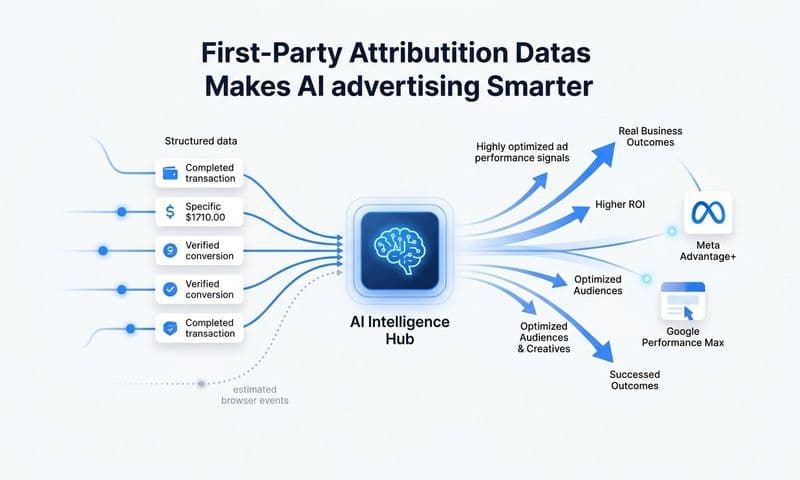
Many businesses use third-party attribution platforms to enrich conversion signals before sending them to Google. These platforms track the full customer journey across all marketing channels, attribute revenue to specific touchpoints using multi-touch models, then send that enriched data back to ad platforms.
This approach solves a critical limitation: Google Ads only knows about Google Ads interactions. If someone clicked your Google Ad, then engaged with Facebook ads, then converted after an email campaign, Google Ads claims full credit while missing the multi-channel influence. Attribution platforms see the complete picture and send appropriately weighted conversion data to each platform. Understanding the Google Ads and Facebook Ads attribution conflict helps you appreciate why this cross-platform view matters.
To verify your data sync is working, create a test conversion with a specific value in your CRM. Wait for your sync to run, then check Google Ads conversion reporting to confirm the conversion appears with the correct value. If the timing and value match, your sync is functioning properly.
Monitor your conversion import status regularly. In Google Ads, go to Tools & Settings, click Conversions, and look for your imported conversion actions. Click into each one and check the "Recent uploads" section. Failed uploads or errors here indicate problems with your data format or sync process.
Set up alerts for sync failures. Many CRM integration tools offer notifications when uploads fail. Catching these quickly prevents gaps in your conversion data that could mislead Google's optimization algorithms.
Success indicator: Google Ads is receiving enriched conversion data that includes actual revenue values from your CRM, test conversions sync successfully, and you have monitoring in place to catch any sync failures immediately.
Step 6: Validate Your Fixes and Monitor Ongoing Accuracy
Attribution tracking isn't a one-time fix. Tags break, integrations fail, and tracking drift happens gradually. Establishing ongoing validation ensures you catch problems before they corrupt weeks of data and optimization decisions.
Create a testing protocol you run monthly. Start by submitting a test conversion through your actual customer flow. Fill out a lead form or complete a purchase using a test account. Track this conversion through your entire system: verify the tag fired, check if it appeared in Google Ads, confirm it synced to your CRM, and validate the conversion value matches what you expect.
Build a comparison dashboard that shows Google Ads reported conversions alongside your source of truth data. Many businesses use Google Data Studio or similar tools to pull Google Ads conversion data and CRM conversion data side by side. When the gap between these numbers exceeds your acceptable threshold, you know something broke. If you notice Google Analytics showing different numbers than ads, that's another signal to investigate your tracking setup.
Establish regular audit schedules. Monthly is reasonable for most businesses. During each audit, check conversion action settings for unexpected changes, verify tags are still firing correctly with Tag Assistant, review recent conversion imports for errors, and compare platform reporting against backend data.
Pay special attention after major changes. When you launch new campaigns, update your website, change your CRM, or modify conversion tracking, run your validation protocol immediately. These transitions are when tracking breaks most often.
Use AI-powered attribution tools to identify high-performing ads across all channels, not just within Google Ads. These platforms analyze cross-channel data to surface which specific ads, audiences, and campaigns drive the most valuable conversions. This level of insight helps you scale what works and cut what doesn't, regardless of which platform gets last-click credit.
Document everything. Keep a log of attribution model changes, conversion tracking updates, integration modifications, and any discrepancies you discover. When you notice conversion numbers shift unexpectedly, this log helps you identify what changed and when.
Success indicator: You have a documented testing protocol, run regular audits comparing Google Ads data to your source of truth, catch tracking issues quickly, and maintain consistent match rates between reported and actual conversions over time.
Taking Control of Your Attribution Data
You now have a complete system for fixing Google Ads attribution problems and maintaining accurate data over time. Your quick implementation checklist: audit your conversion tracking configuration to catch basic setup errors, identify exactly where cross-device and cross-platform tracking breaks down, implement server-side tracking to bypass browser limitations, select an attribution model that matches your actual customer journey, sync enriched revenue data back to Google Ads, and establish ongoing monitoring to catch drift before it impacts decisions.
These fixes transform how you optimize campaigns. Instead of guessing which ads drive revenue based on incomplete platform data, you see the complete picture. You can confidently scale campaigns that truly perform and cut spending on ads that look good in Google but don't convert to customers.
For marketers who want to go further with AI-powered attribution that captures every touchpoint and feeds better data to ad platform algorithms, Cometly connects your ad platforms, CRM, and website to track the entire customer journey in real time. You get AI-driven recommendations that identify high-performing ads across every channel, plus conversion sync that sends enriched data back to Google, Meta, and other platforms to improve their optimization.
Ready to elevate your marketing game with precision and confidence? Discover how Cometly's AI-driven recommendations can transform your ad strategy—Get your free demo today and start capturing every touchpoint to maximize your conversions.