Broken tracking is one of the most costly invisible problems in digital marketing. When your pixels misfire, UTM parameters get stripped, or conversion events stop syncing, you are essentially flying blind with your ad spend. Campaigns that look profitable might be burning budget, while your actual winners go unnoticed and underinvested.
The worst part? Broken tracking often goes undetected for weeks or even months, silently corrupting the data that feeds your optimization decisions and ad platform algorithms. By the time you notice something is off, the damage is already done.
This is not a new problem, but it has gotten significantly harder to manage. Since iOS 14.5+ privacy changes, increasing browser restrictions on third-party cookies, and the growing use of ad blockers, client-side pixel tracking has become increasingly unreliable. What used to be a straightforward setup now requires multiple layers of redundancy to maintain accuracy.
Whether you are dealing with missing conversions in Meta Ads Manager, Google Ads reporting zero conversions despite real sales, or your CRM data not matching what your analytics dashboard shows, these problems share a common thread: somewhere in your tracking stack, data is getting lost, miscounted, or misattributed.
This guide walks you through a clear, repeatable seven-step process to diagnose and fix broken tracking across your entire marketing stack. You will learn how to identify where the disconnect lives, audit your pixels and tags, validate your UTM setup, repair your conversion event configurations, and build a monitoring system that catches future issues before they drain your budget.
By the end, you will have a fully audited tracking setup and the confidence that the data driving your decisions actually reflects reality. Let's get into it.
Step 1: Identify the Symptoms and Scope of Your Tracking Failure
Before you can fix anything, you need to understand exactly what is broken and how widespread the problem is. Jumping straight into pixel audits without first mapping the scope of the issue often leads to fixing the wrong thing entirely.
Start by looking for the most common red flags that signal broken tracking:
Sudden conversion drops: If your reported conversions in Meta or Google Ads drop significantly without a corresponding drop in actual sales, your tracking has likely broken somewhere between the click and the conversion event.
Mismatched numbers across platforms: When your ad platform reports 50 conversions, your Google Analytics shows 30, and your CRM records 45, you have an attribution discrepancy that needs investigation. Some variance is normal, but large gaps point to real tracking failures. Understanding why conversion tracking numbers are wrong is the first step toward resolution.
Revenue appearing as organic: If paid campaign traffic is showing up as direct or organic in your analytics, your UTM parameters are likely being stripped or your auto-tagging is misconfigured.
Attribution gaps in your CRM: Leads or customers in your CRM with no associated source data indicate that the handoff between your website tracking and your CRM is broken.
Once you have identified the symptoms, compare data across every layer of your stack. Pull numbers from your ad platform dashboards, your analytics tool, your CRM, and your actual sales records side by side. Look for where the numbers diverge and at what stage in the funnel the gap appears.
This comparison tells you a great deal. If the discrepancy only exists in one platform (say, Meta is off but Google looks accurate), the issue is likely platform-specific. If every platform is showing inconsistent data, you are probably dealing with a systemic problem at the tracking infrastructure level, such as a broken tag manager container or a site-wide cookie consent issue. For a deeper dive into platform-level reporting errors, read about why your ad platform shows wrong data.
Before making any changes, document everything you find in a simple tracking audit spreadsheet. Record the current numbers from each source, the expected numbers, and the gap. This baseline is critical. Without it, you will not be able to tell whether your fixes actually worked or whether you inadvertently made things worse.
This first step is about clarity, not action. Resist the urge to start changing things until you have a clear picture of where the problem lives.
Step 2: Audit Your Pixel and Tag Installations
Now that you know where the discrepancies exist, it is time to get into the technical layer. Pixel and tag issues are among the most common causes of broken tracking, and they are often easier to find than you expect once you know where to look.
Start with your browser's developer tools. Open Chrome DevTools (or your preferred browser's equivalent), navigate to the Network tab, and filter for requests from your tracking domains (facebook.com, google-analytics.com, etc.). Load the pages where conversions should be firing and watch for those network calls. If they are not appearing, your pixel is not loading. If they appear multiple times on a single page load, you have duplicate firing issues.
For a faster workflow, use tag debugging extensions. The Meta Pixel Helper and Google Tag Assistant browser extensions surface pixel and tag activity directly in your browser without requiring you to dig through network requests manually. They also flag common errors like duplicate pixels, incorrect event parameters, and pixels loading on pages where they should not be. If you need a comprehensive walkthrough, our guide on fixing tracking pixel firing issues covers every scenario in detail.
We compare the leading options in our WooCommerce Meta ad tool roundup.
Here are the most common pixel issues to look for during your audit:
Duplicate pixel fires: This happens when the same pixel is installed both directly in the page code and through a tag manager, causing every event to fire twice and inflating your conversion numbers.
Pixels loading on wrong pages: A purchase event firing on your homepage instead of your thank-you page is a classic misconfiguration that creates wildly inaccurate conversion data.
Cookie consent blocking: If your cookie consent banner is set to block all scripts by default until the user accepts, your pixels may never fire for a large portion of your visitors. Check whether your consent management platform is correctly categorizing your tracking scripts.
Outdated pixel code: Ad platforms update their pixel code periodically. If you are running an old snippet that predates major platform updates, you may be missing required parameters or using deprecated event names. Our article on what a tracking pixel is and how it works explains the fundamentals you need to verify your implementation against.
If you are using Google Tag Manager (or any tag management system), verify that the container snippet is loading correctly on every page of your site. Then review your triggers. A trigger misconfigured to fire on "All Pages" when it should only fire on a specific thank-you page URL is a very common source of inflated or misattributed conversions.
Do not limit your testing to one browser or device. Safari and Firefox handle third-party cookies and scripts differently than Chrome, and mobile browsers introduce additional restrictions. A pixel that fires perfectly on desktop Chrome may be completely blocked on mobile Safari. Testing across multiple environments gives you a complete picture of your actual tracking coverage.
Step 3: Validate Your UTM Parameters and URL Structures
Even if your pixels are firing correctly, broken UTM parameters can completely destroy your attribution data. UTM issues are sneaky because the tracking infrastructure looks fine on the surface, but the data flowing through it is either missing or wrong.
Start by reviewing your UTM naming conventions across all active campaigns. Look for inconsistencies like "Facebook" in one campaign and "facebook" in another, or "paid-social" versus "paid_social" in your medium field. These small variations create separate traffic buckets in your analytics tool, fragmenting your data and making it impossible to accurately aggregate performance by channel. Following UTM parameter tracking best practices eliminates these issues from the start.
Next, test your full click journey. Click your actual ads or use a UTM-tagged URL and follow it through every redirect to the final landing page. Check the URL in your browser at each step. If the UTM parameters disappear at any point during a redirect, that traffic will land in your analytics as direct or unattributed, even though it came from a paid campaign.
Link shorteners, vanity URLs, and certain landing page builders are common culprits for stripping UTM parameters. Some redirect configurations do not pass query strings through properly. If you find this is happening, you need to either fix the redirect configuration or pass the UTM parameters explicitly through to the destination URL.
Auto-tagging conflicts: Google Ads uses auto-tagging (the GCLID parameter) to pass conversion data back to your Google Ads account. If you also have manual UTMs on your Google Ads URLs, these can sometimes conflict, especially if your analytics tool is not configured to accept auto-tagged data alongside manual UTMs. Check your Google Analytics settings to ensure auto-tagging is enabled and that it is not being overridden by manual parameters.
Once your audit is complete, create a standardized UTM template and naming convention document for your team. If you want to understand how UTM tracking fits into the broader attribution picture, our comparison of UTM tracking vs attribution software clarifies where each approach excels and where it falls short.
Step 4: Fix Conversion Event Configuration and Data Flow
Pixels loading correctly and UTMs passing through cleanly are necessary, but they are not sufficient. You also need to verify that your conversion events are configured correctly and that data is flowing properly through every connection in your marketing stack.
Start by reviewing your conversion event setup in each ad platform. For Meta, open Events Manager and check that your conversion events are firing with the required parameters. A Purchase event without a value and currency parameter is essentially useless for optimization because the platform cannot understand the quality of the conversion. For Google Ads, review your conversion actions and verify that the tracking tag is firing on the correct confirmation page with the correct conversion value.
For a deeper dive into this space, see our ecommerce Meta ad tool guide.
The same logic applies to TikTok Ads attribution tracking and any other platform you are running. Each platform has specific parameter requirements for their conversion events, and missing or incorrect parameters degrade the quality of the signal you are sending back to their algorithms.
Now trace the full data pipeline. Think of it as a chain: your website captures an action, passes it to your tag manager or server, which sends it to your ad platforms and analytics tool, which feeds into your CRM. A single broken link anywhere in this chain causes downstream failures. Map out every connection and verify that each handoff is working.
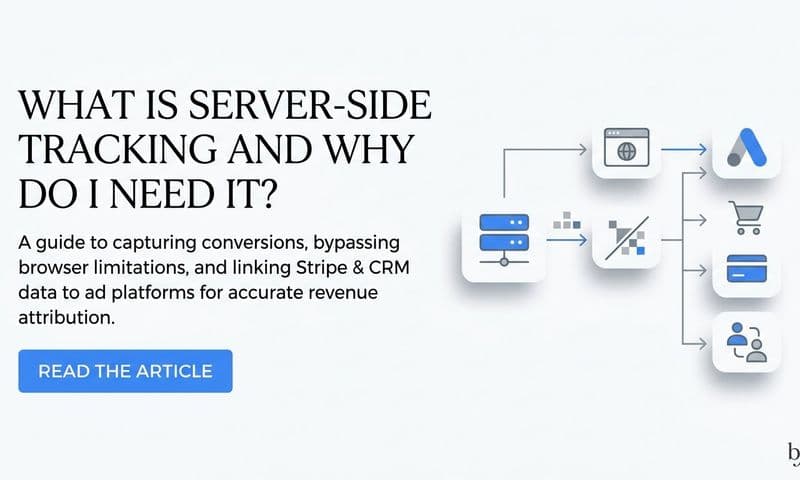
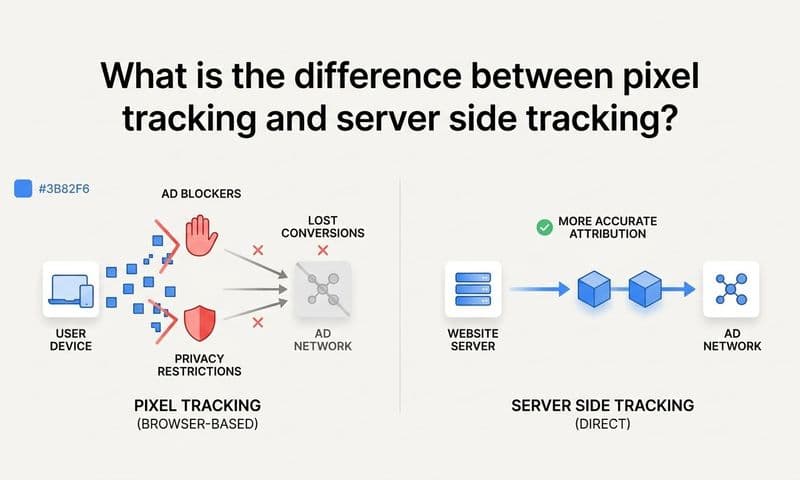
This is where server-side tracking becomes essential. Client-side pixels are increasingly unreliable due to browser privacy features, iOS restrictions, and ad blockers. Many visitors to your site are effectively invisible to client-side tracking, meaning you are missing conversions and sending incomplete signals to your ad platform algorithms. Our detailed comparison of server-side tracking vs pixel tracking explains exactly why this gap exists and how to close it.
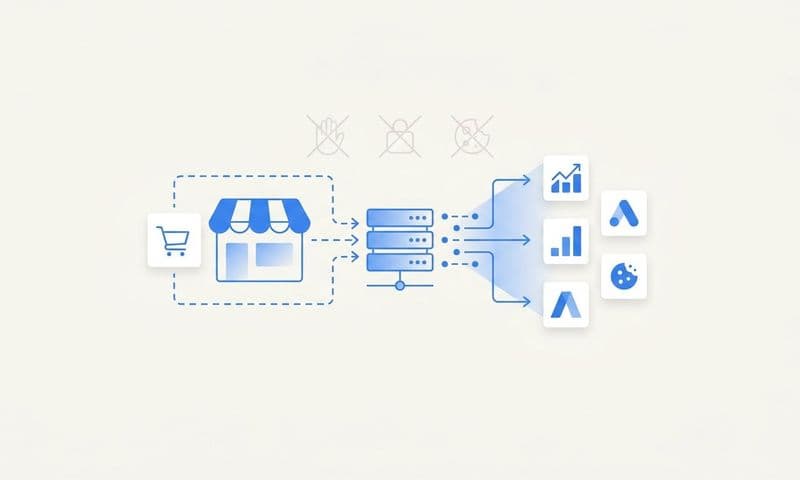
Server-side tracking moves the data collection from the visitor's browser to your own server, bypassing many of the restrictions that block client-side pixels. This significantly improves your event match quality and ensures that more of your actual conversions get reported back to your ad platforms.
Cometly's server-side tracking and conversion sync capabilities are built specifically for this problem. By connecting your actual sales data directly to your ad platforms, Cometly restores the signal that browser restrictions and ad blockers strip away. This feeds better conversion data back to Meta, Google, and other platforms, improving their targeting and optimization algorithms with the accurate signals they need to perform.
If you have been relying solely on client-side pixels, implementing server-side tracking is one of the highest-impact fixes you can make for your overall tracking accuracy.
Step 5: Reconcile Cross-Platform Attribution Discrepancies
Here is something that trips up even experienced marketers: different platforms reporting different conversion numbers is not always a sign that something is broken. It is often just how attribution works. But understanding the difference between normal variance and a real problem is critical.
Meta, Google, and your analytics tool each use different attribution windows and models. Meta might be using a 7-day click plus 1-day view attribution window, Google Ads might be using a 30-day click window, and your analytics tool might be using last-click attribution. The same customer journey can look completely different depending on which lens you are looking through.
Add to this the fact that every platform takes credit for every conversion it touched, and you quickly end up with total reported conversions across all platforms far exceeding your actual conversion count. This is not fraud; it is just how each platform measures its own contribution. It is also why relying on any single platform's reporting to make budget decisions is a recipe for misallocated spend. Exploring touchpoint attribution tracking helps you understand how to credit each interaction accurately across the full journey.
To reconcile these discrepancies, start by documenting the attribution window and model each platform uses. Then compare total reported conversions from all platforms against your actual CRM or sales records. The gap between the sum of platform-reported conversions and real conversions tells you how much double-counting is occurring.
The real solution here is a centralized attribution platform that operates independently of any individual ad platform. Instead of trusting each platform to report its own contribution accurately, a centralized tool connects your ad clicks, website behavior, and CRM data to build a complete, unbiased view of the customer journey. Choosing the right revenue attribution tracking tools is essential for building this single source of truth.
Cometly's multi-touch attribution does exactly this. It connects your ad platforms, website, and CRM to track every touchpoint in the customer journey, from first ad click to final sale. Rather than relying on conflicting platform reports, you get a single source of truth that shows which channels and campaigns actually drive revenue. This makes it possible to compare performance across Meta, Google, TikTok, and any other channel on equal footing, using consistent attribution logic that you control.
When you can see the full journey in one place, budget allocation decisions become much clearer and much more defensible.
Step 6: Test Everything End-to-End Before Going Live
You have audited your pixels, validated your UTMs, fixed your conversion events, and addressed your attribution setup. Before you declare victory, you need to run a complete end-to-end test. This is the step most people skip, and it is the step that catches the issues all the earlier work missed.
Run test conversions through every channel. Click an actual ad (or a UTM-tagged test URL), navigate through your site as a real user would, and complete the conversion action, whether that is filling out a form, starting a trial, or completing a purchase. Then trace that single conversion through every layer of your stack.
Check that the event fired in your tag manager. Verify it appears in your ad platform's real-time event monitoring (Meta Events Manager has a Test Events tool, Google Tag Manager has Preview Mode). Confirm it shows up in your analytics tool with the correct source, medium, and campaign data attached. Then check that it recorded correctly in your CRM with the right attribution data.
Use real-time event monitoring tools throughout this process. Most ad platforms and tag management systems have real-time views that let you see events as they fire, including the parameters attached to each event. This is where you will catch issues like events firing without required parameters, events firing with incorrect values, or attribution data not passing through correctly. Leveraging real-time data tracking capabilities makes this verification process significantly faster and more reliable.
Watch out for these common testing pitfalls:
Forgetting to remove test data: Test conversions that get counted in your real reporting will skew your numbers. Use test modes and sandbox environments where available, and manually remove test entries from your CRM afterward.
Testing only on one device: Run your end-to-end test on desktop Chrome, mobile Safari, and at least one other browser combination. Tracking behavior varies significantly across environments, especially given the ongoing pixel tracking problems on iOS that affect mobile Safari users.
Not accounting for delayed reporting: Some conversion data takes hours or even a day to appear in ad platform dashboards due to processing delays. Do not assume something is broken just because it does not appear instantly. Use real-time event monitoring tools rather than dashboard reports for immediate confirmation.
A successful end-to-end test means you can trace a single conversion from ad click to CRM record with consistent, accurate data at every step. Only then is your tracking genuinely fixed.
Step 7: Build a Monitoring System to Catch Future Breaks Early
Fixing broken tracking is only half the job. The other half is making sure you catch the next break quickly, before it does weeks of silent damage to your campaign data and ad spend efficiency.
The most important thing you can do is set up automated alerts for conversion volume anomalies. Most analytics platforms and ad tools allow you to configure alerts that trigger when conversion volume drops below a threshold or when there is a significant day-over-day change. If your campaigns typically drive 50 conversions per day and that number drops to 5, you want to know within hours, not weeks.
Beyond automated alerts, build a weekly tracking health check into your routine. This does not need to be complex. A simple comparison of ad platform reported conversions against CRM records, run once a week, will catch most discrepancies before they compound. If the numbers are drifting apart, that is your signal to investigate before the gap widens.
Documentation is your long-term protection. Create and maintain a tracking setup document that covers every pixel installed on your site, every tag in your tag manager, every conversion event configured in each ad platform, every integration between your tools, and your UTM naming conventions. When something breaks in the future (and it will), this document means anyone on your team can troubleshoot without starting from scratch or accidentally making things worse.
Cometly's real-time analytics dashboard and AI-powered insights give you continuous visibility into your tracking accuracy across every channel. Rather than manually comparing spreadsheets each week, you can see your full attribution picture in one place and get alerted to anomalies before they impact campaign performance. The AI layer identifies patterns in your data that would take a human analyst hours to surface, giving you faster answers and more confidence in the decisions you make based on that data.
Monitoring is not a one-time setup. It is an ongoing practice that separates marketing teams who catch problems early from those who discover them during a quarterly review, long after the damage is done.
Your Tracking Fix Checklist and Next Steps
Broken tracking does not fix itself, and every day it goes unaddressed means wasted ad spend and missed optimization opportunities. But with a systematic approach, what feels like an overwhelming technical problem becomes a manageable, step-by-step process.
Here is your quick-reference checklist to make sure nothing gets missed:
1. Identify symptoms and document discrepancies across all data sources before making any changes.
2. Audit pixel and tag installations using developer tools and debugging extensions, testing across multiple browsers and devices.
3. Validate UTM parameters and URL structures by tracing the full click journey and standardizing naming conventions.
4. Fix conversion event configurations in every ad platform and implement server-side tracking to address data loss from browser restrictions and ad blockers.
5. Reconcile cross-platform attribution discrepancies using a centralized attribution tool that creates a single source of truth across all channels.
6. Test every conversion path end-to-end, verifying accurate data at each stage of your tracking stack before going live.
7. Set up ongoing monitoring, automated alerts, and documentation to catch future breaks early.
Working through this process manually takes time, but the payoff is significant. Accurate tracking means your ad platform algorithms receive better signals, your budget decisions are based on real data, and your optimization efforts actually move the needle.
If you want to skip the manual reconciliation work and get accurate, real-time attribution across every channel from day one, Cometly connects your ad platforms, CRM, and website to track the entire customer journey and show you exactly which ads drive revenue. Ready to elevate your marketing game with precision and confidence? Get your free demo today and start capturing every touchpoint to maximize your conversions.