

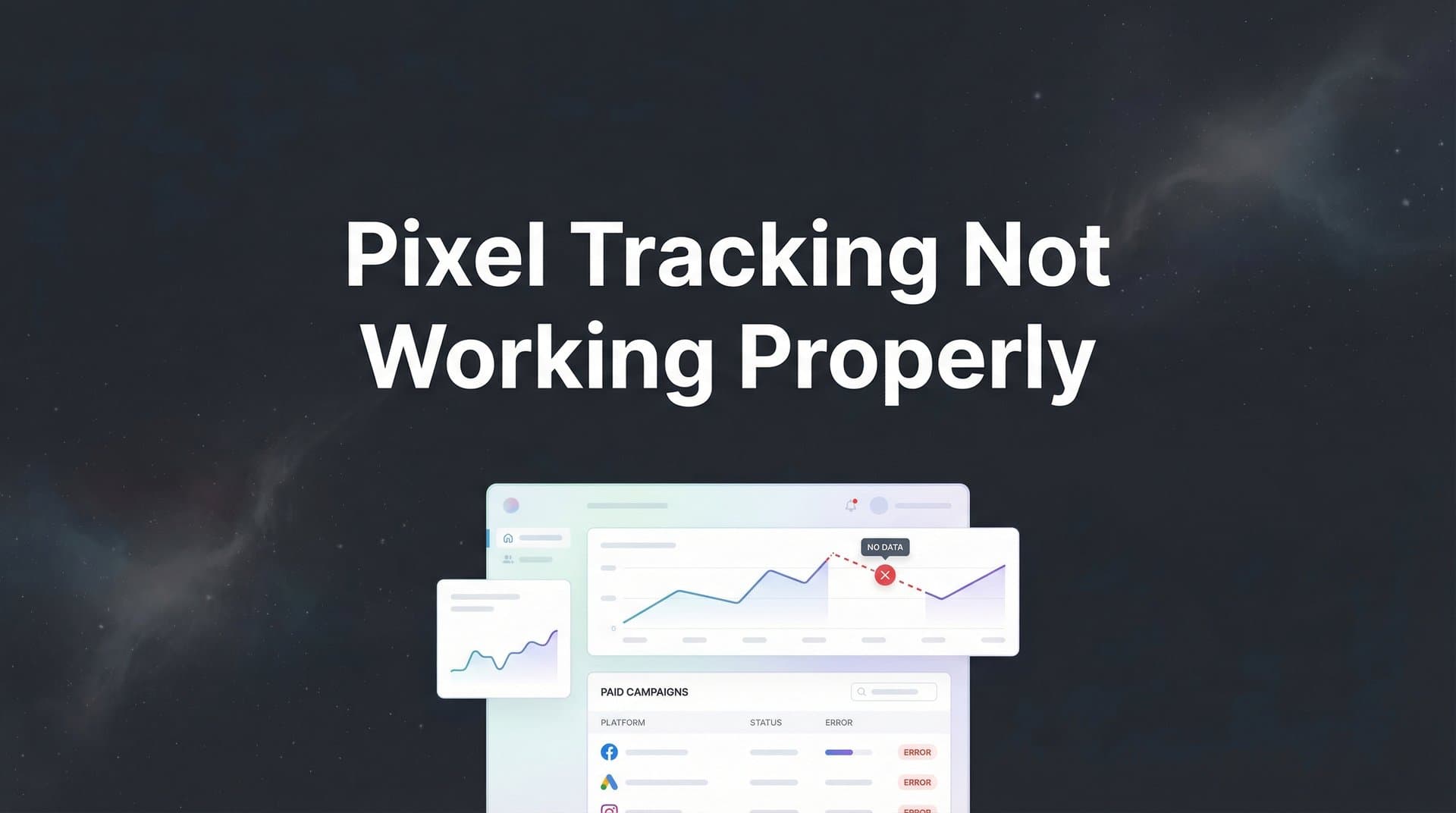
You just launched a new campaign. The ads are running, clicks are coming in, and you're confident conversions are happening. But when you check your ad platform dashboard, the numbers don't match. Conversions are missing. Events are duplicating. Your data looks like a mess.
This is the reality of broken pixel tracking, and it's more common than you think. When your pixel stops working properly, you're flying blind. Your ad platform can't optimize correctly, your budget decisions are based on incomplete information, and you're likely wasting money on campaigns that appear to underperform when they might actually be profitable.
The good news? Most pixel tracking issues follow predictable patterns, and they're fixable with a systematic approach. Whether you're dealing with missing conversions on Meta, discrepancies in Google Ads, or inconsistent data across multiple platforms, this guide will walk you through the exact troubleshooting process to diagnose and fix the problem.
Let's get your tracking back on track so you can make confident, data-driven decisions about your campaigns.
Step 1: Verify Your Pixel Is Actually Installed and Firing
Before diving into complex troubleshooting, start with the fundamentals. Is your pixel actually installed on your website, and is it firing when it should?
Open your website in Chrome or Firefox and access the browser developer tools (right-click anywhere on the page and select "Inspect" or press F12). Navigate to the Network tab and filter by "XHR" or "Fetch" requests. Reload the page and look for requests to your ad platform's tracking domains. For Meta, you'll see requests to facebook.com/tr. For Google Ads, look for requests to googleadservices.com or google-analytics.com.
If you don't see these requests, your pixel code either isn't installed or isn't executing. Check your website's source code (View Page Source) and search for your pixel ID. The Meta Pixel ID is a 15-16 digit number that appears in the fbq('init', 'YOUR_PIXEL_ID') code. Google Ads conversion tracking uses a format like AW-XXXXXXXXXX.
Install platform-specific debugging tools to make this process easier. The Meta Pixel Helper is a Chrome extension that displays a small popup showing which Meta Pixels fired on the current page, which events were tracked, and whether there are any errors. Google Tag Assistant performs a similar function for Google tags. TikTok offers the TikTok Pixel Helper extension.
These tools will immediately tell you if your pixel is present and firing. Look for green checkmarks indicating successful firing, or red warnings that point to specific problems. Common issues include missing pixel code entirely, incorrect pixel IDs that don't match your ad account, or JavaScript errors preventing execution. If you're experiencing issues with tracking pixels not firing correctly, these debugging tools are your first line of defense.
Pay attention to when your pixel fires. Some pixels are configured to fire on page load, while others trigger based on user actions like button clicks or form submissions. Test both scenarios. Load the page and check if the PageView event fires. Then complete a conversion action (add to cart, submit a form, complete a purchase) and verify the corresponding event fires at the right moment.
JavaScript errors anywhere on your page can prevent pixels from executing. Check the Console tab in your developer tools for red error messages. Even if the error seems unrelated to your tracking code, it might be blocking pixel execution if the error occurs before your pixel code runs in the page load sequence.
Step 2: Diagnose Event Configuration and Trigger Issues
Your pixel might be installed and firing, but that doesn't mean it's tracking the right events at the right times. Event configuration problems are among the most common causes of inaccurate data.
Start by reviewing which events are configured in your tracking setup. Standard events include PageView (fires when someone loads a page), ViewContent (product page views), AddToCart, InitiateCheckout, Purchase, Lead, and CompleteRegistration. Each event should fire at a specific point in the customer journey and pass relevant parameters.
The best way to test event configuration is to become your own customer. With your debugging tools active, walk through your entire conversion funnel. Visit a product page and confirm ViewContent fires. Add the item to your cart and verify AddToCart triggers. Proceed through checkout and confirm InitiateCheckout fires when you reach the checkout page. Complete a test purchase (or use test mode if available) and verify the Purchase event fires with the correct transaction value.
Check that dynamic values are passing correctly. The Purchase event should include the actual transaction amount, not a static placeholder value. Product IDs should match your catalog. Custom parameters like user email (for enhanced matching) or order IDs (for deduplication) should populate with real data, not empty strings or undefined values. Understanding why conversions are not tracking often comes down to these parameter configuration issues.
Look for duplicate event firing, which inflates your conversion counts and distorts your data. This often happens when the same event is triggered by multiple tracking implementations. For example, you might have a Purchase event firing from both your website's native code and a tag manager, resulting in two events for every transaction. Your debugging tools will show multiple identical events firing in quick succession.
Timing matters. Events should fire at the precise moment the action occurs. A Purchase event that fires on the checkout page instead of the order confirmation page will track every checkout attempt as a conversion, even if the customer abandons before completing payment. An AddToCart event that fires before the item is actually added to the cart will trigger even if the action fails due to inventory issues or errors.
Review your event triggers in your tag manager or tracking configuration. Are they set to fire on specific URLs, button clicks, or form submissions? Test edge cases. What happens if a customer reaches the confirmation page by pressing the back button? Does the event fire again? What if they refresh the page?
Step 3: Address Browser and Privacy-Related Blocking
Even perfectly configured pixels face obstacles from browser privacy features, ad blockers, and user privacy choices. These factors can significantly reduce your tracking accuracy, especially for mobile traffic.
Apple's iOS 14.5 update introduced App Tracking Transparency, requiring apps to ask permission before tracking users across other companies' apps and websites. When users opt out, cross-app tracking breaks, making it harder for ad platforms to match conversions back to ad clicks. This affects not just iOS app traffic, but also web traffic from Safari and other browsers that implement similar privacy protections. Many marketers have experienced ad tracking not working after iOS updates, and understanding these privacy changes is essential.
Safari's Intelligent Tracking Prevention (ITP) limits how long cookies can persist and restricts third-party cookie access. This means your pixel's ability to attribute conversions to ad clicks diminishes over time, especially for longer sales cycles. If a customer clicks your ad on Monday but converts on Friday, Safari might have already deleted or restricted the tracking cookie that connects the conversion to the original ad click.
Ad blockers are another common culprit. Browser extensions like uBlock Origin, AdBlock Plus, and Privacy Badger actively prevent tracking pixels from loading or firing. According to various industry observations, a significant portion of web users employ some form of ad blocking, though the exact percentage varies by audience and geography.
Cookie consent banners add another layer of complexity. If your website operates in regions covered by GDPR or similar privacy regulations, you likely display a consent banner before loading tracking scripts. Users who decline or don't interact with the banner won't have your pixel loaded at all. Check your consent management platform's settings to ensure tracking scripts are properly categorized and only load after appropriate consent is granted. The reality is that cookie-based tracking is not working anymore as reliably as it once did.
Privacy-focused browsers like Brave and Firefox with Enhanced Tracking Protection enabled block many tracking scripts by default. Incognito or private browsing modes prevent cookies from persisting across sessions, breaking attribution for return visitors.
Here's the challenge: you can't force users to disable ad blockers or change their privacy settings. The solution is to implement tracking methods that don't rely solely on browser-based cookies and JavaScript. This is where server-side tracking becomes essential. Rather than depending on the user's browser to execute tracking code and send data to ad platforms, server-side tracking sends conversion data directly from your server, bypassing browser limitations entirely.
Step 4: Fix Common Technical Implementation Errors
Technical implementation mistakes can break tracking even when your pixel code is correctly installed. These issues often stem from how different systems interact on your website.
Tag manager conflicts are surprisingly common. If you're using Google Tag Manager, Segment, or another tag management system, multiple tags might be competing for resources or firing in the wrong order. Check your tag firing sequence. Some tags need to fire before others. For example, your base pixel code needs to load before any event-specific code that depends on it. Review your tag priorities and triggers to ensure proper sequencing.
Cross-domain tracking breaks occur when users navigate between different domains during their journey. This commonly happens when your main website is on one domain but your checkout process is hosted on a subdomain or entirely different domain (common with some e-commerce platforms). Without proper configuration, the tracking cookie doesn't transfer between domains, breaking the connection between the ad click and the eventual conversion. If you're struggling with cross-domain tracking not working properly, this is likely the root cause.
To fix cross-domain tracking, you need to configure your pixel to pass tracking parameters through URLs when users navigate between domains. For Meta Pixel, this involves enabling automatic advanced matching and ensuring your domains are properly configured in Business Manager. For Google Analytics, you'll need to set up cross-domain tracking by modifying your tracking code to include all relevant domains.
Caching issues can serve outdated pixel code to visitors even after you've updated your tracking implementation. If you recently fixed a pixel problem but the issue persists, your CDN or caching plugin might be serving an old version of your website's code. Clear your website cache, CDN cache, and browser cache, then test again. Consider implementing cache-busting parameters for your tracking scripts during testing.
Parameter formatting errors in custom events cause data to be rejected or misinterpreted by ad platforms. Each platform has specific requirements for how event parameters should be formatted. Currency values should be numbers without currency symbols. Product IDs should match the format in your product catalog. Email addresses for enhanced matching should be lowercase and trimmed of whitespace.
HTTPS consistency matters more than you might think. If your website uses HTTPS but some resources (images, scripts, or tracking pixels) load over HTTP, browsers will block these mixed content requests for security reasons. Ensure all your tracking scripts, pixel URLs, and related resources use HTTPS. Check your website's source code for any http:// references that should be https://.
Step 5: Implement Server-Side Tracking for Reliable Data
Browser-based pixel tracking has fundamental limitations that no amount of troubleshooting can fully overcome. The solution is server-side tracking, which sends conversion data directly from your server to ad platforms, bypassing browser restrictions entirely.
Here's why server-side tracking is more reliable: instead of relying on JavaScript executing in the user's browser (which can be blocked by ad blockers, privacy settings, or browser restrictions), your server sends conversion data directly to the ad platform's API. The user's browser never needs to load a tracking pixel or execute tracking code. Understanding the differences between server-side tracking vs pixel tracking is crucial for modern marketers.
Meta's Conversions API is the server-side complement to the Meta Pixel. While the pixel tracks browser-based events, Conversions API sends the same event data from your server. This creates redundancy, ensuring conversions are tracked even when browser-based tracking fails. The two methods work together, with event deduplication preventing double-counting when both successfully track the same conversion.
Google Ads offers Enhanced Conversions, which supplements your existing conversion tags with hashed first-party customer data sent from your website or server. This helps Google match conversions more accurately, especially when cookies are limited or unavailable.
Setting up server-side tracking requires technical implementation. You'll need to send conversion data from your server to the ad platform's API whenever a conversion occurs. This typically involves adding code to your order confirmation process, CRM, or backend systems that triggers an API call when specific actions occur. Many marketers are exploring conversion tracking alternatives to pixels for exactly this reason.
Event deduplication is critical when running both client-side and server-side tracking simultaneously. Without deduplication, the same conversion gets counted twice, once from the browser pixel and once from your server. Implement this by assigning a unique event ID to each conversion and sending that same ID with both the pixel event and the server-side event. The ad platform recognizes events with matching IDs and counts them only once.
Connect your CRM and backend systems for complete journey tracking. Many conversions don't happen immediately on your website. A lead might fill out a form, then convert to a paying customer days or weeks later through sales calls or email nurturing. By connecting your CRM to your tracking system, you can send these offline conversions back to ad platforms, giving them a complete picture of which campaigns drive actual revenue, not just initial leads.
Platforms like Cometly simplify this entire process by providing unified tracking infrastructure across all your ad channels. Instead of implementing separate server-side tracking for Meta, Google, TikTok, and other platforms, Cometly captures conversion data once and distributes it to all your ad platforms automatically. This eliminates technical complexity while ensuring consistent, accurate tracking across your entire marketing stack.
Step 6: Validate Your Fix and Monitor Ongoing Accuracy
Implementing fixes is only half the battle. You need to validate that your solutions actually work and establish processes to catch future issues early.
Run controlled test conversions to verify your tracking is working. Make a test purchase on your website (use a test mode if available, or make a real purchase you can refund). Watch your ad platform dashboard in real-time to confirm the conversion appears. Check that the conversion value matches the transaction amount and that all relevant parameters populated correctly.
Compare pixel-reported conversions against your actual backend data. Pull your order data from your e-commerce platform or CRM and compare it against what your ad platforms report. There will always be some discrepancy due to attribution windows, view-through conversions, and privacy-related tracking limitations, but the numbers should be reasonably close. If your ad platform reports 50 conversions but your backend shows 100 actual orders, you have a significant tracking gap that needs investigation. For a deeper dive into resolving these discrepancies, check out our guide on how to fix pixel tracking issues.
Set up alerts for sudden drops in conversion tracking. Most ad platforms allow you to create automated rules that notify you when conversion volume drops below a certain threshold. Configure alerts that trigger when conversions drop by a specific percentage compared to the previous week. This helps you catch tracking breaks immediately rather than discovering them days later when you review campaign performance.
Establish a regular audit schedule to catch issues before they impact your campaigns. Monthly audits are a good baseline for most businesses. During each audit, verify your key conversion events are firing correctly, check for duplicate events, review any error messages in your debugging tools, and compare reported conversions against backend data. Document any discrepancies and investigate their causes.
Create documentation for your tracking setup. This should include which pixels are installed, which events are configured, how server-side tracking is implemented, and who has access to make changes. When team members change or you need to troubleshoot issues months later, this documentation will save hours of investigation time. Include screenshots of your tag manager configuration, notes about any custom implementations, and contact information for developers who can make technical changes if needed.
Putting It All Together
Fixing pixel tracking issues requires a methodical approach: verify installation, diagnose event configuration, address privacy-related blocking, correct technical errors, implement server-side tracking, and validate your solutions.
Use this quick checklist to ensure your tracking stays accurate: pixel installed and firing correctly on all relevant pages, all conversion events configured with proper triggers and parameters, server-side tracking implemented to overcome browser limitations, regular audits scheduled to catch issues before they impact campaigns, documentation maintained for team reference and troubleshooting.
Remember that perfect tracking is increasingly difficult in a privacy-focused web. Browser restrictions, ad blockers, and user privacy choices will always create some tracking gaps. The goal isn't perfection but rather reliable, actionable data that helps you make better marketing decisions.
For marketers managing campaigns across multiple platforms, tools like Cometly can simplify this entire process by providing unified tracking, server-side data collection, and real-time visibility into what's actually driving your conversions. Instead of troubleshooting tracking issues separately for Meta, Google, TikTok, and other platforms, you get a single source of truth that captures every touchpoint in the customer journey and feeds accurate conversion data back to your ad platforms.
Accurate tracking is the foundation of profitable advertising. When you know which campaigns, ads, and audiences are actually driving results, you can confidently scale what works and cut what doesn't. Take the time to get your tracking right, and you'll make better decisions with every dollar you spend.
Ready to elevate your marketing game with precision and confidence? Discover how Cometly's AI-driven recommendations can transform your ad strategy. Get your free demo today and start capturing every touchpoint to maximize your conversions.


