

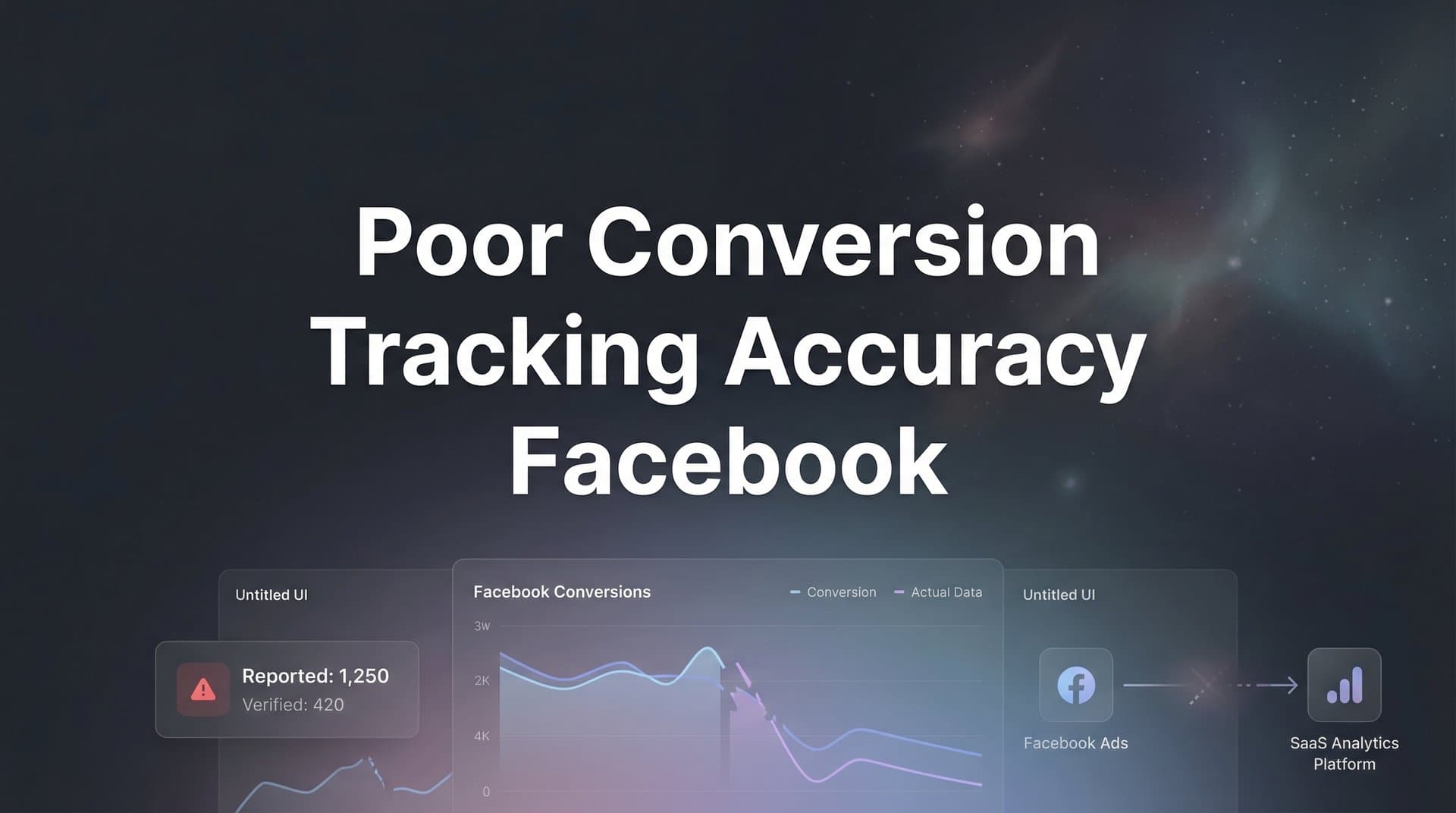
If you have ever logged into Facebook Ads Manager and noticed that your reported conversions do not match your actual sales data, you are not alone. Poor conversion tracking accuracy on Facebook has become one of the most frustating challenges for digital marketers, especially since iOS 14.5 privacy changes disrupted traditional tracking methods.
When your conversion data is unreliable, every decision you make about budget allocation, audience targeting, and creative optimization is built on shaky ground. You might be scaling campaigns that barely break even while pausing winners because the data tells you they are underperforming.
This guide walks you through a systematic approach to diagnosing and fixing your Facebook conversion tracking issues. You will learn how to identify where your tracking breaks down, implement server-side solutions that bypass browser limitations, and verify that your data actually reflects real customer behavior.
By the end, you will have a clear action plan to restore confidence in your Facebook advertising data and make smarter decisions about your ad spend. Let's get started with the foundation: understanding exactly where your tracking is failing.
Step 1: Audit Your Current Tracking Setup for Gaps
Before you can fix tracking problems, you need to know exactly where the gaps exist. Think of this like diagnosing a car problem. You would not start replacing parts randomly. You would run diagnostics first.
Start by opening Facebook Events Manager and checking your pixel health status. Look for the green checkmark that indicates your pixel is active and firing correctly. Click into your pixel details to see which events are being received and how frequently they fire.
Pay special attention to the event match quality score. This metric shows how well Facebook can match your events to user profiles. A score below 6.0 typically indicates you are missing key customer identifiers like email addresses or phone numbers in your event data.
Now comes the crucial part: comparing Facebook-reported conversions against your source of truth data. Pull conversion reports from Facebook Ads Manager for the past 7-14 days. Then pull the same data from your CRM, e-commerce platform, or sales database.
Create a simple spreadsheet with three columns: Date, Facebook Reported Conversions, and Actual Conversions. Calculate the discrepancy percentage for each day. Many businesses discover they are missing 20-40% of actual conversions in their Facebook reporting, which is a common conversion tracking accuracy issue that needs addressing.
Look for patterns in where the gaps appear. Are you seeing bigger discrepancies on mobile versus desktop traffic? Is iOS traffic showing significantly lower conversion rates than Android? Are certain campaigns or ad sets showing worse tracking accuracy than others?
Document these patterns carefully. If you notice that iOS traffic converts at half the rate of Android traffic despite similar engagement metrics, that is a red flag pointing to iOS tracking limitations.
Calculate your baseline accuracy rate by dividing Facebook-reported conversions by actual conversions. If Facebook shows 70 purchases but your store processed 100 orders from Facebook traffic, your accuracy rate is 70%. This number becomes your benchmark for measuring improvement as you implement fixes.
Set up a tracking audit document that includes your pixel health status, event match quality scores, discrepancy percentages by device and platform, and your overall baseline accuracy rate. You will reference this throughout the optimization process to measure progress.
Step 2: Verify and Optimize Your Facebook Pixel Implementation
Your Facebook pixel is the foundation of conversion tracking, so any implementation errors here cascade into everything else. Even small configuration mistakes can create massive data gaps.
Install the Facebook Pixel Helper browser extension for Chrome. This free tool shows you exactly which Facebook events fire on each page you visit. Navigate through your conversion funnel from landing page to thank you page while watching the Pixel Helper icon.
Each time an event fires, the icon displays a number. Click it to see event details including the event name, parameters passed, and whether any errors occurred. You should see PageView events on every page, ViewContent on product pages, AddToCart when items are added, InitiateCheckout when checkout begins, and Purchase on your confirmation page.
Check for duplicate pixel fires, which happen when you have accidentally installed the pixel code multiple times on the same page. Duplicates inflate your event counts and throw off your conversion metrics. The Pixel Helper will show multiple instances if this is happening.
Verify that your standard events include all required parameters. Purchase events must include value and currency parameters. Without these, Facebook cannot optimize for return on ad spend. Lead events should include value if your leads have different qualities or expected lifetime values.
Look at your event parameter quality. Are you passing consistent product IDs? Do your content names make sense? Are currency codes formatted correctly (USD not $)? These details matter for Facebook pixel data accuracy and optimization.
If you have implemented both browser pixel events and server-side Conversions API events, you need proper deduplication. Each event should include a unique event ID parameter that matches between browser and server versions. Without this, Facebook counts the same conversion twice.
Test your deduplication by triggering a conversion and checking Facebook Test Events tool. You should see one event received from both browser and server sources, not two separate events. The event details should show "Deduplicated" status.
Fix any errors you discover before moving forward. A properly configured pixel is essential for everything else to work correctly. Once your browser-based tracking is clean, you are ready to layer in more robust server-side tracking.
Step 3: Implement Server-Side Tracking with Conversions API
Browser-based tracking alone fails in today's privacy-focused environment. Ad blockers strip tracking pixels, iOS restrictions limit data collection, and cookie limitations prevent accurate attribution across sessions. Server-side tracking solves these problems by sending conversion data directly from your server to Facebook.
Facebook Conversions API allows you to send conversion events from your backend infrastructure rather than relying solely on browser pixels. When a customer completes a purchase, your server sends that conversion event directly to Facebook with full customer details and order information.
The implementation approach depends on your platform. E-commerce platforms like Shopify and WooCommerce offer Conversions API integrations through apps or plugins. Custom websites typically require developer work to set up server-side event transmission through Facebook's API.
Start by generating a Conversions API access token in Facebook Events Manager. Navigate to your pixel settings and look for the Conversions API section. Generate a new access token and securely store it. This token authenticates your server when sending events to Facebook.
Configure your server to send events whenever conversions occur. Each server event should include the event name, timestamp, and customer information parameters. The more customer identifiers you include, the better Facebook can match events to user profiles.
Event matching parameters are critical for accuracy. Include as many as possible: email address (hashed), phone number (hashed), first name, last name, city, state, zip code, country, and external ID (your customer ID). Facebook uses these parameters to match server events to the correct user profiles.
Hash sensitive information like email addresses and phone numbers using SHA-256 before sending them to Facebook. Most Conversions API libraries handle this automatically, but verify that your implementation includes proper hashing for privacy compliant conversion tracking.
Set up your server events to include the fbp cookie value and fbc click ID when available. These browser identifiers help Facebook connect server events back to the original ad click, improving attribution accuracy even when browser tracking is limited.
Test your server-side implementation using Facebook Test Events tool. Send a test conversion from your server and verify that it appears in the Test Events interface. Check that all parameters are received correctly and that your event match quality score is high.
Monitor your event match quality score after implementing Conversions API. Scores above 7.0 indicate strong matching, while scores below 6.0 suggest you need to pass more customer identifiers. Add additional parameters to improve matching and attribution accuracy.
Remember to implement proper deduplication between browser pixel events and server Conversions API events. Use unique event IDs that match across both sources so Facebook counts each conversion only once. For a deeper comparison, review the differences between Facebook CAPI vs pixel tracking to understand which approach works best for your setup.
Step 4: Configure Aggregated Event Measurement for iOS Users
iOS tracking requires special configuration due to Apple's App Tracking Transparency framework. Facebook's Aggregated Event Measurement system is how you maintain some conversion visibility for iOS traffic despite these restrictions.
First, verify your domain in Facebook Business Manager. Navigate to Business Settings, then Brand Safety, then Domains. Add your website domain and complete the verification process using either DNS record, HTML file upload, or meta tag methods. Without domain verification, you cannot configure iOS conversion events.
Once verified, configure your eight priority conversion events. Facebook limits iOS tracking to eight events per domain, ranked by business priority. Choose carefully because lower-priority events may not be tracked at all for iOS users who opt out of tracking.
Prioritize events based on business value, not just volume. Your Purchase event should typically rank first since revenue is your ultimate goal. Lead events, high-value page views, or add-to-cart actions might fill out the remaining seven slots depending on your business model.
Understand that iOS attribution windows are restricted to one-day view and seven-day click windows by default. This means iOS conversions that occur more than seven days after someone clicks your ad will not be attributed back to that ad. Businesses with longer sales cycles see more significant data gaps due to iOS tracking limitations on Facebook ads.
Set realistic expectations for iOS conversion visibility. Many iOS users opt out of tracking when prompted by apps. For these users, Facebook can only report aggregated, delayed conversion data rather than individual user-level tracking. Your reported iOS conversions will likely undercount actual results.
Review your Aggregated Event Measurement configuration regularly. As your business evolves, you may need to reprioritize events. Changing your event configuration triggers a 72-hour learning period for affected campaigns, so time changes strategically to minimize disruption.
Consider the impact on campaign optimization. Facebook's algorithm relies on conversion signals to optimize delivery. When iOS conversions are undercounted, campaigns may appear less effective than they actually are. Use blended data from multiple sources to get a complete picture of campaign performance.
Step 5: Connect Your CRM and Sales Data for Full-Funnel Visibility
Facebook pixel and Conversions API track initial conversions, but many businesses have longer sales cycles with offline touchpoints. Connecting your CRM data creates a complete picture of how Facebook ads drive actual revenue.
Integrate your CRM with your tracking infrastructure to capture conversions that happen after the initial website interaction. A lead might fill out a form on your website (tracked by Facebook), then convert to a customer through sales calls or email nurturing (tracked only in your CRM).
Set up your integration to pass customer journey data back to Facebook. When a lead becomes a customer, send an offline conversion event to Facebook with the original click ID. This tells Facebook's algorithm that the ad click eventually led to revenue, even though the final conversion happened offline.
Attribution platforms like Cometly bridge the gap between ad platforms and your CRM. Cometly tracks every touchpoint from initial ad click through final purchase, connecting Facebook traffic to actual revenue in your sales system. This gives you accurate attribution across the entire customer journey.
With full-funnel tracking in place, you can optimize Facebook campaigns toward real business outcomes rather than just website actions. Facebook's algorithm learns which audiences and creatives drive customers who actually close deals, not just leads who fill out forms.
Pass conversion value data back to Facebook whenever possible. If some customers are worth more than others, include that information in your conversion events. Facebook can then optimize to find more high-value customers rather than just maximizing conversion volume.
Configure your integration to handle delayed conversions appropriately. Some businesses see conversions weeks or months after the initial ad click. Make sure these delayed conversions are attributed back to the correct campaigns so your data reflects true performance. Learning how to sync conversion data to Facebook Ads properly ensures nothing falls through the cracks.
Use your CRM data to validate Facebook reporting. Run regular comparisons between Facebook-attributed revenue and CRM-tracked revenue from Facebook sources. Discrepancies highlight remaining tracking gaps or attribution issues that need attention.
Enable Facebook to optimize toward revenue signals by sending purchase value data consistently. The more accurate revenue information Facebook receives, the better its algorithm can find customers who generate real business results.
Step 6: Validate Your Tracking Accuracy and Monitor Ongoing Performance
Fixing tracking accuracy is not a one-time project. Privacy regulations evolve, platforms change their tracking methods, and technical issues arise. Ongoing monitoring ensures your data stays reliable.
Create a weekly reconciliation process comparing Facebook-reported conversions to your source-of-truth sales data. Pull conversion reports from Facebook Ads Manager every Monday and compare them against actual orders or leads from your CRM or e-commerce platform.
Calculate your match rate percentage each week. If Facebook reports 85 conversions and your system processed 100 orders from Facebook traffic, your match rate is 85%. Track this metric over time to spot trends or sudden drops that indicate new tracking problems.
Set up alerts for anomalies in your conversion data. A sudden 30% drop in reported conversions might indicate a technical issue with your pixel or Conversions API implementation. Catching these problems quickly prevents wasted ad spend on campaigns you cannot properly measure.
Use UTM parameters as a secondary validation method. Tag your Facebook ads with consistent UTM codes and track them in Google Analytics or your analytics platform. Compare traffic and conversion patterns across platforms to identify discrepancies.
Monitor your event match quality scores in Facebook Events Manager. A declining match quality score suggests problems with how you are passing customer identifiers in your Conversions API events. Address these issues promptly to maintain accurate attribution.
Establish acceptable accuracy thresholds based on your business needs. For some businesses, 80% tracking accuracy is acceptable given iOS limitations. For others, especially those with high-value conversions, anything below 90% requires immediate investigation. Following best practices for tracking conversions accurately helps you maintain these standards.
Create action triggers for when data drifts outside acceptable ranges. If your match rate drops below 75%, pause new campaign launches until you identify and fix the tracking issue. Making optimization decisions on bad data leads to poor results.
Document all tracking changes and their impact. When you implement a new integration or update your pixel configuration, note the date and monitor how it affects your match rate. This historical record helps you troubleshoot future issues.
Putting It All Together
Fixing poor conversion tracking accuracy on Facebook is not a one-time task but an ongoing process of monitoring and optimization. The privacy landscape continues to evolve, and tracking methods must adapt accordingly.
Start by auditing your current setup to understand exactly where your tracking breaks down. Many marketers discover they are missing 30-40% of actual conversions in their Facebook reporting. Knowing your baseline accuracy rate gives you a clear target for improvement.
Layer in server-side tracking through Conversions API to bypass browser limitations that block traditional pixel tracking. Server-side events capture conversions that ad blockers and iOS restrictions would otherwise hide. This single change typically improves tracking accuracy by 15-25 percentage points.
Connect your CRM and sales data to capture the complete customer journey from ad click to closed deal. Platform-reported metrics only show part of the picture. Full-funnel attribution reveals which campaigns drive actual revenue, not just website actions.
The marketers who win today are those who invest in accurate data infrastructure rather than relying solely on platform-reported metrics. When your tracking is solid, you can confidently scale winning campaigns and cut losing ones. When your tracking is broken, every decision is a guess.
Your action checklist: audit your pixel health this week, implement Conversions API within 30 days, connect your CRM for full-funnel attribution, and establish weekly data reconciliation. Each step builds on the previous one to create a complete tracking system.
With accurate tracking in place, you can finally trust your Facebook data and scale your campaigns with confidence. You will know which audiences actually convert, which creatives drive revenue, and which campaigns deserve more budget.
Ready to elevate your marketing game with precision and confidence? Discover how Cometly's AI-driven recommendations can transform your ad strategy. Get your free demo today and start capturing every touchpoint to maximize your conversions.



