Your Facebook Ads Manager shows 47 conversions this week. Your actual sales? Twenty-three. Sound familiar? This disconnect isn't just frustrating—it's actively sabotaging your marketing decisions. When you can't trust what Facebook reports, you're essentially flying blind with your ad budget.
The tracking landscape has fundamentally shifted. iOS privacy updates block tracking by default. Browsers restrict cookies. Ad blockers prevent your Pixel from firing. The result? Facebook misses conversions that actually happened, making profitable campaigns look like failures while you pour money into ads that might not be working at all.
Here's the reality: relying solely on browser-based tracking means you're likely missing 30-60% of your actual conversions. But this isn't a problem you have to accept.
This guide walks you through six concrete steps to reclaim tracking accuracy. You'll learn how to fix foundational Pixel issues, implement server-side solutions that bypass tracking blockers, and create a complete view of which campaigns truly drive revenue. Each step builds on the last, creating a tracking infrastructure that captures conversions Facebook's standard setup misses.
By the end, you'll have a clear roadmap for making confident, data-driven decisions about where to spend your advertising budget. Let's start by examining what's actually broken in your current setup.
Step 1: Audit Your Current Facebook Pixel Setup
Before you can improve tracking, you need to know exactly what's broken. Think of this like a health checkup—you're diagnosing problems before prescribing solutions.
Start by opening Facebook Events Manager. This is your diagnostic dashboard for all tracking activity. Navigate to the Data Sources section and select your Pixel. You'll immediately see a health status indicator—green means everything's firing correctly, yellow signals warnings, and red indicates critical issues that need immediate attention.
Click into the Overview tab to see which events are firing and how frequently. Look for gaps in your conversion funnel. If you're running e-commerce ads but don't see Purchase events, that's a red flag. If you're generating leads but Lead events aren't firing, you've found your problem.
The Diagnostics section reveals specific errors. Common issues include Pixel firing multiple times on the same page (inflating your numbers), events not firing at all, or parameter mismatches where the data structure doesn't match what Facebook expects. Document each error you find—you'll need this baseline to measure improvements later. Understanding inaccurate Facebook Pixel tracking causes helps you identify what to look for during your audit.
Now install the Facebook Pixel Helper browser extension. This free tool from Meta shows you in real time whether your Pixel is firing on each page you visit. Navigate through your entire conversion funnel as a customer would: landing page, product page, add to cart, checkout, thank you page.
Watch for these specific problems: Pixel not loading at all (often caused by ad blockers or page load issues), events firing with missing parameters (like a Purchase event without a value), or duplicate events that will skew your data. The Pixel Helper displays warnings in yellow and errors in red—screenshot each one.
Pay special attention to your most valuable conversion events. If you're an e-commerce business, verify that Purchase events include accurate values and currency codes. For lead generation, confirm that Lead or CompleteRegistration events fire on your thank you page, not prematurely on form submission.
Create a simple spreadsheet documenting your findings. List each conversion event, its current firing status, any errors detected, and the estimated percentage of conversions you think you're missing. This becomes your benchmark. When you implement the remaining steps, you'll compare against this baseline to quantify your improvement.
One critical insight: if your Pixel Helper shows everything working perfectly but Facebook still underreports conversions, the problem isn't your Pixel configuration—it's browser-based tracking limitations. That's exactly what the next steps address.
Step 2: Configure the Conversions API for Server-Side Tracking
Here's why your browser-based Pixel misses so many conversions: it relies entirely on JavaScript running in the user's browser. When someone has iOS tracking disabled, uses an ad blocker, or browses in private mode, your Pixel never fires. Facebook never knows the conversion happened.
The Conversions API (CAPI) solves this by sending conversion data directly from your server to Facebook. No browser required. No JavaScript that can be blocked. The conversion happens on your backend, and your server tells Facebook about it through a secure API connection.
Setting up CAPI varies by platform, but the concept remains consistent. If you're on Shopify, WooCommerce, or another major platform, look for official Meta integrations or trusted third-party apps that handle the technical implementation. These typically require connecting your Facebook Business Manager and configuring which events to send server-side.
For custom implementations, you'll use Meta's Conversions API directly. This requires developer resources, but the payoff is substantial. Your server needs to send event data to Facebook's Graph API endpoint whenever a conversion occurs. Each event includes the action type (Purchase, Lead, etc.), timestamp, and customer parameters that help Facebook match the conversion to the right user. Learning how to sync conversion data to Facebook Ads ensures your server-side implementation works correctly.
The critical piece many marketers miss: event deduplication. When you run both Pixel and CAPI, the same conversion can be recorded twice—once from the browser, once from your server. Facebook needs to know these are the same event, not two separate conversions.
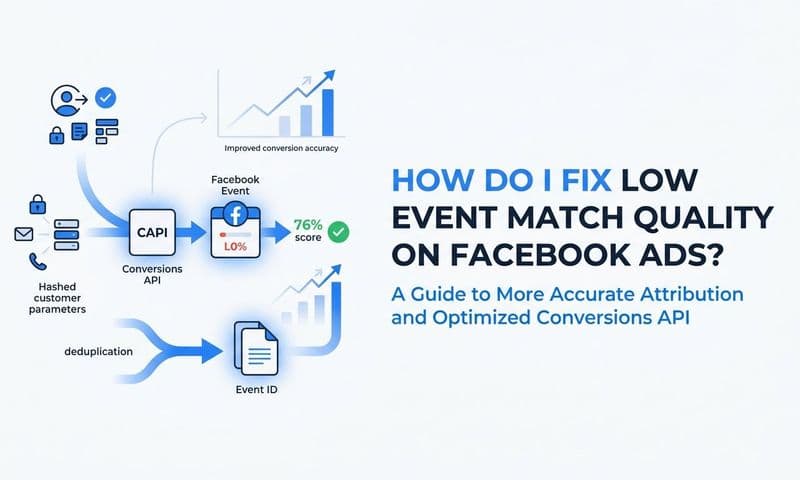
Implement deduplication by assigning each conversion a unique event ID. When your Pixel fires a Purchase event, it includes event_id: "12345". When your server sends the same Purchase through CAPI, it uses the identical event_id: "12345". Facebook recognizes these as duplicates and counts the conversion only once.
Generate event IDs on your frontend when the Pixel fires, store them temporarily (in a session variable or database), then include the same ID when your server sends the CAPI event. This ensures perfect deduplication even when both tracking methods successfully capture the conversion.
After implementation, verify everything in Events Manager. Navigate to your Pixel's Events tab and look for the "Connection Method" column. You should see events marked as "Browser and Server" for conversions where both methods fired, or "Server Only" for conversions the Pixel missed but CAPI caught.
Check your Event Match Quality score for server events—we'll optimize this in the next step, but you want to see data flowing. If server events aren't appearing within a few hours of implementation, review your API credentials and endpoint configuration. Meta's official documentation includes troubleshooting guides for common connection issues.
The real validation comes from comparing conversion counts. Look at the week before CAPI implementation versus the week after. Most businesses see a 20-40% increase in tracked conversions simply because the server-side method captures what browsers missed. That's not more actual conversions—it's finally seeing conversions that were always happening but going untracked.
Step 3: Optimize Event Match Quality for Better Attribution
Sending events to Facebook is only half the battle. Facebook needs to match those conversions back to specific users who saw your ads. The more customer information you include with each event, the more accurately Facebook can attribute conversions and optimize your campaigns.
Event Match Quality is Meta's scoring system for this matching process. Find it in Events Manager under your Conversions API events. The score ranges from Poor to Good to Great, based on how many customer parameters you're sending and how well they match Facebook's user profiles.
The bare minimum for decent attribution: email address or phone number. But relying on just one parameter gives you mediocre match rates. Facebook works best when you send multiple data points that collectively identify the user.
Include these customer parameters with every conversion event: email address (the single most valuable identifier), phone number (with country code), first name, last name, city, state, zip code, and country. For e-commerce, add external_id if you have a customer ID from your database. Each additional parameter improves match accuracy.
Here's the critical technical requirement: hash all personal data before sending it. Facebook requires customer information to be hashed using SHA-256 encryption for privacy compliance. Most CAPI integrations handle this automatically, but if you're implementing custom code, you must hash email addresses, phone numbers, and names before transmission.
The hashing process is straightforward but must be exact. Convert the data to lowercase, remove all whitespace, then apply SHA-256 hashing. For email "John.Doe@Example.com", you'd first normalize it to "john.doe@example.com", then hash. Phone numbers need country codes: "+14155551234" not "415-555-1234".
Test your implementation by sending a test event with your own information. Wait a few minutes, then check Events Manager's Test Events tool. You'll see which parameters Facebook successfully matched and which had issues. Common problems include incorrect hashing, missing country codes on phone numbers, or sending data that doesn't match the user's Facebook profile.
Once your events are flowing, monitor your Event Match Quality score weekly. Aim for "Good" as a minimum, "Great" as your target. If you're stuck at "Poor," you're likely missing key parameters or sending incorrectly formatted data. Addressing Facebook Ads attribution issues often starts with improving your match quality scores.
The practical impact of high match quality: Facebook can more accurately attribute conversions to the right campaigns, which improves your reported ROAS and helps the algorithm optimize delivery to users more likely to convert. Low match quality means Facebook can't connect the dots between ad clicks and conversions, even when you're sending the event data.
Step 4: Implement UTM Parameters and First-Party Data Capture
Facebook's attribution tells you what happened within their ecosystem. But what about the full customer journey? Someone might click your Facebook ad, visit your site, leave, see a Google ad, return through organic search, then finally convert. Facebook claims the conversion. Google claims it too. Who's actually right?
UTM parameters give you an independent tracking layer that captures the true source of every visit and conversion. These are simple tags added to your ad URLs that travel with the user through their journey on your site. Understanding what UTM tracking is and how it helps your marketing is essential for building reliable attribution.
Create a consistent UTM structure for all Facebook campaigns. At minimum, include utm_source=facebook, utm_medium=paid, utm_campaign=[campaign_name], and utm_content=[ad_id]. This creates a clear trail showing exactly which campaign and ad drove each visitor.
The critical step most marketers skip: capturing these UTM parameters at the point of conversion and storing them in your database or CRM. When someone converts, you need to know not just that they converted, but which original marketing source brought them to your site.
Implement first-party cookies to store UTM data when users first land on your site. This cookie persists across their browsing session, so even if they navigate to multiple pages before converting, you can still attribute the conversion to the original Facebook ad that brought them in.
Here's a practical example: User clicks your Facebook ad with utm_campaign=spring_sale. Your site stores this in a first-party cookie. They browse for ten minutes, add items to cart, but leave without purchasing. Three days later, they return through a Google search and complete the purchase. Your thank-you page reads the stored cookie and records that the original source was Facebook's spring_sale campaign.
Connect this UTM data to your CRM or customer database. When a conversion happens, log the customer's email or ID alongside the UTM parameters. This creates a permanent record linking each customer to their acquisition source, independent of what Facebook or Google report.
For lead generation, pass UTM parameters as hidden fields in your forms. When someone submits a lead form, capture not just their contact information but also utm_source, utm_medium, utm_campaign, and utm_content. When that lead becomes a customer weeks later, you can trace them back to the specific Facebook ad that started their journey.
This first-party data becomes your source of truth. When Facebook reports 50 conversions and your CRM shows 45 with Facebook UTM parameters, you have concrete evidence of the discrepancy. More importantly, you can see which specific campaigns drove those 45 conversions, giving you confidence in budget allocation decisions.
The longer-term value: as third-party tracking continues degrading, businesses with strong first-party data capture will maintain attribution accuracy while competitors struggle with incomplete platform data. You're building an asset that becomes more valuable over time.
Step 5: Set Up Cross-Platform Attribution to Validate Facebook Data
Facebook Ads Manager shows one conversion count. Google Analytics shows another. Your actual sales data shows a third number. Which one is correct? The answer: probably none of them individually, but together they tell the complete story.
Cross-platform attribution means connecting data from all your marketing sources—Facebook, Google, your website, your CRM—into a unified view of the customer journey. This reveals not just how many conversions happened, but how different channels work together to drive results. Our comprehensive guide on attribution marketing tracking covers the foundational concepts you need to understand.
Start by comparing Facebook's reported conversions against your actual sales or leads. Pull your conversion data from your e-commerce platform, CRM, or database for the same time period Facebook reports. Calculate the discrepancy percentage. If Facebook reports 100 conversions but you only had 75 actual sales, you're seeing a 33% overreporting issue (or Facebook is using a different attribution window).
The discrepancy often comes from attribution methodology. Facebook uses a default 7-day click, 1-day view attribution window. If someone sees your ad on Monday, clicks a different ad on Friday, and purchases on Saturday, Facebook might count it as a view-through conversion from Monday's ad. Your actual sale happened Saturday, attributed to Friday's click in your own data. Understanding Facebook Ads reporting discrepancies helps you interpret these differences correctly.
Multi-touch attribution reveals how Facebook fits into the broader journey. Instead of giving 100% credit to the last click, it shows every touchpoint that influenced the conversion. Someone might discover you through a Facebook ad, research on Google, return through email, and convert via a retargeting ad. Each channel played a role.
This is where attribution platforms become valuable. Tools like Cometly connect your ad platforms, website analytics, and CRM data to track the complete customer journey across every touchpoint. You see not just Facebook's perspective or Google's perspective, but the actual sequence of interactions that led to each conversion.
The platform tracks when someone clicks a Facebook ad, captures their journey through your site, records subsequent interactions with other marketing channels, and connects it all to the final conversion in your CRM or sales system. This creates an accurate picture of which campaigns are truly driving revenue versus which are simply taking credit for conversions they didn't cause.
With cross-platform attribution in place, you can validate Facebook's reported data against reality. If Facebook claims 80% of your conversions but multi-touch attribution shows it's actually the first touchpoint in only 35% of customer journeys, you have a more accurate understanding of its true impact. This doesn't mean Facebook isn't valuable—it means you understand its actual role rather than accepting platform-reported attribution at face value.
The actionable insight: use cross-platform data to identify which Facebook campaigns generate new customer acquisition versus which primarily convert people already in your funnel through other channels. Allocate budget accordingly, investing more in campaigns that genuinely expand your reach rather than those that simply capture existing demand.
Step 6: Feed Enriched Conversion Data Back to Facebook
You've built better tracking infrastructure. Now use that data to improve Facebook's ad delivery and optimization. The algorithm learns from the conversion signals you send—higher quality signals mean better performance.
Start by sending offline conversions back to Facebook. If you're in lead generation, you probably track when leads become customers days or weeks after the initial form submission. Facebook's algorithm needs to know about these downstream conversions to optimize for actual customers, not just form fills.
Implement offline conversion tracking through the Conversions API. When a lead closes in your CRM, send a Purchase or other custom conversion event back to Facebook with the original click ID or match parameters. This tells Facebook: "Remember that lead from two weeks ago? They became a paying customer. Optimize for more people like them." Setting up proper conversion sync for Facebook Ads ensures this data flows reliably.
The impact on campaign performance can be substantial. Facebook's algorithm shifts from optimizing for any lead to optimizing for leads that actually convert to customers. Your cost per lead might increase slightly, but your cost per actual customer typically decreases because you're getting higher-quality prospects.
Use conversion value optimization with accurate revenue data. Instead of telling Facebook you got a conversion, tell them you got a $500 conversion versus a $50 conversion. The algorithm learns which audiences and placements drive higher-value customers and adjusts delivery accordingly.
Send the actual purchase value with each conversion event, not rounded numbers or category values. If someone bought $347.82 worth of products, send value: 347.82. The more precise your data, the better Facebook can optimize for revenue rather than just conversion count. This approach directly impacts your ability to improve ROAS with better tracking.
Include customer lifetime value when possible. If you know that customers acquired through certain campaigns have higher retention or make repeat purchases, feed that data back through custom conversions. Facebook can optimize for long-term value rather than just initial purchase value.
Monitor how enriched data impacts performance over time. Track your cost per conversion and ROAS week by week after implementing offline conversions and value optimization. Most advertisers see the algorithm improve within 7-14 days as it accumulates enough signal to adjust delivery.
The feedback loop becomes self-reinforcing: better tracking data leads to better optimization, which drives better results, which provides more data to further improve optimization. You're not just measuring performance more accurately—you're actively improving it by giving Facebook's algorithm the information it needs to find your best customers.
Putting It All Together
Your tracking infrastructure is now fundamentally stronger than when you started. Let's verify each critical piece is in place.
Run through this quick checklist: Your Pixel fires correctly on all key pages with no errors in Events Manager. Your Conversions API is configured and sending server-side events with proper deduplication. Your Event Match Quality scores "Good" or higher on your most important conversion events. UTM parameters are being captured and stored in your CRM or database at the point of conversion. You have an attribution system validating Facebook's reported data against your actual sales. Enriched conversion data flows back to Facebook to improve ad optimization.
Each piece builds on the others. The Pixel and CAPI together capture more conversions than either could alone. High match quality ensures those conversions are attributed correctly. UTM tracking provides an independent validation layer. Cross-platform attribution reveals the complete customer journey. Feeding enriched data back closes the loop, improving future performance. For a deeper dive into the complete ecosystem, explore our guide on Facebook Ads tracking.
Start with Step 1 today. Audit your current setup to identify the biggest gaps in your tracking. Most marketers discover their Pixel has configuration issues they never knew existed, or they're missing 40% of conversions due to browser-based tracking limitations.
The timeline for meaningful improvement: implementing server-side tracking typically shows results within the first week as you start capturing conversions that were previously invisible. Event match quality optimization takes a few days of testing and refinement. The full impact of enriched data feeding back to Facebook's algorithm becomes apparent within two to three weeks.
The businesses that win in the current privacy-focused landscape are those who adapt their tracking infrastructure rather than accepting degraded data quality. You now have a clear roadmap for building that infrastructure.
Ready to elevate your marketing game with precision and confidence? Discover how Cometly's AI-driven recommendations can transform your ad strategy—Get your free demo today and start capturing every touchpoint to maximize your conversions.