

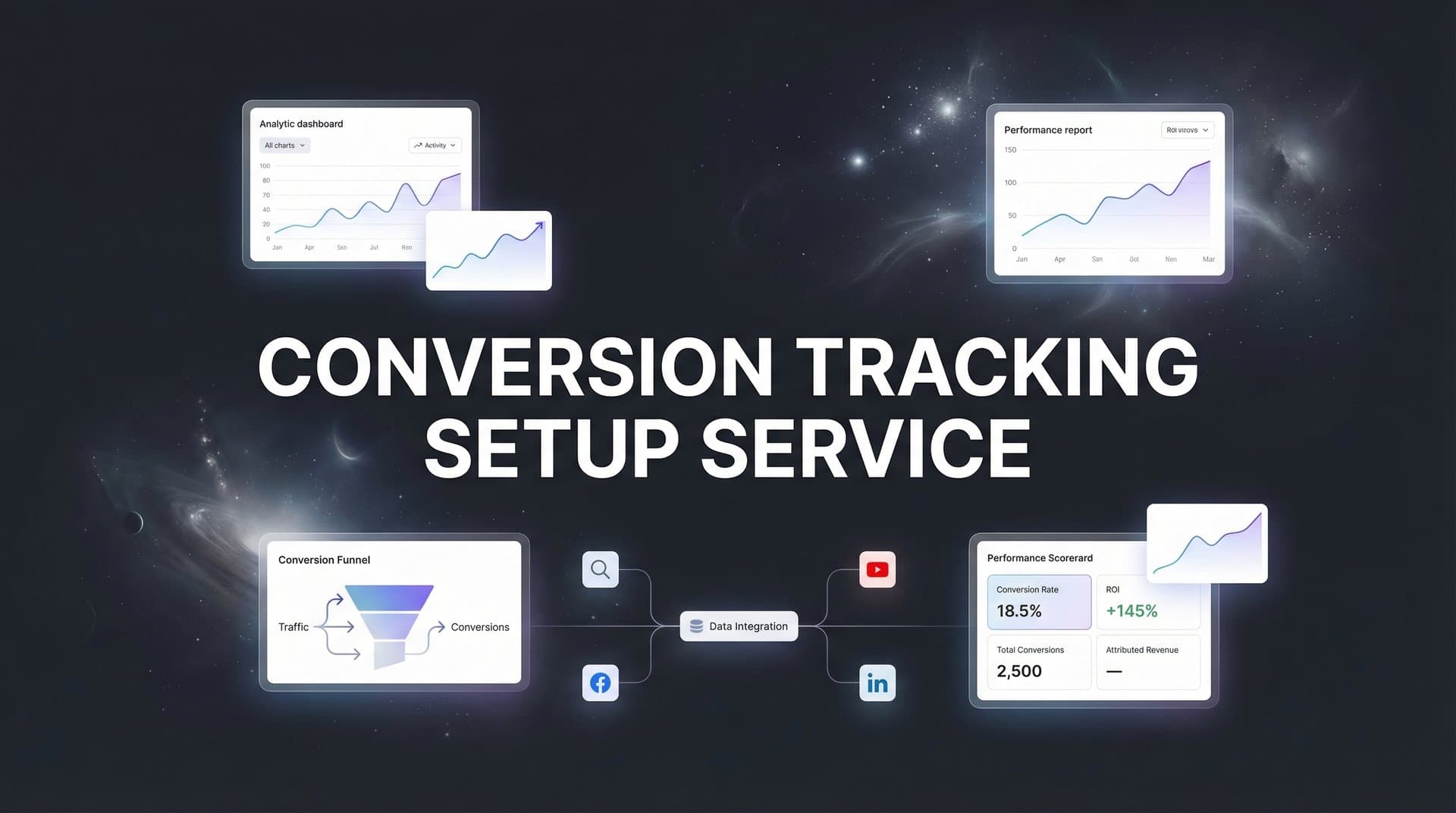
You're spending thousands on ads every month. Your dashboards show clicks, impressions, and engagement metrics that look promising. But when you ask which specific ads are actually driving revenue, the answer gets murky. This is the reality for most marketers running campaigns across Meta, Google, TikTok, and LinkedIn without proper conversion tracking.
The problem isn't just missing data. It's making critical budget decisions based on incomplete information. When you can't connect ad clicks to actual purchases or qualified leads, you're essentially guessing which campaigns deserve more budget and which should be paused. That Facebook ad with 500 clicks might have generated zero sales, while the LinkedIn campaign with 50 clicks could be your top revenue driver.
This guide walks you through building a conversion tracking system that captures the complete customer journey from first ad click to closed deal. You'll set up platform pixels, implement server-side tracking to bypass browser restrictions, connect your CRM for full-funnel visibility, and validate everything works correctly. The technical setup requires attention to detail, but the payoff is transforming your marketing from guesswork into data-driven optimization.
We'll cover six core steps: auditing your current setup, configuring platform tracking codes, defining conversion events, implementing server-side tracking, connecting your CRM, and validating the complete system. Expect to invest 4-6 hours for initial setup, with additional time for testing and refinement. By the end, you'll have accurate tracking that shows exactly which marketing efforts drive real business results.
Step 1: Audit Your Current Tracking Infrastructure
Before adding new tracking, you need to understand what's already running on your site. Start by documenting every tracking pixel and tag currently installed. Open your website, right-click, and select "View Page Source" or use browser extensions like Tag Assistant for Chrome to see which tracking codes fire on each page.
Create a spreadsheet listing all active tracking: Meta Pixel ID, Google Ads conversion tags, LinkedIn Insight Tag, TikTok Pixel, and any analytics platforms. Note which pages each tag appears on and whether it's firing correctly. Many sites accumulate duplicate or outdated tags over time, creating data inconsistencies that skew your reporting.
Next, identify the gaps in your current setup. The biggest limitation facing marketers today is iOS App Tracking Transparency and increasing cookie restrictions. If you're only using browser-based pixels, you're missing a significant portion of conversions from iOS users who've opted out of tracking. Check whether you have server-side tracking implemented for Meta Conversions API or Google Enhanced Conversions.
Map your complete customer journey from initial awareness through purchase or lead submission. For an e-commerce business, this might include: ad click, landing page view, product page view, add to cart, checkout initiation, and purchase. For B2B, it could be: ad click, landing page, form submission, demo booking, opportunity creation, and closed deal. Understanding these conversion tracking gaps is essential before implementing solutions.
Document what data you're currently capturing at each stage. Are you tracking when someone adds a product to cart but doesn't purchase? Do you know which ad campaigns drive demo bookings versus which generate unqualified form fills? Can you see the full path from first touch to revenue?
Create a gap analysis showing where tracking breaks down. Common blind spots include: conversions happening in mobile apps, phone call conversions, in-person sales, and multi-session journeys where the final conversion happens days after the initial ad click.
Your success indicator for this step is a complete inventory document showing current tracking status across all platforms, identified gaps in data collection, and a mapped customer journey with tracking requirements at each stage. This becomes your blueprint for the implementation steps ahead.
Step 2: Configure Platform Pixels and Base Tracking Codes
With your audit complete, start implementing the foundation: platform pixels that capture basic activity on your website. If you haven't already, install Google Tag Manager as your central tag management system. GTM lets you add, edit, and manage all tracking codes from one interface without constantly editing your website code.
To set up GTM, create an account at tagmanager.google.com, create a container for your website, and install the container code in your site's header and body sections. Once GTM is live, you can add all other tracking tags through its interface rather than hardcoding them into your site.
Install the Meta Pixel through GTM or directly in your site code. Go to Events Manager in your Meta Business account, create a pixel if you don't have one, and grab the pixel code. In GTM, create a new tag, select "Custom HTML," paste your pixel code, and set it to fire on all pages. Test that it's working by visiting your site and checking the Meta Pixel Helper browser extension. If you're experiencing issues, review our guide on accurate Facebook conversion tracking.
For Meta specifically, complete domain verification to maintain tracking capabilities. In Events Manager, go to Settings, add your domain, and verify ownership by adding a DNS record or uploading an HTML file. This step is critical for iOS 14.5+ tracking. Also configure Aggregated Event Measurement by prioritizing your top eight conversion events in order of business value.
Set up your Google Ads conversion tracking tag. In Google Ads, go to Tools > Conversions > New Conversion Action. Select "Website" and define your conversion action. Google will generate a global site tag and event snippet. Install the global tag through GTM as a "Google Ads Remarketing" tag that fires on all pages. For detailed instructions, check our Google conversion tracking complete guide.
Add any other platform pixels you're using: LinkedIn Insight Tag, TikTok Pixel, Twitter Pixel. Each platform provides installation instructions and tag code in their ads manager under a "Tracking" or "Pixels" section. Install all of them through GTM for easier management.
Test that base page view tracking fires correctly. Visit your website and use Tag Assistant to verify all tags load properly. Check each platform's dashboard to confirm they're receiving data: Meta Events Manager should show page views, Google Ads should show tag activity, and LinkedIn Campaign Manager should show active tracking.
Your success indicator is all platform pixels showing "active" status in their respective dashboards and firing on page loads without errors. Use browser extensions and platform testing tools to verify before moving forward.
Step 3: Define and Implement Conversion Events
Base page view tracking is just the beginning. The real value comes from tracking specific conversion actions that indicate business results. Start by identifying your key conversion events based on your business model and the customer journey you mapped in Step 1.
For e-commerce, standard conversion events typically include: Add to Cart, Initiate Checkout, Add Payment Info, and Purchase. For lead generation businesses, focus on: Lead (form submission), Complete Registration (account creation), Schedule (demo booking), and Contact (phone calls or chat initiation). SaaS companies often track: Start Trial, Subscribe, and specific feature usage milestones. Learn more about advanced conversion tracking for SaaS companies.
Use platform-standard event names whenever possible. Meta offers predefined events like Purchase, Lead, CompleteRegistration, AddToCart, and ViewContent. Google has similar standard events. Using these standard events allows platforms to optimize more effectively because they understand what the event represents.
Configure each conversion event with proper parameters. For Purchase events, always include value (transaction amount) and currency. This allows platforms to optimize for revenue rather than just conversion volume. For Lead events, you can include predicted value if you know your average customer lifetime value or typical deal size.
Set up the technical implementation through GTM or your website platform. For a Purchase event on Meta, you'll trigger the fbq('track', 'Purchase') code when someone reaches your order confirmation page, passing parameters like value, currency, and content_ids. In GTM, create a trigger that fires when someone lands on your thank-you page, then create a tag that sends the Purchase event to Meta with the appropriate parameters pulled from your data layer.
For form submissions, set up Lead events that fire when someone successfully submits a contact form or demo request. Many form plugins integrate directly with tracking platforms, or you can use GTM to detect form submission events and fire the appropriate tracking code.
Assign realistic conversion values to help platforms optimize effectively. If you're a B2B company where the average customer is worth $5,000, set your demo booking event value to reflect expected revenue. For e-commerce, use actual transaction amounts. Value-based bidding only works when you provide accurate value data.
Create custom events for business-specific actions that don't fit standard categories. Maybe you want to track when someone downloads a specific resource, watches a product video, or reaches a certain scroll depth. Define these custom events clearly and implement them consistently across platforms.
Test each conversion event by completing the action yourself. Submit a test form, make a test purchase, or trigger whatever action should fire the event. Then check your platform dashboards to confirm the event appears with correct parameters and values. Meta Events Manager has a "Test Events" feature that shows real-time event data as you trigger actions on your site.
Your success indicator is conversion events appearing accurately in platform dashboards when you complete test actions, with all parameters (value, currency, custom fields) passing through correctly.
Step 4: Implement Server-Side Tracking for Data Accuracy
Browser-based pixel tracking faces significant limitations in 2026. iOS App Tracking Transparency means users can opt out of cross-app tracking, ad blockers strip tracking pixels, and browser privacy features increasingly restrict cookie access. If you're relying solely on pixels, you're missing a substantial portion of your actual conversions. Understanding how ad blockers affect conversion tracking helps you appreciate why server-side solutions are essential.
Server-side tracking solves this by sending conversion data directly from your server to ad platforms, bypassing browser restrictions entirely. When someone makes a purchase, your server sends that conversion event to Meta, Google, and other platforms through their APIs, regardless of whether the user's browser allowed pixel tracking.
For Meta, this means implementing Conversions API (CAPI). Start by accessing Events Manager and selecting your pixel. Go to Settings and choose "Conversions API." Meta provides several implementation options: direct integration through their API, partner integrations through platforms like Shopify or WooCommerce, or using a conversion gateway. Our Conversion API setup service can help streamline this process.
The technical implementation requires your server to send HTTP POST requests to Meta's Graph API endpoint with event data. You'll need to include parameters like event name, event time, user data (hashed email, phone, client IP address), and custom data (value, currency). Meta provides code examples in various programming languages to help your development team implement this.
For Google Ads, implement Enhanced Conversions which sends hashed customer data alongside your conversion tags. In Google Ads, go to Conversions, select a conversion action, and enable Enhanced Conversions. Then update your conversion tracking code to include hashed user data like email address when someone converts.
Critical step: Configure event deduplication to prevent counting the same conversion twice when both your pixel and server send data about the same purchase. Use event_id parameters that match between pixel and server events. When Meta or Google receives two events with the same event_id within a specific time window, they count it as one conversion.
For each conversion, generate a unique event ID on your server and pass it to both the pixel and the server-side event. For a purchase, this might be the order ID. For a lead, it could be a timestamp-based unique identifier. The key is ensuring the pixel and server use the exact same ID for the same conversion. Review our server-side tracking setup guide for detailed implementation steps.
Many marketers use attribution platforms like Cometly to handle server-side tracking automatically. These platforms sit between your website and ad platforms, capturing conversion data and transmitting it via server-side APIs while managing deduplication, ensuring you get accurate tracking without building custom integrations.
Test your server-side implementation using platform testing tools. Meta Events Manager shows whether events are coming from pixel, server, or both, and whether deduplication is working correctly. Google Ads shows enhanced conversion data in conversion reports. Verify that test conversions appear with the correct source attribution.
Your success indicator is server events showing in platform dashboards alongside pixel events, with proper deduplication preventing double-counting. Events Manager should show matched events when the same conversion fires from both sources.
Step 5: Connect Your CRM for Full-Funnel Attribution
Ad platform tracking shows you which campaigns drive website conversions, but for many businesses, the real revenue happens later in the sales process. A demo booking is nice, but what you actually care about is whether that demo turned into a paying customer three weeks later. This is where CRM integration becomes essential.
Connecting your CRM to your tracking system lets you optimize campaigns based on closed deals and actual revenue, not just top-of-funnel actions. When you can see that LinkedIn campaigns generate fewer leads than Meta but those leads close at 3x the rate and higher deal values, you make smarter budget decisions. Setting up proper attribution tracking is fundamental to this process.
Start by identifying which CRM stages represent meaningful conversion milestones. For a typical B2B sales process, you might track: Marketing Qualified Lead (MQL), Sales Qualified Lead (SQL), Opportunity Created, Demo Completed, Proposal Sent, and Closed Won. Each stage represents increasing buying intent and should be tracked as a conversion event.
Most modern CRMs offer native integrations with ad platforms. HubSpot, for example, has built-in integrations with Meta and Google Ads that automatically sync offline conversions. In HubSpot, go to Settings > Marketing > Ads and connect your ad accounts. Then configure which lifecycle stages or deal stages should send conversion events back to the platforms.
For Salesforce, use Salesforce CRM Connector for Meta or Google Ads integration tools. You'll map Salesforce fields to conversion events and set up automation rules that trigger when opportunities reach certain stages. When a deal moves to "Closed Won," Salesforce sends that conversion back to Meta and Google with the associated revenue value.
Configure offline conversion imports for sales that happen outside your website. If your sales team closes deals over the phone or in person, those conversions need to flow back to your ad platforms. Most CRMs can export conversion data that you upload to Meta Offline Conversions or Google Ads offline conversion imports. This is especially important for conversion tracking for high ticket services.
The key technical requirement is matching website visitors to CRM records. This typically happens through email addresses. When someone fills out a form on your site, capture their email and any click IDs from ad platforms (fbclid for Meta, gclid for Google). Store these in your CRM alongside the contact record. When that contact later becomes a customer, your CRM uses the stored click IDs to attribute the conversion back to the original ad.
Set up revenue data to flow accurately. When sending conversion events to ad platforms, include the actual deal value or customer lifetime value. This enables value-based bidding where platforms optimize for revenue rather than just conversion volume. A campaign generating $50,000 in revenue from 10 conversions is more valuable than one generating $10,000 from 50 conversions.
For businesses with longer sales cycles, consider using attribution platforms that automatically connect CRM data to ad platforms. Cometly, for instance, integrates with major CRMs and handles the technical complexity of matching CRM events to original ad clicks, then syncing that data back to Meta, Google, and other platforms for optimization.
Test the integration by creating a test contact in your CRM, moving it through your sales stages, and verifying those events appear in your ad platform conversion reports. Check that revenue values pass through correctly and that the conversion is attributed to the right campaign.
Your success indicator is CRM events appearing in attribution reports with accurate revenue values, properly attributed to the campaigns that originated those leads.
Step 6: Validate Your Setup and Troubleshoot Common Issues
With all components implemented, thorough testing is critical before you trust the data for optimization decisions. Start with platform-specific testing tools that show real-time event data as you trigger conversions on your site.
Meta Events Manager offers a "Test Events" feature. Open Events Manager, select your pixel, click "Test Events," and enter your website URL. As you navigate your site and trigger conversion events, you'll see them appear in real-time with all parameters and data quality scores. This immediately shows whether events fire correctly and whether you're sending the right data.
Google Tag Assistant is a Chrome extension that shows which Google tags fire on each page. Install it, visit your site, and complete test conversions. Tag Assistant displays each tag that fires, whether it fired successfully, and any errors or warnings. For conversion tracking specifically, use Google Ads conversion tracking status to verify tags are active and receiving data. If you encounter issues, our guide on Google Ads conversion tracking problems can help.
Verify UTM parameters are passing correctly through your conversion funnel. Create test URLs with UTM parameters (utm_source, utm_medium, utm_campaign), click through to your site, and complete a conversion. Then check your analytics platform to confirm the UTM data was captured and associated with the conversion. This is essential for understanding which specific campaigns drive results.
Check for common implementation errors. Duplicate events are frequent when the same conversion fires multiple times or when both pixel and server-side tracking aren't properly deduplicated. Review your event data for unusually high conversion counts or multiple identical events with different timestamps.
Missing parameters cause optimization problems. If Purchase events fire without value and currency, platforms can't optimize for revenue. Check that all required parameters pass through for each event type. Meta Events Manager shows data quality scores that highlight missing parameters.
Incorrect event values skew optimization. If you're passing $1 as the value for a $1,000 purchase, platforms will optimize for low-value conversions. Verify that currency formatting is correct and that values match actual transaction amounts. Learn about best practices for tracking conversions accurately to avoid these pitfalls.
Test the complete journey from ad click through conversion. Create a test campaign with a small budget, click your own ad, complete the conversion action, and verify the conversion appears in your campaign reporting attributed to the correct ad. This end-to-end test confirms that click data, conversion events, and attribution all work together correctly.
For multi-step funnels, test each stage. If you're tracking Add to Cart, Initiate Checkout, and Purchase, complete each action and verify the events fire in sequence with correct data. Check that event parameters like product IDs and quantities pass through accurately.
Review attribution windows and conversion counting settings. Meta and Google allow you to adjust how long after an ad click or view a conversion can be attributed. Default settings might not match your sales cycle. If your average customer takes 14 days to convert, a 7-day attribution window will undercount conversions.
Monitor for tracking breaks over time. Platform requirements change, browser privacy features evolve, and website updates can break tracking implementations. Set up regular checks using platform testing tools to catch issues before they impact significant data.
Your success indicator is test conversions appearing accurately across all connected platforms within expected timeframes, with correct attribution to source campaigns and all parameters passing through properly.
Putting It All Together
You've now built a comprehensive conversion tracking system that captures the complete customer journey from ad click to closed deal. Let's recap the six critical steps: auditing your existing tracking infrastructure to identify gaps, configuring platform pixels and base tracking codes through Tag Manager, defining and implementing conversion events with proper parameters, setting up server-side tracking to bypass browser restrictions, connecting your CRM for full-funnel attribution, and validating everything works correctly.
This isn't a one-time project. Platform requirements evolve constantly. Meta and Google regularly update their tracking requirements and API specifications. Browser privacy features continue advancing. Your tracking setup needs ongoing monitoring to maintain accuracy as these changes roll out.
Schedule quarterly audits using the same process from Step 1. Check that all pixels remain active, conversion events fire correctly, server-side tracking continues functioning, and CRM integration accurately syncs data. Set up alerts in your analytics platforms to notify you when conversion counts drop unexpectedly, which often indicates a tracking break.
The technical complexity of maintaining accurate tracking across multiple platforms, implementing server-side APIs, managing event deduplication, and connecting CRM data is substantial. Many marketing teams find that specialized attribution platforms significantly reduce this burden while improving data accuracy.
Cometly handles the technical implementation of server-side tracking, automatically integrates with major CRMs, manages cross-platform attribution, and provides AI-powered insights about which campaigns actually drive revenue. Instead of building and maintaining custom integrations, you get accurate tracking that captures every touchpoint from first ad click through closed deal.
The platform's AI analyzes your complete conversion data to identify high-performing campaigns and provide specific optimization recommendations. When you can see the full customer journey and understand which marketing efforts generate actual revenue, you make confident budget decisions backed by complete data rather than partial visibility.
Ready to elevate your marketing game with precision and confidence? Discover how Cometly's AI-driven recommendations can transform your ad strategy. Get your free demo today and start capturing every touchpoint to maximize your conversions.



