

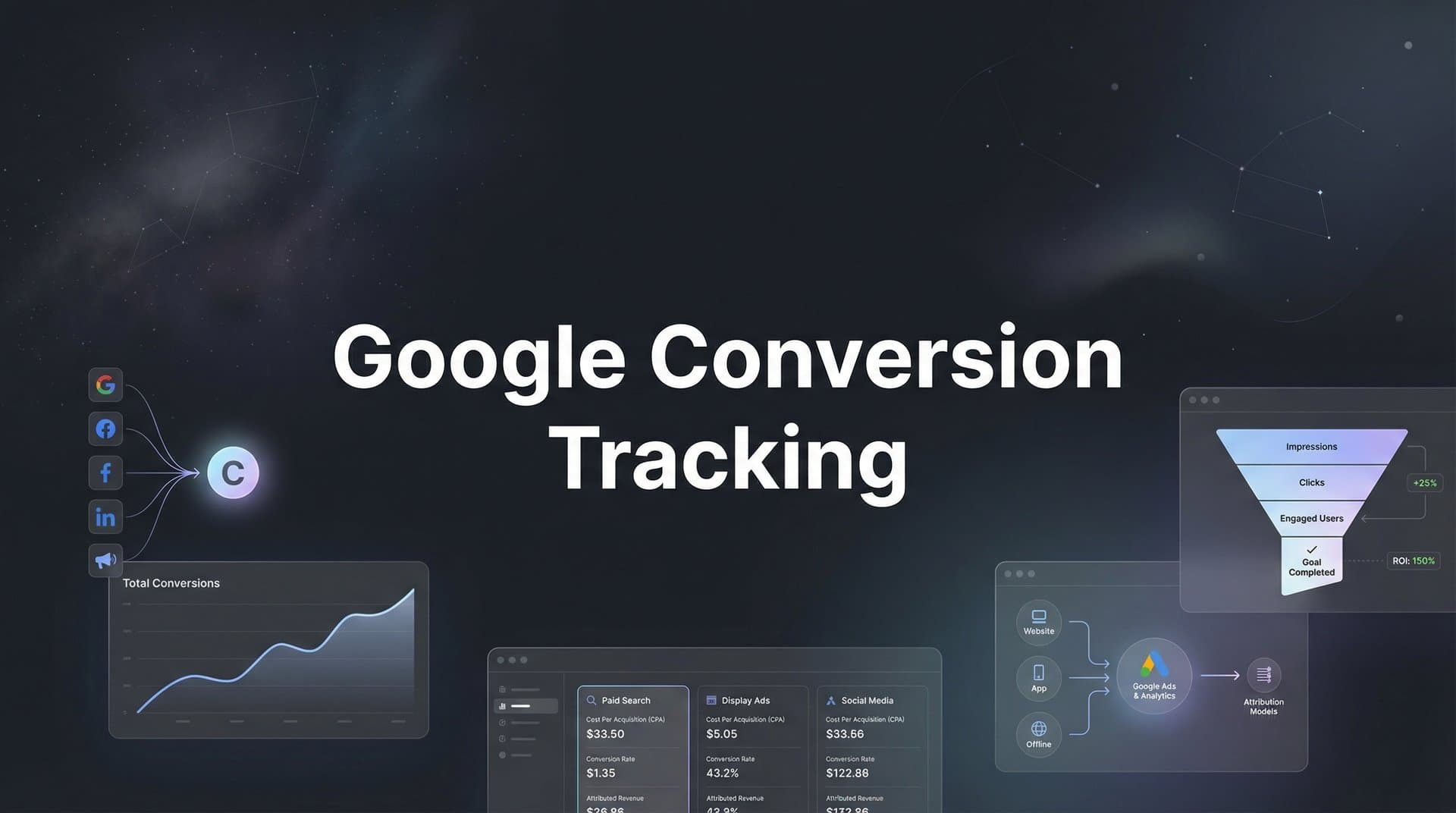
You're spending $10,000 a month on Google Ads. Your campaign dashboard shows 247 conversions. Your sales team closed 89 deals. Which number matters? More importantly—which ads actually drove those 89 deals?
This disconnect between what Google reports and what actually happens in your business isn't just frustrating. It's expensive. Without accurate conversion tracking, you're essentially flying blind, making optimization decisions based on incomplete data while Google's algorithms optimize toward actions that may not correlate with real revenue.
Google conversion tracking is the bridge between ad clicks and business outcomes. When implemented correctly, it tells Google's machine learning systems exactly which clicks lead to valuable actions—purchases, qualified leads, phone calls, app installs. This data doesn't just help you understand performance. It actively improves it by teaching Google's Smart Bidding algorithms which users are most likely to convert, allowing the platform to bid more aggressively on high-intent traffic and pull back on clicks that rarely lead anywhere meaningful.
But here's what most marketers miss: basic conversion tracking setup is just the starting point. The real competitive advantage comes from feeding Google's AI the highest-quality conversion data possible—enriched with revenue values, connected to offline outcomes, and tracked across every touchpoint in the customer journey. That's what separates campaigns that spend efficiently from those that scale profitably.
The Mechanics Behind Every Tracked Action
When someone clicks your Google Ad and completes a conversion on your website, a sophisticated tracking mechanism springs into action. Understanding how this system works helps you troubleshoot issues and optimize data quality.
At the core sits gtag.js, Google's JavaScript tagging library. This global site tag loads on every page of your website, establishing a connection between your site and Google's servers. When a user arrives from a Google Ad, the tag captures critical information: the click ID (gclid), timestamp, campaign details, and device data. This information gets stored in a first-party cookie on the user's browser.
Here's where it gets interesting. When that user completes a conversion—submits a form, makes a purchase, calls your business—a second piece of code fires: the event snippet. This snippet reads the stored click data from the cookie and sends a conversion signal back to Google Ads, connecting the original ad click to the completed action. Google's servers match this conversion back to the specific campaign, ad group, keyword, and even audience segment that drove it.
But not all conversions work the same way. Google tracks four distinct conversion types, each with different mechanics:
Website Conversions: These are actions users complete on your site—purchases, form submissions, button clicks, page views. They're tracked through the gtag.js implementation we just described and fire immediately when the conversion action occurs.
Phone Call Conversions: Google can track calls from ads (click-to-call on mobile), calls from website (using Google forwarding numbers), or calls to a number shown on your site. Each method uses different tracking mechanisms but all connect phone conversations back to the originating ad. For a deeper dive into this specific tracking type, explore our guide on phone call conversion tracking.
App Install and In-App Conversions: For mobile apps, Google uses Firebase SDK or third-party measurement partners to track app downloads and subsequent in-app actions. These conversions follow users across the app install journey, from ad click to download to first purchase.
Imported Conversions: These are conversions that happen offline or in systems outside your website—CRM deals closed, in-store purchases, qualified sales calls. You upload these to Google Ads manually or through API integrations, connecting them back to ad clicks using click IDs or customer identifiers.
Now here's the crucial part most marketers overlook: conversion windows and attribution models dramatically affect what Google reports. The conversion window determines how long after an ad interaction Google will credit that ad for a conversion—anywhere from 1 to 90 days for clicks, 1 to 30 days for views. If someone clicks your ad today but converts 35 days later, and your window is set to 30 days, Google won't count it.
Attribution models determine how credit gets distributed when multiple touchpoints occur. Data-driven attribution—now Google's default for eligible accounts—uses machine learning to assign credit based on each touchpoint's actual contribution to the conversion. A user might click three different ads before converting. Data-driven attribution analyzes patterns across thousands of similar journeys to determine how much credit each interaction deserves.
This matters because the conversion data Google reports isn't just passive measurement. It's the training data for Smart Bidding algorithms. Every conversion signal teaches Google's machine learning which searches, audiences, and contexts lead to valuable outcomes. The more accurate and complete this data, the better Google's algorithms perform.
Setting Up Your First Conversion Action (Step-by-Step)
Let's walk through creating your first conversion action from scratch. This process takes about 15 minutes but establishes the foundation for everything else.
Start by logging into your Google Ads account and clicking the tools icon in the upper right corner. Under the "Measurement" section, select "Conversions." This is your conversion tracking hub—where you'll create, manage, and troubleshoot all conversion actions.
If you're evaluating vendors, our track programmatic ads conversions breakdown can help.
Click the blue plus button to create a new conversion action. Google will ask you to choose a conversion source. For most businesses starting out, select "Website" since you're tracking actions that happen on your site. The other options—App, Phone calls, Import—follow similar setup processes but with source-specific configuration steps.
Now you'll define what action constitutes a conversion. Enter the conversion action name—something descriptive like "Purchase," "Lead Form Submission," or "Free Trial Signup." This name appears in your reports, so make it clear and specific. If you're tracking multiple form submissions, name them by form type: "Contact Form," "Demo Request," "Quote Request."
Next comes a critical decision: the conversion category. Choose from Purchase, Add to cart, Lead, Sign-up, Page view, or Other. This isn't just semantic. Google uses this category to understand the value and intent of the conversion, which influences how Smart Bidding treats it. A Purchase signals direct revenue. A Lead indicates potential future revenue. Choose the category that best reflects the business value of the action.
Set your conversion value. If every conversion has the same value—say, each lead is worth $50 to your business—enter that amount and select "Use the same value for each conversion." If values vary—like e-commerce transactions where purchase amounts differ—select "Use different values for each conversion" and you'll pass the actual transaction value dynamically through your event snippet.
Configure your conversion counting. This is where many marketers make mistakes. "Every" counts each time a user completes the conversion action. "One" counts only the first conversion per ad click. For purchases, use "Every"—if someone buys twice, that's two valuable conversions. For lead forms, use "One"—if someone submits the same form three times, that's likely one lead, not three.
Set your conversion window. For most businesses, 30 days for click-through conversions works well. If you have a longer sales cycle—B2B software, high-ticket services—consider 60 or 90 days. For view-through conversions (users who saw but didn't click your ad), start with 1 day unless you have strong brand awareness campaigns. Understanding view-through conversion tracking issues can help you configure these settings appropriately.
Choose whether to include this conversion in your "Conversions" column. This matters because Smart Bidding optimizes toward actions included in this column. If you're tracking micro-conversions like page views alongside macro-conversions like purchases, you might include only purchases in the "Conversions" column while still tracking page views separately for analysis.
Click "Create and continue." Google generates two pieces of code: the global site tag and the event snippet. Here's what each does and where it goes.
The global site tag (gtag.js) goes in the head section of every page on your website. If you've already installed this tag for another conversion action or for Google Analytics 4, you don't need to add it again—one installation covers your entire site. This tag establishes the connection between your site and Google's tracking servers.
The event snippet goes on the specific page where the conversion happens—your thank-you page after form submission, your order confirmation page after purchase. This snippet fires when someone reaches this page, sending the conversion signal back to Google. If you're tracking button clicks or other actions that don't involve a page load, you'll need to modify the snippet to fire on the specific event.
For most websites, you'll paste these code snippets directly into your site's HTML. If you're using a content management system like WordPress, you might add them through a plugin or your theme's custom code section. If you're using Google Tag Manager—which we'll discuss later—you'll configure the tracking through GTM's interface instead of adding code directly.
After installation, testing is non-negotiable. Google provides Tag Assistant, a Chrome extension that shows you which tags are firing on your pages. Install Tag Assistant, navigate to your website, and complete a test conversion. Tag Assistant will show you whether the global site tag and event snippet fired correctly. You should see the conversion appear in your Google Ads account within a few hours, marked as "Unverified" until Google confirms it's working properly.
Check your conversion tracking status in the Google Ads conversions page. A green checkmark means Google has recorded conversions and everything's working. A yellow warning icon means the tag is installed but hasn't recorded conversions yet—give it 24-48 hours. A red error icon means there's a problem with your implementation that needs immediate attention. For a comprehensive walkthrough, our conversion tracking setup guide covers each step in detail.
Beyond Basic Tracking: Enhanced Conversions and Server-Side Methods
Basic conversion tracking captures the what and when. Enhanced conversions and server-side methods capture the who with much greater accuracy—and that precision dramatically improves campaign performance.
Enhanced conversions address a fundamental challenge: cookie-based tracking is increasingly unreliable. Users clear cookies, browse in private mode, use different devices, and iOS privacy features block third-party tracking. When someone converts, Google often can't match that conversion back to the original ad click because the cookie data is missing or incomplete.
Here's how enhanced conversions solve this. When a user completes a conversion, your website captures first-party data they voluntarily provide—email address, phone number, name, address. This data gets hashed (converted into an unreadable string of characters) in the user's browser before being sent to Google. Google then matches this hashed data against its signed-in user database to connect the conversion to the original ad click, even when cookies fail. Learn more about implementing enhanced conversions in Google Ads to maximize your match rates.
The match rate improvement is substantial. Standard conversion tracking might miss 20-30% of conversions due to cookie limitations. Enhanced conversions can recover many of those lost conversions by using email and phone data that persists across devices and browsing sessions. This means Google's Smart Bidding algorithms get more complete training data, leading to better optimization decisions.
Implementing enhanced conversions requires adding customer data to your event snippet. Google provides three implementation methods: manual code modification, Google Tag Manager, or automatic detection. The automatic detection method is simplest—Google's tag automatically detects email, phone, and address fields on your conversion page and hashes them for matching. For more control, you can explicitly pass this data through your tag configuration.
But enhanced conversions still rely on client-side tracking—code running in the user's browser. This approach faces limitations: ad blockers, browser restrictions, JavaScript errors, and iOS App Tracking Transparency all create gaps in your data. That's where server-side tracking comes in.
Server-side tracking moves the conversion recording process from the user's browser to your web server. Instead of relying on JavaScript tags that can be blocked or fail, your server directly communicates with Google's servers to report conversions. When a user completes a conversion, your backend system—your CRM, e-commerce platform, or marketing database—sends the conversion data to Google through a secure API connection. For a complete overview, read our guide on what is server-side conversion tracking.
This approach overcomes browser-based tracking limitations. Ad blockers can't block server-to-server communication. iOS privacy restrictions don't apply. JavaScript errors don't matter because no JavaScript is involved. You capture conversions that client-side tracking would miss entirely.
Server-side tracking is particularly valuable for imported conversions—actions that happen outside your website. When a lead becomes a qualified opportunity in your CRM three weeks after clicking your ad, server-side tracking can send that conversion back to Google, connecting the eventual revenue to the original ad click. This closed-loop attribution transforms how Smart Bidding optimizes your campaigns because it's optimizing toward actual business outcomes, not just website form submissions.
Google Tag Manager offers a middle-ground approach called server-side tagging. You set up a GTM server container that receives data from your website's client-side tags, then forwards it to Google Ads and other platforms from your server. This provides some benefits of server-side tracking while maintaining the ease of GTM's tag management interface. Understanding the differences between Google Analytics vs server-side tracking helps you choose the right approach.
When should you use Google Tag Manager versus direct implementation? For simple setups with one or two conversion actions, direct implementation is faster and requires less technical overhead. For complex tracking scenarios—multiple conversion types, dynamic values, conditional firing rules, integration with other platforms—GTM provides the flexibility and control you need without constantly modifying your website code.
Think of it this way: direct implementation is like hardwiring light switches in your house. GTM is like installing a smart home system where you can reconfigure everything from a central dashboard. The smart home requires more upfront setup but gives you vastly more flexibility once it's running.
Common Tracking Pitfalls That Skew Your Data
Even perfectly installed tracking can produce misleading data if you're not aware of these common pitfalls. Let's diagnose the symptoms and identify what's really happening.
Duplicate conversions are the silent campaign killers. A user submits your lead form, the thank-you page loads, and the conversion fires. They hit refresh to see the confirmation again. Another conversion fires. Google now thinks two conversions happened when only one lead actually came through. Your cost-per-conversion looks artificially low, and Smart Bidding optimizes based on inflated conversion numbers that don't reflect reality.
The symptom? Your Google Ads conversion count is consistently 30-50% higher than your actual leads or sales. The fix involves modifying your event snippet to fire only once per session or implementing transaction deduplication using unique order IDs. For e-commerce, you should pass a unique transaction ID with each conversion. Google automatically deduplicates conversions with the same transaction ID, ensuring each purchase counts only once even if the confirmation page loads multiple times.
Cross-domain tracking failures create another data blind spot. Your checkout process happens on a different domain than your main site—perhaps you're using a third-party payment processor or a subdomain for your store. When users cross from your main domain to the checkout domain, the gclid parameter (which connects the session to the original ad click) gets lost. Google can't connect the purchase back to the ad, so the conversion never gets recorded. These cross-device conversion tracking issues compound when users switch devices during their journey.
You'll notice this problem when your Google Ads shows clicks and early-funnel conversions but very few purchase conversions, even though you're making sales. The solution requires configuring cross-domain tracking in your gtag.js implementation, ensuring the gclid parameter transfers across domains. In Google Tag Manager, you'll use the linker parameter to specify which domains should share tracking data.
Misconfigured conversion values create a different kind of problem. You set up conversion tracking with a static $50 value per lead, but your actual leads vary wildly in quality—some worth $500, others worth $5. Google's Target ROAS bidding optimizes toward that $50 value, treating all leads equally when they're definitely not equal. You end up with plenty of low-quality leads because the algorithm can't distinguish between them.
The fix requires passing dynamic conversion values based on actual lead quality or transaction amounts. For e-commerce, this means passing the real purchase value. For leads, you might integrate with your CRM to update conversion values when leads get qualified, moving from an estimated value to an actual opportunity value.
Here's a frustration every marketer faces: Google Ads reports 150 conversions, but your CRM shows 87 leads. Which number is right? Usually, both are correct—they're just measuring different things. Google counts conversions based on its attribution model and conversion window settings. Your CRM counts actual leads that entered your database. The discrepancy comes from several sources. If you're experiencing significant gaps, our article on Google Analytics missing conversions explains the common causes.
Attribution model differences explain much of the gap. Google might use data-driven attribution that credits multiple touchpoints for a single conversion, while your CRM uses last-click attribution. Conversion window settings matter too—Google might count a conversion that happened 45 days after the click, while your CRM only looks at leads from the past 30 days. Form spam and duplicate submissions inflate Google's numbers without creating real leads in your CRM.
Understanding these discrepancies is more important than eliminating them. Your goal isn't to make the numbers match perfectly. It's to understand what each platform is telling you and make decisions based on the right metric for your objective. If you're optimizing for lead volume, Google's conversion count matters. If you're optimizing for revenue, your CRM's closed-won data matters more.
Diagnosing tracking gaps requires systematic investigation. Start by checking your conversion tracking status in Google Ads—are conversions being recorded at all? Use Tag Assistant to verify tags fire on the right pages. Compare conversion timing in Google Ads to actual lead timestamps in your CRM—do they align? Check for gclid parameters in your CRM's lead source data—if they're missing, cross-domain tracking or form integration issues are likely culprits. For step-by-step troubleshooting, see our guide on fixing conversion tracking gaps.
Feeding Google's AI Better Conversion Data
Google's Smart Bidding strategies—Target CPA, Target ROAS, Maximize Conversions—aren't magic. They're machine learning algorithms that need high-quality training data to perform well. The better your conversion data, the smarter these algorithms become.
Think of Smart Bidding like teaching someone to fish in your favorite lake. If you only tell them about the fish you caught near the dock, they'll keep fishing near the dock. But if you share data about every fish caught across the entire lake—location, time of day, weather conditions, bait used—they can identify patterns and fish more strategically. Conversion data quality works the same way.
Google's algorithms need volume, accuracy, and signal richness. Volume means enough conversions for the algorithm to identify patterns—Google recommends at least 30 conversions in the past 30 days before using Target CPA or Target ROAS. Below that threshold, the algorithm doesn't have enough data to distinguish signal from noise.
Accuracy means your conversion data reflects actual business value. If you're tracking form submissions as conversions but 60% of those submissions are spam or unqualified leads, you're teaching Google's algorithm to optimize for garbage. The algorithm will happily deliver more form submissions, but your cost per qualified lead will be terrible because it can't distinguish quality. Following best practices for tracking conversions accurately ensures your data reflects real business outcomes.
Signal richness means providing context beyond just "a conversion happened." This is where conversion values, offline conversion imports, and enhanced conversions become crucial. When you pass the actual purchase value with each conversion, Target ROAS can optimize toward high-value customers. When you import CRM data showing which leads closed into deals, the algorithm learns which ad clicks lead to revenue, not just form fills.
Offline conversion imports close the loop between ad clicks and actual business outcomes. Here's how it works. When someone clicks your ad and converts, Google stores that click ID. Later—days or weeks later—when that lead becomes a qualified opportunity or closes into a deal, you upload that information back to Google using the click ID as the connection point. Google matches the offline conversion to the original ad click and uses this data to train Smart Bidding.
This transforms campaign optimization. Instead of optimizing toward leads that may or may not close, you're optimizing toward leads that actually became customers. The algorithm learns which keywords, audiences, and ad variations drive revenue, not just form submissions. Your cost per acquisition might look higher in Google Ads, but your actual cost per customer—the number that matters—improves dramatically.
Implementing offline conversion imports requires technical integration. You'll use Google Ads API or manual uploads through the Google Ads interface, matching conversions to ad clicks using click IDs or customer identifiers. Many CRM platforms offer native integrations that automate this process, sending conversion updates to Google as deals progress through your sales pipeline. For B2B companies with complex sales cycles, conversion tracking for lead generation provides specific strategies.
Conversion value rules provide another way to improve data quality without complex integrations. These rules adjust conversion values based on conditions you define. You might increase the value of conversions from high-intent keywords, decrease the value of conversions from audiences that historically convert poorly, or adjust values based on location, device, or audience segment.
For example, you know from your CRM that leads from the finance industry close at twice the rate of other industries. You can create a conversion value rule that multiplies the conversion value by 2x when the user's company is in finance. Now Smart Bidding can bid more aggressively on finance-related searches because the data reflects their actual higher value.
Data-driven attribution—Google's default attribution model for eligible accounts—uses machine learning to credit touchpoints based on their contribution to conversions. This matters because most customer journeys involve multiple ad interactions. Someone might click a brand search ad, return later through a display remarketing ad, then convert after clicking a shopping ad. Data-driven attribution analyzes thousands of similar journeys to determine how much credit each touchpoint deserves.
This produces more accurate conversion data than last-click attribution, which gives all credit to the final interaction, or first-click attribution, which gives all credit to the initial touchpoint. When Smart Bidding uses data-driven attribution, it optimizes based on each campaign's true contribution to conversions, not just which campaign happened to be last.
Building a Complete Picture of Your Customer Journey
Google conversion tracking tells you what happened within Google's ecosystem. But your customers don't live in a single ecosystem. They interact with your Facebook ads, read your emails, visit your website directly, click organic search results, and engage with multiple touchpoints before converting. Google's tracking shows you one piece of a much larger puzzle.
This limitation isn't a flaw in Google's tracking—it's a fundamental constraint of platform-specific attribution. Google tracks what happens in Google. Facebook tracks what happens in Facebook. Your email platform tracks email engagement. Each platform claims credit for conversions based on its own data, leading to attribution inflation where the sum of platform-reported conversions exceeds your actual conversions. Understanding the Facebook Ads vs Google Ads tracking comparison reveals how each platform measures success differently.
You run Google Ads, Facebook Ads, and email campaigns simultaneously. A customer sees your Facebook ad, clicks your Google search ad two days later, receives your email campaign, then converts. Google claims the conversion for the search ad. Facebook claims it for the impression. Your email platform claims it for the email click. Your analytics show one conversion, but your platforms report three. Which one drove it?
The answer is probably all three contributed, but platform-specific tracking can't tell you that. This is where connecting your conversion data with your CRM and implementing cross-channel attribution becomes essential. You need a system that tracks the entire customer journey across every touchpoint—ad clicks from any platform, website visits, email engagement, CRM interactions—and attributes conversions based on the complete picture. For businesses running ads across channels, conversion tracking for multiple ad platforms is essential reading.
Your CRM holds the ultimate source of truth: which leads closed, which customers bought, how much revenue each customer generated. But most CRMs don't automatically connect that revenue back to the original marketing touchpoints. When a deal closes, your sales team knows who the customer is, but they don't know that customer first clicked a Google ad, then visited from organic search, then clicked a Facebook ad before finally requesting a demo.
Connecting these dots requires marketing attribution that integrates with both your ad platforms and your CRM. This integration captures the complete journey—every ad click, website visit, form submission, and CRM event—then connects revenue back to the marketing touchpoints that influenced it. Now you can see not just which Google campaigns drove conversions according to Google's tracking, but which campaigns actually drove revenue according to your CRM.
This shift from platform-reported metrics to revenue-based decision making transforms how you optimize campaigns. Instead of optimizing toward Google's reported cost per conversion, you optimize toward actual cost per customer and customer lifetime value. Instead of trusting Google's attribution model, you use attribution based on your complete customer journey data. Exploring an alternative to Google Analytics attribution can provide this unified view.
The practical impact is significant. You might discover that campaigns Google reports as low-performing actually drive high-value customers who convert after multiple touchpoints. Or that campaigns Google reports as high-performing drive conversions that rarely close into deals. Platform-specific tracking can't reveal these patterns because it only sees part of the journey.
Moving to this level of tracking sophistication doesn't mean abandoning Google conversion tracking. It means augmenting it with data from across your entire marketing ecosystem. Google's conversion data remains valuable for optimizing within Google Ads—it's what Smart Bidding uses to make real-time optimization decisions. But for strategic decisions about budget allocation across channels and understanding true marketing ROI, you need the complete picture that only cross-channel attribution provides.
Putting It All Together
Accurate conversion tracking isn't a one-time setup task. It's the foundation that everything else builds on—your optimization decisions, your budget allocation, your campaign strategy, and most critically, how well Google's AI-powered bidding strategies perform on your behalf.
Start with the basics: implement Google conversion tracking correctly, test thoroughly, and verify that conversions flow into your account accurately. This gives you the minimum viable data to start optimizing campaigns and using Smart Bidding strategies effectively. Most businesses stop here, and they leave significant performance gains on the table.
Move beyond basics by implementing enhanced conversions to improve match rates and recover conversions that cookie-based tracking misses. Consider server-side tracking approaches, especially for imported conversions that close the loop between ad clicks and actual revenue. These advanced implementations feed Google's algorithms richer, more accurate data that drives better optimization decisions.
But remember the fundamental limitation: Google conversion tracking shows you performance within Google's ecosystem. Your customers interact with multiple channels, and understanding which combination of touchpoints actually drives revenue requires connecting your conversion data with your CRM and tracking the complete customer journey across every channel.
This is where marketing moves from guesswork to data-driven growth. When you know which ads drive revenue—not just clicks or form submissions, but actual closed deals and customer lifetime value—you can scale with confidence. You allocate budget to campaigns that genuinely perform, cut spending on campaigns that look good in platform metrics but don't drive business results, and feed every ad platform's algorithms better conversion data that improves their optimization.
The marketers winning today aren't just tracking conversions in Google Ads. They're capturing every touchpoint across every channel, connecting that data to revenue outcomes in their CRM, and using AI-driven insights to identify which campaigns, audiences, and strategies actually drive growth. That's not just better tracking—it's a fundamentally different approach to marketing optimization.
Ready to elevate your marketing game with precision and confidence? Discover how Cometly's AI-driven recommendations can transform your ad strategy—Get your free demo today and start capturing every touchpoint to maximize your conversions.


