
You're staring at your Google Analytics reports, and something doesn't add up. Your Facebook Ads Manager shows 50 conversions, but GA4 credits only 12 to paid social. Your team is asking which numbers to trust, and you're not sure what to tell them.
Google Analytics attribution issues are frustrating because they directly impact your ability to make confident budget decisions. When your data is unreliable, you're essentially flying blind: potentially wasting thousands on underperforming channels while starving the ones that actually drive revenue.
This guide walks you through a systematic approach to identifying, diagnosing, and fixing the most common Google Analytics attribution problems. By the end, you'll have a clear process for auditing your setup, correcting tracking gaps, and building a more accurate picture of your marketing performance.
Let's get your data working for you instead of against you.
Step 1: Audit Your Current Tracking Setup for Gaps
Before you can fix attribution issues, you need to know exactly what's broken. Start by opening your GA4 property and navigating to Admin > Data Streams. Click on your web data stream and review the measurement settings.
Check that enhanced measurement is enabled and configured correctly. This setting automatically tracks scroll events, outbound clicks, site search, video engagement, and file downloads. If it's disabled or partially configured, you're missing valuable interaction data that helps GA4 understand user behavior.
Next, verify that your Google Tag Manager container is firing on every page of your site. Open Tag Assistant in Chrome, navigate through your conversion funnel, and watch for your GA4 configuration tag to fire on each page load. Missing tags on checkout pages or thank-you pages create blind spots in your attribution data.
Use GA4's DebugView to see events in real time. Navigate to Admin > DebugView, then browse your site with debug mode enabled in GTM preview or by installing the Google Analytics Debugger extension. Watch for your conversion events to appear. If they don't show up here, they're not being recorded.
Now comes the critical part: document everything. Create a spreadsheet listing every conversion action that matters to your business—purchases, lead form submissions, phone calls, demo requests, email signups. Then check whether each one is configured as a conversion event in GA4. For a comprehensive approach, consider conducting a Google Analytics audit to identify all potential gaps.
Compare this inventory against your actual customer touchpoints. If customers can convert through multiple paths (online form, phone call, chat, email), are all those touchpoints tracked? Many attribution issues stem from missing conversion paths that GA4 simply doesn't know about.
Look at your conversion reports from the past 30 days. Do the numbers feel right compared to what your CRM or sales team reports? Significant discrepancies signal tracking gaps that need investigation. If you're seeing Google Analytics missing conversions, you'll want to dig deeper into your implementation.
Success indicator: You have a complete inventory documenting which conversions are tracked, which are missing, and where your tracking implementation has gaps. This becomes your roadmap for fixes.
Step 2: Fix UTM Parameter Inconsistencies
UTM parameters are the foundation of accurate source attribution, but they're also where most teams create their own attribution nightmares. The problem? GA4 treats UTM parameters as case-sensitive, so "Facebook," "facebook," and "FACEBOOK" appear as three separate traffic sources in your reports.
Start by auditing your existing campaigns. Export your traffic source data from GA4 for the past 90 days. Look at the Session source/medium report under Acquisition. You'll likely spot immediately obvious problems: duplicate sources with inconsistent capitalization, missing medium parameters, or creative naming that made sense at the time but now clutters your reports.
Common mistakes include using spaces instead of underscores, mixing naming conventions across platforms, and forgetting parameters entirely on certain campaigns. Each inconsistency fragments your data and makes attribution analysis nearly impossible.
Create a standardized UTM naming convention document right now. Define exactly how your team will format each parameter. For example: source always lowercase (facebook, google, linkedin), medium always lowercase (cpc, email, social), campaign names use underscores not spaces (spring_sale_2026), and content/term parameters follow consistent patterns.
Share this document with everyone who creates campaigns: your paid media team, email marketers, content creators, and any agencies you work with. Make it non-negotiable. One person using their own convention breaks attribution for everyone.
Use UTM builders to enforce consistency going forward. Tools like Google's Campaign URL Builder or spreadsheet templates with data validation can prevent manual errors. Some teams create automated systems where campaign URLs are generated from approved lists, eliminating human error entirely.
Go back and fix your active campaigns. Yes, this means updating URLs in your ad platforms, email templates, and social posts. It's tedious, but it's the only way to clean up your data. Historical data will remain messy, but from this point forward, your attribution will be accurate.
Success indicator: All active campaigns use consistent, properly formatted UTM parameters, and your team has a documented standard they actually follow. Your traffic source reports show clean, consolidated channel data instead of fragmented duplicates.
Step 3: Address Cross-Domain and Referral Exclusion Problems
Here's a scenario that breaks attribution constantly: a user clicks your ad, browses your site, adds items to cart, then gets redirected to a third-party payment processor to complete checkout. When they return to your confirmation page, GA4 sees the payment processor as the referral source and credits the conversion to that domain instead of your original ad.
This is a cross-domain tracking problem, and it's more common than you think. Any time users pass through multiple domains during their conversion journey, you risk losing attribution accuracy. Understanding how to fix attribution discrepancies in data starts with identifying these broken handoffs.
First, identify all domains in your conversion path. This includes subdomains (blog.yoursite.com, shop.yoursite.com), payment processors (Stripe, PayPal checkout pages), booking systems, partner sites, or any external page users visit before converting.
Configure cross-domain tracking in GA4 by navigating to Admin > Data Streams > Web > Configure tag settings > Configure your domains. Add every domain that's part of your conversion funnel. This tells GA4 to maintain the same session and attribution data as users move between these domains.
Next, tackle referral exclusions. Even with cross-domain tracking configured, certain referrals can still interrupt sessions and steal attribution credit. Go to Admin > Data Streams > Web > Configure tag settings > Show more > List unwanted referrals.
Add payment gateways (stripe.com, paypal.com), third-party checkout systems, authentication providers, and any other domains that users pass through but shouldn't receive conversion credit. This prevents these services from appearing as traffic sources in your reports.
Now test the complete user journey. Use GA4's DebugView while clicking through your entire conversion funnel, including the payment process. Watch to confirm that your session ID remains consistent and that the original traffic source is maintained through to the conversion event.
If you see the session break or the source change mid-funnel, you've found your attribution leak. Double-check your cross-domain configuration and referral exclusions, then test again.
Success indicator: Users maintain single, uninterrupted sessions across your entire conversion path, and your original traffic sources receive proper conversion credit instead of payment processors or third-party domains.
Step 4: Understand and Adjust Attribution Model Settings
GA4's default attribution model is data-driven attribution, which uses machine learning to analyze conversion paths and distribute credit based on how much each touchpoint contributed to the conversion. This sounds sophisticated, but it comes with limitations you need to understand.
The data-driven model requires a minimum threshold of conversion data to function. If your account doesn't meet this threshold, GA4 falls back to last-click attribution. Many smaller accounts operate in last-click mode without realizing it, which dramatically undervalues upper-funnel awareness channels. These are just some of the Google Analytics attribution limitations that marketers encounter.
Navigate to Advertising > Attribution > Model comparison to see how different attribution models would credit your channels. Compare data-driven (or last-click if that's what you're using) against first-click, linear, and time decay models. You'll likely see significant shifts in which channels receive credit.
Here's the critical insight: no model is perfectly "correct." Each model represents a different philosophy about how marketing touchpoints contribute to conversions. Last-click gives all credit to the final interaction. First-click credits the channel that started the relationship. Linear distributes credit equally across all touchpoints.
The bigger issue is GA4's lookback windows. For acquisition conversion events, GA4 looks back 30 days. For other conversion events, the default is 90 days (though this is configurable). But what if your actual customer journey spans four months from first touch to purchase?
GA4 simply won't see or credit those earlier touchpoints. This systematically undervalues awareness and consideration-stage marketing activities. Your brand awareness campaign from three months ago that generated initial interest gets zero attribution credit, even though it was essential to the eventual conversion.
Document how your chosen attribution model affects each channel's reported performance. Run the model comparison report and export the data. Share this with stakeholders so everyone understands why GA4's numbers differ from platform-reported conversions. For a deeper dive into these differences, explore how Facebook Ads attribution vs Google Ads attribution varies across platforms.
Consider whether GA4's attribution windows match your business reality. If you're in B2B with six-month sales cycles, or e-commerce with long consideration periods, GA4's attribution will systematically undervalue your top-of-funnel efforts.
Success indicator: You understand exactly why GA4 credits channels the way it does, you've documented how different models would change your performance story, and you can explain attribution discrepancies to your team with confidence.
Step 5: Mitigate Data Loss from Privacy and Tracking Blockers
Even with perfect tracking implementation, you're losing data. iOS App Tracking Transparency, introduced with iOS 14.5, requires apps to ask permission before tracking users across apps and websites. Most users decline. Browser-based tracking prevention in Safari and Firefox blocks third-party cookies by default. Ad blockers prevent tags from firing entirely.
The result? A significant portion of your traffic is invisible to GA4. You're making budget decisions based on incomplete data, and the missing data isn't random. It skews toward privacy-conscious users, iOS users, and users of certain browsers.
Start by enabling Google Consent Mode. This framework allows GA4 to adjust its behavior based on whether users have consented to cookies. When users decline cookies, Consent Mode uses conversion modeling to estimate what would have happened if tracking were allowed. Navigate to Admin > Data Settings > Data collection to configure consent settings.
Understand that modeled conversions are estimates, not actual measured events. They help fill gaps in your data, but they're not as reliable as direct measurement. Use them to understand trends, but be cautious about optimizing campaigns based on modeled data alone.
The more robust solution is server-side tracking. Traditional client-side tracking (where JavaScript tags fire in the user's browser) is easily blocked. Server-side tracking moves tag execution to your own server, making it much harder for blockers to prevent data collection. Understanding the differences between Google Analytics vs server-side tracking can help you determine the right approach for your business.
Implementing server-side tracking requires setting up Google Tag Manager Server-Side, configuring your server container, and routing events through your own domain. It's more technical than client-side tracking, but it dramatically improves data accuracy in a privacy-restricted environment.
Consider first-party data strategies that don't rely on cookies at all. When users create accounts, subscribe to emails, or interact with your CRM, you can track their journey using persistent identifiers that aren't affected by privacy restrictions. Integrating your CRM with your analytics creates a more complete picture of customer journeys.
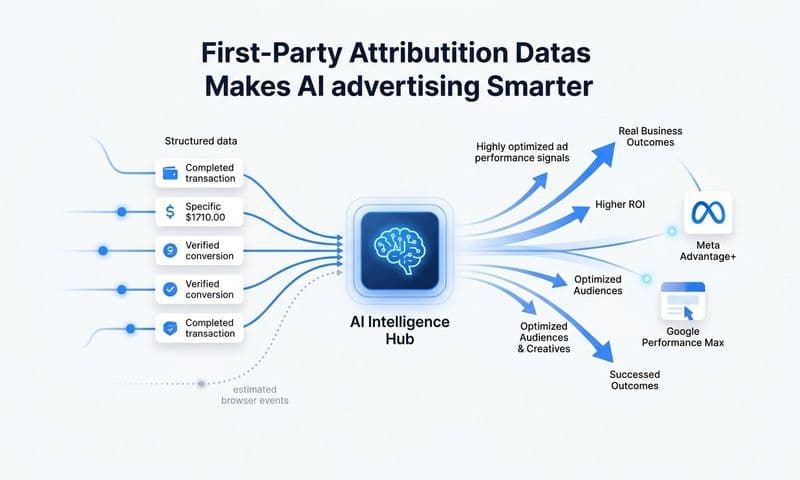
This is where platforms like Cometly become valuable. By capturing data at multiple points in the customer journey (ad click, website visit, CRM event, purchase) and connecting them through first-party identifiers, you can maintain attribution accuracy even when browser-based tracking fails.
Success indicator: You have strategies in place to recover data lost to privacy restrictions, you understand the limitations of what you can measure, and you're not making critical budget decisions based solely on incomplete cookie-based tracking.
Step 6: Validate Fixes and Establish Ongoing Monitoring
You've identified problems and implemented fixes. Now you need to verify that everything actually works and create systems to catch future issues before they compound.
Create a testing protocol for each fix. For UTM parameters, create test campaigns with your new naming conventions and verify they appear correctly in GA4 reports. For cross-domain tracking, complete test transactions and check that sessions remain unbroken. For conversion events, trigger each one manually and confirm it appears in DebugView and eventually in your reports.
Set up custom alerts in GA4 to catch problems early. Navigate to Admin > Custom alerts and create alerts for sudden drops in conversion tracking, significant traffic source shifts, or missing events. If your purchase conversion rate suddenly drops by 50%, you want to know immediately, not discover it during your monthly review.
Schedule monthly attribution audits. Block time on your calendar to review your tracking setup, check for new attribution discrepancies, and verify that your team is still following UTM conventions. Attribution accuracy drifts over time as new campaigns launch, team members change, and tracking requirements evolve. Following attribution analytics best practices helps maintain data quality over time.
Compare GA4 data against your CRM and ad platform data as a sanity check. Your numbers will never match perfectly due to different attribution models and measurement methodologies, but they should be in the same ballpark. If Facebook reports 100 conversions and GA4 shows 15, something is fundamentally broken.
Document the expected variance between platforms. After you've fixed your tracking issues, record the typical difference between GA4 and each ad platform. For example, you might find that Facebook consistently reports 20-30% more conversions than GA4 due to attribution window differences. Knowing this baseline helps you spot when new problems emerge.
Create a troubleshooting playbook for your team. When attribution issues arise in the future, what's the diagnostic process? Document the steps you took to fix issues this time so future problems can be resolved faster. If you're still struggling with persistent problems, exploring an alternative to Google Analytics attribution may provide the accuracy you need.
Success indicator: You have a repeatable process for maintaining attribution accuracy, automated alerts catch problems before they impact decisions, and your team knows exactly how to troubleshoot when discrepancies appear.
Putting It All Together
Fixing Google Analytics attribution issues isn't a one-time project. It's an ongoing discipline. By systematically auditing your tracking setup, standardizing UTM parameters, configuring cross-domain tracking, understanding attribution model limitations, addressing privacy-related data loss, and establishing monitoring routines, you'll build a much clearer picture of what's actually driving your results.
Quick checklist to keep your attribution accurate:
Audit tracking setup and document gaps: Know exactly what you're measuring and what you're missing before you try to fix anything.
Standardize UTM naming across all campaigns: Consistent parameters are the foundation of reliable source attribution.
Configure cross-domain tracking and referral exclusions: Prevent payment processors and third-party domains from stealing conversion credit.
Review attribution model settings and limitations: Understand why GA4 credits channels differently than platform reports and communicate this to stakeholders.
Implement server-side tracking and consent mode: Recover data lost to privacy restrictions and ad blockers.
Create ongoing monitoring and validation processes: Catch attribution drift before it compounds into major data quality issues.
For marketing teams running multi-platform campaigns who need accurate, real-time attribution data, tools like Cometly can complement your GA4 setup by capturing every touchpoint from ad click to CRM conversion. By connecting your ad platforms, website, and CRM, Cometly provides the complete customer journey visibility that helps you scale with confidence. When you know exactly which ads and channels drive real revenue, you can make budget decisions based on data you trust instead of incomplete tracking.
Ready to elevate your marketing game with precision and confidence? Discover how Cometly's AI-driven recommendations can transform your ad strategy. Get your free demo today and start capturing every touchpoint to maximize your conversions.