
Most B2B SaaS marketing teams know they need attribution tracking. They know which channels they are running ads on, and they have a general sense of what is converting. But when it comes to actually setting up attribution, the conversation quickly turns to engineering tickets, developer backlogs, and weeks of waiting.
The result is that marketing decisions get made on incomplete data while the technical setup sits in a queue. Campaigns that look like they are performing well might be burning budget. Channels that appear quiet might be driving the most qualified pipeline. You simply cannot know without proper attribution in place.
No code attribution setup changes that dynamic entirely. Modern attribution platforms have made it possible for marketers to connect their ad accounts, CRM, website, and conversion events without writing a single line of code. You do not need to understand JavaScript, configure server-side infrastructure, or wait on a developer to get accurate tracking in place.
This guide walks you through exactly how to set up attribution tracking from scratch using a no code approach. By the end, you will have a working attribution system that captures every touchpoint from first ad click to closed revenue, feeds conversion data back to your ad platforms, and gives you a clear view of which campaigns are actually driving pipeline.
Whether you are running paid search, paid social, or a mix of channels, this process applies. The steps are sequential and build on each other, so follow them in order for the cleanest setup. Each step is designed to be completed directly in your attribution platform's dashboard, no terminal windows or code editors required.
Step 1: Define Your Conversion Events Before Touching Any Settings
Before you open a single settings panel or connect a single ad account, you need a clear map of what you are actually trying to track. This is the step most teams skip, and it is the reason attribution setups fall apart later.
Start by listing every meaningful action a prospect can take in your funnel. For most B2B SaaS companies, this includes demo requests, free trial signups, MQL form fills, sales-qualified lead handoffs, and closed-won deals. Each of these represents a distinct stage in your pipeline, and each one needs its own conversion event.
The distinction between micro-conversions and macro-conversions matters here. A content download or newsletter signup is a micro-conversion: it signals interest but does not directly indicate buying intent. A demo request or trial activation is a macro-conversion: it signals a prospect has moved into your sales funnel. Your attribution tracking setup needs both, but they should be weighted and reported separately so you are not conflating early-stage engagement with bottom-of-funnel revenue activity.
For each conversion event on your list, document two things. First, identify the URL or trigger associated with that action. A demo request might fire when a visitor lands on a thank-you page at /demo-confirmed. A trial signup might trigger when a user reaches /welcome after account creation. Second, identify the corresponding CRM stage or billing event. Which HubSpot lifecycle stage, Salesforce opportunity stage, or Stripe subscription event maps to this conversion?
This documentation becomes the blueprint for every step that follows. When you configure conversion tracking in Step 4, you will reference this list. When you connect your CRM in Step 6, you will use these mappings to tie deal stages to ad campaigns.
Common pitfall to avoid: Skipping this step and jumping straight into platform settings almost always results in tracking the wrong events. Teams end up attributing revenue to campaigns that generated form fills, not actual sales. Or they track pageviews as conversions and wonder why their ROAS looks inflated. Define your events first, then configure everything else around that definition.
A good rule of thumb: if you cannot explain what business outcome a conversion event represents, do not track it yet. Keep your initial list focused on the events that directly connect to pipeline and revenue.
Step 2: Connect Your Ad Platforms With Native Integrations
With your conversion events mapped out, the next step is pulling your ad data into one place. This is where no code attribution setup really shines. Instead of configuring API keys, setting up webhooks, or writing authentication logic, you simply connect your ad accounts through your attribution platform's native integrations.
Most modern attribution platforms support Meta Ads, Google Ads, LinkedIn, and TikTok out of the box. The connection process typically involves clicking an "Add Integration" button, selecting the platform, and authenticating through a standard OAuth flow. You log in with your ad account credentials, grant the necessary permissions, and the connection is established. No developer involvement required.
Once each platform is connected, verify that data is flowing correctly. Open your attribution dashboard and check that campaign names, ad set names, and individual ad-level data are appearing. If you see campaign data but not ad-level data, check that your integration has the correct permission scopes. Most platforms will surface a warning if something is missing.
UTM parameter consistency is critical at this stage. UTM parameters are the foundational layer of source tracking, and without them, your attribution data becomes fragmented. When a visitor clicks an ad tagged with utm_source=google and utm_medium=cpc, your attribution platform uses those values to categorize the session correctly. If UTMs are missing or inconsistently formatted across campaigns, cross-channel attribution analysis becomes unreliable.
Check your active campaigns in each ad platform and confirm that UTMs are appended to every destination URL. Some attribution platforms can automatically verify UTM presence across your connected accounts and flag campaigns that are missing tags. Use this feature if it is available.
Practical tip: Connect all active ad platforms before moving to Step 3. If you connect Meta today and LinkedIn next week, your attribution data will have a gap for the period before LinkedIn was connected. Starting with a complete picture from day one means your historical data is clean and comparable from the beginning.
After connecting each platform, spend a few minutes reviewing the data in your dashboard. You are looking for campaign spend, impressions, clicks, and any conversion data that may already be flowing from your ad platform's native tracking. This baseline will be useful for comparison once your own conversion tracking is active.
Step 3: Install Your Tracking Pixel Using a Tag Manager or CMS Plugin
Your attribution platform's tracking pixel is what captures session-level data on your website. Every pageview, every session, every click path gets recorded through this pixel. Installing it correctly and globally is essential for complete journey data.
The no code approach here depends on how your website is built. For most B2B SaaS companies, one of two paths applies.
Google Tag Manager path: If your site uses GTM, log into your GTM container and create a new tag. Select "Custom HTML" as the tag type, paste your attribution platform's pixel snippet into the HTML field, and set the trigger to "All Pages." This fires the pixel on every page of your site, including landing pages, blog posts, and your main product pages. Publish the container to make the tag live.
CMS native path: If your site runs on WordPress or Webflow, both platforms have a native field for injecting scripts into the site header. In WordPress, this is typically handled through your theme settings or a lightweight plugin that adds a header script field. In Webflow, navigate to Project Settings, then the Custom Code tab, and paste your pixel snippet into the "Head Code" section. This deploys the pixel globally across every page without touching any template files.
After installation, verify that the pixel is firing correctly before moving forward. Open your browser's developer tools (right-click anywhere on your site and select "Inspect"), navigate to the Network tab, and reload the page. Filter by your attribution platform's domain name and confirm that a request is being made. Alternatively, use a tag verification browser extension to get a cleaner view of which tags are active on the page.
Common pitfall to avoid: Installing the pixel only on your homepage or thank-you page creates significant gaps in your journey data. If a prospect visits your pricing page three times before requesting a demo, but your pixel only fires on the homepage, you lose visibility into those touchpoints. Install globally from the start and you will capture the full picture.
Once verification is complete, check your attribution platform's dashboard for incoming session data. You should see pageview events appearing within a few minutes of installation. If nothing appears after 15 minutes, revisit your tag configuration and confirm the trigger is set to fire on all pages. Persistent gaps in session data are one of the most common attribution challenges in marketing analytics and are almost always traced back to incomplete pixel coverage.
Step 4: Set Up Conversion Tracking for Forms and Key Actions
With your pixel installed and session data flowing, the next step is telling your attribution platform which specific actions count as conversions. This is where the conversion event list you created in Step 1 becomes directly useful.
Most no code attribution platforms include a visual event builder that lets you define conversion triggers without writing any code. The three most common trigger types are URL matches, button clicks, and form submissions. For B2B SaaS funnels, URL-based triggers are the most reliable starting point.
Here is how to think about each trigger type:
Thank-you page URL triggers: When a prospect submits a demo request form and lands on /demo-confirmed, that URL load is your conversion signal. Set up a conversion event that fires when the page URL contains or exactly matches that path. This approach works for any form that redirects to a confirmation page after submission.
Button click triggers: For actions that do not redirect to a new page, such as inline form submissions or modal-based signups, use a click trigger. Your event builder will let you specify the button's CSS class, ID, or text content as the trigger condition. Test this carefully, since button attributes can vary across browsers.
Form submission triggers: Some attribution platforms detect form submissions directly, regardless of what happens after the form is submitted. This is useful for forms that submit via AJAX without a page redirect.
As you configure each conversion event, map it back to the corresponding item on your list from Step 1. Every tracked action should have a clear business meaning attached to it. "Demo Request Submitted" is a meaningful event name. "Form Fill" is not, because it does not tell you which form or what outcome it represents.
Enable lead-level attribution tracking if your attribution platform supports it. This ties each conversion to an individual contact rather than an anonymous session, which becomes critical when you connect your CRM in Step 6. Lead-level data lets you follow a specific prospect from their first ad click through to a closed deal.
After configuring each event, test it by completing the actual action on your website. Submit the demo request form, complete the trial signup flow, or click the relevant button. Then check your attribution dashboard and confirm the conversion event appears. Do not skip this testing step. A misconfigured trigger that never fires is worse than no tracking at all, because it creates false confidence that attribution is working.
Step 5: Activate Server-Side Conversion API Sending
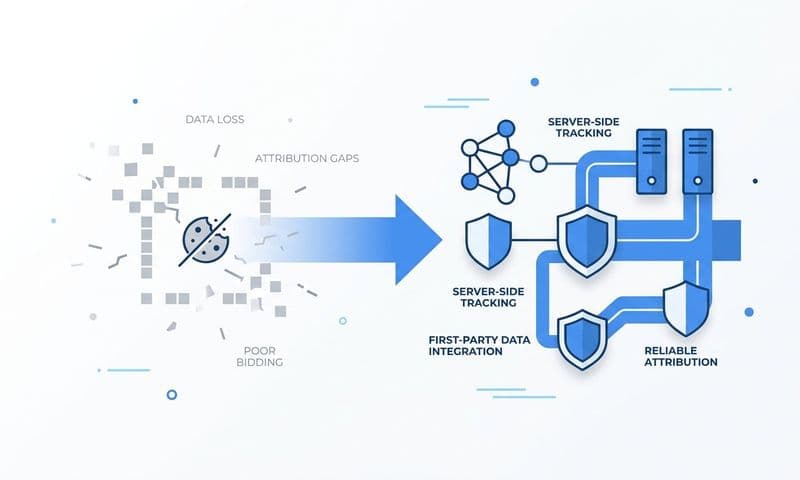
Browser-based pixel tracking has a fundamental limitation: it depends on the visitor's browser to execute correctly. Ad blockers, iOS privacy restrictions, and the ongoing deprecation of third-party cookies all reduce the reliability of pixel-based conversion data. In some markets and audience segments, a meaningful portion of conversions never get recorded by the pixel at all.
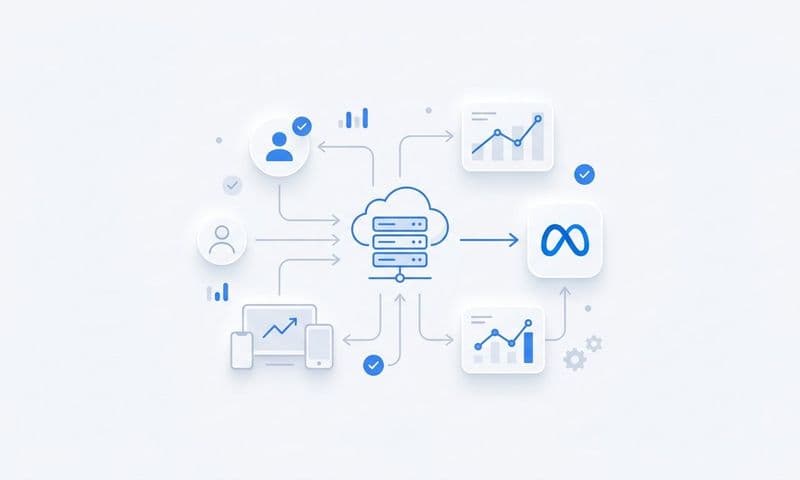
Server-side Conversion API sending solves this problem. Instead of relying on the visitor's browser to fire a conversion event, your attribution platform sends the conversion data directly to Meta, Google, and other ad networks from its own servers. The browser's privacy settings and ad blockers have no effect on this pathway.
In a no code attribution setup, activating CAPI sending does not require any server configuration on your end. Your attribution platform handles the server-side infrastructure. You simply navigate to the Conversion API settings panel, select which ad platforms you want to send events to, and choose which conversion events to include.
The events you send back to Meta and Google are particularly valuable for their optimization algorithms. When Meta's ad delivery system receives enriched conversion data, including the specific actions that led to revenue, it can identify and target more prospects who match that profile. Poor signal quality limits what the algorithm can do. Enriched first-party data from server-side events gives it a much clearer picture to work with. This is especially important for Facebook Ads attribution, where browser-side signal loss has become increasingly significant.
Event deduplication is a critical configuration step here. When both your browser pixel and your server-side CAPI are active, the same conversion can potentially be reported twice: once by the pixel and once by the server-side event. Without deduplication, your reported conversion numbers will be inflated, and your ad platform's optimization will be working from inaccurate data.
Your attribution platform handles deduplication through event ID matching. Each conversion event is assigned a unique identifier, and when both the pixel and the server-side event carry the same ID, the ad platform knows to count it only once. Confirm that your attribution platform's deduplication logic is enabled before going live.
After activating CAPI sending, verify the connection by checking Meta Events Manager or Google's conversion diagnostics. You should see your conversion events appearing with a server-side source indicator. If events are not appearing within a few hours of a test conversion, revisit your CAPI configuration and confirm the correct ad account IDs are linked.
Step 6: Connect Your CRM and Revenue Data for Full-Funnel Attribution
Everything you have set up so far captures the marketing side of the funnel: ad clicks, website sessions, form submissions, and conversion events. But for B2B SaaS companies with longer sales cycles, lead-level attribution only tells part of the story. The real question is which ad campaigns are generating revenue, not just leads.
Connecting your CRM closes that loop. Most no code attribution platforms include native integrations for HubSpot, Salesforce, and Pipedrive that work through the same OAuth-style connection you used for your ad platforms. Authenticate the integration, grant the necessary permissions, and your CRM deal data starts flowing into your attribution platform.
Once the CRM is connected, the next step is mapping deal stages to your conversion events. This is where the groundwork from Step 1 pays off. If you documented which CRM stage corresponds to each conversion event, you can now configure those mappings directly in your attribution platform's settings. A prospect moving from "Demo Scheduled" to "Opportunity" in HubSpot, for example, can trigger a corresponding conversion event in your attribution data.
This stage mapping transforms your attribution from lead-level tracking to pipeline-level tracking. Instead of seeing that a campaign generated 50 form fills, you can see that it generated 12 sales-qualified leads, 4 opportunities, and 2 closed deals. That is the data you need to make confident budget decisions. For a deeper look at how this works across different go-to-market motions, the comparison of B2B revenue attribution in sales-led vs PLG models is worth reviewing.
For subscription revenue, connecting Stripe or your billing platform adds another layer of precision. When a prospect converts to a paying customer, that Stripe event can be tied back to the original ad click that started their journey. Your attribution platform can then calculate actual revenue attributed to each campaign, giving you true ROI visibility rather than estimated conversion values.
Common pitfall to avoid: Connecting your CRM but not mapping deal stages correctly results in attribution data that does not reflect actual sales outcomes. If every CRM contact flows in as a generic "lead" without stage differentiation, you lose the ability to distinguish between campaigns that generate volume and campaigns that generate quality. Take the time to configure stage mappings accurately before moving to the final step.
After connecting and mapping, run a quick audit. Pull up a few recent closed deals in your CRM and check whether they appear in your attribution platform with the correct original source data. If the attribution is tracking correctly, you should be able to trace each deal back to the specific ad campaign, ad set, and even individual ad that first brought that prospect to your site.
Step 7: Choose Your Attribution Model and Start Reading the Data
Your attribution system is now fully operational. Ad platforms are connected, the pixel is live, conversion events are tracked, server-side data is flowing, and your CRM is feeding pipeline and revenue data into the picture. The final step is deciding how to interpret all of it.
Attribution models determine how credit for a conversion is distributed across the touchpoints in a customer's journey. The model you choose shapes how you read performance data and, by extension, how you allocate budget. There is no universally correct model, but there are better and worse fits depending on your sales cycle. Reviewing a comparison of attribution models for marketers can help you identify the right fit before committing to one.
For B2B SaaS companies with longer evaluation periods, linear attribution is often the most representative starting point. Linear attribution distributes credit evenly across every touchpoint in the journey. If a prospect clicked a Google ad, visited your blog twice from organic search, then clicked a LinkedIn retargeting ad before requesting a demo, each of those touchpoints receives equal credit. This approach acknowledges that multiple channels contributed to the outcome rather than giving all the credit to the last click.
Last-click attribution, by contrast, assigns all credit to the final touchpoint before conversion. This model tends to overvalue retargeting and branded search while undervaluing the awareness and consideration channels that introduced the prospect in the first place. For B2B SaaS with multi-week or multi-month sales cycles, last-click often produces a distorted view of which channels are actually driving growth.
Use your attribution dashboard to compare models side by side. Most platforms let you toggle between attribution models and see how credit shifts across channels and campaigns. This comparison is particularly revealing when you see a channel that looks weak under last-click but strong under linear. That discrepancy is often a signal that the channel is doing important early-funnel work that last-click attribution fails to capture.
Review your customer journey reports to understand which channels are introducing new prospects versus which are appearing later in the journey as closing influences. This distinction matters for budget allocation. Channels that consistently appear as first touchpoints deserve investment even if they rarely appear as last touchpoints before conversion.
Set a regular reporting cadence, whether weekly or biweekly, to review which campaigns are generating pipeline and revenue. Use AI-driven recommendations from your attribution platform to identify high-performing ads worth scaling and underperforming campaigns worth pausing. Over time, this data-driven feedback loop compounds: better signals produce better optimization, which produces better results.
Putting It All Together: Your No Code Attribution Checklist
Setting up attribution without a developer is not just possible; it is now the standard approach for modern B2B SaaS marketing teams. By following these seven steps, you have built a system that captures every touchpoint, sends enriched conversion data back to your ad platforms, and connects ad spend directly to pipeline and revenue.
Before you call the setup complete, run through this checklist:
Conversion events defined: Every meaningful funnel action is documented with its URL trigger and corresponding CRM stage.
Ad platforms connected: Meta, Google, LinkedIn, and any other active channels are linked via native integrations with UTMs verified.
Tracking pixel installed and verified: The pixel fires on all pages and session data is appearing in your attribution dashboard.
Conversion events mapped and tested: Each event from your Step 1 list is configured, tested with a real action, and confirmed in the dashboard.
Server-side CAPI active and deduplicated: Conversion events are flowing to Meta and Google via server-side sending with deduplication enabled.
CRM and revenue data connected: HubSpot, Salesforce, or Pipedrive is integrated with deal stages mapped, and Stripe revenue events are tied to originating campaigns.
Attribution model selected: You have chosen a model that fits your sales cycle and reviewed how it distributes credit across your channels.
From here, the focus shifts from setup to optimization. Use your attribution data to cut underperforming campaigns, scale what is working, and feed better signals back to Meta and Google so their algorithms can find higher-quality prospects.
Cometly is built specifically for this workflow, connecting your ad platforms, CRM, and website in one place so you always know which channels are driving real revenue. If you are ready to move from guesswork to precision, Get your free demo today and start capturing every touchpoint that matters.