You spent time building UTM parameters for every campaign, carefully tagging each link with source, medium, and campaign values. But when you open your analytics dashboard, the data is missing, incomplete, or lumped into direct traffic. UTM parameters not capturing data is one of the most frustrating issues digital marketers face because it silently erodes your ability to attribute revenue to the right channels.
Without accurate UTM data, you cannot tell which ads are actually driving conversions. Budget decisions get made on guesswork instead of evidence, and campaigns that look like they are underperforming might actually be your top revenue drivers hiding behind a broken tracking setup.
The tricky part is that UTM failures rarely announce themselves. There is no error message. Traffic still comes in. Conversions still happen. The problem only surfaces when you realize your campaign data does not match reality, and by then, weeks of ad spend may have been misattributed.
This guide walks you through a systematic troubleshooting process to identify exactly why your UTM parameters are failing and how to fix each issue. Whether the problem is a formatting error, a redirect stripping your tags, a tracking pixel misfiring, or a deeper server-side challenge, you will find the specific step to diagnose and resolve it.
The six steps below cover every major failure point in the UTM capture chain, from the moment a link is built to the moment a conversion is recorded in your CRM. Work through them in order, and by the end you will have a reliable UTM tracking setup and a clear path to accurate campaign attribution across every platform you run ads on.
Step 1: Audit Your UTM Syntax and Formatting for Common Errors
The most common reason UTM parameters stop capturing data has nothing to do with your analytics platform or your ad setup. It is a typo. A single character out of place in a UTM string can silently break the entire parameter, and because the URL still loads the page, nothing tells you something is wrong.
Start by checking parameter names carefully. Common mistakes include writing utm_souce instead of utm_source, utm_campain instead of utm_campaign, or using underscores inconsistently. Every standard parameter has an exact spelling that your analytics platform expects. For a deeper dive into common formatting issues, review our guide on UTM parameters not working properly.
The five standard UTM parameters are:
utm_source: Identifies where the traffic comes from (e.g., google, facebook, newsletter). This is required.
utm_medium: Identifies the marketing channel (e.g., cpc, email, organic). This is required.
utm_campaign: Identifies the specific campaign name. This is required.
utm_term: Used for paid search to capture the keyword. Optional but recommended for paid campaigns.
utm_content: Used to differentiate ads or links within the same campaign. Optional but useful for A/B testing.
Beyond spelling, check the structure of the URL itself. The query string must start with a question mark after the base URL, and each parameter must be separated by an ampersand. Missing either of these will break the string. Also watch for extra spaces, which sometimes sneak in when copying URLs from documents or spreadsheets, and special characters like hashtags or brackets that can interrupt how browsers parse the URL.
Case sensitivity is another frequent culprit. Google Analytics 4 treats utm_source=Google and utm_source=google as two separate sources. If your team is not consistent, your data will fragment across multiple rows in your reports. Establish a naming convention using all lowercase and hyphens instead of spaces (for example, spring-sale-2026 rather than Spring Sale 2026).
Use Google's Campaign URL Builder or a similar UTM parameter tracking tool to construct every tagged URL. These tools handle the formatting automatically and reduce the chance of manual errors. Once a URL is built, run it through a UTM validator before deploying it to any campaign.
How to verify success: Paste the tagged URL into a browser and look at the address bar after the page loads. The full query string including all parameters should remain visible. Then open GA4's real-time report or DebugView and confirm that the session registers with the correct source, medium, and campaign values. If the parameters appear in the URL but not in analytics, the issue is likely in a later step of this guide.
Step 2: Identify Redirects and URL Shorteners That Strip UTM Tags
Your UTM parameters can be perfectly formatted and still disappear before they ever reach your analytics platform. The culprit is often a redirect sitting between the link someone clicks and the page they land on.
When a browser follows a 301 or 302 redirect, the server handling the redirect has the option to pass the original query string through to the destination URL or drop it entirely. Many redirect configurations, especially older ones or those set up by developers who were not thinking about marketing tracking, strip query parameters by default. The result is that your UTM tags vanish silently and the session registers as direct traffic.
This problem shows up in several common scenarios. Vanity URLs like yourbrand.com/sale that redirect to a longer landing page URL often strip parameters. Link shorteners, including both third-party tools like Bitly and internally built shorteners, may not be configured to pass query strings. Landing page platforms that use their own redirect logic before serving the final page can also interfere. These are among the most common UTM parameter tracking problems marketers encounter.
To trace the full redirect chain, open your browser's developer tools (press F12), go to the Network tab, and click on the UTM-tagged link. Watch the sequence of requests. Each redirect will appear as a separate row with a 301 or 302 status code. Look at each step to see whether the query string is present in the URL being passed forward. The moment the query string disappears from the URL is where the problem lives.
Alternatively, use a redirect checker tool. Several free options are available online that will walk through the entire redirect chain and show you the URL at each hop, including whether parameters are preserved.
The fixes depend on where the break occurs:
Redirect configuration: Ask your developer to update the redirect rules to explicitly pass query strings. In most server configurations, this is a one-line change.
Vanity URLs: Place the UTM parameters on the final destination URL rather than on the vanity URL. The vanity URL can redirect to the destination URL, and the destination URL carries the UTM tags.
Link shorteners: Test your shortener by creating a shortened link with UTM parameters and following it to see whether the parameters arrive at the destination. Many shorteners have a setting to enable query string passthrough. If yours does not support it, consider switching to one that does or using full URLs in your campaigns.
How to verify success: After applying fixes, click the link and confirm the full UTM string appears in the browser address bar on the final destination page. Then check real-time analytics to confirm the parameters are registering correctly.
Step 3: Verify Your Analytics Tracking Code Is Firing Correctly
Even when UTM parameters survive the redirect chain and appear correctly in the URL, the data still will not show up in your analytics platform if the tracking code is not firing properly on the landing page. This step is about confirming that your analytics setup is actually reading those parameters when a visitor arrives.
Start by verifying that your analytics tag is installed on every landing page that receives UTM-tagged traffic. This sounds obvious, but it is surprisingly common for a new landing page to go live without the tracking code, especially in fast-moving teams where developers and marketers are working in parallel. If your tracking pixels are not firing correctly, the UTM data will never reach your reports.
In Google Tag Manager, verify that your GA4 configuration tag has a trigger set to fire on all page views, not just specific pages or events. If the trigger is too narrow, it will miss sessions on certain pages. Also check for tag sequencing issues where one tag depends on another firing first, which can cause the analytics tag to be skipped if the sequence breaks.
Use GA4's DebugView to watch events in real time as they fire. Navigate to your landing page using a UTM-tagged URL, then open DebugView in your GA4 property. You should see a page view event appear with the campaign parameters attached. If the event fires but the campaign data is missing, the tag configuration may not be set up to read UTM parameters from the URL.
Consent management platforms and cookie banners are another common source of tracking gaps. Many consent tools block analytics scripts from firing until a user explicitly accepts cookies. This means that for visitors who do not interact with the banner immediately, or who decline, the page view event never fires and the UTM data is lost. Review your consent management setup to understand how it interacts with your analytics tag, and consider whether your current approach is creating a meaningful gap in your data. Understanding first-party data collection can help you navigate these privacy challenges more effectively.
Key checks to complete in this step:
Tag presence: Confirm the analytics tag or Tag Manager container is installed on every UTM-receiving page.
Trigger scope: Ensure tags fire on all page loads, not just selected events or pages.
DebugView confirmation: Verify that page view events include campaign parameter data in the event payload.
Consent interaction: Understand how your cookie consent setup affects when and whether analytics tags fire.
How to verify success: Open DebugView while loading a UTM-tagged URL and confirm the page view event appears with the correct source, medium, and campaign values attached. If all three appear, your tracking code is firing correctly.
Step 4: Check for Client-Side Tracking Blockers and Data Loss
You can have perfect UTM syntax, clean redirect chains, and a properly configured analytics tag, and still lose a meaningful portion of your UTM data. The reason is that client-side tracking is increasingly being blocked at the browser level, and this is not a niche problem. It affects a growing share of your audience.
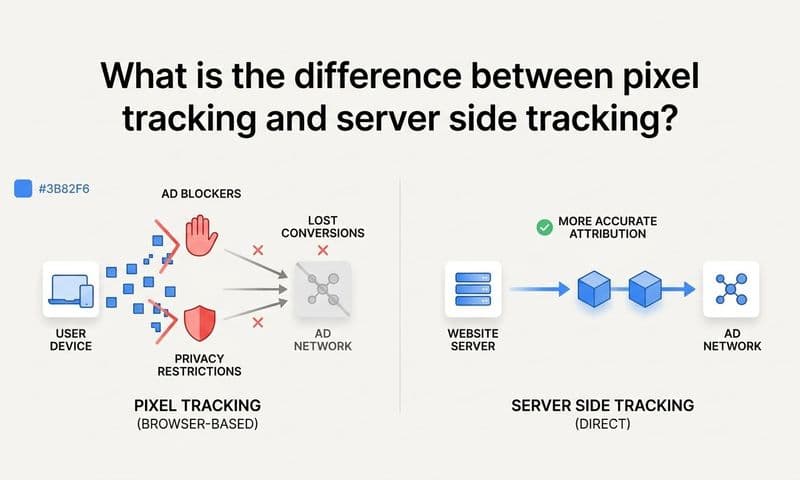
Safari's Intelligent Tracking Prevention (ITP) limits how long cookies can persist and restricts certain types of cross-site tracking. Firefox's Enhanced Tracking Protection blocks known tracking scripts by default. Ad blockers, which are widely used among tech-savvy audiences, can prevent analytics scripts from loading entirely. And iOS privacy changes have made it harder for client-side scripts to reliably capture user data across sessions. This is one of the key reasons UTM parameter tracking has inherent limitations.
The practical effect is that when a visitor arrives on your landing page via a UTM-tagged link, their browser may block the analytics script before it has a chance to read the parameters from the URL. From your analytics platform's perspective, that session never happened. Or it gets attributed to direct traffic because the UTM data was never captured.
Many marketers discover this problem when they notice a gap between the traffic their ad platforms report sending and the sessions their analytics platform reports receiving. That gap often represents visitors whose browsers blocked the client-side tracking script. Understanding the difference between UTM tracking vs server-side tracking is essential for solving this problem.
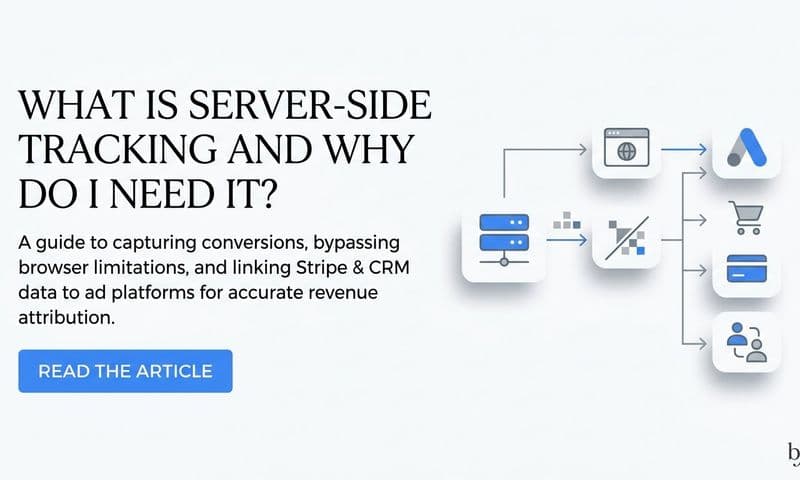
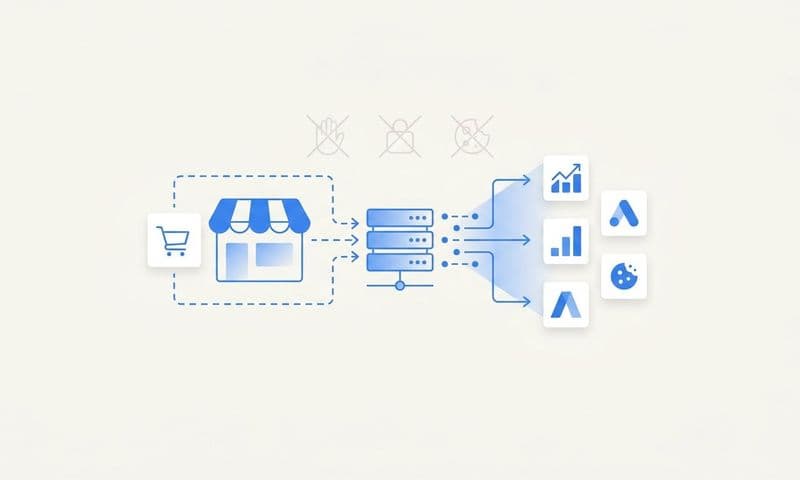
The solution is server-side tracking. Instead of relying on a JavaScript tag running in the visitor's browser to capture UTM data, server-side tracking captures that data on the server before it ever reaches the browser. Because the data collection happens at the server level, ad blockers and browser privacy features cannot interfere with it.
This is where Cometly's server-side tracking becomes a critical part of a reliable attribution setup. Cometly captures every touchpoint from ad clicks to CRM events, providing a complete and enriched view of every customer journey. Because it operates server-side, it preserves UTM data and attribution even when browsers block traditional tracking scripts. You get a full picture of campaign performance instead of a partial one shaped by which browsers your visitors happen to use.
Server-side tracking also feeds higher-quality conversion data back to ad platforms like Meta and Google. When those platforms receive enriched, accurate conversion signals, their algorithms optimize more effectively, which means better targeting and improved return on ad spend over time.
How to verify success: Compare the session counts reported by your ad platforms with the sessions captured in your analytics. A significantly smaller number in analytics is a signal that client-side blocking is affecting your data. After implementing server-side tracking, that gap should narrow considerably.
Step 5: Align UTM Data With Your CRM and Conversion Pipeline
Here is a gap that catches many marketing teams off guard. UTM data shows up correctly in analytics, but when you look at your CRM, leads and customers have no campaign attribution attached to them. You can see that a campaign drove traffic, but you cannot tell whether that traffic actually converted into revenue.
This disconnect happens because UTM parameters live in the browser session. When a visitor fills out a form or completes a checkout, that UTM data does not automatically travel with the submission into your CRM. Unless you explicitly capture it and pass it along, it disappears the moment the form is submitted. This is a core reason why UTM parameters fail to capture conversions in many setups.
The standard solution is hidden form fields. When a visitor lands on your page with UTM parameters in the URL, JavaScript reads those values and writes them into hidden fields within your lead capture form. When the visitor submits the form, the UTM values are submitted alongside their name, email, and other details, and flow directly into your CRM record.
To set this up, add hidden fields to your form for each UTM parameter you want to capture: source, medium, campaign, term, and content. Then add a small JavaScript snippet to the page that reads the UTM values from the URL and populates those hidden fields on page load. Most marketing automation platforms and CRMs have documentation for this, and many form builders support it natively.
Once the setup is in place, test it thoroughly. Submit a test form using a UTM-tagged URL and then check the resulting CRM record to confirm all five parameter values arrived correctly. Also test edge cases: what happens when a visitor arrives without UTM parameters, or when they visit multiple pages before converting?
Even with hidden fields working correctly, many teams still face a stitching problem. UTM data exists in analytics and in the CRM, but connecting a specific conversion in the CRM to the full customer journey in analytics requires manual work or custom integrations. When attribution data does not match across systems, it becomes nearly impossible to make confident budget decisions. This is where the manual approach breaks down at scale.
Cometly solves this by connecting your ad platforms, website, and CRM to track the entire customer journey in real time. Instead of manually stitching UTM data across systems, Cometly gives you a unified view that shows which sources and campaigns actually convert to revenue. You can see not just which campaigns drive traffic, but which ones drive customers, and what those customers are worth over time.
How to verify success: Submit a test lead using a UTM-tagged URL and confirm that all UTM values appear in the corresponding CRM record. Then trace a real closed deal back to its original campaign source to confirm the full attribution chain is intact.
Step 6: Test, Validate, and Monitor Your UTM Setup Going Forward
Fixing UTM tracking is not a one-time task. Campaigns change, landing pages get updated, redirects get modified, and new team members build links without following established conventions. Without ongoing validation, UTM capture can break quietly and go unnoticed for weeks.
Build a pre-launch testing checklist that every campaign must pass before it goes live. Click every UTM-tagged link and confirm the parameters appear in the browser address bar. Open GA4's real-time report and verify the session registers with the correct source, medium, and campaign. Submit a test form and check that UTM values flow into the CRM. Test across multiple browsers, including Safari and Firefox, and on mobile devices to catch any environment-specific issues.
Set up monitoring to catch problems as soon as they appear. In GA4, you can create custom alerts that notify you when direct/none traffic spikes unexpectedly, which often signals that UTM capture has broken somewhere. Monitor for sudden drops in attributed sessions or campaigns that stop appearing in your reports. Maintaining marketing data accuracy matters for ROI, so these anomalies deserve immediate investigation.
Create a UTM governance document that your entire team and any agencies you work with follow consistently. This document should define your naming conventions, specify which parameters are required for each campaign type, establish who is responsible for building and approving UTM links, and include a shared spreadsheet or UTM management tool where all active links are logged. Our guide on UTM parameter tracking best practices covers the conventions that prevent fragmentation across teams.
Even a well-maintained UTM setup has inherent limitations. UTM parameters depend on users clicking links, cookies persisting across sessions, and tracking scripts firing correctly. For a more resilient attribution foundation, Cometly's multi-touch attribution and AI-powered analytics provide a safety net that goes beyond UTM parameters. Cometly tracks the full customer journey across every touchpoint, feeds enriched conversion data back to ad platforms like Meta and Google, and uses AI to surface which campaigns and ads are genuinely driving revenue so you can scale with confidence.
How to verify success: Run through your pre-launch checklist before every campaign. Review your UTM monitoring alerts weekly. Audit your CRM records monthly to confirm attribution data is flowing correctly. If all three checks pass consistently, your UTM setup is working as intended.
Your UTM Troubleshooting Checklist
UTM issues are rarely caused by a single problem. They are almost always a chain of failure points, and fixing one without checking the others means you may still be losing data. Work through the full sequence and use this checklist as your quick reference before every campaign launch and during any attribution audit.
Step 1 - Audit syntax and formatting: Check parameter spelling, URL structure, and naming conventions. Use a UTM builder and validate every URL before deploying.
Step 2 - Trace redirects and shorteners: Use browser developer tools or a redirect checker to follow the full redirect chain and confirm UTM parameters survive every hop.
Step 3 - Verify tracking code: Confirm your analytics tag is installed on every landing page, triggers on all page views, and that consent management is not blocking it for a portion of visitors.
Step 4 - Address client-side blockers: Recognize that ad blockers and browser privacy features affect client-side tracking for a growing share of your audience. Implement server-side tracking to capture UTM data reliably regardless of browser behavior.
Step 5 - Connect UTM data to CRM and revenue: Add hidden form fields to pass UTM values into lead records, verify the data flows correctly into your CRM, and use a unified attribution platform to connect traffic sources to actual revenue.
Step 6 - Build ongoing monitoring and governance: Create a pre-launch checklist, set up anomaly alerts, and establish a UTM naming convention document that your whole team follows.
Systematic troubleshooting is the fastest path to accurate data. When you approach UTM failures methodically instead of randomly, you find the real problem faster and fix it in a way that holds up over time.
If you are ready to move beyond manual UTM troubleshooting and build an attribution setup that captures every touchpoint automatically, Cometly is built for exactly that. It connects your ad platforms, website, and CRM to give you a real-time view of what is actually driving revenue, with AI-powered recommendations to help you scale the campaigns that work. Get your free demo today and start capturing every touchpoint to maximize your conversions.