

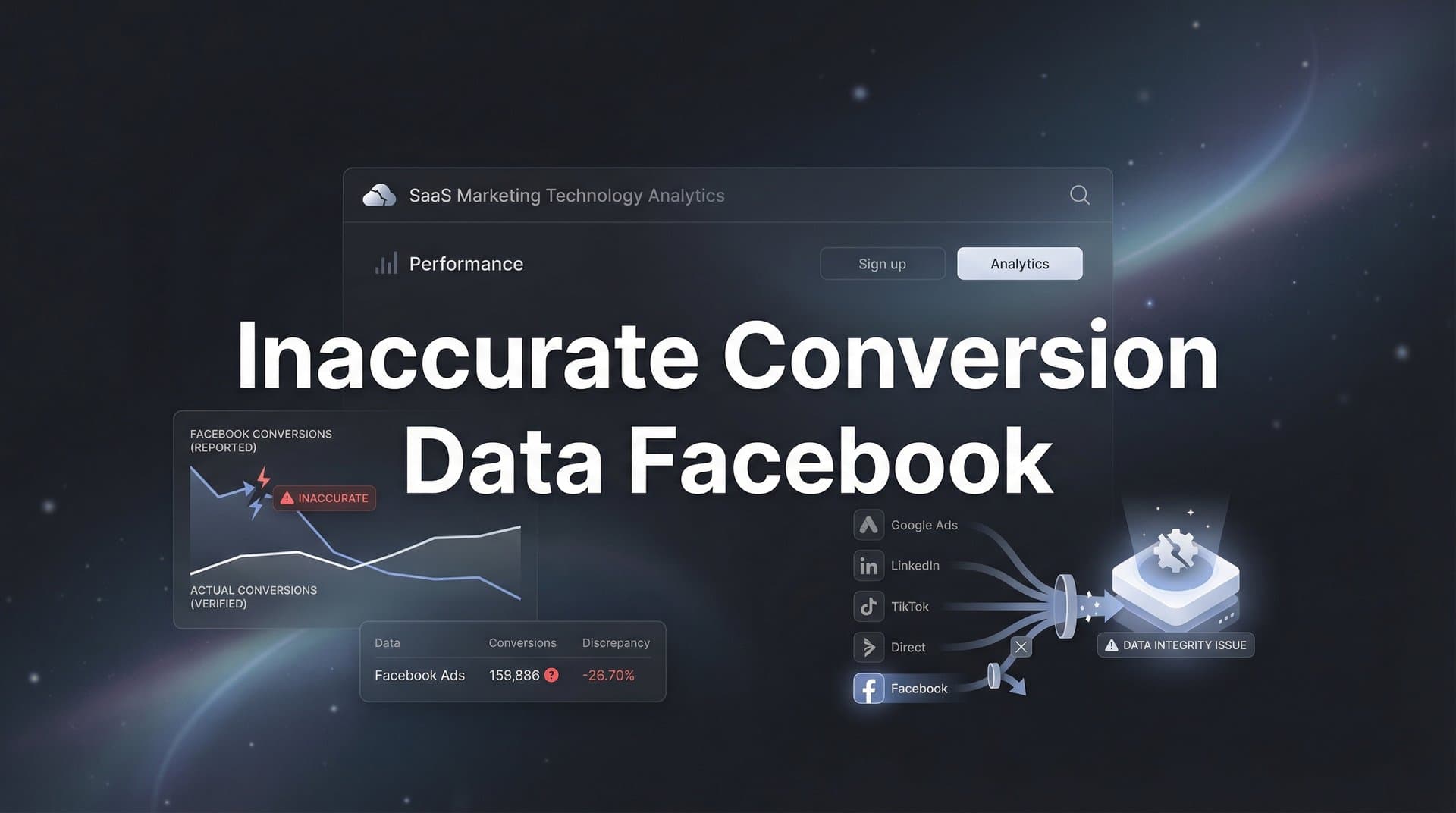
You check Facebook Ads Manager and see 50 conversions. You check your CRM and count 30 actual sales. Your stomach drops. Which number is real? Which one should you trust when deciding whether to scale your campaign or shut it down?
This isn't just frustrating. It's expensive. When Facebook's algorithm optimizes based on phantom conversions that never actually happened, it finds more people like those phantom customers. Your budget flows toward audiences that look good on paper but don't convert in reality.
Since iOS 14.5 rolled out App Tracking Transparency, this problem has gotten worse. Browser privacy features block cookies. Ad blockers prevent your pixel from firing. Facebook's attribution windows have shortened. The platform increasingly relies on modeled conversions, statistical estimates that can miss the mark by 20% to 50%.
The good news? You can fix this. Not with wishful thinking or waiting for Facebook to solve it, but with concrete technical steps that restore accuracy to your conversion tracking.
This guide walks you through the exact process to diagnose where your tracking breaks down and implement solutions that give Facebook the accurate data it needs. You'll set up server-side tracking that bypasses browser limitations, connect your CRM for end-to-end visibility, and create monitoring systems that catch problems before they waste your budget.
By the end, you'll have conversion data you can actually trust and campaigns that optimize toward real customers, not statistical ghosts.
Step 1: Audit Your Current Tracking Setup to Find the Gaps
Before you fix anything, you need to know exactly what's broken. Pull your Facebook Ads Manager conversion data for the past 30 days. Now pull the same date range from your CRM, order management system, or wherever you track actual sales and leads.
Put these numbers side by side. If Facebook reports 200 purchases and your backend shows 150 actual orders, you have a 25% discrepancy. That's your baseline. Document this number because you'll use it to measure whether your fixes actually work.
Next, open Facebook Events Manager and navigate to your pixel. Look at the Overview tab. Facebook shows you warnings, errors, and most importantly, your Event Match Quality score for each conversion event. This score ranges from 0 to 10 and tells you how well Facebook can match your events to actual users.
A score below 6.0 means Facebook is struggling to connect your conversion events to the people who clicked your ads. Low scores happen when you're sending minimal customer information with each event, like just a browser cookie with no email or phone number to back it up. Understanding Facebook pixel data accuracy is essential for diagnosing these issues.
Now check which specific conversion events show the biggest gaps. Maybe your "Add to Cart" events match reasonably well, but your "Purchase" events are way off. Or perhaps lead form submissions look accurate while your backend "Qualified Lead" conversions are missing entirely from Facebook's view.
This pattern matters. If early funnel events track well but bottom-funnel conversions disappear, you're probably losing tracking during checkout or after form submission. If everything is underreported equally, you likely have a more fundamental setup issue.
Document everything in a simple spreadsheet: Facebook count, actual count, discrepancy percentage, and Event Match Quality score for each conversion type. This becomes your diagnostic roadmap. The events with the worst discrepancies and lowest match quality scores need the most urgent attention.
One more check: Look at your conversion timing. Facebook's attribution can take up to 72 hours to fully report conversions. Pull data from at least three days ago to account for this delay. If your numbers still don't match after accounting for attribution lag, you have a real tracking problem, not just a reporting delay.
Step 2: Verify Domain and Event Configuration in Facebook Business Manager
Your domain verification status directly impacts tracking accuracy. Navigate to Business Settings, then Brand Safety, then Domains. Find your website domain and confirm it shows a green verified checkmark.
If it's not verified, you're operating under Aggregated Event Measurement restrictions even if you don't realize it. This means iOS 14.5+ users, who now make up a significant portion of mobile traffic, can only trigger your eight highest-priority conversion events. Any events beyond those eight simply won't fire for iOS users.
Click into Aggregated Event Measurement settings. You'll see your eight prioritized events listed in order. Facebook uses this ranking to decide which events to track when a user has Limited Ad Tracking enabled. Your highest-value conversion event should be ranked number one.
Many marketers make a critical mistake here: they prioritize "PageView" or "ViewContent" at the top, wasting their most important slot on an event that doesn't directly indicate purchase intent. Your priority order should typically be: Purchase (or Lead), InitiateCheckout, AddToCart, ViewContent, then any custom events that matter to your business.
If you need to reorder these events, do it now. Changes take effect immediately, but Facebook recommends waiting at least 72 hours before evaluating the impact on your campaign performance.
Now verify your events are firing correctly. Open Events Manager and click the Test Events tab. Enter your website URL and navigate through your conversion funnel while watching the real-time event stream.
Click an ad (or simulate the journey by adding UTM parameters to your URL). Browse products. Add something to cart. Start checkout. Complete a purchase or submit a lead form. Each action should trigger the corresponding event in the Test Events panel within seconds.
Check the parameters being sent with each event. Your Purchase event should include value and currency. Your Lead event should include any relevant custom data. If events are missing parameters, or if they're not firing at all, you've found a configuration issue that's definitely causing underreporting conversions in Facebook Ads.
Pay special attention to the event source. Events should show "Web" as the source if they're coming from your pixel. If you see no events at all, your pixel might not be installed correctly, or browser privacy settings might be blocking it entirely.
This is where many marketers discover the hard truth: their pixel is working fine in desktop Chrome, but completely blocked in Safari, Firefox with Enhanced Tracking Protection, or any browser with an ad blocker installed. That's a significant chunk of your audience that Facebook simply can't see through browser-based tracking alone.
Step 3: Implement Server-Side Tracking with Conversions API
Browser-based tracking is fundamentally limited. iOS blocks it. Privacy-focused browsers block it. Ad blockers obliterate it. The solution is Conversions API, which sends conversion data directly from your server to Facebook, completely bypassing the browser.
Think of it like this: your pixel is like shouting conversion data across a crowded room, hoping Facebook hears you. Conversions API is like calling Facebook directly on a dedicated line. The message gets through regardless of browser settings, ad blockers, or privacy restrictions.
Setting up Conversions API requires either custom development or using a platform that handles it for you. If you're using Shopify, WordPress with WooCommerce, or another major platform, look for official Facebook integrations or plugins that support CAPI out of the box. For detailed guidance, check out this Facebook Conversion API setup guide.
For custom implementations, you'll need to set up server-side code that captures conversion events and sends them to Facebook's Graph API. Facebook provides libraries for most programming languages, including PHP, Python, Node.js, and Ruby. The basic flow is: customer converts on your site, your server captures the conversion details, your server sends an HTTP POST request to Facebook's Conversions API endpoint with the event data.
The most critical part of CAPI setup is deduplication. Without it, you'll count conversions twice: once from your pixel and once from your server. Facebook uses the event_id parameter to deduplicate. When your pixel fires a conversion, it should generate a unique event_id. When your server sends the same conversion via CAPI, it should include that exact same event_id. Facebook sees the matching IDs and counts it as one conversion, not two.
Include as much customer data as possible with each server event. Send hashed email addresses, phone numbers, first name, last name, city, state, zip code, and country. Facebook hashes this data again on their end and uses it to match the conversion to the right user profile. More data points mean better matching and more accurate attribution.
Don't send plain text personal information. Hash email addresses and phone numbers using SHA-256 before sending them to Facebook. Strip whitespace, convert to lowercase, and then hash. Facebook's documentation includes specific formatting requirements for each data type.
After implementing CAPI, verify it's working by checking Events Manager. Your events should now show two sources: "Web" for pixel events and "Server" for CAPI events. If you see only Web or only Server, something's misconfigured. You want both, with deduplication preventing double-counting. Learn more about the differences in Conversion API vs Facebook Pixel.
Check your Event Match Quality score again. With CAPI sending enriched customer data, your score should jump significantly, often from the 3.0 to 5.0 range up to 7.0 or higher. Higher match quality means Facebook can more accurately attribute conversions to the right ads and optimize accordingly.
Step 4: Enhance Data Quality with First-Party Customer Information
The more customer data you send with each conversion event, the better Facebook can match that conversion to the person who actually clicked your ad. This isn't just about fixing underreporting. It's about giving Facebook's algorithm the signal quality it needs to find more people like your real customers.
Start at your conversion points. If someone makes a purchase, you already have their email and often their phone number. Capture these at checkout and include them with your conversion event. If someone submits a lead form, you're collecting their contact information anyway. Use it.
Hash this data before sending it to Facebook. Use SHA-256 encryption and follow Facebook's specific formatting rules: lowercase, remove spaces, normalize phone numbers to E.164 format. Facebook provides a hashing tool in Events Manager if you want to test your implementation.
Beyond email and phone, send every customer data point you can ethically collect: first name, last name, city, state, zip code, country. Each additional parameter improves your Event Match Quality score and helps Facebook connect the conversion to the right user profile. Addressing poor Conversion API data quality starts with these fundamentals.
Now tackle your UTM parameters. Every single Facebook ad should include proper UTM tracking: utm_source=facebook, utm_medium=cpc, utm_campaign=[your campaign name], utm_content=[your ad set], utm_term=[your ad]. These parameters travel with the click and help you attribute conversions accurately even when Facebook's native attribution falls short.
Implement click ID capture. When someone clicks your Facebook ad, the URL includes an fbclid parameter. This is Facebook's click identifier, a unique code that connects that specific click to that specific ad. Store this fbclid value in a cookie or session variable when the user lands on your site. When they convert later, send that fbclid back to Facebook with your conversion event.
This click ID acts as a direct link between the ad click and the conversion, bypassing the need for Facebook to match based on cookies or user data alone. It's particularly valuable for conversions that happen after the user has closed their browser and returned later, or when they switch devices between clicking and converting.
Set up your forms to pre-fill email addresses for returning customers. Not only does this improve conversion rates, it ensures you're capturing that crucial identifier even on quick micro-conversions where users might not otherwise provide their email.
Monitor your Event Match Quality score weekly. As you implement these data quality improvements, you should see the score climb. A score above 8.0 means you're sending excellent data. Between 6.0 and 8.0 is good. Below 6.0 means there's still room for improvement in the customer data you're capturing and sending.
Step 5: Connect Your CRM to Create a Single Source of Truth
Your CRM knows which leads actually became customers. It knows which $50 purchase turned into a $5,000 annual contract. It knows which "conversion" was actually a competitor doing research or a refund that happened three days later. Facebook doesn't know any of this unless you tell it.
Connecting your CRM to Facebook creates a feedback loop that transforms your conversion tracking from "someone submitted a form" to "someone submitted a form, qualified as a real lead, became an opportunity, and closed for $12,000 in revenue." That's the data Facebook's algorithm actually needs to optimize effectively.
Start by mapping your sales pipeline stages to Facebook conversion events. Maybe "New Lead" maps to your Lead event, "Qualified Lead" becomes a custom conversion, "Opportunity Created" is another custom event, and "Closed Won" is your highest-value conversion. This gives Facebook visibility into your entire funnel, not just the first touchpoint.
Most modern CRMs offer native Facebook integrations or support webhook connections. Salesforce, HubSpot, Pipedrive, and similar platforms can automatically send conversion events to Facebook when deals progress through your pipeline. These server-side events include all the rich customer data your CRM already has: email, phone, company, deal value, and more.
For more advanced attribution, consider using a dedicated marketing attribution platform. Tools like Cometly sit between your ad platforms and your CRM, tracking every touchpoint from initial ad click through final conversion. These platforms capture the full customer journey, store it reliably, and then sync verified conversions back to Facebook with complete accuracy.
Attribution platforms solve a problem that manual tracking can't: they connect ad clicks to CRM conversions even when cookies are blocked, users switch devices, or significant time passes between click and conversion. They store the fbclid, UTM parameters, and user identifiers, then match them to CRM events days or weeks later when the actual sale happens. Learn how to sync conversion data to Facebook Ads effectively.
Enable conversion sync features that feed your CRM data back to Facebook's Conversions API. This creates a continuous feedback loop. Facebook shows ads, your attribution system tracks clicks, customers convert in your CRM, and that verified conversion data flows back to Facebook automatically. The algorithm learns from real outcomes, not browser-tracked approximations.
This approach particularly matters for businesses with longer sales cycles. If your average customer takes 14 days to convert, Facebook's standard 7-day click attribution window misses half your conversions. But when your CRM sends the conversion event directly to Facebook with the original fbclid, Facebook can attribute it correctly regardless of how much time has passed.
Set up custom conversion events in Facebook for your key pipeline stages. Don't just track "Lead." Track "SQL," "Opportunity," and "Customer." This gives you the data to optimize campaigns not just for lead volume, but for lead quality and actual revenue generation.
Step 6: Validate Your Fixes and Monitor Ongoing Accuracy
You've implemented tracking improvements. Now you need to verify they actually worked. Pull a fresh 7-day comparison between Facebook Ads Manager and your backend data. Use the same date range for both sources and make sure you're comparing apples to apples.
Calculate your new discrepancy percentage. If you started with a 40% gap between Facebook and reality, and you're now at 8%, your fixes worked. If the gap is still 35%, something in your implementation needs adjustment. Check your Event Match Quality scores again. Review your Conversions API setup. Verify deduplication is working correctly.
Set up a weekly monitoring dashboard. Use Google Sheets, your attribution platform, or whatever tools your team already uses. Create a simple table with columns for: date range, Facebook reported conversions, actual backend conversions, discrepancy percentage, and Event Match Quality score. Update it every Monday morning.
This weekly check accomplishes two things. First, it catches tracking problems fast. If your discrepancy suddenly jumps from 8% to 30%, something broke. Maybe a developer pushed code that removed your pixel. Maybe your CAPI integration stopped working. You'll know within a week instead of discovering it months later after wasting significant budget. When you notice conversion data not matching reality, you can act immediately.
Second, it builds confidence in your data. When you consistently see Facebook numbers align with backend reality week after week, you can trust those numbers when making scaling decisions. You'll know that when Facebook says a campaign is profitable, it actually is.
Create alerts for when things go wrong. Set up automated monitoring that notifies you when your Event Match Quality score drops below 6.0, when Facebook reports zero conversions for 24 hours, or when the discrepancy between Facebook and backend data exceeds 15%. These alerts catch problems before they impact campaign performance.
Document your entire tracking setup. Write down where your pixel is installed, how your Conversions API is configured, which CRM integrations are active, and who on your team has access to make changes. This documentation saves hours when troubleshooting future issues or onboarding new team members.
Include screenshots of your Events Manager configuration, your Aggregated Event Measurement priorities, and your CAPI setup. Note any custom code implementations and where that code lives in your website's codebase. Future you will thank present you for this documentation.
Test your tracking quarterly. Run through your entire conversion funnel as a customer would, watching Events Manager to confirm every event fires correctly. Privacy regulations change. Browser updates happen. Your website gets redesigned. Regular testing ensures your tracking stays accurate as things evolve.
Your Path to Reliable Facebook Conversion Data
Here's your action checklist to fix inaccurate conversion tracking once and for all:
Audit your current tracking: Compare Facebook data against backend reality and document the discrepancy percentage.
Verify domain and events: Confirm domain verification, prioritize your conversion events correctly, and test that events fire properly.
Implement Conversions API: Set up server-side tracking with proper deduplication to bypass browser limitations.
Enhance data quality: Capture and hash customer information, implement UTM parameters consistently, and store fbclid values.
Connect your CRM: Integrate your sales system to track conversions from click through to revenue and sync verified data back to Facebook.
Monitor ongoing accuracy: Set up weekly dashboards, create alerts for tracking issues, and document your setup for future reference.
Accurate conversion data isn't a luxury anymore. It's a competitive advantage. While other marketers waste budget optimizing toward phantom conversions and modeled estimates, you'll have campaigns that learn from real customer behavior and actual revenue.
The privacy landscape will keep evolving. Browser restrictions will get tighter. Third-party cookies will disappear entirely. But marketers who control their first-party data and use server-side tracking will maintain accurate attribution regardless of what changes next.
Start with Step 1 today. Audit your current situation and quantify the problem. Then work through each step systematically over the next two weeks. You don't need to implement everything at once. Each improvement compounds on the previous one, gradually transforming unreliable data into a trustworthy foundation for scaling.
Within a month, you'll make budget decisions with confidence. You'll know which campaigns actually drive revenue. You'll scale winners and cut losers based on data you can trust. That clarity is worth the implementation effort many times over.
Ready to elevate your marketing game with precision and confidence? Discover how Cometly's AI-driven recommendations can transform your ad strategy. Get your free demo today and start capturing every touchpoint to maximize your conversions.


