
LinkedIn advertising offers something most paid channels simply cannot: direct access to decision-makers, executives, and high-value B2B audiences. But running LinkedIn ads without a proper tracking system is like driving with your eyes closed. You might generate clicks, impressions, and even leads, but without the right infrastructure in place, you will never know which campaigns actually move the needle on pipeline and revenue.
The challenge is that LinkedIn's native reporting only tells part of the story. It shows you platform-level metrics like click-through rates and cost per click, but it falls short when it comes to connecting those clicks to real business outcomes like closed deals and revenue. This gap becomes even more pronounced when LinkedIn is just one channel in a broader paid media strategy spanning Google, Meta, TikTok, and more.
In this guide, you will learn exactly how to track LinkedIn ads performance from start to finish. We will walk through installing LinkedIn's native tracking tools, defining the right KPIs, connecting your CRM for full-funnel visibility, layering in multi-touch attribution, and optimizing based on what the data actually tells you.
Whether you are running Sponsored Content, Message Ads, or Lead Gen Forms, these steps will help you build a tracking system that ties every LinkedIn touchpoint to revenue. Let's get into it.
Step 1: Install the LinkedIn Insight Tag and Configure Conversion Tracking
Before you can track LinkedIn ads performance in any meaningful way, you need the LinkedIn Insight Tag firing correctly on your website. Think of it as the foundation everything else is built on. Without it, you are working blind.
The Insight Tag is a lightweight JavaScript snippet that LinkedIn uses to enable three core capabilities: conversion tracking, website demographics reporting, and retargeting audience building. You can install it in one of three ways: directly in your website's global header code, through Google Tag Manager, or via a supported partner integration. For most marketing teams, Google Tag Manager is the fastest and cleanest approach because it keeps your tag management centralized.
To install via Google Tag Manager, log in to LinkedIn Campaign Manager, navigate to Account Assets, and select Insight Tag. Copy the tag ID, then create a new Custom HTML tag in GTM using LinkedIn's provided snippet. Set the trigger to fire on all pages and publish your container.
Once installed, your next priority is setting up conversion actions. In Campaign Manager, go to Account Assets, then Conversions, and click Create Conversion. LinkedIn supports two main types: URL-based conversions (which fire when a user lands on a specific page like a thank-you page) and event-specific conversions (which fire based on JavaScript events like button clicks or form submissions). Setting up proper conversion tracking across platforms follows a similar logic whether you are on LinkedIn or Google.
Here is where most marketers make a critical mistake: they only set up macro-conversions like demo requests or purchases. But in B2B, the buyer journey is long. You need to track micro-conversions too. Set up conversion actions for content downloads, pricing page visits, webinar registrations, and form views. This gives you a much richer picture of how LinkedIn is contributing at every stage of the funnel, not just the final step.
After installation, verify the tag is actually firing. LinkedIn provides a built-in tag validation tool inside Campaign Manager that shows you whether the tag is active and which pages it has detected. You can also use the LinkedIn Insight Tag Helper Chrome extension for real-time verification. Do not skip this step. A broken or misfiring tag will corrupt your conversion data from day one, and you may not catch it until you have already spent significant budget.
Pro tip: If you are using LinkedIn's Conversions API (CAPI), you can layer server-side event tracking on top of the Insight Tag. This provides a more resilient tracking setup that is less vulnerable to ad blockers and browser restrictions, which we will cover in more detail in Step 5.
Step 2: Define the LinkedIn Ad Metrics That Actually Matter
Once your tracking is in place, the next trap marketers fall into is measuring the wrong things. LinkedIn's Campaign Manager surfaces a lot of data, and not all of it deserves equal attention. Knowing which metrics to prioritize is what separates data-driven marketers from those who are just watching numbers move.
Start by separating vanity metrics from performance metrics. Impressions, social actions, and follower growth can feel satisfying, but they rarely correlate with business outcomes. The metrics that actually tell you whether your LinkedIn investment is working are cost per lead, conversion rate, cost per opportunity, and ultimately, return on ad spend tied to closed revenue. For a deeper dive into the metrics that matter, explore our guide on LinkedIn ads analytics.
A useful way to organize your metrics is by funnel stage:
Awareness stage: Focus on reach, frequency, and impression share. These tell you whether your targeting is broad enough to build brand familiarity with your ideal audience without overexposing the same people.
Consideration stage: Shift attention to click-through rate, engagement rate, and landing page visit rate. A strong CTR on LinkedIn typically signals that your creative and messaging are resonating with the audience you are targeting.
Conversion stage: This is where cost per lead, conversion rate, and cost per opportunity become your primary signals. For B2B marketers, cost per opportunity is often more valuable than cost per lead because it accounts for lead quality, not just lead volume.
Here is the pitfall that catches many teams: optimizing for the cheapest leads. LinkedIn leads can vary dramatically in quality depending on audience targeting, offer type, and creative. A campaign generating leads at a low cost per lead might look great in LinkedIn Campaign Manager but produce opportunities that rarely close. Meanwhile, a higher-cost campaign targeting senior decision-makers might generate fewer leads that convert to revenue at a much higher rate.
For choosing your primary KPIs, a practical framework is to select four to six metrics aligned with your campaign objective. Brand awareness campaigns should prioritize reach and frequency. Lead generation campaigns should track CPL, conversion rate, and lead-to-opportunity rate. Direct response campaigns should measure ROAS and cost per customer acquisition.
The key is to define these KPIs before you launch, not after. When you know what success looks like upfront, you make better optimization decisions throughout the campaign lifecycle.
Step 3: Build UTM Parameters and a Consistent Naming Convention
Here is something that surprises many marketers: LinkedIn ad clicks, without UTM parameters, often show up in Google Analytics or your analytics platform as generic social traffic. You lose all campaign-level granularity. You cannot tell which campaign drove a conversion, which ad creative performed best, or how LinkedIn compares to other paid channels. Understanding UTM tracking and how it helps your marketing is essential for solving this problem entirely.
UTM parameters are simple URL tags you append to your destination URLs that pass campaign information into your analytics platform. For LinkedIn ads, a clean UTM structure looks like this:
utm_source: linkedin
utm_medium: paid_social
utm_campaign: [campaign_name] — for example, q2_enterprise_awareness
utm_content: [ad_variant] — for example, carousel_v1 or video_testimonial
You can also add utm_term to capture audience segment information if you are running multiple targeting variations within the same campaign.
The utm_content parameter is particularly valuable for creative testing. When you are running multiple ad variants within a campaign, this field tells you exactly which creative drove the click and subsequent conversion. Without it, you know a campaign worked but not why.
Equally important is establishing a consistent naming convention across all your campaigns, ad groups, and creatives. This is where many teams fall apart. If one campaign is named "LinkedIn_Q2_2026" and another is "q2-linkedin-brand," your reporting becomes a mess. Using a structured campaign tracker template can help enforce consistency across your team from the start.
A strong naming convention typically includes: date or quarter, campaign objective, audience segment, and creative type. For example: 2026Q2_LeadGen_EnterpriseIT_VideoAd. Every person on your team should follow the same format, every time.
Consistent naming unlocks something powerful: creative-level insights at scale. When your UTMs and naming conventions are clean, you can instantly see which ad formats, messages, and offers resonate with which audience segments across every campaign you have ever run. That kind of institutional knowledge compounds over time and makes every future campaign smarter than the last.
Step 4: Connect LinkedIn Data to Your CRM for Full-Funnel Visibility
This is the step that separates marketers who track activity from marketers who track revenue. LinkedIn Campaign Manager can tell you how many leads a campaign generated. Your CRM tells you how many of those leads became opportunities, how many closed, and how much revenue they generated. Without connecting the two, you are only seeing half the picture.
The gap between LinkedIn-reported leads and actual pipeline is often significant. A Lead Gen Form campaign might show 50 leads in Campaign Manager, but when you look at your CRM, only 30 of those actually synced, and only 8 progressed past the initial outreach stage. If you are making budget decisions based on the LinkedIn-reported number alone, you are likely overvaluing underperforming campaigns and undervaluing the ones that actually drive revenue.
To close this gap, start by connecting your lead sources to your CRM. For LinkedIn Lead Ads, most major CRMs including HubSpot and Salesforce offer native integrations through LinkedIn's Marketing Solutions partner ecosystem. These integrations automatically push lead form submissions into your CRM as new contacts or leads, often within minutes of submission.
For landing page submissions, the connection requires a bit more setup. You need to ensure that your UTM parameters are being captured and stored on the CRM record. Most marketing automation platforms like HubSpot do this automatically for web forms if the hidden UTM fields are configured correctly. In Salesforce, you may need to use a tool like Pardot or a custom field setup to capture and persist UTM data through the lead lifecycle.
Once UTM data is flowing into your CRM, your sales team can see exactly where each lead originated. A sales rep looking at a contact record should be able to see that this person clicked a LinkedIn Sponsored Content ad for a specific campaign before requesting a demo. Learning how to track sales leads effectively ensures that context flows from marketing into every sales conversation.
With this connection in place, you can calculate the metrics that actually matter for LinkedIn ROI: cost per opportunity, cost per customer acquisition, and revenue influenced by LinkedIn campaigns. These numbers give you the confidence to scale what is working and cut what is not.
Critical warning: Test the full lead flow before scaling spend. A broken form integration or a missing UTM field can silently create data gaps for weeks. Submit a test lead yourself, check that it appears in your CRM with the correct source data, and verify the UTM fields are populated correctly. This five-minute check can save months of corrupted reporting.
Step 5: Layer in Multi-Touch Attribution to See the Complete Picture
Here is the reality of B2B buying: no one sees a single LinkedIn ad and immediately books a demo. The typical B2B purchase involves multiple stakeholders, multiple touchpoints, and a sales cycle that can span weeks or months. A prospect might see your LinkedIn Sponsored Content, later search for your brand on Google, visit your website three more times, read a case study, and then finally request a demo after receiving a LinkedIn Message Ad.
If you are using last-click attribution, that demo gets credited entirely to the Message Ad. LinkedIn's earlier touchpoints, which may have been responsible for building awareness and intent, get zero credit. This systematically undervalues LinkedIn's contribution to your pipeline and leads to poor budget allocation decisions.
Multi-touch attribution models distribute credit across all the touchpoints in a buyer's journey. The most commonly used models include:
Linear attribution: Distributes credit equally across every touchpoint. Good for understanding overall channel contribution without overweighting any single interaction.
Time-decay attribution: Gives more credit to touchpoints that occurred closer to the conversion. Useful for shorter sales cycles where recent interactions are genuinely more influential.
Position-based (U-shaped) attribution: Assigns the most credit to the first touch and the last touch, with the remaining credit distributed across middle touchpoints. This model works well for B2B because it values both the initial awareness moment and the final conversion driver. Choosing the right model is easier when you understand the best software for tracking marketing attribution available today.
Implementing multi-touch attribution manually is complex. This is where a platform like Cometly becomes genuinely valuable. Cometly connects LinkedIn ad clicks to downstream CRM events and revenue, giving you a unified view across every channel in your paid media mix. Instead of toggling between LinkedIn Campaign Manager, Google Analytics, and your CRM, you see the complete customer journey in one place.
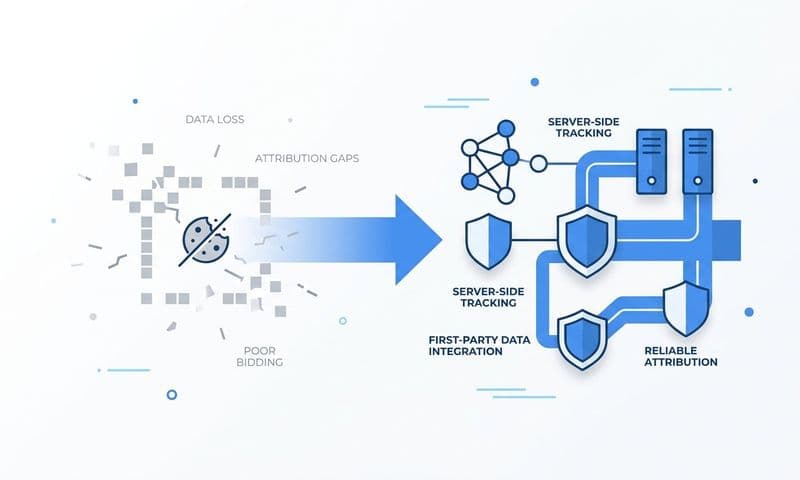
One of the most significant technical challenges in LinkedIn tracking is data loss from browser restrictions and ad blockers. When a user has an ad blocker installed or is browsing in a privacy-focused mode, browser-based pixels like the Insight Tag can fail to fire. Server-side tracking solves this by processing conversion events on the server rather than relying on the user's browser. Cometly's server-side tracking captures these events reliably, ensuring your attribution data is complete even when browser-based tracking falls short.
There is another benefit to feeding enriched conversion data back to LinkedIn's algorithm. When LinkedIn's ad delivery system receives accurate, detailed conversion signals, it can optimize targeting toward the audiences most likely to convert. Cometly's Conversion Sync feeds this enriched data back to LinkedIn and other ad platforms, improving the quality of LinkedIn's algorithmic optimization over time. The result is better targeting, lower cost per quality lead, and stronger overall campaign performance.
Step 6: Analyze Performance and Optimize Based on Revenue Data
Tracking is only valuable if it leads to action. The final step is building a consistent review cadence and using the data to make smarter optimization decisions. This is where the work you have done in the previous five steps pays off.
LinkedIn itself recommends reviewing campaign performance at least weekly and making optimization decisions based on a minimum of seven to fourteen days of data to account for the platform's learning phase. Optimizing too early, before a campaign has had time to exit the learning phase, often leads to decisions based on noise rather than signal.
A practical reporting cadence looks like this:
Weekly review: Check delivery pacing, CTR trends, and cost per lead against your benchmarks. Flag any campaigns that are significantly over or under target. Make small adjustments to bids, budgets, or audience exclusions as needed.
Monthly review: Pull full-funnel data from your CRM and attribution platform. Look at lead-to-opportunity rates by campaign, cost per opportunity, and pipeline influenced. Compare LinkedIn's performance against other paid channels using a unified attribution dashboard.
The monthly review is where the real optimization opportunities surface. When you can see which campaigns are generating pipeline and which are generating leads that stall in the sales process, you can make budget decisions with genuine confidence. Reallocate spend toward campaigns with strong pipeline conversion rates, even if their cost per lead is higher. Pause campaigns that generate volume but no revenue. Knowing how to improve campaign performance with analytics is what turns raw data into actionable budget decisions.
Creative performance deserves its own attention. Using the UTM content parameters you set up in Step 3, you can identify which ad formats, messaging angles, and offers drive the most qualified pipeline. Video ads might generate more engagement but lower conversion rates than direct-response carousel ads on LinkedIn for a specific audience. Without creative-level data tied to revenue outcomes, you would never know.
One more powerful capability worth using: AI-powered optimization recommendations. Platforms like Cometly surface patterns in your campaign data that manual analysis often misses. Instead of spending hours digging through spreadsheets, you get clear recommendations on which campaigns to scale, which audiences to test, and where budget reallocation will have the greatest impact. For marketing teams managing multiple channels simultaneously, this kind of AI-assisted analysis is not just convenient, it is a genuine competitive advantage.
Your LinkedIn Ads Tracking Checklist
Tracking LinkedIn ads performance is not about collecting more data. It is about connecting the right data points to build a clear line from ad spend to revenue. Here is a quick-reference checklist of everything covered in this guide:
1. Install the LinkedIn Insight Tag across all website pages and verify it is firing correctly using LinkedIn's validation tool.
2. Set up conversion actions in Campaign Manager for both micro-conversions (content downloads, form views) and macro-conversions (demo requests, purchases).
3. Define four to six primary KPIs aligned with your campaign objective before launching, and focus on revenue-connected metrics like cost per opportunity rather than vanity metrics.
4. Apply consistent UTM parameters to every LinkedIn ad URL using a standardized structure, and establish a naming convention for all campaigns, ad groups, and creatives.
5. Connect LinkedIn Lead Gen Forms and landing page submissions to your CRM, and verify that UTM data is being captured on every lead record.
6. Implement multi-touch attribution to fairly credit LinkedIn's role across the full buyer journey, and use server-side tracking to prevent data loss from ad blockers and browser restrictions.
7. Review performance weekly for delivery and cost metrics, and monthly for full-funnel pipeline data. Optimize based on revenue outcomes, not just click volume.
When you follow these steps, you move from guessing to knowing. You stop making budget decisions based on platform-reported metrics and start making them based on what actually drives closed revenue.
If you are ready to bring all of this together in one place, Cometly gives you unified cross-platform attribution, AI-powered optimization insights, and server-side tracking that keeps your data accurate across every channel. Get your free demo today and start connecting every LinkedIn touchpoint to the revenue it actually drives.