

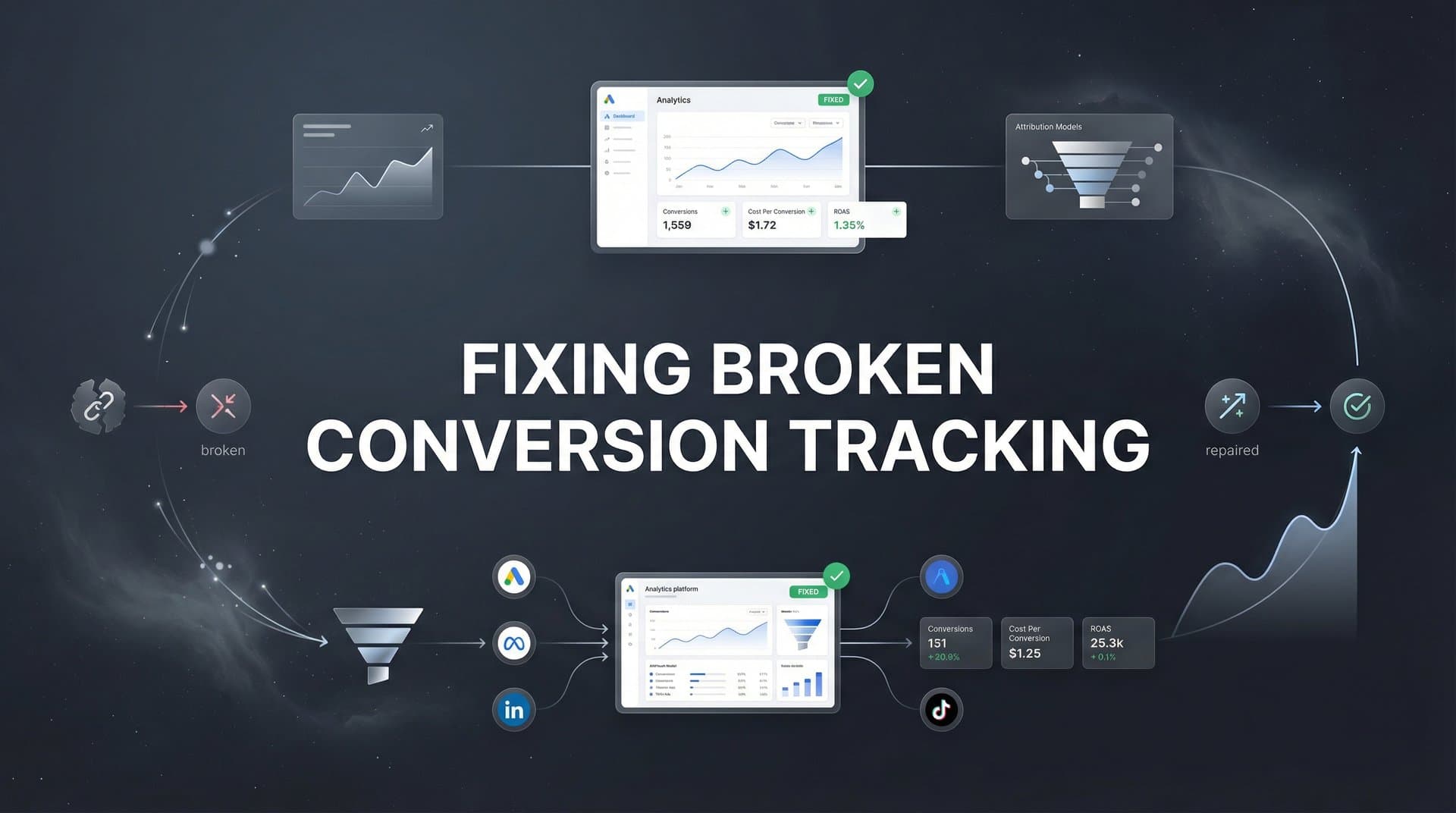
Your ad dashboard shows zero conversions. But you know for a fact that three customers purchased yesterday because you saw the orders in your CRM. Or maybe you're seeing conversions, but the numbers don't match your actual sales—sometimes doubled, sometimes missing entirely. This is the silent killer of paid advertising: broken conversion tracking.
When tracking fails, the damage compounds quickly. Ad platforms can't optimize toward conversions they can't see. Your ROAS calculations become fiction. Budget decisions get made on incomplete data. You might be scaling a campaign that's actually losing money, or pausing one that's your best performer.
The frustrating part? Conversion tracking can break in dozens of ways. A pixel might fire on your homepage but not your thank-you page. Your CRM integration could have lost authentication. iOS privacy restrictions might be blocking data. Server-side tracking could be misconfigured. Attribution windows might be mismatched across platforms.
This guide gives you a systematic diagnostic process to identify exactly where your tracking is failing and how to fix it. You'll learn to spot the symptoms, trace the data flow, identify the break point, and restore accuracy. Whether you're dealing with zero conversions, duplicate events, or mysterious attribution gaps, you'll have a clear troubleshooting framework.
Let's get your tracking back on track.
Step 1: Audit Your Current Tracking Setup and Identify Symptoms
Before you can fix broken tracking, you need to understand what "broken" actually means in your specific situation. Start by creating a complete inventory of every tracking mechanism you have in place.
Open a spreadsheet and document every pixel, tag, and integration currently active. List your Meta Pixel ID, Google Ads conversion tracking tags, TikTok Pixel, LinkedIn Insight Tag, and any other platform pixels. Then document your server-side integrations: Conversions API connections, Google Ads API setups, CRM webhooks, and any third-party attribution tools.
This inventory serves two purposes. First, it shows you the complexity of your tracking architecture—sometimes the problem is simply too many overlapping systems creating conflicts. Second, it gives you a roadmap for systematic testing in the next steps.
Now identify your specific symptoms. Are you seeing zero conversions when sales are definitely happening? That's a complete tracking failure. Are conversion numbers inflated compared to actual sales? You likely have duplicate counting. Do conversions appear in your ad platform hours or days after they actually occurred? That's a delayed reporting issue, often from server-side tracking misconfiguration.
Pull your actual sales data from your source of truth—your CRM, payment processor, or order management system. Compare this against what each ad platform is reporting for the same time period. Look at the past 7 to 30 days to establish a clear baseline.
For example, if your Stripe dashboard shows 47 purchases last week but Meta Ads Manager shows 12 conversions, you've quantified a 74% tracking gap. If Google Ads reports 89 conversions but you only had 47 actual sales, you're double-counting somewhere. Understanding the root causes of inaccurate conversion tracking helps you prioritize which issues to tackle first.
Document these discrepancies with specific numbers and dates. "Tracking seems off" won't help you diagnose the issue. "Meta reported 12 conversions vs. 47 actual sales between Jan 15-22" gives you concrete data to work with.
Pay special attention to patterns. Do certain traffic sources show accurate tracking while others don't? That points to source-specific issues. Do conversions from iOS devices show larger gaps than Android? That's likely privacy restriction problems. Do conversions appear accurate for the first few days of the month then drop off? Could be API rate limiting or authentication expiring.
Step 2: Test Pixel and Tag Firing with Browser Tools
Now that you know what's broken, it's time to trace the data flow. Most conversion tracking starts with browser-based pixels, so that's where you'll begin your diagnostic work.
Open your website in Google Chrome and press F12 to open Developer Tools. Navigate to the Network tab. This shows every request your browser makes, including tracking pixels firing. Now complete a test conversion yourself—add a product to cart, go through checkout, and complete a purchase.
Watch the Network tab during this process. When you land on your order confirmation page, you should see requests firing to fbevents (Meta Pixel), google-analytics, googleadservices (Google Ads), and any other platforms you're tracking. If you don't see these requests, your pixels aren't firing at all.
But seeing a request doesn't guarantee it's working correctly. Click on each tracking request in the Network tab to inspect the payload. For Meta Pixel, you should see event parameters including event name (likely "Purchase"), value, currency, and any custom data you're passing. If these parameters are missing or incorrect, your pixel is firing but sending incomplete data.
Next, install platform-specific debugging tools. Meta Pixel Helper, Google Tag Assistant, and TikTok Pixel Helper are browser extensions that provide real-time feedback on pixel firing. These tools are more user-friendly than raw Developer Tools and will flag common configuration errors.
Run another test conversion with these helpers active. Meta Pixel Helper will show you exactly which events fired, whether they're sending the right parameters, and if there are any errors. It'll catch issues like firing the wrong event name, missing required parameters, or pixels installed multiple times creating duplicates. For a deeper dive into Meta-specific issues, explore our guide on accurate Facebook conversion tracking.
Common pixel firing failures include conditional triggers that aren't being met. Maybe your pixel is set to fire only when a specific element appears on the page, but that element isn't rendering. Or JavaScript errors elsewhere on your page are preventing the pixel code from executing. Check your browser console (also in Developer Tools) for any red error messages.
Another frequent culprit: pixels installed on some conversion pages but not others. You might have the pixel on your main checkout confirmation page, but if customers can also convert through a secondary flow (like a one-click upsell or separate landing page funnel), those conversions go untracked.
Test every possible conversion path. If you have multiple funnels, landing pages, or checkout flows, run test conversions through each one while monitoring pixel firing. Document which paths track correctly and which don't.
Step 3: Diagnose Server-Side and Platform Connection Issues
If your browser-based pixels are firing correctly but conversions still aren't appearing in your ad platforms, the problem likely sits in your server-side tracking or API connections.
Start by verifying that your server-side integrations are actually connected and authenticated. Log into your Meta Events Manager and check your Conversions API status. It should show "Active" with recent events received. If it shows "Not Connected" or hasn't received events in days, your API connection is broken.
The most common cause of broken API connections is expired authentication. When you initially set up server-side tracking, you authenticated your CRM or tracking platform with your ad accounts. These tokens can expire, especially if you change passwords or enable two-factor authentication. Re-authenticate the connection to restore the data flow.
Check for webhook failures if you're using a platform that sends conversion data via webhooks. Your CRM or e-commerce platform might be trying to send conversion events to your tracking platform, but if the webhook endpoint URL changed or the receiving platform is experiencing downtime, those events get dropped.
Many platforms provide webhook logs showing successful and failed delivery attempts. In Shopify, for example, you can view webhook delivery history to see if events are being sent but failing to reach their destination. If you see repeated failures, verify the endpoint URL is correct and the receiving platform is operational. For Shopify stores specifically, understanding Google Ads conversion tracking for Shopify can help prevent these issues.
API rate limiting can also cause conversion data to be dropped, particularly for high-volume businesses. Ad platforms limit how many API calls you can make per hour or day. If you exceed these limits, additional conversion events get rejected. Check your API usage in each platform's developer dashboard.
For Google Ads, verify your conversion tracking setup in the Conversions section. Make sure your conversion actions are set to record "Every" conversion, not "One" per click, unless you specifically want deduplication at the platform level. Confirm the conversion window settings match your business reality. Our comprehensive guide on Google Ads conversion tracking covers these settings in detail.
Test the complete server-side data flow by triggering a conversion and then tracing it through each system. Make a test purchase, then check: Did it appear in your CRM? Did your CRM send it to your attribution platform? Did your attribution platform send it to Meta and Google? Where in this chain does the data disappear?
Step 4: Address iOS Privacy and Browser Blocking Challenges
Even with perfect pixel implementation and API connections, iOS privacy restrictions and browser-level blocking can create significant tracking gaps that are harder to fix.
Since iOS 14.5, Apple's App Tracking Transparency framework requires apps to ask permission before tracking users. Most users decline. This means Meta, TikTok, and other platforms receive drastically reduced data from iOS users. Safari's Intelligent Tracking Prevention also blocks many tracking cookies after just seven days.
For Meta campaigns, verify your Aggregated Event Measurement configuration. Meta limits iOS tracking to eight conversion events per domain. You need to prioritize which events matter most. Log into Events Manager, navigate to Aggregated Event Measurement, and review your event priority order.
Put your most valuable conversion event (likely Purchase) as priority one. If you're tracking multiple conversion types, rank them by business value. Events ranked ninth or lower won't be tracked for iOS users at all, creating attribution gaps.
For Google Ads, implement enhanced conversions to improve match rates despite privacy restrictions. Enhanced conversions use hashed first-party data (email addresses, phone numbers) to match conversions back to clicks even when cookies are blocked. This requires passing customer information to Google in a privacy-safe, hashed format.
Set this up in Google Ads by enabling enhanced conversions in your conversion action settings, then implement the code to pass hashed user data with your conversion tags. Google provides detailed implementation guides for various platforms. Understanding first-party data tracking is essential for making this work effectively.
The most effective solution for iOS and browser blocking is implementing comprehensive server-side tracking. When conversion data is sent directly from your server to ad platforms, it bypasses browser-level restrictions entirely. Server-side tracking isn't affected by ad blockers, privacy browsers, or iOS limitations. Learn more about the differences between Google Analytics vs server-side tracking to determine the best approach for your setup.
However, server-side tracking requires more technical setup. You need a server-side integration between your conversion point (checkout system, CRM, form handler) and each ad platform's API. Many businesses use attribution platforms that handle this complexity, providing server-side tracking across all channels through a single integration.
Step 5: Fix Attribution Window and Deduplication Problems
Sometimes your tracking is working perfectly, but the numbers still look wrong because of attribution window mismatches or duplicate counting between multiple tracking methods.
Attribution windows define how long after someone clicks your ad you'll credit that ad for conversions. Meta defaults to a 7-day click and 1-day view window. Google Ads uses 30 days for Search and 1 day for Display. If your sales cycle is longer than these windows, you're missing conversions that actually came from your ads.
Review your attribution windows in each platform and align them with your actual sales cycle. If customers typically purchase 14 days after first clicking your ad, but your attribution window is only 7 days, you'll see a significant tracking gap. Extend the window to match reality. Understanding different attribution tracking methods helps you choose the right approach for your business.
However, longer attribution windows can also create overlap issues. If someone clicks both a Meta ad and a Google ad before converting, and both platforms use 30-day windows, both will claim credit for the same conversion. This inflates your total reported conversions above actual sales.
Deduplication becomes critical when you're running both client-side pixels and server-side tracking. Without proper deduplication, the same conversion gets counted twice: once from the browser pixel and once from the server-side API.
Implement event ID-based deduplication. When a conversion happens, generate a unique identifier (like the order ID or transaction ID) and send it with both the pixel event and the server-side API event. Ad platforms use this ID to recognize they're the same conversion and count it only once.
For Meta, pass the event_id parameter with both your browser pixel and Conversions API events. For Google Ads, use the transaction_id parameter. Make sure these IDs are identical for the same conversion across both tracking methods.
Also verify that conversion values are passing correctly. If you're optimizing for value-based conversions, the revenue amount needs to reach the ad platform accurately. Check that your currency is set correctly, decimal points are in the right place, and you're sending the actual purchase value, not a static placeholder number.
Test this by making a purchase for a known amount, then checking the conversion value reported in your ad platform. If you spent $127.50 but the platform shows $1.27 or $12,750, you have a decimal or currency formatting issue.
Step 6: Implement Ongoing Monitoring and Prevention Systems
Fixing broken tracking is valuable, but preventing future failures is even more important. Tracking can break silently—you might not notice for days or weeks, during which you're making decisions on bad data.
Set up automated monitoring to catch tracking failures quickly. Most ad platforms allow you to create custom alerts. In Meta Ads Manager, create an automated rule that notifies you if conversions drop below a certain threshold. If you normally see 20-30 conversions per day and suddenly get zero for two consecutive days, you need to know immediately.
Similarly, set up alerts for unusual spikes. If conversions suddenly double overnight without a corresponding increase in spend or traffic, you likely have a duplicate counting issue that needs investigation.
Create a weekly tracking audit checklist. Every Monday, compare last week's ad platform conversion counts against your CRM or order system. If Meta reported 87 conversions but you had 94 actual sales, investigate the 7-conversion gap. Document these weekly comparisons in a spreadsheet to spot trends over time. Following best practices for tracking conversions accurately makes these audits more effective.
This weekly audit catches gradual tracking degradation. Maybe your tracking accuracy slowly declines from 95% to 85% to 70% over several weeks. Without regular audits, you might not notice until it's completely broken.
Document your entire tracking architecture in detail. Create a diagram showing every pixel, tag, integration, and data flow. Include specifics: which pixels are installed where, what events they track, how server-side data flows from your CRM to each ad platform, and what deduplication methods you're using.
When tracking breaks in the future (and it will), this documentation lets you diagnose issues quickly instead of trying to remember how everything is connected. It's also critical when team members change or you bring in external help. For complex setups, exploring enterprise conversion tracking solutions can provide the infrastructure needed for reliable monitoring.
Finally, establish a testing protocol for any website or funnel changes. Before launching a new landing page, checkout flow, or website redesign, test conversion tracking thoroughly. Make test purchases through the new flow while monitoring pixel firing and conversion reporting. Catch tracking issues before they go live and affect real customer data.
Restoring Confidence in Your Marketing Data
Broken conversion tracking isn't a mystery to solve through trial and error. It's a systematic diagnostic process: audit your setup, test pixel firing, verify API connections, address privacy restrictions, fix attribution and deduplication issues, then implement ongoing monitoring.
Start with the symptoms. Quantify exactly how your reported conversions differ from actual sales. Then work through each potential failure point methodically. Use browser developer tools to verify pixels fire correctly. Check API authentication and webhook delivery. Configure Aggregated Event Measurement and enhanced conversions to handle iOS restrictions. Implement proper deduplication between client and server-side tracking.
The difference between broken and accurate tracking is the difference between guessing and knowing. When tracking works, ad platforms can optimize effectively. Your attribution data becomes trustworthy. You can confidently scale campaigns based on real performance.
Ongoing monitoring is what separates a one-time fix from long-term tracking integrity. Automated alerts catch failures immediately. Weekly audits spot gradual degradation. Documented architecture enables fast troubleshooting. Testing protocols prevent new changes from breaking existing tracking.
For teams managing complex multi-platform campaigns, maintaining tracking accuracy across every channel becomes a significant operational challenge. Server-side tracking solutions can simplify this by providing unified, privacy-resistant tracking across all your marketing touchpoints. Tools like Cometly capture every touchpoint from ad clicks to CRM events, giving you a complete view of every customer journey while feeding enriched conversion data back to ad platforms to improve their optimization.
Ready to elevate your marketing game with precision and confidence? Discover how Cometly's AI-driven recommendations can transform your ad strategy—Get your free demo today and start capturing every touchpoint to maximize your conversions.


