
LinkedIn Ads can be one of the most powerful channels for B2B marketers, but without proper attribution setup, you are flying blind. You might be spending budget on campaigns that look active but have no clear connection to pipeline or revenue.
The core problem is that LinkedIn's native reporting only tells part of the story. It shows impressions, clicks, and form fills, but it rarely connects those touchpoints to the deals that actually close. That gap leaves marketers guessing about which campaigns, audiences, and creatives are truly driving results.
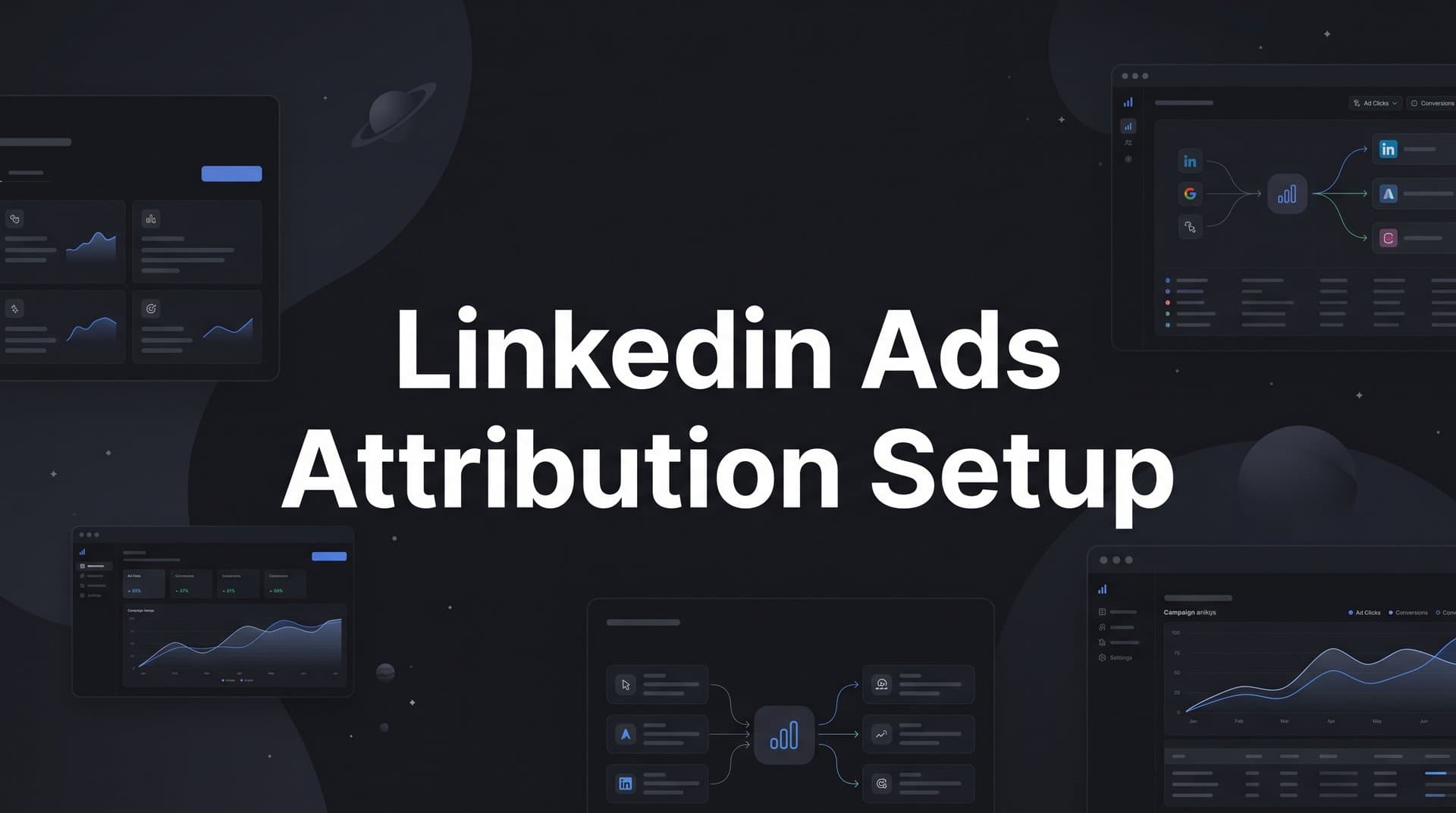
This guide walks you through a complete LinkedIn Ads attribution setup, from configuring the LinkedIn Insight Tag and conversion tracking to connecting your CRM data and analyzing performance with a multi-touch attribution model. By the end, you will have a tracking foundation that ties LinkedIn activity directly to revenue, not just vanity metrics.
Whether you are running lead gen forms, website conversion campaigns, or retargeting sequences, these steps apply across the board. You will also learn how platforms like Cometly can fill the gaps that LinkedIn's native tools leave behind, giving you a full-funnel view of how your LinkedIn spend contributes to growth alongside every other channel you run.
Let's get into it.
Step 1: Install and Verify the LinkedIn Insight Tag
The LinkedIn Insight Tag is a lightweight JavaScript snippet that serves as the foundation for everything else in your attribution setup. It enables conversion tracking, website retargeting, and demographic insights for your LinkedIn Ads campaigns. Without it firing correctly across your entire site, LinkedIn simply cannot attribute website conversions back to your campaigns.
Here is how to install it properly.
Navigate to LinkedIn Campaign Manager and select your account. Go to Account Assets in the top navigation, then select Insight Tag. You will see the option to copy your global tag snippet. This is the code you need to place on your website.
Placement matters more than most marketers realize. Add the tag to the global header of your website so it fires on every single page, not just your landing pages or thank-you pages. B2B buyers often visit multiple pages before converting, and if the tag only fires on select pages, you will have attribution gaps for any user who takes a different path to conversion.
Once installed, verification is your next move. LinkedIn provides two tools for this. The first is LinkedIn's built-in tag validator inside Campaign Manager, which checks whether your domain is sending data. The second is the LinkedIn Insight Tag Helper, a Chrome extension that lets you inspect tag behavior directly on any page of your site. Use both to confirm the tag is firing as expected.
Common pitfall to avoid: Many teams install the tag only on key landing pages during initial setup, then forget to add it to new pages as the site grows. This creates silent attribution gaps that compound over time. Make the global header installation a non-negotiable standard, and include tag verification in your QA process whenever new pages are launched.
Success indicator: Within 24 hours of correct installation, your Insight Tag status in Campaign Manager will update to "Active." If it remains inactive after 24 hours, revisit the placement and use the Chrome extension to diagnose where the tag may be missing or misfiring.
This step is the bedrock of your entire LinkedIn attribution setup. Every conversion event, retargeting audience, and demographic insight you build later depends on this tag firing reliably across your site. For a broader look at how to build a complete attribution tracking setup that works across channels, that guide covers the full picture.
Step 2: Configure Conversion Events in LinkedIn Campaign Manager
With your Insight Tag verified and active, the next step is telling LinkedIn what actions actually matter to your business. Conversion events are how you define which user actions should be credited back to your ads, and they directly affect both your reporting accuracy and LinkedIn's ability to optimize your campaigns.
To create a conversion event, go to Campaign Manager, select Account Assets, then Conversions, and click Create Conversion. You will be prompted to define the event type, assign a value, and set your attribution window.
When choosing event types, think in terms of your actual business goals rather than generic actions. For most B2B marketers, the most meaningful conversions include demo requests, free trial signups, contact form submissions, and content downloads that indicate genuine buyer intent. Avoid setting up vague conversions like "page visit" that do not reflect real progress through your funnel.
Attribution window selection: LinkedIn lets you set separate windows for click-through and view-through attribution. For B2B marketers with longer sales cycles, extending the click attribution window to 30 or 90 days often makes sense. Buyers in complex purchasing decisions may click a LinkedIn ad, research for weeks, and then convert well outside a standard 7-day window. Understanding attribution window best practices for paid ads will help you match your window to the realistic length of your sales cycle.
URL-based vs. event-specific tracking: For conversions that happen on a dedicated thank-you page, use URL-based tracking with a "URL contains" rule pointing to that specific page. For dynamic pages, single-page applications, or actions that do not produce a unique URL, use LinkedIn's event-specific pixel code instead. This fires a conversion event based on a specific user action like a button click rather than a page load.
Common pitfall to avoid: Overly broad URL rules are one of the most frequent mistakes in LinkedIn conversion setup. If your rule matches a URL pattern shared by multiple pages, you will count page visits as conversions and inflate your numbers significantly. Be as specific as possible with your URL rules, and always test them before launching campaigns.
Assign conversion values where possible. Even rough estimates of deal value help LinkedIn's algorithm prioritize higher-value actions. If a demo request is worth more to your business than a content download, assigning different values signals that priority to the optimization engine.
Success indicator: After setup, conversions should begin populating in Campaign Manager within the attribution window once users start completing those actions. If you see zero conversions after a reasonable period of campaign activity, revisit your URL rules or event-specific code to identify the issue.
Step 3: Add UTM Parameters to All LinkedIn Ad URLs
The LinkedIn Insight Tag tracks behavior on your site, but UTM parameters are what connect that behavior to your analytics platform and attribution tool. Without UTMs, you cannot identify which specific campaign, ad creative, or audience segment drove a particular visit or conversion. You just see a blob of traffic labeled "LinkedIn" with no further context.
Appending UTM parameters to every destination URL in your LinkedIn campaigns is a non-negotiable step for any serious attribution setup.
Here is the recommended UTM structure for LinkedIn campaigns:
utm_source: Use "linkedin" consistently across all campaigns so your analytics platform groups all LinkedIn traffic together.
utm_medium: Use "paid-social" to distinguish LinkedIn paid traffic from organic LinkedIn visits or other paid channels.
utm_campaign: Use a descriptive campaign name that matches how you have named the campaign in LinkedIn Campaign Manager. Consistency here makes cross-referencing much easier.
utm_content: Use this field to identify the specific ad creative or ad variation. This is especially valuable when you are running A/B tests across multiple creatives within the same campaign.
utm_term: Use this field to capture audience or targeting information, such as the audience segment or job title targeting you are using for that ad set.
You can add UTMs directly in the ad URL field inside Campaign Manager, or use LinkedIn's built-in URL builder tool to generate properly formatted URLs. Either approach works, but whichever you choose, build a naming convention document and share it with your entire team.
Consistency is everything. If one team member writes "LinkedIn" and another writes "linkedin" and a third writes "Linked-In," your analytics platform will treat these as three separate sources. All the granularity you built into your UTM structure falls apart. Standardize capitalization, spacing, and labeling before you run a single campaign.
The Lead Gen Form challenge: LinkedIn Lead Gen Forms do not have a destination URL, which means you cannot append UTMs the traditional way. This is a common gap that causes LinkedIn leads to appear in your CRM with no source data. The solution is to use LinkedIn's hidden fields feature, which allows you to pass UTM values into the form submission data when a lead completes the form. Map those hidden fields to corresponding fields in your CRM so every lead record captures the campaign, medium, and content that drove the conversion.
Success indicator: LinkedIn traffic appears correctly segmented in your analytics platform with campaign-level granularity. You should be able to filter by campaign name, ad creative, and audience segment to see how each variable performs downstream. A dedicated LinkedIn ads tracking platform can automate much of this segmentation and surface campaign-level insights without manual data wrangling.
Step 4: Connect LinkedIn to Your CRM for Pipeline Attribution
This is where LinkedIn attribution shifts from surface-level metrics to real business intelligence. LinkedIn's native reporting can tell you how many leads a campaign generated. Your CRM is what tells you how many of those leads turned into qualified opportunities, closed deals, and actual revenue. Without connecting the two, you are measuring LinkedIn's performance against the wrong outcomes.
The goal of this step is to sync LinkedIn lead data and conversion events with your CRM so you can track contacts from their first LinkedIn touchpoint all the way through to closed revenue.
LinkedIn has native CRM integrations available for HubSpot, Salesforce, and several other major platforms. These integrations allow you to sync leads from LinkedIn Lead Gen Forms directly into your CRM automatically, eliminating the manual export process and the data delays that come with it. To set this up, navigate to Account Assets in Campaign Manager, select Lead Gen Forms, and look for the CRM sync option within your form settings.
Capturing UTM data in your CRM: Syncing lead records is only half the job. Each contact record also needs to carry the UTM parameters from the ad that drove the conversion. This is what allows you to filter your CRM pipeline by LinkedIn campaign and see which specific campaigns are generating qualified opportunities versus leads that go cold.
If your CRM integration does not automatically pass UTM data, revisit the hidden fields setup from Step 3 and ensure those fields are mapped correctly to contact properties in your CRM. Test this by submitting a test lead through a LinkedIn Lead Gen Form and checking whether the campaign source, medium, and content fields populate on the resulting contact record.
Common pitfall to avoid: Many teams complete the lead sync but skip the UTM mapping step. The result is a CRM full of LinkedIn leads with no source data attached. You know they came from LinkedIn, but you cannot tell which campaign, audience, or creative generated them. That makes it impossible to connect specific ad spend to pipeline outcomes. Building a reliable campaign attribution tracking system from the start prevents this gap from forming.
How Cometly bridges this gap: Platforms like Cometly are built specifically to connect LinkedIn ad data with CRM pipeline data in a unified view. Rather than manually cross-referencing Campaign Manager exports with CRM reports, Cometly pulls everything together so you can see which campaigns are generating qualified pipeline, not just raw leads, without building complex manual workflows.
Success indicator: New leads from LinkedIn appear in your CRM with campaign source, medium, and content fields populated automatically. You can filter your pipeline by LinkedIn campaign and see which campaigns are producing opportunities that actually progress through your sales process.
Step 5: Set Up Multi-Touch Attribution Across Your Full Funnel
Here is where most LinkedIn attribution setups fall short. Even teams that nail the Insight Tag, conversion events, UTMs, and CRM sync often default to last-click attribution when it comes time to evaluate performance. And for B2B marketers, last-click attribution is one of the most misleading ways to measure LinkedIn's contribution.
B2B buyers rarely click one ad and immediately convert. They interact with multiple channels across weeks or months before making a decision. A prospect might see a LinkedIn sponsored post, read a blog post from organic search, engage with a retargeting ad on Google, and then finally request a demo after receiving a nurture email. Last-click attribution gives all the credit to the email and zero credit to the LinkedIn ad that started the journey.
Multi-touch attribution distributes credit across all the touchpoints that influenced a conversion, giving you a far more accurate picture of each channel's true contribution. Understanding digital marketing attribution measurement in depth will help you choose the right model for your specific sales cycle and business goals.
Attribution model options to consider:
Linear attribution divides credit equally across every touchpoint in the buyer journey. This is a solid starting point for B2B teams that want to acknowledge every interaction without making complex assumptions about which touchpoints matter most.
Time decay attribution gives more credit to touchpoints that occurred closer to the conversion. This can work well for shorter sales cycles but may undervalue LinkedIn's role in early-stage awareness for longer deals.
Position-based attribution assigns the most credit to the first and last touchpoints, with the remaining credit distributed across middle interactions. This model tends to work well for B2B marketers who want to recognize both the channel that started the journey and the one that closed it.
Data-driven attribution uses algorithmic modeling to assign credit based on actual conversion patterns in your data. This is the most accurate approach but requires sufficient conversion volume to be reliable.
For most B2B marketers with longer sales cycles, position-based or linear attribution will give you the most balanced view of LinkedIn's contribution without requiring large data sets.
How Cometly supports this step: Cometly captures every touchpoint from ad clicks to CRM events and applies attribution models across all channels simultaneously. This means you can see LinkedIn's attributed pipeline value alongside Google, Meta, and every other channel in a single dashboard. You can compare LinkedIn's assisted conversions against its last-touch conversions and understand exactly where it fits in your funnel rather than relying on siloed platform reports.
Success indicator: You can view LinkedIn's attributed pipeline value in a unified dashboard alongside every other paid channel, and you can see how that value changes across different attribution models.
Step 6: Validate Your Data and Audit for Tracking Gaps
You have installed the tag, configured conversions, added UTMs, connected your CRM, and set up multi-touch attribution. Now you need to verify that all of it is actually working. Tracking gaps are insidious because they do not announce themselves. They quietly corrupt your attribution data over time, and you only discover them when budget decisions have already gone wrong.
A systematic audit is how you catch and close those gaps before they compound.
Start by comparing conversion counts in LinkedIn Campaign Manager against your analytics platform for the same date range. Pull the last 30 days of conversion data from both sources and look for significant discrepancies. Some variance is normal due to attribution window differences and deduplication logic, but large gaps signal a real tracking issue that needs investigation.
Common gaps to check during your audit:
Redirect-based thank-you pages: If your thank-you page loads via a redirect, the LinkedIn pixel may fire before the redirect completes, resulting in missed conversions. Test this by completing a conversion action yourself and checking whether the event appears in Campaign Manager.
Single-page applications: SPAs do not trigger standard page-view events when users navigate between sections. If your site is built on a framework like React or Vue, ensure your conversion events use event-specific pixel code rather than URL-based rules.
LinkedIn Lead Gen Forms without CRM sync: If your Lead Gen Form leads are not syncing to your CRM or not carrying UTM data, you have a gap in your pipeline attribution that will cause you to undervalue LinkedIn's contribution.
The case for server-side tracking: Browser-based tracking is increasingly unreliable due to ad blockers, cookie restrictions, and browser privacy changes. For B2B advertisers where each lead carries significant value, a missed conversion is not a rounding error. It is a distortion in your attribution data that can lead to cutting campaigns that are actually working.
Server-side tracking sends conversion data directly from your server rather than the browser, making it far less susceptible to these issues. Leveraging first-party data tracking for ads is the most reliable way to ensure conversion events are recorded accurately even when browser-based methods would have missed them. Cometly's server-side tracking is designed specifically for this use case.
Manual end-to-end testing: The most reliable way to validate your setup is to test every conversion path yourself. Click a LinkedIn ad, complete the conversion action, and confirm the event appears in both LinkedIn Campaign Manager and your attribution platform. Do this for every conversion type you have configured.
Success indicator: Conversion counts between LinkedIn Campaign Manager and your attribution platform align within an acceptable margin, and every major conversion path is represented in your data with no significant gaps.
Step 7: Analyze Performance and Optimize Based on Attribution Data
All the setup work you have done only pays off when it drives real decisions. Attribution data is not a reporting exercise. It is an optimization tool. This final step is where the tracking infrastructure you have built translates into better ROI and smarter budget allocation.
The metrics you want to focus on are not the ones LinkedIn's native dashboard highlights by default. Move past cost-per-click and cost-per-lead. The metrics that actually matter for B2B LinkedIn campaigns are cost per attributed pipeline, cost per closed deal by campaign, and LinkedIn's assisted conversion rate across different audience segments.
These metrics tell you whether LinkedIn is generating revenue, not just activity.
Key optimization actions to take based on your attribution data:
Pause campaigns with high click volume but low attributed pipeline. High engagement does not equal business impact. If a campaign is generating plenty of clicks and form fills but those leads are not progressing through your pipeline, that budget is better deployed elsewhere.
Scale campaigns with strong pipeline-to-spend ratios. When attribution data shows a specific campaign or audience segment consistently generating qualified opportunities, that is your signal to increase investment. Attribution clarity gives you the confidence to scale without guessing. Reviewing attribution reporting issues in paid ads can help you identify and eliminate the blind spots that distort these ratios before you act on them.
Test new audiences based on which segments convert to revenue. Look at the audience characteristics of your highest-value closed deals and use that data to build new LinkedIn targeting segments. Attribution data from your CRM tells you which job titles, industries, and company sizes are actually buying, not just clicking.
How Cometly accelerates this process: Cometly's AI-powered recommendations surface which LinkedIn campaigns and ad creatives are generating the highest-quality pipeline, so you do not have to manually cross-reference Campaign Manager data with CRM reports to find the answer. The platform identifies what is working and flags what is not, giving you a clear action plan rather than a data dump.
Conversion Sync for algorithm improvement: Once you have clean attribution data, feed it back into LinkedIn's ad platform via conversion sync. Sending enriched, conversion-ready events back to LinkedIn improves the platform's own targeting and optimization algorithm. LinkedIn gets better data about which users are converting to revenue, not just filling out forms, and it uses that signal to find more users who match that profile.
Common pitfall to avoid: Optimizing for LinkedIn's native conversion metrics like form fills without checking whether those leads actually progress through the pipeline. A campaign that generates 50 form fills with zero pipeline contribution is not a success. Attribution data is what reveals the difference.
Success indicator: You can make a clear, data-backed case for LinkedIn's contribution to revenue and adjust spend with confidence rather than guesswork. Budget decisions are driven by pipeline data, not platform-reported metrics.
Putting It All Together: Your LinkedIn Attribution Checklist
Setting up LinkedIn Ads attribution correctly is not a one-time task. It is a foundation that makes every future campaign decision sharper, faster, and more defensible. Here is a quick checklist to confirm your setup is complete before you start making optimization decisions based on the data.
LinkedIn Insight Tag installed globally and verified as active. Confirmed in Campaign Manager within 24 hours of installation.
Conversion events created with appropriate attribution windows. Each event reflects a real business action, with windows matched to your sales cycle length.
UTM parameters added consistently to all ad URLs and Lead Gen Forms. Naming conventions documented and shared across the team.
LinkedIn leads syncing to your CRM with source data intact. Every contact record includes campaign, medium, and content fields populated automatically.
Multi-touch attribution model applied across all channels. LinkedIn's contribution is visible alongside every other paid channel in a unified view.
Tracking audit completed with no major gaps identified. Conversion counts align between Campaign Manager and your attribution platform.
Performance review process in place to act on attribution data. Budget decisions are grounded in pipeline and revenue metrics, not vanity metrics.
Once these steps are in place, you stop guessing about LinkedIn's ROI and start making decisions grounded in real pipeline data. Platforms like Cometly are built to make this entire process faster and more accurate, connecting your LinkedIn ads, CRM, and website data into one clear view of what is driving revenue.
If you are ready to see exactly which LinkedIn campaigns are generating pipeline and revenue, Get your free demo today and start capturing every touchpoint to maximize your conversions.