Pinterest has quietly become one of the more underrated advertising channels for B2B SaaS and e-commerce brands. Unlike most social platforms where users scroll passively, Pinterest users arrive with intent. They are actively searching for ideas, tools, and solutions, which puts them closer to a buying decision than audiences on many other platforms.
But here is the problem: most advertisers running Pinterest campaigns are flying blind. They see impressions and clicks in the native dashboard, but they have no clear picture of which ads are driving actual revenue. Without proper tracking in place, you cannot answer the questions that matter most. Which campaigns are generating leads? Which creatives are contributing to pipeline? Is Pinterest worth scaling, or is it quietly burning budget?
This guide walks you through every step of setting up Pinterest ads tracking correctly. From installing the Pinterest tag to connecting your ad data to a full-funnel attribution platform, you will come away with a complete, working tracking setup that tells you exactly what is happening across your Pinterest campaigns.
This is not just about counting clicks. The goal is to connect your Pinterest ad spend to real business outcomes: leads, demo requests, trial starts, and closed revenue. When you have that visibility, you can make confident budget decisions and scale what is actually working.
Whether you are starting from scratch or trying to fix gaps in an existing setup, this step-by-step guide gives you a clear path forward.
Step 1: Install the Pinterest Tag on Your Website
The Pinterest tag is the foundation of everything. Without it, Pinterest has no way to track what happens after someone clicks your ad. Think of it as the bridge between your ad platform and your website, capturing user behavior and reporting it back so you can measure conversions and optimize campaigns.
The tag is a JavaScript snippet that lives in the header of your website. It fires on page load and collects data about visitor activity, which Pinterest uses for conversion reporting, audience building, and ad optimization. Understanding what a tracking pixel is and how it works will help you get the most out of this setup.
Finding the Tag in Pinterest Ads Manager: Log into Pinterest Ads Manager and navigate to the Conversions section. From there, select "Pinterest tag" and you will find your unique base code. This is the snippet you need to install across every page of your site.
Two Installation Methods: Pinterest gives you two paths. The first is manual implementation, where a developer pastes the base code directly into the <head> section of your website's HTML. The second, and generally recommended approach for most marketing teams, is using Google Tag Manager. With GTM, you create a new Custom HTML tag, paste the Pinterest base code, and set it to fire on all pages. This keeps your tracking organized and removes the need for developer involvement every time you make changes.
Base Code vs. Event Code: This is where many teams go wrong. The base code fires on every page and tells Pinterest a visitor arrived. But it does not tell Pinterest what that visitor did. Event codes are separate snippets that fire on specific actions, like a form submission or a trial signup. You need both. The base code alone will show you traffic, but it will not give you conversion data.
Common Pitfall: Installing only the base code is one of the most frequent mistakes in Pinterest ads tracking setups. Teams see the tag show as active and assume they are done. They are not. Event codes are what connect ad spend to actual conversions.
Success Indicator: After installation, the tag should show as active in Pinterest Ads Manager within 24 hours. You can verify it is firing correctly by visiting your website and checking the Conversions section in Ads Manager to confirm tag activity is being recorded.
Step 2: Define and Configure Your Conversion Events
Now that your base tag is in place, the next step is telling Pinterest what actions actually matter to your business. This is where conversion events come in.
Pinterest supports a set of standard event types: PageVisit, ViewCategory, AddToCart, Checkout, Lead, SignUp, WatchVideo, and Custom. Each one is designed to capture a specific type of user action. The key is choosing the events that map directly to your business goals rather than tracking everything and drowning in noise.
For B2B SaaS Teams: Your highest-priority events are typically Lead and SignUp. Lead captures form submissions, demo requests, and contact inquiries. SignUp captures trial starts and account creation. These are the actions that indicate genuine buying intent and connect most directly to pipeline. If your funnel includes actions that do not fit neatly into standard event types, Custom events give you the flexibility to track anything specific to your product experience.
Setting Up Events in Pinterest Ads Manager: Navigate to the Conversions section and select your Pinterest tag. From there, you can define conversion events and assign them to specific tag configurations. For each event, you will specify the event type and, where applicable, add event parameters. Mastering conversion tracking best practices will help you build a more reliable measurement foundation.
Event Parameters That Add Depth: Parameters like value, order_quantity, currency, and line_items allow you to pass richer data alongside each event. For SaaS teams, passing a value with your Lead or SignUp events, even an estimated pipeline value, enables revenue-level reporting inside Pinterest Ads Manager. This transforms your dashboard from showing raw conversion counts to showing actual business impact.
Verifying Events with Pinterest Tag Helper: Pinterest offers an official Chrome extension called Pinterest Tag Helper. Install it, visit your website, and trigger the actions you have set up as events. The extension will show you in real time whether each event is firing correctly, what parameters are being passed, and whether there are any errors. This is an essential verification step before you start spending against these events.
Common Pitfall: Tracking too many events without a clear priority hierarchy creates reporting clutter. When everything is a conversion, nothing is. Identify the two or three events that most directly indicate revenue potential and make those your primary conversion goals.
Success Indicator: Your configured events appear in the Conversions dashboard with accurate counts that match what you would expect based on actual form submissions or signups on your site.
Step 3: Set Up UTM Parameters for Every Pinterest Campaign
Even with the Pinterest tag firing perfectly, you need UTM parameters. Here is why: the Pinterest tag tells Pinterest what happened. UTM parameters tell your own analytics and attribution tools where that traffic came from. These two systems work together, and skipping UTMs means you are missing half the picture.
UTM parameters are tags added to the end of your destination URLs. When someone clicks your ad and lands on your site, those parameters are captured by your analytics platform and any attribution tool you are running. They let you segment Pinterest traffic accurately and compare it against other channels on a level playing field. If you are new to this concept, this guide on what UTM tracking is and how it helps your marketing covers the fundamentals in depth.
The Five UTM Parameters: Source identifies where the traffic came from. Medium identifies the marketing channel. Campaign identifies the specific campaign. Content identifies the ad group or creative. Term is typically used for keyword targeting but can be adapted for Pinterest ad targeting details.
Recommended UTM Structure for Pinterest:
utm_source: pinterest
utm_medium: paid-social
utm_campaign: [your campaign name, e.g., q2-trial-acquisition]
utm_content: [ad group or creative name, e.g., homepage-banner-v2]
Keeping the source and medium values consistent across all Pinterest campaigns is critical. If one campaign uses "Pinterest" and another uses "pinterest" and a third uses "pinterest-ads," your analytics platform will treat them as three different sources. Consistency is everything.
Dynamic UTM Parameters: Pinterest supports dynamic parameters that auto-populate values based on your campaign structure. For example, using {campaign_name} in your UTM string will automatically insert the actual campaign name when the ad is served. This reduces manual errors and saves time, especially when managing large campaign structures. Common dynamic parameters include {campaign_name}, {adgroup_name}, and {ad_id}.
Where to Apply UTMs: Set UTM parameters at the ad level in Pinterest Ads Manager when building or editing your ads. You can also apply them at the campaign or ad group level depending on how granular you want your reporting to be. For most teams, ad-level UTMs give the most actionable data. Pairing UTMs with a structured marketing campaign tracking approach ensures your data stays clean and comparable across channels.
Common Pitfall: Inconsistent naming conventions are the silent killer of cross-channel reporting. When campaign names in UTMs do not match what is in your CRM or attribution platform, reconciling data becomes a manual headache. Establish a naming convention document and enforce it across your team before launching any campaign.
Success Indicator: UTM data flows into your analytics platform and correctly segments Pinterest traffic. You can filter by utm_source=pinterest and see accurate session, conversion, and revenue data attributed to your Pinterest campaigns.
Step 4: Connect Pinterest to Your Attribution Platform
Pinterest's native reporting gives you a starting point, but it has a significant limitation: it defaults to view-through attribution. This means Pinterest will claim credit for conversions that happened after someone simply saw your ad, even if they never clicked it and converted through a completely different channel days later. This inflates reported conversion counts and can make Pinterest look more effective than it actually is in isolation.
To get an accurate picture of Pinterest's role in your customer journey, you need to connect your Pinterest ad data to a cross-channel attribution platform. This is where the real insight lives.
Why Cross-Channel Attribution Matters: Most B2B customer journeys involve multiple touchpoints across multiple channels before a conversion happens. A prospect might discover your product through a Pinterest ad, later search for it on Google, click a retargeting ad on LinkedIn, and then convert through an email. If you only look at Pinterest's native dashboard, you will either over-credit or under-credit the channel depending on which window you are using.
How Cometly Integrates with Pinterest: Cometly connects directly to Pinterest Ads Manager to pull in spend, impressions, clicks, and conversion data alongside your other ad channels. Instead of toggling between platform dashboards, you get a unified view where Pinterest sits next to Google, Meta, LinkedIn, and any other channel you are running. This makes it possible to compare performance on a consistent, apples-to-apples basis.
Multi-Touch Attribution Models: Within Cometly, you can apply different attribution models to your Pinterest data. Linear attribution distributes credit equally across all touchpoints. Time decay gives more credit to touchpoints closer to the conversion. Data-driven attribution uses historical patterns to assign credit based on actual influence. Each model tells a different story, and being able to switch between them helps you understand Pinterest's true contribution at different stages of the funnel. For a deeper look at how to build this kind of system, see this guide on attribution tracking setup.
Mapping Pinterest Events to Revenue: One of the most powerful capabilities of connecting Pinterest to an attribution platform is the ability to map conversion events to CRM pipeline stages and actual revenue. When a Lead event from Pinterest maps to a qualified opportunity in your CRM, and that opportunity eventually closes, you can trace that revenue back to the specific Pinterest campaign that initiated the journey. This is the level of visibility that justifies or challenges budget decisions.
Common Pitfall: Relying solely on Pinterest's last-click or view-through attribution window leads to distorted ROI calculations. Teams often over-invest in Pinterest based on inflated native numbers, or they dismiss it entirely because it rarely gets last-click credit. Neither conclusion is accurate without cross-channel data.
Success Indicator: Your Pinterest campaigns appear in your attribution dashboard alongside other channels, showing accurate spend, conversion counts, and revenue attribution that you can trust for budget decisions.
Step 5: Implement Server-Side Tracking for More Accurate Data
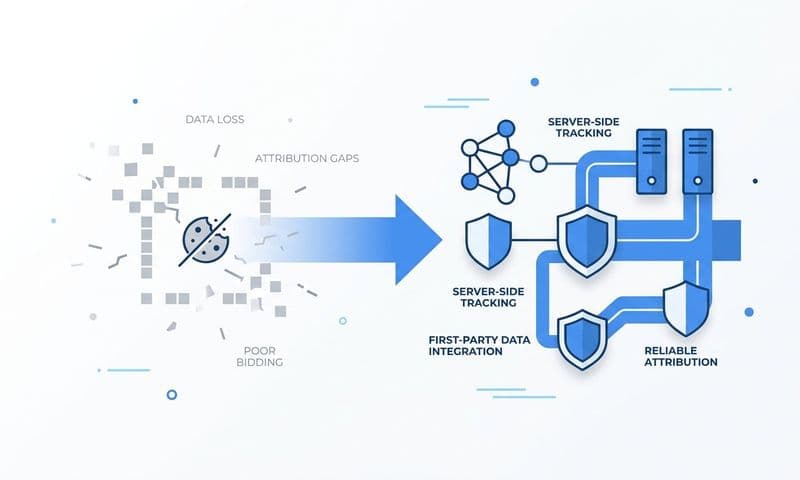
Browser-based pixel tracking has a fundamental vulnerability: it depends on the user's browser to execute correctly. Ad blockers prevent the Pinterest tag from firing. Safari's Intelligent Tracking Prevention limits cookie lifespans. iOS privacy changes have reduced the reliability of browser-based tracking across every ad platform, not just Pinterest. The result is that a meaningful portion of your conversions may simply not be getting reported.
Server-side tracking solves this by moving the data transmission from the user's browser to your own server. Instead of relying on a JavaScript snippet in the browser, your server sends conversion data directly to Pinterest through their Conversions API, commonly referred to as CAPI. Because this happens server-to-server, it bypasses all browser-level restrictions entirely. Understanding why server-side tracking is more accurate is essential context before implementing this approach.
How Pinterest's Conversions API Works: When a user completes a conversion action on your site, your server captures that event and sends it directly to Pinterest's CAPI endpoint. This includes the event type, timestamp, and any parameters you are passing, such as value or email hash for matching. Pinterest receives the data regardless of whether the user has an ad blocker installed or is browsing on a privacy-restricted device.
Setting Up CAPI: The implementation involves connecting your backend or a middleware tool to Pinterest's API endpoint. If you are using a customer data platform or a tool like Cometly that supports server-side event forwarding, much of this can be configured without custom development. For teams building a custom integration, Pinterest's developer documentation provides the API specifications and authentication requirements.
Event Deduplication is Non-Negotiable: When you run both the browser-based Pinterest tag and CAPI simultaneously, which you should, there is a risk of counting the same conversion twice. Pinterest handles this through event deduplication. To make it work, you need to send a unique event ID with both the pixel event and the CAPI event for the same action. Pinterest will then match them and count the conversion only once. Skipping this step will inflate your conversion counts and corrupt your reporting.
Why This Improves Ad Performance: Beyond accurate reporting, better data feeds Pinterest's algorithm. Higher match rates from server-side events help Pinterest understand which users are converting, which improves its ability to optimize ad delivery and find more users who look like your best customers. Better data in means better targeting out.
Common Pitfall: Teams implement CAPI without the deduplication logic and end up with inflated conversion numbers that make campaigns appear more efficient than they are. Always confirm that unique event IDs are being passed and that Pinterest is correctly deduplicating events in the Events Manager.
Success Indicator: CAPI events appear in Pinterest's Events Manager alongside your pixel events. The dashboard shows a healthy match rate, and conversion counts are consistent with what you would expect based on actual site activity rather than showing an obvious inflation.
Step 6: Analyze Pinterest Ad Performance and Optimize with Data
With your tracking infrastructure in place, the real work begins: turning data into decisions. Having accurate data is only valuable if you are reviewing it consistently and using it to improve campaign performance.
Key Metrics to Monitor in Pinterest Ads Manager: Start with the fundamentals. CPM tells you how efficiently you are reaching your audience. CPC tells you how much you are paying for each click. CTR indicates how compelling your creative is to the people seeing it. Conversion rate shows how well your landing page and offer are converting Pinterest traffic. Cost per conversion and ROAS are your bottom-line efficiency metrics. Review these regularly and look for trends, not just snapshots. For a broader view of how to evaluate paid ads analytics across channels, the same principles apply.
Comparing Pinterest Against Other Channels: This is where your attribution platform becomes essential. Pinterest's native metrics are useful for understanding in-platform performance, but they do not tell you how Pinterest compares to Google, Meta, or LinkedIn on a consistent basis. In Cometly, you can view all channels side by side with the same attribution model applied, so you are making comparisons on equal footing. This prevents the common mistake of judging Pinterest by its own metrics while judging other channels by theirs.
Identifying What Drives Pipeline and Revenue: Drill down from the campaign level to the ad group level to the individual creative level. The goal is to identify which specific ads are generating the most qualified leads and contributing to closed revenue. Often, a small number of creatives drive the majority of results. Finding those and scaling them, while cutting what is not working, is where the real efficiency gains come from. Ad tracking tools that surface this kind of creative-level data make this process significantly faster.
Using AI-Driven Insights: Cometly's AI ads manager surfaces top-performing ads and flags underperformers across all your ad channels, including Pinterest. Instead of manually sifting through rows of data to find patterns, AI highlights what deserves your attention. This is especially useful when you are managing campaigns across multiple channels simultaneously and need to prioritize where to focus your optimization effort.
Feeding Data Back to Pinterest: Optimization is a loop, not a one-time action. When you send enriched first-party conversion data back to Pinterest through CAPI, including downstream signals like qualified leads or trial activations, Pinterest's algorithm gets smarter about who to show your ads to. This improves targeting quality over time and can meaningfully reduce your cost per qualified conversion.
Budget Reallocation Based on Attribution Data: When attribution data shows that a Pinterest campaign is consistently contributing to pipeline at an acceptable cost, that is a signal to scale. When a campaign shows high spend with minimal attribution credit across all models, that is a signal to pause or restructure. Make these decisions based on revenue data, not just click volume or impressions.
Success Indicator: You can open your attribution dashboard and confidently answer which Pinterest campaigns are profitable, which are breaking even, and which are burning budget. Your budget decisions are driven by revenue data, not gut feel or platform-reported metrics that may not reflect reality.
Putting It All Together: Your Pinterest Tracking Checklist
Setting up Pinterest ads tracking properly is not a one-time task. It is an ongoing process of verifying data accuracy, refining your attribution approach, and using insights to sharpen campaign performance. Here is a quick checklist to confirm your setup is complete and functioning correctly.
Pinterest tag installed and firing on all key pages. Verify with Pinterest Tag Helper that the base code is active across your site.
Conversion events configured and verified. Lead, SignUp, and any Custom events relevant to your funnel are firing correctly with the right parameters.
UTM parameters applied consistently across all campaigns and ad groups. Naming conventions are documented and followed by everyone on the team.
Pinterest connected to a cross-channel attribution platform. Ad spend, conversion, and revenue data from Pinterest is visible alongside other channels in a unified dashboard.
Conversions API implemented with deduplication logic in place. Server-side events are appearing in Events Manager with a healthy match rate and no double-counting.
Performance reviewed regularly using both Pinterest Ads Manager and your attribution dashboard. Budget decisions are based on revenue attribution, not just in-platform metrics.
When all of these pieces are in place, you move from guessing to knowing. You can see exactly which Pinterest ads are driving leads, pipeline, and revenue. You can make confident decisions about where to invest your budget and where to pull back. And you can feed better data back into Pinterest's algorithm to continuously improve targeting and efficiency.
Cometly connects your Pinterest ad data with your CRM, other ad channels, and revenue data to give you a single source of truth for your entire marketing funnel. You get multi-touch attribution, AI-driven insights, and the ability to trace every dollar of ad spend to its downstream impact on revenue. If you are ready to move beyond surface-level metrics and start making budget decisions you can stand behind, Get your free demo today and see how Cometly works for your team.