If your Facebook ad data looks off, mismatched, or just plain confusing, the attribution window is often the culprit. Marketers running paid campaigns on Meta frequently find that their reported conversions do not align with what their CRM or analytics platform is showing. This disconnect creates a serious problem: you cannot confidently scale what you cannot accurately measure.
The Facebook attribution window determines how long after an ad click or view a conversion gets credited to that ad. When this window is misconfigured, you end up with inflated conversion counts, misleading ROAS figures, and budget decisions built on shaky data.
For B2B SaaS companies with longer sales cycles, the stakes are even higher. A prospect might click an ad today and convert weeks later. If your attribution window does not account for that timeline, you are flying blind on which campaigns are actually driving pipeline.
This guide walks you through exactly how to identify, adjust, and validate your Facebook attribution window settings so your data reflects reality. You will also learn how to complement native Meta settings with server-side tracking to close the gaps that browser-based pixels cannot fill.
Whether you are a marketing manager trying to reconcile ad spend with revenue or a growth leader building a reliable attribution framework, these steps will give you a clear path forward. Let's get into it.
Step 1: Understand What the Facebook Attribution Window Actually Controls
Before you change anything, you need a clear picture of what the attribution window is actually doing under the hood. Think of it like a timer that starts the moment someone interacts with your ad. Any conversion that happens within that timer's window gets credited back to that ad.
Meta tracks two types of ad interactions when assigning attribution credit:
Click-through attribution: A conversion is credited when someone clicks your ad and then completes a conversion event within the specified window. This is the more direct signal and generally considered more reliable for measuring intent.
View-through attribution: A conversion is credited when someone sees your ad but does not click it, and then converts within the specified window. This is more contested, particularly in B2B contexts where the causal link between seeing an ad and converting is harder to establish.
Meta's default attribution window has historically been 7-day click combined with 1-day view. That means any conversion happening within seven days of a click, or within one day of a view, gets credited to that ad. For high-volume e-commerce campaigns, this can work reasonably well. For B2B SaaS with multi-week evaluation periods, it often tells an incomplete story.
Here is a distinction that trips up a lot of marketers: the attribution window and the reporting window are not the same thing. The attribution window is set at the ad set level and controls which conversions Meta counts and optimizes toward. The reporting window is a filter in Ads Manager that controls what you see in the dashboard. You can be looking at a 28-day reporting window while your attribution window is set to 7-day click only. The two operate independently.
Confusing these two settings leads to misinterpretation of performance data. You might think you are seeing all conversions when you are actually seeing a filtered view that does not match how Meta's algorithm is being trained.
For B2B SaaS companies specifically, this matters because your consideration cycle is long. A prospect might click a LinkedIn retargeting ad, then see a Facebook ad a week later, and convert through a demo request three weeks after that. Meta's 7-day click window captures only a slice of that journey. Before you adjust anything, understanding what the window controls versus what the reporting view shows is the foundation everything else builds on.
Step 2: Audit Your Current Attribution Window Settings in Meta Ads Manager
Now that you understand what the attribution window controls, the next step is to find out what your current settings actually are. This audit is non-negotiable before making any changes. You need a baseline.
Here is where to look. Navigate to Meta Ads Manager and go to the ad set level of any active campaign. The attribution window is not visible at the campaign level by default. You need to open an individual ad set and look for the Attribution Setting field within the ad set configuration. It is typically found in the Optimization and Delivery section.
One thing to be aware of: attribution settings can vary across ad sets within the same campaign. If different team members set up different ad sets at different times, or if you duplicated ad sets from older campaigns, you may have inconsistent windows running simultaneously. Check each ad set individually rather than assuming they all match.
To see your reporting window, look for the Attribution Window column in the Ads Manager table view. You can also find the reporting window selector in the top right of the Ads Manager interface. Toggle between window options and watch how your conversion numbers change. If your numbers shift significantly when you switch from 7-day click to 1-day click, that tells you a meaningful portion of your reported conversions are coming in between days 2 and 7 post-click.
The view-through component deserves special scrutiny. Compare your conversion data with view-through attribution included versus click-through only. If view-through is adding a large number of conversions, ask yourself whether those conversions are genuinely influenced by the ad or simply coincidental. In B2B SaaS, where someone might see a brand awareness ad and later convert through an entirely separate channel, view-through attribution can significantly overstate Facebook's contribution.
Before you make a single change, document everything. Screenshot your current attribution settings for each ad set. Export your current conversion data from Ads Manager with date ranges noted. Write down which reporting window you were using when you pulled that data. This baseline becomes your comparison point after you make adjustments, and it protects you from misattributing performance changes to factors other than your window update.
This audit step is often skipped in the rush to fix things. Do not skip it.
Step 3: Choose the Right Attribution Window for Your Sales Cycle
Now you get to make a real decision. Meta gives you several attribution window options, and the right choice depends heavily on how your customers actually buy.
The available options in Meta Ads Manager include: 1-day click, 7-day click, 1-day view, 7-day view, and combinations such as 7-day click plus 1-day view. Some accounts may also have access to longer windows depending on campaign objectives and account history.
Here is how to think about matching window length to your sales cycle:
Short windows (1-day click): Best suited for high-intent, transactional offers where the path from ad click to conversion is immediate. Think free trial sign-ups for low-friction SaaS products or direct purchase flows. If your product has a very short evaluation period, a 1-day window keeps your data tight and reduces noise.
7-day click windows: The most commonly used setting and a reasonable middle ground for many SaaS products. If most of your demo requests or trial sign-ups happen within a week of the first ad interaction, this window captures the majority of your conversions without over-crediting.
View-through attribution in B2B: This is where many teams get into trouble. For B2B SaaS campaigns targeting decision-makers with longer consideration cycles, view-through attribution is difficult to validate. Someone who sees your ad but does not click may convert weeks later through an entirely different channel. Crediting that conversion to the Facebook view conflates correlation with causation. Many B2B marketing teams choose to disable view-through attribution entirely or limit it to 1-day view for brand awareness campaigns only.
There is an important algorithmic implication to understand here. The attribution window you set is not just a reporting preference. It tells Meta's optimization algorithm which conversions to bid toward. If you set a 7-day click window, Meta is training its model on all conversions within seven days of a click. If those conversions include a lot of low-quality leads or accidental sign-ups that happened to occur within the window, you are feeding the algorithm noisy data.
If your average sales cycle is longer than seven days, which is common in B2B SaaS, Meta's native attribution window will structurally miss late-stage conversions. This does not mean Facebook is not contributing. It means Facebook's native attribution cannot see the full picture. That is a gap you address in Steps 5 and 6 with server-side tracking and third-party attribution.
A practical alignment tip: whatever window you choose in Meta, try to use a consistent window in your CRM or third-party attribution platform. Comparing Meta's 7-day click data against a CRM report using a 30-day lookback creates an apples-to-oranges situation that makes reconciliation nearly impossible.
Step 4: Update Attribution Window Settings at the Ad Set Level
You have audited your current settings and chosen the right window for your sales cycle. Now it is time to make the actual change. Here is how to do it correctly without disrupting your campaigns more than necessary.
To edit the attribution window on an existing ad set, go to Meta Ads Manager, click into the ad set you want to update, and select Edit. Scroll to the Optimization and Delivery section. You will see the Attribution Setting field. Click the dropdown and select your new window configuration. Save the changes.
Before you save, there is a critical caveat you need to understand: changing the attribution window on a live ad set resets Meta's learning phase. The learning phase is the period during which Meta's algorithm is gathering data to optimize delivery. Resetting it means your ad set will temporarily underperform as the algorithm recalibrates. Plan your timing accordingly. Avoid making this change right before a major campaign push, a product launch, or a period when you need reliable performance data.
For new campaigns, apply your chosen attribution window from the start. This is much cleaner than retrofitting existing ad sets. When creating a new ad set, the Attribution Setting field is available in the same Optimization and Delivery section. Set it before the campaign goes live so the algorithm is trained on the right signal from day one.
If you are managing multiple ad sets within a campaign, consistency is essential. Different attribution windows across ad sets in the same campaign make performance comparison unreliable. You cannot accurately compare cost per conversion between an ad set running 1-day click and another running 7-day click plus 1-day view. They are measuring different things.
Meta's campaign-level settings can help you standardize attribution across all ad sets within a campaign. When you configure the campaign objective and settings, you can set attribution parameters that apply to all ad sets created under that campaign. This is the cleanest way to ensure consistency, especially for larger accounts with many ad sets.
After making your changes, confirm they took effect. In the Ads Manager table view, add the Attribution Setting column to your view by customizing columns. Verify that each ad set reflects the window you intended. It sounds obvious, but it is easy to save changes on one ad set and assume all others updated as well. They did not. Each ad set requires its own update. If you encounter persistent discrepancies after updating, reviewing common ad attribution issues can help you diagnose what is still misconfigured.
Step 5: Implement Server-Side Tracking to Fill the Gaps Native Attribution Misses
Even with your attribution window perfectly configured, the Meta Pixel alone is not giving you complete data. This is not a configuration problem. It is a structural limitation of browser-based tracking in the current privacy landscape.
Apple's App Tracking Transparency framework significantly reduced the signal quality available to Meta's pixel on iOS devices. Ad blockers prevent pixel fires on a meaningful portion of desktop traffic. Browser privacy settings and cookie restrictions further reduce match rates. The result is that a percentage of your actual conversions are simply not being reported back to Meta, regardless of how well your pixel is set up.
The Meta Conversions API, commonly called CAPI, was built to address this. Instead of relying on a browser-side pixel to fire when a user takes an action, CAPI sends conversion events directly from your server to Meta. Server-side events are not subject to browser restrictions, ad blockers, or iOS privacy changes. They get through.
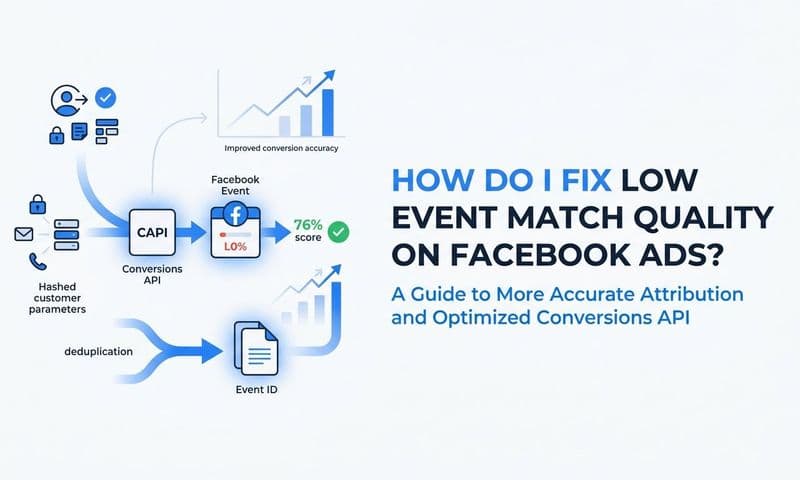
CAPI also improves your event match quality score, which you can monitor in Meta's Events Manager. Higher event match quality means Meta can more accurately connect your conversion events to Meta user profiles, which improves the algorithm's ability to find and target people who are likely to convert.
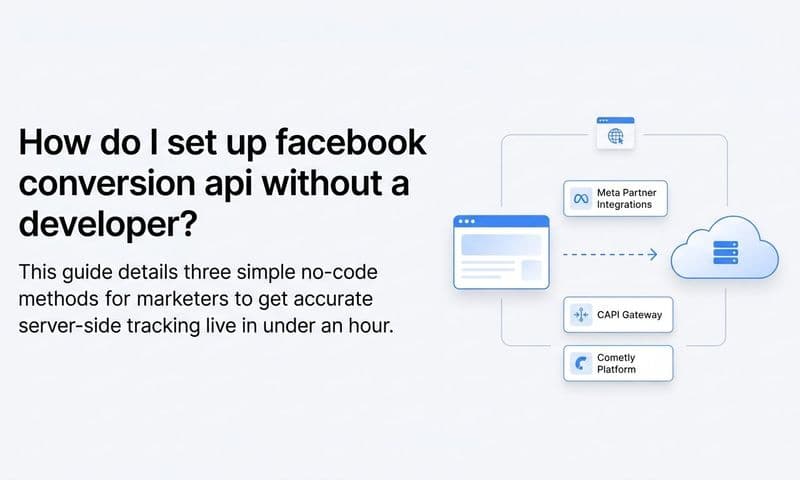
Here is how to set up CAPI. Go to Meta's Events Manager, select your pixel, and navigate to the Settings tab. You will see an option to set up the Conversions API. Meta offers several integration paths: a direct API integration for engineering teams, partner integrations through platforms like Shopify or WordPress, and gateway integrations that require no code. Choose the path that matches your technical resources. For a detailed walkthrough of each integration method, the Conversions API implementation tutorial covers every step from initial setup to event verification.
When running both pixel and CAPI in parallel, which is the recommended approach for redundancy, you must implement event deduplication. Without it, the same conversion event gets counted twice: once from the pixel and once from the server. Meta uses an event ID parameter to deduplicate. Every event fired through the pixel and every corresponding event sent through CAPI should share the same unique event ID. Meta will then count them as a single event rather than two separate conversions.
CAPI also unlocks something the pixel cannot do on its own: passing offline and CRM-based conversion events back to Meta. If a lead fills out a demo request form and then converts to a paying customer three weeks later, you can pass that closed-won event through CAPI. This extends attribution accuracy beyond the browser session and gives Meta's algorithm a signal that is far more valuable than a form fill: actual revenue.
For B2B SaaS teams using a platform like Cometly, server-side event transmission is built into the workflow. Cometly connects your ad platforms, CRM, and website to capture every touchpoint and send enriched conversion events back to Meta, improving match quality and giving the algorithm better data to optimize toward.
Step 6: Validate Your Attribution Data Against a Source of Truth
You have updated your settings and implemented server-side tracking. Now comes the step that separates teams who are genuinely data-driven from those who just trust whatever the dashboard shows: validation.
Here is something important to accept upfront. Meta's reported conversions will almost never match your CRM or analytics platform exactly. This is expected, not a sign that something is broken. Meta uses probabilistic modeling in some cases, last-touch logic in others, and its attribution counts conversions from the moment of ad interaction. Your CRM records conversions at the moment they are logged in your system. These timelines do not always align, and that is normal.
The goal is not to make the numbers match. The goal is to understand the relative contribution of your Facebook campaigns to actual pipeline and revenue, and to identify when discrepancies are large enough to signal a real problem.
Start by comparing these three data points side by side:
Meta-reported conversions: Pull from Ads Manager using your updated attribution window and a consistent date range.
CRM leads attributed to paid social: Filter your CRM for leads that came through Facebook or Instagram during the same date range. Look at both the volume and the quality of those leads.
Closed revenue attributed to paid social: This is the number that actually matters for B2B SaaS. How much closed-won revenue can be traced back to a Facebook ad interaction at any point in the customer journey?
If Meta is reporting a high conversion volume but your CRM shows very few qualified leads from paid social, that is a red flag. It may mean your attribution window is too broad, view-through attribution is inflating numbers, or your pixel is firing on low-quality events. A structured approach to fixing attribution discrepancies in data can help you systematically isolate which of these factors is responsible.
Multi-touch attribution gives you a more complete picture of how Facebook ads contribute across the full customer journey. Rather than assigning all credit to the last touch or the first touch, multi-touch models distribute credit across every interaction a prospect had before converting. This is particularly valuable in B2B SaaS where the journey from first awareness to closed deal involves multiple channels and multiple touchpoints.
This is where a platform like Cometly becomes genuinely useful. Cometly connects your ad spend data directly to CRM events and revenue, giving you a single source of truth that goes beyond what Meta's native reporting can show. You can see which Facebook campaigns contributed to pipeline, how they interact with other channels across the customer journey, and what the actual return on ad spend looks like when measured against closed revenue rather than form fills.
Red flags to watch for after making your attribution changes: a large and persistent discrepancy between Meta conversions and CRM data, ROAS figures that do not correlate with revenue reports, or conversion volumes that spike without a corresponding increase in qualified leads. Any of these signals suggests your attribution window or tracking setup still needs adjustment.
Your Facebook Attribution Checklist
Fixing your Facebook attribution window is not a one-and-done task. It is a process that requires setup, validation, and ongoing maintenance as privacy changes, platform updates, and campaign structures evolve. Use this checklist to confirm you have covered every step.
Understand window types: Confirmed the difference between click-through and view-through attribution, and understood how the attribution window differs from the reporting window in Ads Manager.
Audit current settings: Checked the attribution window on each active ad set, documented current settings and conversion data as a baseline, and identified any inconsistencies across ad sets.
Select the right window: Chose an attribution window that reflects your actual sales cycle length, made a deliberate decision about whether to include view-through attribution, and aligned your window with the lookback period used in your CRM or third-party platform.
Update ad set settings consistently: Applied the new window to existing ad sets and new campaigns, confirmed changes took effect using the Attribution Setting column in Ads Manager, and planned the timing of changes to minimize learning phase disruption.
Implement CAPI for server-side tracking: Set up the Meta Conversions API to send server-side events, implemented event deduplication using event IDs, and configured CRM-based or offline conversion events to pass through CAPI.
Validate against a source of truth: Compared Meta-reported conversions against CRM leads and closed revenue, used multi-touch attribution to understand Facebook's contribution across the full journey, and identified any red flags that indicate further adjustment is needed.
Revisit these settings whenever you launch new campaign types, enter new markets, or make significant structural changes to your account. Attribution accuracy is a continuous practice, not a one-time fix. As privacy changes continue to evolve and Meta's platform updates, your tracking setup needs to keep pace.
For teams that want a reliable, scalable way to maintain attribution accuracy over time, Cometly connects every touchpoint from first ad click to closed-won revenue, making it easier to keep your data clean and your decisions grounded in reality.
Putting It All Together
Fixing your Facebook attribution window is foundational to reliable paid social performance. When your attribution settings do not reflect how your customers actually buy, every decision you make based on that data is built on an unstable foundation. Budget allocation, creative testing, audience scaling: all of it depends on accurate measurement.
Native Meta settings are a starting point, not the full solution. Configuring the right attribution window removes a major source of distortion. But pairing that with server-side tracking through CAPI and validating your data against a third-party attribution platform is what gives you genuine confidence in your numbers.
For B2B SaaS marketing teams managing complex sales cycles and multi-channel journeys, that confidence is not a nice-to-have. It is what separates teams that scale intelligently from teams that spend more without knowing why it works.
If you are ready to move beyond Meta's native reporting and build a true single source of truth for your marketing data, Get your free demo of Cometly today and start connecting every touchpoint to the revenue outcomes that actually matter.