If you are running paid ads, email campaigns, or organic social content and you cannot tell which source actually drove a conversion, you have a tracking problem. Not a strategy problem, not a budget problem. A tracking problem. And the fix starts with UTM parameters.
UTM parameters are small snippets of text appended to your URLs that tell your analytics platform exactly where a visitor came from, what campaign brought them, and which specific ad or link they clicked. Without them, your traffic data is incomplete, your attribution is guesswork, and your budget decisions are based on noise.
This guide walks you through the exact process of setting up UTM parameters correctly. From understanding the five core parameters to building a consistent naming convention, generating tagged URLs, and verifying that your data flows cleanly into your analytics and attribution tools.
Whether you are a growth marketer managing multi-channel campaigns or a SaaS marketing leader trying to connect ad spend to pipeline, this step-by-step UTM parameter setup guide will give you a repeatable system that scales with your team. By the end, you will have a working UTM framework, a naming convention your entire team can follow, and a clear path to connecting your campaign data to revenue outcomes.
Step 1: Understand the Five UTM Parameters and What Each One Tracks
Before you build anything, you need to understand what you are building with. UTM parameters come in five standard varieties, each capturing a different dimension of your campaign data. Think of them as five questions your analytics platform asks every time someone arrives on your site from a campaign link.
utm_source: This identifies the platform or origin of your traffic. Where did this person come from? Examples include google, linkedin, facebook, or newsletter. It answers the question: which platform sent this visitor?
utm_medium: This identifies the channel type or marketing method. How did they get here? Examples include cpc, email, paid-social, or organic-social. It answers the question: what kind of marketing activity was this?
utm_campaign: This identifies the specific campaign that drove the visit. Which campaign was this? Examples include q2-2026-trial-signups or brand-awareness-linkedin. It answers the question: which campaign should get credit?
utm_term: This captures the paid keyword that triggered your ad. It is used primarily in paid search campaigns. For example, if someone clicked your Google Ad after searching "marketing attribution software," your utm_term might be marketing-attribution-software.
utm_content: This differentiates between multiple ads, links, or creatives within the same campaign. It is especially valuable for A/B testing. For example, if you are testing two versions of a LinkedIn ad, you might use utm_content=headline-v1 and utm_content=headline-v2 to see which one drives more conversions.
Of these five, three are required for clean attribution: utm_source, utm_medium, and utm_campaign. These three together tell you where traffic came from, how it arrived, and which campaign drove it. The utm_term and utm_content parameters are optional but add meaningful depth for paid search and creative testing.
Here is the most common mistake marketers make at this stage: confusing utm_source with utm_medium. A frequent error is using "google" as the medium instead of as the source. The correct setup is utm_source=google paired with utm_medium=cpc. The source is the platform. The medium is the channel type. Keeping this distinction clear is what allows you to later compare performance across channels, not just across platforms.
One more thing worth noting: utm_content is often underused. If you are running multiple ads in the same campaign or including several links in the same email, utm_content is what lets you identify which specific creative or link drove the click. Do not skip it when you need that level of granularity. For a deeper look at how marketers use UTMs for campaigns, the fundamentals covered here apply across every channel and platform.
Step 2: Build a UTM Naming Convention Your Team Will Actually Follow
Here is the truth about UTM data quality: the parameters themselves are not the hard part. The hard part is getting every person on your team to use them consistently. Inconsistent naming is the single most common reason UTM data becomes unusable.
Think about what happens when one person tags a campaign with utm_source=Google, another uses utm_source=google, a third uses utm_source=Google+Ads, and a fourth uses utm_source=google-ads. In your analytics platform, those are four separate traffic sources. You cannot aggregate them. You cannot compare them. Your reports become a mess of fragmented entries that require manual cleanup before they tell you anything useful.
The solution is a shared naming convention that your entire team follows without exception. Here are the rules to establish from day one.
Always use lowercase. Analytics platforms are case-sensitive. "Google" and "google" are treated as different values. Make lowercase non-negotiable across every parameter.
Replace spaces with hyphens. Spaces in UTM values get encoded as %20 in the URL, which looks messy and can cause issues with some tools. Use hyphens to separate words. For example, paid-social instead of paid social.
Avoid special characters. Ampersands, question marks, and other special characters can break your URL structure. Keep parameter values alphanumeric with hyphens only.
Keep values descriptive but concise. utm_campaign=q2-2026-trial-signups is clear and useful. utm_campaign=campaign1 tells you nothing six months later.
For B2B SaaS teams, a practical naming framework looks like this. For utm_source, use the platform name in lowercase: google, linkedin, facebook, newsletter, partner. For utm_medium, use the channel type: cpc, paid-social, email, organic-social, referral. For utm_campaign, use a consistent structure such as quarter, product, and goal: q2-2026-trial-signups, q3-2026-demo-requests, q1-2026-brand-awareness.
One decision you need to make upfront: will you use hyphens or underscores within parameter values? Both work, but you need to pick one and stick with it. Mixing q2-2026-trial-signups with q2_2026_trial_signups in the same dataset creates the same fragmentation problem you were trying to avoid.
The most important thing you can do after establishing these rules is document them. Create a shared UTM naming convention document or spreadsheet that lives in a place your entire marketing team can access. Include approved values for each parameter, examples of correctly formatted URLs, and a clear note that no one should invent new naming patterns without updating the shared document first. Understanding how UTM tracking helps your marketing makes it easier to build team buy-in around these standards.
This document is not optional. It is the foundation that keeps your UTM data clean as your team and your campaign volume grow.
Step 3: Generate Tagged URLs Using a UTM Builder
Once your naming convention is locked in, you are ready to build tagged URLs. The process is straightforward, but the details matter.
The most widely used free tool for this is Google's Campaign URL Builder. You enter your destination URL and fill in the parameter fields, and it generates a complete tagged URL you can copy and use immediately. There are also spreadsheet-based UTM builders that teams use to manage large volumes of tagged URLs in one place, which is worth considering as your campaign volume scales.
Here is what a complete tagged URL looks like for a realistic B2B SaaS scenario. Imagine you are running a LinkedIn ad driving traffic to a free trial landing page for a marketing attribution tool. Your tagged URL would look something like this:
https://yoursite.com/free-trial?utm_source=linkedin&utm_medium=paid-social&utm_campaign=q2-2026-trial-signups&utm_content=headline-v1
Every parameter is lowercase, hyphens replace spaces, and the values are descriptive enough that anyone reading the URL can understand exactly what campaign this belongs to.
A few important technical notes. First, URL encoding: spaces in parameter values should be replaced with hyphens before you build the URL, not after. If you paste a value with spaces into a URL builder, it will encode the spaces as %20, which works but is harder to read and can cause issues with some redirect tools. Hyphens are cleaner.
Second, be aware of dynamic UTM parameters for paid platforms. If you are running campaigns at scale in Google Ads, you can use ValueTrack parameters like {keyword} and {matchtype} to auto-populate UTM values at the ad level. This means you do not have to manually tag every ad variation. Meta Ads supports similar dynamic parameters like {{campaign.name}} and {{ad.name}} that auto-populate based on your campaign structure. Using dynamic parameters at scale prevents manual tagging errors and ensures every ad variation is tracked individually.
For teams running many campaigns simultaneously, a dedicated UTM tracking spreadsheet is worth the setup time. It gives you a central record of every tagged URL in use, prevents duplicate or conflicting naming, and makes it easy to audit your UTM data when something looks off in your reports. Reviewing the best UTM tracking tools to measure campaign performance can help you decide whether a standalone tool or a spreadsheet-based approach fits your team's workflow better.
The success indicator here is simple: paste your tagged URL into a browser and confirm it loads correctly. The UTM values should appear in the address bar without errors, and the landing page should load as expected. If the URL throws an error or the parameters disappear, something in your redirect chain is stripping the query string, which you will need to fix before launching.
Step 4: Implement UTM Parameters Across Your Ad Platforms and Channels
Building tagged URLs is one thing. Getting them implemented correctly across every channel is where most teams run into friction. Each platform has its own setup process, and there are important nuances to know for each one.
Google Ads: Add your UTM parameters in the Final URL suffix field. You can set this at the account level, campaign level, or ad group level, and it will apply automatically to all ads within that scope. This approach works alongside Google's auto-tagging (GCLID) without breaking it. Do not add UTM parameters directly into the Final URL field itself at the ad level, as this can cause conflicts. The Final URL suffix is the correct place.
Meta Ads: Add UTM parameters in the URL Parameters field within the ad setup. You can enter them manually or use Meta's dynamic parameter options, which auto-populate values like {{campaign.name}} and {{ad.name}} at the time of the click. Using dynamic parameters is strongly recommended for Meta campaigns with multiple ad sets and creatives, as it eliminates the risk of manually tagging each variation incorrectly.
LinkedIn Ads: LinkedIn has its own Insight Tag for tracking, but you should still add manual UTM parameters to your destination URLs in the ad setup. Use the destination URL field to append your UTM parameters. LinkedIn does not support the same level of dynamic parameter automation as Google or Meta, so manual tagging is typically required here.
Email campaigns: Every link in every email should be tagged. Use utm_medium=email, set utm_source to your email platform or newsletter name (e.g., hubspot, mailchimp, or your newsletter name), and use utm_campaign to identify the specific send. If you have multiple links in the same email, use utm_content to differentiate them so you can see which link drove the most clicks.
Organic social: Links shared in your bio, posts, and stories should be tagged with UTM parameters. Without them, organic social traffic often gets lumped into direct or referral traffic in your analytics, making it impossible to measure the actual contribution of your social content.
One rule that applies across every channel: never add UTM parameters to internal links on your own website. When a user clicks an internal link with UTM parameters, analytics platforms interpret it as a new session from a new source. This resets the attribution for that visitor and corrupts your data by making internal page views look like fresh traffic from an external campaign.
Before launching any paid campaign, test your tagged URLs. Click the link yourself and confirm the UTM values appear correctly in your analytics platform's real-time view. Catching a broken redirect or a stripped query string before launch saves you from losing attribution data on a live campaign. A solid conversion tracking setup ensures that the data your UTM parameters capture actually flows through to the events and goals that matter most.
Step 5: Verify UTM Data Is Flowing Correctly Into Your Analytics Platform
Implementing UTM parameters is only half the job. You need to confirm the data is actually arriving in your analytics platform and that it looks clean. Broken or incomplete UTM data is often worse than no data at all, because it gives you false confidence.
In Google Analytics 4, navigate to Reports, then Acquisition, then Traffic Acquisition. Set your primary dimension to Session source/medium. You should see your UTM-tagged campaigns appearing as distinct rows with the source and medium values you defined. If your naming convention is working correctly, you will see clean, consistent entries like google/cpc, linkedin/paid-social, and newsletter/email.
Watch for two specific data quality issues. First, look for (not set) values in your source/medium column. This indicates that some traffic arrived without UTM parameters, either because you missed tagging some links or because UTM values were stripped somewhere in the redirect chain. A small percentage of (not set) is normal, but a large volume suggests a systematic tagging gap.
Second, look for fragmented source names that suggest naming convention violations. If you see both "linkedin" and "LinkedIn" and "LinkedIn-Ads" appearing as separate sources, your team is not following the naming convention consistently. Address this immediately, because the longer it continues, the more cleanup work you will face later.
For real-time testing, use GA4's DebugView. While DebugView is enabled on your device, click one of your tagged URLs and watch the event stream in real time. You should see the session_start event fire with the correct utm_source, utm_medium, and utm_campaign values attached. This is the fastest way to confirm that a specific tagged URL is being captured correctly before a campaign goes live.
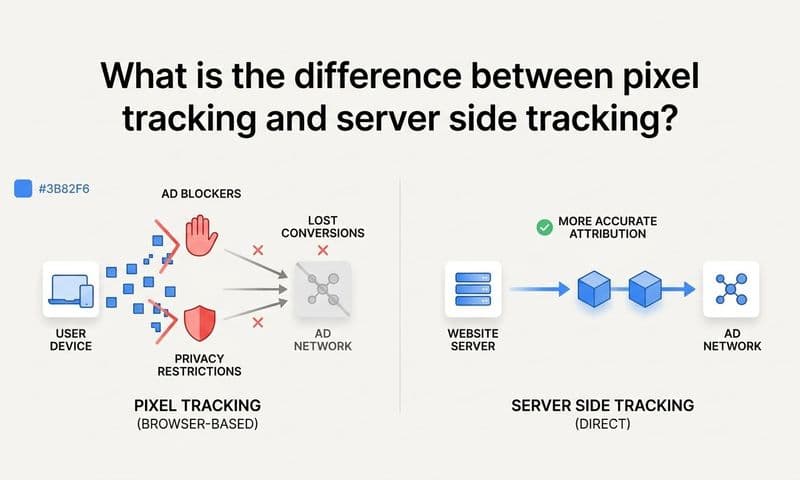
For teams using a dedicated attribution platform like Cometly, verify that UTM parameters are flowing through to your attribution dashboard as well. The goal is not just to see UTM data in GA4 but to see campaign-level data connecting to lead and revenue outcomes. If UTM values are not appearing in your attribution platform, check whether your form submissions and CRM events are passing the UTM parameters through correctly. Understanding why server-side tracking is more accurate is especially relevant here, as client-side tracking gaps are one of the most common reasons UTM data disappears before it reaches your analytics platform.
A common technical issue worth checking: some landing page builders and redirect tools strip query string parameters from URLs during redirects. If your UTM data is disappearing, test whether the redirect chain from your tagged URL to your final landing page preserves the query string. Many tools have a setting to enable this. Within 24 to 48 hours of launching tagged campaigns, you should see clean source, medium, and campaign data in your analytics platform with no unexpected (not set) values or duplicate entries that suggest naming inconsistencies.
Step 6: Connect UTM Data to Revenue Attribution for Full-Funnel Visibility
Here is where most UTM setups stop short. UTM parameters tell you which campaign drove a visit and even a form submission. But they do not automatically tell you which campaign drove a closed deal three months later. For B2B SaaS companies with longer sales cycles, that gap is where attribution breaks down.
The fix is passing UTM parameters through your lead capture forms into your CRM. The standard approach uses JavaScript to read UTM values from the URL when a visitor lands on your page, stores those values in browser cookies or localStorage, and then populates hidden fields in your lead capture forms with those values when the visitor converts. When the form submits, the UTM data travels with the lead record into your CRM.
This means that when a lead converts to a customer six weeks later, you can look at their CRM record and see exactly which campaign, source, and medium originally brought them to your site. Without this, your CRM data and your campaign data live in separate silos, and connecting ad spend to revenue becomes guesswork. Building a complete attribution tracking setup that bridges your UTM data and CRM is what transforms campaign reporting from activity measurement into revenue measurement.
Tools like HubSpot, Salesforce, and Marketo all support hidden field mapping for this purpose. The setup typically involves creating hidden fields in your form that correspond to each UTM parameter, then adding a small JavaScript snippet to your site that reads the URL parameters and populates those fields automatically. Many marketing teams use a lightweight script or a tool like Attributer to handle this without custom development.
Once UTM values are stored at the lead level in your CRM, make them visible to your sales team. When a sales rep can see that a lead came from a specific LinkedIn campaign or a particular email send, it improves both their follow-up strategy and your attribution accuracy. It also creates a feedback loop where sales and marketing are looking at the same data. For teams using HubSpot, following a structured guide to HubSpot attribution tracking ensures your UTM values map correctly to contact and deal records from the moment a lead enters your funnel.
This is where a platform like Cometly extends UTM tracking into something more powerful. By connecting your ad platform data, website events, CRM pipeline data, and revenue data including Stripe, Cometly gives you a single source of truth that shows which campaigns drove not just clicks or sessions but actual pipeline and closed revenue. Instead of manually joining data across four different tools, you get a unified attribution view that updates in real time.
The success indicator for this step: you can filter your CRM or attribution platform by utm_campaign and see the pipeline value or closed revenue associated with each campaign. When you can do that, UTM parameters have done their full job. You are no longer measuring marketing activity. You are measuring marketing outcomes.
Putting It All Together: Your UTM Tracking Checklist
UTM parameters are not a one-time setup. They are an ongoing discipline that requires consistent naming, team alignment, and regular data audits. As your campaigns grow and your team expands, the systems you build around UTM tracking matter as much as the parameters themselves.
Use this checklist to confirm your UTM setup is solid before launching any new campaign.
1. All five parameters are defined and your team understands what each one tracks.
2. A shared naming convention document exists and is enforced across all channels.
3. Tagged URLs are being generated using a consistent tool or spreadsheet.
4. UTM parameters are implemented correctly in Google Ads, Meta, LinkedIn, and email.
5. Data is verified in your analytics platform with no significant (not set) values.
6. UTM values are being captured in your CRM via hidden form fields.
7. Campaign data is connected to pipeline and revenue in your attribution platform.
When UTM parameters are set up correctly and connected to a platform like Cometly, you move from guessing which campaigns work to knowing exactly which ads, channels, and campaigns are driving leads and revenue. That clarity is what separates marketing teams that scale efficiently from those that waste budget on channels that look good in a dashboard but never convert to revenue.
Ready to connect your UTM data to real revenue outcomes? Get your free demo and see how Cometly's AI-driven attribution platform turns your campaign data into decisions that drive growth.