Broken tracking is one of the most expensive problems a marketing team can have. When your conversion data is incomplete, delayed, or missing entirely, every decision you make about ad spend, channel mix, and campaign optimization is built on a shaky foundation. You might be cutting campaigns that are actually driving pipeline, or scaling ones that look good in the dashboard but contribute nothing to revenue.
This guide walks you through exactly how to fix tracking issues in a structured, methodical way. Whether you are dealing with missing conversions in Meta Ads Manager, gaps in your Google Ads attribution, or a CRM that is not syncing properly with your ad platforms, the process is the same: diagnose the root cause, fix the data layer, validate the fix, and build a reliable system going forward.
By the end of this guide, you will know how to identify where your tracking breaks, how to restore data accuracy, and how to set up a tracking infrastructure that holds up over time. This is not a generic checklist. It is a practical, step-by-step process built for B2B SaaS marketing teams who rely on accurate conversion data to make confident decisions about their ad programs.
The good news is that most tracking issues follow predictable patterns. Once you know where to look and what to look for, fixing them becomes a repeatable process rather than a fire drill. Let's get into it.
Step 1: Diagnose Where Your Tracking Is Breaking
Before you touch a single tag or pixel, you need to understand the full scope of what is broken. Jumping straight into fixes without a clear diagnosis is how teams end up solving one problem while three others go unnoticed. Start with a structured audit across every data source in your stack.
Pull data from your ad platforms, your analytics tool, and your CRM side by side. Look specifically for discrepancies between what your ad platforms are reporting as conversions and what is actually showing up as leads or opportunities in your CRM. If Meta Ads Manager is reporting 80 leads this month but your CRM shows 40, something in the middle is broken. That gap is your starting point.
Next, look for the most common symptoms of tracking failure:
Zero conversion events: If a conversion event shows no activity over a period when you know leads came in, the event is either not firing or not being received by the platform.
Duplicate events: If your conversion count is significantly higher than your actual lead volume, you may have the same event firing twice, once from a browser pixel and once from a server-side source, without proper deduplication.
Delayed data: If conversions are appearing in your ad platform 24 to 48 hours after they actually occurred, there may be a server-side processing delay or an attribution window mismatch.
Mismatched attribution windows: Different platforms use different default windows. If you are comparing Meta's 7-day click window to Google's 30-day window, the numbers will never reconcile without adjusting for this.
Use browser developer tools or a tag auditing extension to inspect whether your tracking pixels are firing correctly on your key conversion pages. Open your browser console, navigate to your thank-you page or post-signup redirect, and check the network tab for outgoing pixel requests. If you see errors or no requests at all, you have found a collection-side problem.
The distinction between a collection-side issue (the pixel is not firing) and a transmission-side issue (the event fires but does not reach the platform) matters because the fix is different for each. Collection-side problems usually live in your tag manager or page code. Transmission-side problems often involve server configuration or API authentication.
Document every gap you find before attempting any fixes. Write down which events are missing, which platforms are affected, and what the discrepancy looks like in terms of volume. This documentation gives you a clear scope and a baseline to measure your fixes against later. If you are seeing persistent gaps between platforms, reviewing how to fix attribution discrepancies can help you frame the problem more precisely.
Step 2: Audit Your Pixel and Tag Implementation
Once you know where the gaps are, the next step is to inspect your pixel and tag setup in detail. Many tracking issues trace back to implementation problems that were never caught because no one tested them thoroughly after the initial setup.
Start by verifying that your base pixel or tracking tag is installed on every page of your site, not just the homepage or landing pages. A common mistake is placing the base pixel on marketing pages only, which means any conversion that happens after a user navigates deeper into your site or product goes untracked. Your tag manager should have a trigger that fires the base tag on all pages universally.
Next, confirm that your conversion events are firing on the correct pages. For most B2B SaaS companies, the key conversion pages are thank-you pages after a form submission, form confirmation screens that appear inline, and post-signup redirects after account creation. Navigate to each of these pages manually and verify that the conversion event fires when expected. If your form uses an inline confirmation message rather than a redirect to a new URL, make sure your event is triggered by the form submission itself rather than a page load.
Check for tag manager conflicts. If multiple tags are configured to fire on the same event, you may end up with duplicate conversion signals being sent to the same platform. This is particularly common when teams layer new implementations on top of old ones without cleaning up legacy tags. Review your tag manager container and look for any redundant or overlapping triggers. Understanding what a tracking pixel is and how it works can help you identify exactly where these conflicts originate.
Single-page applications (SPAs) are a frequent source of tracking problems that are easy to miss. In a traditional multi-page site, each navigation triggers a full page load, which naturally re-fires your base pixel. In an SPA, the URL may change without a full page reload, which means your pixel never fires for subsequent views. If your product or marketing site is built on a framework like React, Vue, or Angular, you need to implement history change triggers in your tag manager to capture these virtual page views correctly.
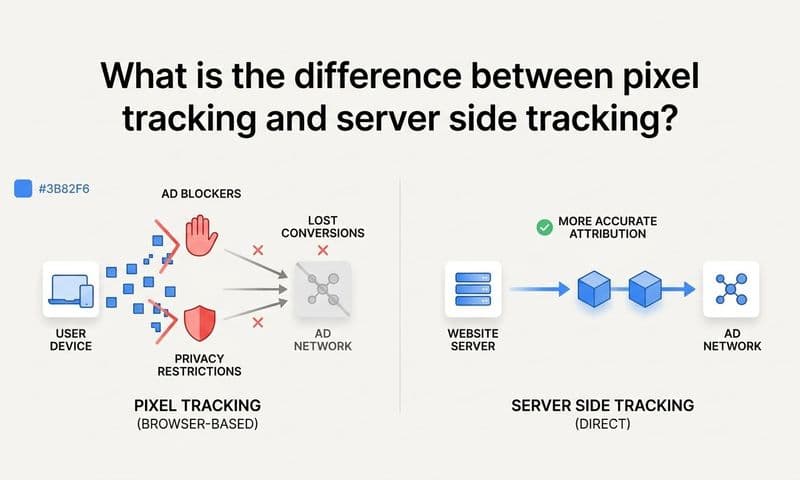
Ad blockers and browser privacy settings are also worth investigating. A meaningful portion of your traffic, particularly among the technically sophisticated audiences common in B2B SaaS, may be blocking your pixel entirely. This will not show up as an error in your tag manager because the block happens on the user's side. If you suspect this is a significant factor, it is a strong signal that browser-based pixel tracking alone is not sufficient for your use case.
This is exactly where server-side tracking becomes essential. If your pixel-based data is unreliable due to browser restrictions, the fix is not to optimize the pixel further. The fix is to move your conversion data to a channel that browser settings cannot touch. For a deeper look at common pixel-specific failures, the guide on tracking pixel firing issues walks through the most frequent root causes step by step.
Step 3: Implement Server-Side Tracking to Close Data Gaps
Browser-based pixels were the standard for conversion tracking for many years, but the landscape has changed significantly. Increased privacy controls in major browsers, changes introduced by iOS updates, and the widespread use of ad blockers have all reduced pixel match rates. For B2B SaaS teams running paid campaigns, this means a portion of your conversions are simply not being attributed to the ads that drove them.
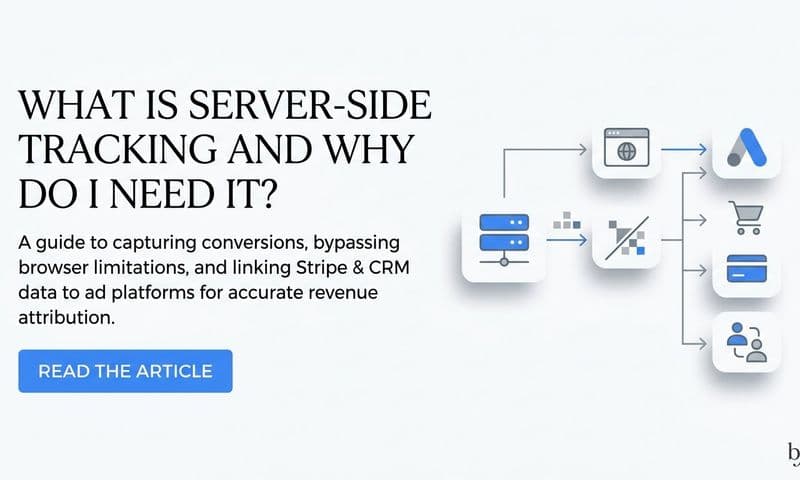
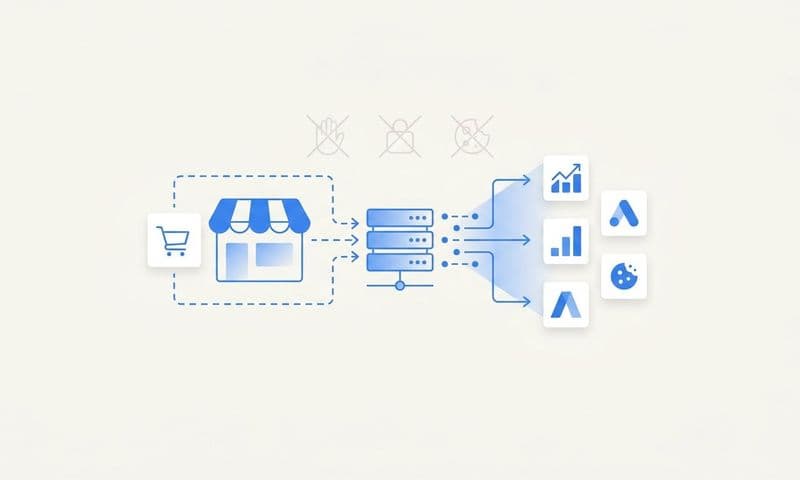
Server-side tracking solves this problem by sending conversion data directly from your server to ad platforms via their APIs, bypassing the browser entirely. Because the data travels server-to-server, it is not affected by browser privacy settings, ad blockers, or cookie restrictions. If you want to understand why this approach consistently outperforms browser-based methods, the detailed breakdown of why server-side tracking is more accurate is worth reading before you begin your implementation.
For Meta, this means configuring the Meta Conversions API (CAPI). CAPI allows you to send conversion events, along with customer information like hashed email addresses and phone numbers, directly from your server to Meta's platform. This improves event match quality, which is the score Meta uses to determine how accurately it can connect a conversion to a specific user and, by extension, to the ad that drove them. Higher match quality means better campaign optimization and more accurate attribution.
For Google, the equivalent is Enhanced Conversions. Enhanced Conversions allow you to pass hashed first-party data alongside your standard conversion signals, improving Google's ability to match conversions to ad interactions even when cookies are unavailable. This is configured through Google Ads and works alongside your existing conversion tracking setup.
One critical consideration when running both browser-side pixels and server-side events simultaneously is deduplication. If a user completes a form and both your pixel fires and your server sends an event for the same conversion, you will end up counting it twice. Both Meta and Google have deduplication mechanisms, but they require you to pass a consistent event ID that links the browser event and the server event together. Without this, your reported conversion volume will be inflated and your cost-per-conversion metrics will be misleadingly low.
Setting up server-side tracking from scratch requires technical resources and ongoing maintenance. Each ad platform has its own API specifications, authentication requirements, and event schemas. Managing this across Meta, Google, LinkedIn, and other platforms simultaneously adds significant complexity. A practical server-side tracking implementation guide can help you sequence the work correctly and avoid the most common configuration mistakes.
This is where a platform like Cometly removes a significant amount of that overhead. Cometly centralizes server-side event management and syncs enriched conversion data back to Meta, Google, and other ad platforms automatically. Instead of building and maintaining separate API integrations for each platform, you connect your data sources once and Cometly handles the transmission, deduplication, and enrichment on your behalf. Your ad platforms receive cleaner, more complete conversion data, and your campaign optimization improves as a result.
Step 4: Connect Your CRM and Ad Platforms for Full-Funnel Visibility
Here is where most B2B SaaS tracking setups fall short. Even teams that have solid pixel implementations and server-side tracking in place often have a major blind spot: the gap between a form fill and an actual closed deal. A lead that converts to a paying customer three months after clicking an ad is rarely attributed back to that original ad interaction, because the connection between your CRM and your ad platforms was never made.
The fix starts with mapping your lead stages to conversion events. In a typical B2B SaaS funnel, you have several meaningful milestones: a lead submits a form, becomes a marketing qualified lead (MQL), gets accepted by sales as a sales qualified lead (SQL), enters an opportunity stage, and eventually closes as a customer. Each of these milestones represents a conversion event that should, ideally, flow back to your ad platforms so they can understand which campaigns are driving real business outcomes rather than just form fills. This is the foundation of SaaS revenue attribution done correctly.
UTM parameters are the connective tissue that makes this possible. When a lead clicks an ad and fills out a form, the UTM parameters in the URL (source, medium, campaign, content, and term) need to be captured at the moment of form submission and stored on the lead record in your CRM. This is what allows you to trace a closed-won deal back to the specific campaign and ad that started the journey.
UTM parameter persistence is one of the most common failure points in B2B SaaS tracking. Parameters can be stripped by redirects, lost during form submission, or simply never captured because the CRM integration was not configured to store them. Test this by submitting a form with UTM parameters in the URL and then checking the resulting lead record in your CRM to confirm the values are there. If you need a refresher on how UTM tracking works and why it matters, the guide on UTM tracking and how it helps your marketing covers the fundamentals clearly.
Revenue data is the final piece. Knowing that a campaign drove 20 leads is useful. Knowing that those 20 leads generated a specific amount of pipeline, and that five of them converted to paying customers, is what actually drives confident budget decisions. Connecting your payment processor data, such as Stripe, to your ad platform data closes this loop.
Cometly connects ad platforms, CRM events, and revenue data in one place, giving you a single source of truth for the entire customer journey. When a lead moves through your funnel and eventually converts to revenue, Cometly ties that outcome back to the original ad touchpoints, so you can see not just which campaigns drove leads, but which ones drove revenue. That distinction changes how you allocate budget.
Step 5: Validate Your Fix With Real Conversion Data
After making changes to your tracking setup, it is tempting to assume the fix worked and move on. Resist that temptation. Tracking systems are complex enough that a fix in one place can create a new problem somewhere else, and the only way to know your setup is working correctly is to test it deliberately.
Start by submitting a real test conversion. Fill out your lead form, complete a signup, or trigger whatever conversion event you have configured. Then trace that conversion through every system in your stack: confirm the pixel fired in the browser, confirm the server event was sent, confirm the lead appeared in your CRM with the correct UTM data attached, and confirm the conversion event appeared in your ad platform within the expected time window.
For Meta, check the Event Match Quality score in Meta Events Manager after your server-side events have been running for a few days. This score reflects how accurately Meta can match your conversion events to users in its system. A higher score means better attribution and better campaign optimization. If your score is low, it typically means you are not passing enough customer information alongside your events, such as hashed email, phone number, or browser data. Reviewing how to fix Facebook pixel data loss can surface specific enrichment steps that improve this score.
Compare conversion volumes before and after your fix across a consistent time window. If you were previously seeing 30 conversions per week and you are now seeing 45 after implementing server-side tracking, that increase likely reflects conversions that were always happening but were not being captured by your browser pixel. This kind of lift is a strong validation signal.
Check your event logs for deduplication confirmation. Both Meta and Google provide logs that show whether events are being deduplicated correctly. If you see a high volume of duplicate events being discarded, your deduplication logic is working. If you see no deduplication activity at all, it may mean your event IDs are not being passed correctly and duplicates are slipping through.
Finally, set a benchmark for acceptable data coverage and put a reminder in your calendar to revisit it monthly. Tracking is not a fix-and-forget system. Platforms change their APIs, sites get updated, and new campaigns introduce new conversion flows. Regular validation keeps small issues from compounding into large ones. Following best practices for tracking conversions accurately gives you a structured framework to apply during each review cycle.
Step 6: Build an Ongoing Tracking Monitoring Process
Fixing your tracking is only half the job. The other half is making sure it stays fixed. Tracking breaks often go undetected for days or even weeks because no one is actively monitoring for them. By the time a team notices a drop in reported conversions, significant ad spend may have already been misallocated based on incomplete data.
Create a monthly tracking audit process and put it on the calendar as a recurring task. Each audit should check pixel health across your key pages, event firing rates compared to your baseline, and CRM data completeness for leads that came in during the period. This does not need to take more than an hour if you have a clear checklist and documented architecture to work from.
Set up alerts in your analytics platform or tag management system for when conversion volume drops significantly below your typical baseline. A sudden drop in conversion events is one of the clearest signals that something has broken, whether it is a site update that removed a thank-you page, a tag manager change that broke a trigger, or an API authentication token that expired. Catching this within hours rather than weeks makes the recovery much faster.
Document your tracking architecture in a format that any team member can understand. This documentation should cover what events are being tracked, where each event fires, which platforms receive each event, how deduplication is configured, and where UTM data is stored in the CRM. When a new hire joins the team or a developer makes a site change, this documentation prevents accidental breaks and speeds up troubleshooting when issues do occur.
Review your attribution model settings on a regular cadence as well. As your business grows and your sales cycle evolves, the attribution model that made sense when you were a small team may no longer reflect how your buyers actually move through the funnel. Multi-touch attribution is generally more appropriate for B2B SaaS companies with longer sales cycles because it distributes credit across multiple touchpoints rather than giving all credit to one interaction. Make sure your model reflects your current reality.
Cometly's real-time attribution dashboard gives you a live view of touchpoint data, conversion events, and ad performance in one place. Instead of waiting for a monthly audit to surface a tracking break, you can see anomalies as they happen. When a conversion event stops firing or an ad platform stops receiving data, it shows up immediately rather than surfacing weeks later when the damage is already done. This kind of visibility is what separates marketing teams that react to data problems from those that prevent them.
Putting It All Together
Fixing tracking issues is not a one-afternoon project, but it is one of the highest-leverage investments a B2B SaaS marketing team can make. Accurate data means confident decisions. When you know which ads are driving pipeline and which are burning budget, you can scale what works and cut what does not.
Here is a quick summary of what you have covered in this guide:
1. Diagnose your tracking gaps by auditing all data sources and documenting discrepancies before attempting any fixes.
2. Audit your pixel and tag implementation to catch missing base tags, broken conversion events, tag conflicts, and SPA-related issues.
3. Implement server-side tracking via Meta's Conversions API and Google's Enhanced Conversions to capture conversions that browser pixels miss.
4. Connect your CRM and revenue data to your ad platforms so you can attribute pipeline and closed-won revenue back to the campaigns that drove them.
5. Validate your fix with real test conversions, event match quality scores, and before-and-after volume comparisons.
6. Build an ongoing monitoring process with monthly audits, automated alerts, and documented architecture to catch future breaks early.
If you want to skip the manual setup and get accurate attribution from day one, Cometly was built for exactly this. It connects your ad platforms, CRM, and website into a single attribution layer, sends enriched conversion data back to Meta and Google, and gives your team real-time visibility into what is actually driving revenue.
Ready to stop guessing and start scaling with confidence? Get your free demo today and see how Cometly captures every touchpoint so you can make every ad dollar count.