
If your Meta Ads dashboard shows 80 conversions but your CRM only records 50, you have a reporting discrepancy. This gap is not just a data annoyance. It directly affects budget decisions, campaign optimization, and revenue attribution accuracy.
For B2B SaaS marketing teams, acting on misaligned data can mean scaling the wrong campaigns, cutting the ones that actually work, and misreporting pipeline to leadership. The consequences compound quickly when you are managing spend across Meta, Google, LinkedIn, and other channels simultaneously.
Ad platform reporting discrepancies happen for several well-documented reasons: different attribution windows, pixel misfires, duplicate event tracking, cross-device journeys, and the growing gap between browser-based tracking and server-side data. Each platform is also built to take as much conversion credit as possible, which means their native numbers will rarely match your CRM on their own.
The good news is that most discrepancies follow predictable patterns. They can be diagnosed and resolved with a structured approach rather than hours of guesswork. This guide walks you through six concrete steps to identify where your data breaks down, why it happens, and how to fix it so your reporting reflects what is actually driving revenue.
By the end, you will have a reliable process for auditing your tracking setup, aligning attribution settings across platforms, and building a single source of truth for your marketing data. Let's get into it.
Step 1: Audit Your Tracking Setup Across Every Ad Platform
Before you can fix anything, you need to know exactly where the data is breaking down. That starts with a structured audit across every platform you are running ads on.
Pull a side-by-side comparison of conversion data from each ad platform (Meta, Google, LinkedIn, TikTok) against your CRM or analytics tool for the same date range. Use a spreadsheet to document the platform name, event type, reported conversion volume, and CRM-recorded volume for each. This gives you a clear baseline and shows you which platforms have the largest gaps before you start making changes.
Next, verify that each platform's tracking pixel or tag is installed correctly. Use the native diagnostic tools available for each platform:
Meta Pixel Helper: A Chrome extension that shows whether your Meta pixel is firing on each page, which events are being sent, and whether there are any configuration errors.
Google Tag Assistant: Validates your Google Ads conversion tags and GA4 setup, showing you which tags are active and flagging any implementation issues.
LinkedIn Insight Tag Validator: Confirms whether the LinkedIn tag is installed and actively sending data from your website.
Once you have confirmed the pixels are firing, check which specific events each platform is tracking. Confirm they match the conversion actions you actually care about: form submissions, demo requests, trial signups. It is common to find that a platform is tracking a page view as a conversion when the intended event was a form completion.
Look carefully for duplicate pixel installations or conflicting tag manager rules. If the same pixel is installed both directly in the page code and through Google Tag Manager, you may be firing the same event twice. This inflates your reported conversion numbers and creates a discrepancy in the opposite direction, where the platform reports more conversions than your CRM.
Document every discrepancy you find with specifics: platform, event type, reported volume, CRM volume, and your hypothesis for why the gap exists. This documentation is your audit trail. It will help you measure progress as you work through the remaining steps and give you something concrete to share with your team or agency partners. Understanding fixing conversion tracking gaps at this stage sets the foundation for everything that follows.
Success indicator: You have a complete, documented list of every tracking gap across all active platforms with enough detail to prioritize which issues to fix first.
Step 2: Align Attribution Windows Across All Platforms
Here is one of the most overlooked reasons your platform numbers never match: each ad platform uses a different default attribution window, and they are all counting the same conversions differently.
Meta Ads defaults to a 7-day click and 1-day view attribution window. Google Ads uses a 30-day click window by default. LinkedIn Campaign Manager defaults to a 30-day click and 7-day view window. When a B2B buyer clicks a LinkedIn ad on day one and converts on day 25, LinkedIn counts it. When that same buyer also clicked a Google ad on day 20, Google counts it too. You now have one conversion being credited to two platforms simultaneously, and your total reported conversions across platforms will exceed your actual CRM entries.
This overlap is especially pronounced in B2B SaaS, where sales cycles can stretch weeks or months. The longer your buyer journey, the more opportunity there is for multiple platforms to claim credit for the same conversion within their respective default windows. Reviewing how Facebook ads reporting discrepancies work in practice illustrates exactly how this multi-platform credit overlap compounds.
To fix this, standardize your attribution window settings across all platforms to match your actual sales cycle length. If your average time from first ad click to demo request is 14 days, set all platforms to a 14-day click window. This will not eliminate all overlap, but it will make your platform comparisons significantly more consistent.
Here is how to adjust attribution windows in each platform:
1. In Meta Ads Manager, go to your campaign settings or the Columns menu in reporting and select the attribution window you want to measure against.
2. In Google Ads, navigate to Tools and Settings, then Conversions, and edit the conversion window for each conversion action individually.
3. In LinkedIn Campaign Manager, attribution settings can be found under Account Assets and then Conversion Tracking, where you can adjust the click and view windows per conversion.
Beyond the window length, decide on a single attribution model to use as your reporting standard. First touch, last touch, and linear attribution all tell different stories. The important thing is consistency: pick one model and apply it when pulling comparison reports across platforms. This removes one more variable from your analysis.
Reference your CRM close dates and lead timestamps to determine what attribution window realistically reflects your buyer journey before locking in a standard. Your CRM data is the ground truth here, and your attribution settings should be calibrated to it.
Success indicator: When you pull reports from two platforms using the same date range and attribution window, the variance in conversion volume should narrow significantly compared to your baseline audit.
Step 3: Implement Server-Side Tracking to Reduce Data Loss
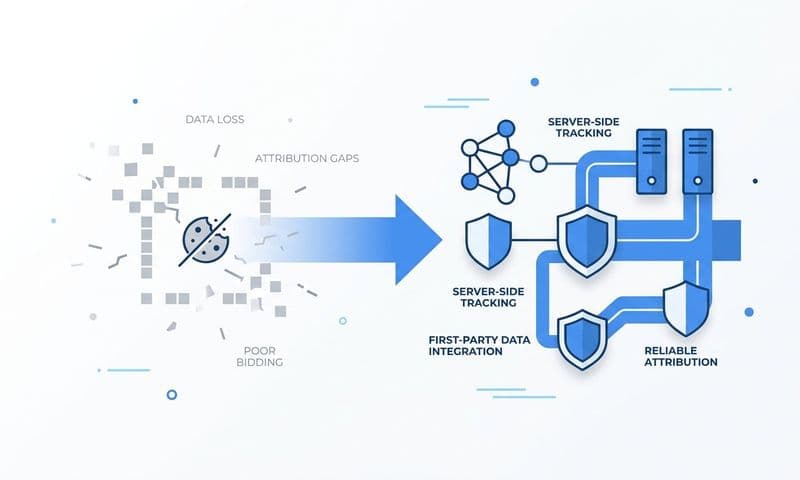
Even with perfectly installed pixels and aligned attribution windows, browser-based tracking alone is no longer reliable. This is one of the most significant structural causes of underreporting in modern ad platforms.
Ad blockers, iOS App Tracking Transparency, and Safari's Intelligent Tracking Prevention all interfere with pixel events before they reach the ad platform. When a user has an ad blocker enabled or is on an iOS device with tracking restricted, your browser pixel may fire locally but the event data never reaches Meta, Google, or LinkedIn. The conversion happens, your CRM records it, but the platform does not.
Server-side tracking, also called Conversion API (CAPI) or Enhanced Conversions depending on the platform, solves this by sending event data directly from your server to the ad platform rather than relying on the user's browser. Browser limitations become irrelevant because the data never passes through it.
Here is how to implement server-side tracking for each major platform:
Meta Conversion API: Set up CAPI through your server or a middleware integration. Meta supports direct API connections as well as partner integrations through platforms like Segment, Zapier, or your CRM. The key parameter to configure is the event_id, which allows Meta to match server-sent events to browser pixel events and deduplicate them automatically.
Google Enhanced Conversions: This uses hashed first-party data such as email addresses or phone numbers to match server-sent conversion events to Google users. It supplements your existing Google Ads conversion tags rather than replacing them.
LinkedIn CAPI: LinkedIn's Conversion API works similarly to Meta's, allowing you to send conversion data server-side for events that the Insight Tag may have missed.
Deduplication is the most critical part of this setup. When both your browser pixel and your server-side event fire for the same action, the platform will count two conversions unless you have configured deduplication correctly. For Meta, this means sending an identical event_id from both the browser pixel and the CAPI event. Meta uses this ID to recognize that both events represent the same action and counts it only once.
After implementation, test your server-side events using each platform's event testing tools. Meta's Events Manager, Google's Tag Assistant, and LinkedIn's Insight Tag validator all have testing modes where you can confirm events are arriving with the correct parameters. Using a reliable conversion tracking platform alongside these native tools gives you an additional layer of verification.
Common pitfall: Skipping deduplication setup after adding CAPI will inflate your conversion numbers and create a new type of discrepancy, where your platform now reports more conversions than before. Always configure event IDs before going live with server-side tracking.
Success indicator: Your platform-reported conversion volumes increase slightly (recovering previously lost events) while your CRM-to-platform variance decreases, indicating you are capturing more real conversions without inflating numbers.
Step 4: Standardize UTM Parameters and Source Tracking
You can have perfect pixel installations and server-side tracking in place and still have a major attribution problem if your UTM parameters are inconsistent. This is the layer that connects ad platform data to your analytics tool, and it breaks down more often than most teams realize.
Missing or malformed UTM parameters cause sessions to be attributed to direct traffic in your analytics tool. When a user clicks an ad with no UTM tags, your analytics platform has no way to know the visit came from a paid campaign. That session gets lumped into direct, making it impossible to tie the resulting lead back to the correct campaign in your CRM.
Start by auditing your current UTM structure across all active campaigns. Check that utm_source, utm_medium, utm_campaign, utm_content, and utm_term are applied consistently and follow a naming convention your team can maintain over time. Common inconsistencies include using "Facebook" in some campaigns and "Meta" in others, or leaving utm_medium blank on some LinkedIn ads.
The industry-standard UTM structure for paid campaigns looks like this:
utm_source: The platform name in lowercase (meta, google, linkedin, tiktok)
utm_medium: The channel type (paid-social, paid-search, display)
utm_campaign: The campaign name using a consistent naming convention your team defines
utm_content: The ad set or ad group identifier to distinguish creative variations
utm_term: The keyword or audience segment being targeted
Build a UTM taxonomy document that defines exactly how each parameter should be formatted for each ad platform. Store it in a shared location your team and any agency partners can access. Every new campaign should reference this document before launching.
Use auto-tagging where available. Google Ads auto-tagging appends a gclid parameter to your URLs automatically, which GA4 reads natively. Meta's URL parameters can be configured at the account level to append utm values dynamically. Verify that your analytics tool is correctly reading and parsing these parameters after enabling auto-tagging.
Cross-reference UTM data in your analytics tool against campaign spend data in your ad platforms. If a campaign is responsible for a significant portion of your ad spend but shows minimal traffic in your analytics tool, that is a strong signal that UTM parameters are missing or malformed on those ads. A structured marketing analytics and reporting process makes these cross-platform discrepancies far easier to catch before they distort your budget decisions.
Success indicator: The traffic source breakdown in your analytics tool closely matches the campaign spend distribution in your ad platforms, with minimal unexplained direct traffic spikes that cannot be accounted for by organic or bookmark visits.
Step 5: Build a Unified Attribution View in One Place
At this point, you have cleaned up your tracking setup, aligned your attribution windows, added server-side tracking, and standardized your UTM structure. These steps reduce discrepancies at the source. But there is still a fundamental problem if you are relying on each platform's native dashboard as your reporting system.
Every ad platform is incentivized to take credit for as many conversions as possible. Meta will claim conversions that Google also claims. LinkedIn will count leads that were already in your CRM from a different source. Using platform-native reporting as your source of truth guarantees that your total reported conversions will exceed your actual CRM entries, because the overlap is baked into how each platform counts.
The solution is to build a centralized attribution view where all platform data is reconciled against actual revenue. This means connecting your ad platforms, CRM, and website tracking into a single system where you can see every touchpoint in the customer journey without switching between dashboards. A unified analytics platform is specifically designed to eliminate this cross-platform overlap by reconciling data against a single revenue source.
Multi-touch attribution models are essential here. Rather than relying on last-click numbers from each platform, multi-touch attribution distributes credit across the buyer journey based on the model you choose: linear, time decay, position-based, or data-driven. This gives you a more accurate picture of how different channels contribute at different stages of the funnel.
For B2B SaaS teams, the most valuable layer to add is pipeline and revenue attribution. Mapping your CRM pipeline stages to your marketing touchpoints lets you see which campaigns are generating leads that actually convert to closed-won revenue, not just form fills. A campaign that drives 100 demo requests but zero closed deals tells a very different story than one that drives 30 requests with a 40% close rate.
This is exactly the problem Cometly is built to solve. Cometly connects ad platform data directly to CRM and revenue data, giving marketing teams a single source of truth that shows which ads and channels are driving pipeline and closed-won revenue rather than inflated platform-reported conversions. With 70+ native integrations and support for multi-touch attribution models, it replaces the manual reconciliation process that most teams are doing in spreadsheets.
When all your data lives in one place and is mapped to actual revenue, the question shifts from "why don't our numbers match?" to "which campaigns should we scale next quarter?" That is the reporting environment you are building toward.
Success indicator: You can pull a single report that shows ad spend, touchpoints, pipeline generated, and closed revenue in one view without manually reconciling data from multiple platforms.
Step 6: Set Up a Monthly Discrepancy Review Process
Fixing discrepancies once is not enough. Tracking setups drift over time. New campaigns launch without proper UTM parameters. Landing pages get rebuilt and pixels get dropped. Platform policies change and affect how events are collected. Without a recurring review process, the problems you fixed today will quietly return over the next few months.
Create a monthly reporting audit that compares ad platform conversion volumes against CRM-recorded leads and revenue for the same period. Define an acceptable variance threshold for your team, such as a 10 to 15 percent difference between platform-reported and CRM-recorded conversions, and flag anything above that threshold for investigation. A dedicated performance marketing reporting software can automate much of this comparison work and surface variance alerts without requiring manual spreadsheet reconciliation each month.
Your monthly audit should cover these specific checks:
New campaign UTM coverage: Review any campaigns or ad sets that launched in the past 30 days and confirm they have correct UTM parameters applied. New launches are the most common source of fresh discrepancies because UTM setup is often skipped in the rush to get campaigns live.
Conversion event mapping: Confirm that any new landing pages or forms added in the past month have the correct conversion events firing. A new product page or demo request form that launched without a pixel event will create a gap immediately.
Server-side event health: Review your CAPI event logs in each platform's events manager to confirm server-side events are still firing correctly and that deduplication is working as expected. Look for sudden drops in event volume, which can indicate a server-side integration has broken.
Attribution window consistency: If any platform has updated its default attribution settings or if your team has changed campaign structures, verify that your standardized attribution windows are still applied correctly across all active campaigns.
Document changes to your tracking setup in a shared changelog. Every time a pixel is updated, a UTM structure changes, or a new CAPI integration goes live, log it with the date and the person who made the change. This makes future audits significantly faster because you can correlate data shifts with specific setup changes rather than investigating from scratch.
Success indicator: Your monthly variance between ad platform reported conversions and CRM-recorded leads becomes smaller and more predictable over time. The audit itself should take less time each month as your setup matures and your team builds the habit of logging changes consistently.
Putting It All Together
Fixing ad platform reporting discrepancies is not a one-time task. It is an ongoing discipline that requires the right setup, consistent processes, and a centralized place to reconcile your data. The six steps in this guide give you a structured path from diagnosing your current tracking gaps to building a reporting system that holds up over time.
Use this checklist to confirm you are on track:
Pixel and tag installations verified across all active ad platforms using native diagnostic tools
Attribution windows standardized to match your actual sales cycle length across Meta, Google, and LinkedIn
Server-side tracking live with deduplication configured using event IDs for all major platforms
UTM parameters consistent across all active campaigns with a shared taxonomy document your team follows
All platform data connected to a unified attribution view that maps ad spend to pipeline and closed revenue
Monthly audit process scheduled and documented with a shared changelog for tracking setup changes
For B2B SaaS teams managing spend across multiple channels, the payoff of clean attribution data is significant. You stop optimizing toward metrics that do not reflect real revenue and start making budget decisions based on what is actually driving pipeline. Campaigns that looked underperforming in platform dashboards often turn out to be your strongest revenue drivers once you have proper multi-touch attribution in place.
Cometly is built specifically for this outcome. It connects your ad platforms, CRM, and website tracking into one place so you always know which campaigns are generating revenue, not just clicks. If you are ready to move beyond platform-reported numbers and get accurate attribution across your entire marketing stack, Get your free demo and see how Cometly gives you the visibility to make every budget decision with confidence.