Browser-based tracking is losing ground. Between iOS privacy updates, ad blockers, and cookie restrictions, the Meta Pixel alone can no longer capture the full picture of your ad performance. Conversions are slipping through the cracks, your reported ROAS looks lower than reality, and Meta's algorithm is optimizing on incomplete data.
That is exactly why Facebook introduced the Conversions API (CAPI), a server-side tracking method that sends event data directly from your server to Meta, bypassing the browser entirely. The result is more reliable conversion data, better audience matching, and stronger ad optimization.
But for many marketers, the setup process feels intimidating. Terms like access tokens, server events, and event deduplication can make CAPI sound like a developer-only project. The truth is that with the right guidance, you can configure CAPI yourself or at least manage the process confidently alongside your dev team.
This facebook capi setup tutorial walks you through the entire process from start to finish. You will learn how to generate the credentials you need inside Events Manager, choose the right implementation method for your tech stack, map your key conversion events, test everything with Meta's diagnostic tools, and set up deduplication so your data stays clean.
By the end, you will have a fully functioning server-side tracking setup that feeds Meta better, more accurate conversion data, which directly improves your ad targeting and return on ad spend. Let's get into it.
Step 1: Verify Your Meta Pixel and Business Manager Permissions
Before you touch a single setting in Events Manager, you need to confirm that the foundation is solid. CAPI does not replace the Meta Pixel. It works alongside it, creating a redundant tracking layer that captures conversions even when browser-based tracking fails. That means you need a working Pixel before any of this makes sense.
Start by logging into your Meta Business Manager and navigating to Events Manager. Locate the Pixel associated with your ad account and confirm it is actively firing browser events. You should see recent activity in the Overview tab, including events like PageView, ViewContent, or Purchase depending on your funnel. If the Pixel is dark or showing errors, resolve those issues first. You need a clean baseline to compare against once CAPI is live.
Check your permissions carefully. This is where many marketers hit an invisible wall. To generate an access token and configure CAPI, you need admin-level access to the Business Manager that owns the Pixel. Not editor access. Not advertiser access. Admin access. If you are working within a client account or an agency setup, confirm this with the account owner before proceeding.
Here is what to verify in this step:
Pixel ownership: Confirm the Pixel is owned by the correct Business Manager, not just shared to it. Shared Pixels have limited configuration options. If you need a deeper understanding of how Pixel tracking works before proceeding, review our guide on Facebook Pixel tracking and how to fix common data loss issues.
Ad account linkage: Make sure the Pixel is linked to the active ad account you are running campaigns from. Disconnected Pixels cannot attribute conversions to your ads.
Pixel ID: Note your Pixel ID from the Events Manager settings. It looks like a 15 to 16 digit number and you will need it repeatedly throughout this setup.
Recent event activity: Check that browser events are flowing in. If you see a healthy stream of PageView events and at least some conversion events, you are in good shape.
The most common pitfall at this stage is attempting the setup with limited permissions and only discovering the access restriction when you try to generate a token in Step 2. Save yourself the frustration by confirming your admin access right now.
Once your Pixel is verified, your Pixel ID is noted, and your permissions are confirmed, you are ready to move into the actual CAPI configuration.
Step 2: Generate Your Access Token and Choose an Implementation Method
This step is where the CAPI setup officially begins. Inside Events Manager, click on your Pixel, then navigate to the Settings tab. Scroll down until you see the Conversions API section. Here you will find the option to generate a long-lived access token.
Click generate and copy the token immediately. Store it somewhere secure, such as a password manager or an environment variable in your server configuration. This token authenticates every server event you send to Meta. If it is exposed or lost, anyone with it can send events to your Pixel, and you will need to regenerate it and update every integration that uses it.
Now comes the decision that shapes the rest of your setup: which implementation method will you use?
Direct API Integration: You or your developer write custom code that sends POST requests directly to the Meta Graph API endpoint. This approach gives you maximum control over every parameter and event payload. It is the most flexible option but also the most resource-intensive. You will need developer time to build, test, and maintain the integration. For a complementary walkthrough, see our conversion API implementation tutorial that covers recovering lost attribution data.
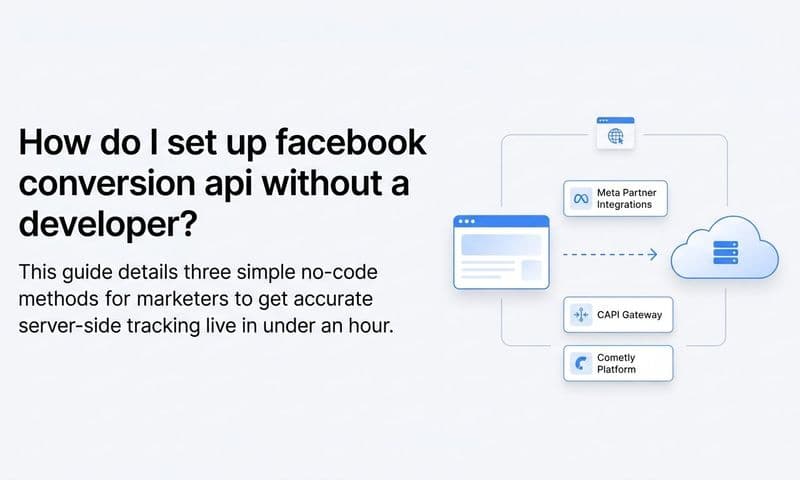
Partner Integrations: Meta has built native CAPI integrations with platforms like Shopify, WordPress (via WooCommerce), and Google Tag Manager's server-side container. If your site runs on one of these platforms, a partner integration can get you up and running faster with less custom code. The tradeoff is that partner integrations sometimes offer less granular control over event parameters.
Third-Party Attribution Platforms: Tools like Cometly handle the CAPI connection for you as part of a broader server-side tracking and attribution setup. This is particularly valuable if you run ads across multiple platforms, not just Meta. Rather than building and maintaining separate CAPI integrations for Meta, Google, TikTok, and other channels, a platform like Cometly centralizes server-side tracking and feeds enriched conversion data back to each ad platform simultaneously. It also connects your CRM and website data to give you a complete view of the customer journey.
Here is a practical way to think about your choice. If you have a dedicated developer and want full control, go direct. If you are on Shopify or a supported platform and want speed, use the partner integration. If you want server-side tracking that works across all your ad channels without rebuilding the wheel for each one, a platform like Cometly is worth evaluating.
Regardless of which path you choose, keep your access token accessible because you will need it in the next step when you start configuring event payloads.
Step 3: Map Your Conversion Events to the CAPI Payload
This is the most technically detailed step in the entire process, but it is also where the quality of your CAPI setup is determined. Getting your event mapping right means Meta receives rich, accurate data it can actually use. Getting it wrong means poor Event Match Quality, weak attribution, and an algorithm optimizing on noise.
Start by identifying the events that matter most to your business. The standard events Meta recognizes include Purchase, Lead, AddToCart, InitiateCheckout, CompleteRegistration, and ViewContent. You can also define custom events for actions specific to your funnel, such as a trial start or a demo request. For a broader look at how to set up these events correctly, our conversion tracking setup guide covers the fundamentals.
For each event, you need to structure a payload with the required and recommended parameters. Here is what every CAPI event payload should include:
event_name: The name of the event, such as Purchase or Lead. This must match the event names used by your browser Pixel for deduplication to work correctly in Step 5.
event_time: A Unix timestamp indicating when the event occurred. Use the actual time of the conversion, not the time your server processes it.
event_source_url: The URL of the page where the conversion happened. Include this for all web events.
action_source: Where the conversion took place. For web events, this is "website." For offline or CRM events, use the appropriate value.
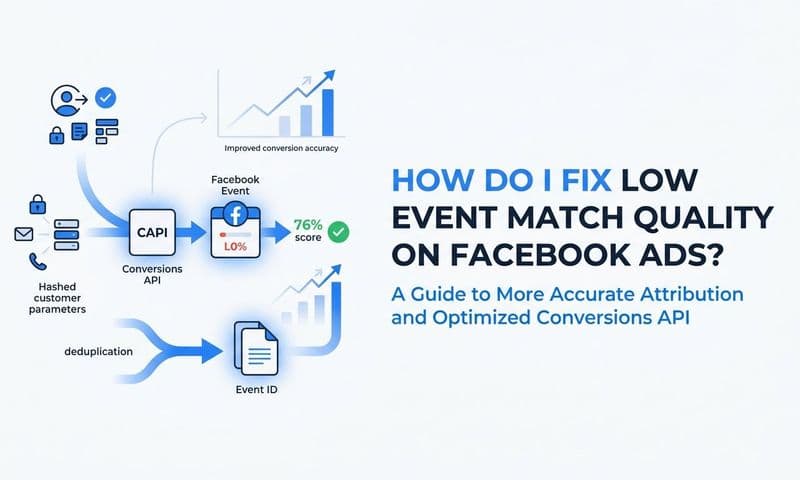
user_data: This is the most important section for match quality. Include as many of the following as you can collect: hashed email address, hashed phone number, client IP address, user agent string, the fbp cookie (Facebook browser ID), and the fbc cookie (Facebook click ID).
A critical note on privacy: every personally identifiable field in user_data must be hashed using SHA-256 before you send it to Meta. This includes email addresses and phone numbers. Meta's systems will hash these values on their end for matching, so the hashing does not prevent attribution. It is simply required for privacy compliance.
event_id: Include a unique identifier for every event. You will use this in Step 5 for deduplication. Generate this ID on the client side in the browser and pass it to both your Pixel event and your server event so they share the same value.
The most common mistake at this stage is sending minimal user_data. Some developers send only the IP address and user agent, which results in a low Event Match Quality score and reduces Meta's ability to attribute your conversions to the right ad interactions. The more user_data fields you include, the better your match quality and the more accurately Meta can optimize your campaigns.
For Purchase events specifically, also include the value and currency fields in the custom_data section of your payload. This gives Meta the revenue data it needs to calculate ROAS accurately inside Ads Manager. Understanding how to properly measure Facebook Ads ROI depends heavily on getting this revenue data right.
Step 4: Send Your First Server Events and Validate the Connection
With your event payloads structured, it is time to send your first test events and confirm the connection is working. How you do this depends on your implementation method.
If you are using direct API integration, send a test POST request to the Meta Graph API endpoint. The URL format is: graph.facebook.com/v19.0/{pixel_id}/events, where you replace {pixel_id} with your actual Pixel ID. Include your access token as a query parameter or in the request header. Send a single test Purchase event with realistic but non-real user data and check the response.
If you are using a partner integration or a platform like Cometly, trigger a real test conversion on your site, such as submitting a lead form or completing a test purchase in a staging environment. The platform handles the API call for you, so your job is to verify that the event appears correctly on Meta's end.
Here is how to verify using Meta's Test Events tool:
1. In Events Manager, click on your Pixel and navigate to the Test Events tab.
2. You will see a test code field. If you are using direct API, include this test code as a parameter in your event payload. If you are using a platform integration, check whether it supports test event codes.
3. Trigger your test conversion. The event should appear in the Test Events panel in real time, showing the event name, timestamp, and the parameters it received.
4. Inspect the event details. Confirm the event name matches what you expect, the user_data fields are populated, and the custom_data values like purchase amount are correct.
When things go wrong, the error codes point you in the right direction. A 400 response typically means your payload is malformed, with a missing required field or an incorrectly formatted value. A 403 error points to a permission or token issue, which usually means your access token is incorrect, expired, or associated with a different Pixel. If events simply do not appear in Test Events at all, double-check that your Pixel ID in the endpoint URL is correct and that you are sending to the right environment.
Do not move forward until you can see clean, correctly structured events appearing in the Test Events panel. This validation step is your safety net before you push CAPI live to production. If you encounter persistent issues, reviewing Facebook Ads reporting discrepancies can help you understand where data gaps commonly originate.
Step 5: Configure Event Deduplication Between Pixel and CAPI
Here is where a lot of CAPI setups quietly fall apart. You have the browser Pixel firing on the client side and CAPI firing on the server side. For many events, both will fire for the same conversion. Without deduplication, Meta counts that as two separate conversions. Your reported numbers inflate, your optimization signals get corrupted, and Meta's algorithm starts making decisions based on data that does not reflect reality.
Deduplication is the mechanism that prevents this. Meta uses the event_id field to identify duplicate events. When it receives two events with the same event_name and event_id, it recognizes them as the same conversion and discards the duplicate. Only one conversion gets recorded.
The key is that the event_id must be generated on the client side, in the browser, before either event fires. Here is the correct flow:
1. When a conversion occurs in the browser, generate a unique event_id. This can be a UUID, a timestamp-based string, or any unique identifier your system produces.
2. Pass that event_id to the browser Pixel event. In the Pixel code, include it in the event parameters when calling fbq('track', 'Purchase', {...}, {eventID: 'your_unique_id'}).
3. Simultaneously, send that same event_id to your server. Your server then includes it in the CAPI payload when it sends the event to Meta.
4. Meta receives both events, sees matching event_name and event_id values, and deduplicates them down to a single conversion.
If your setup sends events at slightly different times, for example if the server event fires a few seconds after the browser event, deduplication still works as long as both events share the same event_id and arrive within Meta's deduplication window.
To verify that deduplication is working correctly, go back to Events Manager and look at your active events. When deduplication is functioning, you will see a "Deduplicated" label on events that were received from both sources. Your total event count should stay stable and should not show a sudden doubling of conversions after CAPI goes live. Accurate Facebook conversion tracking depends entirely on getting this deduplication step right.
A word of warning: skipping deduplication is one of the most damaging mistakes you can make in a CAPI setup. Inflated conversion counts do not just make your reports look better than reality. They actively mislead Meta's optimization algorithm, causing it to allocate budget toward ad sets and audiences based on phantom conversions. The result is wasted spend and degraded campaign performance over time.
Take the time to implement deduplication correctly. It is not optional.
Step 6: Monitor Event Match Quality and Optimize Data Accuracy
Your CAPI is live, events are flowing, and deduplication is working. Now the focus shifts from setup to ongoing performance. The metric you want to watch closely is Event Match Quality, or EMQ.
EMQ is Meta's scoring system that measures how effectively your server events can be matched to actual Facebook user profiles. It runs on a scale of 1 to 10. A higher score means Meta can more confidently attribute your conversions to specific ad interactions, which directly improves how well the algorithm can optimize your campaigns. For a deep dive into what drives this score, read our guide on Facebook Event Match Quality.
You will find your EMQ scores in Events Manager under the Overview tab. Each event type gets its own score. Check these regularly, especially in the first week after going live.
Aim for an EMQ score above 6. Scores in the 7 to 10 range indicate strong matching and give Meta the signal quality it needs to do effective optimization. Scores below 5 suggest that your user_data is incomplete or missing key fields, and your attribution accuracy will suffer for it.
Here is how to improve a low EMQ score:
Add more user_data fields: If you are only sending IP address and user agent, start including hashed email and hashed phone number. These are the highest-impact fields for match quality. Adding city, state, and zip code also contributes meaningfully.
Pass fbp and fbc cookie values: The fbp cookie is the Facebook browser ID stored in the user's browser. The fbc cookie is the click ID appended to the URL when someone clicks a Facebook ad. Both of these values are available in the browser and should be read and passed to your server with every event. They are among the strongest matching signals Meta uses. Understanding CAPI match rate helps you benchmark whether your implementation is performing well compared to industry standards.
Ensure consistent hashing: All PII fields must be hashed with SHA-256, normalized to lowercase, and stripped of leading or trailing whitespace before hashing. Inconsistent hashing is a common source of match failures that silently drags down your EMQ score.
Review Events Manager diagnostics weekly: Meta surfaces data quality warnings and errors in the diagnostics section of Events Manager. Check these at least once a week. A drop in event volume, a spike in errors, or a declining EMQ score can indicate a broken integration, a changed page structure, or a server issue that needs attention before it impacts your campaigns.
The connection between strong EMQ and ad performance is direct. When Meta receives accurate, well-matched conversion signals from your CAPI setup, it can identify which users are most likely to convert and deliver your ads to more of them. This is the compounding benefit of getting server-side tracking right: better data in means smarter optimization out, lower cost per acquisition, and more efficient use of your ad budget over time.
Tools like Cometly take this a step further by unifying your server-side conversion data across Meta, Google, TikTok, and other channels in a single attribution dashboard. Rather than checking each ad platform separately and trying to reconcile conflicting numbers, you get a single source of truth that shows which ads and channels are actually driving revenue across your entire marketing mix.
Your CAPI Setup Checklist and Next Steps
With all six steps complete, your Facebook CAPI setup is live and feeding Meta reliable, server-side conversion data. Before you move on, run through this checklist to confirm everything is in place:
Meta Pixel active: Your browser Pixel is firing correctly and showing recent event activity in Events Manager.
Permissions confirmed: You have admin access to the Business Manager that owns the Pixel, and your Pixel is linked to the correct ad account.
Access token generated and stored: Your long-lived access token is saved securely and is being used to authenticate your server events.
Conversion events mapped: Your key events (Purchase, Lead, and others relevant to your funnel) are structured with complete user_data fields, SHA-256 hashed PII, and event_id values.
Test events validated: You have confirmed that events appear correctly in Meta's Test Events tool with accurate parameters and user data.
Deduplication configured: Matching event_id values are being passed to both the browser Pixel and the server event, and Events Manager shows the Deduplicated label on paired events.
Event Match Quality above 6: Your EMQ scores are in a healthy range and you have a weekly review process in place to catch any drops early.
Going forward, check Events Manager diagnostics weekly to catch data drops or errors before they impact your campaigns. As your tracking matures, consider layering in a platform like Cometly to unify your server-side data across Meta, Google, TikTok, and other channels in one attribution dashboard. This gives you a single source of truth for understanding which ads actually drive revenue, not just clicks.
Accurate data in means smarter optimization out. Now that your CAPI foundation is solid, you are set to make every ad dollar work harder.
Ready to take your attribution beyond Meta? Get your free demo of Cometly and see how AI-driven attribution can unify your server-side tracking across every ad platform, capture every touchpoint, and give you the clarity to scale with confidence.