If you have been running Facebook ads for any length of time, you have probably noticed the data gaps. Conversions that do not match up between your ad manager and your actual sales. Revenue that seems to appear out of nowhere, or worse, campaigns that look like they are underperforming when they are actually your best performers.
The root cause is almost always the same: browser-based tracking is breaking down. Between iOS privacy updates, ad blockers, cookie restrictions, and browser-level tracking prevention, the Meta Pixel alone can no longer capture the full picture of your customer journey.
Server side tracking for Facebook ads solves this by moving the data collection process from the user's browser to your own server. Instead of relying on a JavaScript pixel that fires in the browser and gets blocked or limited, server side tracking sends conversion events directly from your server to Meta's Conversions API. This means more reliable data, better event match quality, and stronger signals feeding back into Meta's ad optimization algorithms.
In this guide, you will walk through every step needed to set up server side tracking for Facebook ads, from initial configuration in Meta Business Manager to verifying that your events are firing correctly. Whether you choose a manual implementation, a partner integration, or a platform like Cometly that handles server side tracking automatically, you will have a clear roadmap by the end of this article.
Step 1: Understand Why Browser-Based Tracking Falls Short
Before you configure a single setting, it helps to understand exactly what is breaking. The Meta Pixel is a snippet of JavaScript that loads in a visitor's browser and fires events like PageView, Purchase, or Lead when specific actions occur on your site. For years, this worked well enough. Then the environment changed.
Apple's iOS 14.5 App Tracking Transparency update, rolled out in April 2021, required apps to ask users for permission before tracking them across other apps and websites. A significant portion of users opted out. That decision alone cut off a substantial stream of conversion data that advertisers had been relying on without even realizing it.
That was just the beginning. Ad blockers prevent the pixel from loading entirely. Safari's Intelligent Tracking Prevention limits how long cookies persist. Firefox and Brave have similar restrictions. Even users who have not installed any privacy tools may have their browsers automatically restricting third-party tracking behavior. Understanding Facebook pixel tracking limitations is the first step toward solving these data gaps.
The real-world impact is significant. Your Meta Pixel may be reporting far fewer conversions than are actually happening. When Meta's algorithm sees incomplete conversion data, it makes worse optimization decisions. It may pause or underspend on your best-performing campaigns because it cannot see the results those campaigns are generating. You end up with inflated cost-per-acquisition numbers, campaigns that look like failures, and budget being shifted toward the wrong audiences.
Server side tracking addresses this at the source. Instead of the pixel firing from inside the user's browser where it can be blocked or restricted, your server sends the conversion event directly to Meta's Conversions API. If you want a deeper dive into why server-side tracking is more accurate, it comes down to bypassing the browser entirely so the data never passes through an environment where it can be lost.
One important clarification: server side tracking does not replace the pixel entirely. Meta recommends running both in parallel. The pixel still captures real-time browser signals and certain user behavior data that server events do not always include. The combination of pixel plus Conversions API creates redundancy, and Meta's deduplication system handles any overlapping events so you are not double-counting conversions. Think of it as two independent data streams that together give you a much more complete picture than either one alone.
Step 2: Set Up Your Meta Pixel and Conversions API Access
Before any server side events can be sent, you need two things: your Meta Pixel ID and a Conversions API access token. If you already have a pixel running on your site, you are partway there. If not, you will need to create one first.
Start by navigating to Meta Business Suite and opening Events Manager. If you do not have a pixel yet, click Connect Data Sources, select Web, and follow the setup flow to create a new pixel. Give it a descriptive name tied to your website or business so it is easy to identify later.
Once your pixel exists, locate your Pixel ID. You will find it displayed prominently in Events Manager when you select your pixel. Copy this and store it somewhere secure. You will need it when configuring your server side events.
Next, generate your Conversions API access token. In Events Manager, select your pixel, navigate to Settings, and scroll down to the Conversions API section. Click Generate Access Token. This token is what authenticates your server's requests to Meta's API. Treat it like a password. Do not expose it in client-side code or public repositories. For a complete walkthrough of the broader setup process, our server side tracking implementation guide covers each step in detail.
A few permission requirements to confirm before moving forward. You need admin-level access to the ad account associated with your pixel. If you are working within an agency setup or a shared Business Manager, verify that your account has the correct permissions. Missing permissions are one of the most common reasons server side events fail silently.
Important: If you already have the Meta Pixel firing on your site, do not remove it. Your server side setup will work alongside the pixel, not instead of it. Removing the pixel at this stage would eliminate the browser-side signals that Meta still uses for audience building and real-time optimization. The goal is to add a server layer on top of what you already have.
With your Pixel ID and access token in hand, you are ready to choose how you will actually send events from your server to Meta.
Step 3: Choose Your Server Side Implementation Method
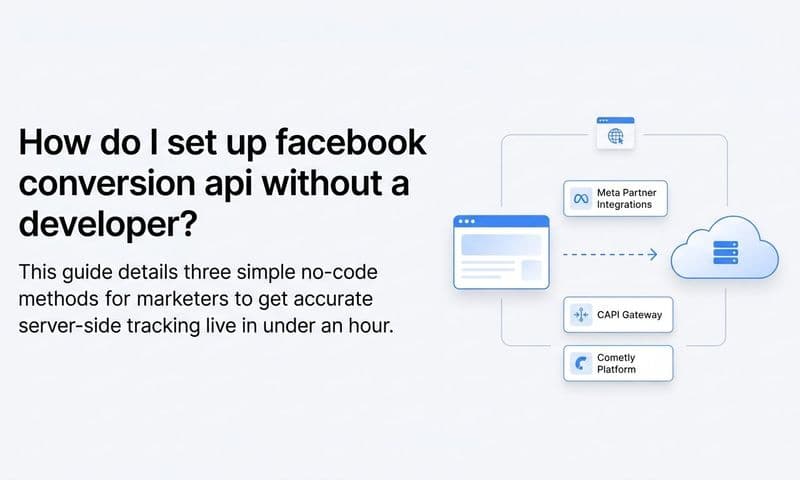
There is no single right way to implement server side tracking for Facebook ads. The best approach depends on your technical resources, your existing tech stack, and how much ongoing maintenance you want to manage. Here are the four main options.
Option A: Direct API Integration. Your development team writes code that sends HTTP POST requests directly to Meta's Conversions API endpoint from your backend server. This gives you the most control over exactly what data gets sent and when. It is the right choice for businesses with custom-built platforms, developers on staff, and complex event requirements. The tradeoff is that it requires ongoing developer involvement whenever your tracking needs change.
Option B: Platform and Plugin Integrations. If you are running an e-commerce store on Shopify, WooCommerce, or a similar platform, you likely have access to native or third-party integrations that connect the Conversions API with minimal code. Shopify, for example, has a built-in Meta integration that handles server side event sending for standard purchase events. WooCommerce users can explore dedicated solutions for server side tracking for WooCommerce that simplify the process. These integrations are faster to deploy but may have limitations around custom events or advanced parameter configuration.
Option C: Google Tag Manager Server-Side Container. Google Tag Manager offers a server-side container option that acts as a proxy between your website and Meta's servers. Your browser sends events to your own GTM server container, which then forwards them to Meta. This approach keeps tracking off the user's browser while still using a tag management interface most marketers are familiar with. It does require setting up and hosting a server container, which adds infrastructure cost and some complexity.
Option D: Attribution Platforms Like Cometly. Platforms like Cometly handle server side tracking automatically, without requiring developer resources or manual API configuration. Cometly connects your ad platforms, CRM, and website to capture every touchpoint across the customer journey. It then syncs enriched, conversion-ready events back to Meta and other ad channels, improving targeting and optimization without you needing to configure individual parameters or manage API tokens manually. You can compare the leading options in our roundup of server side tracking tools.
For most marketing teams without dedicated developer support, Option B or Option D will get you up and running fastest with the least risk of misconfiguration. If accuracy, cross-channel attribution, and minimal maintenance are priorities, a purpose-built attribution platform is worth serious consideration. For teams with developer resources and highly custom setups, Option A gives you the most flexibility.
Step 4: Configure Your Server Side Events and Parameters
Once you have chosen your implementation method, the next step is deciding which events to send and what data to include with each one. Getting this right is where most of the real value in server side tracking lives.
The standard events you should prioritize are the ones Meta uses most heavily for campaign optimization. At minimum, configure these:
Purchase: The most critical event for e-commerce and lead-gen businesses. Must include value and currency in the custom_data object.
Lead: Fires when a form is submitted or a lead is captured. Essential for lead generation campaigns optimizing toward lead volume or cost-per-lead.
InitiateCheckout: Signals high purchase intent and feeds into retargeting and optimization models.
AddToCart: Useful for mid-funnel retargeting and lookalike audience creation.
CompleteRegistration: Important for SaaS and subscription businesses tracking sign-ups or trial starts.
ViewContent: Captures product page views and helps Meta understand which content drives downstream conversions.
For each event, you need to pass the right parameters. The required fields for every event are event_name (the standard event string), event_time (Unix timestamp of when the event occurred), and user_data. The user_data object is where most of the event match quality comes from, and it should include as many of the following as you can collect: hashed email address, hashed phone number, IP address, user agent, fbc (Facebook click ID cookie), and fbp (Facebook browser ID cookie). Properly configuring these parameters is essential for accurate Facebook conversion tracking across your campaigns.
One requirement that is non-negotiable: all personally identifiable information in user_data must be hashed using SHA-256 before being sent to Meta. Email addresses, phone numbers, names, and location data all need to be hashed. Meta handles the matching on their end using the same hashing process. Sending unhashed data is a privacy violation and will cause your events to be rejected.
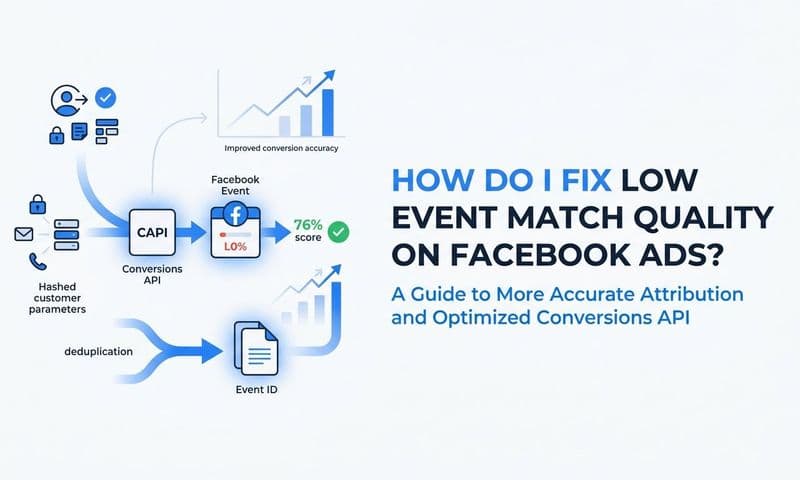
The event_id parameter deserves special attention. When both your pixel and your server are firing the same event, Meta needs a way to know they represent the same conversion and not two separate ones. You solve this with deduplication. Assign a unique event_id to each conversion event, and pass that same event_id in both the pixel event and the corresponding server event. Meta automatically deduplicates events that share the same event_name and event_id, so your reported conversion counts stay accurate.
A common pitfall: sending server events with minimal or missing user_data. If you skip the user data fields to save time, your Event Match Quality score will be low, Meta will struggle to match your events to Facebook users, and the whole purpose of server side tracking is undermined. Take the time to pass as many user_data parameters as your system can collect.
Step 5: Test and Validate Your Server Side Events
Sending events to Meta without testing them first is a fast way to corrupt your data and waste weeks of optimization signal. Before going live, validate everything using Meta's built-in testing tools.
In Events Manager, navigate to your pixel and select the Test Events tab. This tool shows you a real-time feed of events being received by Meta, both from your pixel and from the Conversions API. When you are in development or testing mode, add the test_event_code parameter to your server-side API calls. This routes your test events to the Test Events tab without affecting your live data or triggering any ad delivery. You will find your test event code in the Test Events tab itself.
Fire a test conversion on your site or trigger a test API call manually, then check the Test Events tab to confirm the event appears. Verify that the event name is correct, the parameters are present, and the user_data fields are being passed. If an event does not appear within a few seconds, check your access token permissions and confirm your server can reach Meta's API endpoint. If you encounter discrepancies between what your server sends and what Events Manager reports, our guide on Facebook ads reporting discrepancies can help you diagnose the root cause.
Next, check for deduplication. If your pixel is also firing on the same test conversion, you should see both a browser event and a server event appear in the Test Events feed. Confirm that both carry matching event_id values. If they do, Meta will correctly deduplicate them in live reporting.
Once your test events are validating correctly, review your Event Match Quality (EMQ) score in Events Manager. This score reflects how well Meta can match your server events to actual Facebook users. The scale runs from Poor to Great. Aim for Good or Great. A Poor score means Meta is receiving your events but cannot reliably connect them to users, which severely limits their value for optimization.
Common issues to troubleshoot if events are not appearing or EMQ is low: incorrect SHA-256 hashing of user data, missing fbc or fbp cookie values, event_time values that are in the wrong timezone or format, and access token permission errors. Work through each one systematically. The Test Events tool will often surface error messages that point you toward the specific problem.
Step 6: Optimize Event Match Quality and Feed Better Data to Meta
Getting your server events firing is the foundation. Optimizing the quality of those events is where the real performance gains come from.
Event Match Quality is Meta's measure of how confidently it can connect your server events to specific Facebook users. A higher EMQ score means Meta can attribute more of your conversions to the right ads, build more accurate lookalike audiences, and optimize your campaigns with better signal. A low EMQ score means your server events are technically being received but are not contributing much to optimization. Learning the full range of server side tracking benefits helps you understand why investing in EMQ improvement pays off.
The most direct way to improve EMQ is to pass more user data parameters with each event. If you are currently only sending hashed email, add hashed phone number. If you are sending phone and email, add first name, last name, city, state, and zip code. Each additional parameter increases the probability that Meta can match the event to a known user.
Two parameters that are especially impactful and often overlooked are fbc and fbp. The fbc value is derived from the fbclid URL parameter that Meta appends to ad click URLs. When a user clicks your Facebook ad, capture the fbclid from the URL and store it as a first-party cookie. Forward this value with your server events. The fbp value is the Facebook browser ID cookie that the Meta Pixel sets automatically. Read this cookie value on your server and include it in the user_data object. Both of these parameters give Meta strong matching signals that significantly improve EMQ.
The downstream effects of high-quality server side data are meaningful. When Meta receives enriched, accurate conversion signals, its machine learning algorithms can optimize your ad delivery more effectively. Lookalike audiences built from high-quality conversion events tend to perform better. Campaigns optimizing toward purchase or lead events make smarter bidding decisions when the underlying data is complete. This directly impacts your Facebook ads optimization across every campaign in your account.
This is exactly the problem Cometly is built to solve. Rather than manually configuring each parameter and maintaining cookie capture logic across your site, Cometly captures every touchpoint across the customer journey automatically. It syncs enriched, conversion-ready events back to Meta, Google, and other ad platforms, feeding their algorithms better data without requiring you to manage the technical details of each integration. The result is more accurate attribution across all your channels and stronger optimization signals flowing back to every platform you advertise on.
Server side data also makes your attribution models more accurate. When you have a complete record of every conversion event with full user data, multi-touch attribution models can correctly credit the channels and campaigns that contributed to each sale. You stop making budget decisions based on incomplete data and start making them based on the full customer journey.
Putting It All Together: Your Server Side Tracking Checklist
You now have everything you need to implement server side tracking for Facebook ads. Before you consider the setup complete, run through this checklist to confirm nothing has been missed.
Pixel ID and API access token generated: Both are stored securely and ready to use in your implementation.
Implementation method chosen: Direct API, platform plugin, GTM server container, or an attribution platform like Cometly.
Standard events configured: Purchase, Lead, InitiateCheckout, AddToCart, CompleteRegistration, and ViewContent are all sending with the correct event_name and event_time values.
User data hashed and passed correctly: All PII is SHA-256 hashed before being included in user_data. Email, phone, fbc, fbp, and additional parameters are being forwarded with each event.
Deduplication event_id set up: Both the pixel and server events carry matching event_id values for each conversion so Meta can deduplicate correctly.
Test events validated: Events are appearing correctly in the Test Events tab with no errors, and the test_event_code has been removed before going live.
Event Match Quality reviewed: Your EMQ score is at Good or Great, and you have a plan to improve it if it falls below that threshold.
One final note: server side tracking is not a one-time setup. As your website evolves, your tech stack changes, or Meta updates its API, your implementation will need to be reviewed and updated. Build monitoring into your workflow so you catch data gaps before they affect your campaign performance.
For teams that want accurate, automated server side tracking without the developer overhead, Get your free demo of Cometly today. Cometly connects your ad platforms, CRM, and website to track the entire customer journey, feeds enriched conversion data back to Meta and other channels, and gives you the clear, accurate marketing data you need to scale your campaigns with confidence.