Your Facebook ad campaigns are only as good as the data feeding them. When your Facebook pixel stops firing correctly, the consequences ripple across your entire paid media strategy. Retargeting audiences shrink, conversion events go unreported, and Meta's algorithm loses the signal it needs to optimize delivery. The result is wasted ad spend and decisions based on incomplete data.
The frustrating part is that pixel issues can be subtle. You might not even realize something is broken until you notice a sudden drop in reported conversions or your custom audiences stop growing. Browser privacy updates, incorrect code placement, tag manager conflicts, and domain verification gaps are just a few of the culprits that can quietly break your pixel without triggering an obvious error.
This guide walks you through seven clear steps to diagnose and fix a Facebook pixel not working properly. Whether you are dealing with a pixel that will not fire at all, events that are not matching up with actual conversions, or data discrepancies between Meta Ads Manager and your actual sales numbers, you will find a systematic path to resolution here.
A quick note on context before we dive in: pixel issues became significantly more common after Apple's iOS 14.5 App Tracking Transparency update, which changed how apps and browsers handle user tracking. Meta responded with Aggregated Event Measurement and the Conversions API, both of which we will cover in detail. In 2026, browser-level privacy protections have continued to expand, making a solid tracking foundation more important than ever.
By the end of this guide, you will have a fully functioning pixel and a clearer understanding of how to keep your tracking reliable going forward, even as privacy restrictions continue to evolve.
Step 1: Confirm the Pixel Is Installed and Firing on Every Page
Before you can fix anything, you need to confirm what is actually happening. The most direct way to do this is with the Meta Pixel Helper Chrome extension. Install it, visit your website, and click the extension icon. You will immediately see whether a pixel is present, which pixel ID is firing, and whether any errors are detected.
Do not just check your homepage. Walk through every critical page in your funnel: your product pages, your cart, your checkout flow, and your thank you or order confirmation page. Each of these pages should trigger the pixel. If the extension shows nothing on certain pages, you have found your first problem.
Common installation errors to look for:
Pixel placed outside the head tag: The pixel base code should live inside the <head> section of your HTML. If it has been placed in the body or footer, it may load inconsistently or not at all on some pages.
Duplicate pixel IDs: Sometimes a pixel gets installed twice, either through a theme and a tag manager simultaneously, or through two different plugins. Duplicates cause double-counting and can confuse Meta's deduplication logic.
Code removed during a site update: Theme changes, plugin updates, and CMS migrations are common culprits. A developer updates your theme and the pixel code that was hardcoded into the old template simply disappears.
Once you have done your browser-level check, head into Meta Events Manager. Select your pixel and look at the Overview tab. You should see an active status and a steady stream of PageView events. If the pixel shows as inactive or you see a gap in event activity, that confirms a firing issue rather than just an event configuration problem. For a deeper dive into common firing failures, check out our guide on tracking pixel firing issues.
If you are using Google Tag Manager, open your container and verify that the Facebook Pixel tag has a trigger set to fire on All Pages. Also check that the tag is published, not sitting in a draft or preview state. It is surprisingly easy for a tag to get paused during a testing session and never re-enabled.
Success indicator: Meta Pixel Helper shows a green checkmark with the correct pixel ID on every page you visit, and Events Manager reflects consistent PageView activity with no gaps or inactive status.
Step 2: Validate Your Event Setup in Meta Events Manager
Getting the base pixel to fire is only half the battle. The real value comes from your conversion events, and those need their own audit. Open Events Manager, navigate to your pixel, and review the Events tab. You will see a list of events that Meta has received, along with connection method, match quality score, and any warning icons.
Compare what you see against what you expect. If you are running an e-commerce store, you should see Purchase, AddToCart, InitiateCheckout, and ViewContent at a minimum. If you are running lead generation, you should see Lead or CompleteRegistration events. Any expected event that is missing entirely is a gap worth investigating.
Pay close attention to warning icons. These typically signal one of two things: either the event parameters are incomplete or incorrectly formatted, or the event name does not match a recognized standard event definition. Both issues degrade your ability to optimize campaigns. Understanding Facebook event match quality is critical to diagnosing these problems correctly.
Use the Test Events tool to verify firing in real time:
Inside Events Manager, find the Test Events tab. Enter your website URL and click Open Website. Meta will begin listening for events from your browser session. Walk through the actions you want to track, such as adding a product to your cart or completing a form submission. You should see the corresponding events appear in the panel within seconds.
If an event fires in your browser but does not appear in the Test Events panel, the issue is likely in how the event is being sent to Meta. If the event appears but shows parameter warnings, you need to fix the data being passed alongside the event.
Event parameter quality matters more than most marketers realize:
Value and currency: For Purchase events, these are essential. Missing value data means Meta cannot calculate return on ad spend within the platform, and your optimization toward high-value purchases becomes impossible.
content_id: This parameter links your events to your product catalog, enabling dynamic ads. If it is missing or mismatched, your dynamic retargeting campaigns will not work correctly.
Custom event naming: If you have created custom events, double-check the spelling and capitalization. A custom event named "purchase_complete" will not match Meta's standard "Purchase" event definition, and it will not be eligible for conversion optimization. Consistency in naming is critical.
Success indicator: All expected events appear in Events Manager without warning icons, the Test Events tool confirms real-time firing, and event parameters including value, currency, and content_id are populated correctly.
Step 3: Check Domain Verification and Aggregated Event Measurement
Here is one of the most overlooked reasons a pixel appears broken when the code itself is perfectly fine: your domain is not verified, or your Aggregated Event Measurement configuration is incomplete.
After iOS 14.5, Meta introduced Aggregated Event Measurement as a framework for measuring campaign performance in a privacy-constrained environment. For it to work correctly, you need to verify your domain with Meta and configure which conversion events you want to prioritize. Our detailed guide on pixel tracking problems on iOS covers the full scope of these privacy-related challenges.
To check your domain verification status, go to Meta Business Settings, then navigate to Brand Safety and select Domains. Your domain should appear with a verified status. If it shows as unverified, you will need to complete verification through one of three methods: adding a DNS TXT record to your domain registrar, uploading an HTML file to your web server, or adding a meta-tag to your website's head section.
Once your domain is verified, open Events Manager and look for the Aggregated Event Measurement section. Here you can configure up to eight conversion events per domain and rank them by priority. This ranking matters because when a user opts out of tracking on iOS, Meta can only report on the single highest-priority event that was triggered during that session.
If your most important conversion event, typically Purchase or Lead, is not at the top of your priority list, you are losing attribution data for your most valuable actions. Review your ranking and move your highest-value events to the top.
Also check that the events you care about have actually been added to your AEM configuration. Events that fire on your site but have not been added to the AEM list will not be reported correctly for iOS users.
Success indicator: Your domain shows as verified in Business Settings, and your most important conversion events are ranked at the top of your AEM priority list with no configuration warnings.
Step 4: Troubleshoot Browser and Privacy-Related Blocking
Sometimes the pixel code is correct, your events are configured properly, and your domain is verified, but you are still seeing lower-than-expected tracking numbers. This is where browser-level privacy blocking enters the picture.
Ad blockers, Safari's Intelligent Tracking Prevention, Firefox's Enhanced Tracking Protection, and Brave's built-in blocking all interfere with client-side pixel tracking. A visitor using one of these tools may complete a purchase on your site, but your pixel never fires for them. From Meta's perspective, that conversion never happened.
To test this, open your site in multiple browsers under different conditions. Try Chrome without any extensions, then try it with an ad blocker enabled. Try Safari and Firefox. Use the Meta Pixel Helper in each scenario and note where the pixel fires successfully versus where it fails or fires inconsistently.
Cookie consent banners add another layer of complexity. If your pixel is configured to fire only after a user grants consent, and a significant portion of your visitors decline or ignore the consent banner, your tracked data will naturally be lower than your actual activity. This is not a broken pixel, but it is a tracking gap that needs to be addressed. Understanding Facebook ads reporting discrepancies helps you distinguish between data loss and actual performance issues.
The critical distinction here is this: do not confuse a blocked pixel with a broken pixel. A broken pixel needs a code fix. A blocked pixel needs an architectural fix, specifically server-side tracking.
The server-side solution: The Conversions API sends event data directly from your server to Meta, bypassing the browser entirely. It does not rely on cookies, it is not affected by ad blockers, and it is not subject to browser-level privacy restrictions. For visitors where the browser pixel is blocked, the Conversions API can still capture and report the conversion.
Running both the browser pixel and the Conversions API together gives you the most complete event coverage. The pixel handles the events it can reach, and the Conversions API fills the gaps. We will walk through setting this up in the next step.
Tip: When diagnosing tracking shortfalls, always test in a privacy-focused browser before assuming the pixel is broken. The fix for browser blocking is fundamentally different from the fix for a misconfigured pixel tag.
Step 5: Set Up or Repair Your Conversions API Connection
The Conversions API, often called CAPI, is Meta's server-side tracking solution. Instead of relying on JavaScript running in a visitor's browser, CAPI sends event data from your web server directly to Meta's servers. This makes it immune to ad blockers, browser privacy restrictions, and cookie expiration issues.
To check whether CAPI is already active, open Events Manager and look at your events list. In the connection method column, you should see labels indicating whether each event is coming from a Browser source, a Server source, or both. If all your events show only Browser, CAPI is not currently running. Our step-by-step Conversion API implementation tutorial walks you through the full setup process.
Setting up CAPI: your options
Direct integration: If you have developer resources, you can implement CAPI directly on your server. Meta provides detailed API documentation and supports sending events via HTTP POST requests. This gives you the most flexibility but requires technical implementation.
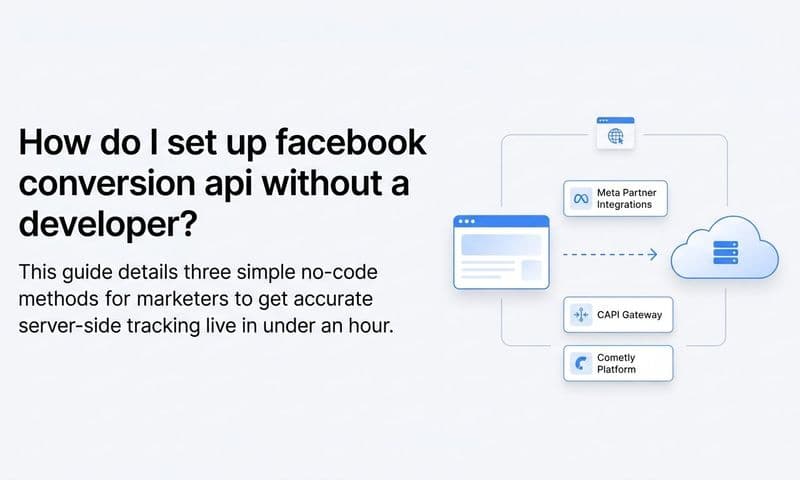
Partner integrations: If you are running on Shopify, WooCommerce, or another major platform, Meta has native partner integrations that handle CAPI setup without custom code. In Shopify, for example, you can enable the Conversions API directly through the Meta sales channel settings.
Meta's gateway setup: Meta also offers a cloud-hosted gateway option that simplifies CAPI implementation for businesses without dedicated developer support.
Regardless of which setup method you choose, one configuration detail is non-negotiable: deduplication.
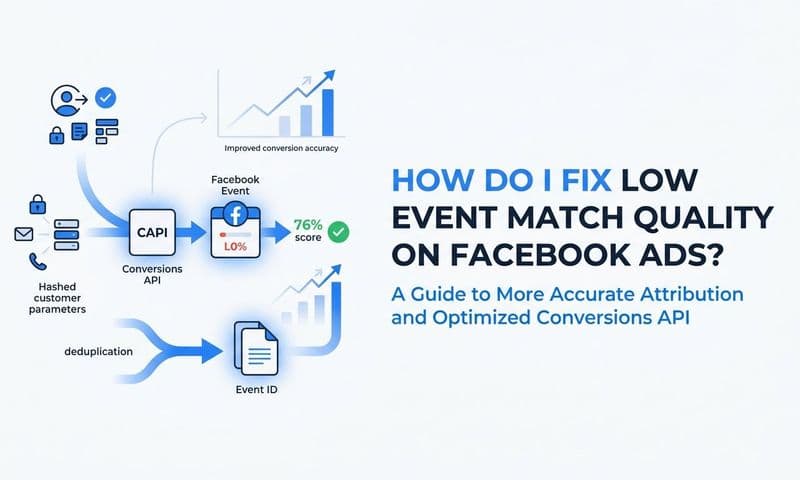
When you run both the browser pixel and CAPI simultaneously, both will often fire for the same event. A user completes a purchase, the pixel fires from the browser, and CAPI fires from the server. Without deduplication, Meta counts that as two conversions. Your reported numbers inflate, your optimization signals get distorted, and your ROAS calculations become unreliable.
The fix is to include the same event_id parameter in both the pixel event and the CAPI event for every conversion. Meta uses this ID to recognize that both signals refer to the same action and counts it only once. This is a small implementation detail with a large impact on data quality.
Success indicator: Events Manager shows both Browser and Server connection methods for your key conversion events, and your event match quality score improves, indicating that Meta is successfully matching events to user profiles.
Step 6: Audit for Conflicts With Third-Party Scripts and Site Changes
Even when everything looks correct in Meta's tools, a pixel can stop working because of something happening on your website itself. Site updates are one of the most common triggers. A theme change, a plugin update, or a new third-party script can overwrite your pixel code, introduce a JavaScript error, or create a loading conflict that prevents the pixel from executing.
Start by checking your browser console. Right-click anywhere on your page, select Inspect, and navigate to the Console tab. Look for red error messages. A JavaScript error that occurs before the pixel script runs can prevent the entire pixel from loading. Even an error in an unrelated script can sometimes cascade and block other scripts from executing.
If you see errors, note the file name and line number. This will tell you which script is causing the problem and help you or your developer identify the fix. For a broader understanding of how pixel tracking works and where it can break, review our explainer on what pixel tracking is and how it functions under the hood.
Common conflict sources to investigate:
Security plugins: Some WordPress security plugins actively block scripts they identify as tracking-related. Check your plugin settings to ensure the Facebook pixel domain is whitelisted.
Chat widgets and live support tools: These often load scripts asynchronously and can occasionally interfere with other tracking scripts, particularly if they manipulate the DOM in ways that affect tag manager containers.
Google Tag Manager loading issues: If your pixel is deployed through GTM, verify that your container snippet is placed correctly in both the head and body of your pages. Also check the tag firing order. If another tag is causing an error early in the container execution, it can prevent subsequent tags including your pixel from firing.
Quick diagnostic method: Temporarily disable third-party scripts one at a time and test pixel firing after each removal. This process of elimination will help you isolate the specific conflict without having to guess.
Also review your deployment timeline. If you can identify when the pixel stopped working, check what changed on your site around that same date. A site update log or version control history can save you hours of troubleshooting by pointing you directly to the change that introduced the problem.
Success indicator: No JavaScript errors appear in the browser console during a page load, and the Meta Pixel Helper confirms consistent firing after you have reviewed and resolved any script conflicts.
Step 7: Build a Long-Term Tracking Strategy That Goes Beyond the Pixel
You have worked through six steps to get your pixel functioning correctly. That is genuinely important work. But here is the honest reality: even a perfectly functioning pixel has structural limitations in today's privacy landscape.
Cross-device tracking gaps mean that a user who sees your ad on their phone and converts on their laptop may not be attributed correctly. Cookie expiration windows mean that a user who takes two weeks to convert after clicking your ad may fall outside your attribution window entirely. And the data you see in Meta Ads Manager often does not match your actual CRM or revenue data, not because something is broken, but because platform-reported attribution is inherently incomplete. Exploring Facebook ads attribution in depth helps you understand why these gaps exist and how to close them.
This is where multi-touch attribution becomes essential. Rather than relying on Meta to tell you which of its own ads drove a conversion, multi-touch attribution maps the entire customer journey across every channel and touchpoint. You can see that a customer first clicked a Google Search ad, then engaged with a Facebook retargeting ad three days later, then converted through an email link. Each touchpoint gets appropriate credit, and you get a complete picture of what is actually driving revenue.
Server-side tracking platforms like Cometly take this further by capturing every touchpoint from the initial ad click through to CRM events, providing enriched data that reflects the full customer journey. Cometly connects your ad platforms, your website, and your CRM in real time, so you can see exactly which ads and channels are driving leads and revenue, not just what Meta's own attribution model reports.
There is another dimension to this worth understanding. When you feed richer, more complete conversion data back to Meta's algorithm, its targeting and optimization capabilities improve. Meta's AI learns from the signals you send it. If you are only sending browser-pixel events, you are sending incomplete signals. If you are sending enriched server-side events that include customer data points and full conversion context, Meta's algorithm can optimize delivery more effectively, which means better results from the same ad spend. Learn more about how to improve this feedback loop in our guide on Facebook pixel tracking and training Meta's AI correctly.
Think of the pixel fix as clearing the foundation. A working pixel is the baseline. A resilient tracking infrastructure built on server-side data, multi-touch attribution, and accurate cross-platform reporting is what actually scales your paid media performance over time.
Privacy restrictions are not going away. Browser protections will continue to expand, and relying solely on client-side tracking will continue to produce data loss. The marketers and teams who invest in a proper tracking infrastructure now will have a significant advantage as these restrictions tighten further.
Your Tracking Restoration Checklist
Fixing a Facebook pixel that is not working properly is rarely about a single issue. It usually involves a combination of installation errors, event misconfigurations, domain verification gaps, and browser-level privacy blocking. By working through these seven steps systematically, you can identify exactly where your tracking breaks down and apply the right fix.
Before you close this guide, run through this quick checklist to confirm everything is in order:
Pixel installation: Meta Pixel Helper confirms the correct pixel ID is firing on every page in your funnel, including your thank you or confirmation page.
Event configuration: All expected standard events appear in Events Manager without warning icons, and the Test Events tool confirms real-time firing with correctly populated parameters.
Domain verification and AEM: Your domain shows as verified in Business Settings, and your highest-value conversion events are ranked at the top of your Aggregated Event Measurement priority list.
Conversions API: CAPI is active and sending server-side events, deduplication is configured with matching event_id parameters, and Events Manager shows both Browser and Server connection methods for key events.
Script conflicts: No JavaScript errors appear in the browser console, and no third-party scripts are interfering with pixel execution.
Once you have confirmed all five areas, your pixel tracking should be restored. But remember, the pixel is just one piece of a larger tracking puzzle. As privacy restrictions continue to tighten, building a server-side tracking foundation and adopting multi-touch attribution will keep your data accurate and your ad spend optimized for the long run.
Ready to go beyond the pixel and get a complete view of every touchpoint driving your conversions? Get your free demo of Cometly today and see how AI-driven attribution can transform the way you analyze and scale your ad campaigns.