Facebook ads can drive serious revenue, but only if you can actually see what is working. The problem is that most marketers are making budget decisions based on incomplete or misleading data, and they do not even know it.
Between iOS privacy updates, the decline of third-party cookies, and Meta's own reporting limitations, the numbers inside Ads Manager often tell a very different story than what is actually happening in your business. You might see 50 conversions reported in Facebook, but your CRM only shows 30 actual sales. Or worse, you might be scaling a campaign that looks profitable on the surface but is quietly burning through budget on low-quality leads that never close.
This is not a minor inconvenience. It is a fundamental problem that distorts every optimization decision you make.
Since iOS 14.5 introduced App Tracking Transparency, the Meta Pixel has become increasingly limited in what it can capture. Add in the deprecation of third-party cookies across major browsers, and the gap between what Facebook reports and what is actually happening in your business has grown wider every year. In 2026, relying on browser-based tracking alone is simply not enough.
Accurate Facebook ads tracking is not just a nice-to-have. It is the foundation that every optimization decision, budget allocation, and scaling strategy depends on. When your tracking is dialed in, you know exactly which campaigns, ad sets, and creatives are driving real revenue. You can confidently cut what is not working and double down on what is.
This guide walks you through the exact steps to build a reliable, accurate tracking setup for your Facebook ads. You will learn how to audit your current setup, configure the Meta Pixel and Conversions API correctly, implement server-side tracking, build a clean UTM system, connect your CRM to close the revenue loop, choose the right attribution model, and validate everything so you can actually trust the numbers you see.
Whether you are running ads for an ecommerce store, a SaaS product, or a lead generation business, these steps apply. Let's get your tracking right so you can finally make decisions based on data you trust.
Step 1: Audit Your Current Facebook Tracking Setup
Before you build anything new, you need to understand exactly where your current setup is breaking down. Skipping this step means you might fix the wrong things and still end up with unreliable data.
Start by opening Facebook Events Manager and reviewing which events are currently firing. You want to see your full event list: PageView, ViewContent, AddToCart, InitiateCheckout, Purchase, Lead, and any custom events you have configured. Pay attention to whether events are marked as active, inactive, or showing errors.
Install the Meta Pixel Helper: This free Chrome extension is one of the most useful diagnostic tools available. Navigate to your key pages, including your homepage, product or service pages, and especially your thank-you or confirmation page, and watch what fires. The extension will flag duplicate pixel fires, missing events, incorrect parameters, and configuration errors in real time.
Check for duplicate events: One of the most common tracking problems is events firing multiple times per page load. This inflates your reported conversions and makes optimization data unreliable. If you see a Purchase event firing three times on your order confirmation page, Facebook is counting three purchases for every one that actually happens. Understanding the causes of inaccurate conversion tracking is essential before you can fix it.
Compare your numbers: Pull your Facebook Ads Manager conversion data for the last 30 days and compare it directly against your CRM or ecommerce platform data for the same period. Look at the same date range, the same conversion type, and write down the gap. If Facebook says 200 purchases and Shopify says 140, that 60-conversion discrepancy is your baseline. You need this number so you can measure improvement after completing the remaining steps.
Check Aggregated Event Measurement: If you are running iOS-targeted campaigns, verify that your Aggregated Event Measurement configuration is set up in Events Manager. This is Meta's framework for measuring web events from iOS users, and it requires you to prioritize up to eight events per domain. If this is not configured, you are almost certainly losing iOS conversion data.
Document every issue you find. Create a simple spreadsheet with the problem, the page or event it affects, and the suspected cause. This audit document becomes your repair checklist for the steps ahead.
Step 2: Configure the Meta Pixel and Conversions API Together
Here is the reality of browser-based tracking in 2026: it is no longer reliable on its own. Ad blockers, Safari's Intelligent Tracking Prevention, Firefox's enhanced tracking protection, and the ongoing deprecation of third-party cookies all chip away at the data your pixel can collect. On top of that, iOS users who opted out of tracking under App Tracking Transparency are largely invisible to a pixel-only setup.
The solution Meta introduced is the Conversions API, commonly called CAPI. Instead of relying on a browser to fire a pixel event, CAPI sends conversion data directly from your server to Meta's servers. Browser restrictions cannot block a server-to-server connection, which means you capture conversions that would otherwise disappear.
Setting up CAPI through Events Manager: Navigate to your Events Manager, select your pixel, and click on the Settings tab. You will find the Conversions API section here. Meta gives you several setup options, including a direct integration, a partner integration, or a manual implementation using Meta's API. For most businesses, the partner integration route is the fastest path, especially if you are on Shopify, WooCommerce, or a major CRM platform, since many of these have native CAPI connections built in. For a deeper dive into pixel configuration, check out our guide on Facebook pixel tracking and how to fix common data loss issues.
To set up a direct integration, you will need to generate an access token from your pixel's Settings page. This token authenticates your server's requests to Meta's API. Store it securely and use it in your server-side event calls.
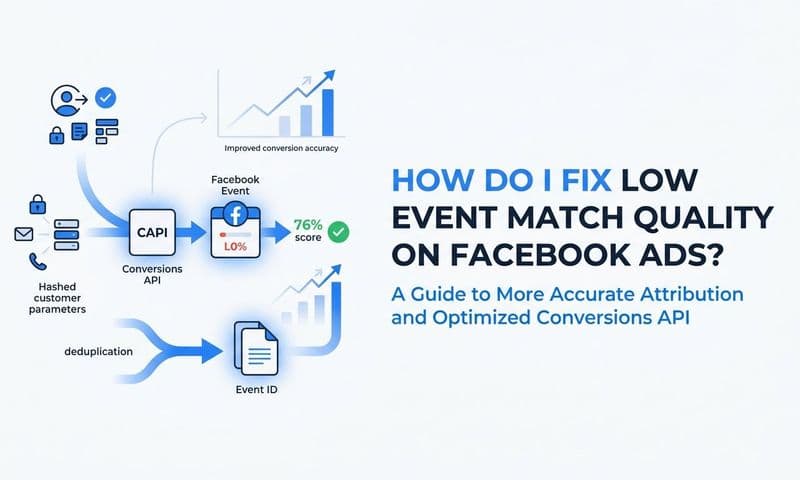
The deduplication requirement: This is critical. When you run both the browser pixel and CAPI simultaneously, you are sending the same event from two sources. Without deduplication, Facebook counts each signal as a separate conversion, and your reported numbers double. The fix is to include a consistent event_id parameter in both your pixel event and your CAPI event for the same user action. When Meta receives two events with matching event_id values within a short time window, it deduplicates them and counts only one conversion.
Verify both streams are working: Use the Test Events tool inside Events Manager to send test conversions and confirm that both your pixel and CAPI events are arriving, being matched to users, and being deduplicated correctly. You should see a single deduplicated event, not two separate ones.
Running Pixel and CAPI together is now the baseline standard for accurate Facebook ads tracking. Businesses that rely on the pixel alone are working with a fraction of their actual conversion data, which means Meta's algorithm is also optimizing on incomplete signals.
Step 3: Implement Server-Side Tracking for Browser-Proof Data
CAPI is a major step forward, but server-side tracking takes data accuracy even further. Understanding the difference is important before you implement.
Browser-side tracking, which includes your Meta Pixel, fires JavaScript from the user's browser. This means it is subject to everything that can interfere with a browser: ad blockers, privacy settings, slow connections that cause the page to unload before the script fires, and browser-level cookie restrictions. Server-side tracking, by contrast, sends data from your own server directly to ad platforms, completely bypassing the browser environment. Our detailed breakdown of why server-side tracking is more accurate explains the technical advantages in depth.
First-party domain routing: One of the most effective server-side approaches is routing your tracking data through a first-party subdomain. For example, instead of sending data directly to Facebook's servers from the browser, you route it through a subdomain on your own domain first. This improves match rates because the data is treated as first-party, and it significantly reduces the likelihood of browser-level blocking.
Capturing conversions that happen off-browser: Server-side tracking also captures conversion events that the browser pixel simply cannot see. Think about a lead who fills out a form, gets a follow-up call from your sales team, and converts two days later. That conversion happened in your CRM, not in a browser session. Server-side tracking connected to your CRM can send that event back to Meta as an offline conversion, giving the algorithm a much more accurate picture of what is actually driving revenue.
This is where a platform like Cometly adds significant value. Cometly's server-side tracking solution connects directly to your ad platforms and CRM, capturing every touchpoint across the customer journey without relying on browser cookies. It routes enriched conversion data back to Meta with the customer information needed to achieve high match rates, so Meta's algorithm can optimize on real business outcomes rather than incomplete browser signals.
Check your Event Match Quality score: After implementing server-side tracking, go to Events Manager and look at your Event Match Quality (EMQ) score for your key conversion events. This score, rated out of 10, tells you how well your server events are being matched to Facebook user profiles. A score above 6 is the target for solid performance. Scores below 4 indicate that your events are not being matched reliably, which limits how effectively Meta can optimize your campaigns. Higher EMQ scores directly improve ad delivery and conversion optimization.
Step 4: Build a Clean UTM Tagging System Across All Campaigns
Even with a solid pixel, CAPI, and server-side setup, you need UTM parameters. Here is why: Facebook's native reporting only tells you what Facebook wants you to know, within Facebook's own attribution window. UTMs give you an independent, platform-agnostic record of where your traffic came from that lives in your analytics tool and attribution platform.
When a user clicks your ad and lands on your site, the UTM parameters in that URL get captured by Google Analytics, your attribution platform, or whatever analytics tool you use. This creates a second source of truth that you can cross-reference against Facebook's reported data. Discrepancies between the two often reveal attribution window mismatches, tracking gaps, or campaign-level performance issues. If you are new to this concept, our guide on UTM tracking and how it helps your marketing covers the fundamentals.
A consistent UTM naming convention: Consistency is everything. If one campaign uses "Facebook" as the source and another uses "facebook" and a third uses "fb," you end up with fragmented data that is nearly impossible to aggregate cleanly. Use this framework as your standard:
utm_source: facebook (always lowercase, always the same)
utm_medium: paid (distinguishes paid traffic from organic)
utm_campaign: use the campaign name, lowercase, with hyphens instead of spaces
utm_content: use the ad name to identify which creative drove the click
utm_term: use the ad set name to identify audience targeting
Use Facebook's dynamic URL parameters: Manually tagging every ad at scale is error-prone and time-consuming. Facebook offers dynamic parameters that auto-populate based on the actual campaign, ad set, and ad details. Use {{campaign.name}}, {{adset.name}}, and {{ad.name}} in your URL parameters, and Facebook will replace these placeholders with the actual names when the ad is served. This eliminates manual tagging errors and keeps your UTM data accurate even as you launch new ads.
One important rule: never use spaces in UTM values. Spaces get encoded as %20 in URLs and create messy, hard-to-read data in your analytics tool. Use hyphens or underscores consistently across all campaigns.
Clean UTM data flows directly into your attribution platform and analytics dashboard, giving you a reliable, channel-agnostic view of campaign performance that is not subject to Facebook's attribution window or reporting limitations.
Step 5: Connect Your CRM and Revenue Data to Close the Loop
This is the step that separates marketers who optimize for clicks from marketers who optimize for revenue. Facebook can tell you about impressions, clicks, and on-site events. But it cannot see what happens after someone becomes a lead. It cannot see whether that lead qualified, moved through your pipeline, or actually became a paying customer.
Without CRM data connected to your tracking stack, you are optimizing for the top of the funnel and hoping the bottom takes care of itself. In competitive markets, that hope is expensive.
Connecting your CRM: Whether you use HubSpot, Salesforce, Pipedrive, or another platform, the goal is the same: get the data about what happens to leads after they enter your CRM flowing back to your ad performance view. This typically involves connecting your CRM via API or a native integration with your attribution platform, mapping lead stages to conversion events, and ensuring that revenue values are passed back when deals close. Choosing the right marketing campaign tracking software makes this integration process significantly easier.
Feeding revenue data back to Meta: Once you have CRM data connected, you can send actual revenue and lead quality signals back to Facebook via offline conversions or CAPI. This is powerful because it tells Meta's algorithm which leads actually converted into customers, not just which people filled out a form. Meta uses this signal to find more people who are likely to become actual customers, not just leads. Over time, this improves the quality of your audience targeting and reduces cost per acquisition.
Cometly is built specifically to solve this problem. It connects your ad platforms and CRM to map the entire customer journey from first click to closed revenue. Instead of seeing "100 leads from Facebook" in one tool and "40 closed deals" in another with no way to connect them, Cometly gives you a unified view that shows exactly which campaigns and creatives drove which revenue. You can see cost per qualified lead, cost per closed deal, and true ROAS based on actual revenue, not just attributed clicks.
The optimization advantage: Once CRM data is flowing, you can shift your optimization strategy entirely. Instead of optimizing for cost per lead, you optimize for cost per qualified lead or cost per closed deal. This is the difference between campaigns that look good on paper and campaigns that actually grow your business.
Step 6: Choose the Right Attribution Model for Your Business
You have your tracking infrastructure in place. Now you need to decide how you want to assign credit for conversions across the touchpoints in your customer journey. This decision shapes how you read your data and where you allocate budget.
Facebook's default attribution window is 7-day click and 1-day view. This means Facebook claims credit for a conversion if someone clicked your ad within the last seven days or viewed it within the last day before converting. For businesses with longer sales cycles, this window can either miss legitimate conversions or overclaim credit for conversions that were influenced by many other touchpoints along the way. Understanding Facebook ads attribution in depth is critical for making the right choice here.
Understanding the main attribution models:
Last-click attribution: Gives 100% of the credit to the last ad or channel the user clicked before converting. Simple and easy to understand, but it ignores everything that happened earlier in the journey. Best suited for ecommerce with short, impulse-driven buying cycles.
First-click attribution: Gives 100% of the credit to the first touchpoint. Useful for understanding which channels are best at generating awareness and bringing new customers into the funnel, but it ignores the role of nurturing and retargeting.
Linear attribution: Distributes credit equally across all touchpoints in the customer journey. More balanced than single-touch models, but it treats a brand awareness impression the same as a direct-response click that triggered the purchase.
Data-driven multi-touch attribution: Uses actual conversion path data to assign credit based on the relative contribution of each touchpoint. This is generally the most accurate model for businesses with complex, multi-channel customer journeys.
For businesses running ads across Facebook, Google, email, and organic channels simultaneously, multi-touch attribution is typically the most valuable approach. It shows you how channels work together rather than forcing you to pick one winner and ignore the rest.
Cometly's multi-touch attribution lets you compare models side by side, so you can see exactly how credit shifts between campaigns and channels depending on which model you apply. This is especially useful when you are trying to justify budget allocation across channels or when you want to understand the full contribution of upper-funnel awareness campaigns that rarely get credit in last-click models.
A practical guideline: If you run ecommerce with a buying cycle under 24 hours, last-click is often sufficient. If you run B2B, high-ticket, or subscription products where customers research for days or weeks before buying, multi-touch attribution will give you a much more accurate picture of what is actually driving revenue.
Step 7: Validate Your Tracking and Build an Ongoing QA Process
Setting up accurate tracking is not a one-time task. Websites change. Platforms update their APIs. New campaigns launch with missing UTMs. A developer pushes a code update that breaks your pixel. Without a regular validation process, tracking problems accumulate silently until they cause real budget damage.
Run a post-setup validation: After completing the previous steps, fire test conversions on your key pages and trace the data across every system. Check that the event appears in Meta Events Manager, that it is deduplicated correctly, that the UTM parameters are captured in your analytics tool, and that the conversion value matches what was actually transacted. If any link in that chain is broken, find it now before it costs you.
Common post-setup issues to watch for:
Event duplication: If your conversion count in Facebook suddenly doubles, check whether your pixel and CAPI events are both firing without the deduplication event_id parameter in place.
Missing UTM parameters: Periodically check your analytics tool for sessions that show "direct" or "none" as the source when they should be tagged as Facebook paid traffic. This often indicates UTM parameters being stripped by redirects or landing page configurations. Understanding Facebook ads reporting discrepancies helps you diagnose these issues faster.
Broken conversion values: If your average order value in Facebook reporting looks wrong, check that your Purchase event is passing the correct value and currency parameters.
Build a recurring QA cadence: Set a weekly or biweekly reminder to compare Facebook-reported conversions against your CRM or ecommerce platform actuals. Define a threshold, such as a variance of more than 15%, that triggers a deeper investigation. Using a dedicated Facebook ads reporting dashboard makes this comparison process far more efficient than pulling data manually from multiple tools.
Cometly's real-time analytics dashboard simplifies this ongoing validation significantly. Because all your data from ad platforms, your website, and your CRM flows into one place, you can quickly spot when numbers across sources stop aligning. Instead of manually pulling reports from three different tools and comparing them in a spreadsheet, you see the full picture in one view and can act on discrepancies immediately.
Your Tracking Foundation Is Now in Place
Getting accurate Facebook ads tracking set up takes focused effort upfront, but it pays off every single day after that. When you can trust your data, every decision gets sharper. You stop wasting budget on campaigns that look good in Ads Manager but do not actually drive revenue. You start scaling the winners with confidence because you can see the full picture from first click to closed deal.
Here is a quick checklist to confirm you are set up for success:
1. Audit complete with baseline discrepancies documented.
2. Meta Pixel and Conversions API running together with event deduplication active.
3. Server-side tracking implemented and Event Match Quality score above 6.
4. Consistent UTM naming convention applied across all campaigns with dynamic parameters in use.
5. CRM connected so revenue and lead quality data flows back to your ad performance view.
6. Attribution model selected based on your sales cycle and business type.
7. Ongoing QA process scheduled to catch issues before they cost you money.
Each of these steps builds on the last. Together, they create a tracking foundation that gives you a real, accurate view of what your Facebook ads are actually driving for your business.
If you want to simplify this entire process and get accurate, real-time attribution across all your ad channels in one place, Cometly brings everything together so you can stop guessing and start scaling. Ready to see exactly what your ads are driving? Get your free demo today and start capturing every touchpoint to maximize your conversions.