
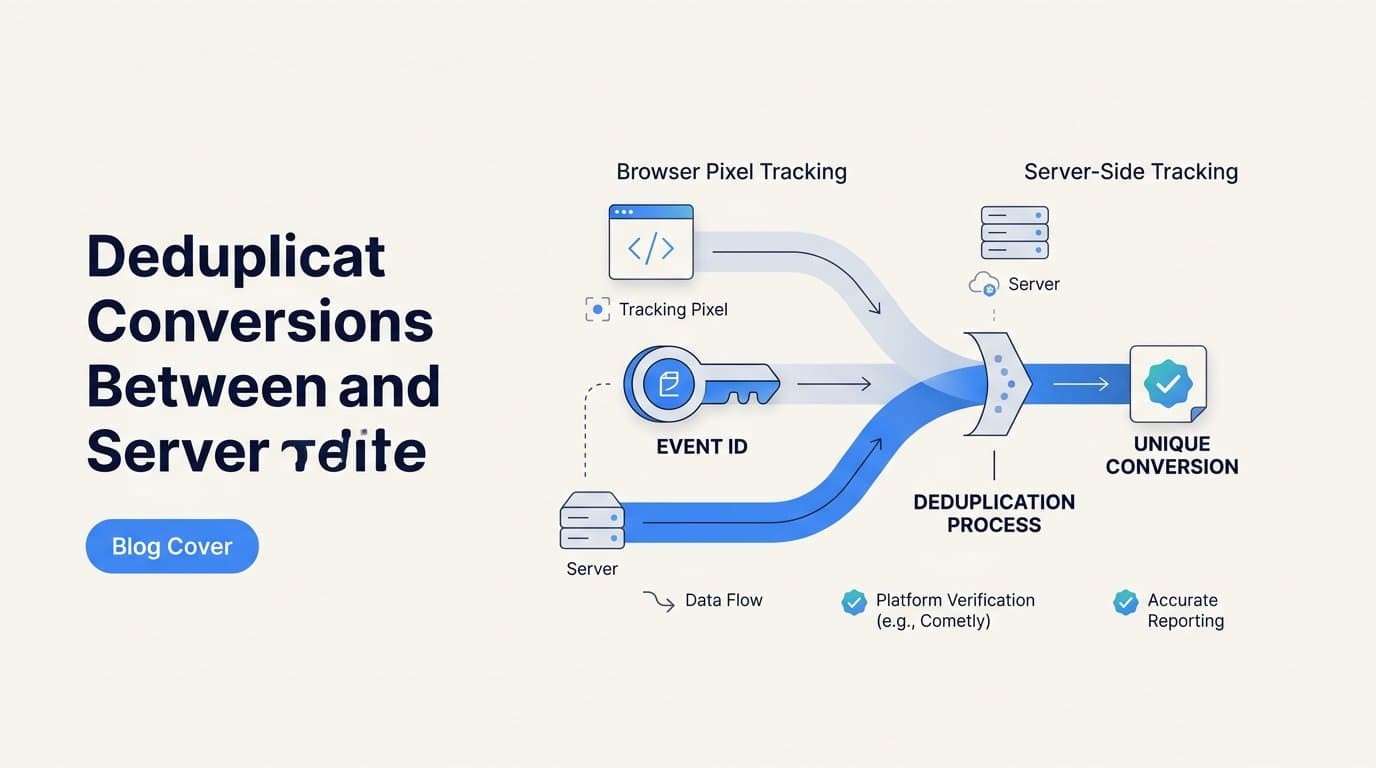
You deduplicate conversions between pixel and server-side tracking by sending a shared, unique event ID with both the browser pixel event and the server-side event, so the ad platform recognizes them as one conversion instead of two. This guide walks through setting up that shared ID in Meta and Google, testing for duplicates, and using a platform like Cometly to verify dedup accuracy across your full customer journey. You'll need admin access to your ad accounts, your website's tracking code, and a CRM or attribution tool that can pass server events.
Step 1: Understand why duplicate conversions happen
A browser pixel and a server-side integration like Meta's Conversions API (CAPI) both exist to record the same real-world action, a form submit, a purchase, a signup. The problem is that they fire independently. Your Meta Pixel sends an event the moment a visitor's browser executes the tracking script. Separately, your server (often triggered by a webhook from your CRM or checkout system) sends its own event to the same ad platform describing the same action. Unless you explicitly tell the platform these two events are the same thing, it logs them as two separate conversions.
This matters because ad platforms use conversion counts to calculate cost-per-acquisition and return on ad spend. If every purchase generates two logged conversions instead of one, your reported CPA looks artificially low and your ROAS looks artificially high. Marketing teams often catch this when their ad platform's conversion count is noticeably higher than the actual number of leads or sales recorded in their CRM or Stripe account for the same period.
The fix is a shared identifier that travels with both events. Meta calls this the event_id. Google relies on a transaction ID for purchase events or hashed identity data for Enhanced Conversions. When the same identifier shows up on both the browser event and the server event, within a defined time window and with matching event details, the platform recognizes them as duplicates of a single action and only counts it once.
Getting this right is a prerequisite for trusting any conversion data you're using to make budget decisions. If dedup isn't working, every optimization decision downstream, including which campaigns you scale and which you cut, is built on inflated numbers.
Step 2: Generate a consistent event ID for every conversion
The event ID has to be created once, at the moment the action happens, and then reused by both the pixel call and the server call. If you generate two separate IDs, one client-side and one server-side, deduplication will never work no matter how correctly you've configured everything else.
The most reliable approach is to generate the ID in the browser, at the exact moment the form is submitted or the purchase button is clicked, before either the pixel fires or the server request is triggered. Practical guidelines:
- Use a format that's unique per event, such as a UUID (universally unique identifier) or a combination of session ID and timestamp. Never use a static string or a value that could repeat across different conversions.
- Generate the ID client-side and immediately pass it into both the pixel's tracking call and the payload sent to your backend or CRM, so both paths carry the identical value from the start.
- Store the event ID alongside the lead or order record in your CRM or attribution layer, not just in the initial API call. If your server-side event fires later (for example, when a deal closes in your CRM days after the initial page visit), you need to be able to retrieve that same ID and attach it to the delayed server event.
A common mistake is treating the event ID as disposable, something used once to fire the pixel and then discarded. In practice, it needs to persist through your data pipeline, whether that's a CRM field, a hidden form input, or a database column tied to the lead record. If your server-side event fires from a different system than the one that generated the ID, that system needs a reliable way to look up the original ID rather than generating a new one out of convenience. That single shortcut is the most frequent cause of failed deduplication.
Step 3: Configure Meta Pixel and Conversions API with matching event_id
Once you have a consistent event ID being generated and stored, the next step is wiring it into both sides of your Meta tracking setup.
On the browser side, add the event_id parameter to your fbq('track') call. For example, a purchase event should include the event name, the standard parameters like value and currency, and the event_id as an additional field. This tells Meta's pixel: "this specific action has this specific ID."
On the server side, when you send the corresponding event through the Conversions API, include that exact same event_id value in the payload, along with an event_name that matches what the pixel sent (both should say "Purchase," for instance, not one saying "Purchase" and the other "CompletePayment") and an event_time that falls within a reasonable window of the browser event.
Meta automatically deduplicates events that share the same event_id and event_name within a defined window, which Meta's developer documentation lists as 48 hours as of 2026, though you should verify this against current documentation since platform policies change. Within that window, Meta treats the pair as one conversion for reporting and optimization purposes.
Three details cause most failures here:
- Mismatched event_name between the two calls (dedup requires an exact match, not just a similar event).
- Event_time values that are far enough apart that Meta doesn't associate them as the same real-world action.
- Generating a new event_id server-side instead of retrieving the one created in the browser, which silently breaks dedup while both events still fire successfully.
Because both events can still show up individually in Events Manager even when everything is configured correctly, don't assume dedup is broken just because you see two log entries. The next step covers how to confirm they've actually been matched.
Step 4: Set up deduplication for Google Ads and Enhanced Conversions
Google's approach differs from Meta's single universal event_id model. Instead, dedup in Google Ads typically relies on a transaction ID for purchase-based conversions or on gclid-based matching combined with hashed first-party data for Enhanced Conversions.
For ecommerce or purchase conversions tracked through gtag and a server-side upload, the transaction ID has to be identical across both paths and unique to that specific order. If your checkout system generates an order number, use that same order number as the transaction ID in both your gtag purchase event and your offline or server-side conversion upload. Reusing a transaction ID, even accidentally between a test environment and production, is one of the most common causes of conversions being dropped entirely or counted incorrectly, since Google may treat the second upload with that ID as either a duplicate to discard or a conflicting record.
For lead-based conversions, Enhanced Conversions for Leads and Enhanced Conversions for Web require hashed first-party data, typically email and phone number, sent from both the browser-side tag and the server-side upload. Google uses this hashed data to match the browser event and the server event to the same underlying conversion rather than relying purely on an ID field. Both events need to use the same hashing method (SHA-256 is standard) and the same normalized version of the data (lowercase email, consistent phone formatting) or the match will fail silently.
Before scaling any campaign, confirm:
- Your transaction ID field is unique per conversion and never hardcoded or reused for testing.
- Hashed email and phone values are formatted identically in both the browser tag and server upload.
- Test events are clearly separated from production events, either through a distinct test account or a way to filter test transaction IDs out of your live reporting.
Step 5: Test for duplicates before scaling ad spend
Configuration mistakes are easy to make and easy to miss, so verify dedup is actually working before you trust the numbers enough to increase budget.
In Meta, use the Test Events tool inside Events Manager. Trigger a test conversion (a form fill or test purchase) and watch how it appears in the tool. If dedup is configured correctly, you'll see a single matched event with a green deduplication indicator showing both the browser and server event were recognized as one. If it's misconfigured, you'll see two separate rows for the same action with no dedup match, which tells you the event_id, event_name, or event_time isn't lining up between the two calls.
In Google Ads, check the diagnostics tab under your Enhanced Conversions setup. This shows a match rate percentage and flags duplicate or unmatched events. A low match rate usually points to inconsistent hashing or formatting between your browser tag and server upload; duplicate warnings usually point to a transaction ID problem.
Beyond the platform's own tools, run a small controlled test yourself. Submit a handful of test form fills or make a few test purchases, then manually count how many conversions show up in each ad platform. Compare that count to the actual number of actions you took. If you ran five test conversions and Meta reports ten, dedup isn't working. If it reports five, you're set.
Do this test any time you change your tracking setup, migrate CRMs, or update your checkout flow. Tracking configurations that worked correctly can break silently after a website update, and the only way to catch that early is to periodically verify actual counts against reported counts rather than assuming past testing still holds.
Step 6: Centralize dedup verification with an attribution platform like Cometly
Testing dedup inside each ad platform tells you whether Meta or Google individually are matching browser and server events correctly. It doesn't tell you whether the same lead is being claimed as a conversion by multiple platforms at once, or whether your CRM and ad platforms agree on what actually happened.
Cometly addresses this by capturing both pixel and server-side events alongside your CRM and Stripe data in one place. Instead of checking Meta's dedup indicator in one tab and Google's diagnostics in another, you get a single view of the customer journey where you can spot-check whether a specific lead or sale appears once or shows up multiple times across different tracking sources.
This full-journey view also catches a type of duplication that platform-level dedup tools can't see: cross-channel duplication, where Meta and Google are both claiming credit for the same conversion because both platforms received a server event for it. Each platform's internal dedup logic only checks against its own events, not against a competing platform's records. Cometly, sitting above both platforms and connected to your actual CRM and revenue data, can flag when this happens.
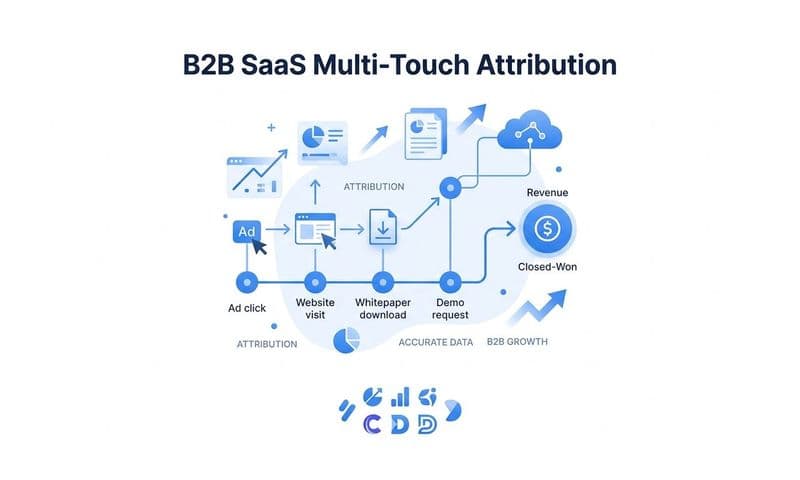
This is particularly relevant for B2B SaaS companies with longer sales cycles. A lead might click a Meta ad, fill out a form a week later from an organic search visit, and close as a deal in the CRM a month after that. Manually tracing whether that single customer journey generated duplicate conversion records across ad platforms is difficult to do by hand, especially at volume. An attribution layer that ties every touchpoint back to the same lead record, through to closed-won revenue, makes it possible to verify dedup isn't just working within one platform but across your entire marketing stack.
How do I know if my conversions are already duplicated?
Compare your total reported conversions in each ad platform against actual closed deals or form submissions in your CRM for the same date range. If your ad platform reports meaningfully more conversions than your CRM shows real leads or sales, a gap beyond a few percentage points usually signals duplication rather than normal reporting variance.
The clearest warning sign is a sudden spike in reported conversion volume that doesn't correspond to any real increase in lead flow or revenue. If your ad account shows conversions jumping 40% week over week but your sales team isn't seeing more inbound leads or your Stripe revenue hasn't moved, check your event_id and event_name configuration first, since that mismatch is the most common cause.
What's the difference between event_id dedup and identity-based matching?
Event_id deduplication matches two separate records of the exact same event, confirming that a browser pixel fire and a server-side event both describe one single action so the platform doesn't count it twice. Identity-based matching, using hashed email or phone data, instead links multiple separate events over time to the same person.
You need both, and they solve different problems. Event_id dedup prevents a single purchase or form submit from being logged twice. Identity matching connects a visitor's first ad click, later website visits, and eventual conversion into one coherent customer journey, even when those touchpoints happen days or weeks apart across different devices. Skipping either one leaves a gap: without event_id dedup you double-count actions, without identity matching you can't see the full path a customer took to convert.
Do I still need a browser pixel if I have server-side tracking set up?
Yes. Most marketers and platform documentation recommend running both a browser pixel and server-side tracking together rather than choosing one. The pixel captures browser-side signals that server events can't, including page views and the behavioral data ad platforms use to build pixel-based audiences for retargeting.
Server-side tracking, meanwhile, improves reliability against ad blockers and iOS tracking restrictions that can prevent browser pixels from firing at all. Running both gives you more complete data coverage, but it's also exactly why deduplication matters. Neither tracking method alone tells the full story, and without proper dedup, using both methods together is what causes the double-counting problem in the first place.
Confirm dedup is working by checking match rates in Meta Events Manager and the Enhanced Conversions diagnostics tab in Google Ads on a weekly basis, not just once after initial setup. Tracking configurations drift as websites change, checkout flows update, and new team members touch the tagging code, so a conversion count that looked accurate last quarter can quietly become inflated without any single change looking suspicious on its own. If you need one dashboard to verify conversions aren't being double-counted across ad channels, and to see how those conversions tie back to actual pipeline and closed revenue, consider a platform like Cometly. Ready to elevate your marketing game with precision and confidence? Discover how Cometly's AI-driven recommendations can transform your ad strategy: Get your free demo today and start capturing every touchpoint to maximize your conversions.