
Your campaign data just went dark. Conversions disappeared from your dashboard, attribution reports show gaps you cannot explain, and you have no idea which ads are actually driving results. When ad tracking stopped working, the clock started ticking on every budget decision you need to make.
This is one of the most disruptive situations a marketing team can face, and it happens more often than most people expect. A site update silently removes a pixel. A browser privacy change reduces your data capture. A tag manager misconfiguration breaks event firing. The cause is rarely obvious from the surface.
This guide walks you through a clear, systematic process to diagnose and fix broken ad tracking. You will work through the most common causes in order of likelihood, from simple configuration errors to deeper server-side tracking issues. By the end, you will have restored accurate data flow and put safeguards in place to prevent the same disruption from happening again.
This is written for marketers and growth teams running paid campaigns across platforms like Meta, Google, TikTok, and others. Most of these steps require no developer involvement, though a few will benefit from technical collaboration. Let's get your tracking back on track.
Step 1: Confirm the Scope of the Problem
Before you start fixing anything, you need to understand exactly what broke. Jumping straight into troubleshooting without scoping the problem first is how you waste hours chasing the wrong issue.
Start by asking: is this affecting one platform or all of them simultaneously? If Meta shows a data gap but Google Ads is reporting normally, the problem is likely isolated to your Meta pixel or Conversions API setup. If every platform went dark at the same time, the issue is probably higher up, such as a website change that removed tracking scripts across the board.
Next, identify when the tracking stopped working. Pull up your analytics dashboard and look at the date the data gap began. This timestamp is one of your most valuable clues. Cross-reference it with any website deployments, CMS updates, tag manager changes, or ad account modifications that happened around the same time. Most tracking failures have a triggering event, and finding it narrows your investigation significantly.
Then determine which layer is broken. There are three distinct levels where tracking can fail:
Pixel or tag level: The tracking code is not present on the page or is not firing at all.
Conversion event level: The base pixel fires, but specific conversion events (purchases, leads, sign-ups) are not being recorded.
Attribution reporting level: Events are firing correctly, but the data is not being attributed to the right campaigns or channels in your reporting.
Use platform-native diagnostic tools to get your first read. Meta Events Manager shows you which events are being received and when. Google Tag Assistant helps you verify whether your Google tags are firing correctly on a given page. TikTok Pixel Helper is a browser extension that confirms pixel activity on your site in real time.
Take notes as you go. Write down which platform is affected, which specific events are missing, and the exact date range of the gap. This documentation will guide every step that follows.
Success indicator: You can clearly state which platform, which events, and which time range are affected before moving to the next step.
Step 2: Audit Your Pixel and Tag Configuration
Now that you know the scope of the problem, it is time to look directly at your tracking code. This is where most straightforward tracking failures originate.
Open your tag management system, whether that is Google Tag Manager, a native platform tag, or code embedded directly in your site. Verify that the pixel or tag is still present on the correct pages. It sounds basic, but site updates frequently remove or overwrite tracking scripts without any warning. A theme change, a CMS migration, or even a plugin update can quietly strip out code that took hours to configure.
Use a browser-based debugging tool to confirm that the pixel fires on page load and on key conversion events. In Google Tag Manager, the Preview mode lets you walk through your site and see exactly which tags fire on each page and interaction. For Meta, the Meta Pixel Helper browser extension shows you whether the pixel is present and which events it is sending. Run through your primary conversion flows: landing page visit, form submission, purchase confirmation, and verify each one.
Check for duplicate pixel installations. This is more common than you might expect, especially on sites that have been managed by multiple teams over time. Duplicate pixels cause double-counting, which inflates your conversion numbers and can confuse your ad platform's optimization algorithm. If you find duplicates, remove all but one installation and confirm the remaining one is firing correctly.
Pay close attention to event names. Conversion event names are often case-sensitive, and a mismatch between what your tag sends and what your ad platform expects will cause events to go unrecorded. For example, if your tag fires a "purchase" event but Meta is listening for "Purchase" with a capital P, the event will not register correctly. Verify that your event names match the platform's exact specifications.
One more thing to check: if you recently migrated your site to a new platform, rebuilt pages in a new page builder, or switched e-commerce systems, your tracking code may have been left behind entirely. Platform migrations are one of the most common silent killers of ad tracking.
Success indicator: Each pixel fires correctly on the pages and events where it should, confirmed via the debugger tool for your platform.
Step 3: Check for Browser-Side Tracking Blockers
Here is something worth understanding before you spend more time debugging your pixel: even a perfectly configured browser-side pixel will miss a meaningful portion of your conversions. This is not a bug you can fix. It is a structural limitation of client-side tracking.
Browser-based pixels are increasingly blocked by ad blockers, privacy-focused browsers, and platform-level privacy settings. Safari's Intelligent Tracking Prevention (ITP) limits how long cookies can persist and restricts cross-site tracking. Firefox's Enhanced Tracking Protection blocks many third-party scripts by default. And a significant share of your audience is likely running some form of ad blocker.
Apple's App Tracking Transparency framework, introduced with iOS 14.5, made this problem significantly worse for Meta advertisers in particular. It restricted the ability of platforms like Meta to track user behavior across apps and websites using device identifiers. The result is that browser-based pixel data for iOS users became substantially less reliable, and Meta's ability to attribute conversions to specific ads was reduced.
To understand how this is affecting your data, run a simple test. Visit your key conversion pages in a standard browser with no extensions, then repeat the test in a browser with an ad blocker enabled. Compare what fires in each scenario using your pixel debugging tool. The difference gives you a rough sense of how much data you are losing to browser-side blocking.
In Meta Events Manager, check your Event Match Quality score. This score reflects how well your pixel events are matching to real Meta user profiles. A low score means your events are firing but not being attributed to users effectively, which reduces the value of that data for optimization. Low match quality is often a sign that browser-side tracking is underperforming.
This step frequently reveals something important: the tracking was not fully broken. It was always undercounting. What looked like a sudden failure may actually be the gradual erosion of browser-side data finally becoming visible in your reports. Understanding the impact of cookieless tracking restrictions helps put this in proper context.
Success indicator: You have a clear picture of what percentage of your conversions are being captured at the browser level versus what is likely being missed due to blockers and privacy restrictions.
Step 4: Implement or Verify Server-Side Tracking
If browser-side tracking is unreliable by design, the solution is to move your data collection to a layer that browser restrictions cannot touch: your server.
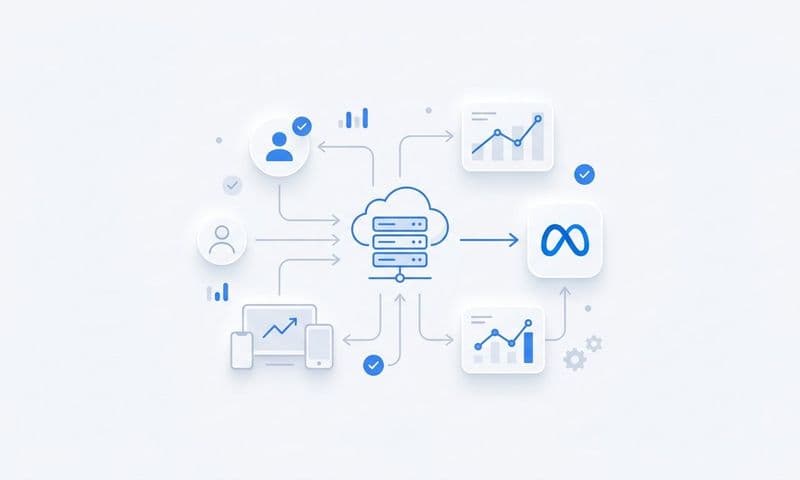
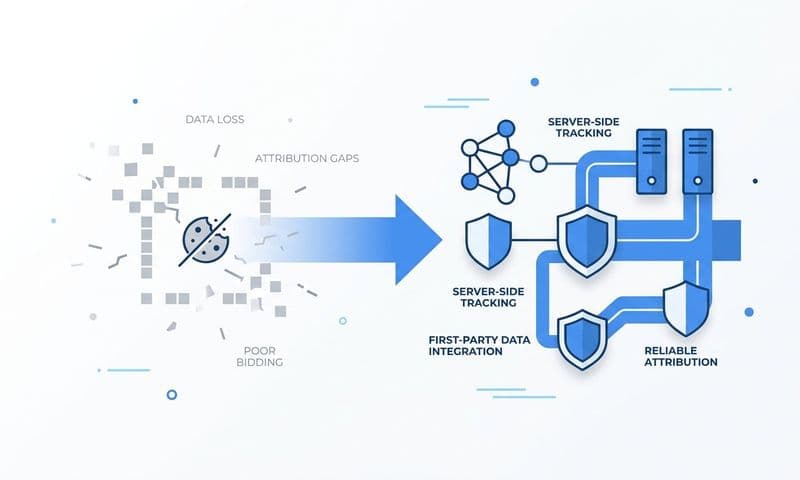
Server-side tracking sends conversion data directly from your server to the ad platform's API, completely bypassing the browser. No ad blocker can intercept it. No iOS privacy setting can block it. The data travels from your infrastructure to the platform's infrastructure, and it arrives with far greater reliability and completeness than pixel-only setups.
For Meta, the server-side integration is called the Conversions API (CAPI). For Google, the equivalent is Enhanced Conversions. Both are publicly documented by their respective platforms and represent the current best practice for conversion tracking. TikTok and other major platforms have similar server-side event APIs. Understanding why server-side tracking is more accurate is essential before you begin implementation.
Start by checking whether you already have a server-side integration in place. Look in Meta Events Manager under the Data Sources section. If you see events labeled as coming from a server source alongside your pixel events, CAPI is active. If you only see browser events, you are running on pixel-only tracking.
If server-side tracking is not in place, implementing it is the single most impactful fix you can make. It restores the conversion data that browser restrictions have been silently eroding and gives your ad platform's algorithm a much stronger signal to optimize against.
One critical detail: when you run both a pixel and a server-side integration simultaneously, you need to configure deduplication. Without it, the same conversion event gets counted twice, once from the browser and once from the server, which inflates your numbers. Both Meta and Google have deduplication mechanisms that match browser and server events using a shared event ID. Make sure this is configured correctly before you declare the problem solved.
Also confirm that your server-side events include customer data parameters such as hashed email addresses and phone numbers. These parameters significantly improve event match quality, which in turn improves how effectively the platform can attribute conversions and optimize your campaigns. Explore the full range of server-side tracking benefits to understand what you gain beyond just blocking ad blockers.
Cometly's server-side tracking infrastructure handles this connection automatically. It routes enriched conversion data from your server directly to your ad platforms, without relying on the browser, and manages deduplication so your numbers stay clean.
Success indicator: Server-side events are appearing in your ad platform's event manager with strong match quality scores, alongside or instead of browser-only pixel events.
Step 5: Reconnect Your Conversion Data to Ad Platforms
Getting your tracking to fire correctly is only half the job. The other half is making sure that conversion data is flowing back to your ad platforms in a way that actually powers campaign optimization.
Start by verifying that your conversion goals are still active and correctly mapped. In Meta Ads Manager, check your campaign-level conversion event settings. In Google Ads, review your conversion actions under the Goals section. In TikTok Ads Manager, check your conversion event configuration under Assets. It is surprisingly common for conversion goals to become disconnected after a tracking disruption, especially if the events they were mapped to changed names or stopped firing during the outage.
Confirm that the events your campaigns are optimizing toward are receiving data. If a campaign is set to optimize for "Purchase" but no purchase events have been recorded in the past two weeks due to a tracking failure, the platform's algorithm has been flying blind. It has been making bidding decisions without the signal it needs.
This matters more than it might seem. Smart bidding strategies like Target ROAS and Target CPA rely on a steady stream of conversion data to function effectively. When that data disappears, the algorithm loses its calibration. Even after tracking is restored, it can take time for performance to recover as the algorithm re-learns from fresh data. Using dedicated conversion tracking platforms helps ensure this signal stays consistent.
If you experienced a significant tracking gap, consider whether you need to rebuild or reset your bidding strategy. In some cases, pausing and relaunching a campaign with a clean data foundation performs better than trying to revive one that operated without conversion signals for an extended period.
Cometly's Conversion Sync feature addresses this directly. It feeds enriched, accurate conversion events back to Meta, Google, and other platforms, improving the quality of the data the algorithm uses for targeting and bidding. Rather than sending raw pixel events, Conversion Sync sends conversion data that has been matched and enriched with customer information, giving the platform a stronger signal to work with.
Success indicator: Your ad platforms show conversion data flowing in consistently, and the campaigns optimizing toward those conversions have active, reliable signals again.
Step 6: Validate Attribution Accuracy Across the Full Customer Journey
Restoring pixel firing and getting conversion events to flow is not the same as having accurate attribution. You can have a perfectly functioning pixel and still have attribution that is completely wrong.
Start with UTM parameters. These are the tracking parameters appended to your ad URLs that tell your analytics tool which campaign, channel, and ad drove a visit. If your UTMs are broken, misconfigured, or being stripped by your landing page platform, your analytics tool will show conversions with no source attribution, or worse, attribute them to the wrong channel entirely. Check that every active ad in your campaigns has UTM parameters correctly applied, and verify that those parameters are passing through to your landing pages and being captured in your analytics tool.
Next, review your attribution model settings. Different platforms use different default attribution windows and models. Meta may be attributing on a seven-day click and one-day view basis while Google is using data-driven attribution. These differences mean the same conversion can be claimed by multiple platforms simultaneously, leading to numbers that do not reconcile. Understanding your attribution model settings is essential before you can trust any cross-platform comparison.
Cross-reference your conversion counts across three sources: your ad platform, your CRM, and your analytics tool. If Meta reports 200 conversions but your CRM shows 80 new leads and your analytics shows 95 goal completions, something is off. These numbers will never match perfectly due to attribution model differences and reporting windows, but major discrepancies indicate a real problem that needs investigation.
Look at whether conversions are being credited to the right campaigns and channels. A multi-touch attribution setup distributes credit across all the touchpoints a customer interacted with before converting, rather than giving all credit to just the first or last touch. This gives you a more accurate picture of which channels and campaigns are genuinely contributing to revenue.
Cometly connects your ad platforms, CRM, and website data in one unified view, so you can see every touchpoint in the customer journey without manually pulling reports from multiple tools. Instead of reconciling three separate dashboards, you get a single source of truth that shows exactly which ads and channels are driving conversions.
Success indicator: Conversion numbers are broadly consistent across your ad platform, CRM, and attribution tool, with no major unexplained gaps that would indicate a systemic attribution problem.
Step 7: Set Up Monitoring to Catch Future Tracking Failures Early
The most damaging aspect of tracking failures is often not the failure itself. It is how long the failure goes undetected. Many marketing teams discover a tracking gap only when they notice campaign performance has declined, by which point the algorithm has already been operating without data for days or weeks.
The goal of this final step is to make sure that never happens again.
Set up conversion volume alerts in your ad platforms. Both Meta and Google allow you to configure automated alerts that notify you when conversion volume drops significantly compared to a previous period. Set a threshold that makes sense for your typical daily conversion volume and configure the alert to notify you via email or the platform's notification system. A sudden drop in conversions is often the first visible sign of a tracking failure.
Create a simple weekly tracking health check routine. Once a week, spend ten minutes reviewing your event counts in each platform's event manager, checking your match quality scores, and scanning your attribution data for anomalies. This does not need to be elaborate. A consistent habit of looking at the right numbers regularly will catch most problems before they become serious. Pairing this with the right ad tracking accuracy practices makes your monitoring far more effective.
Document your tracking setup in a shared document that your team can access. Include your pixel IDs, event names, server-side connection details, and UTM conventions. This documentation becomes invaluable when something breaks and you need to audit your setup quickly, or when a new team member needs to understand how tracking is configured.
Establish a rule that any website update, CMS migration, or tag manager change must include a post-deployment tracking verification step. Before any site change goes live, someone should confirm that tracking is still firing correctly. After any deployment, someone should verify it again. This single process change prevents the majority of tracking failures that result from site updates.
Cometly's analytics dashboard gives you a real-time view of your conversion data and campaign performance across all your channels. When something changes in your data, you see it immediately rather than discovering it days later when the damage has already compounded.
Success indicator: You have alerts configured, a documented tracking setup, and a repeatable verification process that runs after every site change.
Putting It All Together
Broken ad tracking is serious, but it is fixable. You have now worked through a complete diagnostic and repair process: confirming the scope of the issue, auditing your pixel configuration, understanding browser-side limitations, implementing server-side tracking, reconnecting conversion data to your ad platforms, validating attribution accuracy, and setting up monitoring to catch future failures early.
The core takeaway is this: browser-based tracking alone is no longer a sufficient foundation for modern paid advertising. Privacy changes, ad blockers, and platform restrictions have made client-side pixels inherently incomplete. A resilient tracking setup requires server-side data collection, clean attribution across every touchpoint, and continuous monitoring to catch failures before they compound.
Cometly is built to solve exactly this problem. It captures every touchpoint from ad click to CRM event, sends enriched conversion data back to your ad platforms to power smarter optimization, and gives your team a single source of truth for campaign performance. Instead of patching together data from multiple disconnected tools, you get a complete, accurate picture of what is driving your results.
If you want to stop relying on fragile pixel-only tracking and start making decisions from complete, accurate data, Get your free demo today and see how Cometly makes that possible.