
Your conversion data is telling you a story. The problem is, it might be fiction.
Duplicate conversion counting is one of the most damaging problems in paid advertising, and it is surprisingly easy to miss. When your tracking fires twice for a single user action, your conversion totals inflate, your cost-per-acquisition looks artificially low, and your ad platform algorithms start optimizing toward phantom results. Everything looks great on paper until you compare it against reality.
For B2B SaaS marketing teams, this is not just a data hygiene issue. It directly affects how you allocate budget, which campaigns you scale, and how accurately you attribute revenue to the channels that actually drove it. Inflated conversion counts create a false sense of performance. You end up overspending on campaigns that appear to be working but are not actually generating pipeline.
The frustrating part is that duplicate conversion counting issues rarely announce themselves. They creep in silently: a developer installs a pixel directly in the page code while another tag manager version is already running, a server-side Conversion API fires alongside a browser pixel without shared event IDs, or a thank-you page reloads and triggers the conversion tag a second time. Each scenario produces data that looks plausible but is fundamentally wrong.
The good news is that every one of these problems is fixable. This guide walks you through six concrete steps to identify, diagnose, and resolve duplicate conversion counting across your ad platforms and tracking infrastructure. Whether you are running campaigns on Meta, Google, LinkedIn, or across all three simultaneously, these steps will help you restore data integrity and make confident decisions about where your ad spend actually belongs.
Let's get into it.
Step 1: Identify Where Duplicate Conversions Are Occurring
Before you can fix anything, you need to know exactly where the problem lives. Duplicate conversions can originate from different layers of your tracking stack, and the fix depends entirely on the source. Start by pulling the data.
Open your conversion reports in each ad platform you are running: Meta Ads Manager, Google Ads, LinkedIn Campaign Manager. For each platform, note the total conversion count for a specific date range, broken down by event type. Then pull the equivalent data from your source of truth, which is typically your CRM, your backend database, or your product analytics tool. Compare the numbers side by side.
If your ad platform is reporting significantly more conversions than your backend recorded for the same period, you have a duplication problem. The gap between the two numbers tells you how severe it is. A small discrepancy is normal due to attribution windows and tracking delays. A large one, where platform numbers are double or triple your actual records, points to a structural issue in your tracking setup.
Next, simulate a conversion action in your browser and watch what happens at the tag level. Open your browser's developer tools and navigate to the Network tab, or use a dedicated debugging tool. Complete a test form submission or trigger a conversion event and watch how many times the relevant tracking calls fire. If you see the same pixel or event firing two or three times for a single action, you have found your culprit.
Pay attention to whether the duplication is happening at the browser pixel level, the server-side level, or both. A pixel firing twice in the browser is a different problem from a browser pixel and a Conversion API both sending the same event without deduplication logic. Knowing which layer is affected tells you which fix to apply.
Check each platform independently: Meta, Google, and LinkedIn all have their own event diagnostic tools. Meta's Events Manager shows event activity and flags potential duplicates. Google Tag Assistant and the Google Ads conversion tracking diagnostics can surface redundant tag firing. Use these native tools alongside your browser developer tools to build a complete picture.
Document your findings: Before moving on, write down which platform is over-reporting, which event type is duplicating, and whether the issue appears to be browser-side, server-side, or both. This documentation will guide every step that follows.
Success indicator: You can clearly pinpoint which platform and which event type is reporting inflated numbers compared to your actual backend data. You know the approximate magnitude of the duplication and where in the stack it originates.
Step 2: Audit Your Pixel and Tag Setup for Redundant Firing
One of the most common causes of duplicate conversion counting is embarrassingly simple: the same pixel is installed twice. This happens more often than you would expect, especially on teams where multiple developers, marketers, or agencies have touched the codebase over time.
Open your tag management system, typically Google Tag Manager, and review every tag associated with your conversion events. Look specifically at what fires on your thank-you pages, confirmation screens, and form success states. These are the pages where conversion tags live, and they are the most likely location for redundant installations.
Now check your page source code directly. View the raw HTML of your thank-you page and search for pixel base codes or tracking scripts. If you find a hardcoded pixel in the page source and a matching tag in your tag manager, both pointing to the same ad platform, you have a double installation. Every conversion on that page fires twice: once from the hardcoded script and once from the tag manager version.
This scenario is extremely common after site migrations, CMS updates, or agency transitions. A developer copies the old page code including its embedded pixels, a new agency adds their own tags through the tag manager, and suddenly every conversion counts twice. Neither party realizes the other's tracking is already in place. Reviewing your setup against best practices for tracking conversions accurately can help you catch these overlaps before they compound.
Review trigger conditions carefully: Even if you only have one version of a tag, it can still fire multiple times if the trigger is configured incorrectly. Conversion tags should fire on a specific page view event, not on DOM changes, scroll events, or generic all-pages triggers. If your tag fires on every DOM mutation, a single page load with dynamic content updates could trigger it multiple times.
Check for stacked pixel installations: In Google Tag Manager, look for tags with the same pixel ID or conversion label appearing in multiple tag configurations. Sometimes the same conversion event is tracked under slightly different tag names, making it easy to miss the overlap during a quick review.
Use a browser extension to make this audit faster. Tools like Google's Tag Assistant or Meta's Pixel Helper show you exactly which tags are firing on any given page and how many times each one fires during a session. Run a test conversion and watch the extension output. If you see the same pixel ID appearing more than once, that is your confirmation of redundant firing.
Set firing limits: For any conversion tag in your tag manager, configure the tag to fire once per page load at most. Most tag management systems offer this as a built-in option. This acts as a safety net even if your trigger conditions are slightly misconfigured.
Success indicator: Each conversion event fires exactly once per user action, confirmed through your tag debugging tools. No pixel ID appears more than once in your extension output during a simulated conversion.
Step 3: Implement Event Deduplication at the Server Level
Here is where things get a bit more technical, but this step is critical for any team running both browser pixels and server-side Conversion APIs simultaneously. If you are sending conversion events from both sources without a shared deduplication signal, your ad platforms will count each event independently, doubling your reported conversions.
The reason this happens is structural. When a user completes a conversion, your browser pixel fires immediately and sends the event to the ad platform. Your server-side CAPI also sends the same event a moment later, triggered by a backend webhook or server event. From the platform's perspective, these look like two separate conversion events unless you explicitly tell it they are the same one.
The solution is event ID deduplication. The concept is straightforward: assign a unique event ID to every conversion at the moment it is generated, and pass that same ID in both the browser pixel payload and the server-side CAPI payload. When the ad platform receives two events with the same event ID, it recognizes them as duplicates and counts only one.
How to generate event IDs: Create a unique identifier at the point of conversion using a combination of user ID, timestamp, and event type. The exact format does not matter as long as it is unique per conversion and consistent between your browser and server payloads. Generate the ID server-side and pass it to the browser via your page data layer so both tracking paths use the same value.
For Meta Conversions API: Pass the event ID in the event_id parameter in both your browser pixel's fbq call and your CAPI payload. Meta's Events Manager will then match events with identical event IDs that arrive within 48 hours of each other and deduplicate them automatically. A detailed walkthrough of this process is covered in this Conversion API implementation tutorial. You can verify this is working in Events Manager by checking the deduplication rate shown in your event diagnostics.
For Google Enhanced Conversions: Use the order ID or transaction ID field to achieve the same effect. When Google receives two conversion events with the same order ID, it treats them as a single conversion. This applies to both browser-based conversion tags and server-side imports through the Google Enhanced Conversions framework.
Verify your implementation: After deploying event IDs, check your platform diagnostics. Meta's Events Manager shows a deduplication match rate that tells you what percentage of events are being successfully matched and deduplicated. A high match rate confirms your implementation is working. Google Ads diagnostics provide similar feedback through conversion tracking status and diagnostics reports.
Success indicator: Your platform-reported conversions align closely with your backend conversion count after implementing shared event IDs. The gap between platform data and your source of truth should narrow significantly.
Step 4: Fix Thank-You Page and Redirect Tracking Errors
Even with a clean tag setup and proper deduplication logic, your conversion data can still inflate if your thank-you page is accessible in ways you have not accounted for. This is one of the most overlooked sources of duplicate conversion counting issues, and it is entirely frontend-solvable.
The core problem is simple: if a user can reach your thank-you page more than once, your conversion tag fires more than once. This happens in several common scenarios. A user refreshes the page after submitting a form. A user hits the browser back button and then navigates forward again. A user bookmarks the confirmation URL and returns to it later. In each case, the page loads, the pixel fires, and your conversion count increments again.
The most reliable fix is session-based suppression. After the conversion tag fires for the first time, store a flag in the user's browser session storage or local storage. Before the tag fires on any subsequent page load, check for that flag. If it exists, suppress the tag. This ensures the conversion is recorded exactly once per user session, regardless of how many times the page loads.
Implementing this in Google Tag Manager is straightforward. Create a custom JavaScript variable that reads from session storage, use it as an additional condition in your conversion tag's trigger, and add a tag that writes the flag to session storage immediately after the conversion fires. The sequence ensures the tag fires once and then locks itself out for the remainder of the session. If you are also dealing with broader conversion tracking gaps, session suppression alone may not be sufficient — you will need to audit the full funnel.
Audit your redirect logic: If your form submission triggers a server-side redirect to a thank-you page, make sure the conversion event fires only after the redirect completes, not during the form submission itself. If you have tracking on both the form submission event and the resulting thank-you page load, you are double counting every conversion.
Check multi-step form flows: For SaaS trial signups or demo request flows that involve multiple steps, confirm that your conversion tag is placed only on the final confirmation step. Intermediate steps like "Step 2 of 3" or "Almost done" pages sometimes get conversion tags accidentally, especially when forms are rebuilt or redesigned. Audit every step of your conversion funnel to confirm tag placement is correct.
Test edge cases systematically: Run through your full conversion flow multiple times, including deliberate attempts to trigger duplicates. Submit the form, then refresh the thank-you page. Submit the form, hit back, then forward. Submit the form, then revisit the URL directly. Watch your tag debugging tools during each test. Any scenario that produces a second conversion event is a scenario you need to suppress.
Success indicator: Refreshing or revisiting the thank-you page does not generate additional conversion events in your ad platform reporting. Your tag debugging tools show exactly one conversion event per user action, regardless of subsequent page interactions.
Step 5: Align Attribution Windows and Conversion Settings Across Platforms
Not every case of inflated conversion numbers is a technical duplication. Sometimes what looks like duplicate counting is actually a structural attribution overlap between platforms, and understanding the difference matters for how you interpret and act on your data.
Here is the scenario: a user clicks a Meta ad on Monday, then clicks a Google ad on Wednesday, and converts on Thursday. Meta credits the conversion to its ad because the click falls within its attribution window. Google credits the same conversion to its ad for the same reason. Both platforms are technically correct according to their own rules. But you have one conversion, and two platforms are claiming it.
This is cross-platform double counting, and it is structural. It cannot be fixed by cleaning up your pixels or adding event IDs. It requires a different approach: a centralized attribution layer that applies a single attribution model across all channels and produces a deduplicated view of where your conversions actually came from.
Audit your attribution window settings: Start by reviewing the conversion window attribution configured in each ad platform. Meta, Google, and LinkedIn all have different defaults, and they may have been set independently by different team members at different times. Standardize your windows where possible. Using a consistent 7-day click window across platforms does not eliminate cross-platform overlap, but it creates a more apples-to-apples comparison when you are reviewing platform-level data.
Stop comparing raw platform numbers directly: This is a mindset shift as much as a technical fix. Raw platform-reported conversions will always exceed your actual conversion count because each platform applies its own attribution logic and claims credit independently. Comparing Meta's reported conversions against Google's reported conversions and adding them together gives you a number that is meaningless. Every sophisticated marketing team eventually learns this lesson.
Use a centralized attribution platform: The only reliable way to get a true picture of cross-channel performance is to bring all your conversion data into a single system that applies one consistent attribution model. This is where a platform like Cometly becomes essential. By connecting your ad platforms, CRM, and website data in one place, you can see which touchpoints actually influenced each conversion and apply a model that reflects your buyer journey rather than each platform's self-interested reporting.
Understand what you are actually measuring: Once you have a centralized attribution view, use it as your decision-making source of truth. Platform-reported numbers are useful for understanding relative performance within a single channel, but they should never be used for cross-channel budget allocation without a deduplication layer in between. Understanding concepts like attributed conversions helps clarify exactly what each platform is and is not claiming credit for.
Success indicator: Your centralized attribution data serves as the single source of truth for conversion reporting. You have stopped making budget allocation decisions based on raw platform numbers and instead rely on a deduplicated, model-consistent view of performance across all channels.
Step 6: Validate Your Fix and Monitor Ongoing Data Quality
Fixing duplicate conversion counting issues is not a one-time event. New tag deployments, site updates, agency changes, and platform migrations can all reintroduce the problem. The final step is building a validation process that catches regressions before they compound into weeks of bad data.
After implementing your fixes, do not immediately trust that everything is clean. Run a structured validation period of at least two weeks. During this period, compare daily conversion counts from each ad platform against your CRM or backend system. You are looking for the gap between platform-reported conversions and actual conversions to narrow and stabilize.
Calculate a duplication ratio: For each platform, divide the platform-reported conversion count by your actual backend conversion count for the same period. A ratio close to 1.0 means your tracking is clean. A ratio significantly above 1.0 means duplication is still occurring. Track this ratio daily during your validation period and watch for it to stabilize. If it spikes on a specific day, investigate what changed: a new tag deployment, a site update, or a campaign change that introduced a new conversion event.
Set up ongoing monitoring checkpoints: After validation, establish a regular cadence for checking your duplication ratio. Weekly is ideal for active campaigns. Build a simple dashboard or report that surfaces this comparison automatically so your team does not have to pull it manually each time. The goal is to catch drift early, before it affects a full month of data and the budget decisions that depend on it. Referencing top conversion tracking platforms can help you evaluate whether your current tooling supports the level of ongoing monitoring your campaigns require.
Document your tracking architecture: Write down exactly how your conversion tracking is structured. Which events fire from the browser? Which fire server-side? How are event IDs generated and passed between systems? Where are your suppression flags stored? This documentation serves two purposes. It helps your team maintain the setup as your stack evolves, and it gives new team members or agencies a clear picture of what is already in place so they do not accidentally introduce redundant tracking.
Use a platform built for ongoing data integrity: Manual monitoring is better than nothing, but it has limits. A platform like Cometly continuously monitors conversion data across all your channels in one place, connecting ad platform data with CRM and revenue data to surface discrepancies automatically. Instead of waiting for your monthly review to notice that something is off, you get visibility into data quality in real time. This is especially valuable for B2B SaaS teams managing complex, multi-touch buyer journeys where a single conversion might involve a dozen touchpoints across several weeks.
Success indicator: Your duplication ratio stays consistently close to 1:1 over time. Your team has a documented tracking architecture and a repeatable process for catching regressions. You have moved from reactive troubleshooting to proactive data quality management.
Putting It All Together
Duplicate conversion counting issues are solvable. But they require a systematic approach rather than a quick fix. Working through these six steps gives you a complete framework: identify where the problem is occurring, clean up your pixel and tag setup, implement server-side deduplication, fix thank-you page behavior, align your attribution settings, and build ongoing validation into your process.
The downstream impact of getting this right is significant. Accurate cost-per-acquisition numbers. Trustworthy ROAS figures. Ad platform algorithms that optimize toward real conversions rather than inflated phantom events. For B2B SaaS teams managing complex, multi-touch buyer journeys, clean conversion data is not a nice-to-have. It is the foundation of every growth decision you make.
When your data reflects reality, you can scale what is actually working. When it does not, you are flying blind with a broken altimeter.
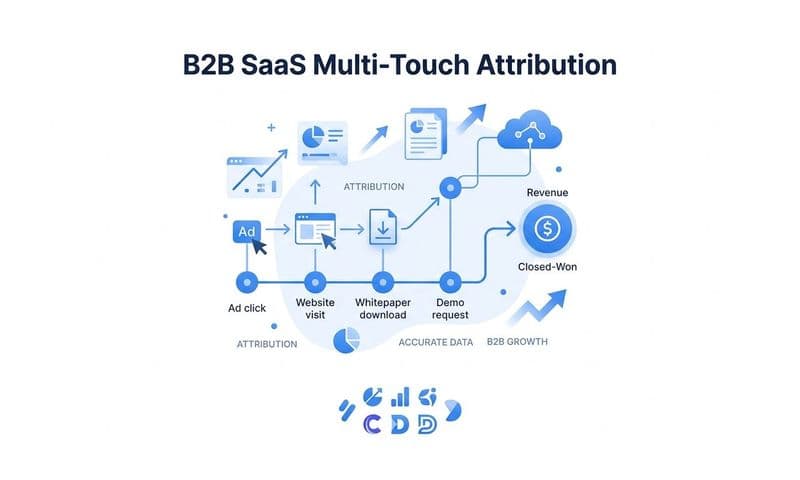
Cometly is built to give you that foundation. It connects your ad platforms, CRM, and website into a single source of truth, tracks every touchpoint from first ad click to closed-won revenue, and surfaces the insights you need to make confident, accurate decisions about where to invest your budget. You stop guessing and start knowing.
Ready to fix your conversion data and start making decisions you can trust? Get your free demo today and see how Cometly helps you capture every touchpoint accurately and optimize your ad spend with confidence.