
You launch a campaign, traffic starts flowing, and leads are coming in. But Facebook Ads Manager shows zero conversions. No data. Just a blank column where your results should be.
This is one of the most frustrating situations a paid media team can face, and it happens more often than most marketers expect. The problem is that Facebook Ads Manager relies on a complex chain of tracking components working together perfectly. When any single link in that chain breaks, your conversion data disappears.
The cause could be a misconfigured pixel, a broken event setup, attribution window mismatches, or signal loss from browser restrictions. Each of these failures looks identical on the surface: empty columns and no reported results. But the fix for each one is completely different, which is why a structured diagnostic approach matters.
The good news is that most of these issues are diagnosable and fixable. This guide walks you through exactly that process. You will learn how to systematically identify why your conversions are not appearing, fix the underlying issue, and verify that data is flowing correctly again.
Each step builds on the previous one, so follow them in order rather than jumping ahead. Whether you are running lead generation campaigns for a B2B SaaS product or driving demo requests through Meta ads, accurate conversion tracking is non-negotiable. Without it, you cannot optimize bids, evaluate creative performance, or justify ad spend to stakeholders.
Let's get your conversion data back on track.
Step 1: Confirm Your Pixel Is Installed and Firing
Before diving into complex diagnostics, start with the most fundamental question: is your pixel actually on your website and firing correctly? This sounds basic, but pixel installation errors are among the most common causes of missing conversion data in Facebook Ads Manager.
The fastest way to check this is with the Meta Pixel Helper, a free Chrome browser extension from Meta. Install it, then navigate to your website. The extension will tell you immediately whether a pixel is detected on the page, which pixel ID is firing, and whether any errors exist.
Pay close attention to what the extension reports. There are a few specific error states to watch for:
Pixel Not Found: The base pixel code is missing from the page entirely. This usually means the pixel was never added to this particular page, or a recent site update removed it.
No Activity: The pixel code is present but not firing. This can happen when the pixel is loaded inside a tag manager container that is not publishing correctly.
Duplicate Pixel IDs: Multiple instances of the same pixel are firing simultaneously. This causes inflated event counts and can create reporting inconsistencies in Ads Manager.
One of the most common pitfalls here is a pixel that was installed only on the homepage or a few key pages, but not on the thank-you pages or post-conversion URLs where the actual conversion event fires. Navigate to your thank-you page or post-form-submission URL and run the Pixel Helper check there specifically.
Next, head to Events Manager in Meta Business Suite. Open the Overview tab for your pixel and look for recent event activity. If the pixel is working, you should see events listed with recent timestamps. If the last activity was days or weeks ago, that is a clear signal that something broke.
The Events Manager Overview will also surface any data quality warnings Meta has flagged for your pixel, which gives you a head start on the next diagnostic steps.
Success indicator: Pixel Helper shows a green checkmark with your correct pixel ID, and Events Manager shows recent activity with a timestamp from the last few hours or days.
Step 2: Verify Your Conversion Events Are Configured Correctly
A working pixel does not automatically mean your conversion events are set up correctly. The pixel being present is just the foundation. The specific events it fires, and whether those events match what your campaign is optimizing for, is an entirely separate issue.
Start with the Test Events tool inside Events Manager. Navigate to your pixel, open the Test Events tab, and enter your website URL. The tool will generate a session you can use to browse your site in real time while Events Manager captures every event that fires.
Walk through the exact user journey that should trigger a conversion. Fill out your lead form, click submit, and land on your thank-you page. Watch what appears in the Test Events panel. You are looking for the specific event your campaign is optimizing for, such as Lead, CompleteRegistration, or a custom event name you defined.
Several things can go wrong at this stage:
Wrong event name: Your campaign is set to optimize for "Lead" but your site fires "lead" (lowercase) or "form_submission" instead. Event names are case-sensitive in Meta's system. A mismatch here means Meta never registers the conversion against your campaign.
Event fires on the wrong trigger: Some implementations fire the conversion event when the form page loads rather than when the form is successfully submitted. This causes inflated, inaccurate event counts and misattributed conversions.
Missing event parameters: Events firing without required parameters like currency or value can create data gaps, particularly for purchase or revenue-related events. Even for lead events, missing parameters reduce your Event Match Quality score.
Custom conversion misconfiguration: If you are using custom conversions built on URL patterns rather than standard events, verify that the URL pattern actually matches your thank-you page URL. Even a trailing slash difference can break the match.
Then cross-reference what you see in the Test Events tool against your campaign's ad set settings. Open your ad set in Ads Manager and check the conversion event selected under Optimization and Delivery. Confirm it matches exactly what the Test Events tool showed firing on your site.
Success indicator: The Test Events tool shows your target event firing with the correct name and parameters in real time, and that event name matches exactly what is selected in your ad set's optimization settings. For a deeper look at how Facebook conversion tracking works end to end, review your full pixel and event setup together.
Step 3: Check Your Attribution Window Settings
Here is a scenario that trips up even experienced media buyers: conversions are actually happening, but they are not appearing in your current reporting view because of an attribution window mismatch. The data exists, you just cannot see it from where you are looking.
In Ads Manager, click the Columns dropdown and select Compare Attribution Settings. This opens a side-by-side view that lets you see conversion counts across different attribution windows simultaneously.
Meta's default attribution window is 7-day click and 1-day view. This means Meta will credit a conversion to your ad if the user clicked within the last 7 days or viewed the ad within the last 1 day before converting. If your campaign was set up with a different attribution window during creation, your reporting columns may be showing a window that does not match what the campaign is actually using.
To check what window your campaign is using, go to the ad set level and look under Optimization and Delivery. The attribution setting is displayed there and reflects how Meta is optimizing the campaign and what the default reporting view will show.
For B2B SaaS companies, this is where things get particularly tricky. If your average sales cycle from first ad click to demo request or trial signup spans more than 7 days, many of your real conversions may fall outside the standard attribution window entirely. They happened, your CRM recorded them, but Meta never credited them to the campaign.
Use the Compare Attribution Settings view to switch between windows. Try 28-day click, 7-day click, and 1-day click views. If conversions start appearing under a longer window, you have found your issue. Understanding Facebook ads attribution in depth helps you choose the right window for your actual conversion timeline.
Also worth noting: if you recently changed your attribution window settings, historical data does not retroactively update. You will only see the new window applied to conversions going forward.
Success indicator: Conversions appear when you select an attribution window that aligns with your actual conversion timeline, and your campaign's ad set attribution setting matches your reporting column selection.
Step 4: Diagnose Signal Loss from Browser Restrictions and Ad Blockers
If your pixel is installed correctly, your events are configured properly, and your attribution windows are aligned, but you are still seeing fewer conversions than you know occurred, you are likely dealing with signal loss. This is one of the most significant and growing challenges in browser-based conversion tracking.
Safari's Intelligent Tracking Prevention (ITP) limits how long cookies persist and restricts cross-site tracking. Firefox Enhanced Tracking Protection blocks many third-party tracking scripts by default. And a substantial portion of web users run ad blockers that prevent the Meta pixel from firing at all. When any of these protections are active, the pixel simply never fires, and the conversion is never reported to Meta, even though it genuinely happened.
To measure the scale of this problem for your account, go to Events Manager and look for two specific signals:
Data Quality warnings: Meta will surface warnings in Events Manager when it detects issues with how your pixel events are being received. These warnings often point directly to signal quality problems.
Event Match Quality score: This is a 0-to-10 score that indicates how well Meta can match your conversion events to actual Meta users. A score below 6 suggests that a meaningful portion of your events are arriving without enough user information for Meta to attribute them correctly. Low scores directly correlate with underreported conversions in Ads Manager. Review the full breakdown of Facebook Event Match Quality to understand what factors influence this score.
The practical test is to compare your known conversion volume against what Meta reports. Pull your lead count from your CRM for a specific date range, then compare it to what Ads Manager shows for the same period. A significant gap between those two numbers is the signal loss problem made visible.
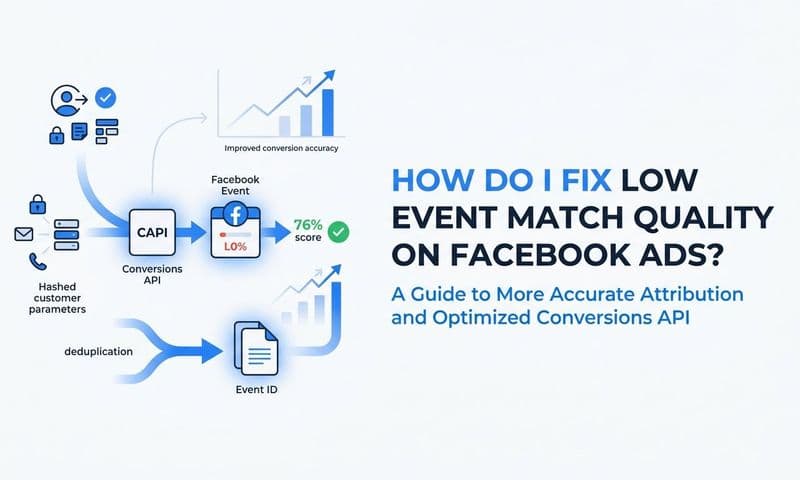
The solution is server-side tracking via the Meta Conversions API (CAPI). Instead of relying on the browser to fire a pixel, CAPI sends conversion data directly from your server to Meta's API. Browser restrictions cannot block a server-to-server call, which means your conversions get reported regardless of what tracking protections the user has active.
One critical implementation detail: when both your browser pixel and CAPI are sending events for the same conversion, you need to deduplicate them. Pass the same event_id parameter in both your pixel event and your CAPI event. Meta uses this ID to recognize that both signals refer to the same conversion and counts it only once.
Success indicator: After implementing CAPI, your Event Match Quality score improves, and the gap between your CRM conversion count and Meta's reported conversions narrows meaningfully.
Step 5: Implement Server-Side Tracking with the Meta Conversions API
Understanding that CAPI is the solution is one thing. Actually implementing it correctly is another. Here is how to approach the setup in a way that maximizes data quality and avoids the common mistakes that leave B2B SaaS teams with the same underreporting problems they started with.
Start in Events Manager. Navigate to your pixel, click the Settings tab, and find the Conversions API section. Select Set Up to begin. Meta will present you with several implementation options.
The three main paths are:
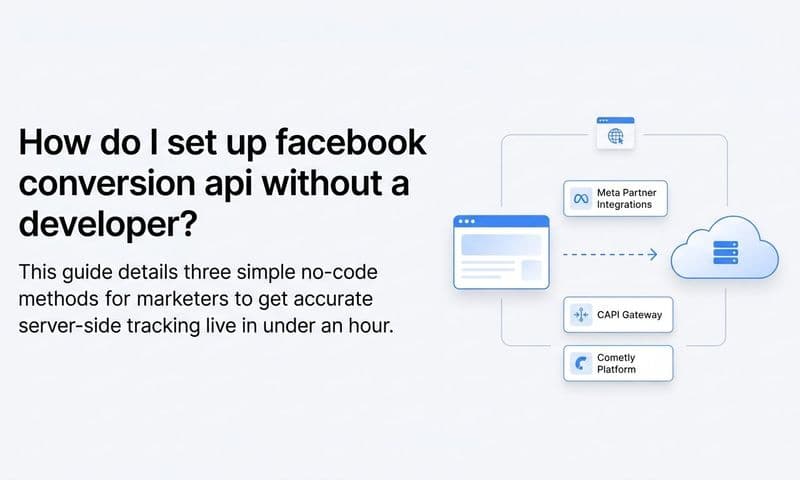
Partner integrations: If your CRM, e-commerce platform, or marketing stack is on Meta's list of supported partners, this is the fastest route. Many major CRM platforms and marketing automation tools have native CAPI integrations that can be activated without custom development work.
Manual API implementation: Your development team builds a direct connection from your server to Meta's Conversions API endpoint. This gives you the most control over exactly which events are sent and what data is included, but it requires engineering resources and ongoing maintenance.
Dedicated attribution platform: A third-party attribution platform can handle the CAPI connection on your behalf, often with additional benefits like cross-channel attribution and CRM data integration built in.
For B2B SaaS teams specifically, the most reliable approach is connecting your CRM or backend system to send events server-side. Rather than depending on a user's browser to fire a Lead event when they submit a form, your server sends that event directly to Meta the moment the lead is recorded in your database. This approach captures conversions that browser-based tracking would miss entirely. Learn more about syncing conversion data to Facebook Ads to see how this connection works in practice.
The events worth prioritizing for server-side sending in a B2B SaaS context include Lead (form submission or demo request), Trial Start, and any Opportunity or Qualified Lead events your CRM tracks. These are the signals Meta needs to optimize your campaigns effectively.
Every server-side event should include hashed customer information: email address, phone number, first name, last name, and city or country when available. Meta uses this data to match the event to a Meta user profile. More matching data means a higher Event Match Quality score, which means more of your conversions get attributed correctly.
Set up deduplication by passing the same event_id in both your browser pixel event and your CAPI event for every conversion. Without this, you will double-count conversions and skew your optimization data.
After implementation, use the Test Events tool in Events Manager to verify that server-side events are arriving. You should see events labeled as "Server" alongside your browser events, with matching event IDs confirming deduplication is working.
Success indicator: Events Manager shows both browser and server events arriving, deduplication is confirmed via matching event IDs, and your Event Match Quality score rises above 6 out of 10.
Step 6: Audit Your Campaign Structure and Conversion Window Alignment
Sometimes the tracking infrastructure is working perfectly, but conversions still do not appear in Ads Manager because the campaign itself is not structured to report them correctly. This is a structural issue rather than a technical one, and it is easy to overlook after spending time debugging pixels and APIs.
Start by reviewing your campaign objective. A Traffic or Awareness campaign will not report conversions the same way a Conversions or Leads campaign does. If your campaign is set to optimize for link clicks but you are looking at a conversion column in your reporting, that column may simply be empty because Meta is not tracking or optimizing for that action in this campaign type.
Next, trace the alignment across three levels: the event firing on your site, the optimization event selected at the ad set level, and the column you are looking at in your reporting view. All three need to point to the same conversion action. A mismatch at any level creates the appearance of missing data. Reviewing your Facebook campaign tracking setup end to end is the fastest way to catch these structural misalignments.
For B2B SaaS campaigns, there is an additional structural consideration. If your target conversion event is a demo request or a qualified lead, and your campaign is generating fewer than roughly 50 of those events per week per ad set, your campaign may be stuck in the learning phase. During the learning phase, Meta is still gathering data to optimize delivery, and reported conversion numbers can appear incomplete or inconsistent.
In this situation, consider optimizing for a higher-volume upper-funnel event such as a landing page view, content download, or free trial start. Use that event to drive Meta's optimization algorithm, then track your actual revenue attribution separately through your CRM and attribution platform. This approach keeps your campaigns out of perpetual learning phase while still generating qualified pipeline.
Also check your reporting date range. If you are looking at "Today" or "Yesterday," you may simply be hitting Meta's attribution processing delay. Meta typically processes attribution data within 24 to 72 hours. Conversions from the last day or two may not have fully processed yet, making recent campaigns look like they have no results when data is actually on its way.
Success indicator: Your campaign objective, ad set optimization event, and reporting columns are all aligned to the same conversion action, and your date range accounts for Meta's attribution processing delay.
Step 7: Build a Reliable Attribution Layer Outside of Ads Manager
Even after completing every step above, there is a fundamental limitation you need to understand: Facebook Ads Manager is a single-platform view of conversions. It will always have blind spots. Attribution windows cap what gets credited. Browser restrictions reduce signal quality. And Meta's reporting reflects Meta's model of what drove a conversion, which is not always the complete picture.
For B2B SaaS companies especially, this creates a real problem. Your customer journey does not begin and end on Facebook. A prospect might click a LinkedIn ad, then see a retargeting ad on Meta, then search your brand name on Google, then sign up for a trial. Meta will claim credit for the conversion. So will Google. Your CRM will record the deal. But none of these individual views shows you the full story.
A dedicated paid ads analytics platform solves this by connecting your ad platforms, CRM, and website data into a single system. Instead of looking at each platform's self-reported numbers, you get a unified view of every touchpoint that contributed to a conversion, from the first ad impression to the closed deal.
This cross-channel view is particularly valuable for reconciling the gap you identified in Step 4. When you can see your CRM pipeline data alongside your Meta, Google, and LinkedIn spend data in one place, you can quantify exactly how much signal loss is affecting your Meta reporting and make budget decisions based on actual revenue contribution rather than platform-reported conversions.
Multi-touch attribution models add another layer of clarity. Instead of giving all credit to the last click (which is what Meta's default reporting tends to favor), multi-touch models distribute credit across all the touchpoints that contributed to a conversion. This gives you a more accurate picture of how your Facebook ads contribute alongside other channels, and it prevents you from making budget cuts to campaigns that are actually driving meaningful pipeline even if they do not appear to be the final conversion driver in Meta's view.
The goal is a single source of truth for your conversion data. One system that reconciles what Meta reports, what Google reports, what your CRM records, and what your server-side events capture, so that your optimization decisions are based on reality rather than any single platform's interpretation of it.
Success indicator: You have a cross-channel attribution system that reconciles with your CRM pipeline data and gives you conversion insights that do not depend entirely on any single ad platform's native reporting.
Putting It All Together
Fixing Facebook Ads Manager conversion tracking is a process of elimination. Start with the basics, work through the technical layers, and build toward a tracking infrastructure that does not depend on any single point of failure.
Here is a quick checklist to confirm you have covered every step:
Pixel installation: Pixel is installed on all pages and firing correctly in Pixel Helper, including thank-you pages and post-conversion URLs.
Event configuration: Target conversion event is firing on the correct action with the right event name and parameters, confirmed via the Test Events tool.
Attribution windows: Reporting window in Ads Manager matches your campaign's attribution settings and reflects your actual conversion timeline.
Signal loss diagnosis: Event Match Quality score has been reviewed, and the gap between CRM conversions and Meta-reported conversions has been measured.
Conversions API: Server-side tracking is implemented with hashed customer data and event deduplication using a consistent event_id.
Campaign structure: Campaign objective, optimization event, and reporting columns are all aligned, and the date range accounts for Meta's processing delay.
Cross-channel attribution: A platform-independent attribution layer is in place to validate conversion data beyond what Ads Manager reports.
Even after completing all of these steps, relying solely on Facebook's native reporting leaves gaps. B2B SaaS teams need a complete picture of how ad spend connects to pipeline and revenue, not just what Meta chooses to report.
Cometly connects your ad platforms, CRM, and website data to give you accurate, real-time attribution across every channel. From the first ad click to closed-won revenue, you get a single source of truth that reconciles with your actual pipeline so you always know what is driving growth. Get your free demo today and start capturing every touchpoint to maximize your conversions.