
If your Facebook Ads dashboard is showing conversion numbers that do not match your CRM, your backend data, or your own gut instinct, you are not alone. Inaccurate conversion data is one of the most common and most damaging problems B2B SaaS marketing teams face. When the numbers are wrong, every decision downstream is compromised: budget allocation, campaign scaling, creative testing, and revenue forecasting all rely on accurate conversion signals.
The problem is that Facebook's reporting environment has become increasingly complex. Browser-based pixel tracking, iOS privacy changes, duplicate events, mismatched attribution windows, and poor server-side setup all contribute to inflated, deflated, or simply unreliable conversion counts. The result is a disconnect between what Facebook says is happening and what is actually happening in your pipeline.
This guide walks you through a clear, sequential process to identify exactly why your Facebook Ads are showing wrong conversions and how to fix each root cause. You will learn how to audit your pixel setup, check for event duplication, align attribution windows, validate server-side tracking, and establish an independent source of truth for your conversion data.
Whether you are seeing inflated numbers that make campaigns look better than they are, or deflated numbers that are causing Facebook's algorithm to underperform, these steps will help you get to accurate, trustworthy data. By the end, your Facebook conversion reporting will reflect reality, and your ad optimization decisions will be grounded in data you can actually act on.
Step 1: Audit Your Facebook Pixel and Event Setup
Before you can fix anything, you need a clear picture of what is actually installed and how it is firing. Open Facebook Events Manager and navigate to the Data Sources tab to review all active pixels connected to your ad account. You may find more pixels than you expected, especially if multiple team members or agencies have had access to the account over time.
Use the Test Events tool inside Events Manager to fire real-time events and confirm each conversion event is triggering correctly on the right pages or actions. This tool lets you visit your website while Events Manager watches for incoming signals, so you can see exactly what fires, when it fires, and what data it carries.
Check that your standard events are mapped to the correct user actions in your funnel. Facebook uses named event types like Lead, Purchase, and CompleteRegistration to categorize conversions. If your pixel fires a "Purchase" event when someone signs up for a free trial, Facebook will count that as a purchase conversion and inflate your revenue attribution significantly.
Here is where many B2B SaaS teams run into a specific and avoidable problem. If you installed the pixel via Google Tag Manager and also have a native integration through your CRM or website platform, you may be firing the same event twice from two separate sources. The result is double-counting on every single conversion without any obvious warning in the interface. Understanding the full scope of tracking Facebook ads correctly from the start prevents these compounding errors.
What to check for pixel duplication: Open your browser's developer tools while on a key conversion page, filter network requests for "facebook.com/tr", and count how many pixel calls fire for a single event. If you see two or more calls with the same event name, you have a duplication problem that needs to be resolved before anything else.
Also verify that the pixel is installed on all relevant pages in your funnel, not just the homepage or the thank-you page. Gaps in pixel coverage mean entire stages of your conversion journey are invisible to Facebook's optimization algorithm.
Success indicator: Each conversion event fires exactly once per qualifying user action, carries the correct event name and value parameters, and shows up in Events Manager's Test Events tool with no duplicates or mismatches.
Step 2: Identify and Eliminate Event Deduplication Issues
Once you have confirmed your pixel is set up correctly, the next layer to examine is deduplication. This is the process of ensuring that when both your browser pixel and your server-side Conversion API send the same event, Facebook counts it only once. Without it, every conversion can be counted twice, artificially doubling your reported numbers.
Here is how the problem typically occurs. Your browser pixel fires a Lead event when someone submits a form. At the same moment, your server-side CAPI setup detects the same form submission and sends its own Lead event to Facebook. Facebook receives two signals and, without a way to match them, counts both as separate conversions. Your dashboard shows twice as many leads as actually exist.
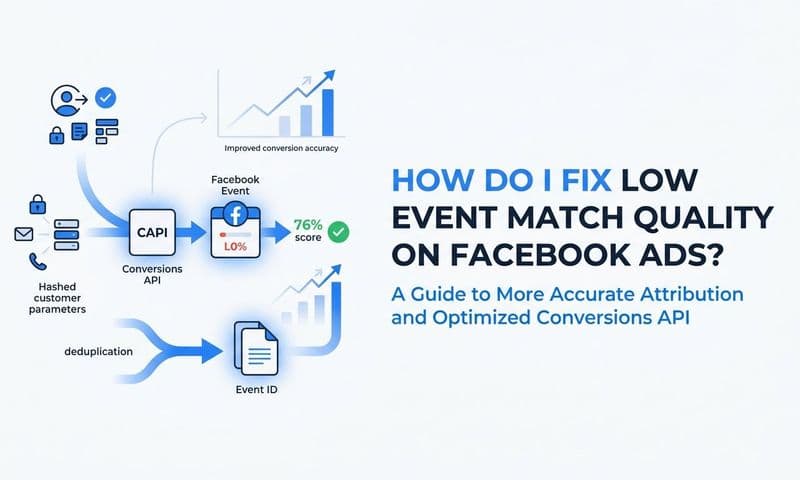
The fix is straightforward in principle but requires careful implementation. Both the browser pixel event and the CAPI server event must share the same event_id parameter with an identical value. When Facebook sees two events with the same event_id, it merges them into a single conversion rather than counting them separately.
Navigate to Events Manager, select your pixel, and look for the Deduplication tab. This view shows you whether Facebook is detecting and merging duplicate events or treating them as unique conversions. If your event_id values are missing or inconsistent, Facebook treats each signal as a distinct conversion. These kinds of discrepancies are well documented in analyses of Facebook ads reporting discrepancies and understanding the patterns helps you resolve them faster.
How to generate reliable event IDs: Your developer or tag manager setup should generate a unique identifier, such as a UUID or a database order ID, at the moment the conversion event occurs. That same identifier must be passed in both the browser pixel payload and the CAPI server payload for the same event instance.
A common mistake is using timestamps as event IDs. Even a small difference in latency between when the browser fires and when the server sends its event can result in slightly different timestamps, causing the IDs to not match and deduplication to fail.
Success indicator: The Deduplication tab in Events Manager shows a high match rate between browser and server events, and your total event count aligns with your actual backend conversion count rather than being a multiple of it.
Step 3: Align Attribution Windows with Your Sales Cycle
Even with a perfectly configured pixel and clean deduplication, your Facebook conversion numbers can still be misleading if your attribution window does not match the reality of how your buyers make decisions.
Facebook's default attribution window is 7-day click and 1-day view. This means any conversion that happens within 7 days of someone clicking your ad, or within 1 day of someone viewing it, gets credited to that ad. For e-commerce with short purchase cycles, this makes sense. For B2B SaaS companies where the decision-making process can span weeks or months, it creates significant distortion.
The distortion can go in either direction. A window that is too wide will attribute conversions to ads that had little to do with the final decision, making campaigns appear more effective than they are. A window that is too narrow will miss legitimate conversions that resulted from your ads, making campaigns appear to underperform and causing Facebook's algorithm to under-optimize. A thorough understanding of Facebook ads attribution models helps you choose the window that most accurately reflects your buyer journey.
To adjust your view, go to Ads Manager, click Columns, then Customize Columns, and look for the attribution setting options. Compare your results across different windows: 1-day click, 7-day click, and 28-day click where available. Seeing how dramatically the numbers change across windows is often eye-opening.
The critical validation step: Cross-reference these numbers against your CRM data for the same time period. Look at how many leads or opportunities were created within each window and compare that to what Facebook reports. The attribution window that produces conversion counts most consistent with your CRM records is the one that best reflects your actual buyer journey.
It is also worth noting that Apple's App Tracking Transparency framework significantly limited Facebook's ability to track view-through conversions and extended click-through windows. If your tracking setup has not been updated since those changes took effect, your older benchmarks for what "normal" Facebook conversion numbers look like may no longer apply.
Success indicator: Your chosen attribution window produces conversion counts that are consistent with CRM-recorded deals and lead volumes within the same timeframe, and you can explain any variance between the two data sources.
Step 4: Validate Your Conversion API Server-Side Setup
The Conversion API is Facebook's answer to the limitations of browser-based tracking. It sends conversion events directly from your server to Facebook, bypassing ad blockers, cookie restrictions, and iOS tracking prevention. But a poorly configured CAPI setup is itself one of the most common reasons Facebook shows wrong conversions.
CAPI events may be firing for the wrong triggers, missing required parameters, or sending duplicate signals without deduplication. Any of these issues will corrupt your conversion data in ways that are difficult to spot from the Ads Manager dashboard alone.
Start in Events Manager. Navigate to your CAPI data source and review the Event Match Quality score. This score, rated out of 10, reflects how reliably Facebook can match your server events to real user profiles in its system. A low score means Facebook is receiving your events but cannot confidently attribute them to specific users, which reduces the accuracy of your attribution and weakens your campaign optimization signals. Reviewing the specifics of Facebook Event Match Quality will help you understand exactly which parameters drive the biggest improvements.
To improve Event Match Quality, ensure your CAPI events include as many customer information parameters as possible. The most impactful are hashed email address, hashed phone number, client IP address, user agent, and the Facebook click ID (fbclid) captured from the URL when the user first arrived from a Facebook ad. Each additional parameter increases the likelihood of a successful match.
Verifying correct event triggers: Use the Test Events tool in Events Manager and filter specifically for server events. Walk through your conversion funnel and confirm that CAPI events fire for the correct actions, not for every page visit or session start. Over-firing CAPI events for non-conversion actions is a common setup mistake that inflates reported numbers significantly.
Aim for an Event Match Quality score of 6 or above. Scores below this threshold indicate that a meaningful portion of your server events are not being matched to users, which means your conversion data is incomplete and your campaign optimization is working from a flawed signal.
Success indicator: CAPI events show a strong Event Match Quality score, event counts align with your backend database records, and the Test Events tool confirms events fire only for the correct conversion actions.
Step 5: Cross-Reference Facebook Data Against an Independent Attribution Source
Here is something worth acknowledging directly: Facebook's self-reported attribution will always carry some inherent bias. The platform has a structural interest in showing its own contribution to your conversions favorably. This is not a conspiracy, it is simply how platform-native attribution works. Every ad platform takes credit for conversions within its attribution window, regardless of what other channels contributed to that decision.
The most reliable way to validate whether your Facebook conversion numbers are accurate is to compare them against an independent, platform-agnostic source. Your CRM is the most accessible starting point. Using Facebook ads measurement frameworks that extend beyond native reporting gives you a more complete and trustworthy picture of actual campaign performance.
Pull conversion data from your CRM for the same time period you are examining in Ads Manager. Compare lead counts, opportunity counts, and closed-won revenue against what Facebook reports. Look for consistent patterns rather than one-off discrepancies.
What the patterns tell you:
Consistently higher Facebook numbers than CRM records suggest over-counting, which typically points back to deduplication issues, overly broad attribution windows, or pixel duplication covered in earlier steps.
Consistently lower Facebook numbers than CRM records suggest tracking gaps, which typically indicate CAPI is not firing correctly, UTM parameters are broken, or your attribution window is too narrow to capture the full conversion journey.
Erratic variance with no clear pattern often points to inconsistent event firing, where some conversions are tracked and others are not, depending on browser behavior or user path.
A multi-touch attribution platform like Cometly connects your ad platforms, CRM, and website to give you a single source of truth across the entire customer journey. Rather than relying on Facebook's own reporting to validate Facebook's own performance, you get a neutral view of which campaigns are driving real pipeline versus inflated vanity metrics. Cometly captures every touchpoint from first ad click to closed-won revenue, making these discrepancies visible and actionable rather than buried in platform-specific dashboards.
This cross-referencing step also helps you understand which attribution model best reflects how your buyers actually engage with your ads before converting. First-touch, last-touch, and linear attribution models will each produce different conversion counts, and understanding which model aligns with your actual buyer behavior is essential for making confident scaling decisions.
Success indicator: Your Facebook reported conversions and your independent attribution data are within a reasonable and explainable variance, and you can account for any remaining differences with documented logic rather than guesswork.
Step 6: Fix UTM Parameters and URL Tracking Consistency
UTM parameters are the backbone of cross-platform conversion tracking. Unlike pixel-based tracking, UTMs are not dependent on cookies, browser permissions, or platform-specific identifiers. They travel with the URL and can be captured by any analytics tool or CRM that is configured to receive them. If your UTMs are missing, inconsistent, or getting stripped somewhere in the redirect chain, your attribution data will be fragmented across multiple sources with no reliable way to reconcile them. Maintaining a disciplined Facebook campaign tracking structure from the outset prevents these fragmentation issues from compounding over time.
Start by checking every active Facebook ad for UTM parameters in the destination URL. At minimum, you need utm_source, utm_medium, and utm_campaign populated correctly. Adding utm_content and utm_term gives you more granular visibility into which specific creative or audience drove the conversion.
Naming convention discipline matters more than most teams realize. If some campaigns tag utm_source as "Facebook" and others use "facebook" or "fb", your analytics platform will treat these as three separate traffic sources. Over time, this fragments your data and makes it impossible to see the true aggregate performance of your Facebook advertising. Establish a naming convention document and enforce it across every campaign launch.
Next, verify that UTMs are surviving your redirect chain. If your landing pages use URL shorteners, vanity domains, or multi-step redirects, UTM parameters can be stripped before they reach your website and analytics platform. Test this by clicking a live ad, following the full redirect chain, and checking the final URL in your browser's address bar to confirm all UTM values are still present.
CRM capture is the piece most teams overlook. For B2B SaaS funnels where the conversion happens days or weeks after the first click, capturing UTM values at the lead or contact level in your CRM is critical. Your website should store UTM parameters in a cookie or local storage on first visit and pass them to the CRM record when a form is submitted, even if the submission happens on a later session. Teams that also need to reconcile offline deals should review how to track offline conversions to close the attribution gap between ad spend and closed revenue.
One additional conflict to watch for: Facebook's auto-tagging feature, which appends the fbclid parameter to destination URLs, can sometimes conflict with manual UTM parameters and cause data discrepancies between Ads Manager and Google Analytics. Understand how your analytics setup handles both simultaneously to avoid creating a new source of confusion while fixing an existing one.
Success indicator: Every Facebook-sourced lead or conversion in your CRM has a populated UTM source and campaign value that matches the corresponding Facebook ad, with no unexplained gaps or "direct" traffic spikes that correspond to Facebook campaign activity.
Building a Reliable Conversion Tracking Foundation Going Forward
Working through these six steps will resolve the immediate issues causing your Facebook Ads to show wrong conversions. But fixing tracking problems reactively is only half the job. The other half is building a system that catches new issues before they corrupt weeks of campaign data.
Set a weekly or biweekly audit cadence. Compare Facebook-reported conversions against CRM data, check Events Manager for new errors or warnings, and verify your CAPI Event Match Quality scores. A fifteen-minute review on a regular schedule will surface problems early, when they are still easy to fix.
Document your entire tracking setup. This includes pixel placement, CAPI configuration, UTM naming conventions, and attribution window settings. When team members change, agencies rotate, or new campaigns launch, this documentation ensures tracking standards are applied consistently from the start rather than retrofitted after the damage is done.
Consider implementing a dedicated attribution platform that provides real-time visibility across all channels, not just Facebook. Cometly's AI-powered attribution gives B2B SaaS marketing teams a complete, enriched view of every customer journey, feeds better conversion data back to Facebook and Google to improve ad platform optimization, and surfaces which campaigns are actually driving revenue versus which ones are simply claiming credit for it.
The goal is not perfect data. Perfect data does not exist. The goal is data that is consistent, explainable, and reliable enough to make confident budget and scaling decisions without second-guessing every number in your dashboard.
Quick reference checklist before you close this guide:
Pixel audit complete: Each event fires once, with the correct name and parameters, from a single installation source.
Deduplication configured: Browser pixel and CAPI events share matching event_id values and the Deduplication tab confirms merge is occurring.
Attribution window aligned: Your selected window reflects your actual sales cycle and produces counts consistent with CRM data.
CAPI validated: Event Match Quality score is strong, events fire for the correct actions, and counts match backend records.
Cross-referenced with CRM: Facebook conversion numbers and independent attribution data are within explainable variance.
UTMs consistent and capturing correctly: Every Facebook-sourced conversion in your CRM carries complete, correctly formatted UTM values.
When Facebook Ads show wrong conversions, the downstream impact touches every part of your marketing operation. Budget goes to the wrong campaigns. Creative tests produce misleading results. Revenue forecasts become unreliable. Working through these six steps systematically gives you a clear path from confusion to confidence.
Each step builds on the last, and together they create a tracking foundation that gives you data you can trust. For B2B SaaS teams managing significant ad spend across multiple channels, having a single platform that connects ad data to CRM outcomes is not a nice-to-have. It is how you move from reactive troubleshooting to proactive optimization.
Cometly was built specifically for this: connecting every touchpoint from first ad click to closed-won revenue so your team always knows what is actually working. Ready to replace guesswork with a clear, accurate view of your ad performance? Get your free demo today and start capturing every touchpoint to maximize your conversions.