
If your ad platform is reporting 80 conversions but your CRM shows 40, you have a conversion tracking discrepancy. And if you are making budget decisions based on that data, you are essentially flying blind. Every optimization call, every scaling decision, every channel comparison is built on a foundation that does not reflect reality.
Conversion tracking discrepancies are one of the most common and costly problems in paid advertising. They distort your ROAS calculations, mislead your optimization decisions, and cause ad platform algorithms to learn from inaccurate signals. The result is wasted spend and missed revenue that compounds quietly over time.
The causes are rarely obvious. Discrepancies can stem from pixel misfires, duplicate event tracking, attribution window mismatches, iOS privacy restrictions, or gaps between your ad platform data and your CRM. Most marketers notice the gap but struggle to pinpoint the source. They assume the platform is exaggerating, or that the CRM is behind, and they move on without fixing the underlying problem.
This guide walks you through a systematic process to identify, diagnose, and fix conversion tracking discrepancies across your paid advertising stack. Whether you are running campaigns on Meta, Google, TikTok, or multiple platforms simultaneously, these steps will help you build a reliable data foundation that you can actually trust.
By the end, you will know exactly where your data is breaking down, what is causing the gap, and how to correct it so your attribution reflects reality rather than a distorted version of it. Let's get into it.
Step 1: Audit Your Current Tracking Setup Across Every Platform
Before you can fix anything, you need a clear picture of what you are actually working with. Most tracking problems persist because nobody has ever mapped out the full setup in one place. Start here.
Create a tracking inventory. List every ad platform you are running campaigns on, every conversion event you are tracking within each platform, and every method being used to fire those events. That means noting whether each event fires via a browser pixel, a server-side API, a Google Tag Manager tag, or a native CRM integration. This inventory becomes your reference document for everything that follows.
Check for overlapping tracking methods: One of the most common causes of inflated conversion counts is having the same event tracked twice. This happens when a pixel is installed directly in the page code and also triggered through Google Tag Manager, with no deduplication logic in place. Meta and Google Ads will happily record both fires as separate conversions, and your numbers will look far better than reality.
Verify tag placement on key pages: Your pixel or tracking tag needs to be present on every page where a conversion can occur. That includes thank-you pages, order confirmation pages, and any destination a user lands on after completing a form or purchase. A pixel installed only on your homepage is not doing the job you think it is.
Use browser tools to confirm tags are firing: Install the Meta Pixel Helper, Google Tag Assistant, or a similar browser extension and walk through your conversion flows manually. Watch for events that fire multiple times on a single action, events that throw errors, or events that do not fire at all. These tools surface problems that are invisible in your ad platform dashboard.
Document everything before touching anything: This is the step most marketers skip in their urgency to fix things. Record the current state of your tracking setup as a baseline. When you make changes later, you need something to compare against to confirm the fix actually worked and did not introduce new problems.
Here is the most important mindset shift for this step: data appearing in your ad platform does not mean that data is accurate. Platforms will show numbers regardless of whether those numbers are trustworthy. The audit is how you find out which ones are not.
Step 2: Identify the Type and Source of the Discrepancy
Not all discrepancies are the same, and the fix depends entirely on understanding what kind of gap you are dealing with. There are three distinct types, and diagnosing which one you have changes everything about your approach.
Over-reporting means the ad platform shows more conversions than actually occurred. This is typically caused by duplicate event tracking, pixel fires on page refreshes, or events triggering on button clicks rather than confirmed form submissions. Your platform looks like it is crushing it, but your CRM tells a different story.
Under-reporting means the platform is missing real conversions that did happen. Browser-based pixels blocked by ad blockers, iOS privacy restrictions, and gaps in tag placement are the usual culprits. Your CRM shows more conversions than the platform recorded.
Misattribution means the conversions are being recorded, but they are being credited to the wrong source, campaign, or channel. This is often a symptom of conflicting attribution models rather than a technical tracking failure.
Once you know the type, build a comparison. Pull conversion counts from your ad platform, your CRM, your website analytics, and your payment or lead data for the exact same date range and conversion event. Put these side by side in a spreadsheet with a column for each source. The gaps will become immediately visible.
Calculate the gap percentage. A variance of a few percent between systems is normal and expected. Gaps above 15 to 20 percent are a signal of a structural problem that needs to be addressed. Gaps above 50 percent, like the 80-versus-40 example, indicate something has gone seriously wrong in your setup.
Look at whether the discrepancy is consistent over time or spikes on specific dates. A spike often points to a tag deployment that broke something, a platform update that changed default behavior, or a campaign launch that introduced new tracking logic. Consistency across time suggests a foundational issue rather than a one-time event.
Also identify which platforms are most affected. If Meta is significantly off but Google Ads looks accurate, the issue is likely tied to browser-based pixel limitations, iOS restrictions, or your Conversions API setup. Platform-specific discrepancies have platform-specific causes, and isolating them saves you from chasing the wrong fix.
Step 3: Fix Browser-Side Tracking Gaps and Pixel Errors
With your audit complete and your discrepancy type identified, you can start making targeted fixes. Browser-side tracking errors are the most common source of both over-reporting and under-reporting, so this is where most teams need to start.
Open your pixel helper tools and run through your conversion flows again, this time with a diagnostic eye. The Meta Pixel Helper, Google Tag Assistant, and TikTok Pixel Helper all surface specific errors that your ad platform dashboard will never show you. Look for three things: events firing multiple times on a single user action, events not firing at all, and events firing with incomplete or incorrect parameters.
Resolve duplicate event firing: If your pixel is installed both directly in the page source code and through Google Tag Manager, you are likely firing the same event twice on every conversion. The fix is to choose one method and remove the other. If you want to keep GTM as your tag management system, remove the hardcoded pixel from the page template. Then confirm the GTM tag is not set up to fire twice through multiple triggers.
Fix your conversion triggers: A form submission event should fire only after a successful submission, not on the button click that initiates it. Button click triggers are unreliable because they fire even when the form fails validation. Switch your trigger to fire on the thank-you page load or on a confirmed form success event from your form platform. This change alone can significantly reduce inflated conversion counts.
Check your event parameters: Every conversion event should pass the correct parameters including value, currency, and a unique event ID. Missing parameters reduce your event match quality score in Meta's Events Manager, which means the platform has a harder time matching conversions to users and optimizing your campaigns effectively. Incomplete parameters also make deduplication harder when you add server-side tracking later.
Address order confirmation page refreshes: For e-commerce setups, confirm that your purchase event is not firing every time the order confirmation page loads. If a user refreshes that page, a duplicate conversion fires. The fix is to trigger the event only on the first page load, typically by checking for a unique order ID or using a session flag to ensure the event fires once per transaction.
After making these fixes, run through your conversion flows again with your pixel helper tools active. Clean, single-fire events with no errors and complete parameter data are your success indicator. If you see that, you have resolved the browser-side issues and are ready for the next layer.
Step 4: Implement Server-Side Tracking to Recover Lost Conversions
Even with a perfectly configured browser pixel, you are still missing a meaningful portion of your real conversions. This is not a configuration problem you can fix in GTM. It is a structural limitation of client-side tracking.
Browser-based pixels are blocked by ad blockers, restricted by privacy-focused browsers like Firefox and Brave, and significantly limited by Apple's iOS App Tracking Transparency framework. When a user who has opted out of tracking converts on your site, the browser pixel has no way to report that event to the ad platform. That conversion simply disappears from your data.
Server-side tracking solves this by sending conversion data directly from your server to the ad platform's API, bypassing browser-level restrictions entirely. The conversion happens, your server records it, and the data goes directly to the platform without touching the user's browser. Ad blockers cannot interfere with a server-to-server call. Understanding why server-side tracking is more accurate helps explain why this approach has become essential for modern paid advertising.
Each major platform has its own server-side solution. For Meta, this is the Conversions API, commonly called CAPI. For Google, it is Enhanced Conversions and the Google Ads API. For TikTok, it is the Events API. Setting these up natively requires API access, developer resources, and ongoing maintenance as platform APIs evolve.
Deduplication is non-negotiable: When you run both a browser pixel and a server-side API simultaneously, which is the recommended approach for maximum coverage, you must implement event deduplication. Without it, the same conversion will be reported twice: once by the pixel and once by the server-side event. Use a consistent, unique event ID for every conversion and pass that same ID through both the browser and server events. The platform will then recognize them as the same event and count it only once.
Richer data signals improve match quality: Server-side tracking also gives you the ability to send hashed customer data signals such as email addresses, phone numbers, and external IDs alongside conversion events. This improves the platform's ability to match conversions to users, which directly improves event match quality scores and helps the ad algorithm optimize more effectively. Better data in means better targeting and optimization out.
Cometly's server-side tracking handles this entire process automatically. It connects your conversion data to ad platforms without requiring manual API configuration, and deduplication is built into the system by default. For teams that want to recover lost conversions without building custom API integrations, this removes the technical barrier entirely.
Step 5: Align Attribution Windows and Comparison Logic
Here is something that surprises many marketers: some of what looks like a conversion tracking discrepancy is not a tracking error at all. It is a comparison error. You are looking at the same reality through two different lenses and wondering why the pictures do not match.
Attribution windows are the most common source of this confusion. Meta might attribute a conversion using a 7-day click and 1-day view window, meaning it will credit an ad if the user clicked within the last seven days or viewed within the last day. Your CRM might attribute the same sale to organic search because that was the last touchpoint before the purchase. Your Google Analytics might use last-click attribution and credit a direct session. All three systems are recording the same conversion, but each is crediting a different source.
This is not a bug. It is a feature of how attribution models work. But if you are comparing these numbers without accounting for the model differences, you will always see apparent discrepancies that do not actually reflect tracking failures.
Standardize your attribution window settings: Go into each ad platform's settings and confirm which attribution window is active for each campaign. Meta, Google Ads, and TikTok all allow you to customize these settings. Before comparing numbers across platforms, make sure you understand what conversion window each one is using and document it in your tracking inventory from Step 1.
Understand model conflicts: Last-click attribution in your analytics tool will consistently conflict with view-through or multi-touch attribution in your ad platforms. This is expected behavior, not an error. The key is knowing which model you are looking at when you interpret any given number.
Account for conversion delay: When comparing platform data to CRM data, use the same date range and factor in the time between ad click and conversion. A user who clicks an ad on Monday but converts on Thursday will appear in different reporting windows depending on how each system handles the delay. Pull your CRM data with enough buffer to capture delayed conversions before drawing comparisons.
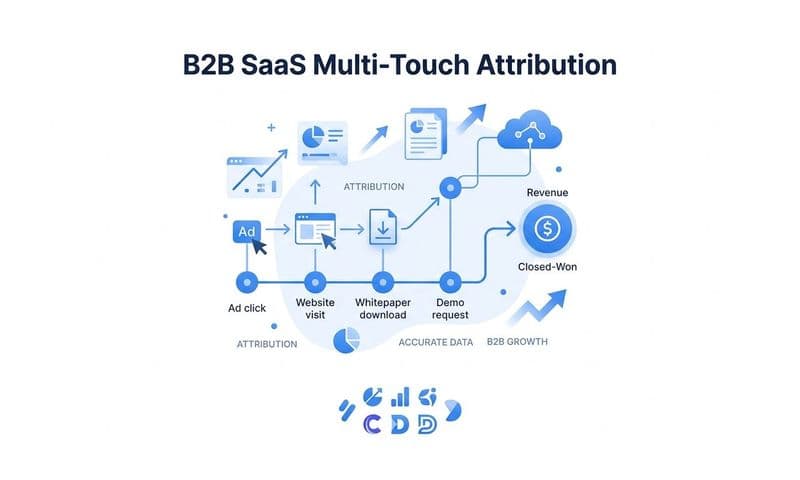
Choose a primary attribution model for your internal reporting and use it consistently across your analysis. Multi-touch attribution software gives a more complete picture of how your channels work together rather than giving all credit to a single interaction. It is particularly valuable when you are running campaigns across Meta, Google, and other platforms simultaneously and want to understand the actual contribution of each.
Step 6: Validate Your Fix and Establish Ongoing Monitoring
You have audited your setup, identified the discrepancy type, fixed browser-side errors, added server-side tracking, and aligned your attribution windows. Now you need to confirm that the fixes actually worked and build a system to catch future problems before they compound.
Do not rush the validation step. After implementing fixes, run a validation period of at least 7 to 14 days before drawing conclusions. Attribution data takes time to stabilize, and short windows can produce misleading comparisons. Give the data time to settle before declaring success or identifying remaining gaps.
Once the validation period is complete, run your comparison again. Pull conversion counts from your ad platform, CRM, and analytics tool for the same date range and event. The gap should be significantly smaller than before. A small variance of a few percent between systems is normal and acceptable. It reflects the inherent differences between how each system counts and attributes events, not a tracking failure.
Check platform quality indicators: In Meta's Events Manager, review your Event Match Quality scores. Higher scores indicate that your conversion events are being matched to users more effectively, which means your server-side tracking and parameter data are working as intended. In Google Ads, check your conversion tracking status to confirm events are being recorded correctly and that no tracking issues are flagged.
Build a recurring reconciliation process: Set a weekly or monthly reminder to compare your ad platform conversion counts against your CRM records. Define an acceptable variance threshold for your business, such as five to ten percent, and flag any gaps that exceed it. Catching a discrepancy two weeks after it starts is far better than discovering it three months later after significant budget has been allocated based on bad data.
Centralize your attribution data: Monitoring discrepancies across multiple ad platforms manually is time-consuming and easy to let slip. A centralized attribution dashboard that pulls data from all your platforms, your CRM, and your website into a single view makes it much easier to spot gaps quickly. Cometly's analytics dashboard does exactly this, connecting your ad platforms, CRM, and website data in real time so you have a single view of conversion performance. When something breaks, you see it immediately rather than discovering it weeks later during a quarterly review.
Putting It All Together
Conversion tracking discrepancies do not fix themselves, and every week you operate with inaccurate data is a week your budget decisions are built on the wrong signals. The good news is that most discrepancies follow predictable patterns and can be resolved systematically with the right process.
Here is a quick checklist to confirm you have covered the key steps:
Tracking inventory documented: Every platform, every event, every tracking method is listed and current.
Discrepancy type identified: You know whether you are over-reporting, under-reporting, or misattributing, and which platforms are most affected.
Pixel errors resolved: Events fire once, on the correct trigger, with complete parameter data.
Duplicate tracking eliminated: Deduplication logic is in place for any overlapping browser and server-side tracking.
Server-side tracking implemented: CAPI, Enhanced Conversions, or equivalent is active for each platform you run.
Attribution windows standardized: Each platform's window is documented and you are comparing data on equal terms.
Validation period completed: At least 7 to 14 days of post-fix data reviewed and the gap is within acceptable range.
Ongoing reconciliation process established: A recurring review is scheduled so future discrepancies surface early.
When your conversion data is accurate, your ad platform algorithms receive better signals, your ROAS calculations reflect reality, and your budget decisions become genuinely data-driven. That is the foundation for scaling paid advertising with confidence rather than guesswork.
If you want to skip the manual work of stitching together data from multiple platforms and build this foundation faster, Get your free demo of Cometly and see how AI-driven attribution and real-time analytics can give you the accurate, complete conversion data your campaigns need to perform at their best.