
You can set up Facebook Conversions API without writing code by using Meta's Partner Integrations or a server-side tracking platform like Cometly that handles the connection for you. This guide walks through the no-code setup process, from choosing a method to verifying your events are firing correctly, so you need about 30-60 minutes and admin access to your ad account, website platform, and Meta Business Manager.
Step 1: Confirm Which No-Code CAPI Method Fits Your Stack
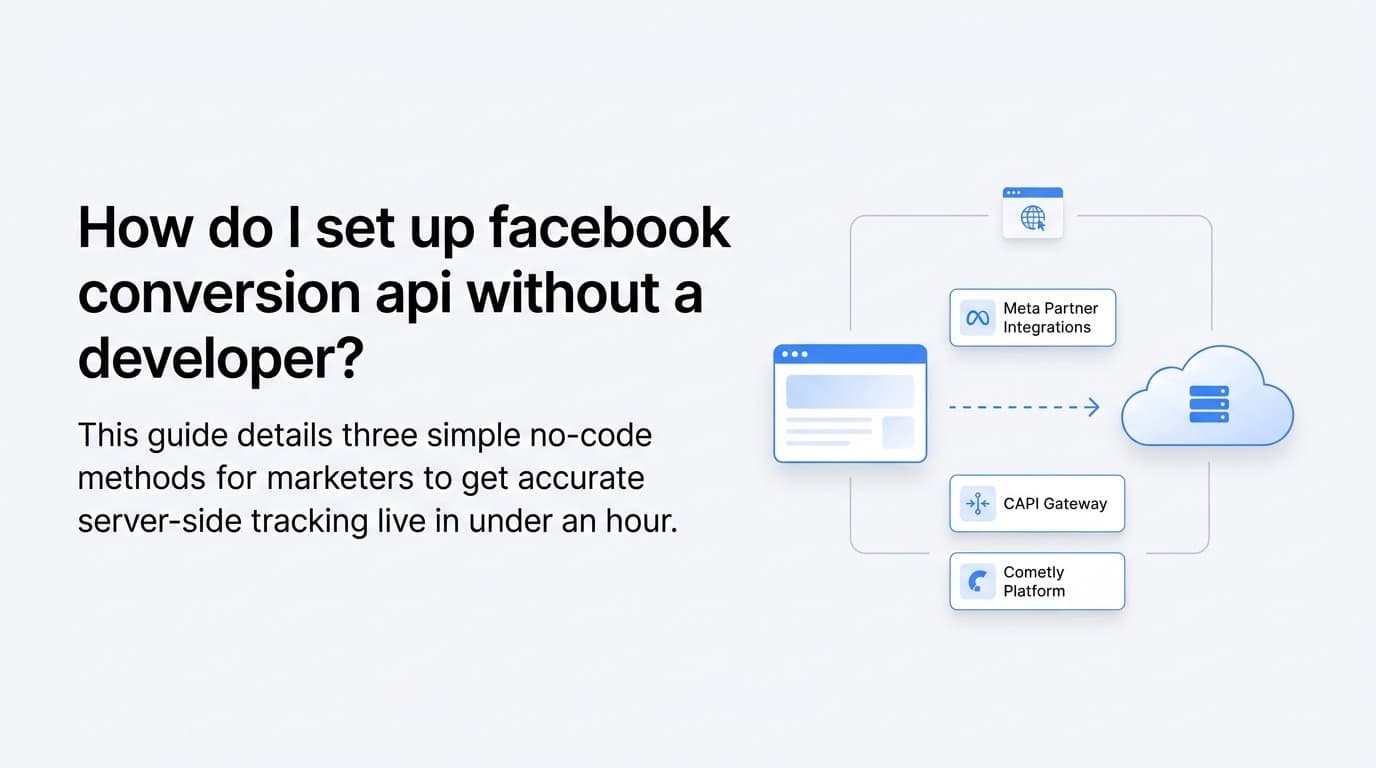
Before you touch a single setting, decide which of three no-code paths actually fits your business. The first is Meta's native Partner Integrations, built directly into Events Manager for platforms like Shopify, WordPress, and HubSpot. The second is a Conversions API Gateway, a Meta-hosted server that receives events with far less manual configuration than a custom build. The third is a dedicated ad attribution platform like Cometly, which connects your ad account and CRM, then manages server events automatically as part of a broader server-side tracking setup.
 How do I set up facebook conversion api without a developer?
Start by logging into Meta Events Manager, selecting your pixel, and opening the Data Sources tab. Meta lists every supported partner platform there. If your CMS or CRM already appears on that list, you can usually connect it in a few clicks with no external tool required.
The mistake worth avoiding is assuming you need to hand-build a server event payload when a guided partner integration already exists for your platform. Setting up the Facebook Conversions API without a developer is realistic precisely because Meta and its partners have already done the engineering work behind these connections. If you run a standard e-commerce store, check the partner list first. If you run a B2B SaaS business with a CRM-driven pipeline, plan on step 3 instead, since native integrations rarely cover demo bookings or closed-won stages.
Spend ten minutes comparing what each path covers against the conversion events you actually care about. A wrong choice here means redoing configuration later, so match the method to your funnel type before you move forward.
Step 2: Connect Facebook's Partner Integrations for Your Platform
If Events Manager shows your platform as a supported partner, this is the fastest path to a working setup. Inside Events Manager, select your pixel, click Settings, and scroll to the Conversions API section. Meta presents a list of supported platforms, typically including Shopify, WordPress (via an official plugin), and HubSpot as of 2026.
Choose your platform and authorize the connection using an admin login for that system. Meta then pulls purchase, lead, and page view events directly from the platform's backend and forwards them server-side, with no code required on your end. For Shopify stores, this usually means checkout and purchase events flow through automatically. For WordPress sites running WooCommerce or a forms plugin, the connection covers standard form and product events.
This approach works well for e-commerce brands because purchase, add-to-cart, and checkout events map cleanly onto Meta's standard event names. The gap shows up for B2B SaaS companies. A native HubSpot integration might capture a form fill, but it typically won't distinguish between a demo booked, a trial started, and an opportunity created further down the pipeline. Those distinctions matter for optimization, since Meta's algorithm performs better when it can optimize toward the events closest to revenue rather than top-of-funnel form fills alone.
If your business runs on a CRM with multiple pipeline stages, treat this step as a partial solution. Use it to capture whatever standard events the partner integration supports, then layer CRM-specific event mapping on top using an attribution platform, which the next step covers. Don't force a workaround here by manually renaming events inside the partner integration's limited settings; it usually is not built for that level of customization.
Step 3: Use a Server-Side Attribution Platform for CRM and Pipeline Events
SaaS companies need conversion data that reflects pipeline movement, not just a form submission. This is where a platform like Cometly fits into a no-code Facebook Conversions API setup. Cometly connects to Meta Ads and your CRM, then maps CRM stage changes such as demo booked, opportunity created, and closed-won directly to CAPI events. There's no backend engineering involved: you authorize the connections through guided prompts and install a tracking script, and Cometly handles the server-side event transmission behind the scenes.
This matters because Meta's ad algorithm optimizes toward whatever events you tell it to prioritize. If the only signal it receives is a lead form fill, it will keep finding more people who fill out forms, not people who become paying customers. By feeding CRM-based events into CAPI, you give Meta's optimization engine a clearer picture of which ad clicks actually turned into pipeline and revenue, which is the core reason Cometly was built for B2B SaaS marketing teams specifically rather than general e-commerce use cases.
Other no-code options exist in this space. Meta's own Conversions API Gateway is a self-hosted-but-Meta-managed server that reduces some technical overhead compared to building an API integration from scratch, though it still requires manual field mapping for anything beyond basic events. Zapier-based webhook connectors offer another route, letting you trigger a CAPI event whenever a CRM field changes, but they demand more hands-on configuration of triggers, filters, and payload fields than a dedicated attribution platform designed specifically for ad-to-revenue tracking.
If your growth depends on tracking a multi-stage sales funnel, weigh setup time against long-term accuracy. A guided platform connection takes longer to configure once but keeps mapping consistent as your CRM stages evolve, without requiring you to rebuild webhook logic every time your sales process changes.
Step 4: Map Standard Events to Your Business Actions
Once your connection method is in place, the next task is matching your real conversion points to Meta's standard event taxonomy. Meta recognizes standard events like Lead, CompleteRegistration, Schedule, and Purchase, and optimization performs best when your actual business actions map onto these names rather than generic custom events.
For a SaaS funnel, a reasonable mapping looks like this:
- Form submission or content download maps to Lead
- Trial signup maps to CompleteRegistration
- Demo booked maps to Schedule
- Closed-won deal maps to Purchase, with the deal value passed as the event's value parameter
Most no-code platforms, including partner integrations and Cometly, provide a dropdown or point-and-click event builder for this mapping rather than requiring you to edit raw JSON parameters. Use that interface rather than trying to override event names manually, since standard event names carry weight with Meta's optimization models that custom event names don't.
A common mistake at this stage is sending every website interaction, button click, and scroll depth as a separate custom event. This feels thorough, but it dilutes the signal Meta receives and can confuse the algorithm about which actions actually indicate buying intent. Stick to a handful of meaningful events that reflect real progression through your funnel: lead capture, trial start, demo booked, and closed revenue. Fewer, cleaner events consistently outperform a cluttered list of custom events when it comes to Meta's ability to optimize ad delivery toward people likely to convert.
Step 5: Test Events Before Going Live
Before trusting the data, confirm every mapped event actually fires correctly. Open Meta Events Manager and navigate to the Test Events tool. With this open, trigger each conversion action on your live site, submit a test form, book a demo, or simulate a purchase, and watch for the server event to appear in the tool within a few seconds.
When an event shows up, check the parameters attached to it. Key fields to verify include:
- Email or phone number (hashed automatically by most platforms)
- A unique event_id for deduplication
- The value and currency parameters, if the event represents revenue
- The event_name matching a standard event from step 4
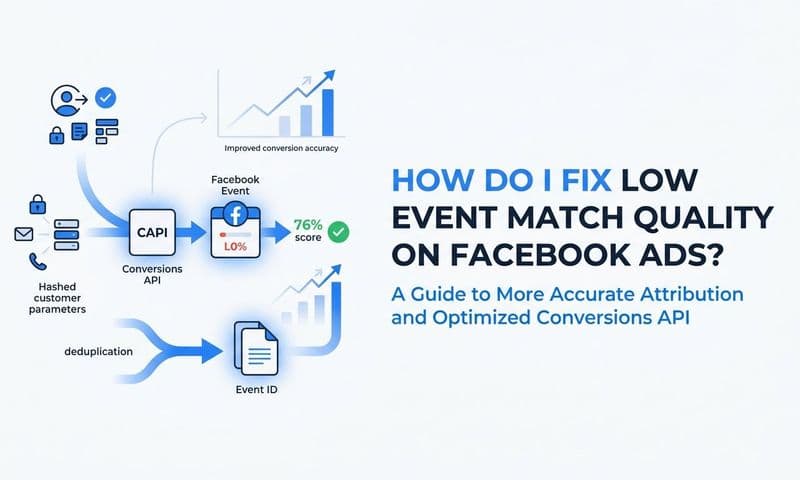
Missing parameters, especially email or event_id, lower Meta's Event Match Quality score, which reduces how confidently Meta can attribute the event to a specific ad click. If a parameter is consistently blank, check the integration's field mapping settings rather than assuming the data doesn't exist upstream.
If an event doesn't appear in Test Events at all, the cause is almost always a permissions or authorization issue rather than a coding problem. Common culprits include an expired access token on a partner integration, a CRM connection that lost admin authorization, or a pixel ID mismatch between your website and Events Manager. Re-authorize the connection and retest before assuming something deeper is broken. Testing every event type individually, rather than assuming one working event means they all work, catches these issues before they affect live campaign optimization.
Step 6: Turn On Deduplication Between Browser Pixel and Server Events
If you're running both the browser-side Meta Pixel and server-side CAPI, Meta needs a way to recognize when both are reporting the same real-world action so it doesn't count it twice. This is handled through deduplication, which relies on both the pixel and the server event sharing an identical event_id and event_name for the same conversion.
Think of it this way: when a visitor submits a demo request form, the browser pixel might fire a Lead event at the same moment your CRM triggers a server-side Lead event through CAPI. Without a shared event_id, Meta logs these as two separate conversions instead of one.
Most no-code platforms and partner integrations set this up automatically as part of their default configuration, generating a consistent event_id across both the client and server event for a given action. Still, don't assume it's working correctly just because the setup wizard said it was enabled. Check the Diagnostics tab inside Events Manager, where Meta flags potential deduplication issues and shows the match rate between pixel and server events for each event type.
Left unchecked, duplicate events inflate your reported conversion numbers. A campaign that appears to be generating 40 leads a week might actually be generating 20, with the other 20 being pixel and server duplicates of the same action. That inflated number can mislead budget decisions, making a mediocre campaign look like a strong performer worth scaling. Confirming deduplication is working takes a few minutes in the Diagnostics tab and protects the accuracy of every reporting decision built on top of this data.
Step 7: Monitor Event Match Quality and Adjust Over Time
Setup isn't a one-time task. Once your no-code CAPI implementation is live, check the Event Match Quality (EMQ) score in Events Manager on a weekly basis. As of 2026, Meta generally indicates that scores above roughly 6 out of 10 reflect reliable matching for optimization purposes, though Meta periodically adjusts its benchmarks and interface, so treat this as a directional guide rather than a fixed rule.
If your EMQ score drops, the fix is usually adding more first-party data fields rather than rebuilding the integration. Fields like phone number, external ID, and city or zip code all strengthen Meta's ability to match a server event to a specific user profile. Most partner integrations and platforms like Cometly let you add these fields through a settings panel, without touching code or API requests directly.
Beyond match quality, use your attribution platform's dashboard to confirm the deeper business question: is ad spend actually tying back to pipeline and revenue, or just to top-of-funnel leads that never convert? A high volume of Lead events with a low rate of progression to closed-won deals suggests your targeting or creative needs adjustment, even if the technical CAPI setup is working perfectly. This is the distinction between tracking that merely functions and tracking that actually informs budget decisions, and it's worth reviewing monthly alongside your weekly EMQ checks.
Do I need a developer for Facebook Conversions API?
No. Meta's Partner Integrations and platforms like Cometly handle the server-side connection through guided setup screens instead of custom code, covering standard events like Lead, Purchase, and CompleteRegistration for most e-commerce and SaaS funnels. A developer becomes necessary only when you need highly custom event logic that falls outside these standard triggers, such as a unique multi-step conversion path tied to proprietary backend systems that no partner integration or attribution platform already supports.
What is the easiest way to set up Facebook CAPI without coding?
The easiest path is connecting a supported partner integration inside Meta Events Manager if your CMS or e-commerce platform is on the list, or using an attribution platform that maps CRM events to CAPI automatically if you run a B2B SaaS pipeline. Both approaches avoid writing API requests, generating access tokens, or managing server infrastructure manually, replacing that work with guided authorization screens and point-and-click event mapping.
How much does Facebook Conversions API setup cost without a developer?
Meta's native Partner Integrations are free to use inside Events Manager, since they're built directly into the platform you already use to manage your pixel and ad account. Third-party platforms like Cometly charge a subscription, typically priced by ad spend tier or feature set, which as of 2026 generally costs less than hiring a developer for a custom implementation and the ongoing maintenance that custom API integrations require as Meta updates its systems.
Keep Your Setup Accurate as Your Funnel Changes
Test each event type again after 48 hours of live traffic and check Event Match Quality weekly to confirm your no-code CAPI setup keeps sending clean data as your funnel changes. Pipeline stages shift, new landing pages get added, and CRM fields get renamed, any of which can quietly break a mapped event without triggering an obvious error.
Ready to elevate your marketing game with precision and confidence? Discover how Cometly's AI-driven recommendations can transform your ad strategy. Get your free demo today and start capturing every touchpoint to maximize your conversions.