
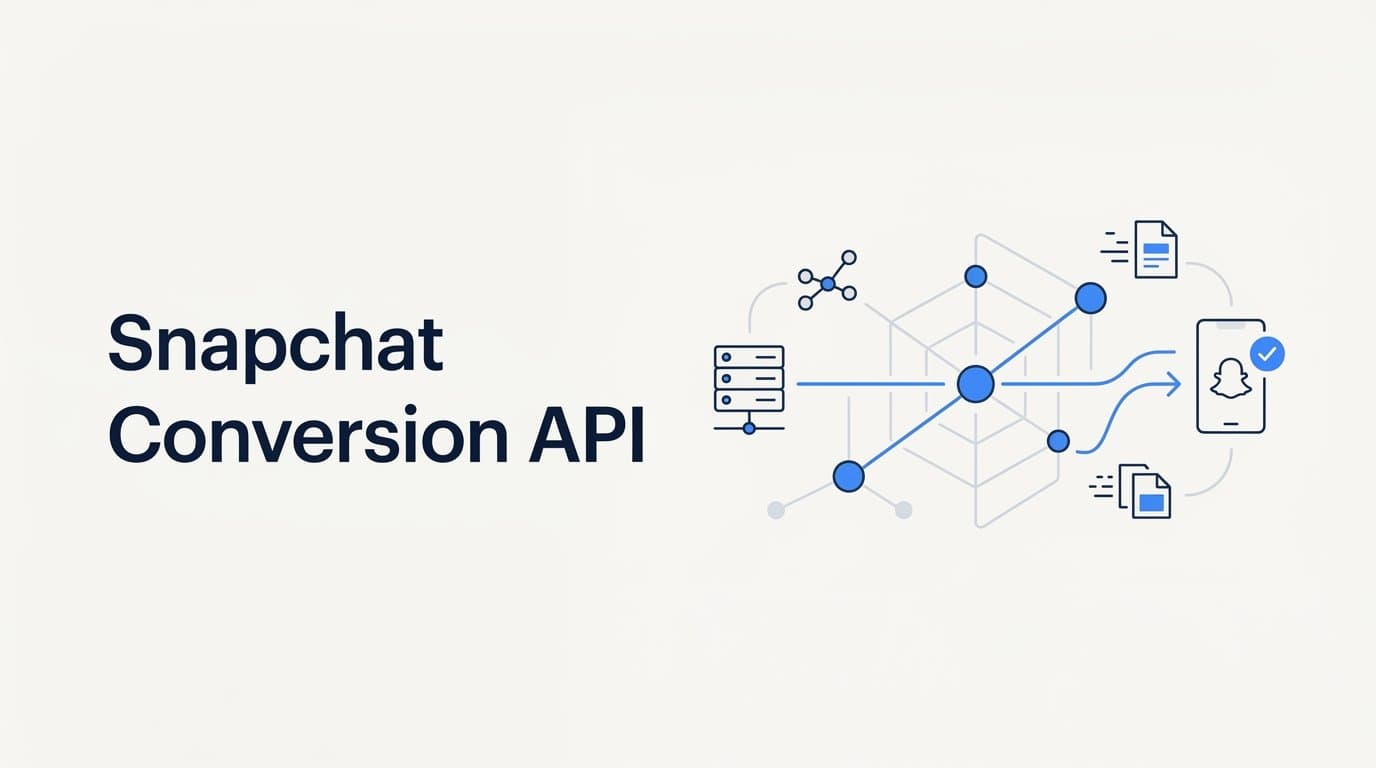
To set up the Snapchat Conversion API, you need to generate an API token in Snap Ads Manager, configure your server to send conversion events directly to Snapchat's CAPI endpoint, and verify that events are being received correctly. The process takes most marketers between one and three hours depending on your tech stack.
For B2B SaaS teams running Snapchat ads alongside other paid channels, this setup is worth prioritizing. Server-side tracking captures conversions that browser-based pixels miss entirely, including users behind ad blockers, iOS privacy restrictions, and cookie limitations. That means cleaner data, better optimization signals for Snapchat's algorithm, and attribution you can actually trust.
If you want accurate cross-channel tracking without custom engineering work, Cometly offers a native Snapchat CAPI integration that handles event deduplication, first-party data enrichment, and multi-touch attribution automatically. It connects your ad platforms, CRM, and website in one place so you can see which Snapchat campaigns actually drive pipeline and revenue, not just clicks.
This guide walks through the full setup process step by step, whether you are implementing directly or using a third-party platform. Follow each step in order and you will have a working, verified Snapchat CAPI integration by the end.
Step 1: Gather What You Need Before Touching a Single Setting
Rushing into the Snap Ads Manager before you have the right access and identifiers in hand is one of the most common reasons this setup takes longer than it should. Spend fifteen minutes here and save yourself an hour of backtracking.
Access requirements: You need a Snap Ads Manager account with admin-level permissions. Member-level access will not give you the ability to generate an API token. You also need either a Snap Pixel already installed on your site or a clear decision that you will implement CAPI as a standalone solution without the browser pixel.
Key identifiers to locate: Your Snap Pixel ID lives under Assets > Pixels in Snap Ads Manager. Your Ad Account ID appears in the URL when you are logged into your account. Write both down before proceeding. You will reference them repeatedly throughout this setup.
Choose your implementation path: There are three realistic options. First, a direct server-to-server integration where your engineering team writes the code to send POST requests to Snapchat's endpoint. Second, a Customer Data Platform like Segment, which can route events to Snapchat CAPI through a pre-built connector. Third, a third-party attribution platform like Cometly that handles the full connection natively, including deduplication and enrichment, without custom code.
If you are going the direct route, confirm your server-side environment supports HTTPS POST requests and has a secure way to store credentials, such as environment variables or a secrets manager. Never store API tokens in your codebase.
A word on the pixel question: Many teams assume CAPI replaces the Snap Pixel. It does not. Snapchat officially recommends running both in parallel. The browser pixel captures signals from users who do not trigger ad blockers, while CAPI captures the server-side events that the pixel misses. Running both together gives Snapchat more complete data and, when set up correctly with deduplication, does not inflate your conversion counts.
Before moving to Step 2, confirm you have admin access, both IDs recorded, and a clear implementation path selected.
Step 2: Generate Your Snapchat Conversion API Token
The API token is the credential that authenticates every server-side event you send to Snapchat. Without it, no event will be accepted. Here is exactly where to find it.
Log into Snap Ads Manager and click on your account name in the top right corner of the screen. Select Business Details from the dropdown menu. Scroll down until you see the Conversions API section. Click Generate Token.
This is the most important moment in the entire setup: copy the token immediately and store it somewhere secure. Snapchat will not show it to you again after you navigate away from this page. If you lose it, you will need to generate a new token, which will invalidate any integrations using the old one.
How to store it safely: Paste the token into an environment variable on your server or into a secrets manager like AWS Secrets Manager, HashiCorp Vault, or your platform's equivalent. Never hardcode it directly into your application code. Treat this token the same way you would treat a database password.
The token is scoped to your ad account, which means one token covers all pixels and events associated with that account. If you manage multiple Snapchat ad accounts, you will need to generate a separate token for each one.
If you are using Cometly, the process at this point is straightforward. Paste the token directly into your Cometly dashboard under the Snapchat integration settings. Cometly then manages the authenticated connection on your behalf, handles token storage securely, and begins routing your conversion events to Snapchat's endpoint without any additional engineering work on your side.
Success indicator: The token is generated, copied, and stored in a secure location before you move on. Do not proceed to Step 3 until this is confirmed.
Step 3: Structure Your Conversion Events Correctly
This is where most direct implementations run into problems. Snapchat's CAPI has specific requirements for how events must be formatted, and any deviation will result in rejected events or failed attribution.
Every event is sent as a POST request to this endpoint: https://tr.snapchat.com/v2/conversion
Required fields for every event: Your request must include the pixel_id, your API token, a timestamp in milliseconds, an event_type, and at least one user data field. If any of these are missing, Snapchat will reject the event outright.
Supported event types: Snapchat supports a wide range of standard events including PURCHASE, ADD_TO_CART, SIGN_UP, PAGE_VIEW, START_CHECKOUT, SUBSCRIBE, LOGIN, SHARE, and custom events. For B2B SaaS companies, SIGN_UP and custom lead events are typically the most valuable because they map directly to your actual conversion points: form submissions, demo requests, and trial starts.
User data hashing: This is non-negotiable. All personally identifiable information must be hashed using SHA-256 before it is included in the request. This applies to email addresses and phone numbers. Snapchat will not accept plain-text PII. When hashing, apply SHA-256 to a lowercase, trimmed version of the string. For example, " User@Example.com " should become "user@example.com" before hashing. Getting this wrong is one of the top causes of low match rates.
The click_id field: Include the scid parameter in every event where it is available. The scid is the Snapchat Click ID that gets appended to your landing page URL when a user clicks a Snapchat ad. Capturing it from the URL and passing it back with your conversion event is what allows Snapchat to attribute that conversion to the specific ad and campaign that drove it. This is the single most commonly missed field in direct implementations, and skipping it significantly reduces attribution accuracy.
Deduplication: If you are running both the browser pixel and CAPI in parallel, include a client_dedup_id in both the pixel event and the corresponding CAPI event. This should be a unique identifier for that specific conversion, such as an order ID or a session-based UUID. When Snapchat sees matching client_dedup_id values from two sources, it counts the conversion once instead of twice.
Step 4: Send a Test Event and Confirm Receipt
Never push a CAPI integration to production without testing it first. A misconfigured event that runs silently for a week means a week of missing attribution data and wasted ad spend optimizing against bad signals.
Snapchat provides a built-in testing tool. In Snap Ads Manager, navigate to Assets > Pixels, select your pixel, and click the Test Events tab. This panel shows incoming events in near real time and tells you whether each event was accepted or rejected.
How to send a test event: Use a tool like Postman or curl to construct a POST request to the CAPI endpoint. Include all required fields: your pixel_id, token, a valid event_type such as SIGN_UP, a hashed email address, and a timestamp within the last 24 hours. The timestamp requirement is strict. If you send an event with a timestamp older than 24 hours, Snapchat will reject it without a clear error message in all cases.
After sending the request, switch to the Test Events panel in Ads Manager and look for a green confirmation status. If the event does not appear within a few minutes, check for the following common issues.
Common errors and their causes:
1. Expired or malformed token: Double-check that you copied the full token without any extra spaces or line breaks.
2. Incorrectly formatted SHA-256 hash: Verify that you lowercased and trimmed the email before hashing. Run the same string through an online SHA-256 tool to compare your output.
3. Timestamp outside the accepted window: Regenerate the timestamp using the current time in milliseconds. Many teams accidentally send timestamps in seconds rather than milliseconds.
4. Missing required fields: Review Snapchat's developer documentation to confirm every required field is present in your payload.
If you are using Cometly, the platform includes built-in event validation and a live event stream view. You can confirm that Snapchat is receiving events without manually constructing API calls or interpreting raw error responses.
Success indicator: At least one test event appears in the Snapchat Test Events panel with a status of Received before you proceed to production.
Step 5: Map Events to Your Actual Conversion Points
A working test event confirms the plumbing is connected. Now you need to make sure the right events fire at the right moments in your actual user journey. This is where the setup becomes strategically valuable rather than just technically functional.
Mapping for B2B SaaS: Think through your funnel and assign a Snapchat event type to each meaningful conversion point. Form submissions map naturally to SIGN_UP. Demo requests can be sent as a custom event with a descriptive name. Trial activations, onboarding completions, and closed-won deals each deserve their own event so you can see where in the funnel Snapchat ads are actually contributing.
Fire events from the server, not the browser: This is the entire point of CAPI. Trigger your conversion events from your server at the exact moment the conversion occurs, whether that is when a form is submitted to your database, when a payment is processed, or when a CRM record is updated. Server-side firing is more reliable than browser-side because it is not affected by ad blockers, browser privacy settings, or users who close the tab before your pixel fires.
Pass revenue data where it applies: For any event that has monetary value, include the price and currency fields in your event payload. This gives Snapchat's optimization algorithm the information it needs to prioritize higher-value conversions when deciding who to show your ads to. For B2B SaaS, this is particularly valuable if you have different plan tiers with different contract values.
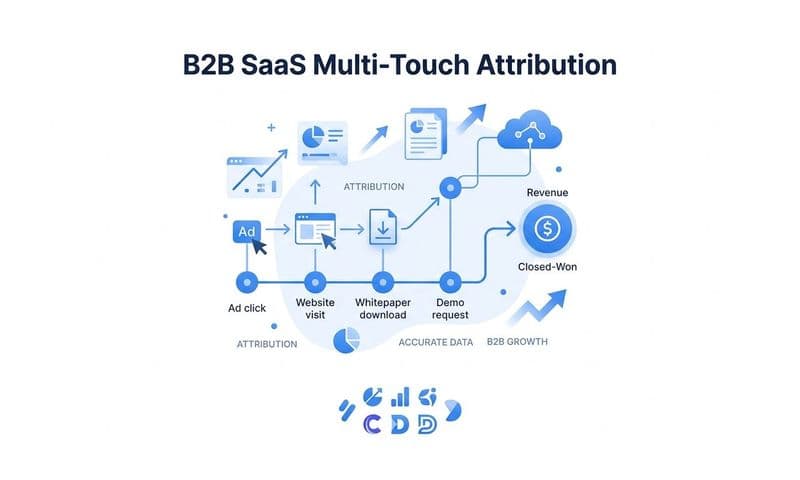
Connect your CRM for pipeline attribution: If you use HubSpot, Salesforce, or a similar CRM, set up a webhook or automation that fires a CAPI event when a deal advances to a specific stage. For example, when a deal moves to Closed Won, trigger a PURCHASE event with the deal value. This transforms your Snapchat attribution from lead-level to revenue-level, which is the data your leadership team actually cares about.
Cometly connects CRM deal stages directly to ad-level data automatically. When a deal closes in your CRM, Cometly traces it back to the original Snapchat campaign, ad set, and ad that started the journey, giving you true ROI visibility without manual data joining.
Step 6: Verify Attribution Data in Snap Ads Manager
After 24 to 48 hours of live traffic with your production events firing, it is time to verify that everything is working correctly and that the data you see in Snap Ads Manager reflects reality.
Where to look: Open Snap Ads Manager and navigate to the Campaigns view. Click the columns icon and add the Conversions column to your reporting table. You should see conversion counts appearing against the campaigns that were running during your verification window.
Cross-reference with your backend: Pull the conversion count from your CRM or backend database for the same time period and compare it to what Snapchat is reporting. Some variance is normal because attribution windows and counting methods differ. However, large discrepancies, such as Snapchat reporting three times more conversions than your CRM recorded, usually point to one of two problems: missing click_id parameters that cause over-attribution, or deduplication issues where both the pixel and CAPI are counting the same conversion separately.
Check your attribution window settings: In Snap Ads Manager, navigate to your Ad Set settings and review the attribution window. Snapchat defaults to a 28-day click, 1-day view window. If this does not match your actual buying cycle or the window you use in other platforms, your cross-channel comparisons will be misleading. Align your attribution windows across platforms before drawing conclusions from the data.
Use a neutral attribution platform for cross-channel accuracy: Snap Ads Manager will always report Snapchat's contribution in the most favorable light, just as Google Ads reports Google's contribution favorably. Each platform claims credit for conversions that touched their channel, which leads to double-counting when you add up reported conversions across platforms.
This is where a tool like Cometly adds significant value. Cometly applies a consistent attribution model across every channel simultaneously, showing you Snapchat's actual contribution alongside Google, Meta, LinkedIn, and any other channel you run, in a single dashboard. You can see which channel deserves credit based on your chosen attribution model rather than each platform's self-reported numbers.
Success indicator: Server-side conversions appear in Ads Manager, counts are broadly consistent with your backend data, and no duplicate events are recorded in the Test Events log.
Related Questions About Snapchat Conversion API
Does Snapchat CAPI replace the Snap Pixel?
No. Snapchat recommends running both in parallel. The pixel captures browser-side signals from users who are not blocked by ad blockers or iOS restrictions, while CAPI captures server-side events that the pixel would miss. Together they give Snapchat more complete data for optimization. Use the client_dedup_id field to prevent double-counting when both sources fire for the same conversion.
What user data does Snapchat CAPI accept?
Snapchat accepts hashed email address, hashed phone number, IP address, user agent string, and the Snapchat Click ID (scid). All hashing must use SHA-256 applied to lowercase, trimmed strings. Including more user data fields improves your match rate, which directly affects how accurately Snapchat can attribute conversions back to the ads that drove them.
How long does it take for CAPI events to appear in Snap Ads Manager?
Test events typically appear in the Test Events panel within a few minutes of being sent. For live campaign data, conversions are usually visible within 3 to 6 hours. Full attribution data, including view-through and cross-device attribution, is generally available after 24 to 48 hours.
Can I use Snapchat CAPI without a developer?
Yes, if you use a platform that offers a native Snapchat CAPI integration. Cometly, for example, lets you connect your Snapchat account and start sending server-side events by pasting your API token into the dashboard. No custom code required. This is the fastest path for marketing teams that do not have engineering resources available for a custom integration.
How do I improve my Snapchat CAPI match rate?
Include as many hashed user data fields as possible in each event payload. Always pass the scid click ID captured from Snapchat ad URLs. Ensure your SHA-256 hashing is applied consistently to lowercase, trimmed strings. Higher match rates mean more conversions attributed to the correct ads, which gives Snapchat's algorithm better signals for optimization and gives your team more accurate ROI data.
Putting It All Together
Here is a quick checklist to confirm your Snapchat CAPI setup is complete and working correctly.
1. Snap Pixel ID and API token are located and stored securely in an environment variable or secrets manager.
2. At least one test event has been confirmed as Received in the Snapchat Test Events panel.
3. Production events are firing from your server at the actual moment each conversion occurs, not from the browser.
4. The scid click ID is being captured from Snapchat ad URLs and passed with every conversion event.
5. Deduplication IDs are in place if you are running the browser pixel alongside CAPI.
6. Attribution data has been verified against your backend records after 48 hours of live traffic.
For B2B SaaS teams specifically: prioritize CRM-triggered events so you are tracking pipeline and revenue, not just leads. When Snapchat's algorithm receives revenue-level conversion signals, it can optimize toward the users most likely to become paying customers rather than just the users most likely to fill out a form. That shift in signal quality often improves campaign performance meaningfully over time.
If you run ads on multiple channels alongside Snapchat, managing each CAPI integration separately and reconciling their self-reported numbers manually is time-consuming and prone to error. Cometly handles the full Snapchat CAPI connection, event enrichment, and cross-channel attribution in one platform, so you get a single source of truth for every channel without building custom pipelines for each one.
Ready to connect Snapchat CAPI and your other ad platforms without the engineering overhead? Get your free demo and start capturing every touchpoint to maximize your conversions.