
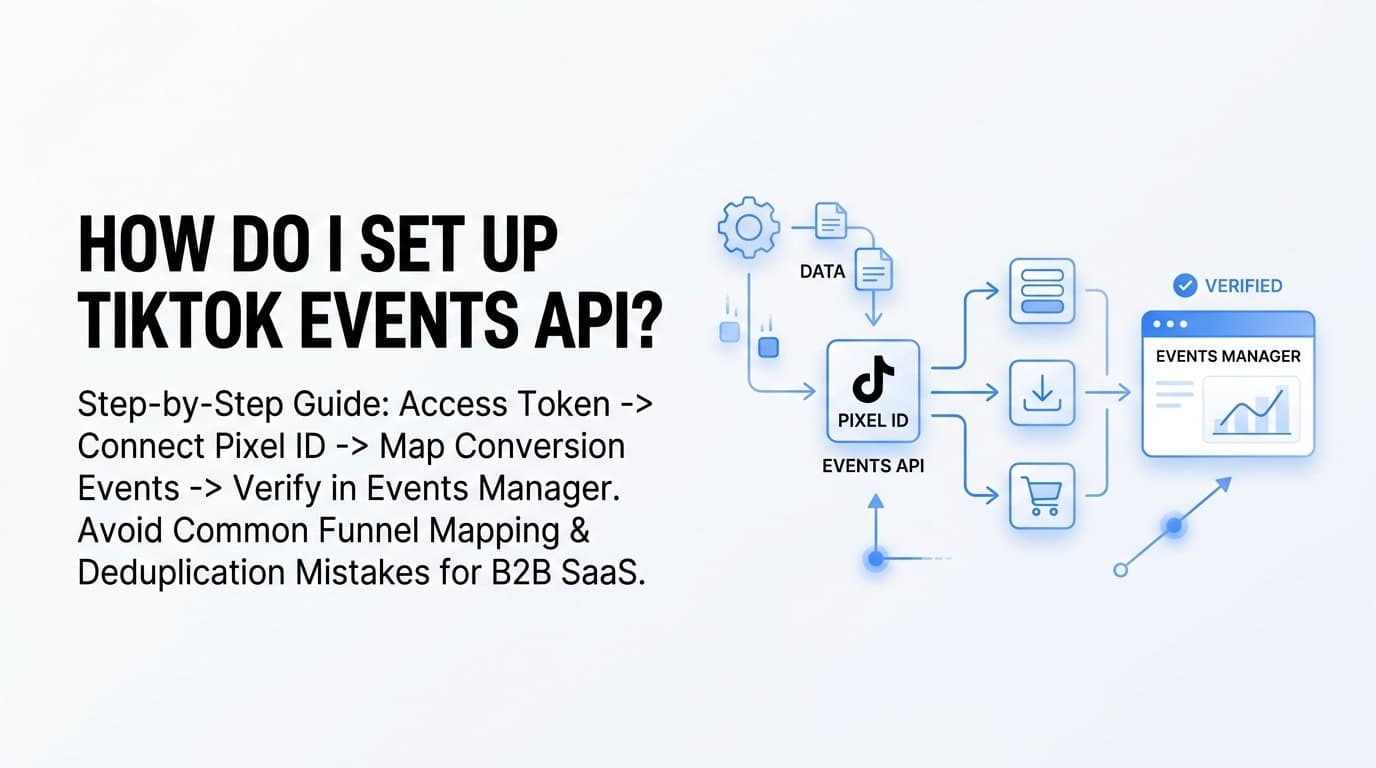
Setting up the TikTok Events API means generating an access token in TikTok Ads Manager, connecting it to your Pixel ID, mapping your conversion events, and verifying them in Events Manager, either through manual server-side code or a server-side tracking platform like Cometly. You'll need TikTok Ads Manager admin access, an existing TikTok Pixel, and a way to send server-side events (custom code or a CAPI integration tool) before you start. The steps below walk through the process in order, with attention to the parts B2B SaaS teams tend to get wrong, particularly around funnel mapping and deduplication.
Step 1: Confirm Your TikTok Ads Manager Access and Pixel Setup
Before touching the Events API, confirm you have the right level of access inside TikTok Ads Manager. You need Admin or Standard access with event management permissions, which you can check under Assets > Events. If you only have campaign-level access, ask whoever administers your TikTok Business Center to grant event permissions, since API setup and pixel configuration both live under this asset section.
Next, verify that a TikTok Pixel is already installed on your website. The Events API is not a replacement for the pixel, it works alongside it. TikTok uses both signals together, matching browser-side and server-side events to build a more complete picture of each conversion. If you haven't installed the pixel yet, do that first through Events Manager and confirm it fires on the pages and actions you care about, such as your pricing page, demo request form, or trial signup confirmation.
A common mistake at this stage is jumping straight to Events API configuration before confirming the browser pixel actually works. Use TikTok's Pixel Helper browser extension or the Test Events tool to check that standard events fire correctly on page load and on form submission. If the pixel is broken or missing events, your later deduplication step will fail silently, because TikTok has nothing on the browser side to match against your server events. That usually shows up weeks later as inflated conversion counts or a mysteriously low match rate, and it's much harder to debug retroactively than to catch now.
Once you've confirmed access and pixel health, you're ready to generate the credentials the Events API needs.
Step 2: Generate Your Access Token and Locate Your Pixel ID
With pixel health confirmed, move into Events Manager to generate the credentials that authorize server-side calls. Select your pixel, go to Settings, and find the option labeled Generate Access Token. TikTok issues a long-lived token tied to that specific pixel, and this token is what authenticates every server-side event you send going forward.
On the same settings page, copy the Pixel ID. You'll need both values, the access token and the Pixel ID, for every API call, since the Pixel ID tells TikTok which ad account and event history to attribute conversions to, while the token proves you're authorized to write data to that account.
Treat the access token like a credential, not a copy-paste convenience. Store it as an environment variable in whatever system sends your server events, whether that's a custom backend, a serverless function, or a third-party platform's settings panel. Never hardcode it into client-side JavaScript or commit it to a public repository, since anyone with the token can write conversion events to your ad account, which can distort your reporting and optimization signals.
If you're using a server-side tracking platform instead of custom code, this step usually just means pasting the token and Pixel ID into that platform's TikTok integration settings. Cometly, for example, asks for these credentials once during setup and then handles the authenticated calls on your behalf, which removes the need to manage token rotation or storage yourself. Either way, confirm the token is active by checking its status in Events Manager before moving forward, since expired or revoked tokens are one of the more common causes of failed event delivery later on.
Step 3: Choose How You'll Send Server Events
With credentials in hand, decide how you'll actually get events from your server to TikTok. There are a few legitimate paths, and the right one depends on your engineering resources and how much revenue-stage data you need to track.
- Direct API integration: If you have engineering resources, you can build a direct integration against TikTok's Events API endpoint, sending POST requests with JSON payloads that include the event name, event_id, timestamp, and any user-matching parameters like hashed email or phone number. This gives you full control over payload structure but requires ongoing maintenance as TikTok updates its API and as your funnel events change.
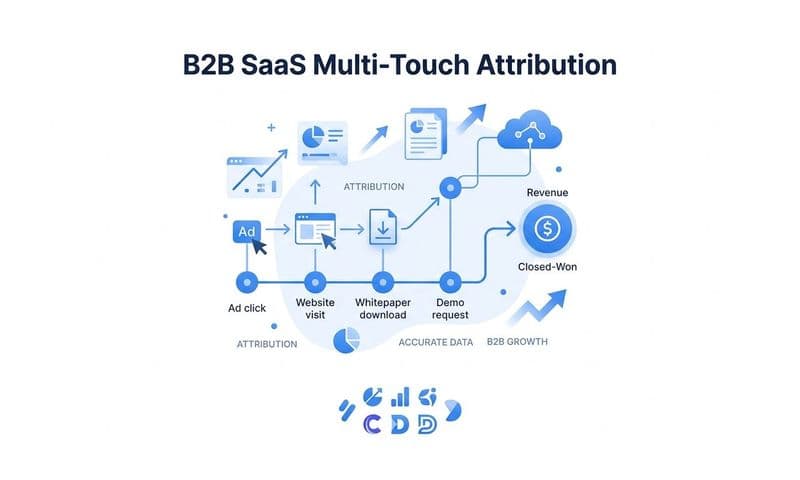
- Server-side tracking platform: A platform like Cometly connects your CRM and ad accounts directly, sending enriched, deduplicated events to TikTok without custom code. This is a practical fit for B2B SaaS teams with long sales cycles, since Cometly can track a lead from ad click through demo request, SQL stage, and closed-won revenue, then pass those later-stage events back to TikTok as they happen in your CRM, not just at the moment of initial form fill.
- Zapier-based connectors or CDP native integrations: These are reasonable middle-ground options if you already have a CDP or use Zapier heavily for other workflows. They're generally faster to set up than custom code, but they often lack built-in mapping for revenue-stage events like SQL creation or closed-won deals, meaning you'll still need to build custom logic to get anything beyond top-of-funnel signals into TikTok.
For most B2B SaaS marketing teams without a dedicated engineering resource on standby, a server-side tracking platform strikes the best balance of speed and depth, particularly when the goal is feeding TikTok's algorithm real revenue signals rather than just form-fill counts.
Step 4: Map Standard and Custom Events to Your Funnel
TikTok ships with standard events like ViewContent, CompleteRegistration, SubmitForm, and Purchase, all designed around e-commerce behavior. For a B2B SaaS funnel, you'll need to decide which of these standard events actually map to your real conversion points, and where you need custom events instead.
A reasonable mapping for most SaaS funnels looks like this: ViewContent for pricing page visits, SubmitForm for demo request or contact form submissions, and CompleteRegistration for trial signups or account creation. These standard events give TikTok's optimization algorithm a baseline signal to work with, and they're recognized automatically in reporting without extra configuration.
Where B2B SaaS diverges from TikTok's default documentation is further down the funnel. Events like SQL creation, opportunity creation, or closed-won revenue don't have a natural home among TikTok's standard event types, so you'll need to send them as custom events with names that make sense to your team, such as "SQLCreated" or "ClosedWonRevenue." These custom events should include value parameters where possible, since passing deal value alongside the event gives TikTok's algorithm a much stronger signal about which ad clicks eventually turn into real revenue.
The mistake to avoid here is sending only top-of-funnel events and calling the integration complete. If TikTok only ever sees form fills, its optimization algorithm has no way to learn which of those form fills actually became paying customers. It will keep optimizing toward more form fills, some of which may be low-quality leads that never convert, because that's the only signal you've given it. Mapping revenue events is what turns the Events API from a tracking fix into an actual optimization tool.
Step 5: Set Up Event Deduplication
Once you're sending events from both the browser pixel and the server, you need to make sure TikTok doesn't count each conversion twice. Deduplication is the mechanism that prevents this, and it hinges on one parameter: the event_id.
Send the exact same event_id value from both the browser pixel event and the corresponding server-side event for a given conversion. When TikTok sees two events with matching event_id values within a short time window, it merges them into a single conversion rather than counting both. Without this, every conversion tracked by both the pixel and the server gets counted twice, which inflates your reported conversion numbers and can mislead you into thinking a campaign is performing better than it actually is.
Beyond event_id, use TikTok's recommended parameter set consistently across both payloads: the event name itself, the event_id, and the timestamp should all match between the pixel call and the server call for the same user action. If you're using a server-side platform, this parameter matching is typically handled automatically as part of the integration, since the platform generates the event_id at the moment of the action and passes the same value to both the client-side and server-side calls.
Before scaling ad spend based on TikTok's reported conversions, check the Test Events tool in Events Manager to confirm deduplication is actually working. Send a test conversion and look at whether it appears as a single merged event or as two separate entries. If you see duplicates, check that your event_id values are truly identical between the pixel and server payloads, including capitalization and formatting, since even small mismatches will break the match.
Step 6: Test, Verify, and Monitor in Events Manager
With deduplication configured, run a full test before you trust the setup with real ad spend. TikTok's Test Events feature in Events Manager lets you send sample payloads and see, in near real time, whether TikTok receives them with a Received status. Trigger a few test conversions across your mapped events, from a pricing page view to a mock closed-won event, and confirm each one shows up correctly labeled.
Once live, check the Diagnostics tab in Events Manager on a regular basis, weekly at minimum during the first month. This tab surfaces your match rate for each event along with specific error codes, such as invalid parameter formatting or an expired access token. Catching these early prevents weeks of degraded tracking that you'd otherwise only notice once conversion numbers look off.
As of 2026, TikTok typically shows event data in Events Manager within a few minutes to a few hours of receiving it, but full attribution reporting in the ads dashboard can take up to 24 hours to stabilize as TikTok reconciles pixel and server signals. Because of this lag, avoid judging a campaign's performance or making budget decisions based on numbers from the first few hours after launch. Give the reporting time to settle, and treat any dramatic swing in the first day as incomplete data rather than a real performance signal.
What Is the TikTok Events API Used For?
The TikTok Events API sends conversion data directly from your server to TikTok, bypassing the limitations of browser-based tracking. This matters because ad blockers, browser privacy settings, and iOS tracking restrictions increasingly prevent the standard pixel from capturing every conversion on its own. Server-side events fill in that gap, giving TikTok's ad platform a more complete and accurate view of which campaigns actually drive results.
Is TikTok Events API the Same as TikTok Pixel?
No, they're two different tracking methods that work together. The Pixel tracks browser-side events directly on your website, capturing actions as they happen in a visitor's browser, while the Events API sends server-side events from your backend or a connected platform. TikTok recommends running both simultaneously, since the overlap between the two, matched through deduplication, produces the most complete and accurate conversion data.
Can I Use TikTok Events API Without a Developer?
Yes, you don't need to write custom API calls to use the Events API. Platforms like Cometly, Zapier, or a CRM's native TikTok integration let marketers configure server-side event tracking through a dashboard interface instead. This is particularly useful for B2B SaaS teams that want to map CRM-stage events like SQL creation or closed-won revenue without pulling engineering resources onto the project.
How Do I Know If TikTok Events API Is Working Correctly?
Check the match rate and event status inside TikTok Events Manager's Diagnostics tab. A healthy setup typically shows a Received status for each mapped event with no parameter errors flagged, along with a match rate that holds steady rather than dropping suddenly. If you see error codes or a declining match rate, it usually points to a token issue, a missing parameter, or an event_id mismatch between your pixel and server payloads.
Turning Verified Events Into a Revenue Signal
Once your events are verified in Events Manager with no error codes and stable match rates, shift focus to mapping deeper revenue events so TikTok's algorithm can optimize toward pipeline, not just clicks. That's the difference between an Events API setup that simply fixes a tracking gap and one that actually improves ad performance over time.
Ready to elevate your marketing game with precision and confidence? Discover how Cometly's AI-driven recommendations can transform your ad strategy. Get your free demo today and start capturing every touchpoint to maximize your conversions.