
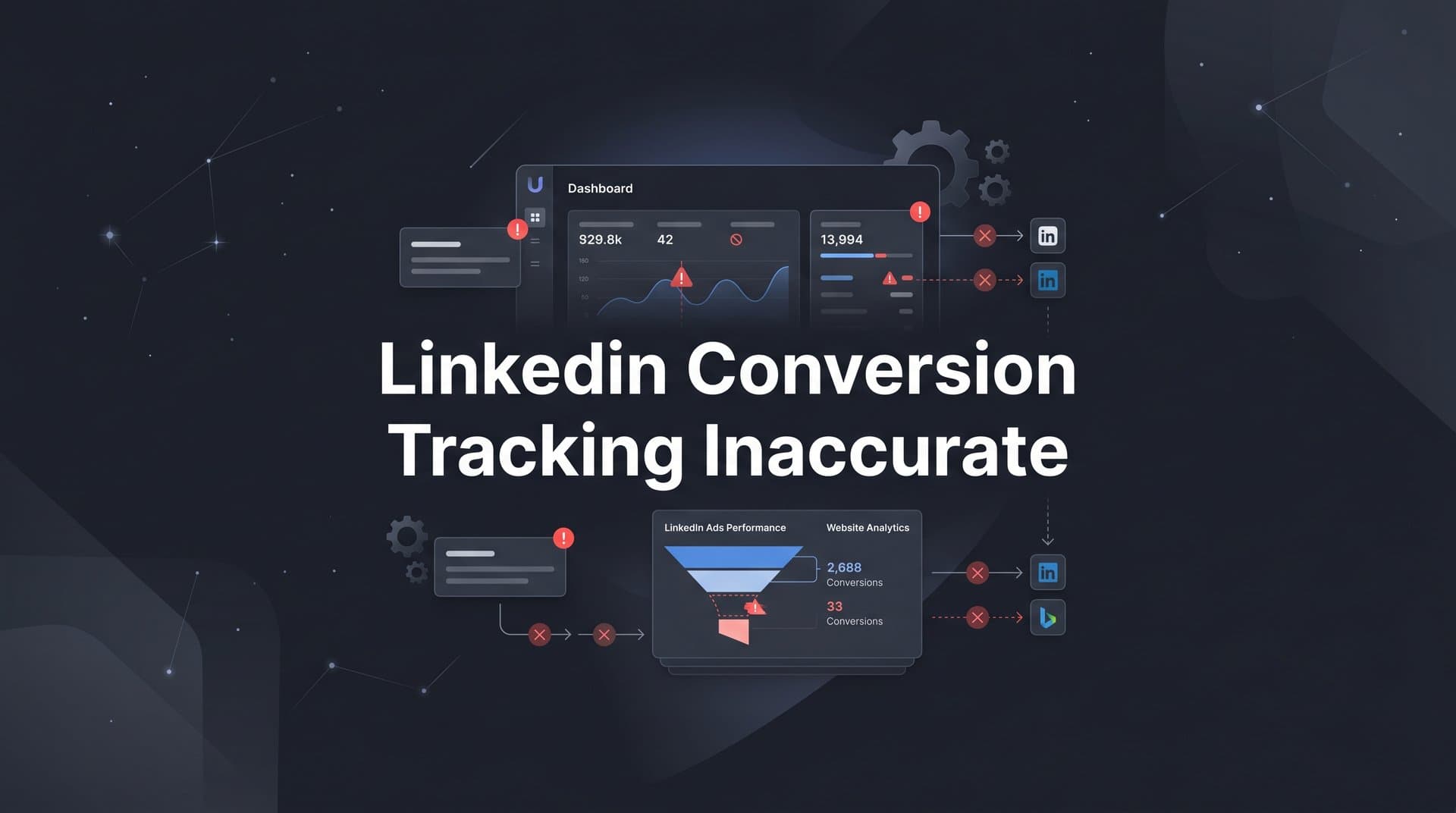
If your LinkedIn conversion tracking looks off, you are not alone. Marketers running B2B campaigns on LinkedIn frequently discover that the numbers reported inside Campaign Manager do not match what their CRM or analytics tools are showing. Leads appear out of nowhere. Conversions get double-counted. Some conversions never show up at all.
The result is a distorted picture of which campaigns, ad sets, and creatives are actually driving pipeline. When you cannot trust your data, you end up making budget decisions based on noise rather than signal. You might scale a campaign that is not actually performing, or cut one that is quietly driving revenue.
LinkedIn conversion tracking inaccuracies typically trace back to a handful of root causes: misconfigured Insight Tag implementations, duplicate conversion events, overly broad attribution windows, missing server-side signals, and a lack of cross-platform validation. The good news is that each of these problems is diagnosable and fixable with a systematic approach.
This guide walks you through exactly how to audit your LinkedIn conversion tracking setup, identify where the data is breaking down, and implement a more reliable tracking foundation. By the end, you will have a clear process for validating your LinkedIn data against real business outcomes and a framework for keeping your tracking accurate as your campaigns scale.
Whether you are a solo marketer managing LinkedIn spend or part of a larger team trying to reconcile attribution across multiple channels, this step-by-step guide will give you the tools to get your data back on track.
Step 1: Audit Your LinkedIn Insight Tag Installation
Before you can fix inaccurate LinkedIn conversion tracking, you need to confirm whether the foundation itself is solid. The Insight Tag is LinkedIn's core tracking pixel, and a flawed installation will corrupt everything built on top of it.
Start inside LinkedIn Campaign Manager. Navigate to Account Assets > Insight Tag and check the status. If the tag shows as "Unverified" or "Not recording," that is your first red flag. The tag should show as "Active" and recording page view data within 24 hours of a valid installation.
Check coverage across all relevant pages: A common mistake is placing the Insight Tag only on the homepage or a handful of key pages. The tag should be installed in the global site header so it loads on every page of your site. Conversion events depend on the tag being present wherever a conversion might occur, including thank-you pages, confirmation screens, and any page a user lands on after completing a key action.
Hunt for duplicate tag installations: Open your browser's developer tools (right-click anywhere on the page, select Inspect, then go to the Network tab) and filter for "linkedin." If you see the Insight Tag firing more than once per page load, you have a duplication problem. Tag auditing browser extensions can also surface this quickly. Duplicate tags inflate page view counts and can cause conversion events to fire multiple times per session.
Check your tag manager setup: If you deployed the Insight Tag through Google Tag Manager, open your GTM container and search for all LinkedIn-related tags. Confirm that only one tag rule is active and that it is not set to fire on every trigger available. Multiple overlapping rules are a frequent source of duplicate firing. Understanding how a tracking pixel works at a technical level helps you spot these configuration errors faster.
Address Single Page Application (SPA) issues: If your website is built on a framework like React, Vue, or Angular, traditional page load events do not fire when a user navigates between pages. The Insight Tag will only fire once on the initial load and miss all subsequent page views. To fix this, you need a custom history change trigger in Google Tag Manager that re-fires the tag whenever the URL changes, even without a full page reload.
Once you have confirmed the tag is installed correctly, is not duplicated, and is firing on all relevant pages, Campaign Manager should reflect an active status with consistent page view data. That is your green light to move on to conversion event configuration.
Step 2: Review Your Conversion Event Configuration
Even a perfectly installed Insight Tag can produce inaccurate LinkedIn conversion tracking if the conversion events themselves are configured incorrectly. This step is about auditing what you are actually measuring and making sure each event reflects a real, meaningful action.
Navigate to Account Assets > Conversions in LinkedIn Campaign Manager. You will see a list of all active conversion events tied to your account. Work through each one with a critical eye.
Identify and eliminate duplicate events: It is surprisingly common, especially in accounts managed by multiple people or agencies over time, to find several conversion events that are tracking the same action under different names. For example, you might have "Demo Request," "Demo Form Submit," and "Request a Demo" all pointing to the same thank-you page URL. Each duplicate inflates your reported conversion count. Consolidate these into a single, clearly named event.
Verify your trigger types: LinkedIn supports URL-based conversions, event-specific conversions, and Lead Gen Form submissions. Make sure you are using the right trigger for each action. A URL-based conversion should fire when a user reaches a specific confirmation page, not a general product page. An event-specific conversion should be tied to a precise JavaScript event that only fires on a completed action.
Tighten your URL patterns: For URL-based conversions, the URL pattern you enter needs to be specific enough to avoid false positives. If your thank-you page URL is /thank-you and you also have pages like /thank-you-for-subscribing or /thank-you-for-downloading, a loose URL match rule could fire the conversion event on all of them. Use exact match or a precise contains rule that only captures the intended page.
Revisit your attribution windows: LinkedIn defaults to a 30-day post-click and 7-day post-view attribution window. For B2B campaigns with longer sales cycles, these defaults can significantly inflate conversion counts by crediting LinkedIn for conversions that happened weeks after the last meaningful interaction. Review your CRM data to understand your actual average time from first touch to conversion, then adjust your attribution windows to reflect that reality. Learning more about conversion window attribution will help you choose settings that produce more accurate numbers.
Watch for form view versus form submission tracking: One of the most damaging configuration errors is tracking form views instead of form submissions. If your conversion event fires when a user lands on a page with a form rather than when they actually submit it, your conversion numbers will be dramatically inflated. Always verify that your trigger fires only after a successful submission, typically on a confirmation or thank-you page.
When each conversion event has a clear singular purpose, a verified trigger, and an attribution window matched to your sales cycle, your Campaign Manager data becomes far more reliable as a decision-making input.
Step 3: Validate Conversion Data Against Your CRM and Landing Pages
Auditing your tag and event configuration is necessary, but it is not sufficient on its own. You need to validate what LinkedIn is reporting against what is actually happening in your business. This is where many teams skip a critical step and end up trusting numbers that are still off.
Start by pulling a date-matched report from LinkedIn Campaign Manager. Export conversions by campaign for the last 30 days, making sure you note the exact date range. Then pull the corresponding lead or form submission data from your CRM for the same period, filtered to leads attributed to LinkedIn or any source that LinkedIn campaigns would have touched.
Compare the numbers side by side: A small gap between LinkedIn-reported conversions and CRM-recorded leads is normal and expected. Different platforms count things differently, and some attribution overlap is unavoidable. But a large gap, where LinkedIn is reporting significantly more conversions than your CRM shows leads, is a strong signal that something is wrong. The most common culprits at this stage are attribution window inflation, duplicate event firing, or view-through attribution counting users who never actually engaged meaningfully with your campaigns. These are classic signs of inaccurate conversion tracking that require systematic investigation.
Check your landing page analytics: Pull total form submissions from your landing page analytics for the same timeframe. This gives you a platform-neutral count of how many people actually completed a form, regardless of where they came from. If your landing page shows 50 form submissions across all sources during the period and LinkedIn is claiming 80 conversions, you have a clear problem that goes beyond attribution differences.
Investigate view-through attribution: LinkedIn's default reporting includes view-through conversions, meaning users who saw your ad but never clicked it can still be counted as conversions if they later convert within the attribution window. For B2B campaigns where brand awareness plays a long-cycle role, this can significantly inflate numbers. In Campaign Manager, you can segment your conversion data to separate click-through conversions from view-through conversions to understand how much of your reported volume is coming from each.
Document your discrepancy ratio: Before you make any fixes, write down the gap you are seeing. For example, if LinkedIn is reporting 60 conversions and your CRM shows 35 leads, your discrepancy ratio is roughly 1.7x. This baseline gives you a concrete benchmark to measure improvement against after you implement fixes in the following steps.
Avoid the GA4 comparison trap: Many marketers try to reconcile LinkedIn data against Google Analytics 4. Be careful here. GA4 uses its own attribution model, which defaults to data-driven attribution and applies different rules for crediting channels. Comparing LinkedIn's last-click or view-through numbers directly against GA4's channel groupings will produce misleading conclusions. Your CRM is a more reliable ground truth because it records actual leads and deals, not modeled attribution.
Step 4: Implement Server-Side Tracking to Fill Data Gaps
Even with a perfectly configured Insight Tag and clean conversion events, client-side tracking alone will miss a meaningful portion of your conversions. This is not a LinkedIn-specific problem. It is a structural limitation of any tracking that depends on JavaScript running in a user's browser.
Ad blockers, browser privacy settings, iOS restrictions, and cookie consent tools all prevent the Insight Tag from firing in certain sessions. The result is a systematic undercount of conversions that can make your LinkedIn campaigns look less effective than they actually are, or create inconsistencies that are hard to diagnose. Understanding why server-side tracking is more accurate than client-side methods is essential context before implementing this solution.
LinkedIn's Conversions API (CAPI) solves this problem by sending conversion data directly from your server to LinkedIn, completely bypassing the browser. When a user submits a form or completes a key action, your server captures that event and sends it to LinkedIn via the API, regardless of what is happening in the user's browser environment.
How to set up LinkedIn CAPI: You need a server-side event source that captures conversion data when users complete actions on your site or in your CRM. This typically involves your development team or a server-side tag management platform. The event payload you send to LinkedIn should include match keys: the identifiers LinkedIn uses to connect the server-side event back to an ad exposure. Email address is the strongest match key for B2B audiences because LinkedIn's user base is heavily email-identified. LinkedIn first-party ad click IDs (li_fat_id) are also valuable when available. For a detailed walkthrough of the full setup process, the LinkedIn Conversions API guide covers every implementation step.
Deduplication is non-negotiable: If you run CAPI alongside your existing Insight Tag, you must implement deduplication logic or you will double-count every conversion. LinkedIn uses event IDs to deduplicate: both your client-side and server-side events need to share a consistent, unique event ID so LinkedIn knows they represent the same conversion. Without this, your reported conversions will spike in a way that looks like improvement but is actually inflation.
A platform like Cometly simplifies this considerably. Cometly supports server-side tracking and can send enriched, deduplicated conversion events back to LinkedIn and other ad platforms simultaneously. Rather than managing separate CAPI implementations for each platform, you have a single source of truth pushing clean data everywhere it needs to go.
After enabling CAPI, run both client-side and server-side tracking in parallel for a period before making any decisions. Compare event volumes between the two. The server-side signal should capture events that the Insight Tag missed, but total conversions should not dramatically exceed your CRM lead count. If they do, check your deduplication logic first.
Success indicator: Event match quality scores in Campaign Manager improve, and total tracked conversions increase modestly without a corresponding spike in CRM leads that would suggest duplication.
Step 5: Set Up Cross-Platform Attribution to See the Full Picture
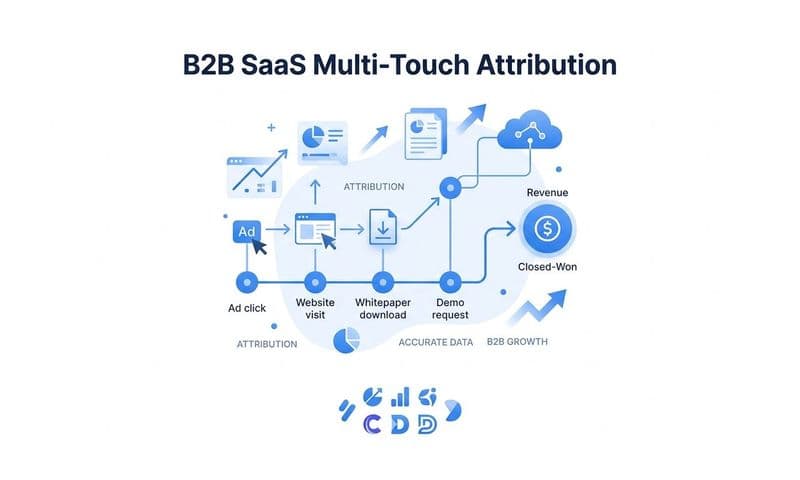
Here is a reality that LinkedIn's native reporting will never show you: most B2B buyers do not convert after a single LinkedIn interaction. They click a LinkedIn ad, then search your brand name on Google a week later, then open a nurture email, then visit your pricing page directly before finally requesting a demo. LinkedIn's Campaign Manager will claim credit for that conversion. So will Google Ads. So will your email platform.
Relying solely on LinkedIn's native attribution means you are seeing only the portion of the customer journey that LinkedIn wants to take credit for. That is not a data problem you can fix by adjusting your Insight Tag. It is a structural limitation of platform-native reporting.
Implement a multi-touch attribution model using a dedicated attribution platform. This gives you a neutral, unified view of how each channel, including LinkedIn, contributes to conversions alongside every other touchpoint in the path to purchase. Reviewing the attribution tracking setup process will help you build a system that accurately reflects LinkedIn's true contribution across the full funnel.
Cometly connects your ad platforms, CRM, and website to map the entire customer journey in real time. You can see exactly where LinkedIn touchpoints appear relative to other channels, whether LinkedIn is typically an awareness driver at the top of the funnel, a consideration touchpoint in the middle, or a closer at the bottom. That context changes how you evaluate LinkedIn's performance and how you allocate budget across channels.
Compare attribution models side by side: Most attribution platforms, including Cometly, let you toggle between first-touch, last-touch, and linear attribution models. Run this comparison for your LinkedIn campaigns. If LinkedIn looks strong under first-touch attribution but weak under last-touch, it is likely playing an important awareness and consideration role that last-click reporting completely ignores. This insight is especially valuable for B2B campaigns where the sales cycle spans weeks or months.
Use your attribution platform to contextualize discrepancies: Once you have cross-platform attribution in place, compare LinkedIn's self-reported conversion numbers against what your attribution platform shows. Some of the gap will be a tracking issue you have already addressed in earlier steps. Some will be a genuine attribution model difference. Understanding which is which helps you make more informed decisions about how much weight to give LinkedIn's native numbers. Exploring LinkedIn ads analytics best practices can sharpen how you interpret and act on this data.
Avoid the last-click trap: Treating LinkedIn's last-click conversion count as the definitive measure of campaign value consistently undervalues LinkedIn's role in B2B funnels. B2B buyers research extensively before converting, and LinkedIn often plays a critical role in initial awareness and education even when another channel gets the final click credit. A multi-touch view gives you the full story.
Success indicator: You have a consistent, documented methodology for crediting LinkedIn touchpoints that aligns with your actual sales cycle and is validated against CRM pipeline data, not just platform-reported conversion counts.
Step 6: Optimize Campaigns Based on Verified Data
Getting your tracking accurate is not the end goal. It is the foundation for making better decisions. Once you have a reliable data set, the way you manage and optimize your LinkedIn campaigns should change substantially.
Reassess campaign performance with clean data: Go back through your active campaigns with your newly validated conversion numbers. Some campaigns that appeared to be top performers may have been inflated by duplicate events or overly broad attribution windows. Others that looked weak may actually be driving pipeline that was not being properly attributed. Let the verified data reshape your understanding of what is working.
Feed better data back to LinkedIn's algorithm: This is one of the most underutilized levers in LinkedIn advertising. When you send verified conversion events back to LinkedIn through CAPI, LinkedIn's optimization engine uses that signal to find more users who are likely to take the same action. Cleaner, more accurate conversion data means the algorithm trains on real outcomes rather than inflated or miscounted events. Over time, this improves targeting quality and reduces wasted spend. Following best practices for tracking conversions accurately ensures the signals you send back are consistently reliable.
Cometly's AI-powered recommendations take this a step further. By analyzing performance across your LinkedIn campaigns and other channels simultaneously, Cometly can surface which ad combinations, audiences, and creative formats are genuinely driving pipeline, and flag where budget reallocation would have the most impact.
Shift your optimization metric: Replace LinkedIn's reported cost per conversion with cost per verified conversion as your primary optimization metric. If LinkedIn reports a cost per lead of $80 but your CRM validation shows only half of those leads are real, your actual cost per verified lead is closer to $160. That changes how you evaluate campaign efficiency and where you set acceptable bid thresholds.
Build a regular reconciliation cadence: Set up a weekly checkpoint where you compare LinkedIn Campaign Manager data against your attribution platform. This does not need to be a deep audit every week. A quick side-by-side comparison of conversion volumes and cost per conversion is enough to catch new discrepancies early before they compound into bigger problems.
Document your tracking setup: Write down exactly how your Insight Tag is deployed, which conversion events are active and what they track, how your CAPI integration works, and where deduplication logic lives. Any change to your website, landing pages, or tag manager can silently break tracking. Documentation means you can quickly identify what changed when discrepancies reappear.
Give the algorithm time to adjust: After fixing your tracking, resist the urge to make major budget reallocations immediately. LinkedIn's optimization algorithm needs time to re-learn based on the new, cleaner conversion signals you are now sending. Allow a few weeks of consistent data flow before drawing conclusions or making significant bid and budget changes.
Putting It All Together
Fixing inaccurate LinkedIn conversion tracking is not a one-time task. It is an ongoing discipline that requires the right technical foundation, a clear validation process, and tools that give you visibility beyond what any single ad platform reports on its own.
Here is a quick checklist to confirm you have covered the essentials:
Insight Tag verified active: The tag is confirmed active in Campaign Manager and firing on all relevant pages without duplication.
Conversion events cleaned up: No duplicate conversion events are running, each event has a clear singular purpose, and URL triggers are specific enough to avoid false positives.
Attribution windows adjusted: Windows are set to reflect your actual sales cycle length rather than LinkedIn's broad defaults.
LinkedIn Conversions API implemented: Server-side tracking is live with proper deduplication logic so client-side and server-side events are not double-counted.
Data cross-validated against CRM: Conversion data has been reconciled against actual CRM leads and a discrepancy ratio has been documented and improved.
Multi-touch attribution in place: A dedicated attribution platform contextualizes LinkedIn's role in the full customer journey across all channels.
Verified events feeding back to LinkedIn: Clean conversion signals are being sent back to LinkedIn's algorithm to improve targeting and optimization over time.
When your tracking is accurate, every budget decision you make on LinkedIn becomes more defensible. You stop guessing which campaigns are working and start scaling what is actually driving revenue.
Cometly is built to help marketers reach exactly that level of confidence. It connects your LinkedIn data with every other touchpoint in the customer journey, feeds enriched conversion signals back to your ad platforms, and gives you AI-powered recommendations to act on what the data is telling you. Get your free demo today and start capturing every touchpoint to maximize your conversions.