If you are running Facebook or Meta ads for your B2B SaaS company, your pixel alone is no longer enough. Browser-based tracking has become increasingly unreliable due to ad blockers, iOS privacy changes, and cookie restrictions. The result is a growing gap between the conversions you are generating and the ones Meta actually sees.
That gap distorts your attribution data, inflates your cost per acquisition, and causes Meta's ad delivery algorithm to optimize toward the wrong signals. The Facebook Conversion API, also known as Meta CAPI, solves this by sending conversion events directly from your server to Meta, bypassing the browser entirely.
This means your ad platform receives accurate, first-party data regardless of what is happening on the client side. For B2B SaaS marketing teams, this is especially important because your customer journeys are long, multi-touch, and often involve multiple devices and sessions before a lead converts.
Setting up the Conversion API correctly ensures that every meaningful touchpoint, from a form submission to a demo request to a closed deal, gets reported back to Meta with the fidelity needed to fuel smarter bidding and better targeting.
This guide walks you through the complete setup process, from accessing your Meta Business settings to verifying that your events are firing correctly. Whether you are setting this up natively through Meta Events Manager or using a third-party attribution platform like Cometly to handle server-side tracking for you, each step is designed to be concrete and actionable so you can get accurate data flowing as quickly as possible.
Step 1: Gather Your Prerequisites in Meta Business Manager
Before you write a single line of code or configure any integrations, you need to confirm that the right access and credentials are in place. Skipping this step is one of the most common reasons CAPI setups stall or break down later.
Start by confirming you have admin access to both Meta Business Manager and Events Manager for your ad account. Without admin-level permissions, you will not be able to generate the credentials your server needs to authenticate API calls, and you may hit walls partway through the setup process.
Next, identify the correct Meta Pixel ID associated with your active campaigns. This matters because CAPI events must be tied to the same pixel that your browser-side tracking uses. Sending server-side events to a different pixel than your browser pixel will break deduplication and create fragmented data across your account.
The most important credential you will need is a System User access token. Here is how to generate one:
1. In Meta Business Manager, navigate to Business Settings.
2. Under Users, select System Users and create a new system user with the Employee role.
3. Assign the system user access to your ad account and your pixel with the Manage permissions level.
4. Generate a token for the system user, selecting the ads_management and business_management permissions at minimum.
It is worth understanding why system user tokens are strongly preferred over standard user tokens for server-side integrations. A standard user token is tied to an individual person's Meta account. If that person leaves your organization, changes their password, or revokes the token, your entire CAPI integration breaks. A system user token belongs to the business account itself, making it stable and independent of any individual team member.
Common pitfall: Many teams initially set up CAPI using a personal access token because it is faster. This works in the short term but creates a fragile integration that can fail silently when the token expires or the user loses access. Take the extra ten minutes to configure a system user properly from the start.
Once you have your Pixel ID and system user access token saved securely, you are ready to move forward.
Step 2: Choose Your Implementation Method
There is no single right way to set up the Facebook Conversion API, and the method you choose will shape how much flexibility, control, and maintenance overhead you take on. Understanding the trade-offs upfront will save you significant time later.
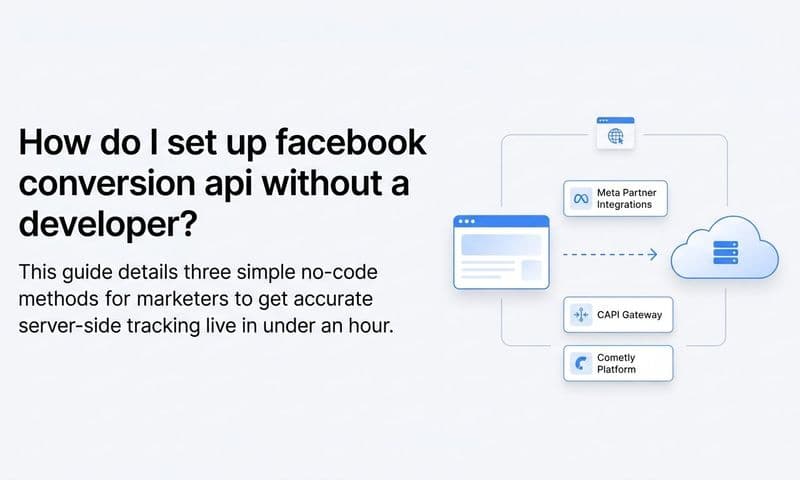
Option 1: Native Meta Partner Integrations
Meta Events Manager offers a set of partner integrations that allow you to connect CAPI through platforms like Shopify, WordPress, or other supported tools without writing custom code. These are fast to set up and work well for simpler conversion tracking scenarios.
The limitation for B2B SaaS teams is that native partner integrations are largely built around e-commerce use cases. They handle standard purchase and lead events reasonably well, but they lack the flexibility to send CRM-level signals like trial activations, MQL handoffs, demo completions, or pipeline stage progressions. If your funnel goes beyond a contact form submission, you will quickly hit the ceiling of what native integrations can do.
Option 2: Manual Server-Side Implementation
A manual implementation gives you full control over what events you send, when you send them, and what data you include in each payload. Your engineering team builds a server-side endpoint that listens for conversion events from your website, CRM, or product and formats them as Meta CAPI payloads.
This approach is powerful but resource-intensive. You need developer time to build the integration, maintain it as Meta's API evolves, and debug issues when events stop flowing. For teams with strong engineering resources and highly customized conversion funnels, this is a viable path.
Option 3: A Dedicated Attribution Platform
Platforms like Cometly sit between your data sources and Meta's API, handling server-side event transmission, deduplication, and enrichment automatically. Cometly connects your ad platforms, CRM, and website to track the full customer journey, then sends conversion-ready events back to Meta, including pipeline and revenue data that the pixel cannot capture on its own.
This approach is particularly well-suited for B2B SaaS teams because it removes the engineering burden while also giving you a richer attribution reporting layer. When a lead progresses to a closed-won deal in your CRM, Cometly can send that signal back to Meta with the actual contract value attached.
Decision framework: If your conversion events go beyond standard actions and include CRM-level data like lead status, deal stage, or subscription value, a dedicated attribution platform is the more scalable choice. Whichever method you select, keep one rule in mind: your server-side events must mirror your pixel events to enable proper deduplication, which is covered in detail in Step 4.
Step 3: Install and Configure Your Server-Side Event Endpoint
With your implementation method selected, it is time to build or configure the mechanism that actually sends events to Meta. The specifics here will vary depending on whether you are doing a manual implementation or using a platform like Cometly, but the underlying data requirements are the same either way.
For manual implementations, you will set up a server endpoint that listens for conversion triggers from your website or CRM and formats them as Meta CAPI payloads. Each payload sent to Meta's Conversions API endpoint must include the following required fields:
1. event_name: The name of the event, such as Lead, Purchase, or CompleteRegistration.
2. event_time: A Unix timestamp representing when the event occurred on your server.
3. user_data: An object containing hashed customer information used to match the event to a Meta user profile.
4. event_source_url: The URL where the conversion occurred, which helps Meta contextualize the event.
The user_data object is where match quality is won or lost. Include as many of the following parameters as you have available: email (em), phone number (ph), first name (fn), last name (ln), client IP address (client_ip_address), and user agent (client_user_agent).
Critical requirement: All personally identifiable information must be SHA-256 hashed before you send it to Meta. This applies to email addresses, phone numbers, and name fields. Meta's API expects lowercase, trimmed values before hashing. Sending unhashed data is both a privacy violation and a technical error that will cause your events to fail validation.
Here is a quick example of the hashing process for an email address: strip whitespace, convert to lowercase, then apply SHA-256. The resulting hash is what goes into the em field of your user_data object.
For Cometly users, this step is significantly simpler. Connect your Meta ad account inside Cometly, and the platform handles the entire server-side payload construction and transmission automatically. Cometly also enriches these events with CRM data from your connected integrations, so the events Meta receives include more context than a standard pixel event ever could.
Tip: Regardless of implementation method, log every event your server sends with a timestamp, event name, and event ID. This audit trail becomes invaluable when you need to diagnose why certain conversions are not appearing in Meta Ads Manager or when your event counts do not align with your CRM records.
Step 4: Implement Event Deduplication Between Pixel and CAPI
Here is a scenario that catches many teams off guard. You have your browser pixel firing on your thank-you page and your CAPI server sending the same Lead event when the form is submitted. Both signals reach Meta. Without deduplication, Meta counts that as two conversions. Your reported numbers look inflated, your CPL appears artificially low, and Meta's algorithm starts optimizing based on incorrect data.
Deduplication is not optional when you are running both browser pixel and server-side CAPI simultaneously. It is a core requirement for accurate data.
The mechanism Meta uses for deduplication is the event_id parameter. When Meta receives two events with the same event_name and event_id within a 48-hour window, it treats them as duplicates and counts them only once. Your job is to make sure both your pixel and your CAPI payload are sending the same event_id for the same conversion.
How to implement this in your browser pixel: When you fire a standard event using the Meta Pixel code, pass an eventID parameter in the event options object. This is a string you generate at the moment the event fires.
How to implement this in your CAPI payload: Include the exact same string as the event_id field in your server-side payload for the matching event. The values must be identical, character for character.
How to generate reliable event IDs: A common approach is to combine the user's session ID, the event name, and a Unix timestamp into a single string, then either hash it or use it directly. Alternatively, generate a UUID at the moment the browser event fires, store it temporarily (in a cookie, local storage, or passed as a hidden form field), and read it on the server when the corresponding CAPI event is triggered. The key is that both the browser and the server are referencing the same unique identifier for the same user action.
Verification step: After implementing deduplication, navigate to Events Manager in Meta Business Suite, select your pixel, and open the Deduplication tab. This view shows you whether events are being properly matched and whether any are still being double-counted. If you see a high duplication rate, it means your event IDs are not matching correctly between the browser and server layers.
Getting deduplication right is one of the most technically precise parts of this setup, but it is also one of the highest-leverage steps. Clean conversion counts mean Meta's algorithm is working with accurate signals, which directly affects your ad delivery quality and bidding efficiency.
Step 5: Map Your B2B Conversion Events to Meta Standard Events
Meta's ad delivery algorithm is built to optimize toward specific outcomes. The cleaner and more aligned your event names are with Meta's recognized standard events, the more effectively the algorithm can learn from your conversion data and find more of the right customers.
Meta recognizes a core set of standard event names, including Lead, CompleteRegistration, Schedule, ViewContent, and Purchase. These names are not arbitrary. They map directly to optimization objectives inside Meta Ads Manager, and Meta's machine learning models have been trained on patterns associated with these event types at scale.
For B2B SaaS funnels, here is how to map your key conversion actions to Meta's standard events:
Form submission or content download: Map to Lead. This is the most common top-of-funnel conversion action and signals to Meta that a user expressed interest.
Free trial start or account creation: Map to CompleteRegistration. This event signals a higher-intent action than a simple form fill and helps Meta identify users more likely to activate.
Demo scheduled or sales call booked: Map to Schedule. For B2B SaaS teams, this is often the most important mid-funnel signal because it represents a qualified buyer taking a direct action.
Closed-won deal or subscription activated: Map to Purchase and include a value parameter with the contract value and a currency parameter. This enables Meta's value-based optimization, which allows the algorithm to prioritize finding customers who are likely to generate higher revenue, not just any conversion.
Use the custom_data object to pass additional context alongside these events. Relevant fields include value, currency, content_name (useful for passing plan tier or product name), and any other attributes that help Meta understand the quality of the conversion.
Cometly connects your Stripe revenue data and CRM pipeline stages directly to your ad data. When you send a Purchase event via CAPI through Cometly, it can include the actual contract value tied to that specific ad journey, giving Meta the precise signal it needs to optimize for high-value customers rather than just any closed deal.
Tip: Resist the temptation to create a long list of custom event names for every micro-action in your funnel. Meta's algorithm optimizes most effectively on recognized standard event types. Use custom events sparingly and only when no standard event accurately represents the action.
Step 6: Test and Verify Your CAPI Events Are Firing Correctly
You have built the integration. Now you need to confirm it is actually working before you trust any data coming out of it. This step is where many teams cut corners, and it costs them weeks of bad data before they realize something is wrong.
Start by navigating to Events Manager in Meta Business Suite, selecting your pixel, and opening the Test Events tab. Meta provides a test_event_code parameter specifically for this purpose. Include this code in your CAPI payloads during testing, and the events will appear in the Test Events dashboard without affecting your production data or your ad delivery.
Trigger each conversion event type you have configured, then confirm the following in the Test Events tab:
1. The event appears with the correct event name.
2. The event includes the expected parameters, including user_data fields and any custom_data values.
3. The event timestamp reflects when the conversion actually occurred.
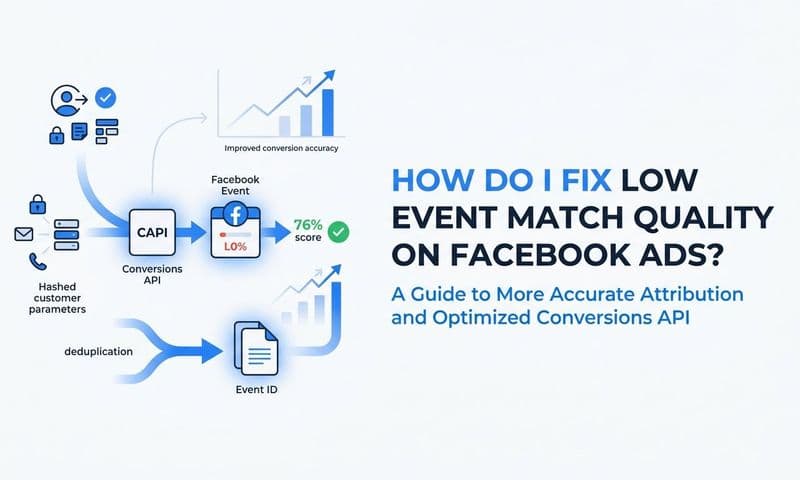
Next, check your Event Match Quality (EMQ) score in Events Manager. This score, rated on a scale from 0 to 10, measures how effectively your customer data parameters are matching Meta user profiles. A higher score means Meta can attribute more of your conversions to the correct users and campaigns. Aim for a score above 6. If your score is low, the most common fix is adding more hashed user data fields to your payload, particularly email and phone number. Learn more about improving your Event Match Quality score and what drives it.
Common issues to diagnose during testing:
Events not appearing at all: This is almost always an authentication problem. Double-check that your system user token is valid, has the correct permissions, and is being passed correctly in your API request headers.
Duplicate events appearing: Your deduplication setup is not working. Review Step 4 and confirm that matching event_id values are being passed in both your browser pixel and your CAPI payload.
Low match quality score: You are missing key user data fields or they are not being hashed correctly. Verify that email addresses are lowercased and trimmed before SHA-256 hashing, and that phone numbers are formatted in E.164 format before hashing.
Once everything looks correct in the Test Events tab and your match quality score is at an acceptable level, remove the test_event_code parameter from your production payloads. Your integration is now live.
Step 7: Connect CAPI Data to Your Attribution Reporting
Getting events flowing into Meta is a meaningful technical achievement, but it is only half the picture. Raw event data in Meta Events Manager tells you that conversions are happening. It does not tell you which campaigns are actually driving revenue, which ad creatives are generating your highest-value customers, or how Facebook ad touchpoints fit into a longer multi-channel journey.
This is where your reporting layer becomes the real payoff of everything you have built.
Meta Ads Manager shows you conversions attributed to your campaigns using Meta's own attribution model, which includes view-through attribution windows that can make your results look stronger than they are in isolation. To understand the true contribution of your Facebook campaigns to pipeline and revenue, you need a multi-touch attribution platform that ingests data from all your channels and applies consistent attribution logic across all of them.
Cometly is built specifically for this use case. It ingests your server-side conversion events alongside data from your CRM, ad platforms, and website to give you a single source of truth for ad performance. Every touchpoint in the customer journey, from the first Facebook ad click to the final demo that converted to a closed deal, is connected and visible in one place.
With this connected view, you can compare attribution models side by side, from first-touch to linear to data-driven, to understand which campaigns are actually moving revenue and not just generating top-of-funnel activity that never converts. This distinction matters enormously for B2B SaaS companies where the gap between a lead and a paying customer can span weeks or months.
Cometly's AI-powered recommendations surface which Meta campaigns and ad creatives are generating the highest-quality leads and the fastest path to closed-won revenue. Instead of manually analyzing campaign data across disconnected dashboards, your growth team gets actionable insights about where to scale and where to cut. Connecting your Facebook campaign tracking to revenue data is what separates teams that scale profitably from those that guess.
Final verification step: Once your attribution platform is connected, confirm that the conversion volumes visible in Meta Ads Manager align directionally with what you see in Cometly. You should expect some differences, particularly between Meta's view-through attribution and a click-based or multi-touch model. But if the numbers are dramatically misaligned, it is worth investigating whether your CAPI events are firing for the right actions and whether your deduplication is working correctly.
When your server-side data, CRM signals, and attribution reporting are all connected, you have built something genuinely powerful: a feedback loop where every dollar you spend on Facebook ads is traceable to actual revenue.
Your CAPI Setup Checklist and Next Steps
Setting up the Facebook Conversion API correctly transforms the quality of data flowing into your Meta campaigns and your attribution reports. By following these seven steps, you move from unreliable browser-based tracking to a robust server-side data pipeline that captures conversions Meta would otherwise miss.
Use this checklist to confirm your setup is complete:
Admin access confirmed: You have admin-level access to Meta Business Manager and Events Manager, and a system user token has been generated with the correct permissions.
Implementation method selected: You have chosen between a native integration, manual server-side build, or a dedicated attribution platform like Cometly, and your server endpoint is configured.
SHA-256 hashing applied: All personally identifiable information in your user_data object is being hashed correctly before transmission.
Deduplication implemented: Matching event_id values are being passed in both your browser pixel and your CAPI payloads for every conversion event.
B2B events mapped to standard names: Your key funnel actions are mapped to Lead, CompleteRegistration, Schedule, and Purchase, with value parameters included where applicable.
Test events verified: Events are appearing correctly in Meta Events Manager with an Event Match Quality score above 6.
Attribution reporting connected: Your CAPI data is feeding into a multi-touch attribution platform so you can see the full revenue impact of your campaigns.
For B2B SaaS teams, the real payoff comes when your server-side events include CRM and revenue data, not just website actions. That is when Meta's algorithm can optimize for the customers who actually close, and when your attribution platform can show you the true ROI of every dollar spent on Facebook ads.
Cometly makes this connection automatic, linking your ad spend directly to pipeline and revenue so your growth team always knows what is working. Get your free demo today and start capturing every touchpoint to maximize your conversions.