
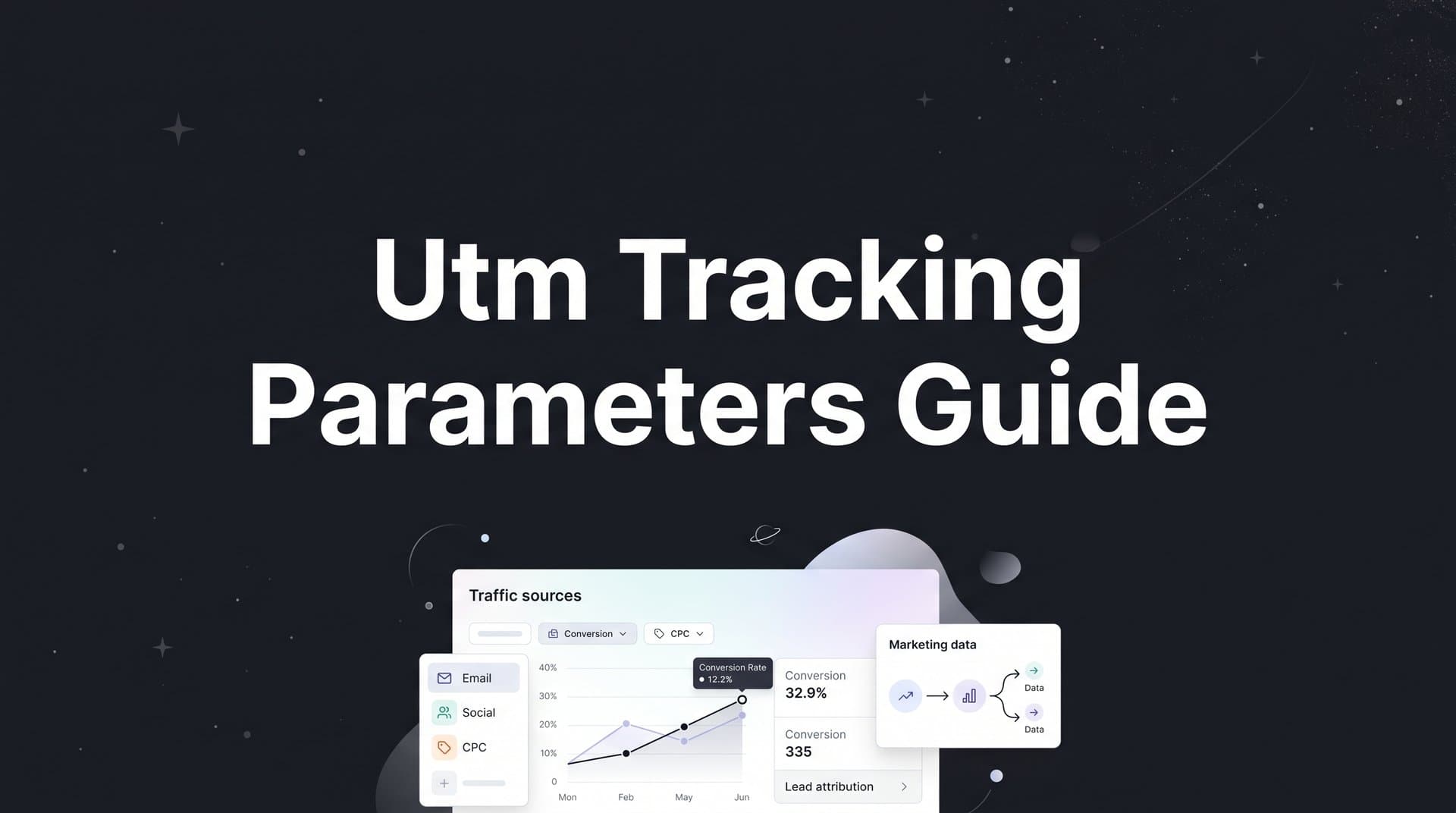
If you are running paid ads, email campaigns, or any form of digital marketing without UTM tracking parameters, you are flying blind. You might see traffic coming into your site, but you have no reliable way to know which campaign drove it, which ad creative performed, or which channel actually converted.
UTM parameters solve this problem by appending structured data to your URLs so your analytics platform can attribute every visit, lead, and conversion back to its source. Think of them as tiny labels attached to every link you share, telling your analytics tool exactly where each visitor came from and why they clicked.
This guide walks you through exactly how to build, implement, and use UTM parameters in a way that produces clean, trustworthy data. Whether you are a growth marketer managing multi-channel campaigns or a SaaS marketing leader trying to connect ad spend to pipeline, this step-by-step process will help you build a tracking foundation that scales.
By the end, you will know how to structure your parameters consistently, avoid the naming convention mistakes that corrupt your data, and feed cleaner attribution signals into platforms like Cometly to see which campaigns are actually driving revenue. Let's get into it.
Step 1: Understand the Five Core UTM Parameters
Before you build a single tagged URL, you need to understand what each UTM parameter actually captures. There are five standard parameters, and each one answers a specific question about how a visitor arrived on your site.
utm_source: This identifies where the traffic is coming from. Think of it as the publisher or platform. Examples include google, facebook, linkedin, or newsletter. This is a required parameter for any tagged URL.
utm_medium: This captures the marketing channel or method used to deliver the traffic. Examples include cpc, email, organic-social, or paid-social. This is also required and is commonly confused with utm_source, which we will address in a moment.
utm_campaign: This identifies the specific campaign that generated the click. Use it to group your ads or emails under a campaign name, such as q2-product-launch or annual-plan-promo. This parameter is required if you want campaign-level reporting.
utm_term: This is optional and primarily used for paid search campaigns to capture the keyword that triggered the ad. For example, marketing-attribution-software or utm-tracking-guide.
utm_content: This optional parameter differentiates between multiple links within the same campaign. It is especially useful for A/B testing ad creatives or email CTAs. Examples include blue-banner or cta-bottom.
Here is what a fully tagged URL looks like in practice:
https://www.yoursite.com/landing-page?utm_source=linkedin&utm_medium=paid-social&utm_campaign=q2-demo-push&utm_content=carousel-ad-v2
Every element tells a story. You can see at a glance that this visitor came from LinkedIn, via a paid social ad, as part of the Q2 demo push campaign, and specifically clicked the carousel ad variant two.
Now, here is the most common pitfall at this stage: confusing utm_source and utm_medium. The source is who sent the traffic (LinkedIn, Google, your email platform). The medium is how they sent it (paid social, CPC, email). If you mix these up, your channel groupings in Google Analytics 4 will be wrong, and your reports will show traffic in the wrong buckets. Getting this distinction right from the start saves significant cleanup work later.
Step 2: Define Your Naming Convention Before You Build Anything
This is the step most teams skip, and it is the one that causes the most damage to data quality over time. Before you create a single UTM parameter, you need a standardized naming convention that every person on your team follows without exception.
Here is why this matters so much. Analytics platforms are case-sensitive. That means Facebook, facebook, and fb are treated as three completely separate traffic sources. If your paid social team uses Facebook, your agency uses fb, and someone else uses facebook, you now have three fragmented data sets that should be one. Aggregating that data later requires manual cleanup, and some of it may be impossible to recover accurately.
A solid naming convention document should cover three things: formatting rules, a channel taxonomy, and approved abbreviations.
Formatting rules: Always use lowercase. Replace spaces with hyphens. Avoid special characters, punctuation, and ampersands in parameter values. For example, use paid-search not Paid Search or paid_search.
Channel taxonomy: Define the exact values your team will use for each channel. Here is a starting template:
Paid Search: utm_source=google, utm_medium=cpc
Paid Social (Meta): utm_source=facebook, utm_medium=paid-social
Paid Social (LinkedIn): utm_source=linkedin, utm_medium=paid-social
Email (Newsletter): utm_source=newsletter, utm_medium=email
Email (Drip/Nurture): utm_source=nurture, utm_medium=email
Organic Social: utm_source=linkedin, utm_medium=organic-social
Approved abbreviations: If you use abbreviations for campaign names, document them. For example, q1 for first quarter, demo for demo request campaigns, trial for free trial campaigns.
Store this naming convention in a shared Google Doc, Notion page, or your team wiki. Make it the first thing new marketers and agencies receive when they join. Treat it as a living document that gets updated when you add new channels or campaign types.
One practical tip: create a UTM spreadsheet template that pre-fills the source and medium values for each channel. This reduces the chance of someone typing a value from memory and introducing a typo that fragments your data. Clean naming conventions are the foundation of clean attribution, and clean attribution is how you make confident budget decisions.
Step 3: Build Your Tagged URLs Using a UTM Builder
Once your naming convention is in place, you are ready to start building tagged URLs. The easiest starting point is Google's Campaign URL Builder, a free tool that lets you fill in each parameter field and generates the complete URL automatically.
Using the builder is straightforward. Paste your destination URL into the website URL field, then fill in your source, medium, campaign, and any optional parameters. The tool assembles the query string and appends it to your URL. Copy the result, test it in a browser to confirm it resolves correctly, and you are ready to deploy.
For most teams, this manual approach works well for email campaigns and organic social posts. But for paid search and paid social at scale, you will want to use dynamic value insertion instead of static parameters.
Dynamic parameters in Google Ads: Google Ads supports ValueTrack parameters that automatically populate with real-time data when an ad is clicked. For example, {keyword} inserts the search term that triggered the ad, {matchtype} inserts the keyword match type, and {creative} inserts the ad ID. A tagged URL using dynamic parameters might look like this:
https://www.yoursite.com/page?utm_source=google&utm_medium=cpc&utm_campaign=brand-search&utm_term={keyword}&utm_content={creative}
Dynamic parameters in Meta Ads: Meta supports its own dynamic parameter syntax using double curly braces. For example, {{campaign.name}} inserts the campaign name, and {{ad.name}} inserts the ad name. This lets you automatically populate utm_campaign and utm_content without building a separate URL for every ad.
The tradeoff between static and dynamic parameters comes down to control versus scale. Static parameters give you exact control over the values that appear in your reports, which makes them ideal when you need clean, predictable naming. Dynamic parameters save time at scale but can introduce inconsistent formatting if your ad names do not follow your naming convention. The best approach is often a hybrid: use static values for utm_source and utm_medium, and use dynamic insertion for utm_campaign and utm_content where the ad platform can pull the data automatically.
One important warning: watch out for double-encoding. Some URL builders will encode special characters like spaces as %20 or +. If you then paste that URL into another tool that also encodes it, you can end up with broken URLs that return 404 errors or strip the UTM parameters entirely. Always preview and manually test your final URL in a browser before deploying it in a live campaign. This is also why understanding conversion tracking gaps before launch matters so much for accurate reporting.
Step 4: Deploy UTMs Consistently Across Every Channel
Building tagged URLs is only half the job. Deploying them correctly across every channel is where consistency either holds or falls apart. Here is how to handle each major channel.
Paid Search (Google Ads): The most reliable way to apply UTMs in Google Ads is through tracking templates at the account, campaign, or ad group level. A tracking template lets you define a URL suffix that gets appended to every final URL automatically. This means you do not have to manually tag each ad, and you reduce the risk of missing tags when new ads are created. Set your tracking template at the account level as a default, and override it at the campaign level when you need campaign-specific values.
Paid Social (Meta Ads Manager): In Meta Ads Manager, you can add UTM parameters in the URL Parameters field at the ad level. Meta also offers a URL Parameters tool that lets you build your query string using their dynamic parameter syntax. Apply UTMs at the ad level rather than the campaign level to get the most granular data in your reports.
Paid Social (LinkedIn and TikTok): LinkedIn Campaign Manager has a Tracking section within each campaign where you can add UTM parameters. TikTok Ads Manager similarly allows URL parameters at the ad level. Both platforms support static parameters, and TikTok also supports some dynamic macro insertion for campaign and ad names.
Email: Most email platforms, including HubSpot, Klaviyo, and Mailchimp, have built-in UTM tagging options that automatically append parameters to every link in your email. Configure these settings at the account or campaign level to ensure every link is tagged without having to edit URLs manually. Set utm_medium=email and define utm_source based on whether it is a newsletter, a nurture sequence, or a transactional email.
Organic and social posts: For organic content shared on LinkedIn, X, or other platforms, tag your links manually before posting. You will not have dynamic insertion here, so use your naming convention to build a static tagged URL. This is especially important for links shared in bio sections, pinned posts, or high-traffic organic content where you want to measure performance.
A practical tip for Google Ads specifically: use the final URL suffix field at the account level to apply a base set of UTM parameters to every ad automatically. This acts as a safety net, ensuring that even newly created ads are tagged from day one without requiring manual intervention from your team. For a broader look at how this fits into your overall strategy, the guide on cross-channel tracking implementation covers how to unify data across every platform you run.
Step 5: Validate Your UTM Data Before Campaigns Go Live
Deploying UTMs without validating them first is one of the most common and costly mistakes in campaign setup. Broken or missing parameters mean you are collecting data you cannot trust, and fixing attribution gaps after the fact is extremely difficult.
Here is a practical QA process to run before every campaign launch.
Test your URLs manually: Click each tagged URL and confirm it resolves to the correct destination page without any errors. Check that the UTM parameters appear in the browser address bar exactly as you intended. If you are redirected to a different URL, check whether the parameters are still present after the redirect. Redirects are one of the most common causes of UTM parameter loss, particularly when using URL shorteners or redirect chains that do not preserve query strings.
Check Google Analytics 4 real-time reports: After clicking your test URL, open Google Analytics 4 and navigate to the real-time report. You should see your session appear with the correct source, medium, and campaign values. If the session shows as direct traffic or populates with unexpected values, something in your tagging or redirect chain is breaking the parameters. For a deeper understanding of how GA4 processes this data, the guide on event tracking in Google Analytics explains how sessions and events are captured.
Verify data in Cometly: If you are using Cometly for attribution, confirm that UTM data is flowing through correctly and matching to your leads and pipeline events. Cometly connects UTM parameters to CRM data, so you can see whether the source and campaign values are populating correctly at the lead level, not just the session level. This is where you catch gaps that session-based analytics tools often miss.
Watch for these warning signs: A spike in direct traffic after a campaign launch often signals that UTMs are being stripped before they reach the destination page. Untagged sessions showing up alongside your campaign traffic suggest some links were deployed without parameters. Misattributed sources, where traffic from a LinkedIn campaign appears as Google traffic, point to a naming convention error or a copy-paste mistake in your URL builder.
Build a simple QA checklist your team runs before every campaign goes live. It does not need to be complex: confirm the URL resolves, confirm parameters appear in the address bar, confirm the session appears correctly in your analytics platform, and confirm the data flows into your attribution tool. Five minutes of validation before launch can save hours of data cleanup later.
Step 6: Analyze UTM Data to Optimize Campaign Performance
Once your UTMs are deployed and validated, the real value comes from using that data to make smarter decisions. Here is how to move from raw UTM data to actionable campaign insights.
Start with channel-level performance: Segment your analytics by utm_source and utm_medium to compare how different channels are performing. This gives you a clear view of which platforms are driving the most traffic, leads, and conversions. Look beyond volume metrics and examine conversion rates and cost per lead by channel to understand where your budget is working hardest.
Go deeper with campaign and content data: Use utm_campaign and utm_content to identify which specific campaigns and creatives are driving results. If you are running multiple ad variants, utm_content lets you see exactly which version converted better. This is where UTM data becomes a direct input into your creative strategy, helping you double down on what works and cut what does not.
Connect UTM data to pipeline and revenue in Cometly: Session-level analytics only tells part of the story. For B2B SaaS companies with longer sales cycles, a click from a LinkedIn ad might not convert to a closed deal for weeks or months. Cometly connects your UTM data to CRM and revenue data, so you can see which campaigns generated pipeline, which ones influenced deals, and which ones actually drove closed-won revenue. This transforms UTM data from a traffic metric into a revenue attribution signal.
Apply multi-touch attribution models: Clean UTM data is the foundation for accurate multi-touch attribution. When every touchpoint is tagged correctly, you can use attribution models like linear, time decay, or data-driven to understand how different channels contribute across the full customer journey. A prospect might first click a Google Ads link tagged with utm_medium=cpc, then engage with a LinkedIn retargeting ad tagged with utm_medium=paid-social, and finally convert through an email campaign. Multi-touch attribution gives each touchpoint its appropriate credit rather than assigning all value to the last click.
Focus on lead quality, not just volume: One of the most valuable shifts you can make is moving from measuring clicks and sessions to measuring lead quality and revenue per campaign. A campaign that drives fewer leads but higher-quality pipeline is more valuable than one that drives high volume with low conversion to revenue. Cometly's AI-driven recommendations surface these insights automatically, identifying which campaigns are generating the highest-value opportunities and flagging underperforming spend so you can reallocate budget with confidence.
Putting It All Together: Your UTM Tracking Checklist
UTM tracking parameters are not just a technical setup task. They are the strategic foundation for knowing where your revenue actually comes from. When implemented correctly and consistently, they give you the data you need to make confident decisions about where to invest your marketing budget.
Here is your repeatable pre-launch checklist based on the six steps covered in this guide:
1. Define all five UTM parameters and confirm your team understands the difference between source and medium.
2. Create and distribute a naming convention document with approved values for every channel your team uses.
3. Build tagged URLs using a UTM builder, and use dynamic value insertion for paid search and paid social at scale.
4. Deploy UTMs consistently across every channel using tracking templates, platform-level URL parameters, and email platform settings.
5. Validate every tagged URL before launch by testing redirects, checking real-time analytics, and confirming data flows into your attribution platform.
6. Analyze UTM data regularly at the channel, campaign, and creative level, and connect it to pipeline and revenue data to understand true campaign performance.
The difference between teams that optimize confidently and teams that guess is clean data. And clean UTM data is where that advantage starts.
Cometly takes your UTM data further by connecting it to the full revenue picture, from first ad click to closed deal. Instead of stopping at sessions and pageviews, Cometly maps every tagged touchpoint to leads, pipeline, and revenue so you can see which campaigns are actually worth scaling. Its AI-driven recommendations surface your highest-performing campaigns across every channel and help you feed better conversion data back to ad platforms like Meta and Google to improve targeting and ROI.
Ready to turn your UTM data into real revenue intelligence? Get your free demo and see how Cometly connects every touchpoint to the outcomes that actually matter.