
If you are running LinkedIn Ads for a B2B SaaS company, you already know the platform attracts serious buyers. Decision-makers, VP-level prospects, and economic buyers scroll LinkedIn daily. But knowing which campaigns actually drive pipeline and revenue is a different challenge entirely.
LinkedIn's pixel-based tracking has the same limitations as every browser-dependent method: ad blockers, cookie restrictions, and browser privacy updates all create gaps in your conversion data. When those gaps exist, LinkedIn's optimization algorithm works with incomplete signals, and your team makes budget decisions based on incomplete reporting.
The LinkedIn Conversions API, also called LinkedIn CAPI, solves this by sending conversion events directly from your server to LinkedIn, bypassing the browser entirely. The result is more complete, more accurate conversion data that feeds LinkedIn's ad optimization algorithms and gives your marketing team a clearer picture of what is actually working.
This guide walks you through the complete setup process, from creating your conversion event in LinkedIn Campaign Manager to validating that your server-side events are firing correctly. Whether you are setting this up natively or using a platform like Cometly to manage server-side tracking across all your ad channels, each step is designed to be actionable and straightforward.
By the end, you will have a reliable data pipeline that captures conversions LinkedIn's pixel would have missed, improving your campaign optimization and giving you a more accurate view of ad-driven revenue.
Step 1: Prepare Your LinkedIn Campaign Manager Account
Before you write a single line of code or configure any API credentials, you need to make sure your Campaign Manager account is set up correctly. Skipping this groundwork is one of the most common reasons LinkedIn CAPI setups fail or produce misleading data.
First, confirm that you have admin access or at minimum conversion tracking access in Campaign Manager. Without the right permissions, you will not be able to create conversion events or access the API credentials you need later. If you are working inside a client account or a shared team account, verify your role before proceeding.
Next, navigate to Account Assets in the top navigation of Campaign Manager, then select Conversions. This is where all your conversion events live, whether they are tracked via the Insight Tag or the API. Take a moment to review what is already there. Many accounts have legacy pixel-based conversions set up from earlier campaigns, and understanding what exists helps you avoid duplication.
Here is an important distinction to understand before you build anything: Insight Tag events fire from the browser when a user lands on a specific page. API conversion events fire from your server when a specific action occurs in your backend, such as a form submission recorded in your CRM or a trial signup confirmed in your database. Both can coexist, and during a transition period you will likely run both simultaneously with deduplication in place.
Now map your B2B funnel before creating any events. The conversion actions that matter for a B2B SaaS company typically include demo requests, free trial signups, form submissions, and qualified lead events that come directly from your CRM when a lead reaches a certain status. Each of these represents a different stage of your funnel and should be tracked as a separate conversion event.
Common pitfall: Setting up the wrong conversion category sends misaligned optimization signals to LinkedIn's algorithm. If you categorize a demo request as a "Purchase," LinkedIn will optimize toward users who match purchase behavior patterns rather than lead generation patterns. Map your funnel stages carefully and choose the conversion category that most accurately reflects each action before you create a single event.
Step 2: Create a Conversion Event in Campaign Manager
With your funnel mapped and your access confirmed, you are ready to create your first API-based conversion event. This is where you define what LinkedIn should count as a conversion and how it should receive that signal.
In Campaign Manager, go to Account Assets, then Conversions, and click Create Conversion. You will be prompted to name your conversion and select a conversion type. Choose the type that aligns with your mapped funnel stage: Lead, Sign Up, Purchase, or a custom event type if none of the defaults fit precisely.
On the next screen, you will be asked to choose your conversion method. This is the critical decision point. Select API as your conversion method, not the Insight Tag option. This tells LinkedIn that conversion signals will arrive via server-side events rather than browser-based pixel fires.
Next, configure your attribution windows. LinkedIn offers click attribution windows of 1, 7, 30, or 90 days, and view attribution windows of 1 or 7 days. For B2B SaaS companies with longer sales cycles, a 90-day click window is often the most appropriate choice. Think about your average time from first LinkedIn ad click to demo request or trial signup. If that journey regularly spans weeks, a shorter attribution window will systematically undercount LinkedIn's contribution to your pipeline.
Set your view attribution window based on how much credit you want to give LinkedIn for conversions where someone saw your ad but did not click. For most B2B SaaS teams, a 7-day view window is a reasonable starting point.
Once you save the conversion event, LinkedIn will provide you with two critical pieces of information: your Conversion ID and the details you will need to authenticate your API calls. Copy and store both securely. You will reference the Conversion ID in every API event payload you send.
Success indicator: Your conversion event appears in Campaign Manager with a status of "Active" and the source listed as API. If the status shows as "Unverified," that is expected until you send your first validated event in a later step.
Step 3: Generate Your LinkedIn API Access Token
Authentication is where many technical setups stall. LinkedIn uses OAuth 2.0 for API access, and you need an app-level token with the correct permission scopes to send conversion events. Here is how to get that token correctly.
Navigate to LinkedIn's Developer Portal and sign in. If you already have an app associated with your LinkedIn account or company, access it from your app dashboard. If not, create a new app. You will need to associate the app with a LinkedIn Company Page, so make sure you have admin access to the relevant page.
Once inside your app, navigate to the Products tab and request access to the Conversions API product. LinkedIn may require a brief review period before granting access. Once approved, the Conversions API product will appear as active in your app's product list.
Next, generate your OAuth 2.0 access token. You need two specific permission scopes for the LinkedIn Conversions API to work correctly: r_ads_reporting and rw_conversions. The r_ads_reporting scope allows your app to read ad performance data, while rw_conversions allows it to write conversion events to LinkedIn's system. Without both scopes, your API calls will return authentication errors.
Once you have your access token, store it securely. The right approach is to save it as an environment variable on your server, never hardcoded in your application's source code or exposed in any client-side JavaScript. Hardcoded tokens in code repositories are a common security vulnerability and will also cause problems if your token rotates.
Plan for token expiration. LinkedIn access tokens do not last forever, and an expired token means your conversion events stop flowing without any obvious error on the campaign side. Build token refresh logic into your server-side implementation, or use a platform that handles token lifecycle management automatically.
Common pitfall: Using a personal LinkedIn account token instead of an app-level token causes authentication failures at scale. Personal tokens are tied to individual user sessions and expire quickly. Always use an app-level token generated through the Developer Portal for production implementations.
Step 4: Configure Your Server-Side Event Payload
This is the technical core of the LinkedIn Conversions API setup. You are building the data structure that your server will send to LinkedIn every time a conversion event occurs. Getting this right determines how accurately LinkedIn can attribute conversions to your campaigns.
LinkedIn's Conversions API endpoint is: https://api.linkedin.com/rest/conversionEvents
Every event you send to this endpoint must include a set of required fields. Missing any of these will cause the event to be rejected or unmatched.
Conversion ID: The ID you saved when creating your conversion event in Campaign Manager. This tells LinkedIn which conversion action the event corresponds to.
Event Time: A Unix timestamp representing when the conversion occurred. This must be accurate. Sending events with timestamps that fall outside your attribution window means those conversions will not be attributed to LinkedIn campaigns, even if the user clicked a LinkedIn ad within the window.
User Data for Matching: This is how LinkedIn connects your server event to a LinkedIn member profile. You have two primary matching signals available: a SHA-256 hashed email address and the LinkedIn first-party cookie value stored in the li_fat_id cookie. Always hash email addresses using SHA-256 before including them in your payload. Sending plain-text emails is a privacy violation and will cause your events to be rejected.
Event Type: A string that describes the conversion action, such as "LEAD" or "SIGN_UP," corresponding to the conversion type you selected in Campaign Manager.
Beyond the required fields, several optional fields add significant value. Including revenue value and currency allows LinkedIn to report on conversion value, not just conversion count. Including a unique event ID enables deduplication, which is critical if you are running both the Insight Tag and the API simultaneously.
On deduplication: If a user triggers both your Insight Tag and your server-side API event for the same conversion, LinkedIn will count it twice unless you send a matching event ID in both. Use the same unique identifier, such as an order ID or a form submission ID, in your pixel event and your API event. LinkedIn will deduplicate automatically when it sees matching event IDs from both sources.
Including the li_fat_id cookie value alongside the hashed email significantly improves your match rate. The li_fat_id is LinkedIn's first-party identifier stored in the user's browser when they visit a page with the LinkedIn Insight Tag. Capturing this value at the point of conversion and passing it with your server event gives LinkedIn two matching signals instead of one, which meaningfully increases the percentage of events that get attributed to LinkedIn member profiles.
Step 5: Send Test Events and Validate Your Setup
Before you trust your LinkedIn Conversions API setup to inform real budget decisions, you need to confirm it is working correctly. Sending test events and verifying the results in Campaign Manager is a non-negotiable step.
The most reliable approach is to trigger a real conversion event using a known email address from your team. Submit a demo request form, sign up for a trial, or trigger whatever conversion action you have configured, using a personal or team email address associated with a LinkedIn account. This gives you a traceable event you can verify end to end.
After triggering the test event, check Campaign Manager under the Conversions section. Note that LinkedIn does not process events in real time. There is typically a processing delay of a few hours before test events appear in the interface. Build this into your testing timeline and do not assume something is broken just because you do not see results immediately.
When the event processes, you are looking for two things: the event count should increase, and the match rate should be visible. Match rate is the percentage of server events that LinkedIn successfully connected to a LinkedIn member profile. A higher match rate means more of your conversions are getting properly attributed to LinkedIn campaigns and contributing to optimization signals.
If your match rate is low or shows as zero, the most common cause is insufficient user data in your payload. Revisit your event structure and confirm you are sending the hashed email correctly, using SHA-256 without any extra whitespace or formatting. If you are not yet capturing the li_fat_id cookie value, adding it will typically produce a noticeable improvement in match rates.
Common pitfall: Sending events with incorrect Unix timestamps is one of the most frequent causes of attribution failures. If your server clock is misconfigured or your code generates timestamps incorrectly, events will fall outside attribution windows and appear as unmatched even when the user data is correct. Validate your timestamp generation carefully during testing.
Success indicator: Your test event appears in Campaign Manager, event count increments, and match rate shows a value above zero. If you included the li_fat_id alongside the hashed email, you should see a match rate that reflects both signals contributing to profile matching.
Step 6: Connect LinkedIn API Data to Your Full Attribution Picture
Here is where many B2B SaaS marketing teams stop short. They get the LinkedIn Conversions API working, see events flowing into Campaign Manager, and consider the job done. But server-side LinkedIn events in isolation only tell part of the story.
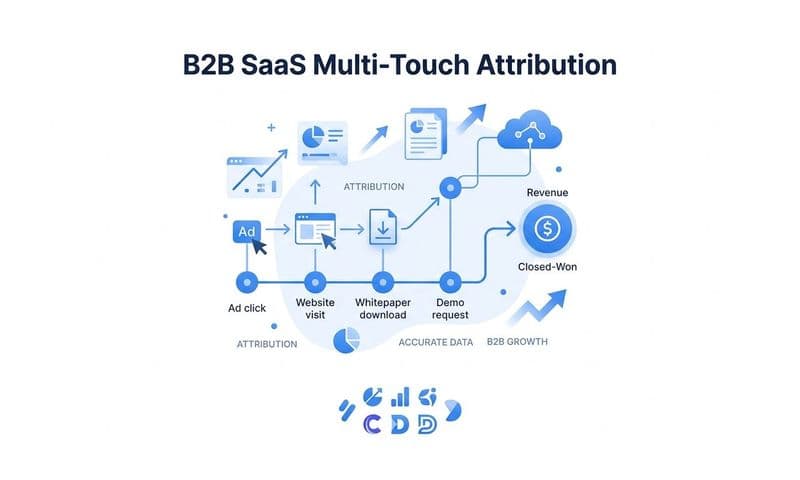
LinkedIn rarely operates as the only touchpoint in a B2B buying journey. A prospect might see your LinkedIn ad, click through to your website, leave without converting, then return a week later via a Google search, and finally request a demo after receiving a retargeting ad on Meta. In that scenario, LinkedIn influenced the deal, but a last-click model would give all the credit to Meta.
This is why connecting your LinkedIn conversion data to a broader attribution platform matters. Platforms like Cometly integrate LinkedIn Conversions API data alongside other ad channels, your CRM, and Stripe revenue data to give you a single source of truth for marketing performance. Instead of logging into LinkedIn Campaign Manager, Google Ads, and your CRM separately to piece together a picture, you see the complete customer journey in one place.
With multi-touch attribution across LinkedIn, Google, and Meta, you can see whether LinkedIn is influencing deals that close through other channels. This is particularly valuable for B2B SaaS companies where the sales cycle spans multiple weeks and multiple touchpoints. Understanding LinkedIn's contribution to pipeline, not just its last-click conversions, is what justifies or challenges your LinkedIn budget allocation.
Cometly's AI analyzes cross-channel performance and surfaces which LinkedIn campaigns, ad sets, and creatives are actually driving qualified pipeline. Instead of manually comparing reports across platforms, you get clear signals about where to scale and where to cut. This connects directly to the value of accurate server-side tracking: when your conversion data is complete and reliable, the AI recommendations you receive are grounded in reality rather than a partial view of your funnel.
For teams working toward a complete B2B attribution model, connecting LinkedIn CAPI data to a platform that also tracks pipeline stages and closed-won revenue is the difference between knowing your LinkedIn cost per lead and knowing your LinkedIn cost per closed deal.
Step 7: Optimize Campaigns Using Your Verified Conversion Data
With your API events flowing reliably and connected to your broader attribution stack, you are now in a position to make your LinkedIn campaigns meaningfully smarter. Accurate conversion data does not just improve reporting. It directly improves how LinkedIn's algorithm allocates your budget.
Start by updating your LinkedIn campaign bid strategies to optimize for the conversion events you have configured. If you were previously optimizing for clicks or landing page views because your conversion data was incomplete, switch to conversion-based bidding now that you have reliable server-side signals. LinkedIn's algorithm will use your verified conversion events to identify and target users who match the profile of people who actually convert.
Use your conversion data to analyze which audience segments are producing the highest-quality leads. Break down performance by job title, seniority level, company size, and industry. You may find that certain segments drive high click volume but low conversion rates, while others drive fewer clicks but significantly higher conversion rates. Reallocating budget based on this analysis is one of the most direct ways to improve LinkedIn ROI.
Review your attribution windows periodically. B2B SaaS sales cycles evolve over time, and the window that was appropriate when you first set up tracking may not reflect your current reality. If your average time from first LinkedIn touch to demo request has lengthened, a 30-day window may be systematically undercounting LinkedIn's influence on deals. Check your CRM data against your LinkedIn attribution data to identify any gaps.
Think of the enriched conversion data you are sending back to LinkedIn as an investment in the algorithm's ability to find more buyers like your best buyers. The more accurately LinkedIn can connect your server events to member profiles, the better its targeting models become over time. This is the same principle that makes Meta's Conversions API valuable for Meta campaigns: better input data produces better optimization output.
Finally, monitor for data drift. If your event volume drops unexpectedly week over week without a corresponding drop in actual conversions, something in your implementation has broken. Common causes include an expired access token, a server-side code change that broke the event payload, or a change in how your CRM captures conversion data. Set up monitoring alerts for event volume so you catch issues quickly rather than discovering them during a quarterly review.
Success indicator: LinkedIn's campaign optimization begins favoring the audiences and placements that correlate with your high-value conversion events, and your cost per qualified lead decreases over time as the algorithm learns from your verified conversion signals.
Putting It All Together
Setting up the LinkedIn Conversions API is one of the highest-leverage technical improvements a B2B SaaS marketing team can make to their LinkedIn advertising program. Browser-based tracking misses conversions. Server-side tracking captures them. That difference shows up directly in how well LinkedIn's algorithm can optimize your campaigns and how accurately your team can measure LinkedIn's contribution to pipeline.
Here is a quick checklist to confirm your setup is complete:
1. Admin access confirmed in Campaign Manager with conversion tracking permissions
2. Conversion event created with API selected as the source and appropriate attribution windows configured
3. API access token generated through the Developer Portal with r_ads_reporting and rw_conversions scopes
4. Access token stored securely as an environment variable, not hardcoded in client-side code
5. Server-side payload configured with hashed user data, accurate Unix timestamps, and deduplication event IDs
6. Test events validated with visible match rates in Campaign Manager
7. Conversion data connected to your broader attribution stack for cross-channel pipeline visibility
If you want to skip the manual API setup and get LinkedIn conversion tracking running alongside your other ad channels in one place, Cometly handles the server-side integration for you. You get accurate LinkedIn attribution, cross-channel insights, and AI-powered recommendations to scale what is working.
Ready to see exactly which LinkedIn campaigns are driving real pipeline and revenue? Get your free demo today and start capturing every touchpoint to maximize your conversions.